How to stay productive when you can’t focus
Kudos to Gabriel Lanata for suggesting this use case.
Got distracted 17 times while writing this how-to. Guilty. I know I’m not alone, though. 20% of the world’s population is neurodiverse, which includes people with ADHD — fidgety and easily distracted. Here’s a workflow to maintain your focus, even when...look, squirrel!
1. Mute the world
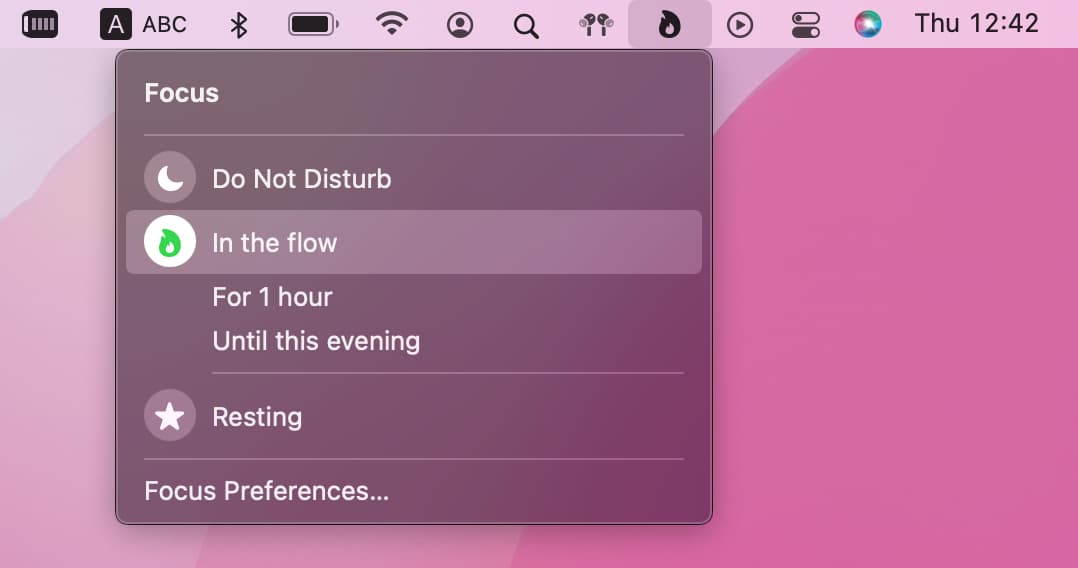
Folks who have ADHD do a very good job distracting themselves, so they don’t need extra distractions. With the new Focus mode in macOS 12 and iOS 15, you can limit notifications while working. Unlike the cut-it-all-off Do Not Disturb, Focus mode lets you choose which apps are allowed to distract you. For example, you might disable all notifications except the ones from Slack and Calendar.
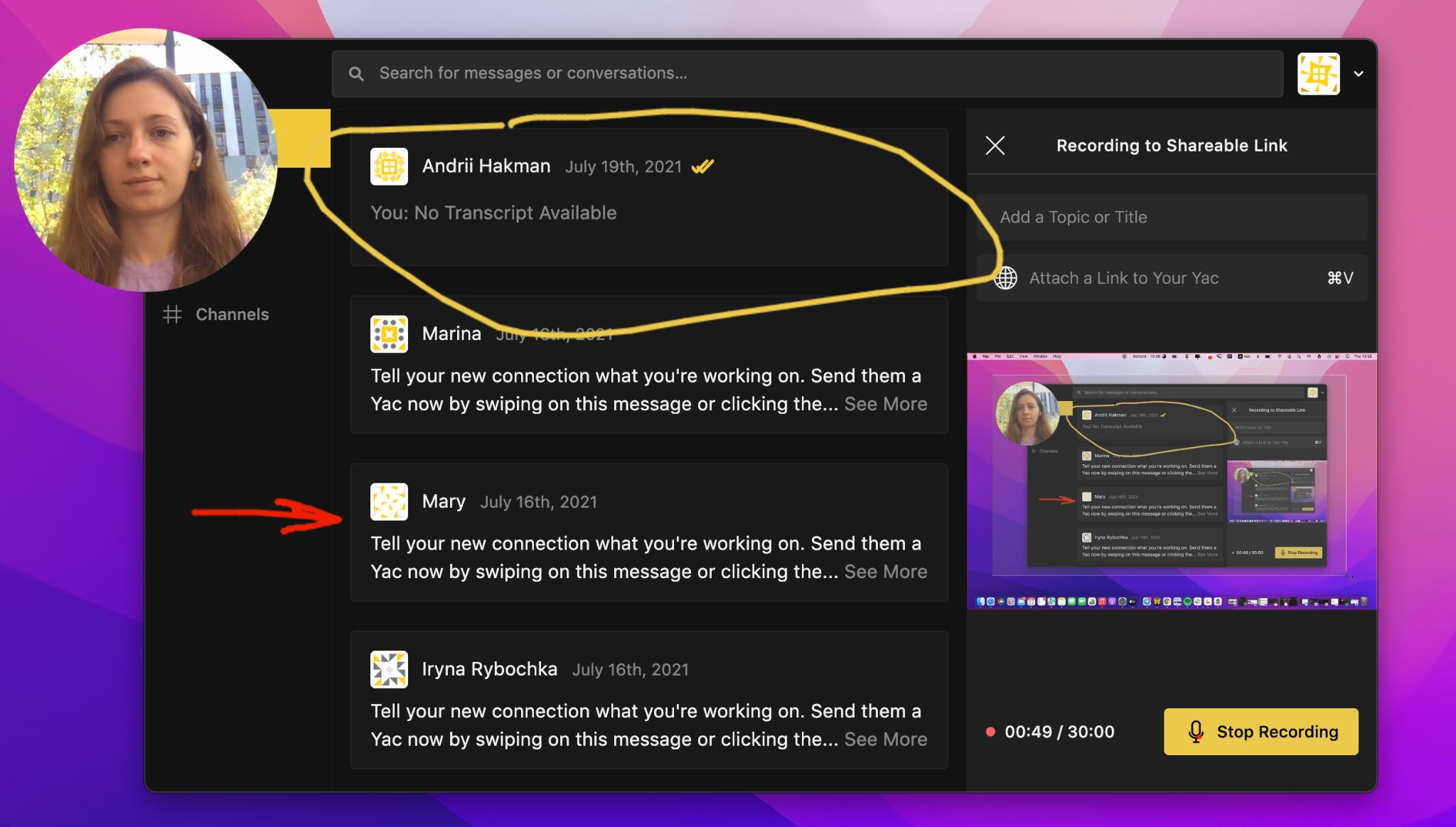
If online meetings are a big distraction, talk to your team about switching to Yac — at least for non-essential communication. With Yac, you can record a quick voice message, with or without screen share, and share it with your teammate on Slack, or anywhere you like. They’ll just check it out when they have time. If you ever work remotely, Yac should be in your workflow.
2. Hold on just a little longer
“If I feel like I'm getting distracted, I can pull myself back and say “just 10 more minutes of focus and then I can do this during the break,” shares Gabriel. That’s the power of Pomodoro apps.
Session has a beautiful approach to keeping you focused. It asks you to breathe in before starting a 25-minute work session, which, according to Gabriel, “is unexpectedly effective.” It can also block social media, sync with your Calendar, and remind you to take a break.
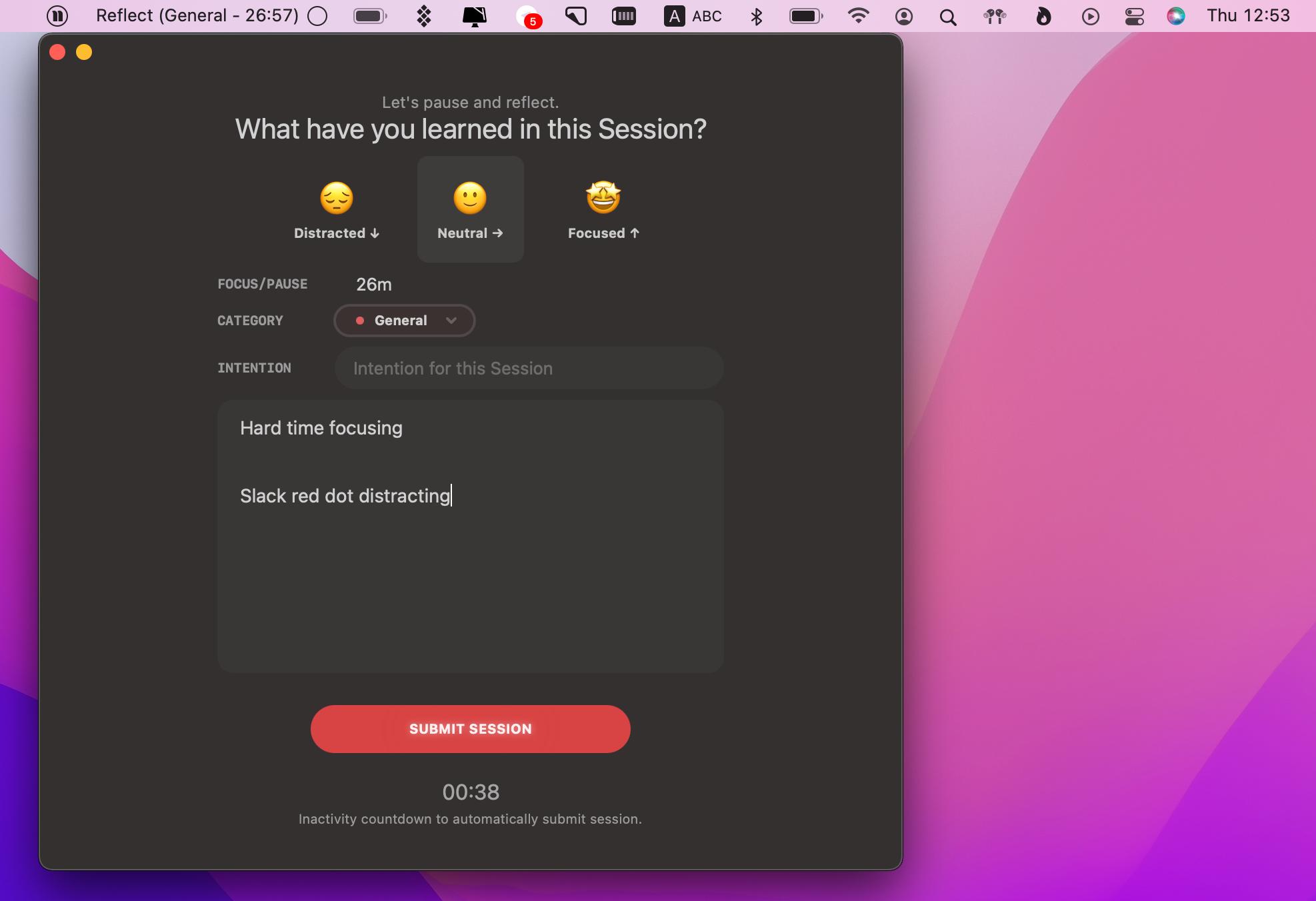
What we absolutely love, Session encourages you to reflect on your work sessions: you can take notes while working, rate your sessions with emojis, and track your progress. So it’s not just force-yourself-to-work-for-25-minutes. With Session, you learn to work mindfully.
Tip: In the Session menu, click Session Log > List view. Here you can see how productive you’ve been lately, which types of tasks affect your focus, and so on.
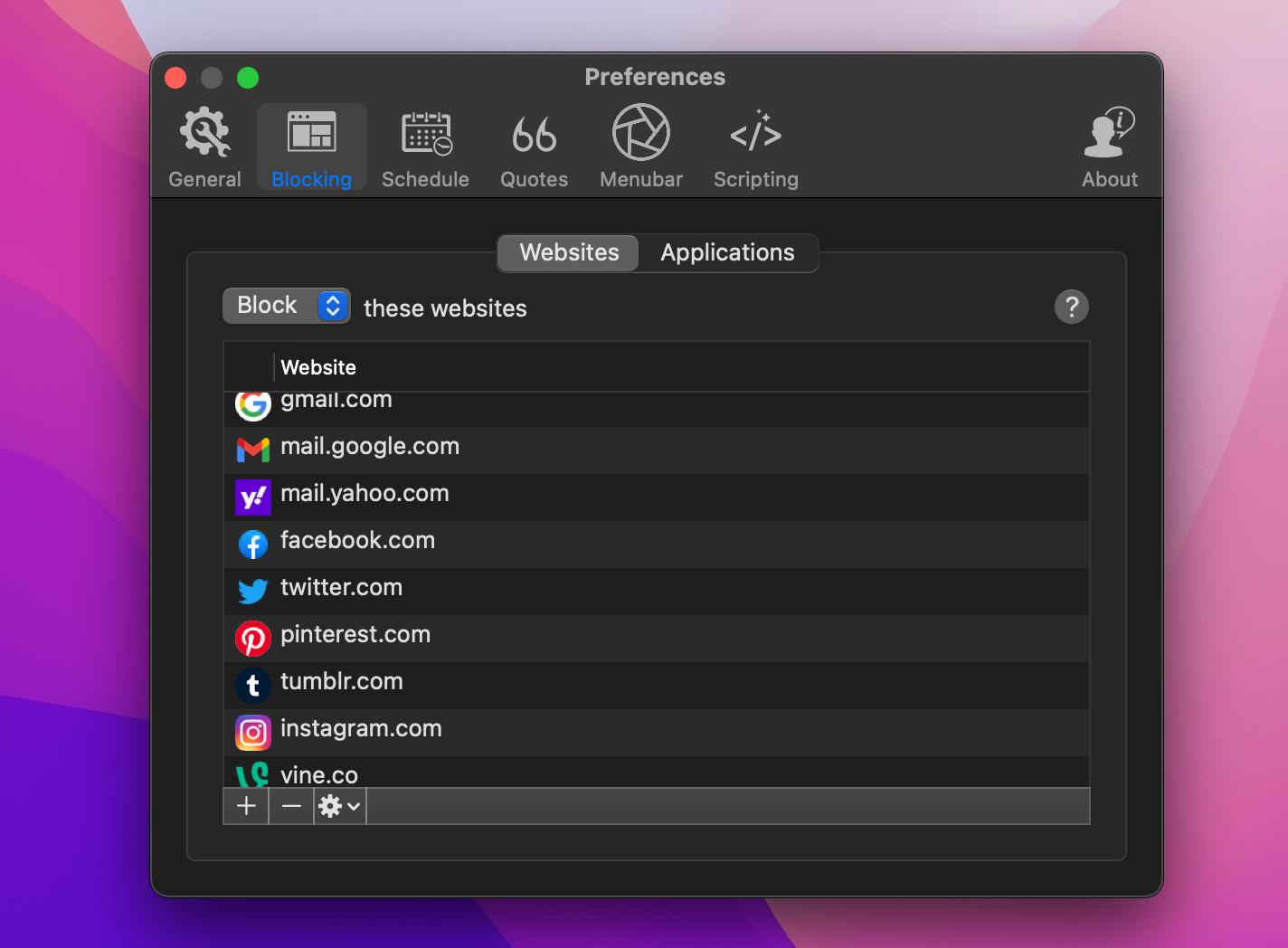
If Pomodoro doesn’t work for you, this one surely will. Block all distracting websites and apps with Focus — because nothing works better than not being able to access twitter.com. You can add any apps and websites to your Blocked list in the app Preferences. They will be blocked only with the focus mode on.
3. One win at a time
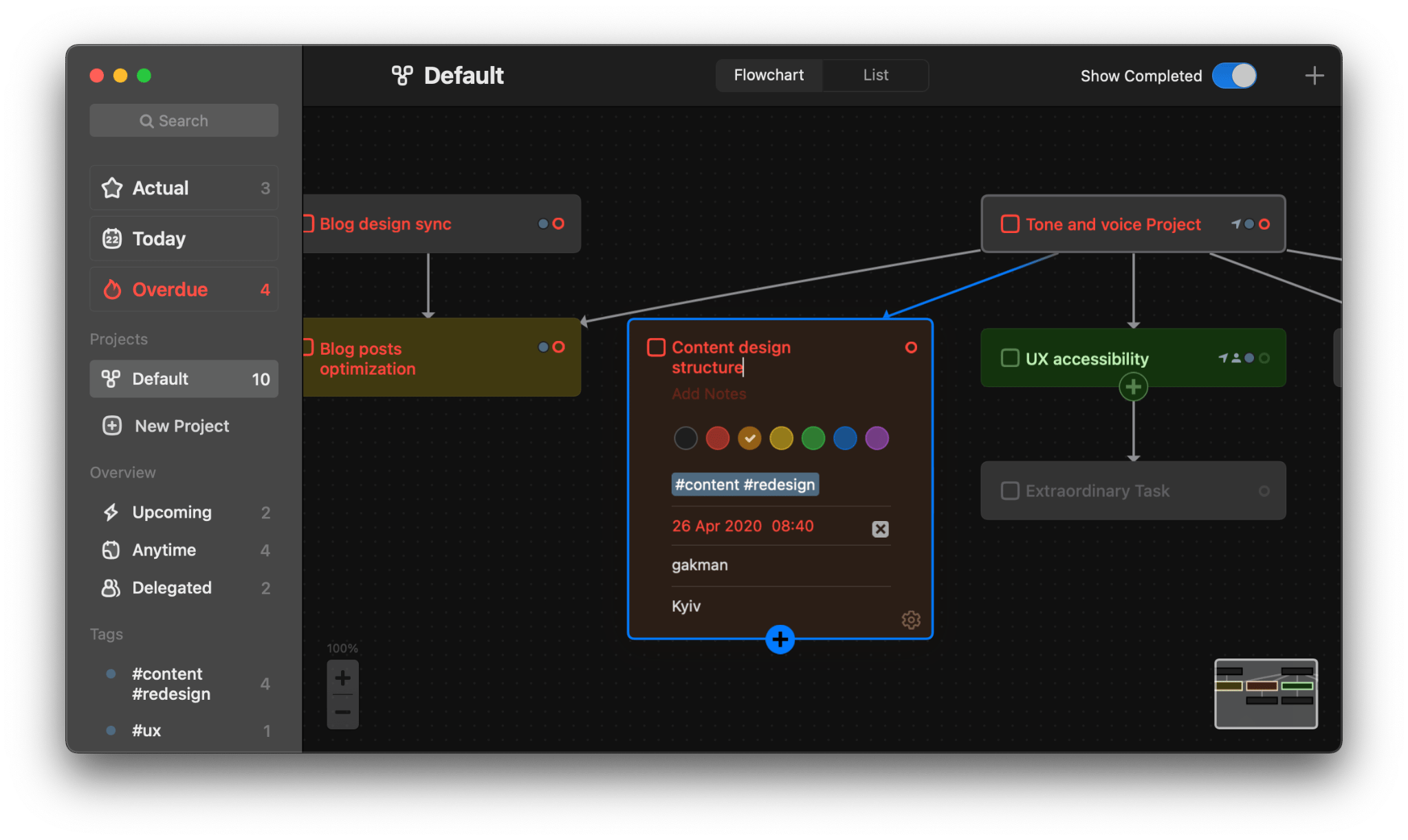
If you have a hard time focusing on one thing, you shouldn’t really try to focus on two, right? Taskheat is a great app to break big tasks into manageable chunks. You can link tasks together in a flowchart, tuck them under one project, and add tags for quick navigation.
Tip: Start your day with the task you know you’ll do well. According to the author of Organizing Solutions for People with ADHD, Susan Pinsky, a small win at the beginning of the day will make you feel good about your progress, which is a huge motivating factor.
4. Took a walk today yet?
It’s 4 pm and I start panicking, not sure I’ll be able to finish my work in time. That’s when I tend to push myself and, eventually, get angry. Best solution? Take a break. For people with ADHD, skipping breaks only adds to the tension. Instead, staying loyal to your schedule really helps calm down and regain focus.
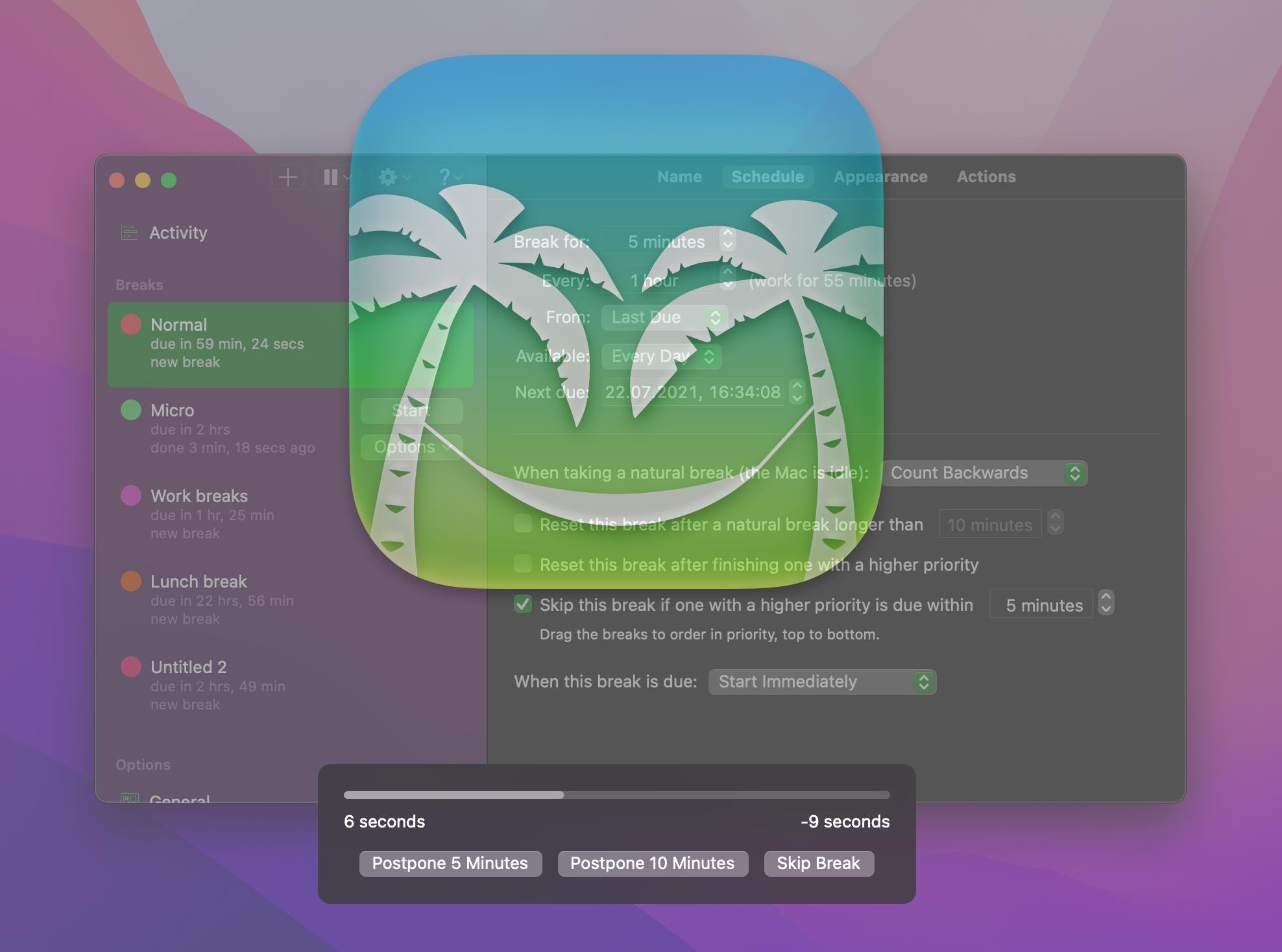
Time Out is an app that can take charge of your breaks. Schedule a 10-minute break every hour, a 20-minute walk once a day, a 30-minute lunch break, and so on. Once your break begins, Time Out will show a full-screen overlay popup with a timer. You can’t do anything on your Mac as long as the popup is there. And pretty please, don’t press that Skip Break button.
5. Look what you’ve done!
People who’re easily distracted tend to think they don’t work hard enough. But is it really so? Here’s what Gabriel found out when he started tracking his work with Timing:
“I realized I was definitely underestimating how long things would take, but I was actually working a reasonable amount of hours. This realization really helped reduce some anxiety and stress, made me better at predicting my time, and improved my work-life balance.”
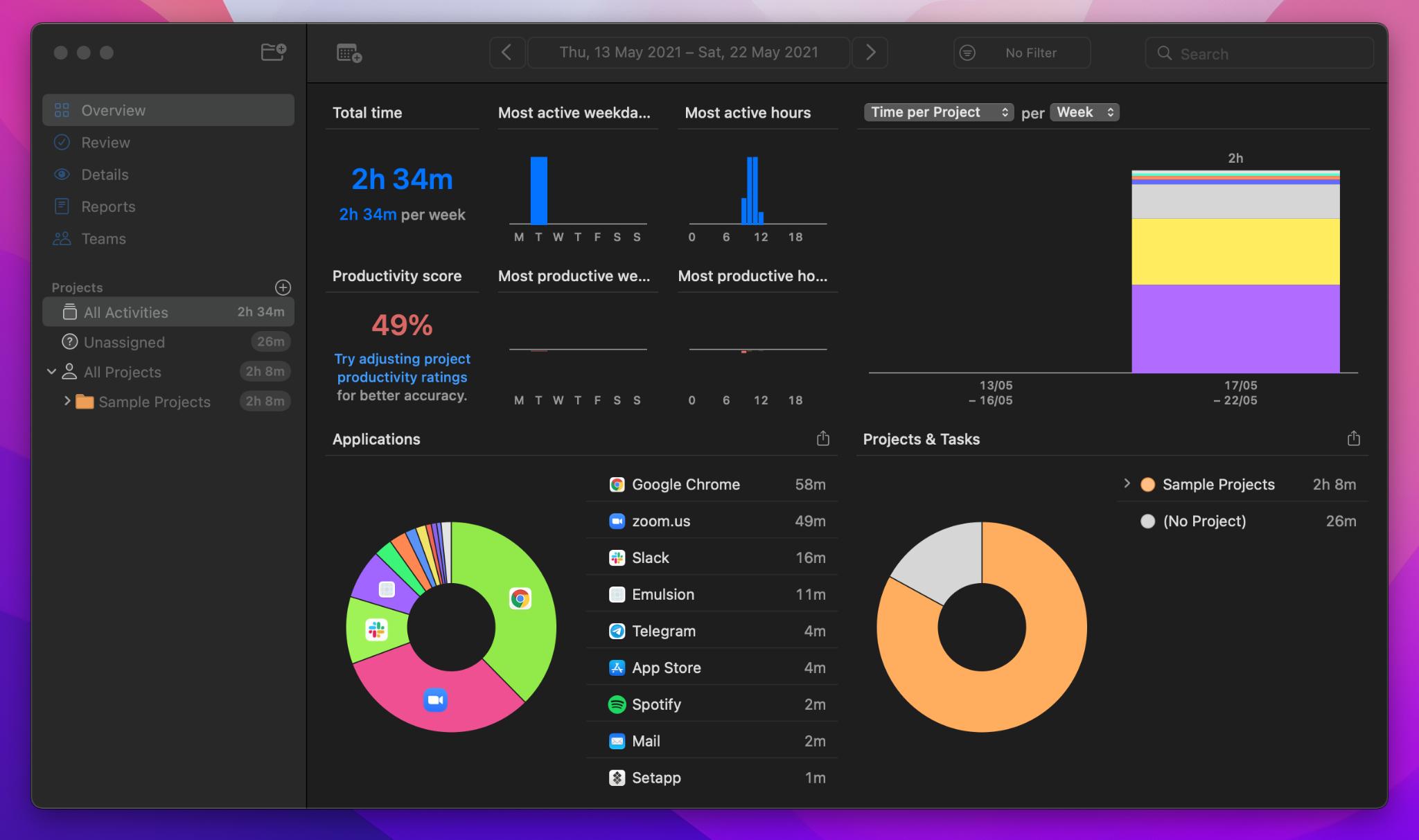
Indeed, Timing is a clever — and super helpful — time tracker. You can use it as a task management tool (create projects, add tasks, assign tags, etc.) The best thing is Timing tracks how much time you spend in browsers and different apps, and calculates your productivity score based on those activities. It’s a great tool to know how many hours you really work versus how many hours you think you work.
Hope this use case will help you solve tasks faster, and enjoy solving them, too! Check out more use cases picked for you below.