
Bartender
Clean up and superpower your menu bar
Mac
Version 6.6.2
macOS 14.0 or later
73.8 MB
5 languages
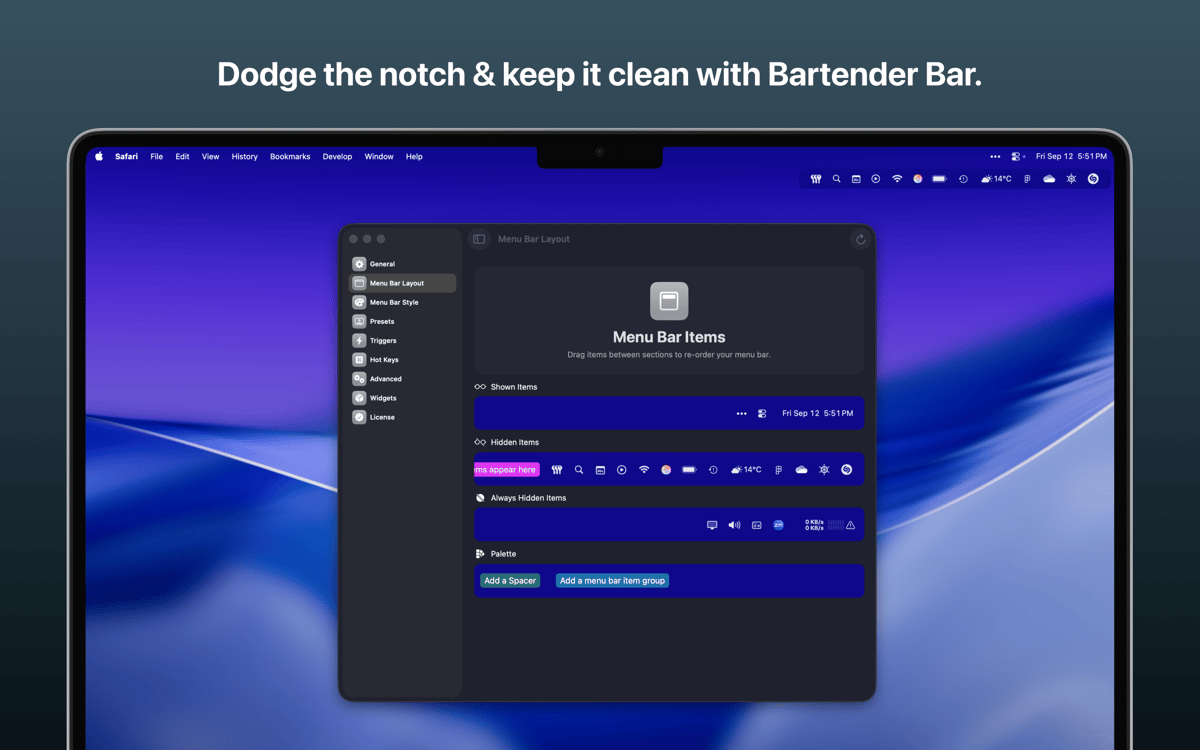
**If you’re running macOS 27.0, please enable beta updates to get Bartender 7.** Bartender is the original and best menu bar manager for Mac. Keep your menu bar clean by choosing which items stay visible, which hide away, and when they should appear. Reveal hidden icons with a click, search, hotkey, or trigger, so the tools you need are always close without crowding your screen. Bartender has been helping Mac users take control of their menu bar longer than anyone else, and Bartender Pro takes things further with Top Shelf — a smart way to use the MacBook notch area for widgets, file storage, clipboard access, AirDrop, live activities, and more.
Hide menu bar clutter
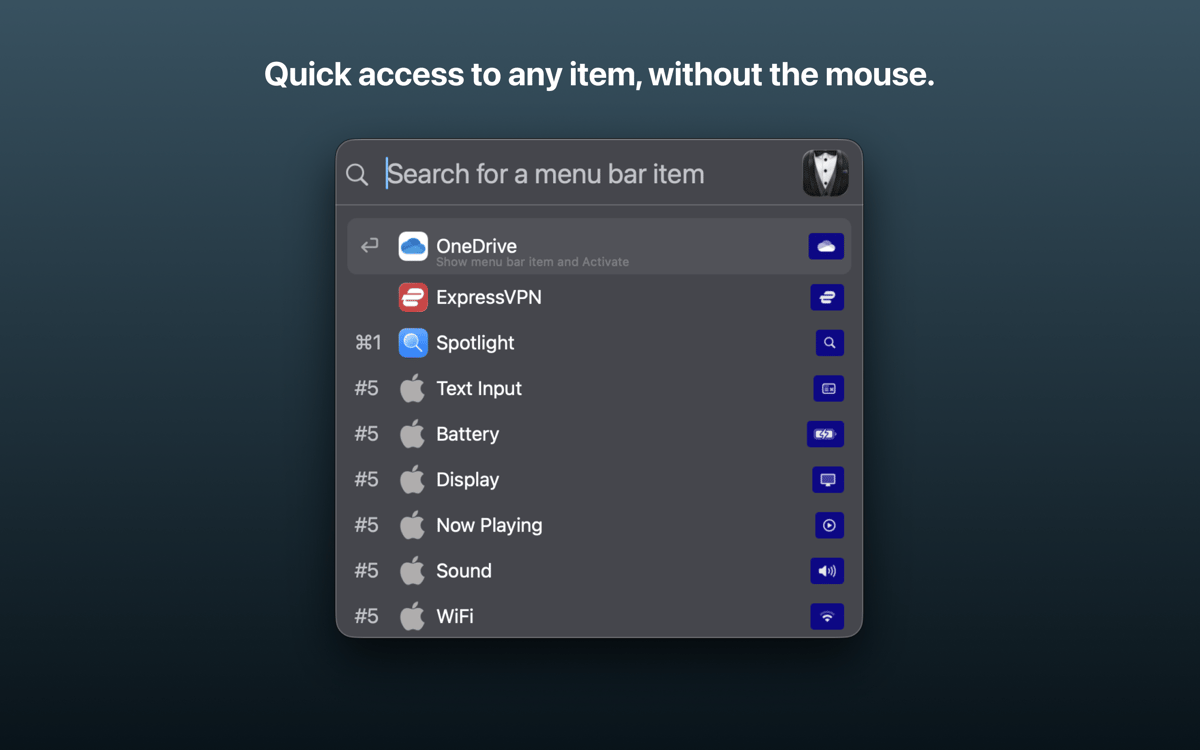
Reveal icons in seconds
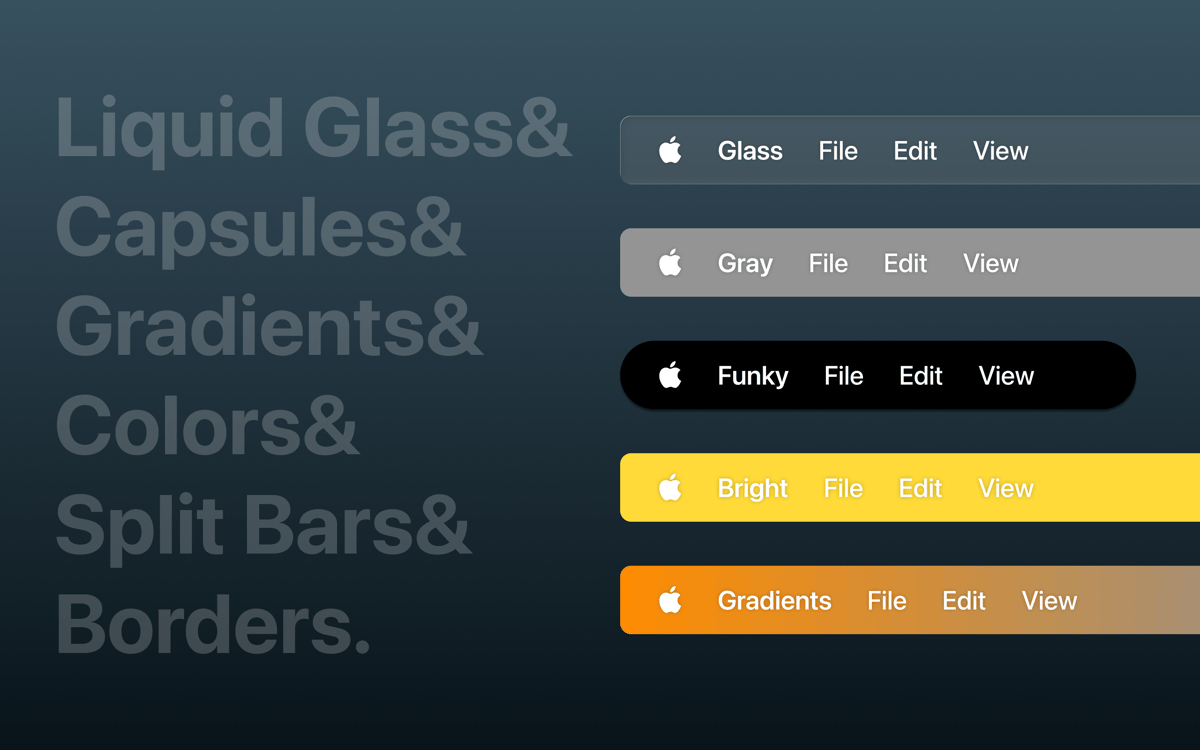
Customize menu bar style
Add Pro tools to the notch
Bartender features
Take control of your menu bar
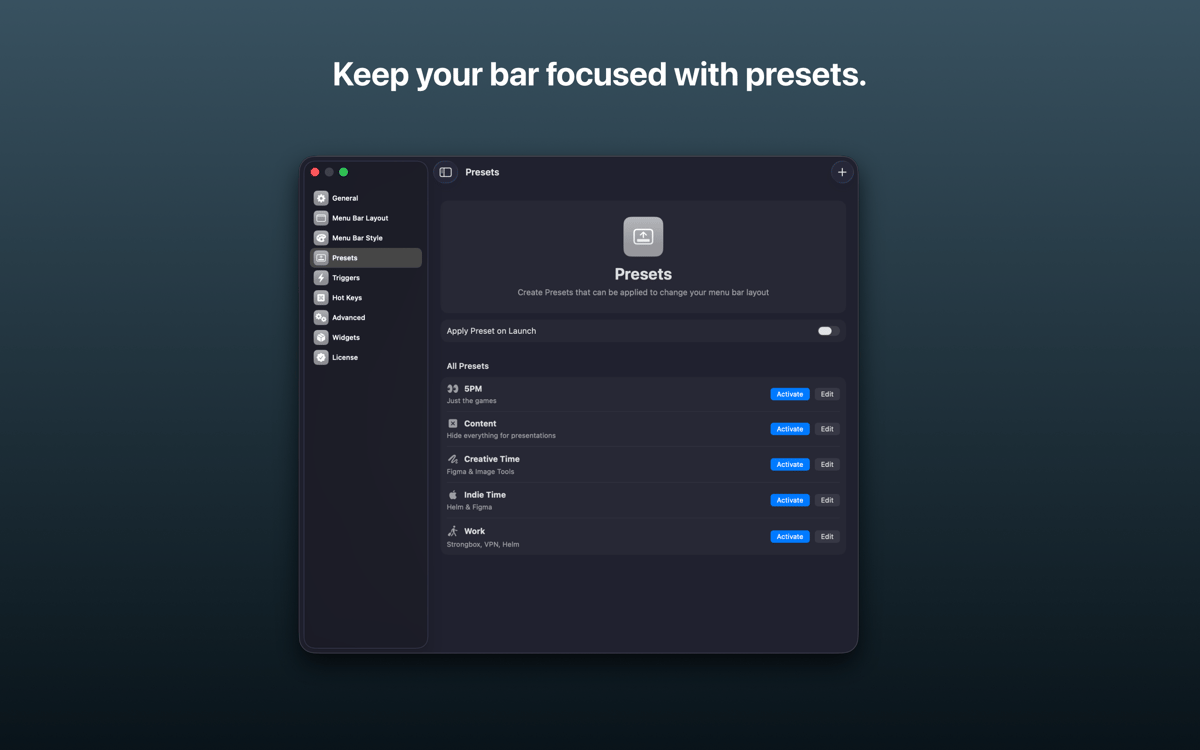
Choose what stays visible, what gets hidden, and what only appears when it’s useful. Bartender keeps your menu bar neat without making your apps harder to reach.
Hide and reveal items fast
Tuck away noisy menu bar icons, then bring them back in seconds. Use a click, hover, hotkey, or custom trigger to show the right items at the right time.
Find icons with search
No more scanning across a packed menu bar. Search for hidden or visible items and jump straight to the one you need.
Show items when they matter
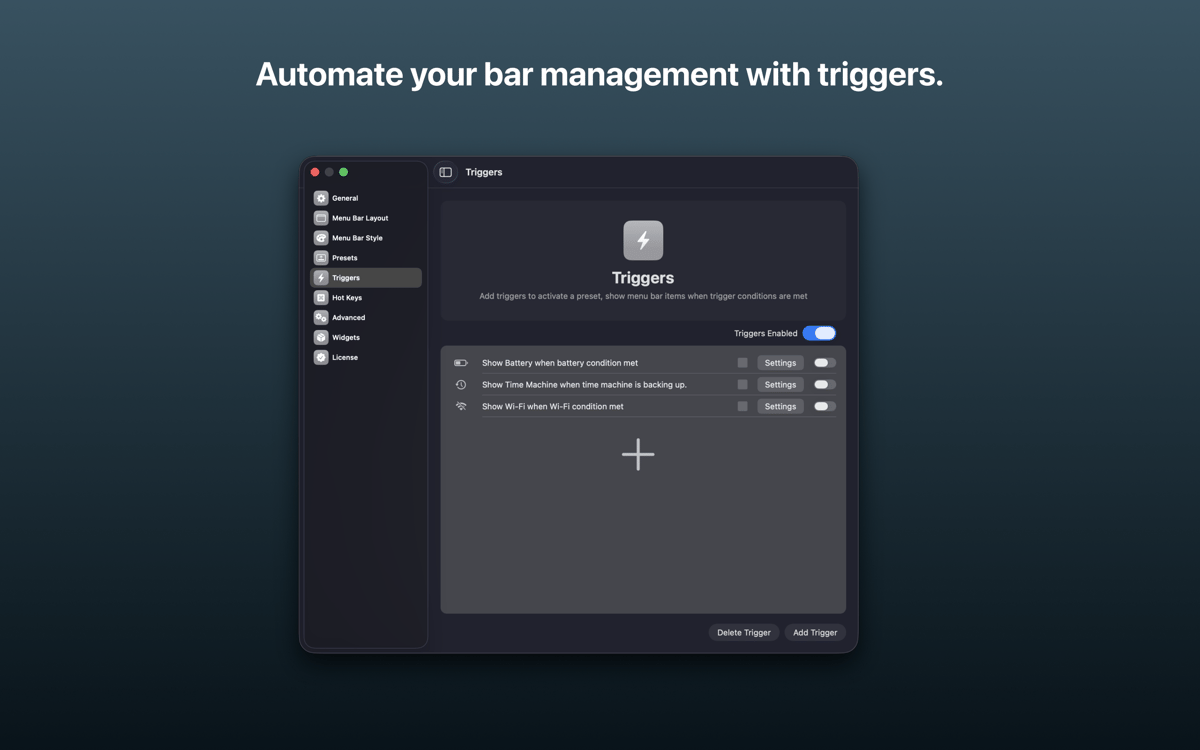
Use Triggers to make menu bar items appear automatically when something changes. Keep things quiet until they actually need your attention.
Make the notch less annoying
Bartender helps manage menu bar space around the MacBook notch, so important items don’t disappear where you can’t reach them.
Go further with Bartender Pro
Bartender Pro adds Top Shelf, a handy space around the notch for tools and live info. Store files, manage your clipboard, AirDrop quickly, check widgets, control music, glance at your calendar, and keep an eye on live activities like meetings or running Claude Code and Codex sessions.
Ratings and reviews
Bartender
•
15773 ratings
Samujjal Purkayastha
Today
App version: 7.0.3
Enable beta updates on setup to get Bartender 7, which works with macOS 27.0.
Lucas Araujo
Today
App version: 6.6.2
i like
Bartosz Walecki
Oct 10, 2026
App version: 6.6.2
on 27 stuck on alow access :(
Get hundreds of apps with Membership
Become Setapp member and use hundreds of stellar apps with one subscription.
Try 7 days free, then pay one simple fee.
Install Setapp on Mac
Explore apps for Mac, iOS, and web. Find easy ways to solve daily tasks.

Get the app you came for
That one shiny app is waiting inside Setapp. Install with a click.

Bartender
Choose your subscription
One app or more with a Setapp membership. Get apps the way you want.

Get hundreds of apps with Membership
Become Setapp member and use hundreds of stellar apps with one subscription.
Try 7 days free, then pay one simple fee.
1
Install Setapp on Mac
Explore apps for Mac, iOS, and web. Find easy ways to solve daily tasks.
2
Get the app you came for
That one shiny app is waiting inside Setapp. Install with a click.
Bartender
3
Choose your subscription
One app or more with a Setapp membership. Get apps the way you want.
Home to the top apps
From planning and routine tasks to creative pursuits and coding, tackle tasks with apps on Setapp.


Bartender
Clean up and superpower your menu bar