For automatic tracking with rules:Timemator is your best bet.
For passive, comprehensive activity monitoring:Timing captures everything.
For simple, prompt-based tracking:Daily asks what you're doing to keep you focused.
For focused work sessions:Be Focused uses the Pomodoro Technique.
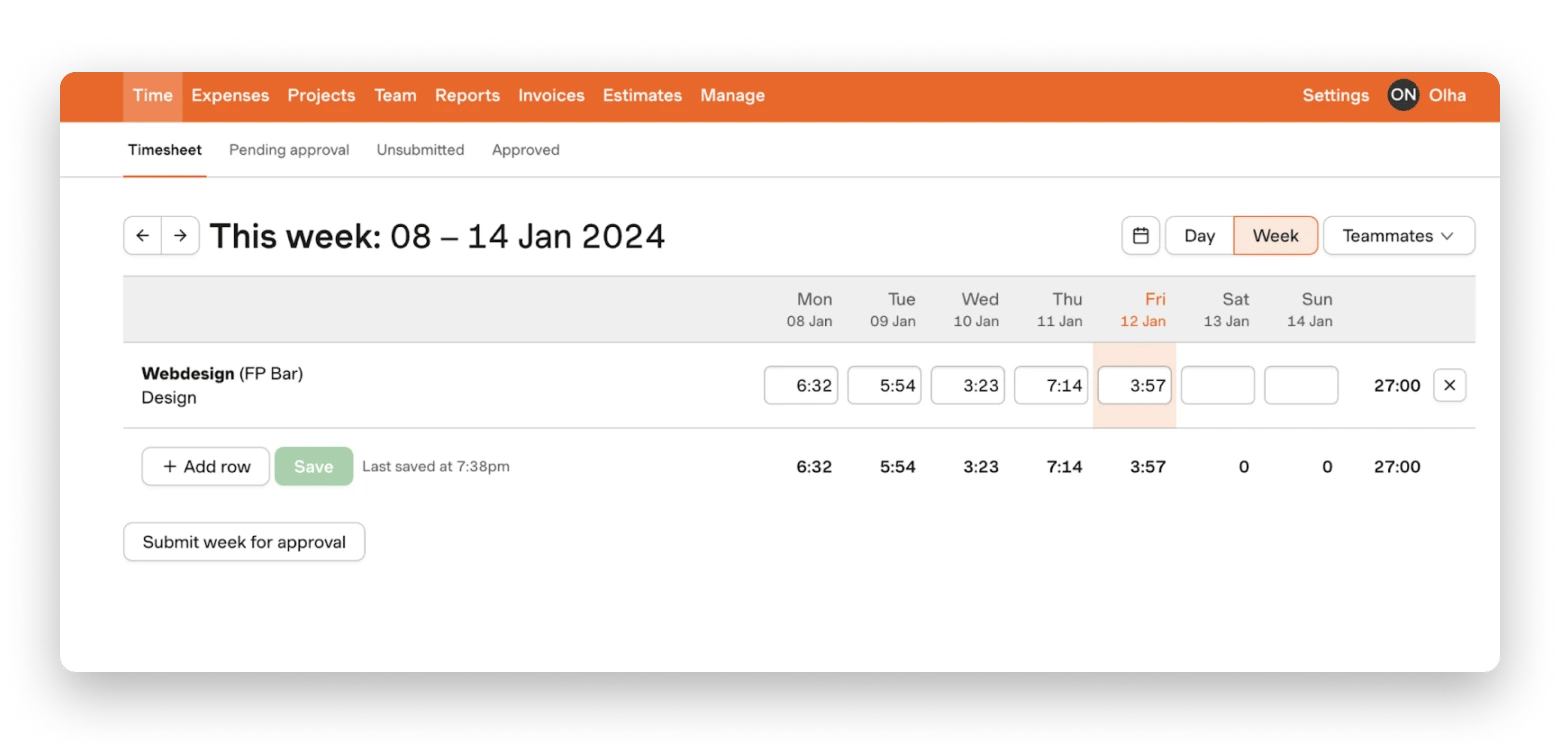
For team-based projects, invoicing, team management, and employee monitoring: Harvest is a strong contender.
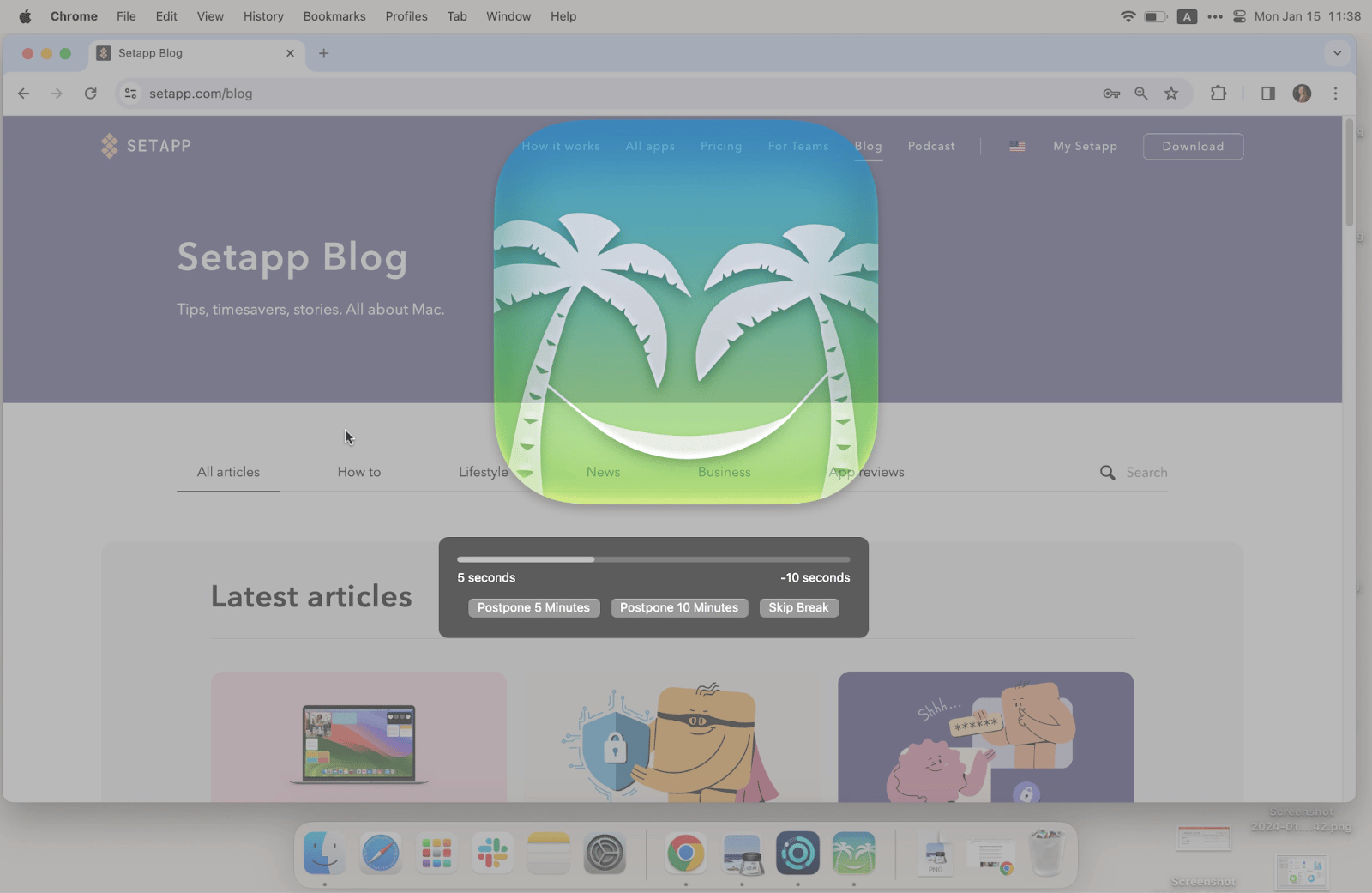
For enforcing healthy breaks:Time Out reminds you to step away.
You can try Daily, Timemator, Timing, Be Focused, and Time Out for free with a 7-day trial of Setapp. Get started FREE with 250+ apps.
If you're a freelancer, work remotely, or charge by the hour, time tracking is a must. While it often feels like a chore, I've reviewed tons of tools and found 6 time tracking apps that simplify the process, making it effortless and smooth. Bonus: some of these apps will even handle income calculations for you.
Best time tracking apps at a glance
I'll talk about each app in more detail below, but if you need to make a quick decision, here's a brief overview of the most important features.
Forces you to take breaks by taking over your screen
96%
Harvest
Part of a big team
Supports team collaboration, timesheets, and invoicing
Not on Setapp
*Included in Setapp — a subscription platform with 250+ apps for Mac, iPhone, and iPad. Try it free for 7 days.
The 6 best time tracking apps for Mac
Now, let's take a closer look at these time trackers and how they can fit into your workflow.
1. Daily for easy task switching
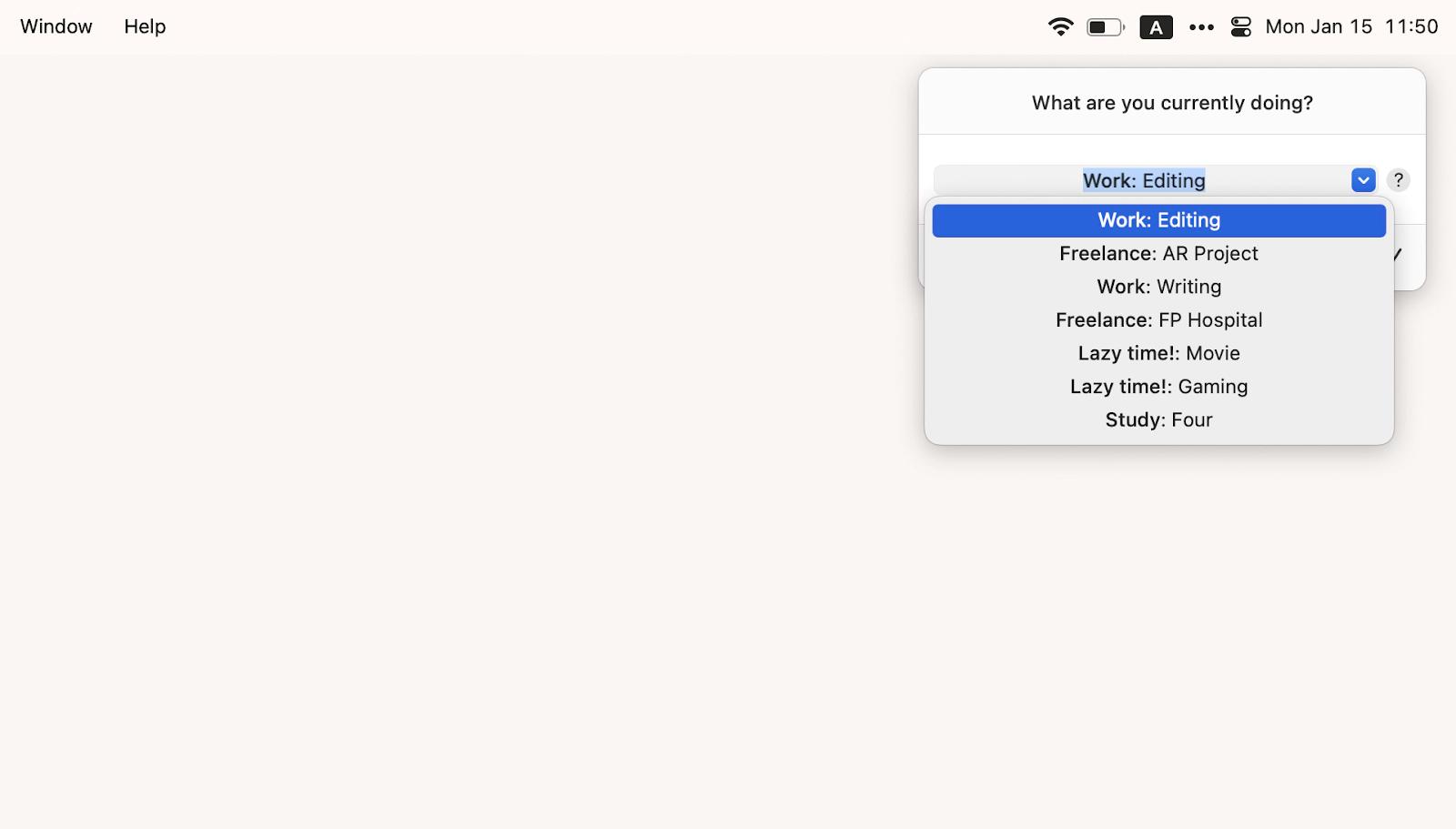
If you always forget to keep track of time, Daily will save you. It regularly asks what you're doing by displaying a notification in the corner of the screen. Just write down your current activity or select it from the drop-down list.
Daily is best for
Solo freelancers, developers, and creators who need a simple, privacy-friendly way to log hours without constant background monitoring.
Problems Daily solves
Forgetting to track: Daily doesn't rely on you to start or stop the timer — instead, it periodically asks what you're working on and offers a dropdown list of preset tasks to choose from, or lets you add something new.
Inaccurate timesheets: If you switch between tasks frequently, the app will catch up with you and help distribute your work into the correct categories, so your timesheet and billing stay accurate.
Distractions: Some users find that periodic prompts are surprisingly effective at breaking distractions and pulling their focus back to what they should actually be doing.
Daily feature benefits
Lets you schedule tracking for specific work hours (e.g., 9 a.m. to 6 p.m.) and days.
Can track time silently, if you prefer not to get notifications.
Allows you to export reports as PDF, CSV, JSON, and Toggl. (Idea: You can feed these files to AI for analysis).
Daily strengths
The prompt-based system is a perfect fit for those who forget to start a timer and for those who don't want the app to track everything they do on their Mac.
The app notices when you're idle and automatically pauses time tracking — then picks up again when you're back.
You can create activity lists and groups (e.g., Work, Freelance, Study) to generate categorized reports.
Available on both macOS and iOS.
Want to know about other users' experiences? Here's a comment about Daily from a Reddit user that I came across: "Instead of monitoring everything you do (potentially introducing privacy issues and requiring some level of post-processing to allocate activity to customers/tasks/etc.), it periodically asks what you're doing. This also removes the need to manually toggle timers when switching tasks and makes tracking time effortless."
Daily limitations
Better suited for personal task logging rather than complex team projects.
Doesn't include a native billing or invoicing feature.
Using Daily in your workflow
I have four groups in Daily: Work, Freelance, Study, and Lazy time. Each contains several activities, and the app generates insightful reports based on them. For example, this is how I found out that it takes me at least an hour to proofread an article. When Daily notices inactivity, it logs that time and asks if I was idle, so everything stays under your control with minimal input.
Pricing info on Daily
Daily is available through Setapp with a 7-day free trial, along with 250+ other apps.
2. Timemator for automated tracking and job costing
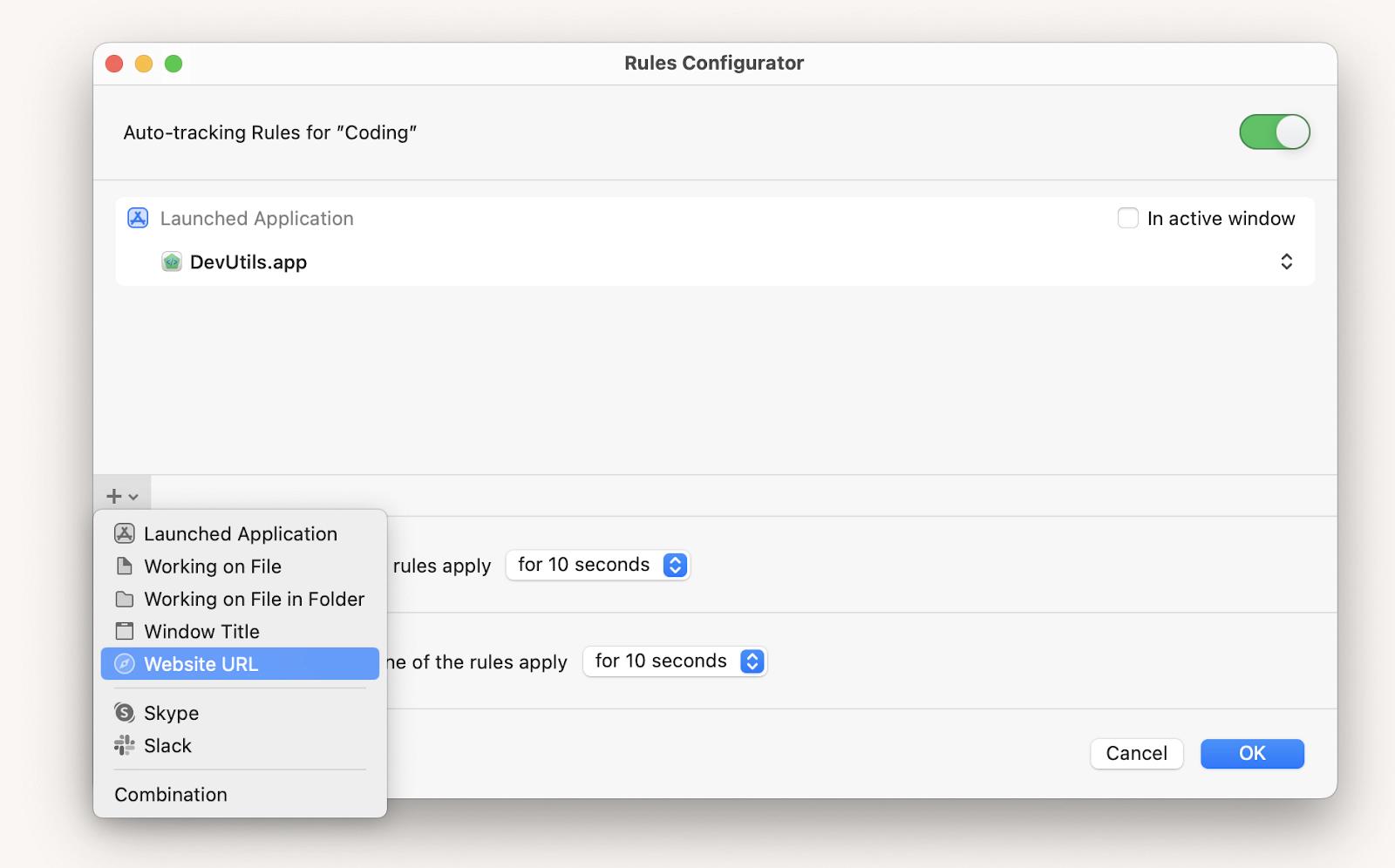
It sounds like a utopia, but Timemator can track time spent on tasks and calculate job costs without your participation. You create a few rules (e.g., "Track time in the project CODE when: GitHub, Python, DevTools are opened") and the timer starts automatically.
Timemator is best for
Freelancers, developers, and hourly workers who want to automate time tracking.
Problems Timemator solves
Manual timer management: Timemator automatically starts and stops timers based on rules you define.
Inaccurate billing: You can set hourly rates per project — time is tracked separately for each, so billing stays accurate (and automatic).
Forgetting to log hours: Since it works passively in the background, you never have to remember to log your time.
Timemator feature benefits
Can automatically back up your data to Dropbox, iCloud, or Google Drive.
Offers revenue widgets that help you track your income by day, week, or month.
Allows you to import existing time data via a CSV file.
Allows you to edit time entries.
Timemator strengths
The automation is powerful and flexible. For example, you can set it to track time when you open a specific app, file, or website.
Creates beautiful daily, weekly, or monthly timelines, showing time spent on different projects
Works offline.
Timemator limitations
Setting up automation rules requires some initial time investment.
Limited collaboration functionality
Using Timemator in your workflow
Here's how it goes. For a task like "Coding," you can create rules to start tracking when the DevUtils app is running, a window on GitHub is open, and a specific project file is active. If you use DevUtils for another task, Timemator will ask you to specify which one you're working on to avoid overlap. You can also specify an hourly rate for each task, and the app will automatically calculate your income and let you export a report as an invoice.
Pricing info on Timemator
Timemator is available through Setapp with a 7-day free trial.
3. Timing for real-time activity tracking
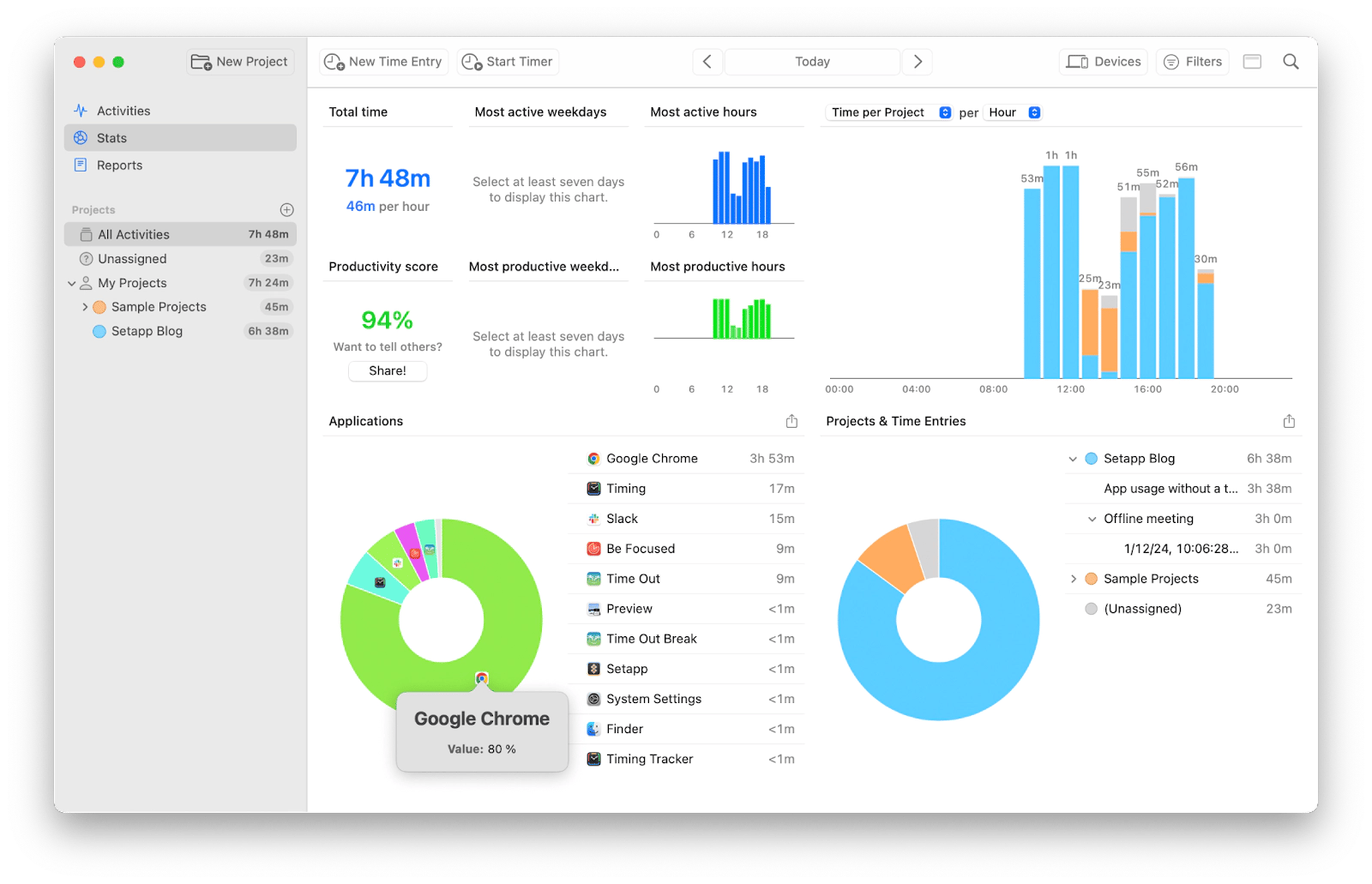
If you want to know exactly what actions, apps, and documents are taking up your time while you're working on your Mac, use time tracking software Timing. As soon as you launch it, the app starts tracking your work in the background.
Timing is best for
Managers, multitaskers, and anyone who needs a detailed, automatic breakdown of their time spent across different apps, documents, and websites.
Problems Timing solves
Time leakage: Timing captures ALL your activity. You'll find all your hidden time sinks.
Manual categorization: The app can automatically categorize your activities, but also lets you manually create rules to assign time to specific projects.
Forgetting to log meetings: Timing detects meetings in your calendar and phone calls, ensuring they are logged.
Timing feature benefits
The app shows a clear breakdown of which apps you were using and for how long.
If you're idle, time tracking pauses automatically.
Integrates with Zapier and calendar apps like Google Calendar and Apple Calendar.
Timing strengths
Time tracking is automatic — no need to manually start or stop the timer.
The app creates detailed reports that can help you find insights into your productivity patterns.
Timing limitations
No native invoicing feature.
The interface may take some time to get used to.
Using Timing in your workflow
Timing is great for people who constantly switch between tasks. For example, a project manager can easily track their workload across Slack, email, and Asana. You can create projects and set up rules, so time is automatically assigned when you run a specific app or open a certain website. The visual timeline gives you a bird's-eye view of your day, which is perfect for identifying where you can be more efficient.
Pricing info on Timing
Timing is available through Setapp with a 7-day free trial.
4. Be focused for interval-based work
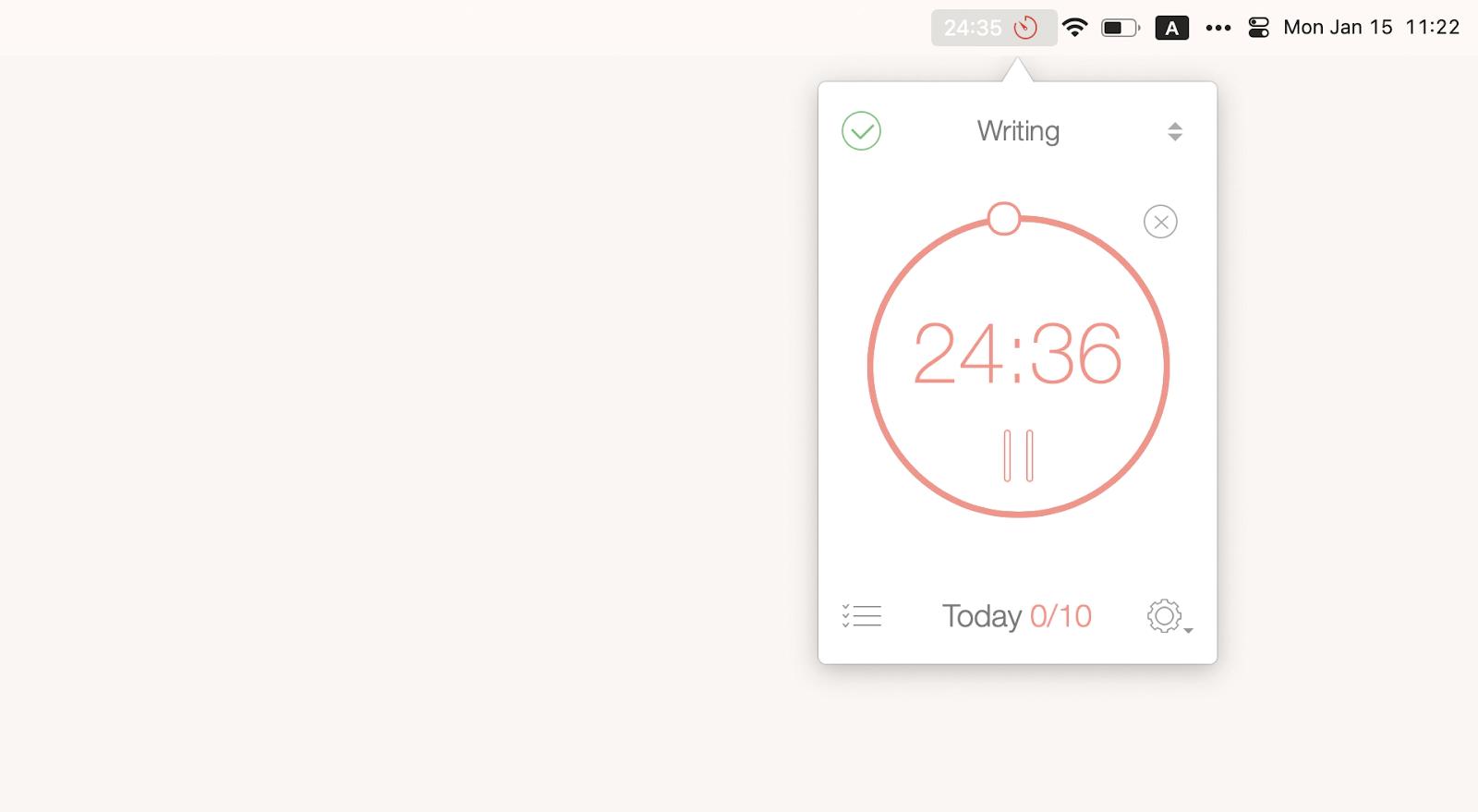
Be Focused is an excellent mix of a planning app and a time tracker based on the Pomodoro system. You create a task, set a timer, and focus on work until the alarm sounds.
Be Focused is best for
Creative professionals, writers, and students who like working in focused sessions.
Problems Be Focused solves
Procrastination: Short working sessions can help when starting the day feels hard. Set your preferred focus duration — anywhere from 5 to 60 minutes — and dive in.
Distractions: The app can block distracting websites and apps during focus sessions. Or, just switch to a whitelist mode and block everything except a selected few tools you need for your tasks.
Poor time estimation: When a task is complete, you'll see how many pomodoros it took — which gives you a much better sense of how long your work actually takes.
Be Focused feature benefits
Allows you to customize the length of work and break intervals to fit your habits.
Exports your progress as a CSV file for review.
Supports global hotkeys for quick access to timers.
Be Focused strengths
Its clean, intuitive interface is easy to learn and use.
It effectively streamlines work for those who need to complete many small tasks throughout the day.
You can skip work intervals when needed.
Be Focused limitations
Lacks team collaboration features.
Best suited for freelancers or solo workers, rather than teams.
The rigid interval structure may not be ideal for tasks that require long, uninterrupted periods of deep work.
Using Be Focused in your workflow
I experimented with the Pomodoro Technique in Be Focused and was amazed by how much can be done in a single 25-minute session—if you stay focused. In one session, I could respond to all my emails or plan out a full week. The app automatically tracks completed pomodoros, so you can evaluate your productivity anytime.
"Be Focused helps me stay on track during deep work sprints. I use it to break my day into focused intervals, and the built-in stats show exactly where my time goes. It's planning, time tracking, and productivity coaching all in one", shares Oleksandra Melnyk, Product Marketing Manager.
Pricing info on Be Focused
Be Focused is available through Setapp with a 7-day free trial, along with 250+ other apps.
5. Time Out for remembering to take breaks
Ever find yourself so absorbed in work that you forget to take breaks? Time Out is your solution. It not only reminds you to pause but also ensures you actually do it by taking over your screen.
Time Out is best for
Heavy computer users, developers, writers, and anyone who needs to build healthier work habits by taking regular breaks.
Problems Time Out solves
Forgetting breaks: The app displays a screensaver that makes it almost impossible to ignore the reminder.
Eye strain and fatigue: You can schedule micro breaks — for example, every 15 minutes to rest your eyes — and longer breaks, say every hour, for a proper mental reset.
Unhealthy work habits: Anyone who needs a nudge toward a healthier work-life balance will benefit from the app.
Time Out feature benefits
Tracks your activity, showing which apps you've used and how much time you've spent away from your Mac.
Allows you to customize break duration, frequency, and notification style.
Can perform automated actions before, during, or after a break, such as speaking a message or running an Automator workflow.
Time Out strengths
If your workflow shouldn't be interrupted — for example, when FaceTime, QuickTime Player, or any other app you specify is active — Time Out will skip the break automatically.
The app tracks how many breaks you've taken and how many you've skipped. If you tend to overwork, those stats can be a real wake-up call.
Time Out limitations
Activity tracking and analytics features are fairly basic compared to dedicated time trackers like Timing.
Does not include automatic task tracking, as it focuses primarily on break management.
Using Time Out in your workflow
I often get into a flow state and push through for too long, noticing my productivity drop only after the fact. Time Out nudges me to pause after a deep work session so I can reset and re-approach the task with fresh eyes. By default, it suggests a 10-minute break every hour and a 15-second micro-break every 15 minutes, but you can customize this to fit your needs.
Pricing info on Time Out
Time Out is available through Setapp with a 7-day free trial.
6. Harvest for team time management
Harvest is a project management tool that makes time tracking for teams clean and simple, with support for timesheets, expenses, estimates, and budgets. It's more than just a time tracker — it's a comprehensive project and task management companion.
Harvest is best for
Small businesses, agencies, and teams that need a collaborative platform for time tracking, project budgeting, and client invoicing.
Problems Harvest solves
Team disorganization: Everything related to a project lives in one place — timesheets, budgets, expenses, and more.
Complex invoicing: Based on tracked time and expenses, the app generates invoices and integrates with payment gateways like Stripe and PayPal.
Tool fragmentation: The app can integrate with virtually all tools teams already use — Asana, Trello, Slack — so you can track time directly from your existing project management software.
Harvest feature benefits
Provides instant reports on budgets, time spent, and expenses.
Works on all major platforms: it has desktop apps for Mac and Windows, plus web, and mobile apps for iOS and Android.
Allows you to add projects, tasks, and team members for detailed tracking and performance monitoring.
Offers browser extensions for Chrome, Edge, and Firefox.
Harvest strengths
It's built for teamwork and does it well — with standout features like timesheet approval workflows.
With dozens of integrations, Harvest fits easily into your existing workflows.
The app works particularly well for service-based businesses: small teams in IT, marketing, design studios, and similar.
Offers a generous 30-day free trial.
Harvest limitations
The free plan is very limited, allowing only one user and two projects.
Using Harvest in your workflow
For a small agency, Harvest can be the central hub for operations. A project manager can set up a new client project, assign tasks to team members, and set a time or fee-based budget. Team members can then track their time directly in Harvest or from an integrated tool like Asana. At the end of the month, the manager can review employee time, approve timesheets, and generate an invoice to send directly to the client.
Pricing info on Harvest
A limited free plan is available. The Pro plan starts at $9 per seat per month when billed annually.
Top 6 insights I gained from time tracking
Time tracking is about more than just measuring work hours. It's about understanding the effort behind your work, knowing your limits, and making smarter decisions about how you spend your day, right?
I'm not a time management guru, but I can honestly say that tracking my time changed my approach to work — no exaggeration. As someone without a fixed 9-to-6 schedule, I used to work early in the morning or late at night and often underestimated my efforts. I felt that, since my workday was broken into chunks, I was doing less than people with traditional office hours.
That changed when I started using time tracking tools. Here are six insights that reshaped how I view my time — and maybe they'll help you too.
# 1. I realized how long tasks actually take
When I worked on article editing, I used to think I could easily finish 8–10 pieces a day. But I rarely got through more than six and ended each day frustrated, feeling like I was underperforming.
Then I tracked how long it took to properly edit one "almost ready" article — and found it took about an hour per piece. That helped me optimize my daily task list and recalibrate my expectations.
# 2. I stopped overworking
Because my day is split into parts, I never had a clear picture of how much time I was truly working. I often felt I wasn't doing enough.
But when I began tracking my work hours, I saw that my actual work time was more than enough — and I finally allowed myself to feel good about what I was accomplishing.
#3. A focused 25 minutes can be incredibly powerful
I experimented with the Pomodoro Technique in the Be Focused app and was amazed by how much can be done in a single 25-minute session — if you stay focused.
In one session, I could respond to all my emails, or read my daily industry newsletter, or plan out a full week. Just 25 minutes. Try it — you might be surprised too.
#4. Breaks are underrated
I eventually stopped using Pomodoro because 25-minute intervals weren't ideal for deep work like writing or research. I often need 60–90 minutes to get into flow.
But the downside? I'd push through too long and not notice my productivity dropping. That's when I started using Time Out, a break reminder app. It nudges me to pause after a deep work session so I can reset, reflect, and re-approach the task with fresh eyes.
#5. I spent more time on distractions than I realized
This one stung. I always thought I was a focused, disciplined person. But my time reports told a different story — up to 90 minutes a day on messengers, YouTube, and random non-work content.
So, I stopped pretending and embraced it. I started scheduling legit 10-minute breaks where I could do whatever I wanted. And it worked. The guilt disappeared, and so did the uncontrolled distractions.
I know none of this is revolutionary. These tips might sound obvious. But sometimes, things that feel generic are actually transformative when you apply them to your own life. That's exactly what happened to me — and maybe it can happen for you too.
If you haven't tried tracking your time yet, give it a shot. You might be surprised by what you learn about yourself.
#6. I identified projects that weren't worth my time
Like many people with remote work and flexible schedules, I sometimes take on side projects — especially when I'm passionate about the topic and feel I can genuinely contribute something valuable. But that can be a double-edged sword.
There were a few projects I really enjoyed — actually, I enjoy almost everything I work on — but they turned out to be huge time sinks with very little return. I didn't realize this until I started tracking my freelance work with Timemator.
Once I saw the numbers, I had to make some tough calls. I ended up dropping a few projects I loved, simply because they took up too much time for too little profitability.
It wasn't easy, but it helped me recognize that my time could be better spent — on learning, resting, or investing in higher-value work that actually supports my long-term goals.
What makes a great time-tracking software
I hope that by now you've found the right time-tracking software for your needs. But if the apps I've suggested don't feel like the perfect fit, I'd like to share a few tips to help you find the one that does.
First, if you're looking for a free time-tracking app, keep in mind that most of them require you to manually hit "start" and "pause" when beginning or ending a task. It's easy to forget these steps — and that can get frustrating fast.
If you're naturally detail-oriented and don't mind the manual work, a free tool might be enough. But if you're not, I'd strongly suggest choosing a more user-friendly tracker that automates time logging as much as possible.
Here's what I personally pay attention to when choosing a time-tracking app—and I hope these tips help you find your perfect match.
Minimal manual input. A good app sends you notifications to check if you're still working on the current task, or it determines this on its own by analyzing your work.
Inactivity tracking. If the app detects no activity on your Mac, it should pause the time tracking and notify you.
Detailed reports. You may think you don't need reports, but evaluating how much time you spend on projects, especially against their budgets, will keep your freelance career thriving. It's also great if you can download the reports in Excel spreadsheet, .csv or .pdf format.
I'd also considered the app's usability, ease of use, aesthetics, and unobtrusiveness.
Final thoughts on finding the best time tracking software
As you can see, you have plenty of choices when it comes to picking the right time tracker. The best app for you depends on your specific needs:
Go for Timemator or Timing if you want automatic time tracking.
Choose Daily if you prefer a simple, prompt-based approach.
Use Be Focused for structured, distraction-free work sessions.






 Best solution
 Best solution