
Kepter
Find files by sight, not name
Mac
Version 1.3.8
macOS 26.0 oder neuer
12.4 MB
1 Sprachen
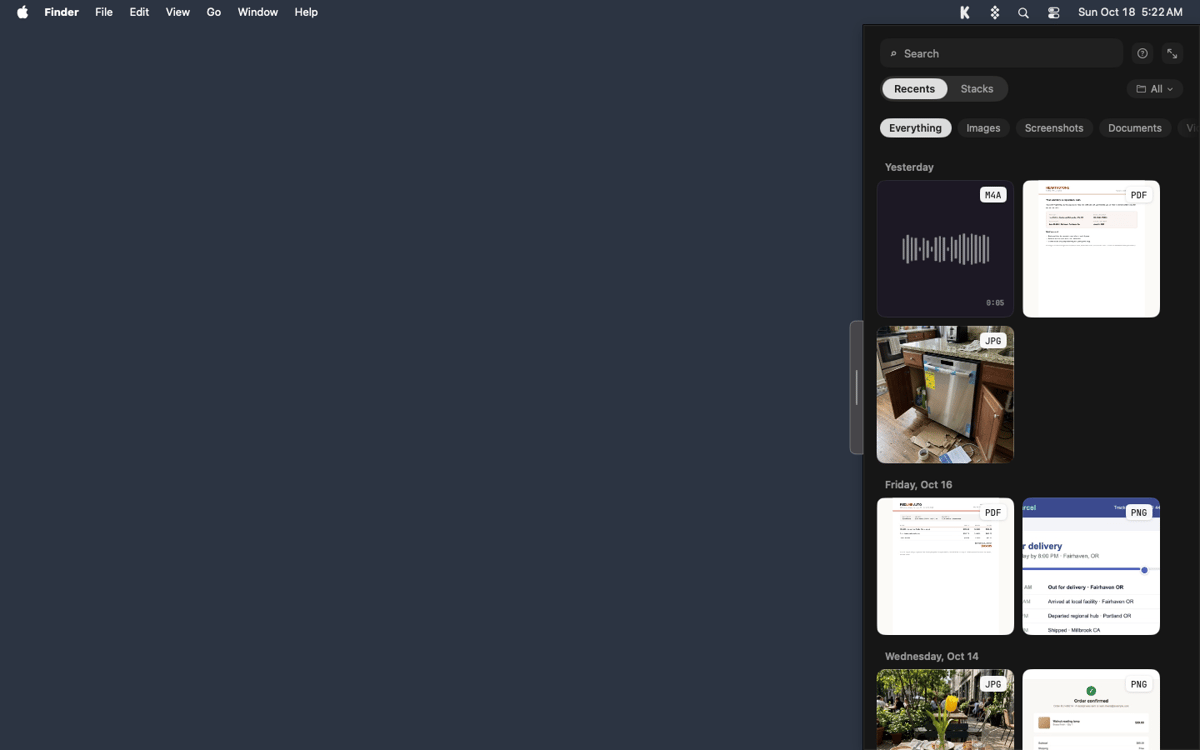
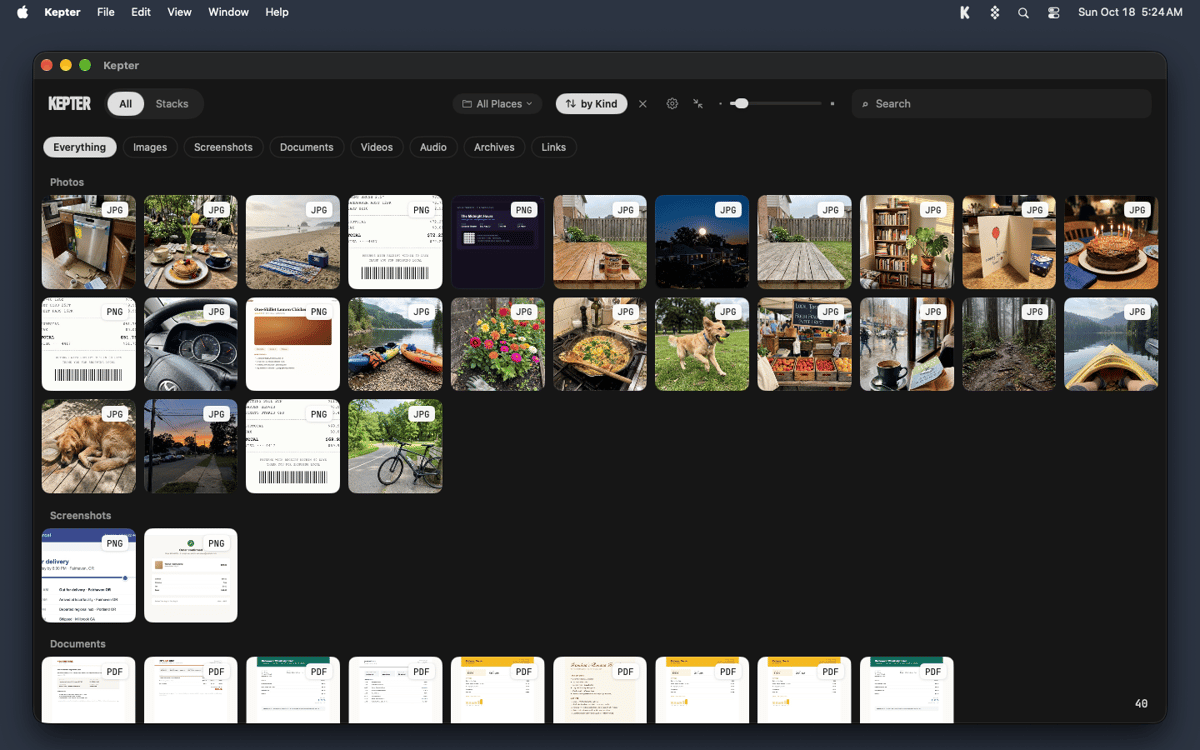
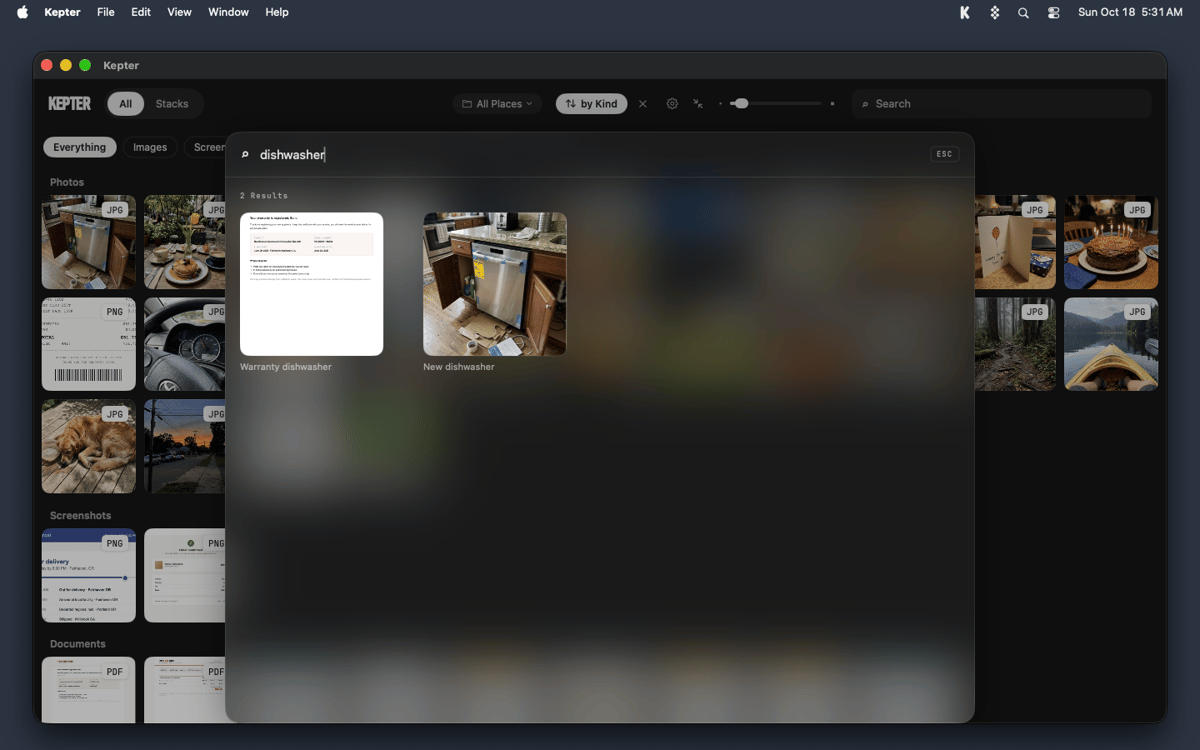
Kepter is a visual file finder for Mac that shows what you’ve saved, so you don’t have to remember it. It watches the folders you choose and lays your files out as tiles in a drawer at the edge of your screen. You recognize your own stuff on sight, with no file name or folder needed. Find also looks inside files, so scans and recordings turn up by what’s in them.
Find a file you saved last week
Spot a screenshot without its name
Search inside scans and recordings
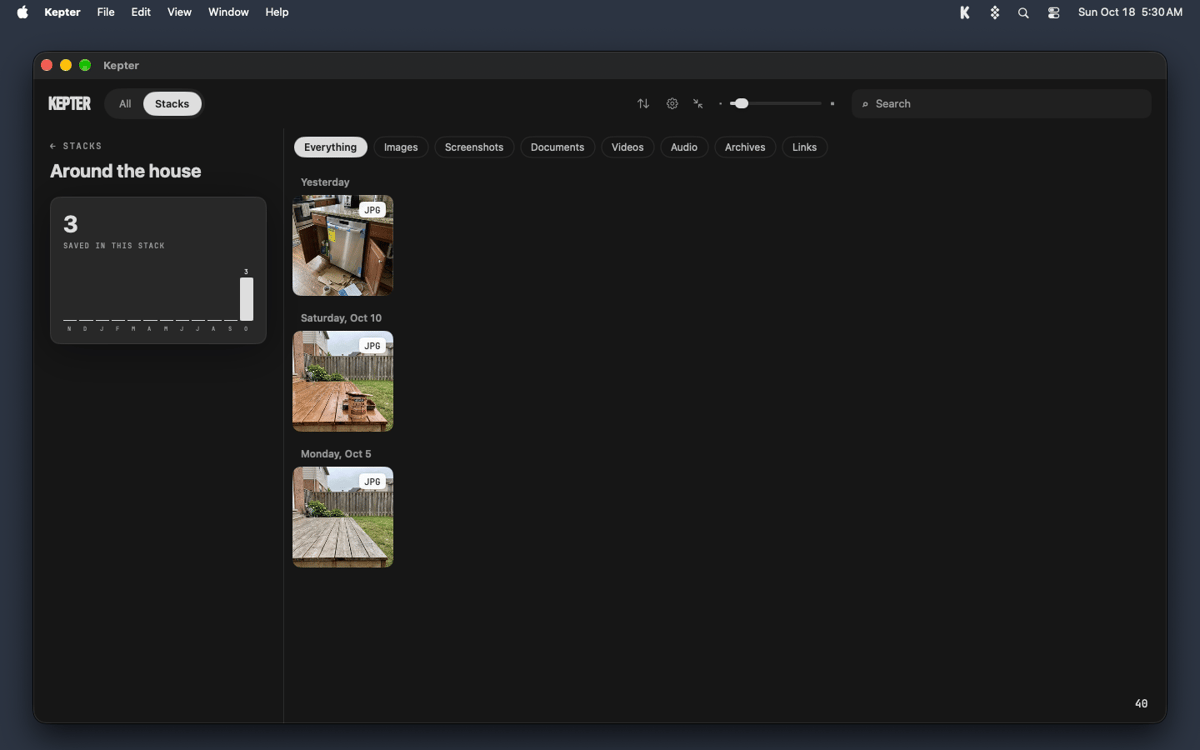
Keep related files together in stacks
Kepter-Funktionen
A drawer for everything you save
Pick Desktop, Documents, Downloads, or any folder, and Kepter shows what lands there as tiles in a drawer at the edge of your screen. Setup takes 2 screens, and tiles start arriving while you watch. A week later, you’ll still know your file when you see it.
Open and manage files without leaving the drawer
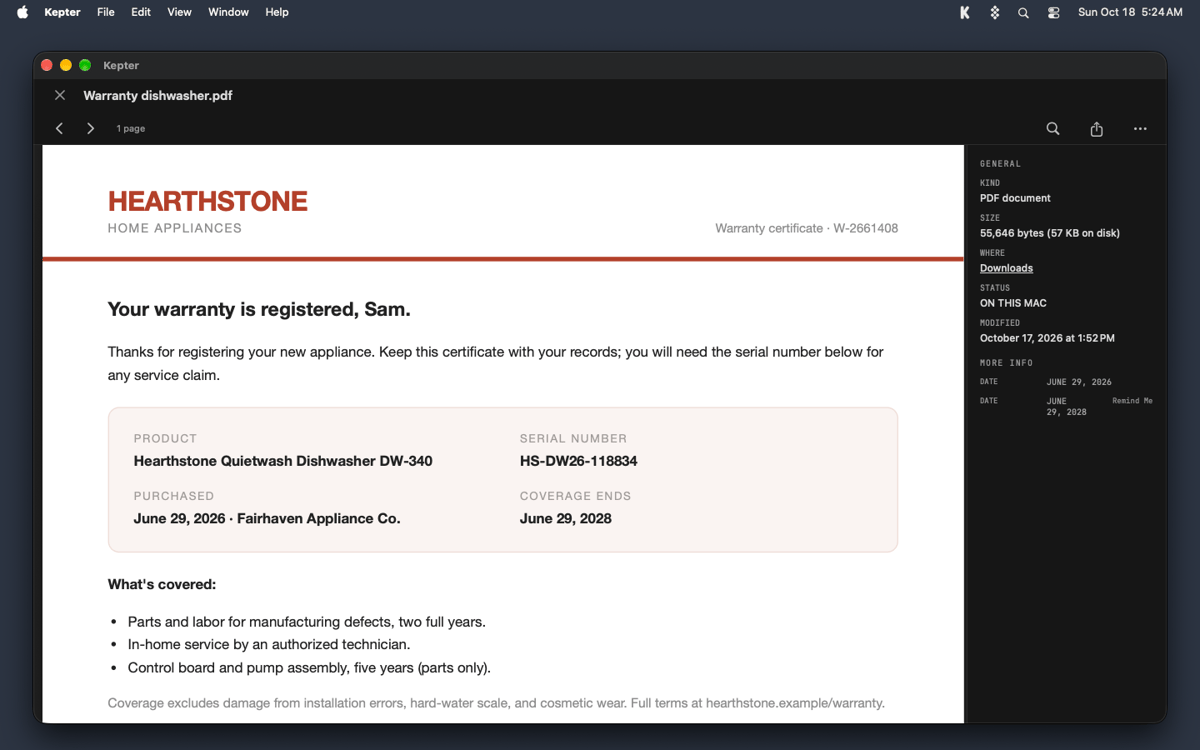
Double-click a tile to open the file right in Kepter. Right-click for Get Info, Rename, or Move to Trash. Rename and Move to Trash act on the real file, just like in Finder, and Command-Z undoes either one.
Stacks for files that belong together
Right-click a tile and choose Add to Stack to start your own. Contracts, trip photos, and that one recipe PDF can all hang out in one place.
Find that looks inside your files
Press Option-Space to search by what’s inside a file, not only by its name. Kepter reads the words in scans and recordings too, so you can find a recording by what was said. The slower reading waits until you step away from your Mac. Open a recording and macOS asks once whether Kepter can use Speech Recognition. Kepter never opens your microphone.
Your files stay put
Kepter never copies your files and never moves one on its own. Move to Trash puts a file in your Trash, nowhere else. Everything stays on your Mac. Kepter reads files where they sit, so if you delete the original, Kepter loses it too.
Erhalten Sie Hunderte von Apps mit Membership
Werden Sie Setapp Member und nutzen Sie mit nur einem Abonnement hunderte genialer Apps.
Testen Sie 7 Tage kostenlos, im Anschluss nur eine einfach monatliche Gebühr.
Setapp auf dem Mac installieren
Erkunden Sie Apps für Mac, iOS und Web. Finden Sie einfache Möglichkeiten für die Bewältigung täglicher Aufgaben.

Die gesuchte App finden
In Setapp wartet eine wunderbare App auf Sie. Installieren Sie sie mit einem Klick.

Kepter
Abonnement wählen
Eine App oder mehr mit der Setapp Membership. Holen Sie sich Apps, so wie Sie es möchten.

Erhalten Sie Hunderte von Apps mit Membership
Werden Sie Setapp Member und nutzen Sie mit nur einem Abonnement hunderte genialer Apps.
Testen Sie 7 Tage kostenlos, im Anschluss nur eine einfach monatliche Gebühr.
1
Setapp auf dem Mac installieren
Erkunden Sie Apps für Mac, iOS und Web. Finden Sie einfache Möglichkeiten für die Bewältigung täglicher Aufgaben.
2
Die gesuchte App finden
In Setapp wartet eine wunderbare App auf Sie. Installieren Sie sie mit einem Klick.
Kepter
3
Abonnement wählen
Eine App oder mehr mit der Setapp Membership. Holen Sie sich Apps, so wie Sie es möchten.
Die besten Apps
Von Planung und Routineaufgaben bis hin zu kreativen Tätigkeiten und Programmieren – mit den Apps von Setapp sind Sie bestens für Aufgaben gerüstet.

TypingMind
KI-Chat mit alternativer UI
Text erzeugen oder zusammenfassen
Prompt-Bibliothek nutzen
KI

Spark Mail
E-Mails verwalten
KI

CleanMyMac
Datenmüll entfernen

Bartender
Menüleiste anpassen

CleanShot X
Vielseitige Bildschirmfotos aufnehmen

Luminar Neo
Fotos bearbeiten
KI

ClearVPN
Sichere Verbindung herstellen

Craft
Mit Dokumenten arbeiten
KI
Kepter
Find files by sight, not name