Marketplace Membership
Sign in Try free
Setapp logo
Home Marketplace Membership How it works Solve with AI+ Pricing Blog About Setapp
Sign in

See what Google knows about you

When you use Google to learn about the world, Google uses your searches to learn about you. Let’s take a look at the data it has on you.

Essential tools to secure your online activities 
What does Google know about me?

Google doesn’t keep this info under lock and key. If you know where to look, you can view all of Google’s saved data on you. To do that, follow the steps below: 

  1. Open the Google Accounts page in a web browser and log in with your account details

  2. Then click the Apps button in the upper right corner

  3. Click Account 

  4. In the Privacy & personalization section, click Manage your data & privacy

  5. Scroll down to the Ad settings and click Ad personalization

  6. From the left sidebar, choose Manage Privacy.
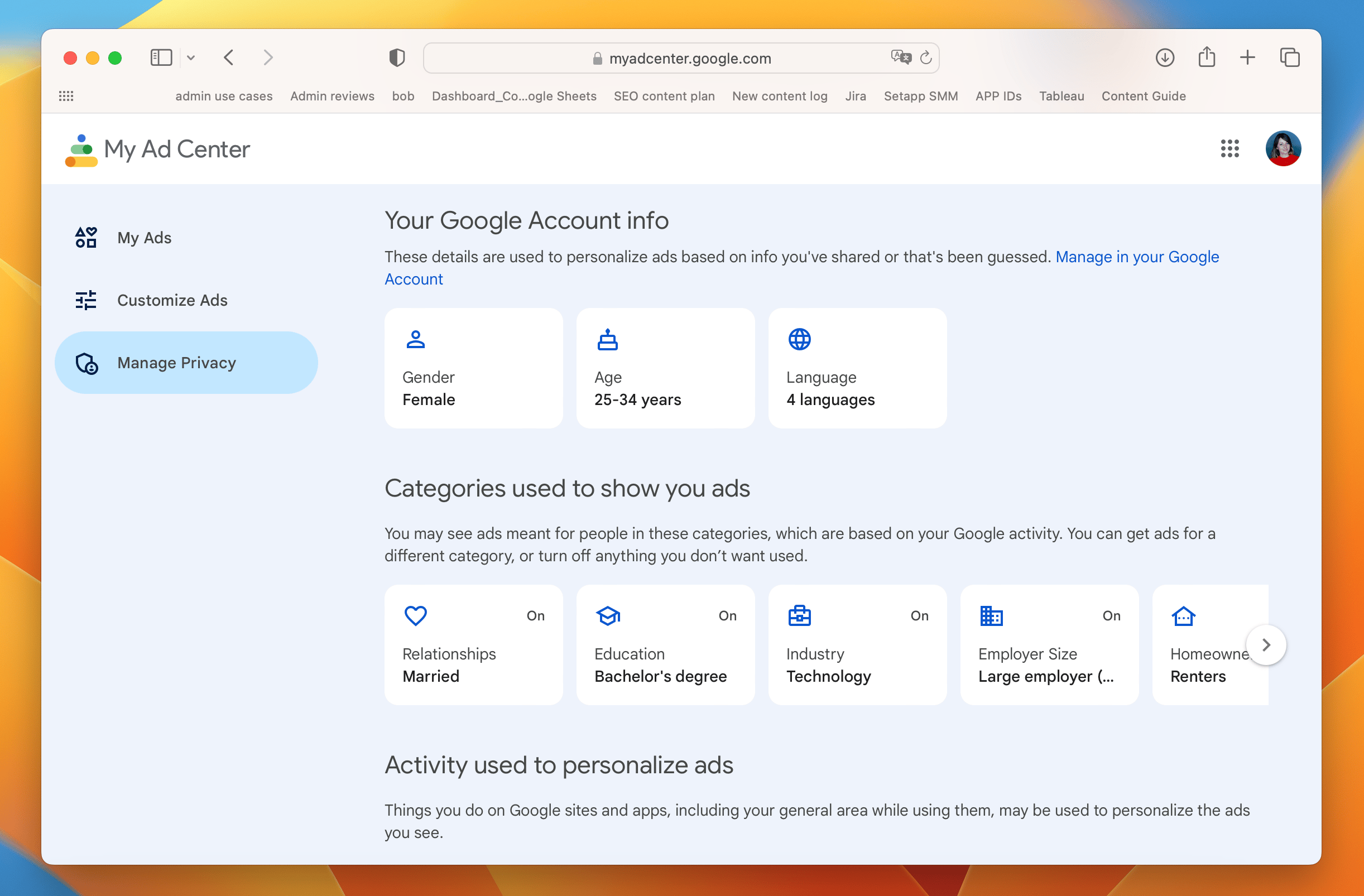
This will show everything Google has on you based on your searches, YouTube history, and Gmail inbox. 

Prevent Google from collecting this data

If you feel exposed, that’s understandable. Don’t panic! Luckily, you can edit your Google activity controls. Here’s how: 

  1. Open the Google Accounts page in a web browser and log in with your account details

  2. Click on Data & Privacy on the left side of the new window

  3. Scroll down to History Settings

  4. Click My Activity to open the My Google Activity page

  5. Then click any of the Web & App Activity, Location History, or YouTube History buttons on the new page. This should take you to the Activity controls page

  6. Scroll to the bottom of the Activity Controls page and click See all activity controls 

  7. Here you can turn off web & app activity, location tracking, etc.
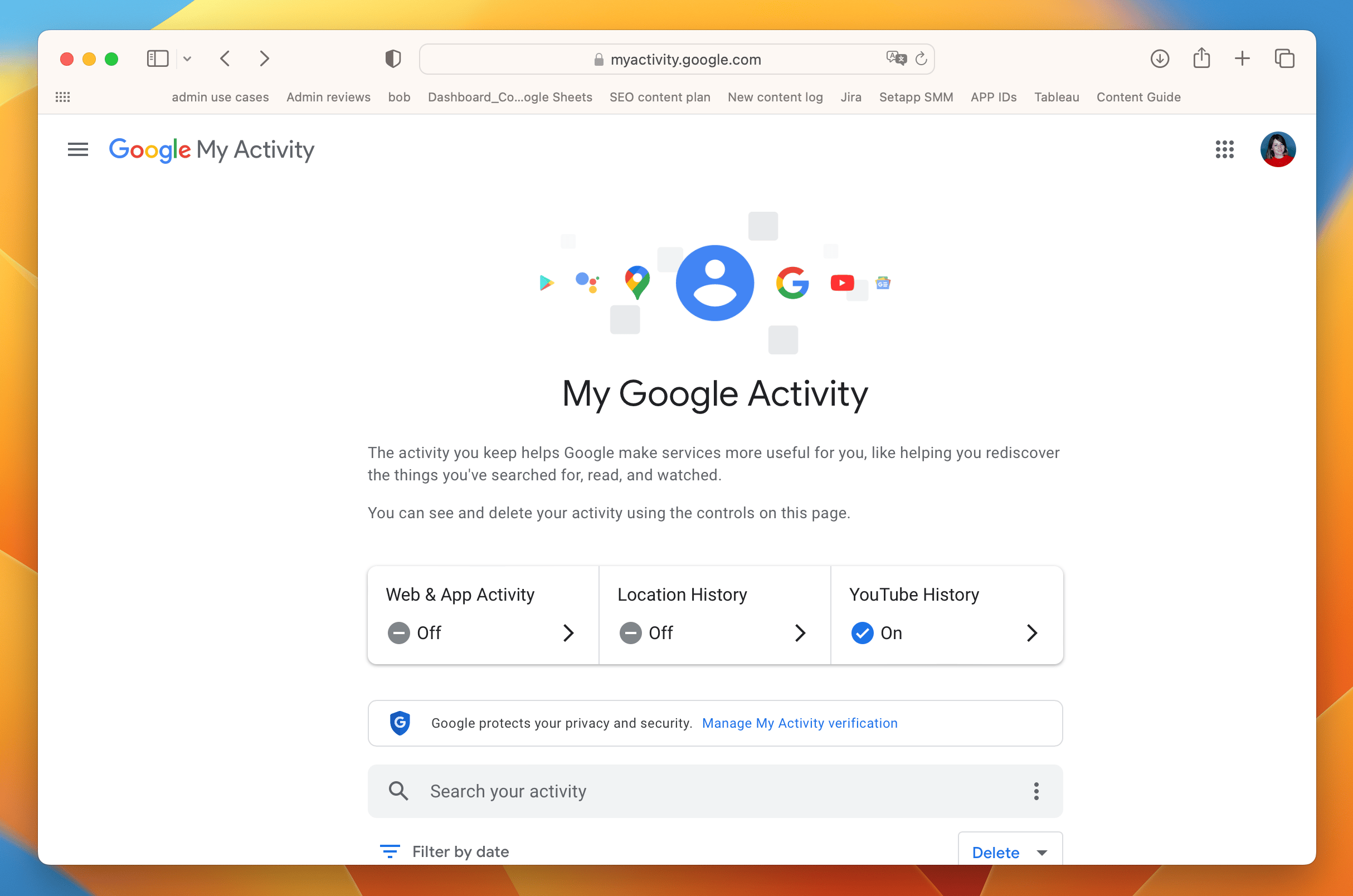
Done! Your future activities won’t be saved. 

How do I delete previously saved activities?

The quickest way to get rid of your browsing activity is to use CleanMyMac X. With its Privacy utility, you can do that in just a few clicks. Here’s how: 

  1. Open CleanMyMac X 

  2. Choose the Privacy module from the left sidebar

  3. Then click Scan and wait until the scanning process ends

  4. After that, select the browsers you use. Now you may choose to remove all the locally stored items that remain after your browser(s) use. 

  5. Finally, click Remove. 


How do I search privately?

If you’re worried that Google and other platforms know too much about you, the best thing to do is use a reliable VPN solution such as ClearVPN. Even though it can’t completely stop Google from accessing your data, it lets you hide your IP address, encrypt your internet traffic, and keep your browsing history private. This makes your online activities much safer. 


Hope this how-to will help you solve tasks faster, and enjoy solving them, too! Check out more how-tos picked for you below. 

More reads for you

Three signs your Mac has a virus
How to check Mac for malware
Cybersecurity checklist
How to keep your Mac safe and sound
Setapp logo

Company

  • Home
  • All apps
  • How it works
  • Pricing
  • About Setapp
  • Download Setapp
  • Getting started with Setapp
  • Uninstall Setapp

Helpful

  • Support
  • Trust center
  • Join as a developer
  • Setapp reviews
  • Affiliate program
  • Blog

Inside the blog

  • Editorial process
  • How we evaluate apps
  • Human writing
  • Write for us

Best apps

  • VPN for Mac
  • YouTube downloader for Mac
  • Screen recorder for Mac
  • Recovery software for Mac
  • Password manager for Mac
  • Video editing software for Mac
  • Note–taking app for Mac
  • Terminal for Mac
  • Calendar app for Mac
  • Remote desktop for Mac
  • Cloud backup for Mac
  • Screenshot tool for Mac
  • Antivirus for Mac
  • Browser for Mac

Our best content

  • All macOS versions
  • All iOS versions
  • MacBook generations in order
  • iPhone releases in order
  • iPad generations in order
  • AirPods generations in order

How to's

  • View clipboard history on Mac
  • Change folder icon or color on Mac
  • Recover deleted iPhone photos
  • Access unrecognized external drive
  • Access your Mac remotely
  • Use recovery mode on Mac
  • View and kill processes on Mac
  • Stop Mac from sleeping
  • Check MacBook temperature
  • Fix frozen Mac
  • Reset iPhone
  • Reset iPad

Our tools

  • Apple serial number
  • iPhone serial number
  • Mac serial number
  • iPad serial number
  • AirPods serial number
  • Apple Watch serial number
  • Apple warranty number
  • Mac warranty checker
  • iPad warranty checker
  • HEIC to JPG
  • HEIC to PNG
  • HEIC to PDF
  • GPTs for Mac

Updates from our team, written with love

Love is coming your way, soon. This doesn’t look right, please try again. Try once more, our server fell asleep for a bit.
I agree to receive emails from Setapp as per this Privacy Notice.
Please select the checkbox to continue.
Need help? Terms of Use Privacy Notice
© 2026 MacPaw Way Ltd., 25 Serifou, Allure Center 11, Office No. 11-12, 2nd Floor, 3046 Zakaki, Limassol, Cyprus
Sweet, let’s get you started
or sign in with
Apple icon
Google icon
Create a strong password
Come up with a unique password for your Setapp account:
  • 8 characters minimum.
  • At least 1 uppercase letter.
  • At least 1 lowercase letter.
What should we call you?
Continue with new account:
Captcha is required