Turn it on first: in Google Docs, choose Tools > Spelling and grammar, then turn on Show spelling suggestions and Show grammar suggestions.
Fix the usual causes: check the document language, browser spell check conflicts, pasted formatting, your connection, extensions, and your browser version.
Know the limits: Google Docs catches spelling and basic grammar, but not wordy sentences, tone, or consistent terms.
Add a checker: LanguageTool, ProWritingAid, Grammarly, and QuillBot all work as browser extensions. Eney proofreads across Mac apps and includes a 14-day trial with 10,000 AI credits.
Try more apps on Setapp:Setapp Membership gives you 300+ apps for Mac, iOS, and web, with a 7-day free trial.
The best Google Docs spell check add-on for Mac depends on what you need. LanguageTool is the free multilingual option, ProWritingAid gives detailed style reports, QuillBot rewrites sentences, and Eney proofreads text in Docs and across Mac apps.
Spell check’s red and blue lines can fail to appear when you want to check your grammar and spelling. They may also be present, but you still have “there/there” not highlighted and probably a sentence nobody can make sense of.
I’ve encountered this problem many times over the years, and I’ll show you how to fix Google Docs spell check in two minutes. I’ll also take you through how to solve more complex grammar issues inside Docs on a Mac.
How to turn on spell check in Google Docs
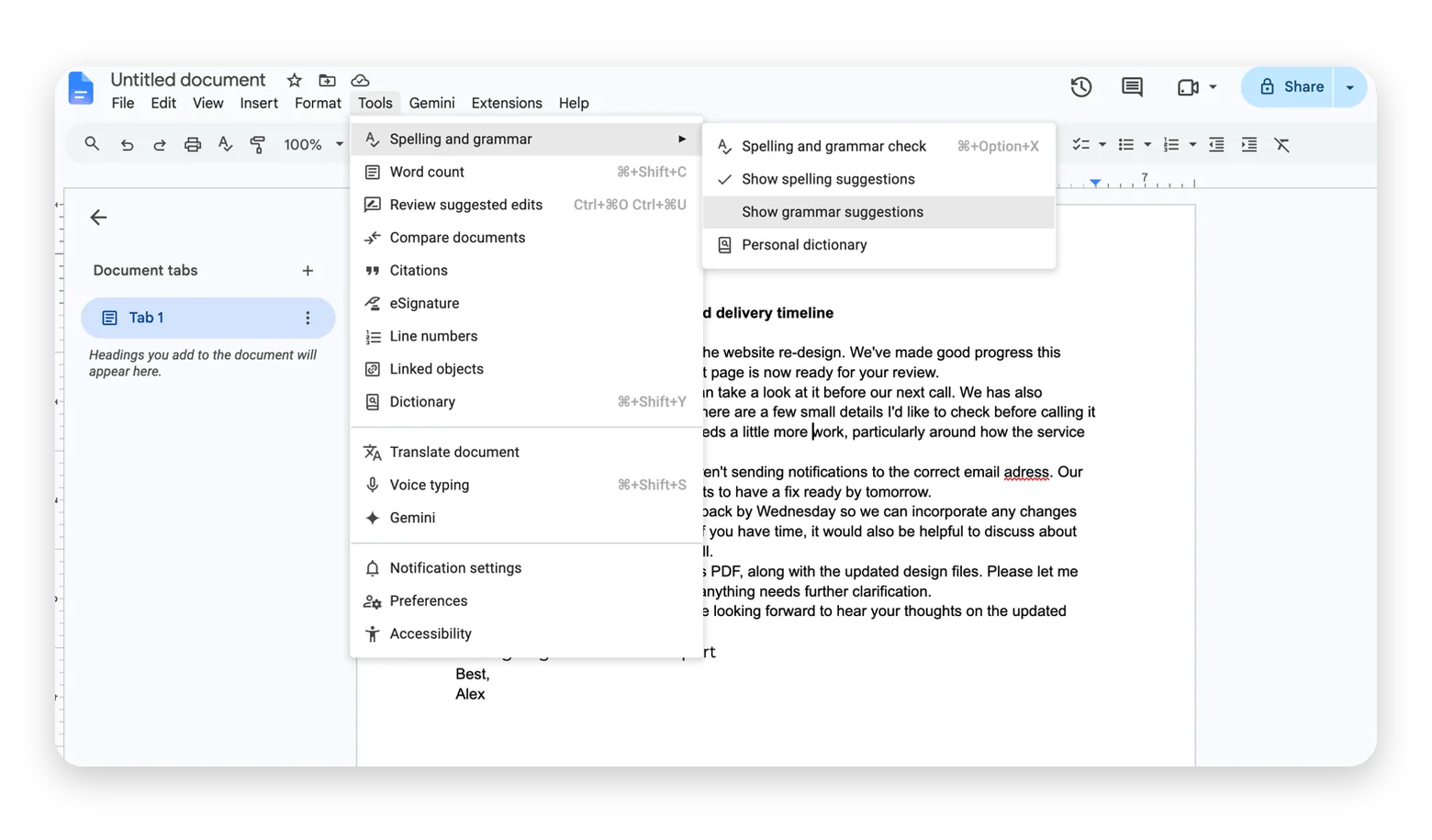
To turn on spell check in Google Docs, choose Tools > Spelling and grammar, then turn on Show spelling suggestions and Show grammar suggestions.
If the suggestions aren’t showing up, here’s how to turn on spell check in Google Docs:
Open your document in Google Docs and click Tools in the top menu.
Click Spelling and grammar.
Click Show spelling suggestions and Show grammar suggestions to add a check mark to each.
To run a manual check, go to Tools > Spelling and grammar > Spelling and grammar check or use the shortcut Cmd + Option + X on your Mac.
Spell check is available on the Android app but not the iOS Google Docs app. You’ll need to move to your Mac if writing on an iPhone.
Google Docs spell check not working on Mac: 6 fixes
If Google Docs spell check isn’t highlighting mistakes, here are some fixes you can try to solve the issue:
Set the document language – Open File > Language > your language.
Resolve browser spell check conflict – Chrome and Safari have their own spell checkers that can conflict with spell check. Disable Chrome spell check from Settings > Languages > Spell check. For Safari, go to Safari > Edit > Spelling and Grammar.
Clear formatting on pasted text – Clear problematic formatting by highlighting the affected text and pressing Cmd + \.
Check your internet connection – If you’re offline, reconnect and reload the document.
Disable conflicting browser extensions – Temporarily disable extensions like Grammarly and reload your document.
Update or switch your browser –Install available updates and restart your browser, or open the document in another supported browser.
These fixes should restore spelling suggestions, although you may still need a more powerful tool if you want to check more than just spelling and basic grammar.
What Google Docs spell check cannot do
Google Docs spell check will help you catch everyday mistakes, but it mostly focuses on spelling and basic grammar.
Here’s what it catches and what it doesn’t:
Error type
Does Docs catch it?
Example
Misspelling
Yes
"I recieved your email"
Homophones in context
Partly
"Their going to review the report"
Wordy or unclear sentences
No
"Due to the fact that we are currently busy..."
Tone
No
“Your proposal looks amazing”
Consistency of names and terms
No
Switching between "Google Workspace" and "Google Work Space
This means that a document can pass spell check and still read badly. In that case, it’s not an issue of spell check not working correctly.
To fix more complex issues, combine Google Docs spell check with a grammar and style checker for the best results.
Grammar and style tools that work inside Google Docs on Mac
Google Docs spell check is quite basic, but you can extend its capabilities with browser extensions and Mac apps. Here are some that work inside the Docs editor:
$24.90 USD/month or $5.83 USD/month, billed annually
ProWritingAid
Browser extension
Yes
Yes, with reports
Browser and desktop app
Cloud
Yes, 500-word limit
$30 USD/month or $10 USD/month, billed annually
QuillBot
Chrome extension widget inside Docs
Yes
Paraphrasing
Browser and macOS app
Cloud
Yes
$19.95 USD/month or $8.33 USD/month, billed annually
Prices correct as of Nov 2026
The biggest difference between these tools is how much editing each tool handles and how much effort you need to use it.
Eney Spell — grammar and wording in Docs and everywhere the text goes next
Text you write in Google Docs often ends up in Mail, Slack, Notion, and other apps. Eney Spell feature by Eney lets you fix spelling, grammar, and wording in the browser and across all your apps, so you don’t need to switch tools. This makes proofreading smoother than using a browser extension and another app in Mail, Word, or Slack.
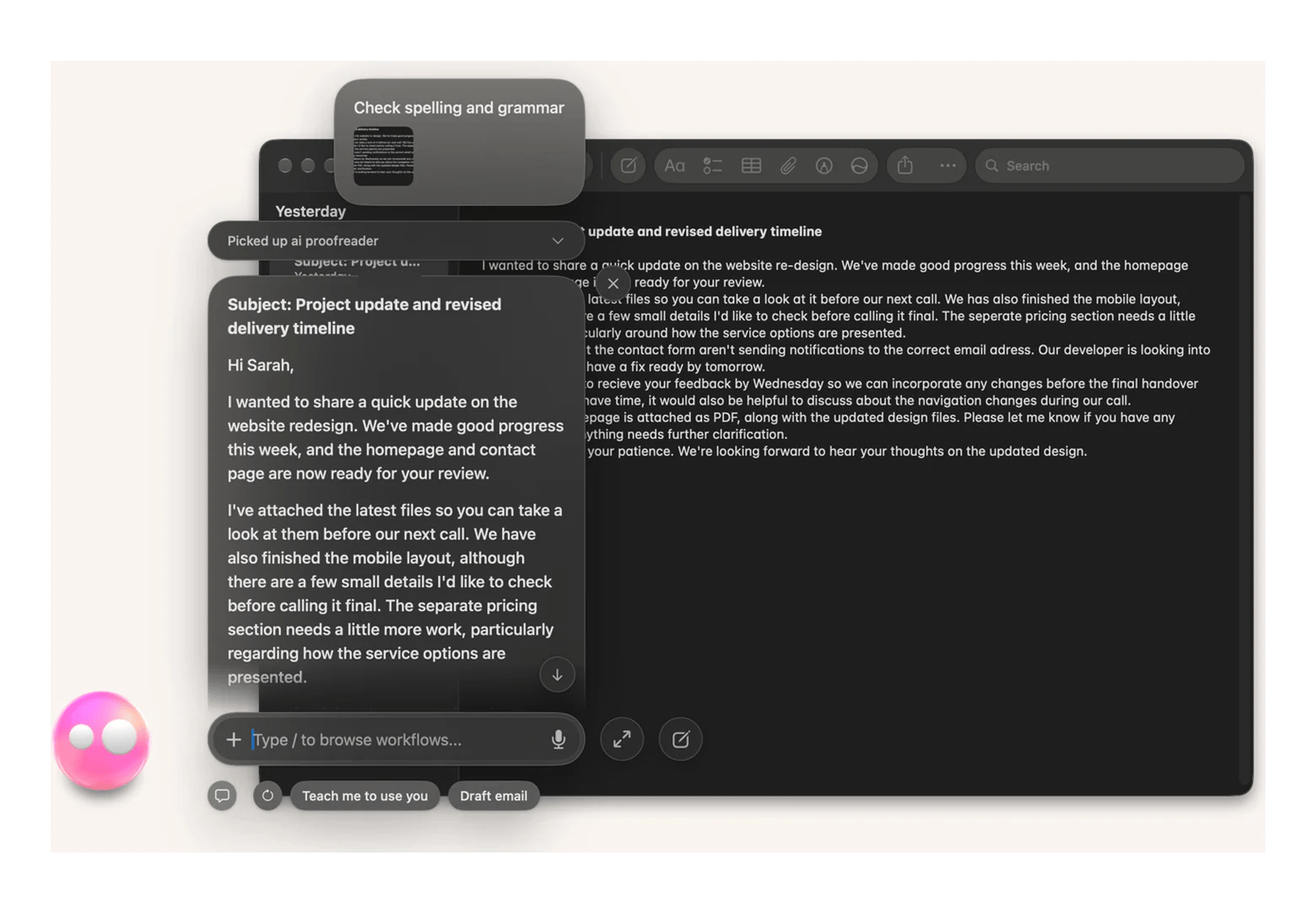
Here's how to proofread text in Google Docs using Eney Wand:
Open your Google Docs document in any browser.
Hit ⌥W to activate Eney Wand.
Drag Wand over the text you want to proofread, type “proofread,” and hit Return.
Eney will provide the edited text in companion view mode.
Eney lives on Mac and relies on MacPaw’s own AI stack for Spell Check, although Eney Wand editing is often done in the cloud.
Pros:
Checks spelling, grammar, and wording.
Works across Google Docs and other Mac apps, including Word, Mail, Slack, and Notes.
Multiple proofreading techniques (inline and Eney Wand)
Eney Spell is offline and free
Cons:
Requires macOS 15 or later and Apple Silicon.
Offline proofreading is limited to eight languages.
No inline editing on Google Docs
You can put Eney to work for free through the 14-day free trial available via Setapp or Eney’s website.
Grammarly: best for grammar and style suggestions
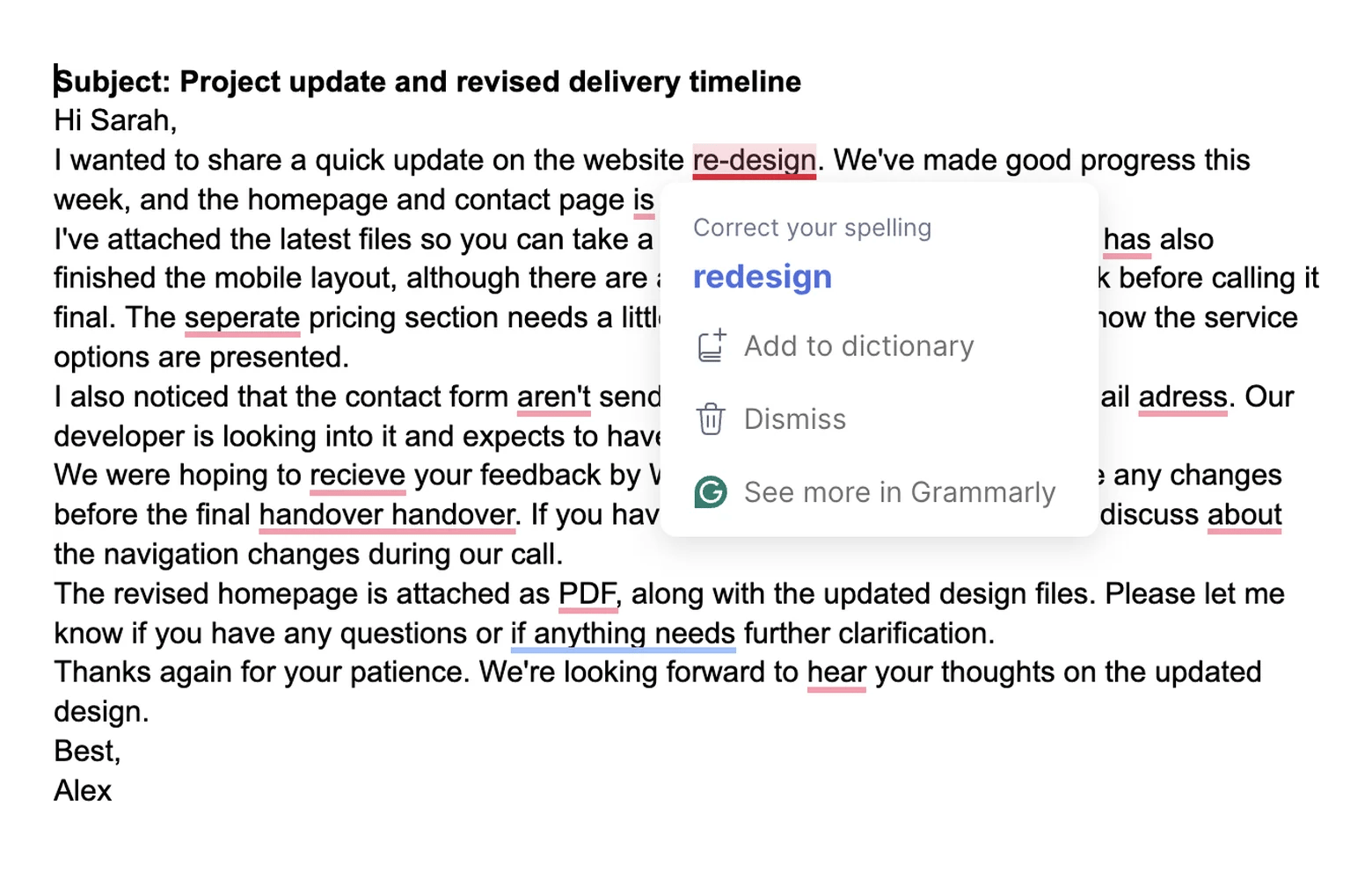
Grammarly has a browser extension that adds advanced spelling, grammar, punctuation, and clarity checks to Google Docs. It identifies and underlines issues as you write and lets users review suggestions before applying them. Its greatest strength is that it understands context and suggests better sentence flow.
It also has a Mac app, but processing happens online, and the monthly price tag is high at $30 USD/month.
Pros
Checks grammar, spelling, and punctuation inside Google Docs.
Offers clarity and tone suggestions.
Has a desktop Mac app.
Cons
Only supports English
Can conflict with Google Docs' built-in checker.
Uses cloud processing.
Price:
Free plan available
Pro starts at $30 USD/month or $12 USD/month with annual billing.
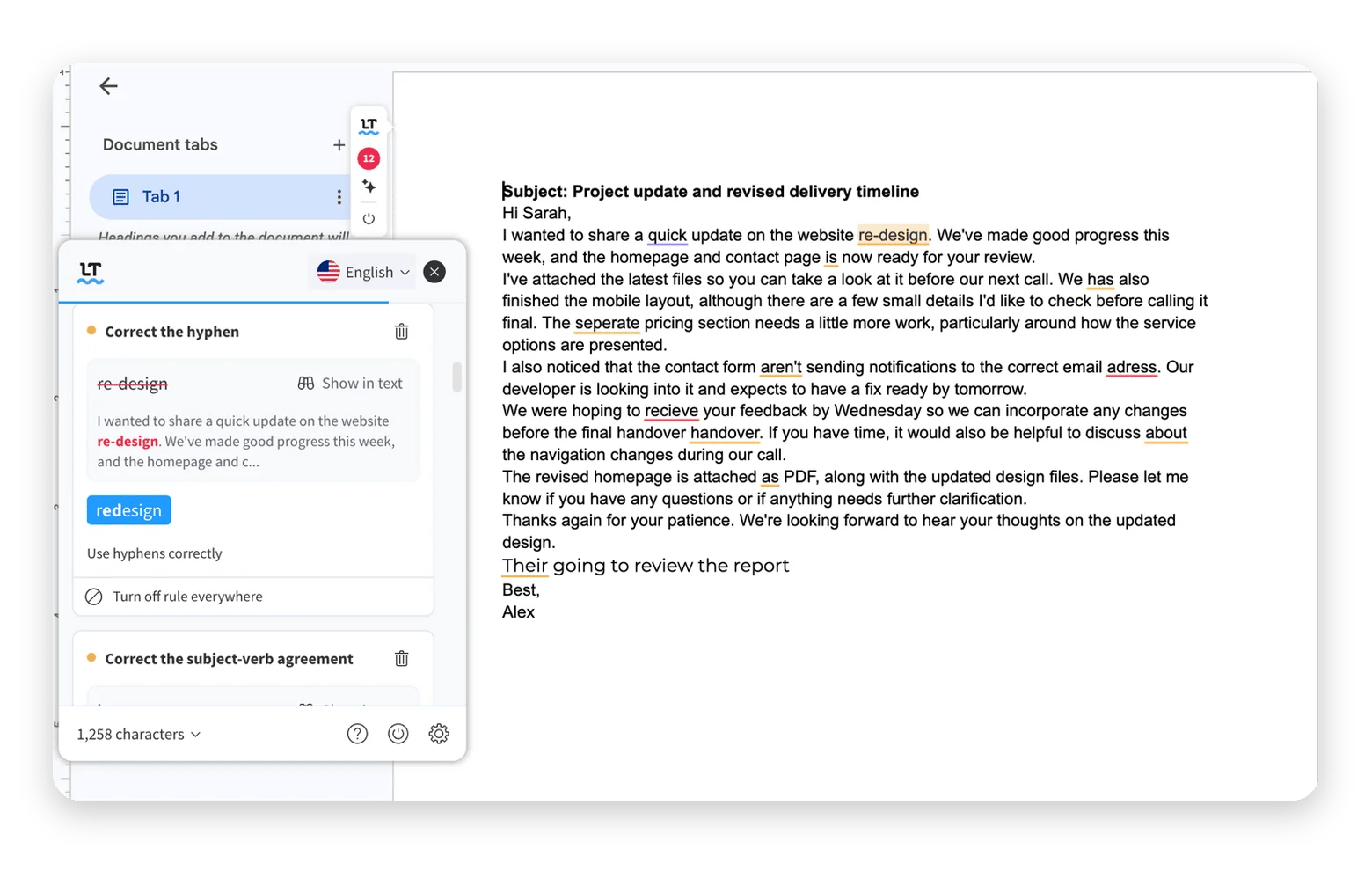
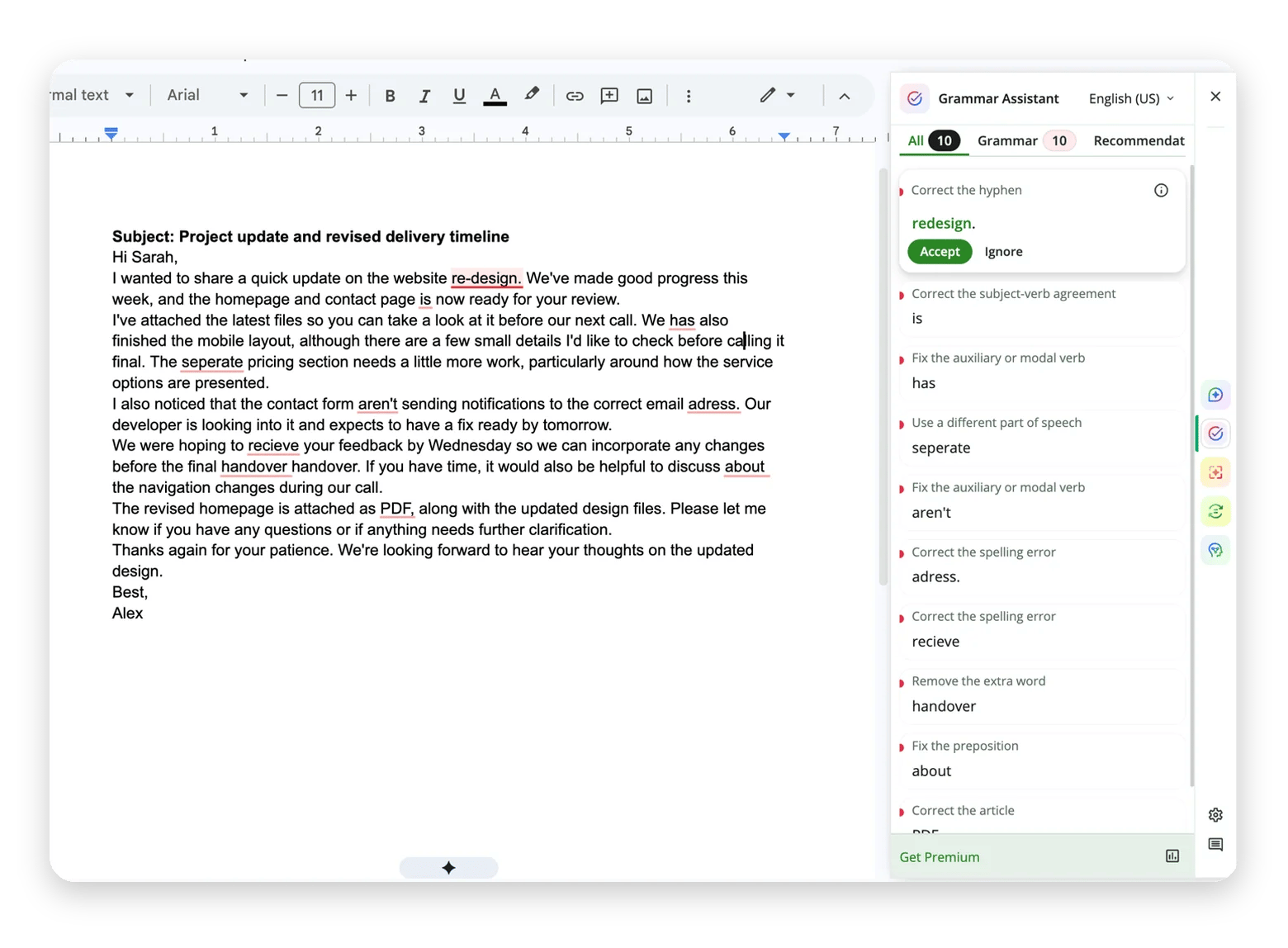
LanguageTool works in Google Docs through a browser extension that adds more advanced spelling, grammar, and punctuation checks. It highlights potential mistakes as you write and lets you review suggestions before applying them.
The editor supports more than 30 languages and dialects, making it useful to non-English speakers. It’s also open-source and offers local self-hosting.
Pros
Checks spelling, grammar, and punctuation inside Google Docs.
Supports multiple languages.
Local self-hosting option.
Cons
Advanced style suggestions require Premium.
No deep structural re-imagining.
Uses cloud processing.
Price
Free plan available.
From $24.90 USD/month (billed monthly) to $4.99 USD/month (billed $119.80 USD every two years)
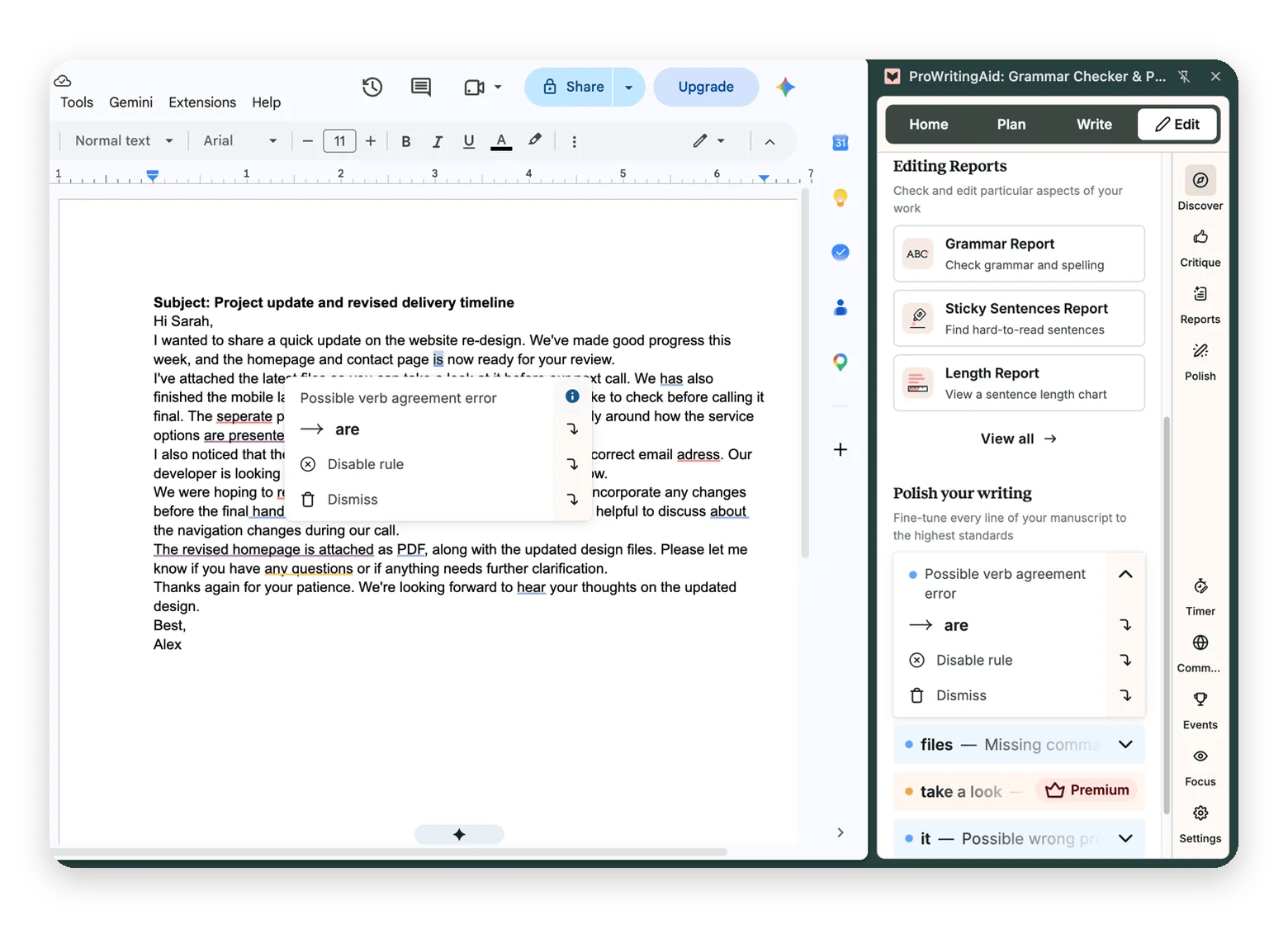
ProWritingAid: best for in-depth writing feedback
ProWritingAid adds more advanced grammar and style suggestions to Google Docs through its browser extension. It highlights errors and offers overlay suggestions to let you fix in place.
The tool is more geared toward long-document editing, so its interfaces across the web, extension, and Mac app are a bit more complex. Most corrections also require a premium plan.
Pros
Checks spelling, grammar, and punctuation inside Google Docs.
Detailed reports on readability, style, and sentence structure.
Has a desktop app for Mac.
Cons
Most features require a subscription.
Uses cloud processing.
Price
Highly limited free plan.
Premium costs $30 USD month-to-month or $10 USD/month billed yearly.
QuillBot: best for paraphrasing and rewriting
QuillBot has a browser extension that brings more advanced grammar checking and paraphrasing to Google Docs. It underlines words and phrases as you write and lets you review corrections before inserting them. You can also rephrase entire sentences or paragraphs with AI.
Note that your text is processed in the cloud and is used for AI training unless you adjust controls.
Pros
Checks spelling and grammar inside Google Docs.
Offers paraphrasing and rewriting tools.
Has a macOS app.
Cons
Free paraphrasing has usage limits.
Uses cloud processing.
Data storage and training settings require attention.
Price
Free plan available.
Premium costs $19.95 USD month-to-month or $8.33 USD/month billed yearly.
Which should you use?
Here’s a quick way to narrow down to the right tool:
You just need spelling and grammar check → Google Docs spell check.
Need to fix grammar and wording in Docs and across your Mac → Eney Spell.
You need a free extension → LanguageTool.
You often need in-depth reports on style and readability → ProWritingAid.
Need to rephrase sentences → QuillBot.
If your workflow extends beyond Google Docs to apps like Word, Slack, and Mail, you can go for Eney Spell. You can try it, along with the full Eney AI assistant, during Eney’s 14-day trial.
FAQ
Why is Google Docs spell check not working on my Mac?
Check the document language under File > Language and make sure spelling and grammar suggestions are enabled under Tools > Spelling and grammar. Otherwise, disable your spell check extension, update or change your browser, or make sure you are connected to the internet.
What is the keyboard shortcut for spell check in Google Docs on Mac?
Press Command + Option + X to open the spelling and grammar checker in Google Docs. If you don’t want the pop-up tool, turn on Show spelling suggestions and Show grammar suggestions under Tools > Spelling and grammar.
Does Google Docs check grammar or only spelling?
Google Docs spell check helps correct both spelling and basic grammar. It can flag issues such as verb forms and punctuation, but its checks are largely basic. Tone, clarity, and word choice require a more advanced checker like Eney Spell or Grammarly.
Can I use Eney Spell inside Google Docs?
Eney Spell works in native Mac apps and browser text boxes, but Google Docs requires Eney Wand with a custom prompt. Eney Spell check works in Word, Mail, Slack, Notes, and other apps.
Do Grammarly and Google Docs spell check conflict with each other?
Grammarly and Google Docs can sometimes interfere with each other’s suggestions when checking spelling and grammar in the same document. If you notice duplicate lines or inconsistent suggestions, try disabling one checker temporarily. Then choose the one that best fits your editing workflow.
Too much to keep track of?
Let Eney bring your work together and help you get it done






 Best solution
 Best solution