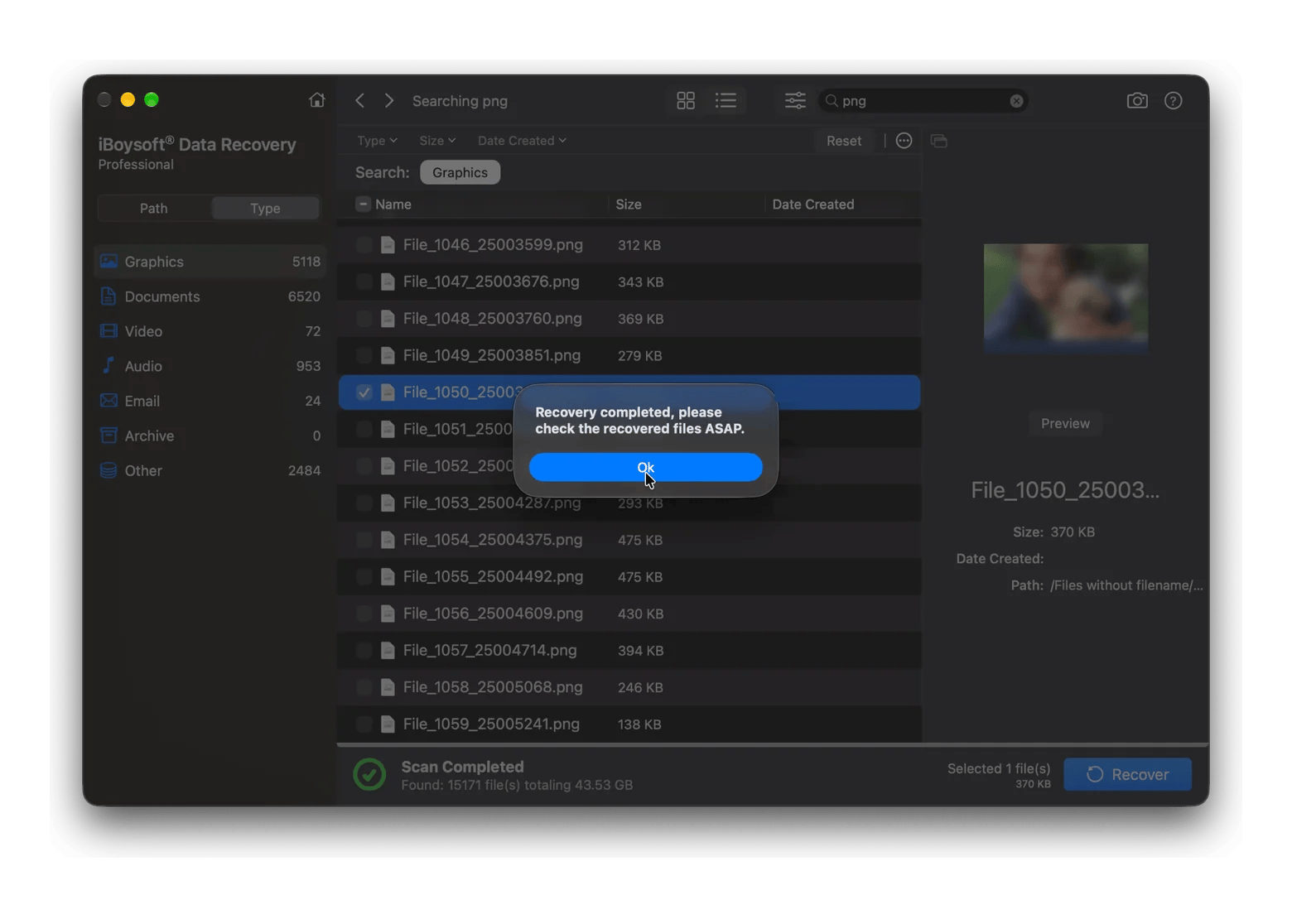
Recover lost files in four steps:iBoysoft Data Recovery scans a Mac drive or external device, shows what it finds, and restores deleted or lost files after you preview them.
Stop using the affected drive right away: Downloading, installing, or saving anything new to that drive can overwrite the files you want back.
Restore to a different drive: Choose another internal or external drive as the destination so you don’t overwrite files you haven’t recovered yet.
Act fast and let the scan finish: On an SSD, TRIM can erase deleted data in the background, and a full scan often finds more files than a quick scan.
Try it free through Setapp: iBoysoft Data Recovery is included in Setapp Membership alongside 300+ other apps for Mac, iOS, and web. Start your 7-day free trial.
iBoysoft Data Recovery is a Mac app that helps you recover deleted or lost files from your Mac and external storage devices.
Losing an important file can be stressful, especially when you don't have a backup. Whether you deleted it by mistake, emptied the Trash, or can no longer access a drive, there may still be a way to get it back. The key is to act carefully: avoid using the affected drive until you've tried to recover your data.
In this guide, I’ll show you how to use iBoysoft Data Recovery on Mac, explain what to do before scanning, and share tips to improve your chances of recovering your files.
What is iBoysoft Data Recovery?
iBoysoft Data Recovery from Setapp is a file recovery app for Mac that scans your Mac and external drives for deleted or lost files and lets you preview them before restoring.
Here are the situations where iBoysoft Data Recovery for Mac can help:
Find files deleted by accident, including items removed from the Trash.
You formatted a drive
Search a formatted storage device for files that may still be recoverable.
Your drive is corrupted or unreadable
Scan the device for accessible data, even when you can't open it normally in Finder.
Your files disappeared
Look for files that no longer show up in their original folders.
You won't always get your files back. It depends on the type of storage device, what happened to it, and whether new data has overwritten the lost files.
Before you recover files on Mac: What NOT to do
Before you try to recover your files, take a couple of precautions. What you do next can affect whether you get your data back.
1. Stop saving new files to the affected drive
Don't download anything, install apps, copy files, or save new documents to the drive where you lost data. New files can overwrite the space your deleted files occupied, making them harder or even impossible to recover.
2. Don't restore files to the same drive
When iBoysoft Data Recovery finds your files, choose a different storage location for the recovered copies. If you save them to the drive you're trying to recover, you risk overwriting other lost data that you haven't restored yet. Use another internal or external drive instead.
How to recover files with iBoysoft Data Recovery on Mac
To recover files with iBoysoft Data Recovery on Mac, install it through Setapp, scan the drive where you lost your files, preview what the app finds, and restore the files you need to a different drive.
Install iBoysoft Data Recovery via Setapp
To get iBoysoft Data Recovery, activate your Setapp Membership, which gives you access to 300+ Mac apps, and follow these steps:
Open Setapp and search for iBoysoft Data Recovery.
Click Install and wait for the app to download.
Open iBoysoft Data Recovery from your Applications folder > Setapp.
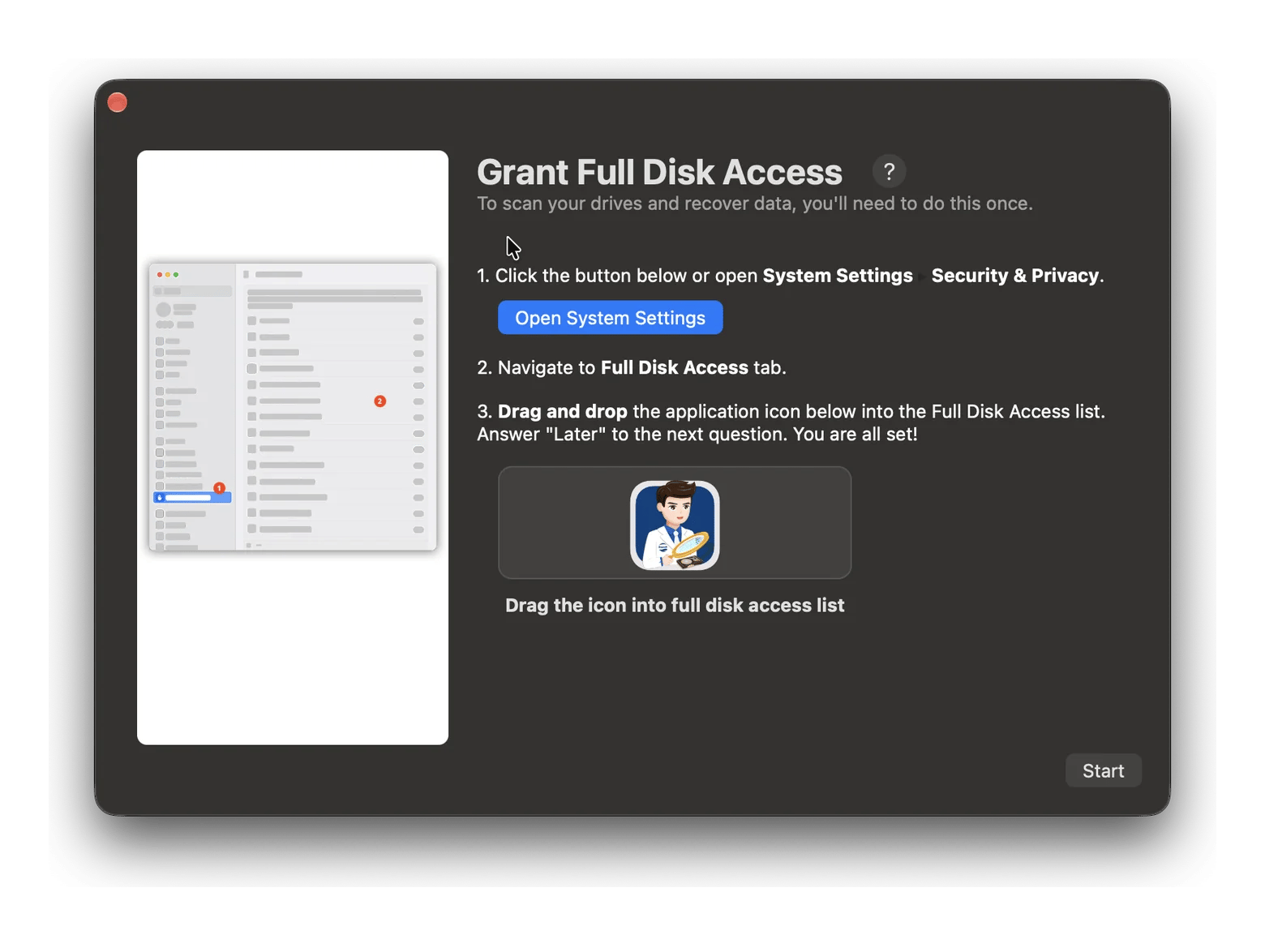
Follow any permission prompts macOS displays.
The app may ask for Full Disk Access so it can scan your Mac's internal storage.
If macOS asks for your administrator password, enter it to let the app work with your drive.
Choose a drive and scan for lost files
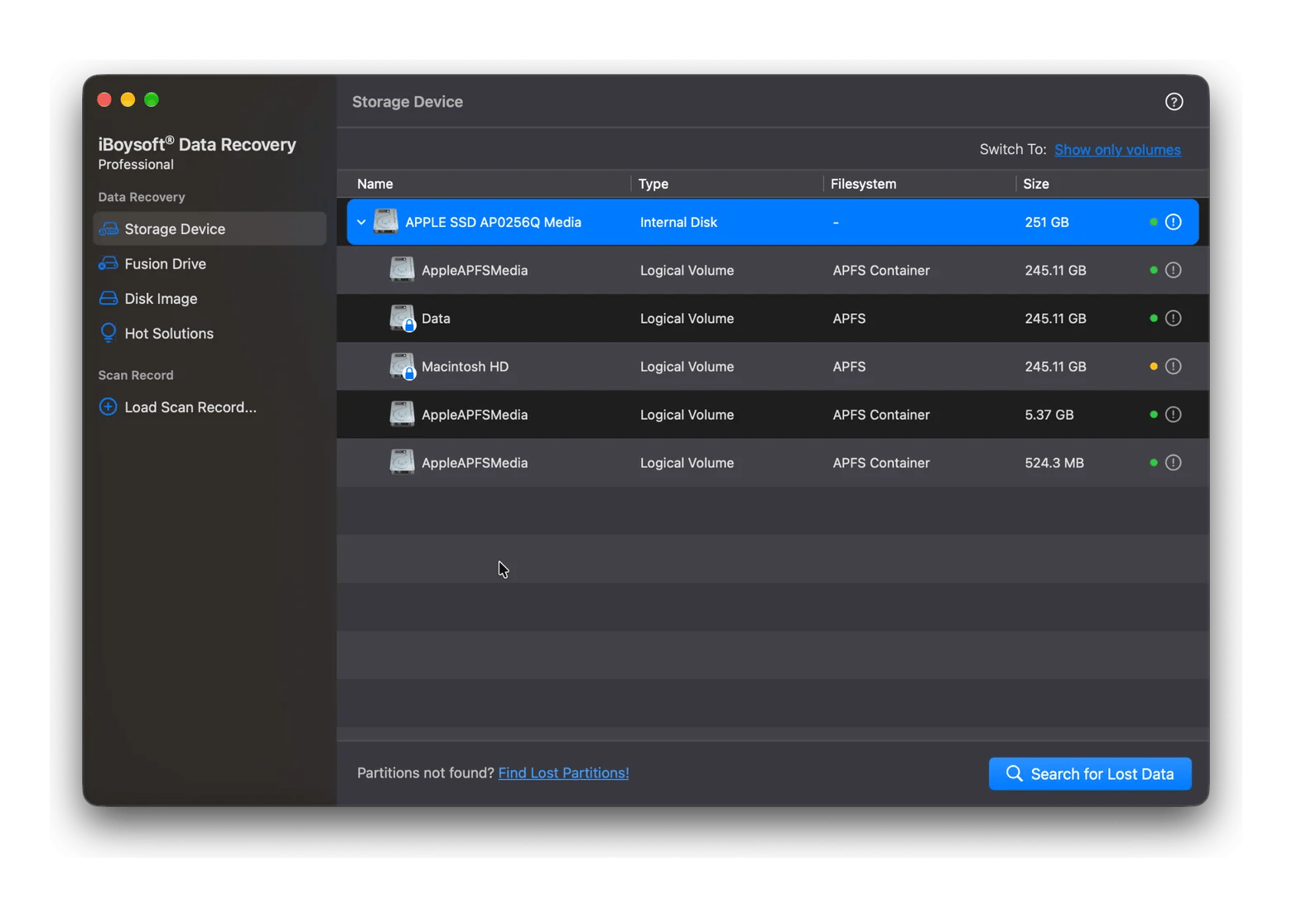
Open iBoysoft Data Recovery and click the Storage Device tab. You'll see the available disks and volumes.
Choose the drive where you lost your files and click Search for Lost Data.
The full scan may take 30 minutes or more, so be patient. However, you can see the already found files and stop the scan once your desired file appears on the list.
Preview files before recovering them
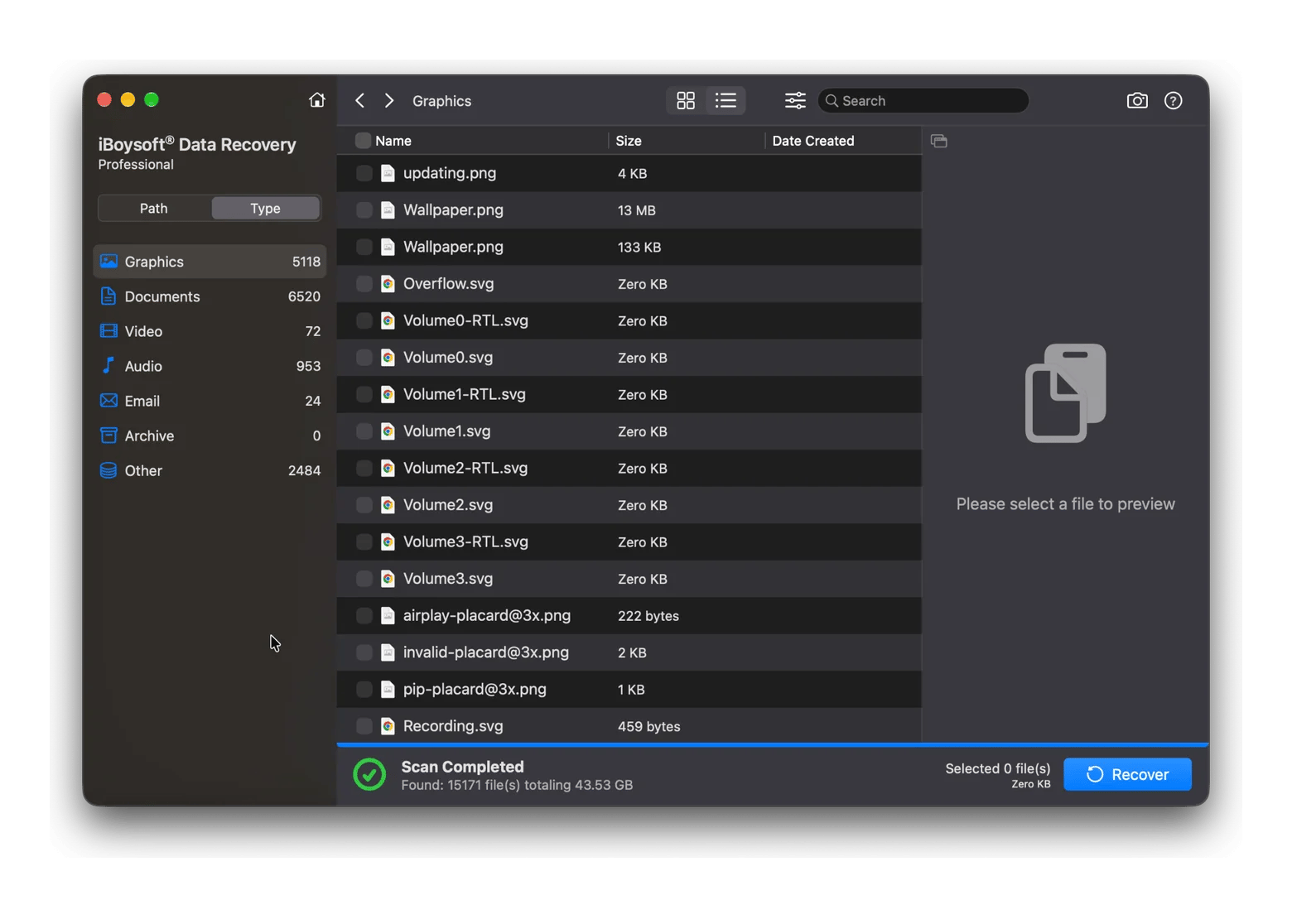
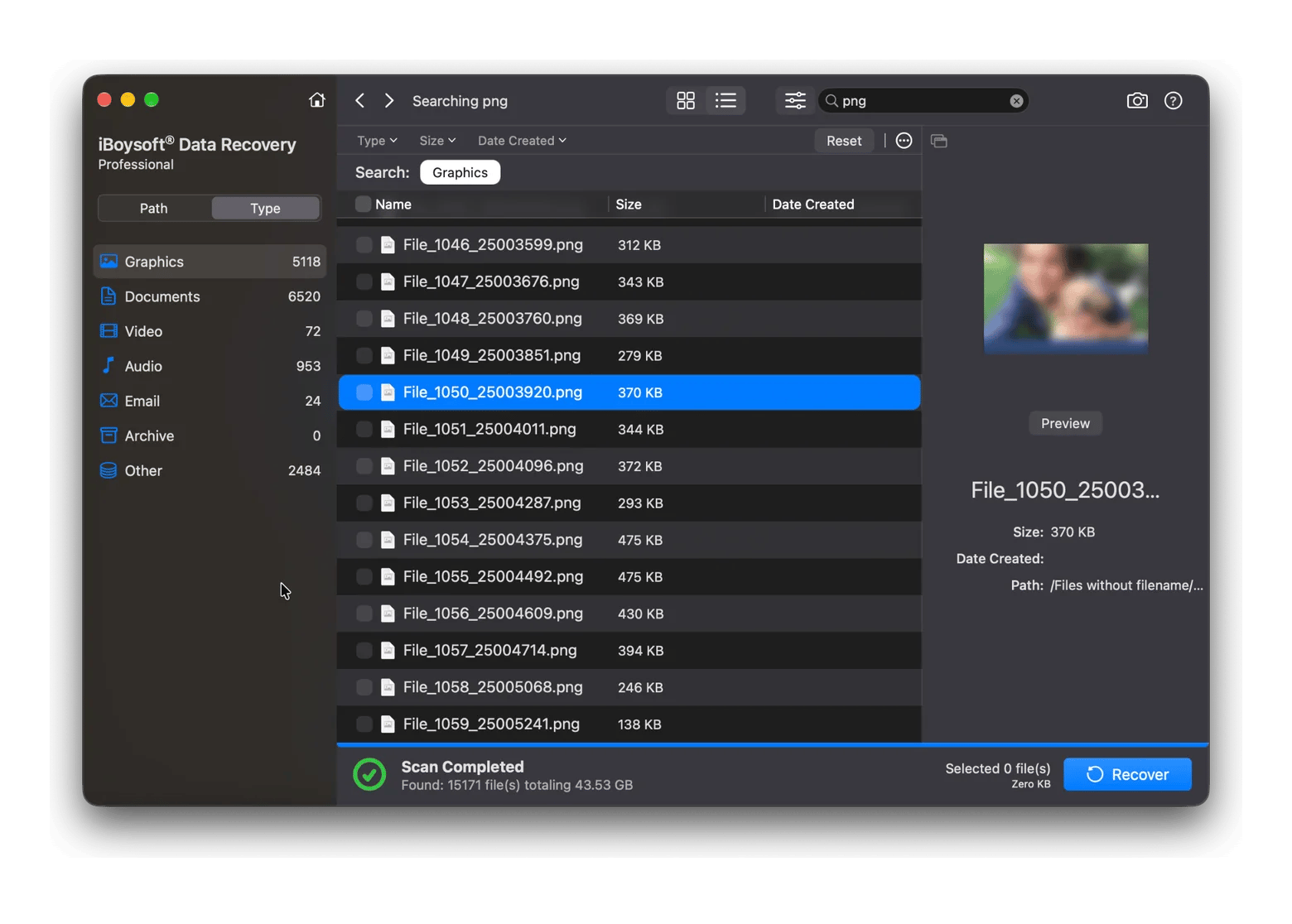
Once iBoysoft Data Recovery finds files, you can browse them by location or file type. Use the search field or filters to narrow down the results if you're looking for a particular file.
Choose a file and click Preview to check its contents before recovery. This helps you confirm you've found the right document, photo, or video instead of relying on the filename alone.
Select and restore your files with iBoysoft Data Recovery
When you find what you need, select the checkboxes next to the files or folders and click Recover. Choose a different drive or storage device as the destination. Don't save recovered files to the drive you're scanning.
After the recovery finishes, open the recovered files through Finder and check them.
iBoysoft Data Recovery supports over 1,000 file formats, including common and specialized types. It organizes scan results into categories, so you can quickly browse the files you want to recover. These are the file types you will find in the app:
Photos and images
Videos
Documents and spreadsheets
Audio files
Emails
Archives
You can scan your Mac's internal storage or recover data from external storage devices, including HDDs, SSDs, USB flash drives, and SD cards. Keep in mind that the device's condition and whether new data has overwritten your files affect your chances of recovery.
Tips to improve your chances of recovering files on Mac
A few things can make data recovery easier. The most important factor is what happens to the drive after you lose your files. So make sure you:
Stop using the affected drive as soon as possible. When you save new files, install apps, or continue working on your Mac, you may overwrite the data you're trying to recover. This matters especially when you lose files from your Mac's startup disk, because macOS can write data to it in the background. If you lost files from an external drive, disconnect it until you're ready to scan it.
Act quickly, especially with SSDs. When you delete a file from an SSD, macOS may use TRIM to tell the drive which data blocks it no longer needs. The SSD can then erase those blocks in the background, even if you haven't saved anything new. Once that happens, recovery becomes much harder or impossible. So if you lose files from your Mac's internal SSD, stop using it and try recovery as soon as you can.
Let the scan finish. iBoysoft Data Recovery for Mac displays quick results while the full scan continues. You can check whether it has found your files, but don't rush to recover them from the initial results. The complete scan may find additional data, so wait until it finishes before deciding what to restore.
Preview files before recovering them. A filename in the results doesn't guarantee that the file is intact. Open the preview when available to check whether the document, photo, or video still looks usable. If the preview doesn't work, the file may be corrupted, or your Mac may not have an app that can open that format.
If the drive has suffered physical damage, or the deleted data has already been overwritten or erased by TRIM, iBoysoft Data Recovery may not be able to recover your files.
How iBoysoft Data Recovery compares to other Mac recovery tools
iBoysoft Data Recovery, Disk Drill, and EaseUS Data Recovery Wizard all offer file recovery, but they differ in free recovery limits and pricing.
Yes, up to 2 GB, but no free recovery from SD cards
Payment model
Setapp Membership, 300+ Mac, iOS, and web apps included
Paid lifetime license or yearly subscription
Monthly, yearly, or lifetime license
Paid plans
Setapp: $14.99 USD/mo + tax
$89/year or $149 lifetime
$89.95/month, $119.95/year, or $169.95 lifetime
When you've lost important files, you need to act quickly. You don’t have time to search for the best data recovery Mac app or compare software plans. Check out the list of Mac file recovery software to find out more options.
Recover your lost files with iBoysoft Data Recovery
If you've lost important files, don't panic. iBoysoft Data Recovery can help you find deleted or missing data on your Mac and external drives, preview what it finds, and restore files you still need. Just remember to stop using the affected drive as soon as possible to avoid overwriting data.
iBoysoft Data Recovery is available on Setapp, alongside 300+ other Mac, iOS, and web apps, all for a flat monthly fee. Try it free for 7 days and recover deleted files on Mac.
FAQ
Is iBoysoft Data Recovery free on Mac?
No, but you can try iBoysoft Data Recovery Mac app for free for 7 days through Setapp Membership. The trial gives you access to the full app, including file scanning and recovery. After the trial, you'll need an active Setapp Membership to keep using it. The subscription also includes access to 300+ Mac, iOS, and web apps.
Can iBoysoft Data Recovery recover files from a formatted drive?
Yes, iBoysoft Data Recovery can scan formatted drives for lost files. But your chances of file recovery depend on whether macOS still detects the drive and whether new data has overwritten the files. For the best chance of recovery, don't save anything to the drive after formatting it.
Does iBoysoft Data Recovery work on Apple Silicon Macs?
Yes. iBoysoft Data Recovery supports Apple Silicon Macs with M1, M2, M3, M4, and M5 chips, as well as Intel-based Macs.
Can I recover files deleted from Trash?
Possibly. iBoysoft Data Recovery can scan for files you've permanently deleted, including files removed from Trash. However, recovery isn't guaranteed. If new data has overwritten the deleted files, or TRIM has erased them from an SSD, the app may not be able to restore them.
How long does a scan take with iBoysoft Data Recovery?
There's no fixed scan time. It depends on the drive's capacity, connection speed, condition, and how much data iBoysoft Data Recovery Mac software needs to examine. The app shows results while the full scan continues, so you can check for missing files without waiting for the entire process to finish. For a more thorough search, let the scan complete before recovering your files.
Powerful apps live on Setapp
Ditch defaults and discover new gems on one app platform.






 Best solution
 Best solution