Subtitle making is three jobs, not one. Styled social captions, a clean SRT file, and live captions in a room are different problems, and almost nothing is good at all three.
Best overall for video captions:VidCap. Drop in a video, get an editable caption track in under a minute, restyle it to match your channel, and export. It also has an iOS version.
Best for accurate subtitle files:TranscribeX. Runs Whisper, Parakeet, and Apple Intelligence locally, with the best timing and speaker controls in this list.
Best for live captions:Transcrybe. The only Setapp option that captions a room or a call in real time, with reservations worth reading first.
I once typed out the captions for a 90-second video by hand. It took the best part of an hour, and I still misspelled a word in the second line. Someone pointed it out in the comments about four minutes after I posted. That was the moment captions stopped being optional. Almost every feed autoplays on mute, so a video without captions is one most people scroll past. Here are the subtitle makers for Mac I actually use.
Best subtitle makers for Mac at a glance
Here is a quick comparison before the details. The first three are on Setapp. The other two sit outside it, and I still reach for both.
Subtitle work is really three separate jobs, so the sections below are sorted by the job rather than the app.
VidCap: Best overall for video captions
VidCap is the one I open every single day. If you only take one recommendation from this article, take this one.
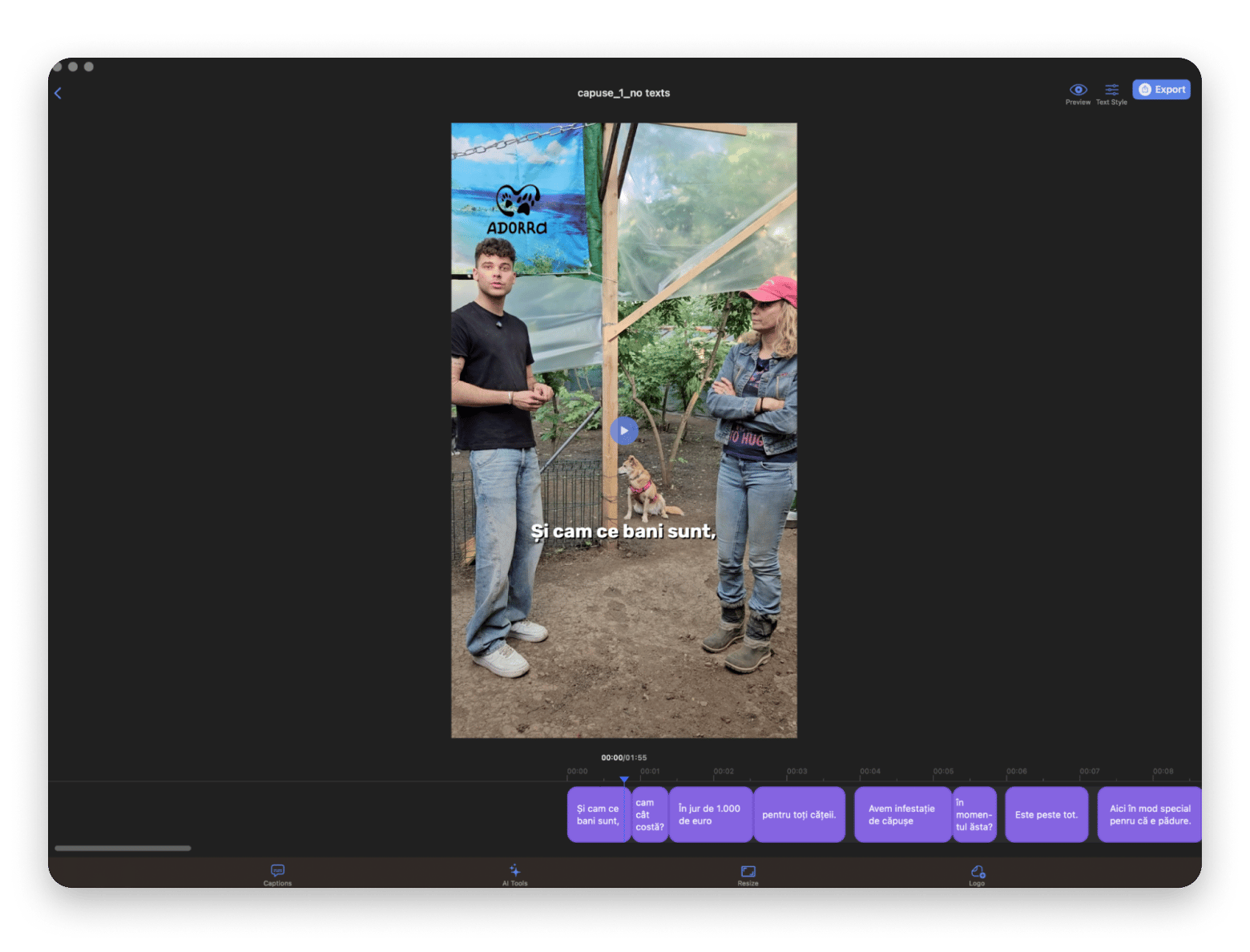
You drop a video in, it transcribes the audio, and you get an editable caption track in under a minute. From there you change the font, the color, the style, and the background until it matches whatever you are posting to, then export. That is the entire workflow, and it has not broken on me once.
What makes it stick is that the editing is actually usable. Auto transcription always gets a name or a bit of slang wrong, so what matters is how fast you can fix it. In VidCap you click the line, retype it, nudge where it lands on the timeline, and move on. I caption clips in this thing constantly, and the correction pass takes a couple of minutes at most.
It also transcribes in 60+ languages, and it exports to TXT, SRT, and VTT if you would rather take the caption file somewhere else. There is an iOS version too, which none of the other Setapp options here have.
Best features:
Automatic caption generation with an editable text and timeline track
Font, color, style, and background controls to match your channel look
Transcription in 60+ languages
Export captions as TXT, SRT, or VTT to use elsewhere
Available on both Mac and iOS
Pros:
Fast enough to caption a clip between finishing the edit and posting it
Correcting the auto transcript takes seconds rather than a rebuild
Highest rated of the Setapp options here, at 92% across 446 ratings
Cons:
The built-in export is listed as Full HD, so for 4K you are better off exporting the SRT and burning it in your editor
Caption styling is built for social video, not broadcast subtitle standards
Price: Available on Setapp, a platform with 300+ apps for Mac, iOS, and web. Try it free for 7 days.
TranscribeX: Best for accurate subtitle files
VidCap is built around the look of the captions. TranscribeX is built around the accuracy of the words, and once you are subtitling anything longer than a reel, that becomes the thing that matters.
It runs Whisper, Parakeet, and Apple Intelligence locally on your Mac. Nothing is uploaded, which is why I use it for anything I would not want sitting on someone else's server. It also pulls audio straight out of Zoom or Google Meet, and it will chew through a folder of files in one batch.
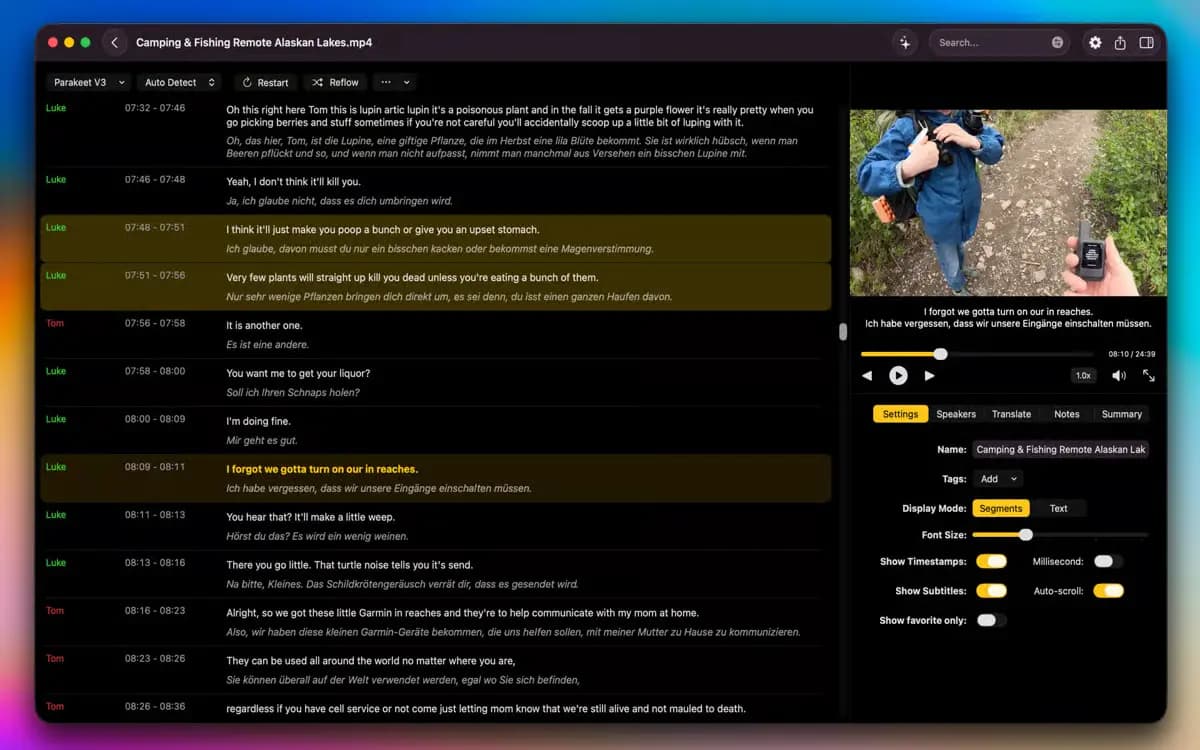
The editing tools are where it earns its place. You can merge and split segments, rename speakers, reflow lines by character or word count, and drag timestamps until they sit exactly right. Speaker diarization labels who is talking without you doing anything. If you have ever fought with an SRT where two people talk over each other, you will appreciate that.
Translation runs through Apple Translate and DeepL. Summaries are possible too, but those need your own API key for ChatGPT or Gemini, so that part is not really included.
Best features:
Local transcription using Whisper, Parakeet, and Apple Intelligence
Speaker diarization that labels voices automatically
Manual timestamp adjustment, plus segment merge, split, and reflow
Batch transcription of multiple files at once
Audio capture from other apps including Zoom and Google Meet
Translation through Apple Translate and DeepL, with 100+ languages supported
Pros:
Nothing leaves your Mac, so sensitive recordings stay put
The best timing and speaker controls of anything in this list
GPU acceleration keeps long files from taking all afternoon
Cons:
Listed on Setapp as requiring AI credits, so check your allowance before a big batch
Produces text and caption files, not styled captions burned into a video
Price: Available on Setapp, a platform with 300+ apps for Mac, iOS, and web. Try it free for 7 days. The listing notes that AI credits are required.
Transcrybe: Best for live captions
This one solves a different problem entirely. Transcrybe does not caption a finished file, it captions what is being said right now.
It sits in the menu bar and overlays live subtitles onto whatever is on screen. The use I have found for it is presentations where not everyone speaks the language, because it puts translated subtitles over your slides in real time across 20+ languages. It will also caption a Zoom call or a stream in a language you do not speak.
Like TranscribeX, it runs on-device, using Whisper, Parakeet, and Apple frameworks, so your meeting audio never leaves your device.
Best features:
Live subtitles overlaid onto presentations and keynotes
Real-time translation across 20+ languages
Menu bar app that captures audio from any app or the microphone
Fully on-device processing using Whisper, Parakeet, and Apple frameworks
Works with Zoom and Teams calls without a service integration
Pros:
The only live captioning option in the Setapp catalog
Meeting audio never leaves your machine
Genuinely useful for mixed-language rooms
Cons:
Several reviewers report the translation lagging badly, including on M2 Macs
Needs macOS 15.2 or later, the steepest requirement here
Price: Available on Setapp, a platform with 300+ apps for Mac, iOS, and web. Try it free for 7 days, with the same AI credits note on the listing.
Two options outside Setapp worth knowing about
The three above cover most of what I need. But an article that only lists what a subscription happens to include is not much use to anyone, so here are two I still use that are not part of it.
Adobe Premiere Pro: Best if you already edit there
If Premiere Pro is already open on your Mac, the fastest subtitle tool is the one sitting in the workspace you are in. Speech to Text has been built in since version 22, and it costs nothing extra on top of whatever plan you already pay for.
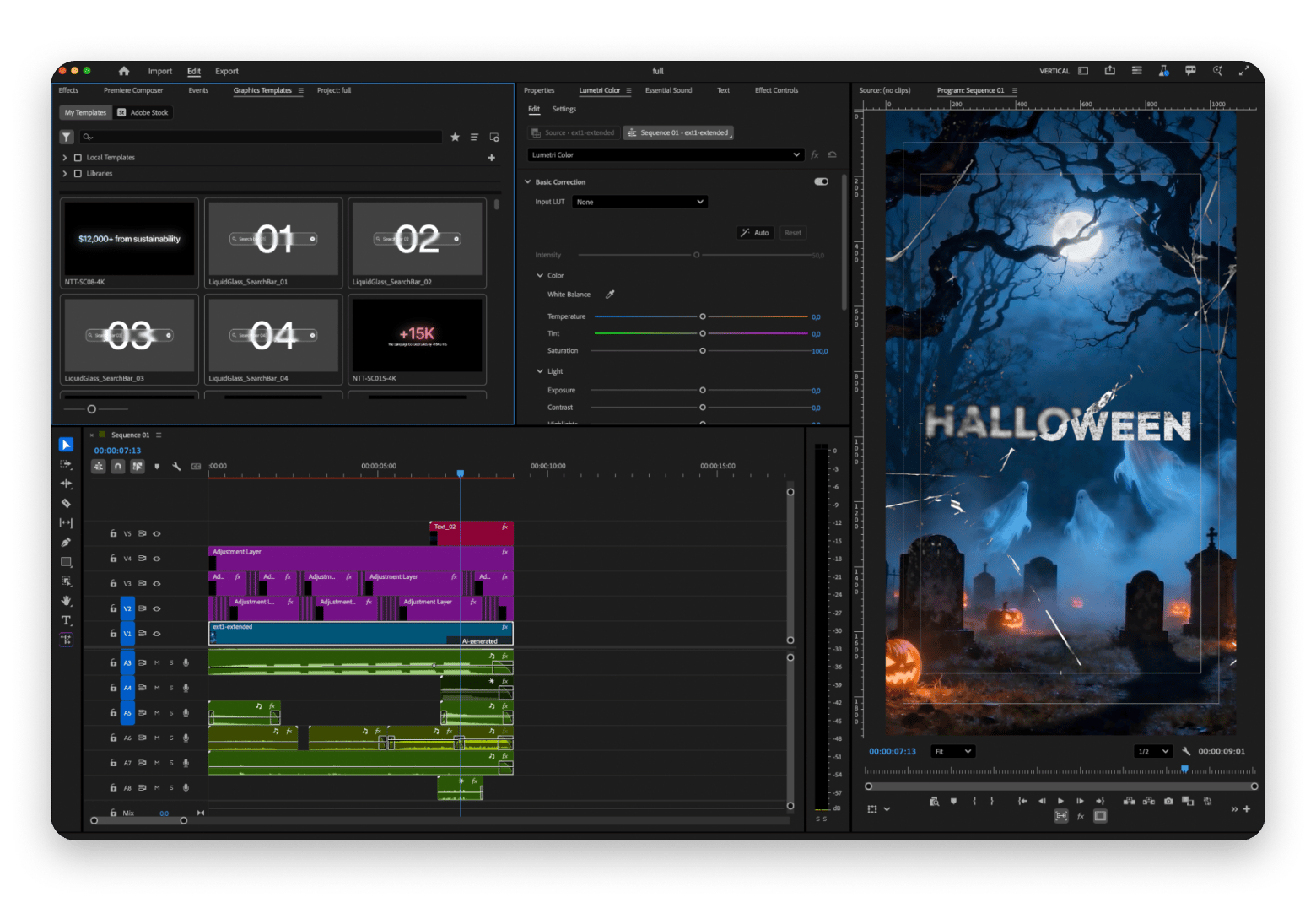
You transcribe the sequence, Premiere builds a caption track, and you edit it on the timeline next to everything else. No exporting audio, no importing an SRT, no second app. For a long edit, that alone is worth more than a slightly better transcription engine.
Be realistic about what it gives you, though. Accuracy is good on clean English and drops off noticeably with accents, background noise, or technical vocabulary. Language coverage sits at around 17, well behind the dedicated tools here. And the styling is plain subtitles under the picture, so if you want word-by-word pop captions, you are building that yourself.
I use it when the video is already in a Premiere timeline and I want the captions to live with the project. I do not open Premiere Pro just to make subtitles.
Best features:
Speech to Text built directly into the editing timeline
Caption track sits alongside your video, audio, and effects
No extra cost on top of an existing Premiere subscription
Captions travel with the project file rather than as a loose SRT
Standard subtitle export formats for broadcast and platform delivery
Pros:
Zero context switching if you are already editing in Premiere
Included rather than an add-on
Caption timing can be trimmed with the same tools as the edit
Cons:
Accuracy falls off with accents, noise, or specialist vocabulary
Around 17 languages, far fewer than the dedicated apps here
Plain caption styling with no animated or word-level options
Subscription only, and the software stops working when you cancel
Far too expensive to justify if subtitles are all you need
Price: From $22.99/mo for the single-app plan on annual billing, higher month to month. Speech to Text is included at no extra charge.
CapCut: Best free starting point
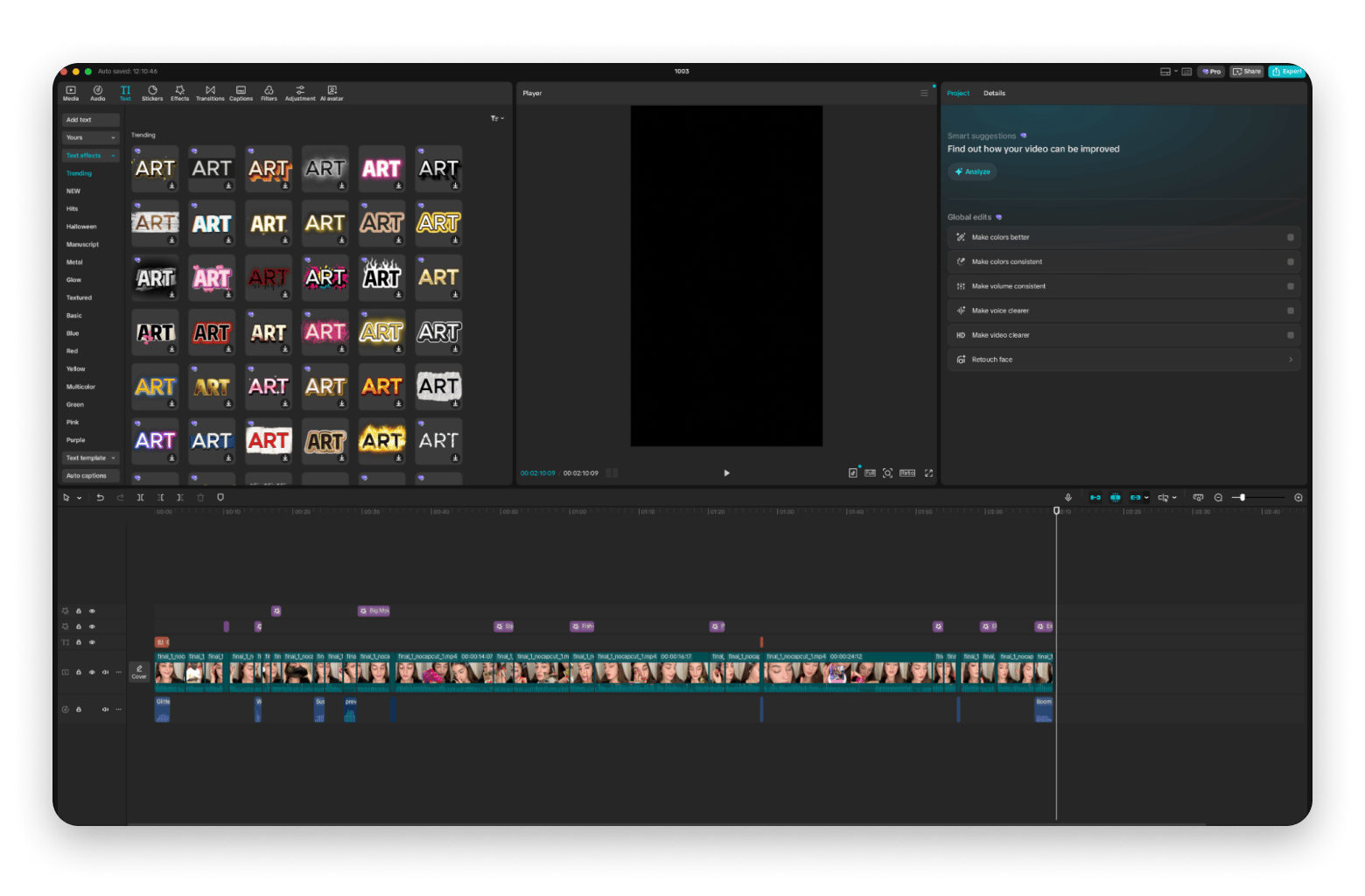
CapCut is where a lot of people make their first captions, and for good reason. The free plan does auto captions, the styling presets are the ones you already recognize from social video, and it runs on the Mac as a proper desktop app.
If you are posting occasionally and do not want another subscription, start here. It will get you captioned clips without spending anything, and the template library is enormous.
The reason it is fifth rather than first is what has happened to it recently. CapCut restructured its plans in early 2026 without announcing it. The old Pro tier was renamed Standard, a new Pro appeared at a much higher price, and the annual cost more than doubled. Its own pricing page describes the new structure but does not print the actual figures anywhere.
The free auto captioning is also capped, and CapCut does not document the limit. Building a daily posting routine on an undocumented free quota is a bad idea, which is exactly why I moved my own captioning off it.
Best features:
Auto captions available on the free plan
Social-ready caption styles and presets out of the box
Full desktop editor on macOS, not just a mobile app
Very large template and asset library
Projects carry across mobile, desktop, and web
Pros:
You can caption a video today without paying anything
The caption styles match what performs on short-form platforms
Nothing to learn if you have ever edited on a phone
Cons:
The free auto caption allowance is capped and the limit is not documented
Prices were restructured in early 2026 with no announcement, more than doubling the annual cost
CapCut does not publish the figures on its own pricing page, so confirm at checkout
Subscribing through an app store costs more than through the web
Users regularly report difficulty canceling and unannounced renewals
Price: Free with a capped amount of auto captioning. Standard is around $9.99/mo and Pro around $19.99/mo or $179.99/yr, but since CapCut does not list these publicly, check the number before you confirm.
How to choose the best subtitle maker for Mac
For a long time, I made the mistake of treating subtitles as one task with one best tool. They are not. Once you separate styled social captions from accurate subtitle files from live captioning, the choice stops being difficult.
For captions on a video you are about to post, VidCap is the one I would hand to anybody, and it is what I use every day. For long recordings where the words have to be right and the timing has to be clean, TranscribeX has the better engine and much better editing controls. For live captioning in a room or on a call, Transcrybe is the only Setapp option, with the reservations above. If your video is already sitting in a Premiere timeline, use what is built in. And if you are not ready to pay for anything yet, CapCut will get you started, as long as you know the free allowance has a ceiling nobody will tell you about.
Personally, I run VidCap for everything I publish, TranscribeX when I need a subtitle file that holds up, and Premiere only when the project is already open in front of me. All three Setapp apps come with 250+ other tools for one subscription, so you can test the whole set before you commit. Try Setapp free for 7 days, cancel anytime.
FAQ
What is the best subtitle maker for Mac?
For most people it is VidCap. You drop in a video, get an editable caption track in under a minute, restyle it, and export to TXT, SRT, or VTT. If you need accurate subtitle files for longer recordings, TranscribeX has better timing and speaker controls. Both are on Setapp.
What is the best free subtitle maker for Mac?
CapCut has a free plan with auto captions and social styling presets, which is enough for occasional posting. Be aware that the free auto caption allowance is capped and the limit is undocumented, so it is a starting point rather than a daily workflow.
How do I add subtitles to a video on Mac?
Open the clip in VidCap, let it transcribe the audio, fix any wrong lines in the editor, restyle the captions, and export. If you only need a subtitle file to use elsewhere, export it as SRT or VTT instead of burning it into the video.
Can I make subtitles on Mac offline?
Yes. TranscribeX and Transcrybe both run transcription locally on your Mac using Whisper, Parakeet, and Apple frameworks, so your audio never leaves the machine. That makes them the safer choice for sensitive recordings and meetings.
What is the best app to create an SRT file on Mac?
TranscribeX is built for clean subtitle files, with manual timestamp editing and speaker labels before export. VidCap also exports SRT, VTT, and TXT if you captioned a clip and want to reuse the file elsewhere.






 Best solution
 Best solution