The fastest way to compress video on Mac in 2026 is a dedicated app likeCompresto, which can shrink files by up to 90% offline with little visible quality loss.
Need to change format too? Permute compresses and converts across 50+ formats in one drag-and-drop, all on your Mac.
Recording tutorials or demos? Capto compresses footage on export, so you record and ship from a single app.
Free routes exist: HandBrake gives deep manual control, and QuickTime Player handles quick exports without installing anything.
I used to send big video files without thinking twice. Then a client asked why a clip was over 10GB. That was my wake-up call. Most built-in tools either crush quality or give you zero control. So I tested the best video compression apps for Mac in real projects. Here are the ones that actually deliver.
Best Mac video compression software at a glance
Here is a quick comparison before the details. The first three are on Setapp; the rest are free or built-in options I still reach for.
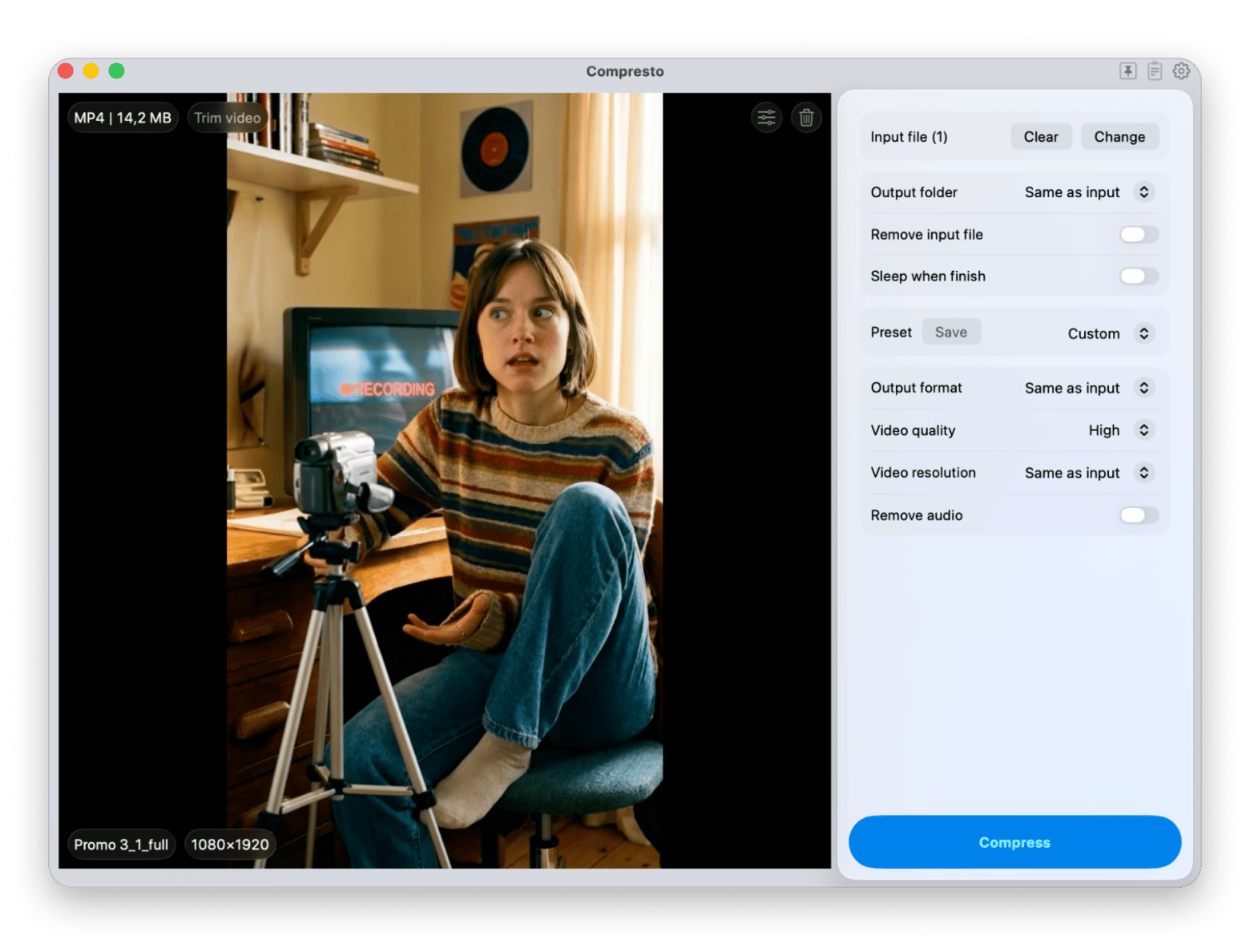
Compresto: Best for batch compression without quality loss
Compresto is my pick when I need to reduce video file size on Mac across many clips at once. It compresses video, images, GIFs, and PDFs, often cutting size by up to 90% with little visible quality loss.
Everything runs offline, so files never leave your Mac. That matters for client work. Drop in 10 or 20 clips, set a quality preset, and let it run. A watched-folder option compresses new files automatically the moment they land.
Best features:
Batch compression for video, images, GIFs, and PDFs
100% offline processing with Apple Silicon acceleration
Watched folders that auto-compress new files
Adjustable quality presets and per-file overrides
Pros:
Strong compression with minimal visible quality loss
Price: Available on Setapp, a platform with 250+ apps for Mac, iOS, and web. Try it free for 7 days.
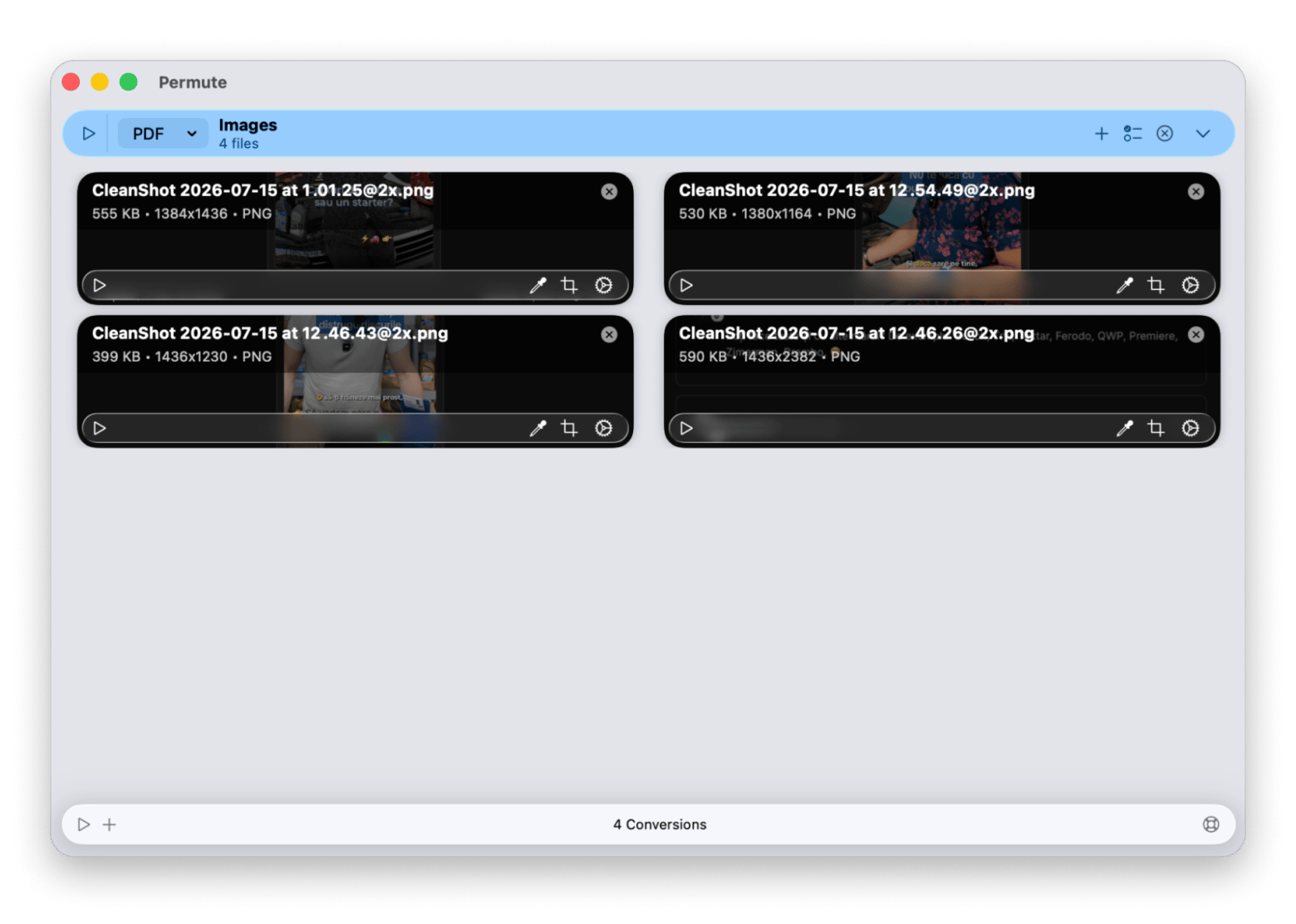
Permute: Best for compression plus format conversion
Permute is the tool I use when I need to do more than compress. It converts between 50+ video, audio, and image formats, compresses the output, and batch-processes whole folders. Drag a file in, pick a preset, hit play.
It also handles small jobs that would otherwise need separate utilities: merging clips, trimming, adding subtitles, and extracting audio. It pairs naturally with Downie when you download a video that needs reformatting before use.
Price: Available on Setapp, a platform with 250+ apps for Mac, iOS, and web. Try it free for 7 days.
Capto: Best for compressing what you record
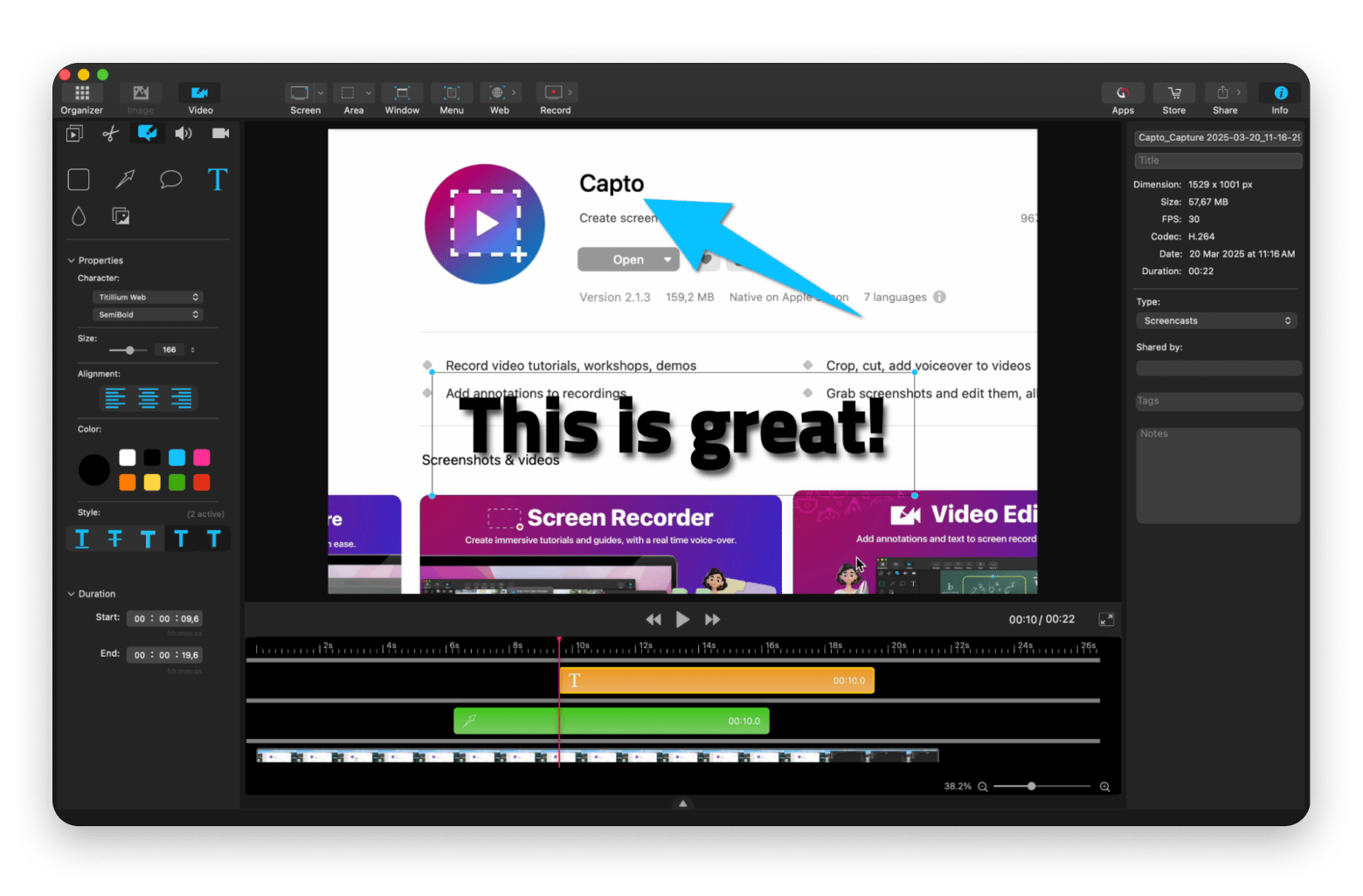
Capto approaches compression from a different angle. It is primarily a screen recorder, but it compresses on export. If you make tutorials, demos, or walkthroughs, you record and compress in a single app.
The built-in editor handles cuts, annotations, and trimming before export. You choose resolution, format, and quality on the way out, so files stay small without a separate compressor. It is not built for compressing an existing library, but for fresh recordings it is the most efficient route.
Best features:
Screen recording with compression on export
Basic editor with cuts, annotations, and trimming
Adjustable resolution and quality settings
GIF export for short clips
Pros:
Combines recording and compression
Clean, approachable interface
Great for tutorial and demo content
Cons:
Not suited to compressing pre-existing footage
Less control than dedicated compressors
“I've been a Mac user and video creative pro for 20+ years. I use Capto frequently to produce a quick tutorial for members of my department at work. It's very helpful, highly recommend.” — Joseph Darnell, a Setapp user.
Price: Available on Setapp, a platform with 250+ apps for Mac, iOS, and web. Try it free for 7 days.
Clop: Best for automatic, hands-off compression
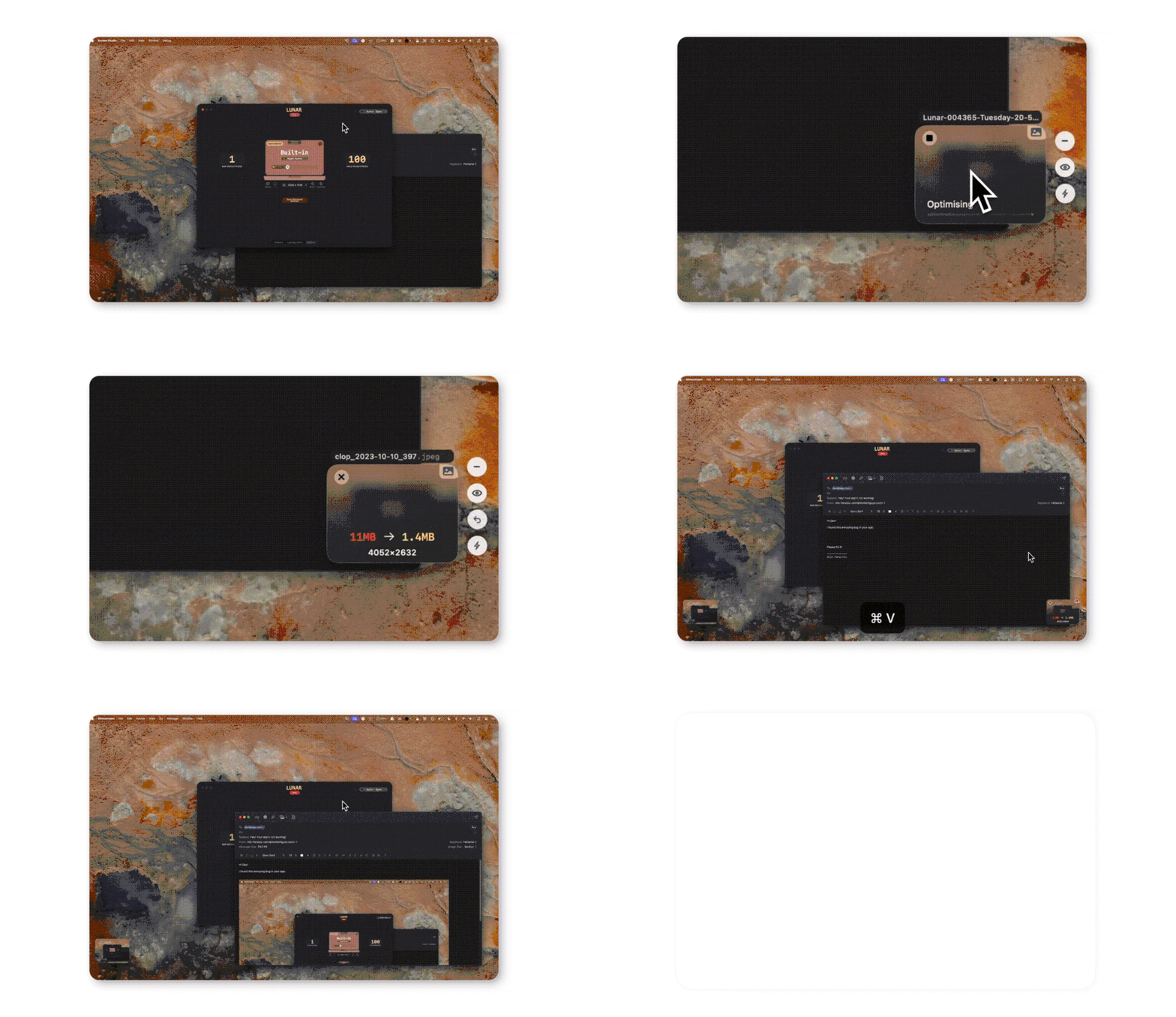
Clop lives in your menu bar and compresses in the background. Drag a file onto it, copy something to the clipboard, or grab a screen recording, and it compresses automatically. On M-series Macs it uses the Apple Silicon media engine, so it is fast and battery-friendly.
One honest note: Clop is no longer part of the Setapp catalog. I still mention it because it remains the best option for fully automatic, no-thought compression. It has a free tier for casual use and a paid version for power users.
Best features:
Menu bar app with drag-and-drop
Apple Silicon media engine encoding
Auto-compresses clipboard and screen recordings
Pros:
Fully automatic, no workflow interruption
Very fast on M-series Macs
Cons:
Limited manual control
Free version caps at 5 files per session
Price: Free tier available; $15 one-time for a lifetime license.
“I use Clop, when I need to optimize anything, and I can also use it in the background, when I copy paste anything” — a Reddit user says.
HandBrake: Best free app for manual compression control
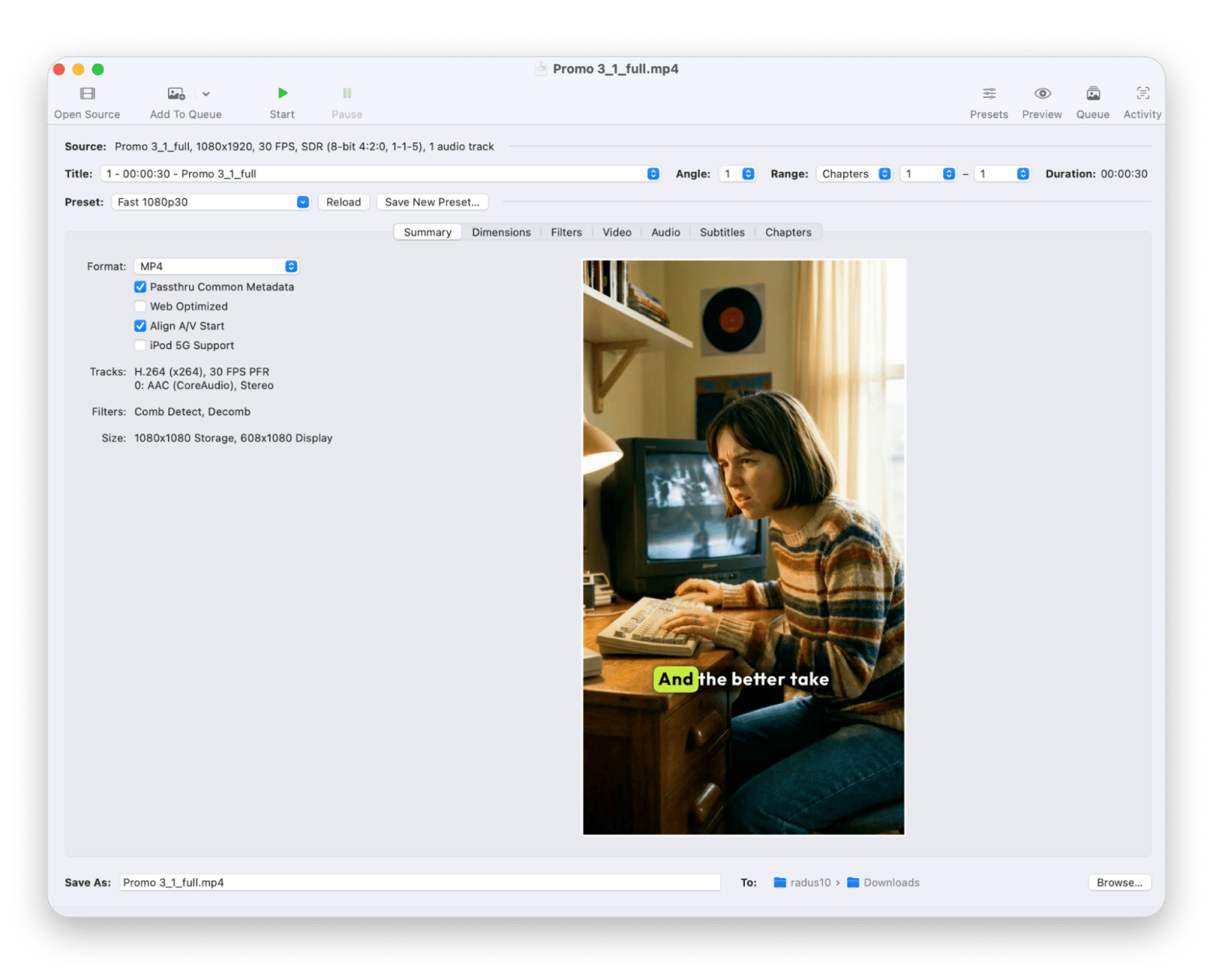
HandBrake is the free, open-source classic for people who want to tune every setting.
I reach for it when I need custom bitrate, frame rate, or codec choices that drag-and-drop tools hide. The learning curve is steeper, but the control is unmatched for the price.
Best features:
Manual control over bitrate, frame rate, and resolution
Built-in presets for devices and common targets
Batch queue for processing several files in a row
Soft subtitle support and audio track selection
Pros:
Completely free and open source
Deep control over bitrate and codecs
Works on Mac, Windows, and Linux
Cons:
Not beginner-friendly
No image or PDF compression
Price: Free.
QuickTime Player: Best built-in option for quick exports
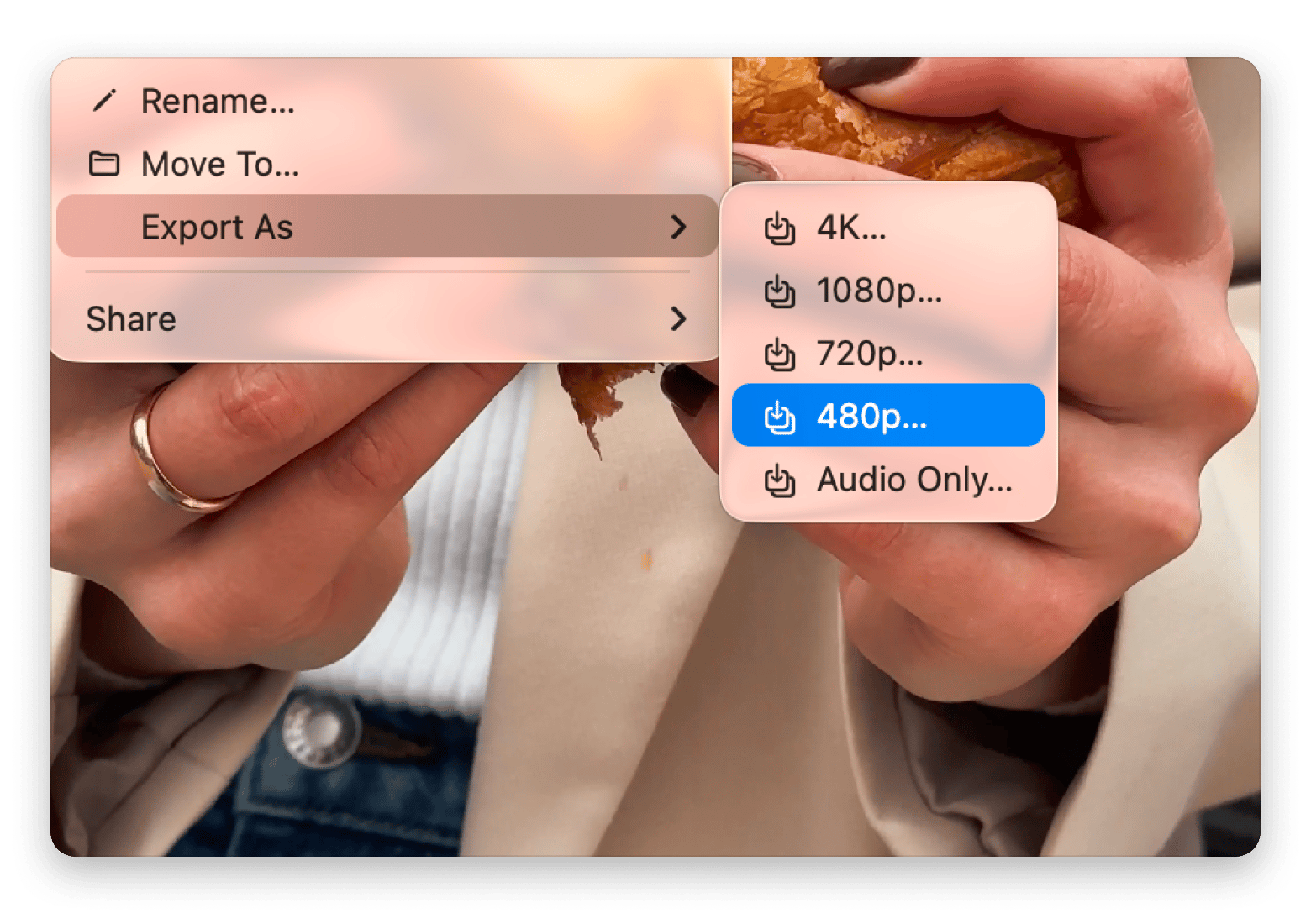
QuickTime Player is already on your Mac. Open a video, choose File then Export As, and pick a lower resolution like 720p or 1080p to drop the file size. It is basic and gives you few options, but for a fast, no-install export it does the job.
Best features:
Resolution presets (1080p, 720p, 480p) for quick size cuts
Export straight from the File then Export As menu
Basic trimming before you export
Pre-installed on every Mac, nothing to download
Pros:
Free and pre-installed on macOS
Zero setup, fastest path for a one-off
Cons:
Only resolution presets, no fine control
No batch processing
Price: Free.
How to pick your Mac video compressor
The best way to compress video on Mac depends on where you are in the workflow. For large batches with quality kept intact, Compresto is the most focused tool. When you also need to change formats, Permute is the most versatile. For tutorials and demos you record yourself, Capto keeps everything in one app.
Personally, I use Compresto for batch work and Permute when I need to change formats at the same time. If you would rather not buy tools one by one, all three are on Setapp with 250+ other apps. Try Setapp free for 7 days, cancel anytime.
FAQ
What is the best video compression app for Mac in 2026?
For most people, Compresto is the best choice. It batch-compresses video, images, and PDFs offline, cutting file sizes by up to 90% with little visible quality loss. If you also need format conversion, Permute is the better fit. Both are on Setapp.
How do I compress a video on Mac for free?
Open the video in QuickTime Player, choose File then Export As, and select a lower resolution such as 720p or 1080p. For more control, HandBrake lets you adjust bitrate and codecs at no cost. Both reduce file size without uploading anything online.
Does compressing video reduce quality?
It can, but a good compressor minimizes the loss. Tools like Compresto and Permute use efficient encoding so most clips look nearly identical at much smaller sizes. Higher-quality presets keep more detail; lower presets save more space.
Can I compress video on Mac without uploading it online?
Yes. Compresto, Permute, and HandBrake all process files locally, so your videos never leave your Mac. That is faster and safer for client or sensitive work.
What is the best app to compress video for email?
Compresto is ideal for email. It shrinks large clips to a few megabytes in seconds, and Setapp users specifically use it to make videos small enough to attach. Try it free on Setapp.
Powerful apps live on Setapp
Ditch defaults and discover new gems on one app platform.






 Best solution
 Best solution