CleanShot X is the best all-around Lightshot alternative. It combines screenshots, screen recording, scrolling capture, and OCR in one polished app — a strong fit for tutorials, documentation, and content creation.
Snagit wins for documentation and training. Its Step Capture feature auto-generates step-by-step guides, but it leans pricier and heavier than Mac-native options.
Monosnap and Greenshot are the budget-friendly picks. Both stay close to Lightshot's simplicity while adding cloud upload or lightweight annotation tools.
ScreenSnap Pro is worth it if you want pro polish without a subscription. It's a one-time $29 purchase via Setapp Marketplace, with backgrounds, annotation, and OCR built in.
The best Lightshot alternatives for Mac are CleanShot X for power users, ScreenSnap Pro for polished sharing, and Monosnap or Greenshot for free, lightweight options.
Last time I checked, I had hundreds of screenshots on my Mac that took up a few gigabytes of storage space. After all, who doesn't rely on screenshot apps for work? My favorite tool was Lightshot, but as my projects grew bigger, I found myself needing something with more advanced features.
So, I tested dozens of Lightshot alternatives for Mac and narrowed it down to eight that actually hold up.
Top Lightshot alternatives for Mac
Below are the best Lightshot alternatives for Mac that I found. Some apps are great for quick, basic screenshots and sharing, while others are geared toward power users and content creators. The focus is on the most important features you would expect from a screenshot tool, like scrolling screenshots, screen recording, OCR (optical character recognition), annotation tools, cloud sharing, and how well each app fits into a modern Mac workflow.
Here's a quick overview of Lightshot vs. the top Mac alternatives before we go into details:
Free plan, Microsoft 365 plans start at $19.99/year
While I was testing these Lightshot alternatives, I also ran a few quick questions through How to Screenshot on Mac — mostly keyboard shortcuts I kept forgetting. It's a handy GPT assistant if you just need a fast answer instead of digging through settings.
CleanShot X: Best choice for Mac power users who want pro screenshots + recording
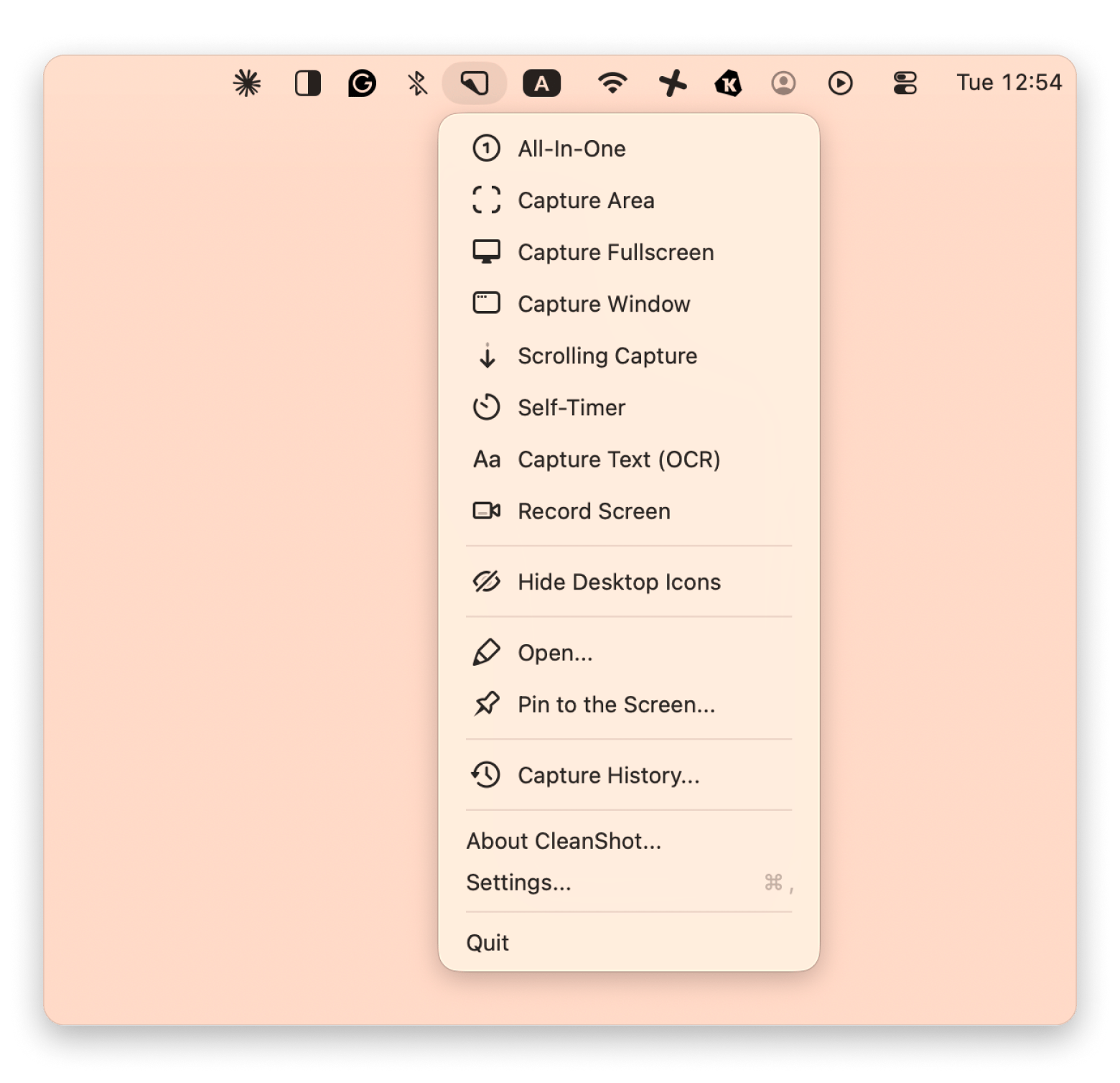
CleanShot X is the best all-around Lightshot alternative for Mac. It combines screenshots, screen recording, and scrolling capture in one app
Using the app feels like using an app developed by Apple. In other words, it's super easy to use. For example, right after you take a screenshot, you’ll get a floating preview so you can immediately edit, copy, blur, highlight, or share the image. You won’t have to open another app because you can do everything inside CleanShot X.
And the scrolling capture feature lets you capture an entire website, long documents, chats, or spreadsheets in one image.
The app is a recommended pick if you’re making YouTube videos, tutorials, documentation, or social media content. If you’re a creator, you’ll love the recording tools because they remove all the annoying steps from making a video. You’ll get webcam overlays, click highlighting, keystroke display, internal audio recording, GIF export, and quick video trimming.
What works
It has a great design and is ideal for beginners
Comes with screenshots and recording capabilities
Solid pick for making tutorials and documentation
Works well across macOS
Comes with quick sharing and editing tools, which save you time
What lacks
The basic plan has limited cloud storage
It's a bit too advanced if you just need simple screenshots
Snagit: Best option if you create documentation, training, or repeatable how-tos
Source: techsmith.com
Snagit is an app you should know about if your work involves creating tutorials, documentation, onboarding materials, or walkthroughs.
The best thing about this app is its editing and annotation tools. You take a screenshot and then add any elements you want, like arrows, highlights, effects, text, and step numbers. There's a cool feature called Step Capture that can automatically generate step-by-step guides from your clicks.
Additional features include scrolling capture, OCR text recognition, GIF creation, webcam recording, screen recording, and a searchable capture library. These tools can save you a lot of time if you spend your day explaining things visually.
What works
Great pick for teams and enterprises
Made for creators who want to save time
Comes with built-in recording and GIF tools
It stays reliable and functional even when new features are added
Simple and easy-to-use interface with powerful editing tools
What lacks
Some users don’t like the subscription-style pricing
Can be slow or heavy on Mac sometimes
The interface may feel overwhelming at first
Feels more like a Windows app
Price: $39 per year billed yearly for individuals, and $48 for businesses
Monosnap: Ideal for budget-conscious users who still want capture + upload options
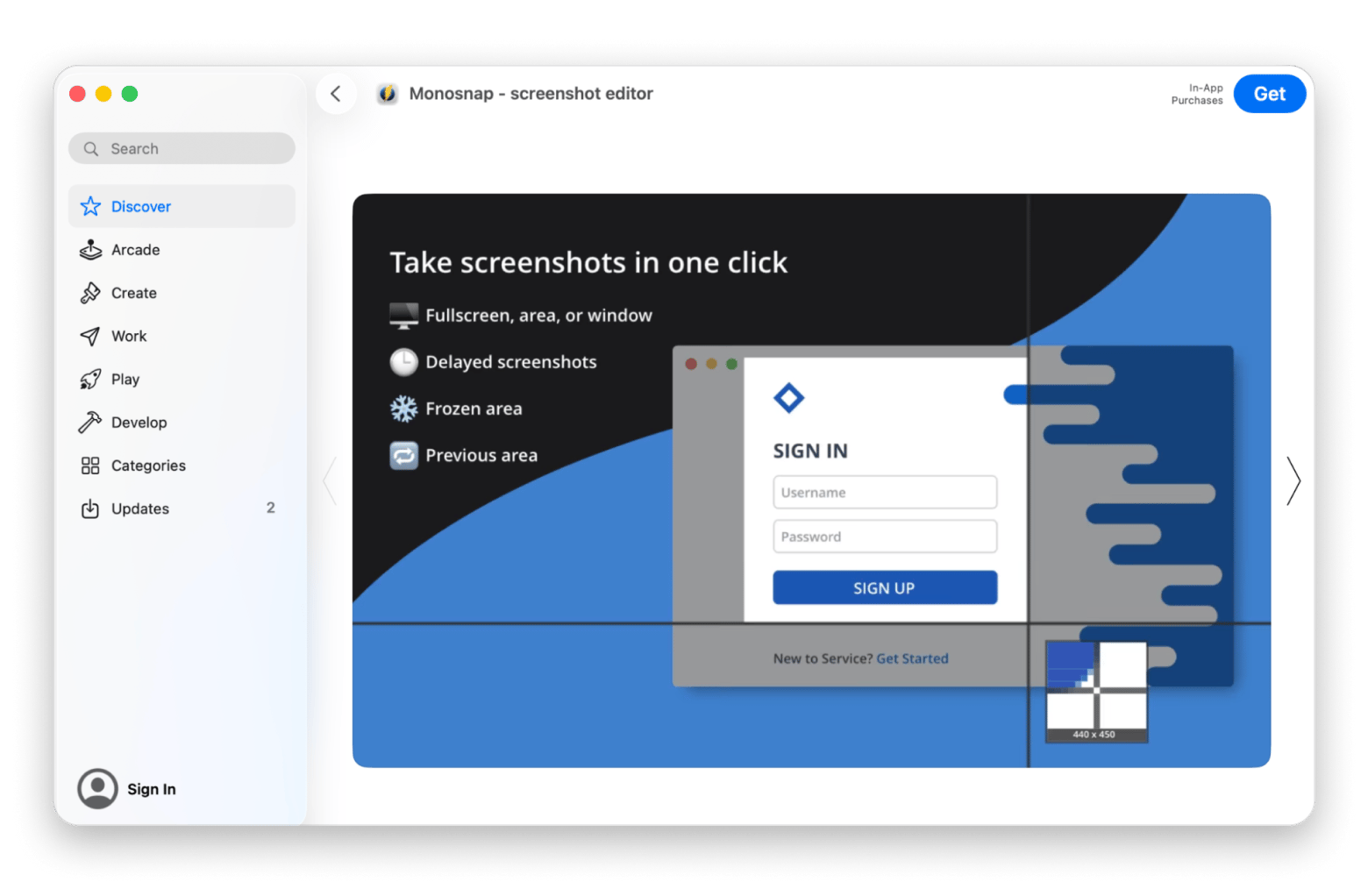
What if your budget is tight and you need a simple screenshot tool? Then Monosnap is an awesome pick for you. It comes with built-in cloud sharing and upload integrations. For quick walkthroughs or visual explanations, the app also includes screen recording and GIF recording.
Getting used to the app shouldn’t take more than an hour or two. You’ll be able to capture full screens, specific windows, or selected areas, then add arrows, text, blur effects, and highlights.
The app is also great for remote teams and client work because you can upload screenshots and videos directly to Dropbox, Google Drive, Amazon S3, and Monosnap Cloud Storage.
What works
Great for beginners who need a simple tool
Has screenshot, recording, and upload tools
Affordable for those on a tight budget
Easy to learn and quick to use
Useful cloud integrations for sharing files fast
What lacks
Some users report crashes or bugs
Comes with basic editing tools
The interface feels a bit outdated
Price: There's a free plan, and paid plans start at $2.5/month for non-commercial use and $5/month for commercial use.
SnapNDrag: Best choice if you want a simple, Mac-native “grab and drag” workflow
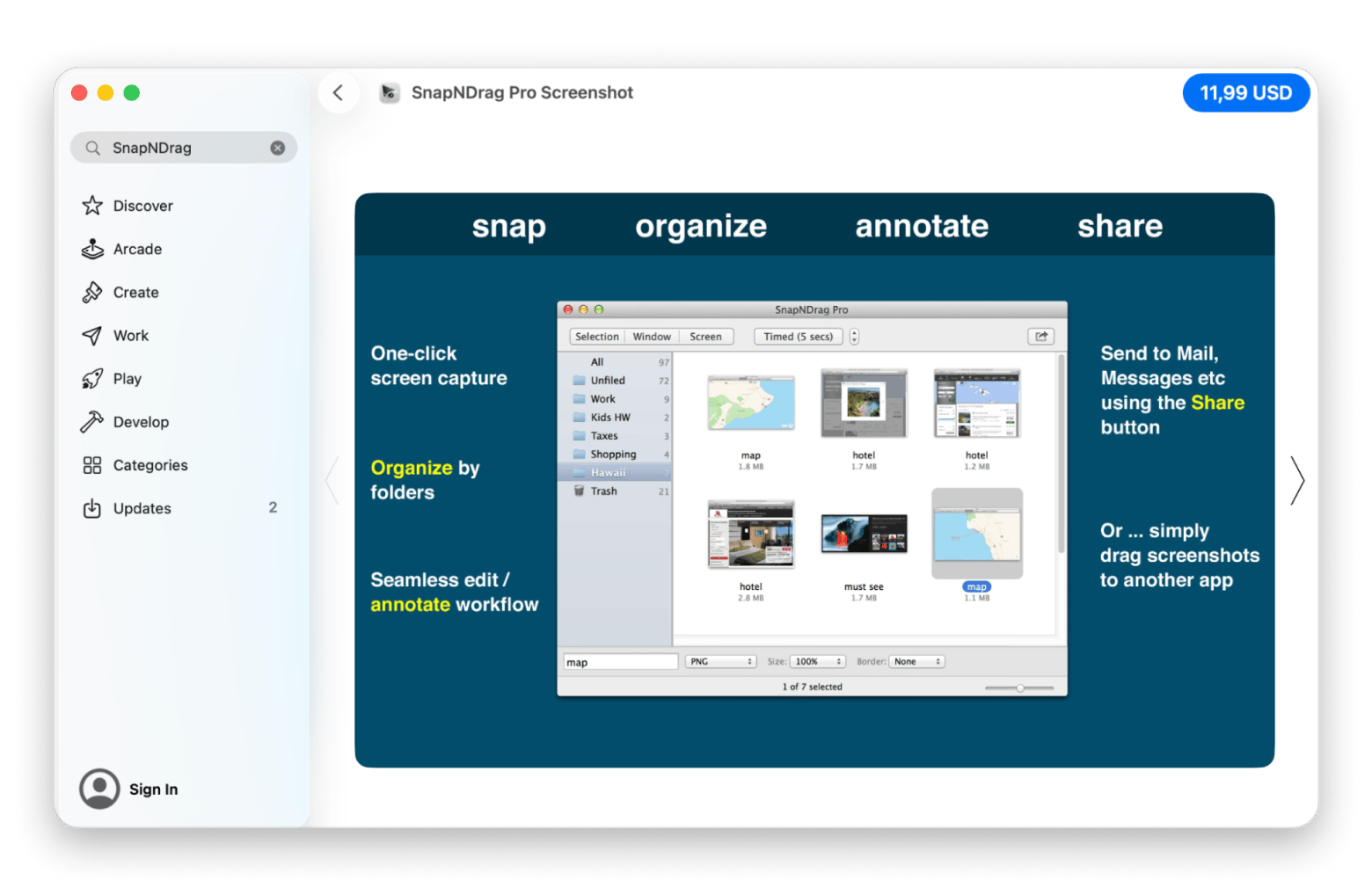
SnapNDrag is a screenshot app with an interesting story behind it. It started as a simple tool for taking screenshots, but over time, it evolved into a screenshot manager with tools for annotation, organization, and sharing. The good thing is that it remained easy to use and lightweight.
As a Mac-native app, it works smoothly. You can capture screenshots, organize them into folders, annotate them, and drag them into other apps. It’s a solid option if you work with screenshots all day. Teachers, designers, researchers, support teams, and content creators have a lot to benefit from the app. You can also export files in different formats like PNG, JPEG, and TIFF.
What works
It works smoothly on Mac
Makes organizing screenshots easy
Convenient for dragging screenshots into other apps
Clean interface that doesn’t feel overwhelming
Great pick for teachers, creators, researchers, and support teams
What lacks
The interface is a bit outdated
Some users report bugs
Customer support replies can be slow
Doesn’t have as many advanced tools as bigger screenshot apps
Price: There's a free plan, and the paid plan is $11.99 on the Mac App Store
Greenshot: Best option if you want a familiar name, but accept Mac/Windows differences
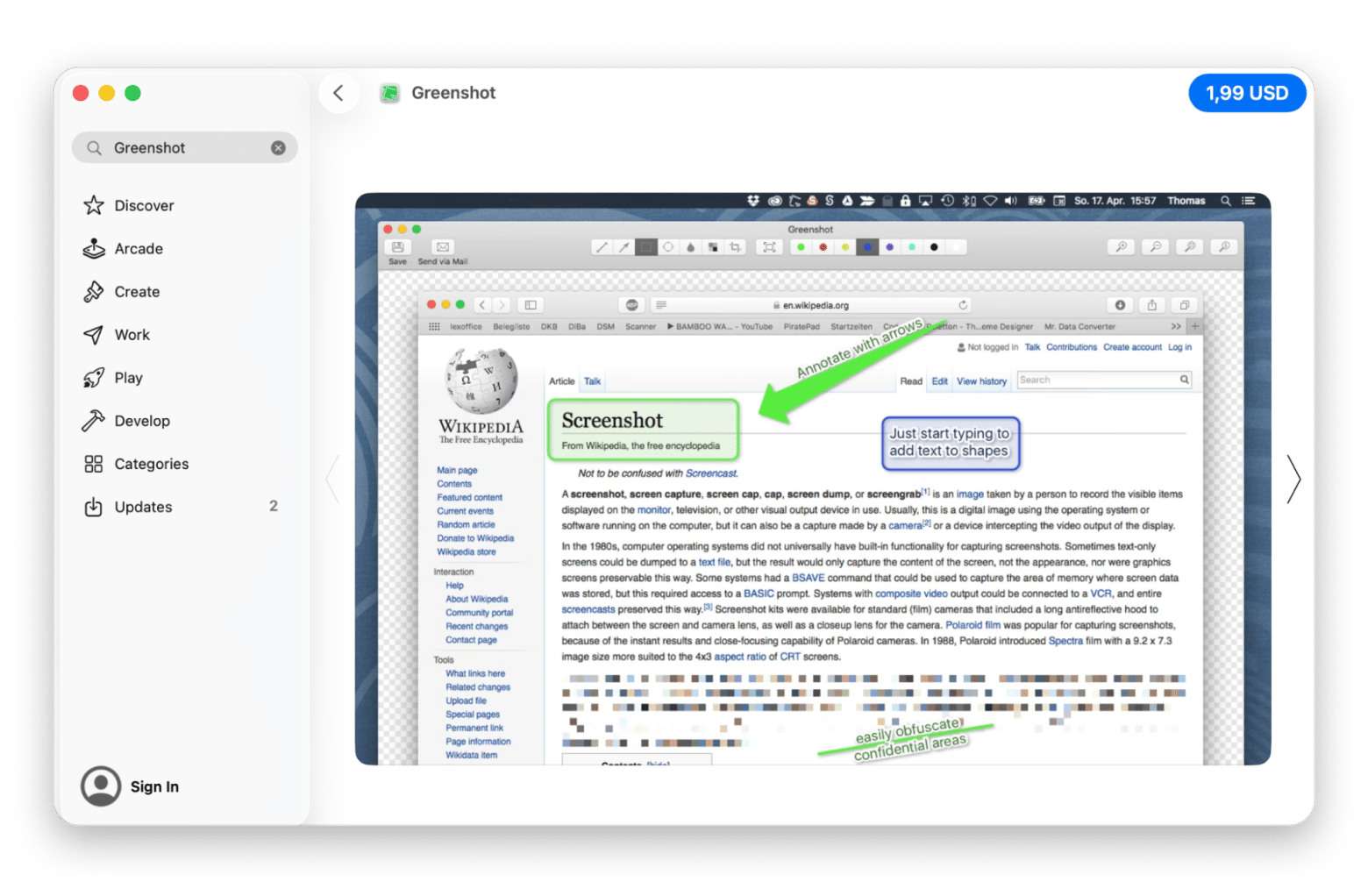
Greenshot is one of the most well-known screenshot tools out there. Its popularity comes from it being lightweight, free, open source, and packed with useful features.
It comes with all the regular features you’d expect from a screenshot app, like capturing selected areas, full screens, or specific windows using hotkeys. You can also add arrows, text boxes, highlights, speech bubbles, and blur effects right after taking a screenshot.
The app is especially popular among developers, project managers, support teams, and technical writers. Why? Because you can quickly copy screenshots to the clipboard, save them as files, send them via email, or export them to Office and other programs.
What works
Runs fast and doesn’t use many system resources
Simple interface that’s easy for beginners to use
Comes with useful tools for arrows, text, blur, and highlights
Makes taking and editing quick screenshots very easy
Great for simple daily work and communication tasks
What lacks
The Mac version has fewer features than the Windows version
Some tools and customization options are missing on macOS
A few users report bugs, freezing, or random issues
Price: $1.99 one-time fee
ScreenSnap Pro: Best choice if you want pro-looking screenshots with a one-time purchase
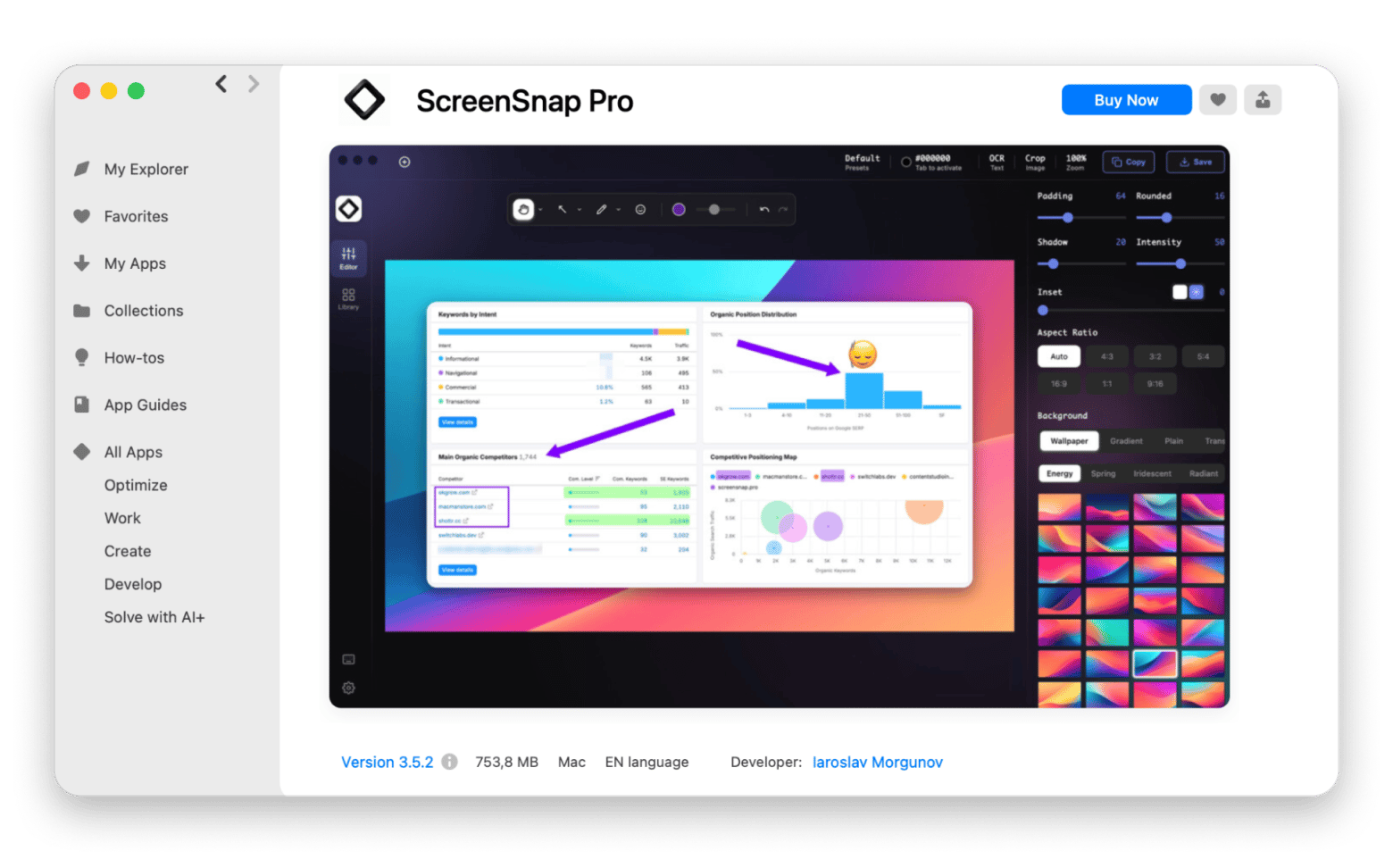
ScreenSnap Pro is the best Lightshot alternative for Mac if you want pro-looking screenshots without a subscription.
What if you need professional-looking screenshots? What if, to you, screenshots are not just simple bits of information you need to quickly share with a colleague? In that case, you need a tool like ScreenSnap Pro. It’s a newer screenshot app that’s ideal if you post screenshots on social media, share mockups with clients, create tutorials, or paste screenshots into tools like Slack and Jira.
What surprised me was how good the background feature looked straight out of the box. I didn't expect a one-time-purchase app to match the polish of subscription tools. You can take a screenshot and instantly place it on top of beautiful gradients and styled backgrounds. There are more than 160 backgrounds to choose from!
Apart from that, it also comes with annotation tools like arrows, blur, shapes, text, emojis, and highlights. You can also do screen recording, GIF recording, OCR text extraction, drag-and-drop sharing, and more.
What works
Great for making professional-looking screenshots
Comes with many modern sharing and editing features
Designed for creators, designers, and video editors
160+ backgrounds to choose from
What lacks
There's no scrolling screenshot capture
Some features focus more on style than functionality
Maybe too much for users who need a simple screenshot tool
Need screenshots that look client-ready, not just functional? ScreenSnap Pro adds 160+ styled backgrounds, annotation, and OCR — no subscription required. Get ScreenSnap Pro standalone via Setapp Marketplace — one-time $29, no membership needed.
Microsoft OneNote: Best option if your screenshot tool is really a note-taking workflow
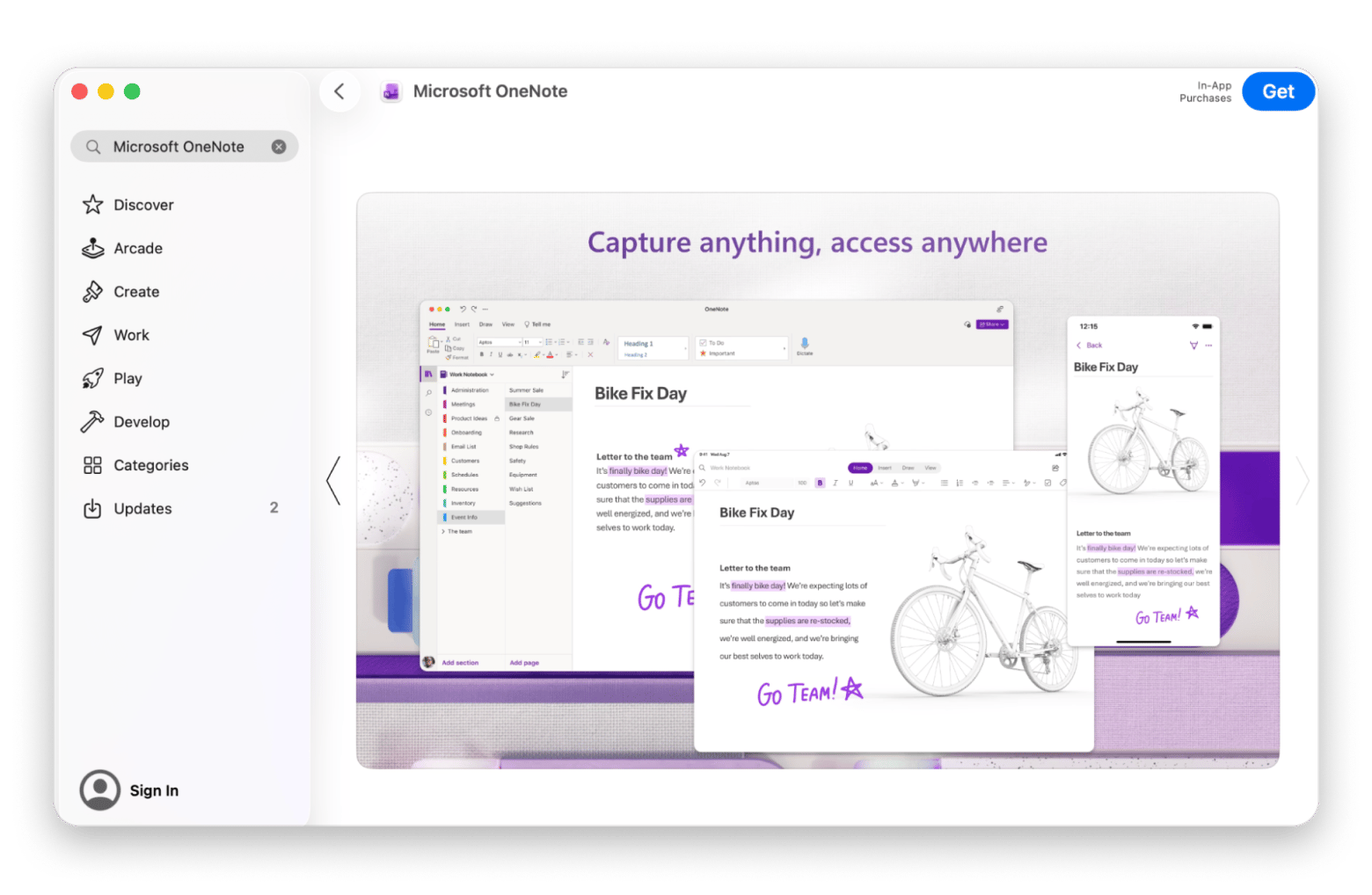
You might be wondering: what is a note-taking tool doing on this list? Well, it turns out that Microsoft OneNote can be a great fit if your workflow involves constantly collecting screenshots for research, work notes, tutorials, studying, brainstorming, or project management. Instead of just taking a screenshot and forgetting about it, you can organize everything into notebooks, sections, pages, and subpages.
It’s widely used by students, office workers, researchers, and teams. You can drag screenshots anywhere on a page, write notes around them, highlight parts of images, attach files, create checklists, and sync everything across devices.
Another great feature is OCR. OneNote can recognize text inside screenshots and images, which makes searching through old notes much easier.
What works
Excellent for organizing large amounts of information
Great if screenshots are part of your notes and workflow
Free to use with most core features included
Syncs across almost all major devices
What lacks
The Mac version feels weaker than Windows
Some users experience syncing issues
Interface may feel cluttered or outdated
Not designed purely for screenshots
Choosing the right Lightshot alternative on Mac
And we’ve come to the end of the list! Seven awesome screenshot tools, some built for simple use and others for more advanced workflows. But which one should you choose? Well, that depends on your needs and the way you work.
If you need something lightweight, apps like Monosnap or Greenshot may be enough. If you create tutorials, documentation, or content for clients and social media, tools like CleanShot X, Snagit, or ScreenSnap Pro offer more advanced features. And if you need a tool that fits into your research or note-taking workflow, then Microsoft OneNote is a great choice.
Found your next screenshot app? It's already on Setapp. CleanShot X, and 270+ other hand-picked Mac apps — one membership, one trial. Start My 7-Day Trial. Or get ScreenSnap Pro standalone if you only need one app.
FAQ
What is the best screenshot app for Mac?
The best screenshot app for Mac for you depends on what you need. CleanShot X is a great option that combines screenshots, screen recording, scrolling capture, annotations, and OCR. If your needs are simpler, try Monosnap or Greenshot.
What is the best screenshot tool like Lightshot?
If you want a tool that's similar to Lightshot, then Greenshot and Monosnap are the closest alternatives. But if you want more advanced tools like scrolling capture and recording, CleanShot X is a stronger option.
What is the best screenshot extension for Mac?
Tools like GoFullPage and Awesome Screenshot are popular choices because they can capture full webpages directly inside Chrome or Safari. But if you regularly take screenshots outside your browser too, a dedicated Mac app like CleanShot X or ScreenSnap Pro will give you far more flexibility and features.
Can you use Lightshot on a Mac?
Yes, Lightshot works on Mac. Just keep in mind that the macOS version is more limited than the modern screenshot apps available today. Some of the reasons many users switch to apps like CleanShot X, Monosnap, or ScreenSnap Pro are better performance and more features.
Anyone know of a good alternative for screenshot software?
Yes, there are plenty of great alternatives depending on what you need. CleanShot X is one of the best all-around choices for Mac users, while Snagit is great for tutorials and documentation. If you’re on a budget, Monosnap and Greenshot are solid, lightweight options that still cover the basics really well.
Best screen capturing app
Use CleanShot X for all your screen recording needs.






 Best solution
 Best solution