Native alternatives: •balenaEtcher — open-source, writes ISO/IMG/ZIP to USB or SD card; best all-around replacement. • WinDiskWriter — best for creating a Windows installer USB from macOS. • Install Disk Creator — best for creating a bootable macOS installer USB; no setup required. • UNetbootin — cross-platform, supports persistent storage; best for Linux distributions.
For multi-ISO or specialized needs: • Ventoy — copy multiple ISOs to one USB without reformatting (Windows/Linux only). • Raspberry Pi Imager — purpose-built for Raspberry Pi SD cards and USB drives. • Disk Drill — creates byte-to-byte disk image backups; best if data recovery is also a priority.
As a former Windows user, Rufus was my favorite tool for creating bootable drives. I wasn't familiar with the value of these drives until I started using them to recover data and switch between operating systems for gaming purposes. And these functions are just as important on Mac, which is why so many people search for a Rufus equivalent for Mac.
The beauty of macOS is its built-in tools plus solid third-party apps that offer clean interfaces for creating bootable drives. Here's a curated list of reliable Rufus alternatives for macOS in 2026.
Can you use Rufus on a Mac? (No — here's why)
Rufus is designed especially for the Windows operating system, which means it's entirely incompatible with macOS. Mac has its own tools for creating bootable drives through Terminal (createinstallmedia command) and Disk Utility, which are handy enough, but if you're searching for a more user-friendly alternative, I've put together this list below, along with a table for a quick overview:
Rufus alternative
Why users love it
Disk Drill
Full data recovery tool to create bootable byte-to-byte disk images.
balenaEtcher
Open-source program to write image files and zipped folders.
WinDiskWriter
Lightweight Rufus alternative that supports a variety of ISO files.
Raspberry Pi Imager
Creates bootable SD cards or USB drives specifically for Raspberry Pi projects.
Ventoy
Copy ISO files right to the USB drive without having to format the drive every time.
UNetbootin
Supports both persistent and non-persistent storage.
Install Disk Creator
Straightforward tool to create bootable USB drives to install or reinstall macOS.
DiskMaker X 2026 update: DiskMaker X is no longer compatible with modern macOS versions (Big Sur and later). Use Apple's official createinstallmedia command or Install Disk Creator instead.
Best Rufus alternatives for Mac (Bootable USB & ISO tools)
Without further ado, let's go over the eight top alternatives to Rufus for macOS. Not all of them are exact replicas of the app, but they come with unique functions you'll probably find incredibly useful.
1. Disk Drill — Best for data recovery + byte-to-byte disk backups
Best for: All-in-one data recovery and creating exact drive backups
Platforms: Mac / Windows
Pricing: Free version available (byte-to-byte backup is free); paid plans from around $49/year
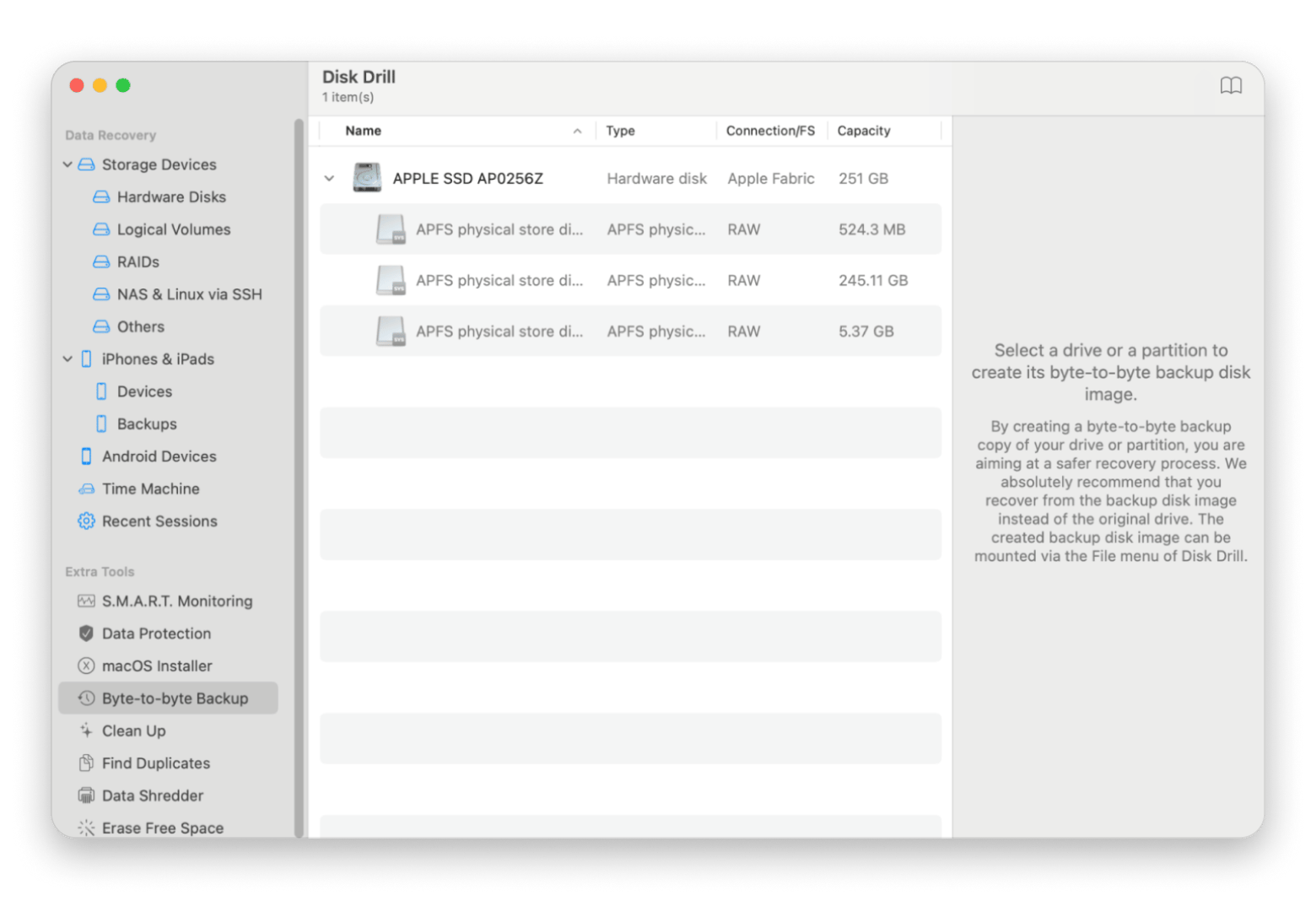
We've all been through the nightmare of trying to find a file that we swear was on our computer, only to realize it's long gone. Disk Drill is a top-rated data recovery app that lets you detect lost files and restore them. Users can make bootable byte-to-byte disk images by simply using the Byte-to-Byte Backup function under the Extra Tools section. The tool creates an exact copy of your hard drive or a partition, so if your Mac's hard drive ever fails, you'll be ay-okay.
What I like:
✅ Compatible with all popular devices like iPhone, iPad, Android, and USB and SD cards.
✅ Use Finder to find recovered data.
What's missing:
❌ Lacks advanced bootable drive creation options as a data recovery tool.
2. balenaEtcher — Best simple ISO/IMG flasher for macOS (USB/SD)
Best for: Users who want an easy way to write images to USB drives or SD cards
Platforms: Mac / Windows / Linux
Pricing: Free (open-source)
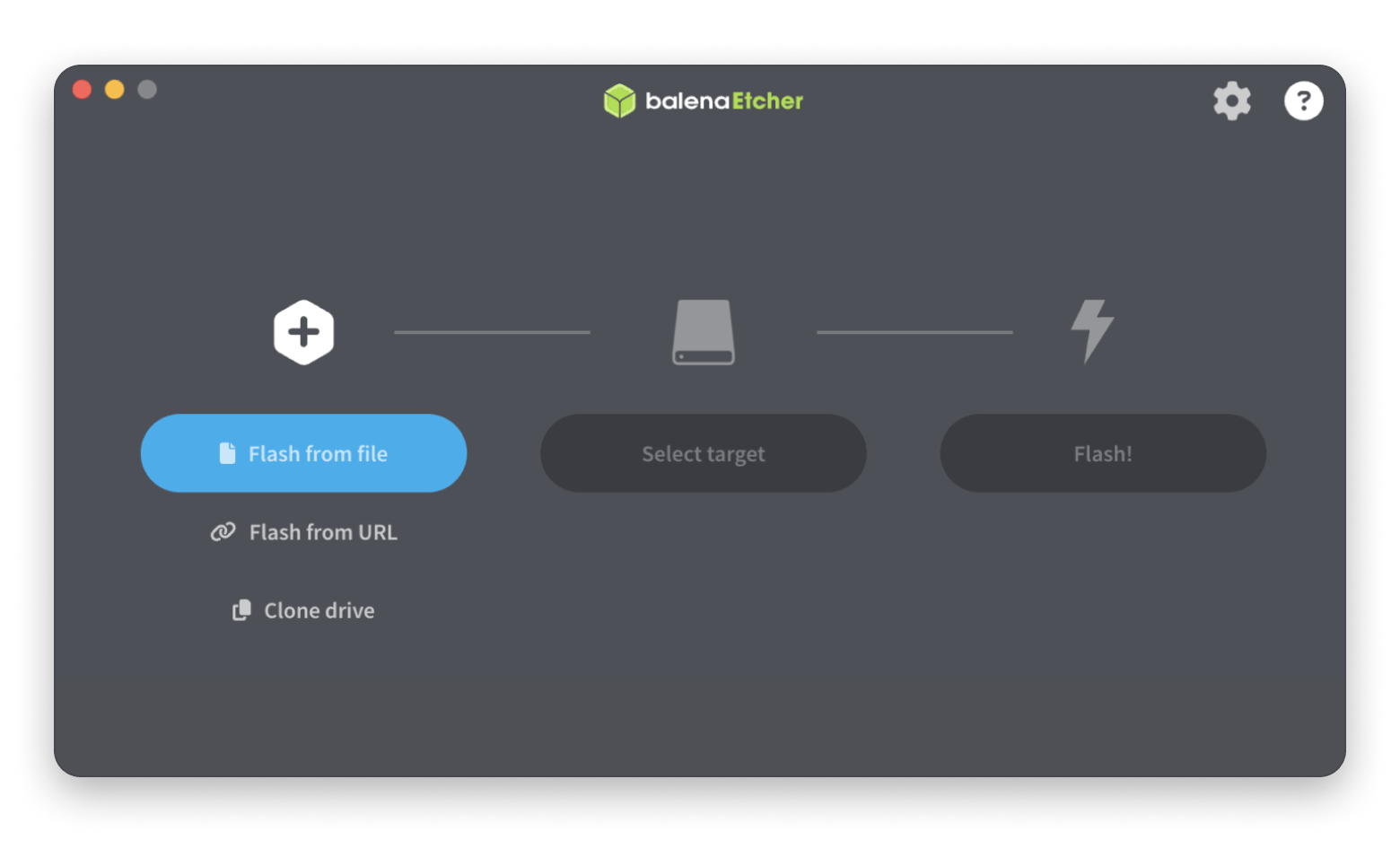
balenaEtcher (formerly Etcher) is a popular open-source tool that writes image files to create bootable USBs or SD cards for OS installation or recovery. It verifies the data after writing to help prevent corruption and works well for Raspberry Pi or live environments.
Formerly just known as "Etcher," balenaEtcher is an open-source utility like Rufus that lets users write image files and zipped folders to create bootable USBs or SD cards for OS installation or recovery. That means it can put operating systems or recovery tools onto these drives for easy installation or troubleshooting. An extra bonus is that balenaEtcher verifies the data after writing to help prevent corruption and works well for Raspberry Pi or live environments.
What I like:
✅ Open-source, actively maintained by the community.
✅ Supports multiple file formats, including ISO, IMG, and ZIP.
What's missing:
❌ Only supports disk image files and can't be used for non-image-based tasks.
3. WinDiskWriter — Best for creating a Windows installer USB on Mac
Best for: Creating bootable Windows installation drives from macOS
Platforms: Mac
Pricing: Free (open-source, donationware)
WinDiskWriter is a super user-friendly "Rufus for Mac" because it doesn't require a ton of setup and lets you create bootable USB drives in no time. While it's designed for Windows, it can run on macOS, too, as it's written in Objective-C for high compatibility with older versions of macOS.
Source: github.com
What I like:
✅ Lightweight and straightforward, easy for beginners to use.
✅ Supports a variety of ISO files.
What's missing:
❌ Limited advanced options as it's designed with ease of use in mind.
4. Raspberry Pi Imager — Best for Raspberry Pi boot media (beginner-friendly)
Best for: Raspberry Pi users
Platforms: Mac / Windows / Linux
Pricing: Free (open-source)
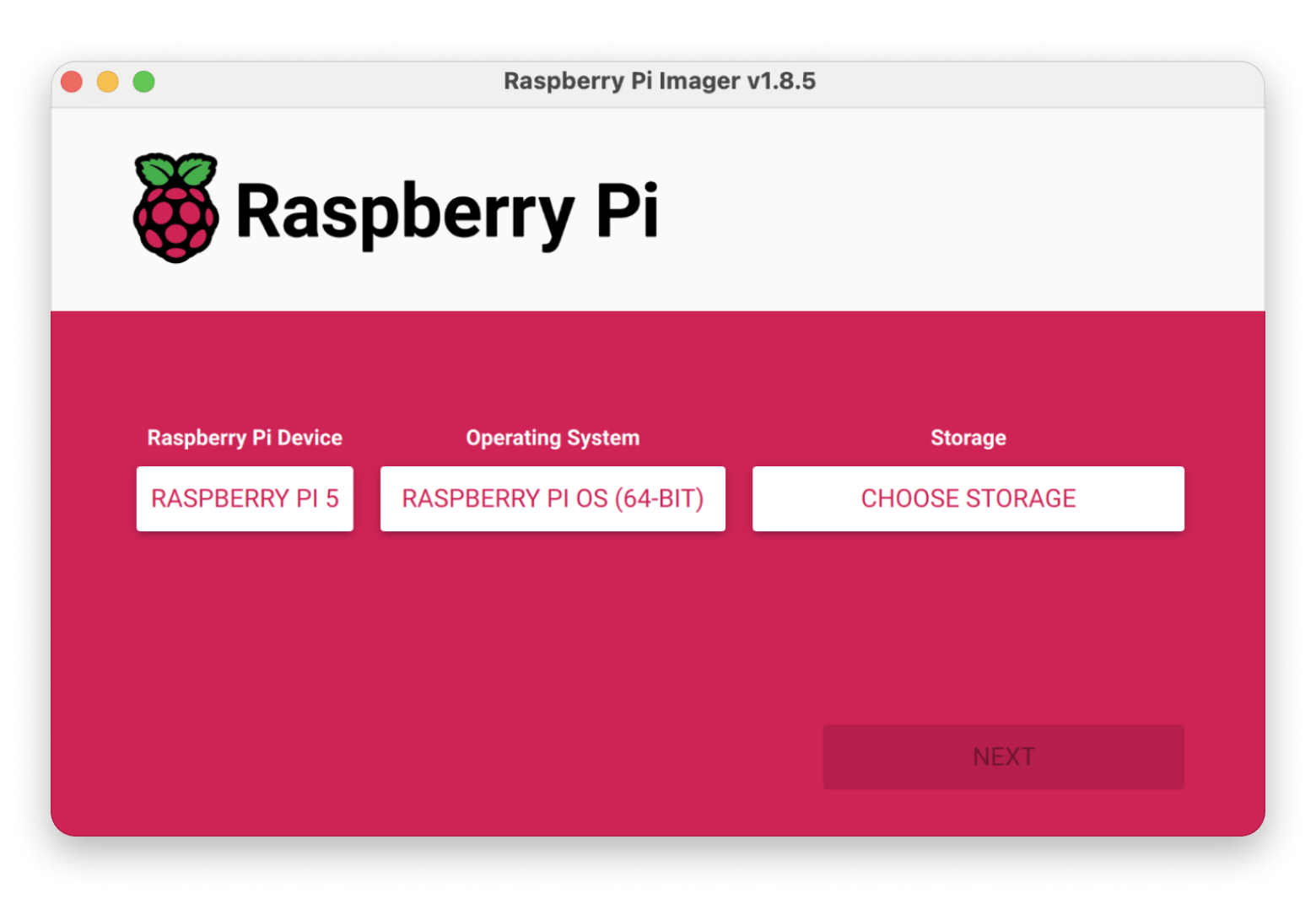
As the name suggests, the Raspberry Pi Imager is made to create bootable SD cards or USB drives specifically for Raspberry Pi projects. Despite its primary use, though, you can also use it to install other operating systems, which is particularly useful if you want to access certain programs that are only compatible with certain systems.
What I like:
✅ Choose from a range of pre-configured operating systems.
✅ Set preferences before writing the operating system image.
What's missing:
❌ Not as versatile for non-Raspberry Pi systems.
5. Ventoy — Best for multi-ISO bootable USB drives
Best for: Users who want to boot multiple ISO files from a single USB drive
Platforms: Mac / Windows / Linux
Pricing: Free (open-source)
Ventoy’s multi-ISO feature (copy ISOs without reformatting) is excellent on Windows/Linux, but there is no macOS version. Consider alternatives like balenaEtcher for single images or manual methods for multi-boot needs.
What I like:
✅ Drag and drop new ISO files without reformatting.
✅ Cross-platform support for a variety of operating systems, like Linux and Windows.
6. UNetbootin — Best lightweight bootable USB tool (Linux-focused)
Best for: Users who need a cross-platform tool with more focus on Linux distributions
Platforms: Mac / Windows / Linux
Pricing: Free
UNetbootin is compatible with macOS, Linux, and Windows, making it a go-to if you value cross-platform compatibility. It's a stripped-down tool that doesn't require you to be overly tech-savvy, with a three-step process that lets you choose the ISO file, target the USB drive, and click OK. It supports both persistent storage (save files on the bootable drive) and non-persistent storage (temporary boot).
What I like:
✅ Supports persistent storage.
✅ Lightweight and intuitive.
What's missing:
❌ Less intuitive as it favors Linux-based OSes over macOS.
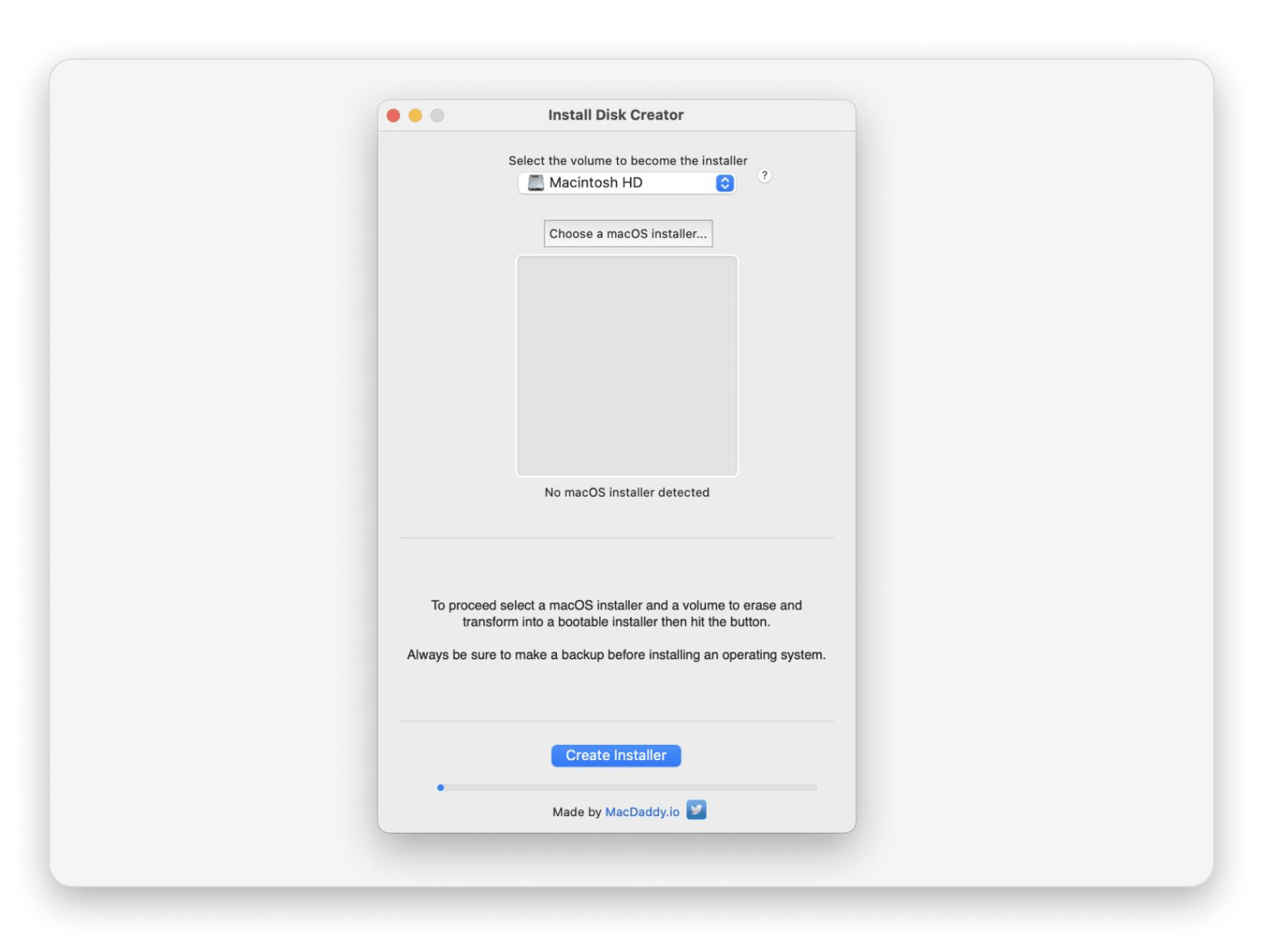
7. Install Disk Creator — Best no-frills macOS USB installer creator
Best for: Mac users looking for a simple way to create a bootable macOS USB
Platforms: Mac
Pricing: Free
Install Disk Creator is another program specific to macOS, as it centers around creating bootable USB drives to install or reinstall macOS. Supporting macOS installations from several versions, it has a no-fluff approach that does exactly what it says out of the box.
What I like:
✅ No-frills solution.
✅ Mac-native.
What's missing:
❌ Fairly basic and lacks advanced options.
How to create a bootable USB on Mac (Built-in macOS methods)
Third-party apps make the process much easier, but you don't actually need them to create a bootable USB on a Mac. macOS lets you run the process in Terminal, and we'll look at how to do so.
Using Disk Utility to format a USB correctly
The first thing you need to do is prepare your USB by formatting it correctly. Ensure it has enough space, preferably at least 16GB for macOS Sonoma and later.
From there:
Open Disk Utility (Applications > Utilities).
Click on the USB drive.
Click Erase.
Choose format as macOS Extended (Journaled) with GUID Partition Map.
Name it MyUSB.
Click Erase.
This will help you avoid "disk not found" errors.
Using Terminal (createinstallmedia) for macOS installers
Now, download the macOS file from the Apple website, Mac App Store, or via Terminal.
You can then proceed to create a bootable Mac installer:
Open Terminal (Applications > Utilities).
Run the createinstallmedia command: sudo /Applications/Install\ macOS\ Tahoe.app/Contents/Resources/createinstallmedia --volume /Volumes/MyUSB. Replace "Tahoe" and "MyUSB" with the corresponding names for the OS and the installation disk.
Enter your password when prompted and press Return.
Type Y to confirm erasure.
Eject the USB safely after all files have been copied.
Compatibility notes: Apple silicon (M1/M2/M3/M4/M5) vs Intel Macs
Booting from USB on a Mac differs depending on whether you are using an Intel Mac or an Apple silicon Mac. In the former, the process isn't complicated as you just need to hold the Option key at startup, then select your drive.
In Apple silicon Macs, you may need to switch to "Reduced Security" from the Startup Security Utility. However, it may not be necessary if you are installing a compatible and signed macOS version. If you are installing Linux or an older macOS version, you'll need it.
Common problems (and fixes) when making bootable USBs on macOS
There are some issues that tend to come up when making bootable USBs on a Mac.
USB not showing up / "resource busy" errors
If you can't see your USB drive, open Terminal and run diskutil list to see all connected drives. If it shows up as busy, unmount it. Otherwise, just erase the disk via Terminal or Disk Utility.
ISO vs DMG vs IMG: which format you need
When creating bootable disks, you'll come across three main file types:
ISO — mostly used for Windows and Linux OS files. Supported by pretty much every Rufus alternative.
DMG — the format used by macOS images.
IMG — a raw disk image format mostly used for Raspberry Pi and some embedded system images. balenaEtcher and Raspberry Pi Imager support it.
Ensure that the tool you choose supports the format you want.
UEFI vs Legacy BIOS (and why it matters)
Macs released since 2006 use UEFI firmware, so ensure your bootable USB drive is formatted to match. This means using the GPT partition scheme. Avoid the MBR partition scheme unless you are working with some really old machines.
Rufus alternatives for Linux (If you're not on macOS)
If you also like to work on Linux, Ventoy, balenaEtcher, and UNetbootin all have Linux versions you can install. They'll still let you create bootable disks for macOS when you download the DMG file from the Apple website.
Otherwise, you can also rely on the built-in dd command via Terminal.
How to choose a Rufus equivalent for Mac (based on your goal)
Like with any choice, picking your Rufus equivalent all depends on your preferences and needs. Suffering from decision paralysis? Let me help you figure things out:
What features does it have? Are you interested in having loads of features available, or are you more interested in getting the basics done well? Check to see that it supports the file formats you want and whether it can help with a range of functions or just one.
Is it easy to use? Will you need a lot of technical knowledge to use the tool, or is it built for beginners?
Is the alternative specifically made for Mac? Is it tailored to macOS users, or does it primarily support other operating systems, such as Linux?
Is there a free trial or demo? Testing a program is the best way to see whether it lines up with what it says it does and what you believe it does.
What are you trying to create? (Windows vs Linux vs macOS)
As I've seen, the different Rufus alternatives focus on different aspects. Some lean more towards simplicity, some towards flexibility, and others towards specific devices or operating systems.
So, what are you dealing with or trying to achieve?
Creating a Windows installation USB from macOS: Go with WinDiskWriter, as it's designed to handle Windows ISOs on Mac.
Flashing a Linux ISO to USB: UNetbootin is primarily meant for various Linux distributions. BalenaEtcher is also a solid alternative, especially if you are looking for simplicity.
Creating a bootable macOS installer: DiskMaker X and Install Disk Creator specialize in macOS installation. The former actually uses the versions downloaded from the Mac App Store. Terminal also works well if you are technical.
Multi-OS flexibility on one drive: Ventoy allows you to add an ISO without formatting, making it possible to have multiple in one drive.
All these are actually free, so you can always install a few to choose from depending on the task.
What is Rufus (and what it's used for)?
In a nutshell, Rufus is an open-source tool that lets anyone create bootable USB drives. It's quick and easy to use, with a variety of features like partition schemes and advanced formats. The program is popular among tech enthusiasts, gamers, developers, and general Windows users for its versatility and ability to help with a range of functions.
Summary: Which Rufus alternative should you pick?
As you can see, there's no shortage of programs to help create bootable drives on macOS. Rufus might be a great tool on Windows, but moving over to macOS doesn't mean abandoning all those useful features altogether. Whether you prioritize customizability, variety, or simplicity, one of these apps on my list is sure to do the trick.
The USB tools are free. Make the whole workflow smoother with Setapp on the side. CleanShot X, ScreenFloat, and Prizmo are all in Setapp — document steps, keep notes on screen, and extract error text without breaking your flow. 250+ apps, one subscription. Get 250+ Mac Apps Free. Already know what you need? Browse Setapp Marketplace for standalone options.
FAQ: Rufus for Mac & bootable USB on macOS
Is there a Rufus equivalent for Mac?
Yes, there are several Rufus equivalents for Mac. balenaEtcher is a direct equivalent that creates a wide variety of bootable operating systems, including macOS, Linux, and Windows. WinDiskWriter is another alternative if you are only focusing on Windows ISOs.
Can I use Rufus on my MacBook?
You can't use Rufus on a MacBook, but there are other solid alternatives like balenaEtcher, Ventoy, and WinDiskWriter. These offer the same experience as Rufus with some extra features.
What app creates a bootable USB for Mac?
For macOS installer USBs, Install Disk Creator is purpose-built. For ISO/IMG flashing (Linux tools, utilities), balenaEtcher is a common pick.
What to use instead of Rufus on Mac?
Choose based on your goal: balenaEtcher for straightforward flashing, Ventoy for multi-boot USBs, and WinDiskWriter if you specifically need a Windows installer USB created from macOS.
What's better than Rufus?
"Better" depends on the use case — Ventoy can be better for multi-ISO drives (no reformatting each time), while balenaEtcher can be better for simplicity and verification on macOS.
Rufus alternative for Linux systems?
Ventoy and balenaEtcher are the best Rufus alternatives for Linux. The two are also available for Mac and support a wide variety of file types.
Does macOS Disk Utility make bootable USBs?
Disk Utility simply formats or repairs USB disks — it doesn't make them bootable. After formatting, you need to use Terminal or a tool like balenaEtcher to create the bootable disk.
What's the easiest way to flash an ISO on a Mac?
The easiest way to flash an ISO on a Mac is to use a third-party app like balenaEtcher instead of Terminal. The interface makes the process much easier.
Best screen capturing app
Use CleanShot X for all your screen recording needs.






 Top-rated on Setapp
 Top-rated on Setapp