Recuva isn't available on Mac.
Piriform hasn't released a macOS version, so Mac users need a different tool to recover lost files.
iBoysoft Data Recovery is the closest match.
It handles deleted files, formatted drives, unbootable Macs, APFS/HFS+/exFAT/FAT32, and supports Apple silicon — covering what most Recuva users come looking for.
Six other tools fit specific cases.
DMDE for advanced disk repair, EaseUS for beginner-friendly recovery, TestDisk and PhotoRec for command-line users, Recoverit for video repair, R-Studio for professionals.
Free options exist, but with limits.
Most free tiers cap recovery at 1 GB and skip preview features. Paid tools start around $89.
Your files are still on that drive. iBoysoft Data Recovery can get them back. Try it free on Setapp — with Get Backup Pro (backup software) and 250+ other Mac apps. Cancel before Day 7 — $0 charged.
The only thing worse than losing your files on a Mac is to find out that there isn’t a Recuva for Mac. But don’t let that dampen your hope of recovering your files. In this guide, I’ll show other types of file recovery tools that work.
What is Recuva?
Recuva, as you might know, is a popular file recovery software for Windows. It’s easy to use, powerful, and can basically recover many types of files. Even files that you thought were permanently gone can sometimes be restored if you use Recuva’s deep scan feature.
Is there a Recuva for Mac?
No. At present, you won’t find Recuva for macOS. Its developer, Piriform, hasn’t announced plans to make it available for Mac users yet. So, I can only assume that in the coming years, only Windows users can download and use it. As for Mac users, you can try some of these Recuva macOS alternatives:
I know you’re in a hurry to get your files back. But if you have a minute or two to spare, check out the Mac data recovery software I’ve tried (used the Productivity Tools GPT assistant to think through my options), so you can decide which might work better for you.
iBoysoft Data Recovery: Get your lost files back, even from an unbootable Mac
iBoysoft Data Recovery is a solid Recuva equivalent for Mac that handles the most common (and some not-so-common) recovery scenarios. Whether you've accidentally deleted files (or lost them), or need to pull files from an external drive or SD card, it works. What sets it apart from most tools is its ability to recover data from unbootable Macs, something you'll be very glad exists the day you need it.
I think the app will be extra useful for file recovery on old Macs, which tend to be harder to recover from.
What I like:
The interface is clean and walks you through recovery step by step
Recovers files from Macs, external drives, USB sticks, SD cards, and more
Handles a wide range of file types: documents, photos, videos, audio
Things that are missing:
No iOS device recovery support, but you can still restore iCloud backup, or when the phone is connected as a disk
Preview quality for some file types can be hit or miss before you commit to recovery
Verdict: Overall, it's a reliable pick if you want something that covers both everyday recovery and trickier situations like a Mac that won't boot.
99% recovery success rate
with
iBoysoft Data Recovery via Setapp
1,000+
file formats supported
Recover free
DMDE: Get advanced data recovery
DMDE is another tool you can try as an alternative to Recuva on Mac. But be warned: Many users find it overwhelming because it’s not exactly easy to use. On the other hand, if you’re used to ‘under-the-hood’ stuff, you’ll find DMDE useful. It provides advanced features that some data discovery tools don’t, such as RAID reconstruction, disk editing, and cloning tools.
What I like:
It’s fast. From scanning to recovery, DMDE outperforms many competing tools
Plenty of advanced features
A generous free option that lets you recover up to 4,000 files
Things that are missing:
May be too advanced for regular users
The layout and options are less intuitive, which can slow down the recovery process
Verdict: DMDE can do wonders at the hands of a data recovery expert, but most users might struggle with it.
EaseUS: Recover from various file storage
EaseUS Data Recovery Wizard fits the bill of a great Recuva equivalent for Mac. It’s easy to use and lets you find files you’ve lost in just a few clicks. Likewise, you’ll also find recovery a pain-free process. Just select the files you want to recover, click Recover, and the EaseUS app will do the rest. My only complaint? It’s a tad slower than iBoysoft Data Recovery, particularly on large files.
What I like:
Neat and user-friendly interface
Can recover HDDs, SSDs, SD cards, etc.
Offers a free version with limited recovery capabilities
Things that are missing:
It takes more time to scan and recover large files
Severely corrupted, formatted, or physically damaged drives may not be recovered
Verdict: EaseUS Data Recovery Wizard is a reliable file recovery tool for most circumstances, unless you’ve lost a large number of files, like HD videos.
TestDisk: Recover lost partitions and more
TestDisk is a free file recovery tool that you can download on several operating systems, including previous versions of macOS. However, you will have to launch it through a command line interface, as it does not offer the user interface found on iBous and EaseUS. Moreover, TestDisk can recover only some types of files, so if you’ve lost many files, it’s not the right option.
What I like:
Can recover lost partitions and repair disk structures
Works with previous macOS versions
Things that are missing:
Not ideal for recovering a large number of files
Incorrect commands or misinterpretation of prompts could potentially lead to further data issues
Verdict: Go for TestDisk if you’re comfortable prompting the tool with the command, and you only need to recover a few files.
Wondershare Recoverit: Get comprehensive data recovery
Another file recovery tool worth mentioning is Recoverit by Wondershare. Like iBoysoft Data Recovery, it’s easy to use and can recover various types of files.
On Recoverit’s dashboard, you can browse various parts of your disks or devices. The recovery process is also a breeze. It only takes a few minutes to recover a handful of small files.
Also, it boasts a patented technology that lets you put together video fragments so you can get the entire file back again. But I must stress that this feature is only available on the premium version, which is quite expensive.
If you choose the free version, you can still access basic file recovery tools, which will still recover most files. However, you can only recover up to 100 MB of files at any one time.
What I like:
Supports simultaneous file repair
The high recovery rate for most file types
User-friendly with a simple recovery workflow
Things that are missing:
Recovery size is limited to 100MB in the free version
Deep scanning, especially on large or heavily fragmented drives, can be time-consuming
Verdict: Recoverit can bring your lost video files back with powerful video repair tools.
PhotoRec: Recover severely damaged files
If you’re a coding wizard, you’ll love PhotoRec. It’s a free file recovery tool that works from the command line interface. The key is in the right command, which is difficult for most users, and you can restore deleted files. The only caveat is that the recovered files don’t carry their original names, making it difficult to find them.
What I like:
Can recover files even if the media's file system is severely damaged or reformatted
Recovers from various media, including SD Cards
Things that are missing:
It uses a text-based interface, which can be intimidating for users who prefer graphical interfaces
You can’t preview files before recovery
Verdict: PhotoRec is a budget-friendly option if you want to recover images from an SD Card.
R-Studio: Get software and hardware advanced recovery
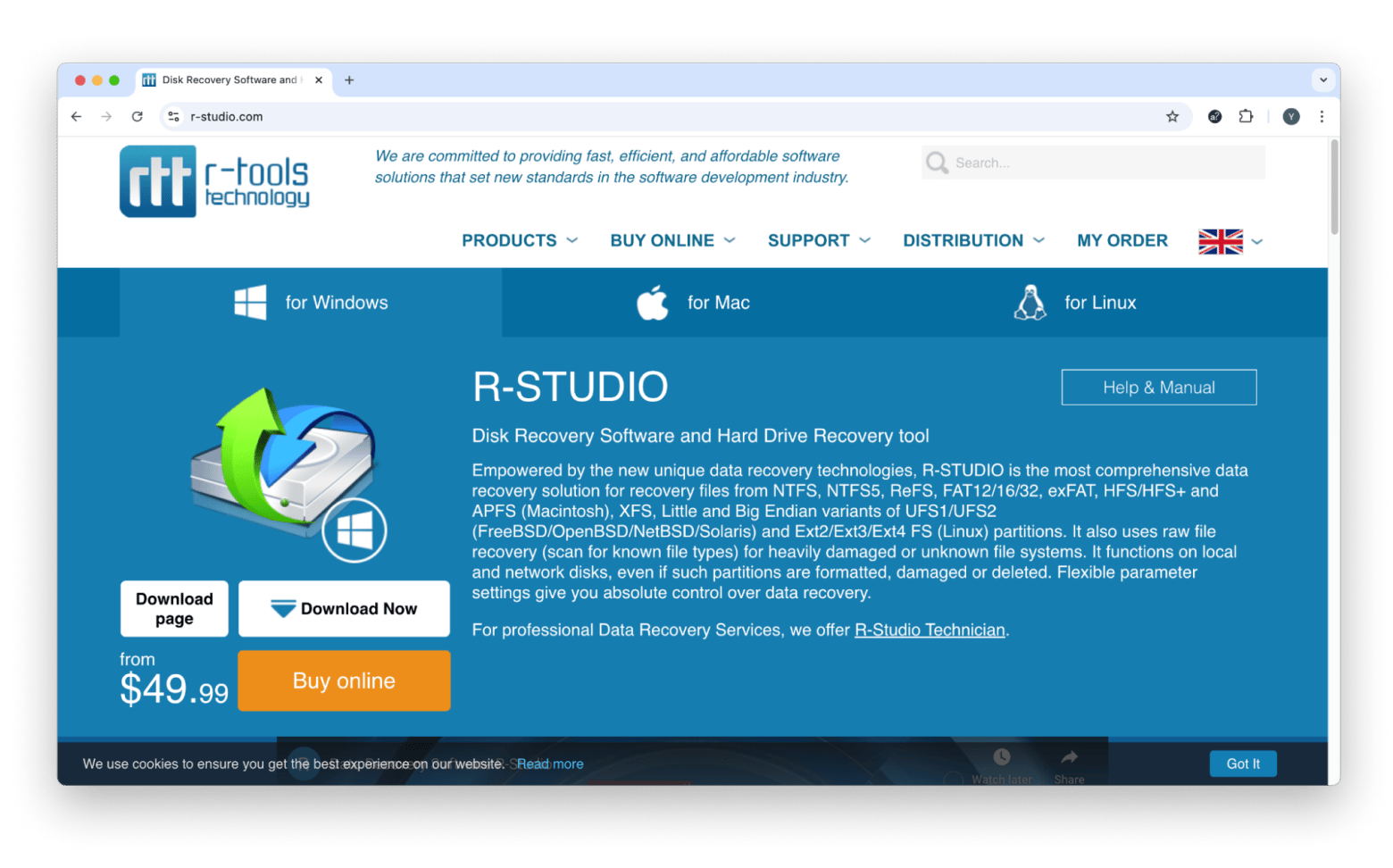
R-Studio is a professional-grade data recovery software that features advanced tools like RAID reconstruction, bootable image creation, and more. While it can recover files quickly, you’ll need to spend time learning how the tool works. If a steeper learning curve doesn’t discourage you, you’ve got one of the most powerful Recuva alternatives for Mac in your hand.
What I like:
Provides advanced file recovery tools
Supports various file formats
Can recover files that are lost due to various causes
Things that are missing:
It’s mostly designed for advanced users, not basic recovery
High resource intensity for large or severely damaged drives
Verdict: More suitable for experts, R-Studio offers powerful features to recover lost files, regardless of how they’re lost.
How to choose the best Recuva equivalent
Before choosing the best tool that fits your needs, consider this:
First, look for file recovery tools that work on macOS.
Then, check the file types it supports. For example, if you’ve lost an entire folder of photos, you’ll want a tool that can recover photos, preferably in bulk.
Then, consider if the tool is easy to use. Otherwise, you’ll have a hard time figuring it out.
Of course, price is also important. Some file recovery tools, especially those built for professionals, can be expensive. So, it’s better to choose one that lets you try it out before paying.
Now, you can recover files with a Recuva macOS equivalent
By now, I hope you have a better idea of which file recovery app to use as a Recuva alternative for Mac. Each of the tools I mentioned has its respective advantages and purposes. So, choose one that has the features that will get you out of your predicament right now.
And if you’re not sure where to start, you can try iBoysoft Data Recovery. So far, it never fails me. Also, remember to back up the files you’ve restored with Get Backup Pro. Trust me, losing them again for the second time doubles the frustration.
You can download Get Backup Pro on Setapp. This platform has more than 260 macOS and iOS apps for pretty much anything you need, whether you’re looking to boost your productivity or tap into your creative side. And guess what? You can try them for seven days for free!






 Best solution
 Best solution

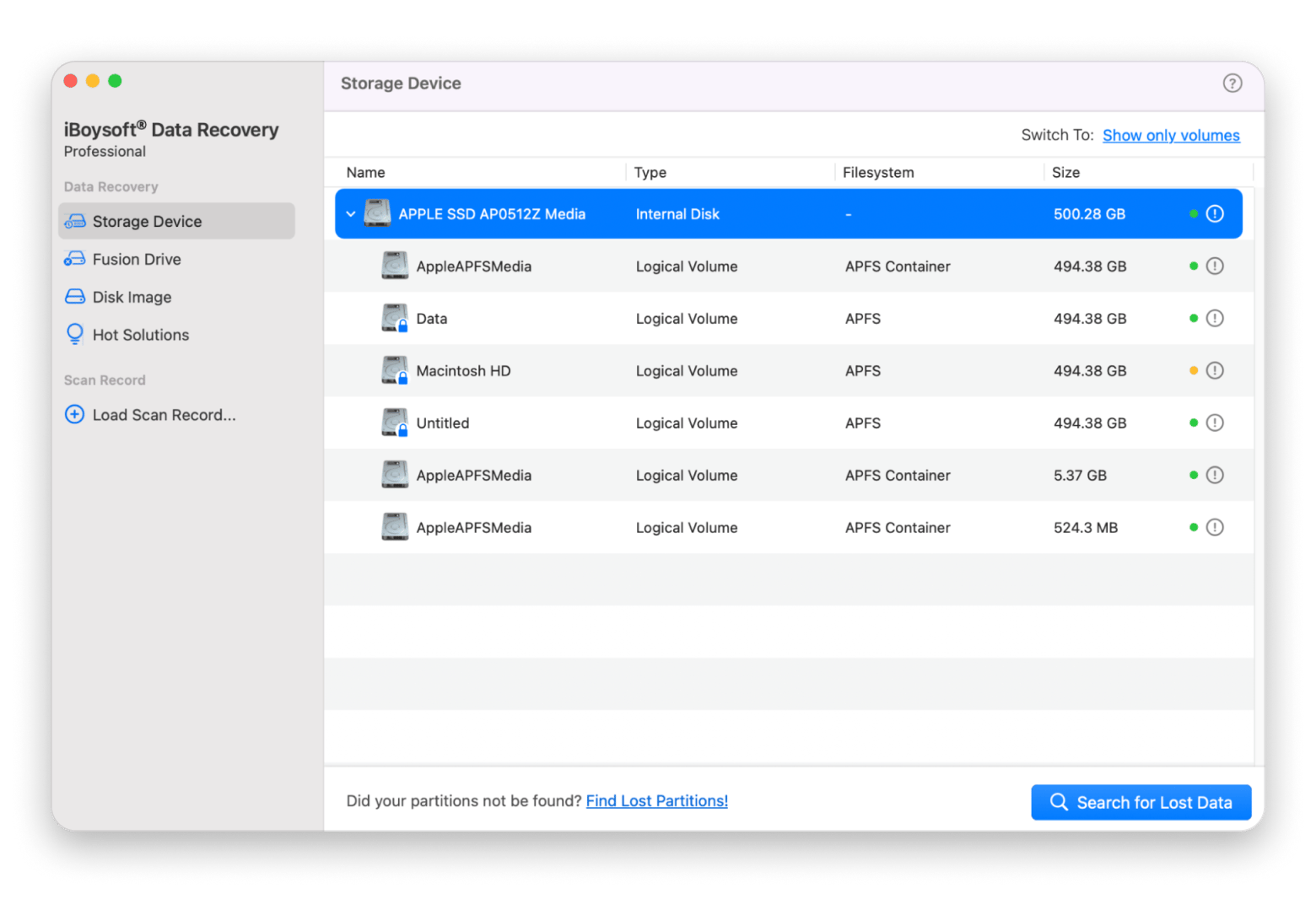
 iBoysoft Data Recovery via Setapp