The best AI text generator for Mac is Eney: it reads what’s on your screen and writes in context, so you skip the copy-pasting. BoltAI 2 suits model switching, Plus suits quick rewrites, and ChatGPT suits longer drafts. I tested three Mac apps from Setapp, a subscription with 300+ apps for Mac, iOS, and web, on real LinkedIn post tasks. Here’s how each one did.
Want to try BoltAI 2 and Plus? Both are available through Setapp Membership, which comes with a 7-day free trial. They run on AI credits included with your plan, or on your own API key. Try Setapp free.
Eney is a standalone app on Setapp with its own 14-day free trial and 10,000 AI credits. Try Eney.
How I picked these apps
I decided to test these apps on real writing tasks.
When I opened my LinkedIn profile, I realized I hadn't updated it in a while. I was still getting collaboration and link exchange offers for a project I no longer work on, so it was time for a refresh.
I settled on two tasks: updating my LinkedIn headline to reflect my current work, and brainstorming LinkedIn post ideas. I gave every AI tool the same background information and prompts.
Here's what I evaluated:
Output quality: How relevant, natural, and usable are the results?
Mac workflow: How quickly can I generate text without switching between apps or copying and pasting?
Price: Is there a free plan or trial, and what do I get for the price?
And now let’s compare the results.
Eney: Best all-around AI text generator for Mac
Eney, MacPaw's proactive AI assistant for Mac, isn't positioned as a text generator, but it can help with writing as well. It needs an Apple silicon Mac running macOS 15 or later. You can connect Eney to other services and use it with apps like Notion, Google Drive, Slack, and many others.
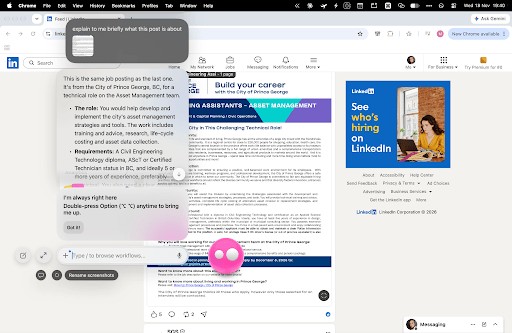
My current writing task, however, involves working in a browser. That's where Eney Wand comes in. Press Option + W, then select an area on your screen to give Eney context. It can recognize text or images in the selected area, so there's no need to take a screenshot or copy and paste content into a separate chat.
For example, when working on LinkedIn, I can point Eney Wand at someone's post and ask it to suggest a few comments. Eney understands the post and generates responses without me having to copy its content elsewhere. There's one limitation, though: I still have to copy the suggested comment and paste it into LinkedIn myself. Eney can help me write the response, but it can't publish it or fill in the comment field automatically.
Testing Eney: Generating a new LinkedIn headline
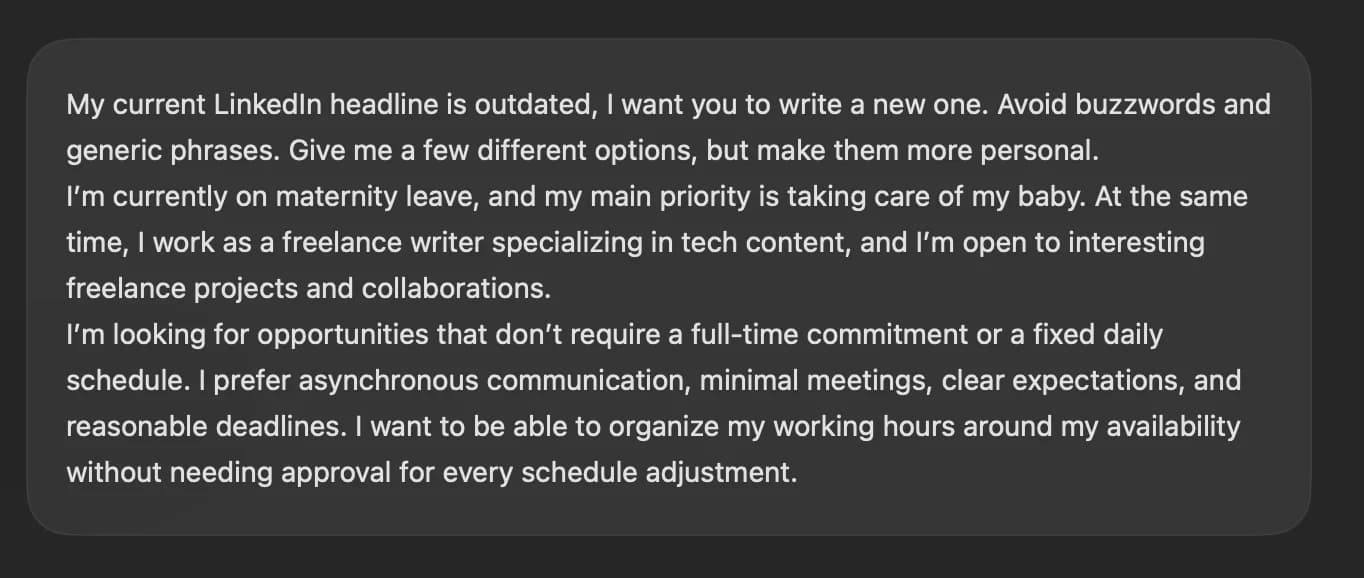
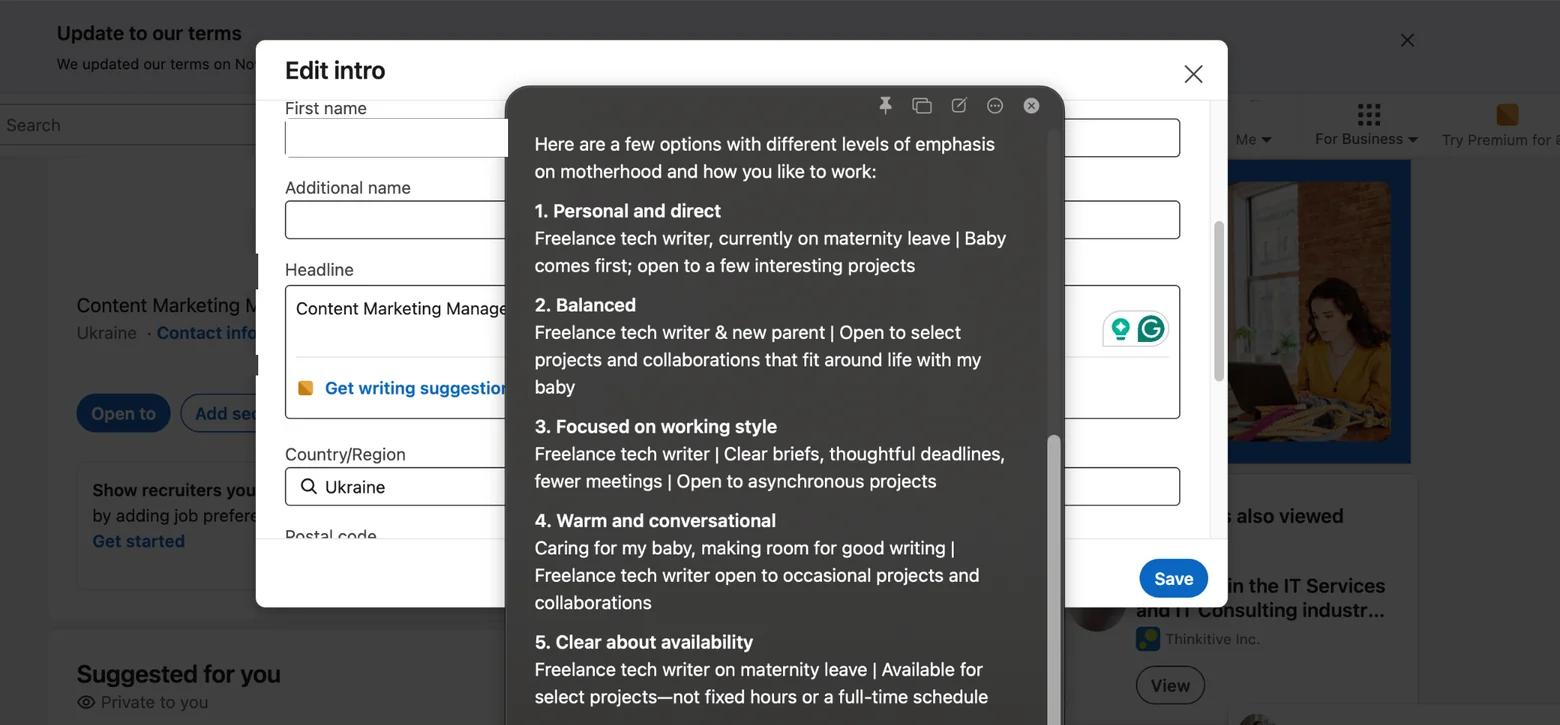
I started by asking Eney to suggest a new LinkedIn headline. I gave it a detailed prompt with my professional background, the type of freelance projects I'm interested in, and my preferred way of working. What I deliberately left out were the technical requirements: I didn't specify the character limit or ask it to follow LinkedIn's headline format. I wanted to see whether the app would figure that out on its own.
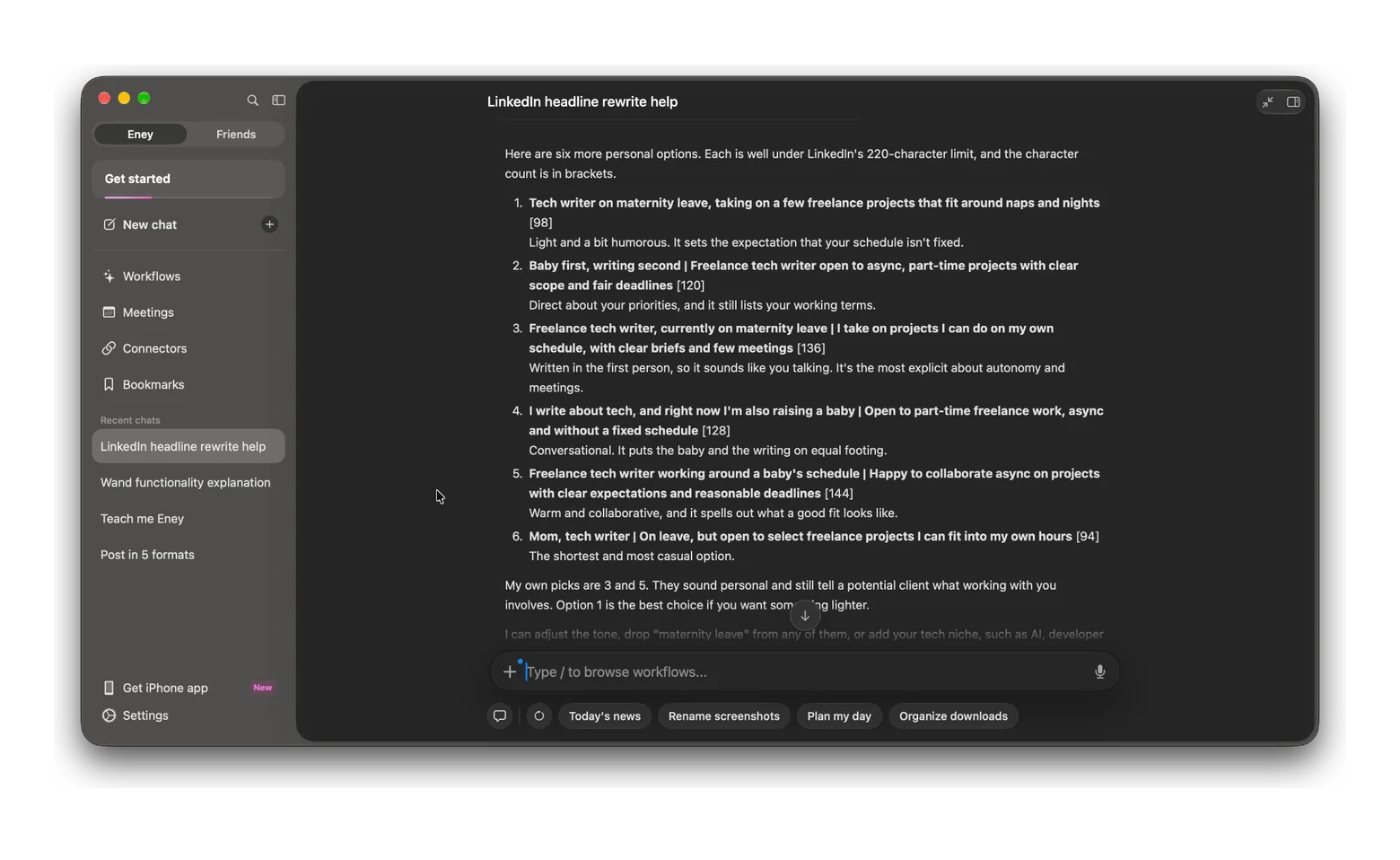
And it did a great job. The screenshot below shows Eney's first response, without any edits from me. It stuck to the LinkedIn headline format and gave me several approaches to choose from: some with a bit of humor, others more minimalist and professional.
I already have a favorite, but I'll hold off on choosing until I've tested the other AI content generators.
Testing Eney: Brainstorming LinkedIn post ideas
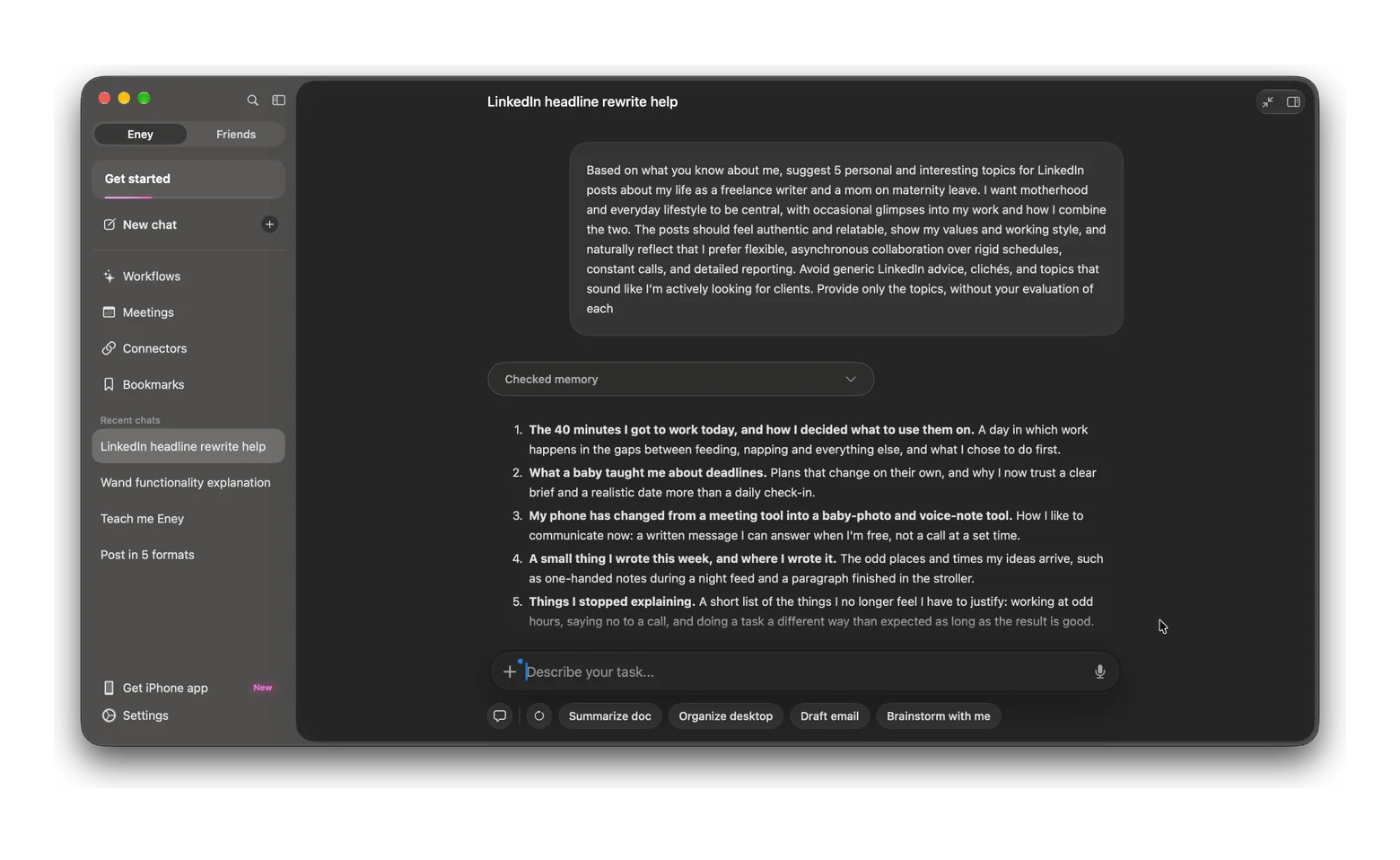
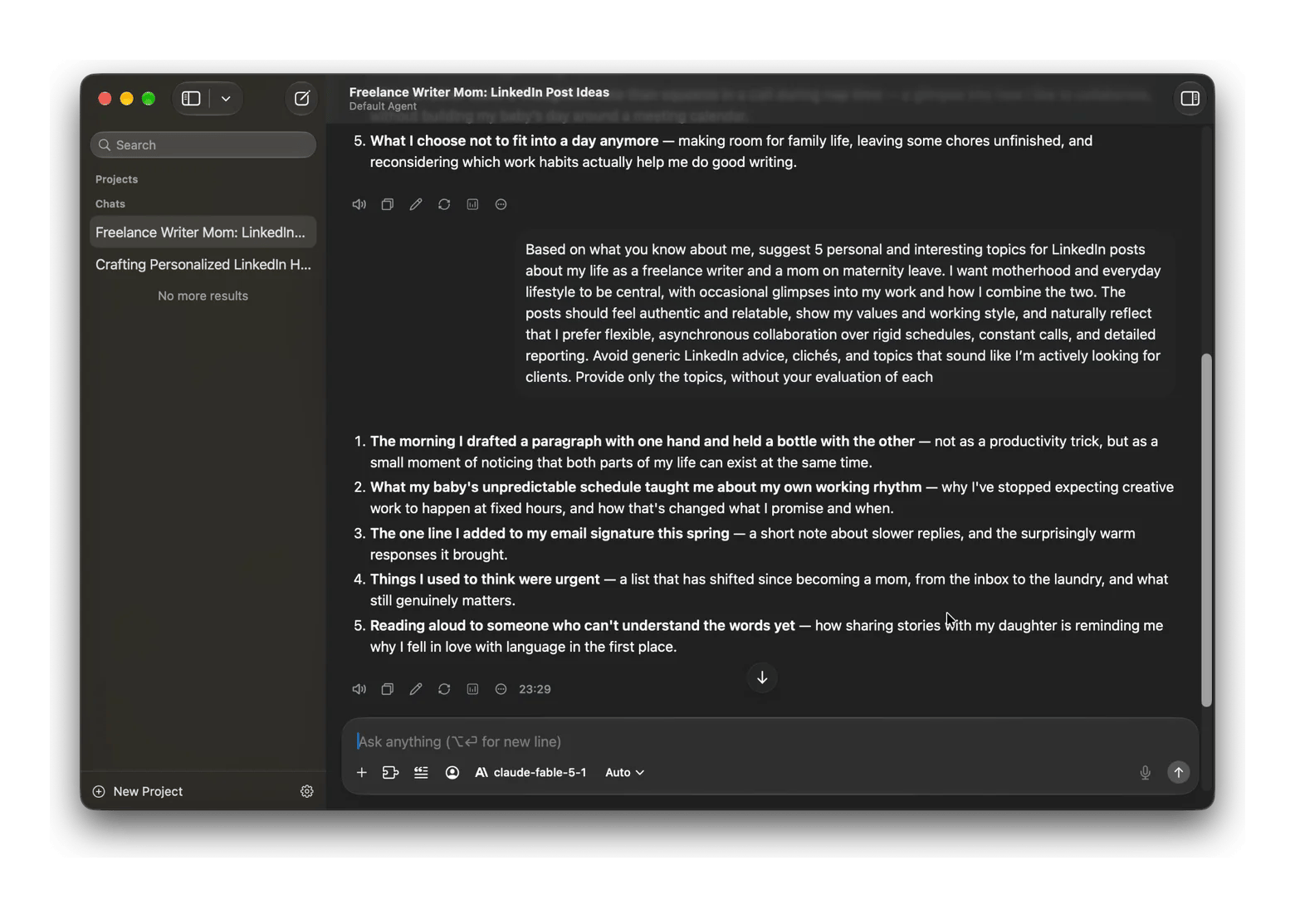
For my second test, I wanted to see how well Eney could brainstorm ideas rather than just generate finished text. I asked it to suggest five LinkedIn post topics based on what it already knew about me.
Eney came up with five ideas, and I found them pretty cute. It picked up on details from my life and turned them into potential stories.
My only concern was that the ideas felt more suited to Instagram than LinkedIn. So I discussed them further with Eney, challenged the weaker ones, and narrowed down the topics I'd actually consider posting.
That was a useful part of the test, too: seeing whether the app could help me refine an initial brainstorm instead of just producing a list and leaving me to figure out the rest.
Eney for text generation
So based on my test, I found out the following pros and cons of Eney:
Pros:
Understands personal context and uses it to tailor suggestions
Infers the expected format even when technical requirements aren't specified
Good for brainstorming and refining ideas through conversatio
Lets you point to content on your screen with Eney Wand and generate relevant text based on it, without copying and pasting it into a separate chat
Cons:
Some suggestions need further discussion to become usable
Can't publish comments or fill in LinkedIn fields automatically; you still need to copy and paste the text
I also explored some of Eney's other features. I connected it to my calendar and tried using voice instead of typing. Eney understood my requests surprisingly well and even created a calendar event for me.
There was just one funny glitch: it kept thinking I was calling it Anna instead of Eney. My pronunciation might not be perfect, but I didn't think it was that bad!
Overall, Eney did the job. It gave me great LinkedIn headline options on the first try and came up with good enough ideas for posts. The fact that it can also help with other work-related tasks is a nice bonus. For a deeper look, read how to rebuild your AI workflow on Mac.
The pricing is reasonable, too: Eney offers a 14-day free trial with 10,000 AI credits. After that, an AI credits subscription starts at $14.99 USD/mo + tax for 10,000 credits
Honestly, I felt like Eney already covered what I needed from an AI writer assistant. But I was working on this article, so I had to keep testing the other apps. For science, of course.
BoltAI 2: Best for generating text with files and screenshots as context
BoltAI 2 is an AI app for Mac that brings different AI models and providers into one workspace. You can use it as a regular chatbot, trigger AI with a keyboard shortcut, or run inline workflows in other apps. It also lets you attach documents and screenshots, create custom AI agents for specific tasks, and work with local models.
Testing BoltAI 2: LinkedIn headline and post ideas
I found the keyboard shortcut particularly convenient when working on my LinkedIn headline. I could open BoltAI without switching away from my profile, generate a few options, and copy my favorite straight into the headline field.
There's one catch: opening a chat doesn't automatically give BoltAI context about the page you're viewing. I had to explain what I was working on or take a screenshot and attach it to the chat. Also, the chat window stays on screen when I switch tabs, covering part of the workspace. I had to minimize or close it manually.
The feature I liked was the ability to switch models right next to the text input. When I wasn't happy with BoltAI's suggestions for LinkedIn posts, I decided to try a different model.
The app warned me that doing so would reset the prompt cache. That's worth keeping in mind if you've already had a long conversation, but my chat was still new, so I went ahead.
I find this flexibility particularly handy. You can keep several chats open, each using a different model suited to its task. Many AI text generators make you choose a model in the settings, and that choice applies across your chats. In BoltAI, you can switch models right where you're working.
BoltAI 2 for text generation
This app turned out to be a good AI text generator as well.
Pros:
Lets you switch models directly in the chat, without changing a global setting
Opens quickly with a keyboard shortcut, so you can work without leaving your current app
Supports screenshots and file attachments for more context
Lets you create custom AI assistants for specific writing tasks
Supports local models
Cons:
Doesn't automatically understand what's on your screen when you open a chat
The chat window can cover part of your workspace when you switch tabs
Switching models resets the prompt cache, which is worth considering in longer conversations
BoltAI 2 is part of Setapp Membership. It's worth starting a 7-day free trial to experiment with different AI models for writing, image generation, and coding. It runs on the AI credits included with your plan, or on your own API key.
Plus: Best for quick text actions in any app
Plus is a lean, minimalist AI app that runs on the AI credits included with your Setapp plan. It has few settings, few model choices, and only one chat.
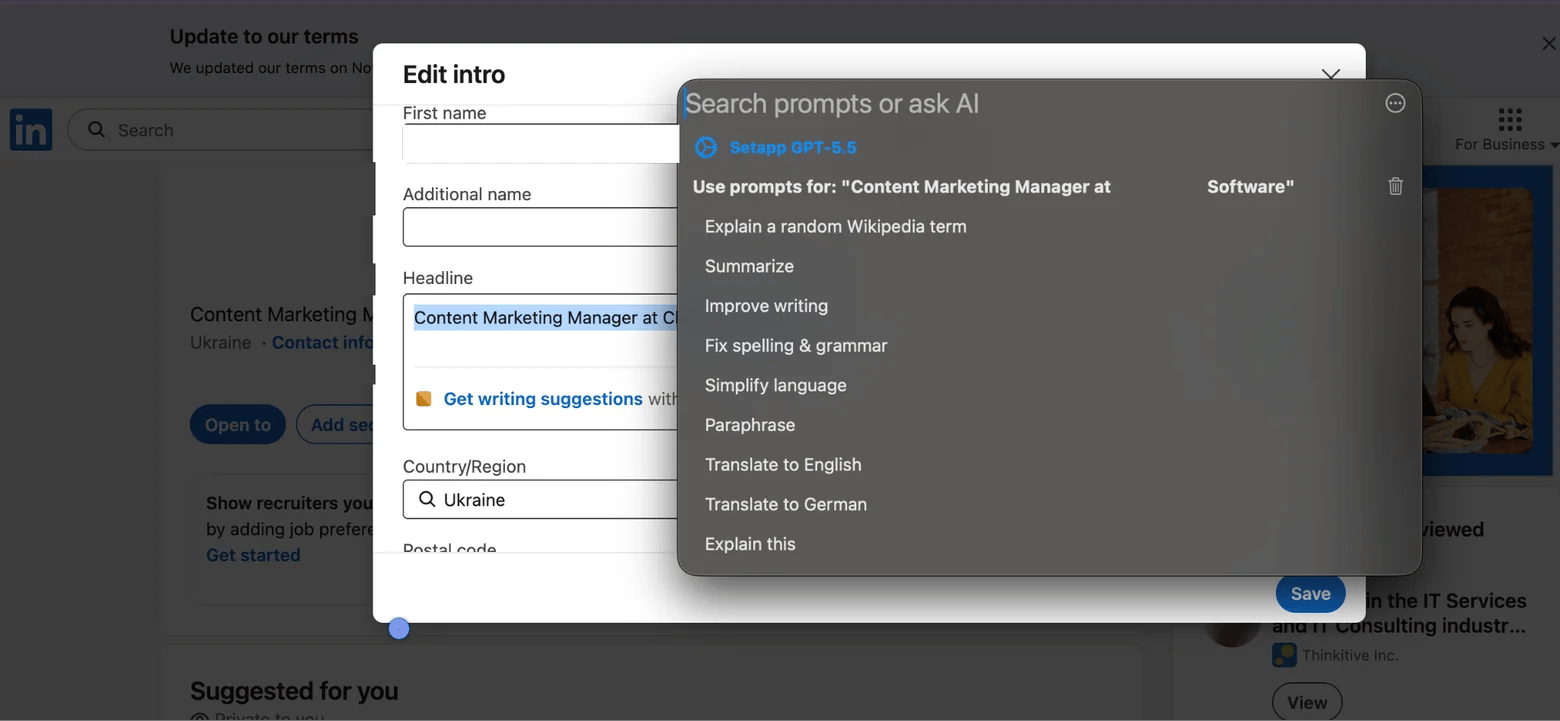
You can select text, press Option + Space, and choose a quick action.
The feature is great for quickly polishing text or finding a better way to phrase something — tasks writers deal with dozens of times a day. I did run into one limitation, though: I couldn't get the shortcut to work with selected text in Google Docs. It worked in other apps, so this was a disappointing gap in my writing workflow.
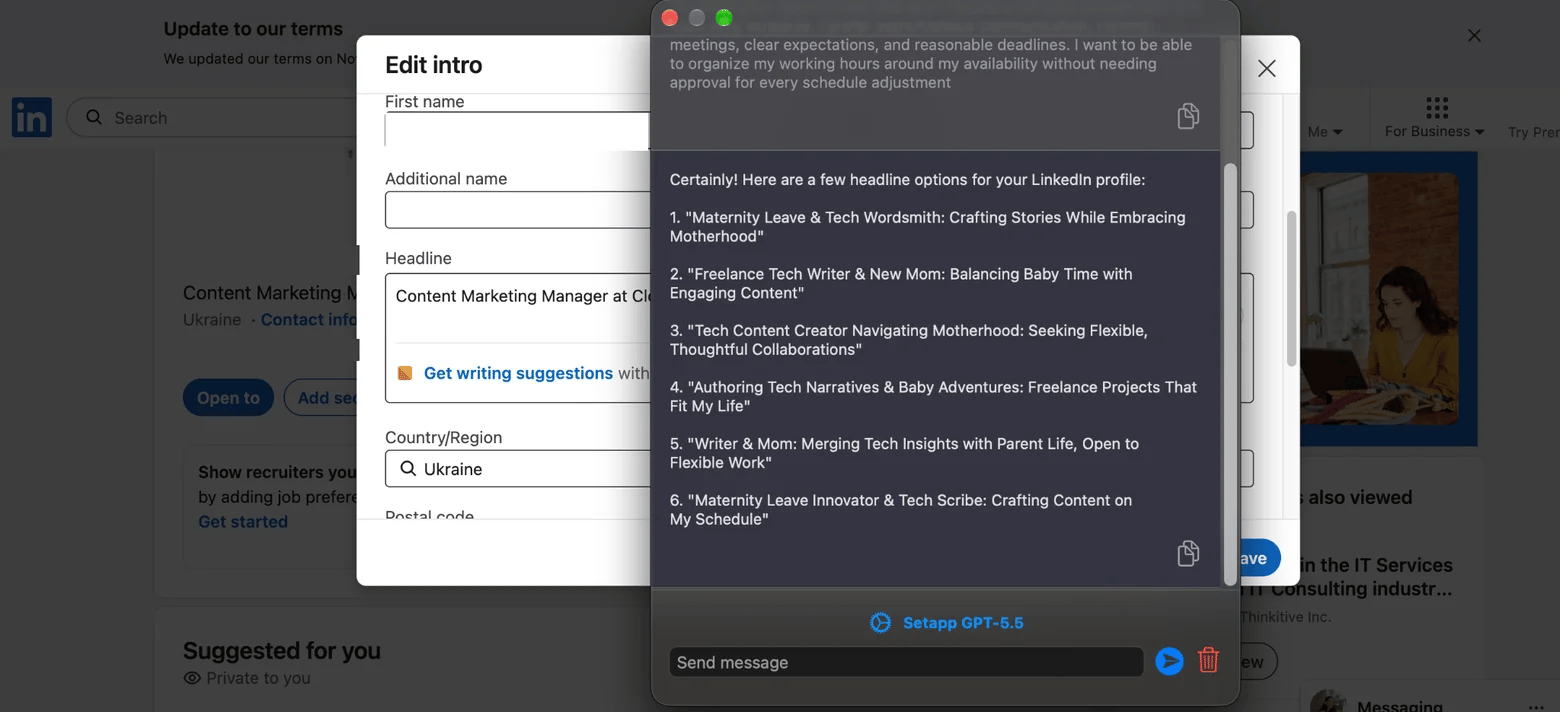
But let's get back to my test. Like BoltAI 2, Plus opens its chat window wherever you are, so you don't have to switch apps to use it. You can also change the model right from the chat window. The selection is more limited, though: you get several GPT models and a few Setapp-specific GPT models.
I tried generating the post ideas with several GPT models, but the results were still poor. The workflow also has a few limitations: Plus only supports one chat at a time, and if you close the chat window, you lose the conversation. You can't return to previous chats or keep separate conversations for different tasks.
I also noticed that Plus was slower to respond than Eney and BoltAI 2 during my tests.
Pros:
Minimalist interface with very few settings
Opens over your current app with a keyboard shortcut
Lets you switch between several GPT models directly in the chat
Offers quick actions for rewriting or translating the selected text
Cons:
Limited model selection compared with BoltAI 2
Only one chat at a time; can't return to previous chats or keep separate conversations for different tasks
Slower to respond than Eney and BoltAI 2 in my tests
The quick-action shortcut didn't work with selected text in my Google Docs
My honest take: Plus isn't built for long writing sessions. Its lean functionality works best for quick, one-off text improvements rather than brainstorming and deep writing. It is handy when you want to rephrase a sentence, polish a paragraph, or try a different wording without opening a full AI workspace.
ChatGPT for versatile text generation in the browser
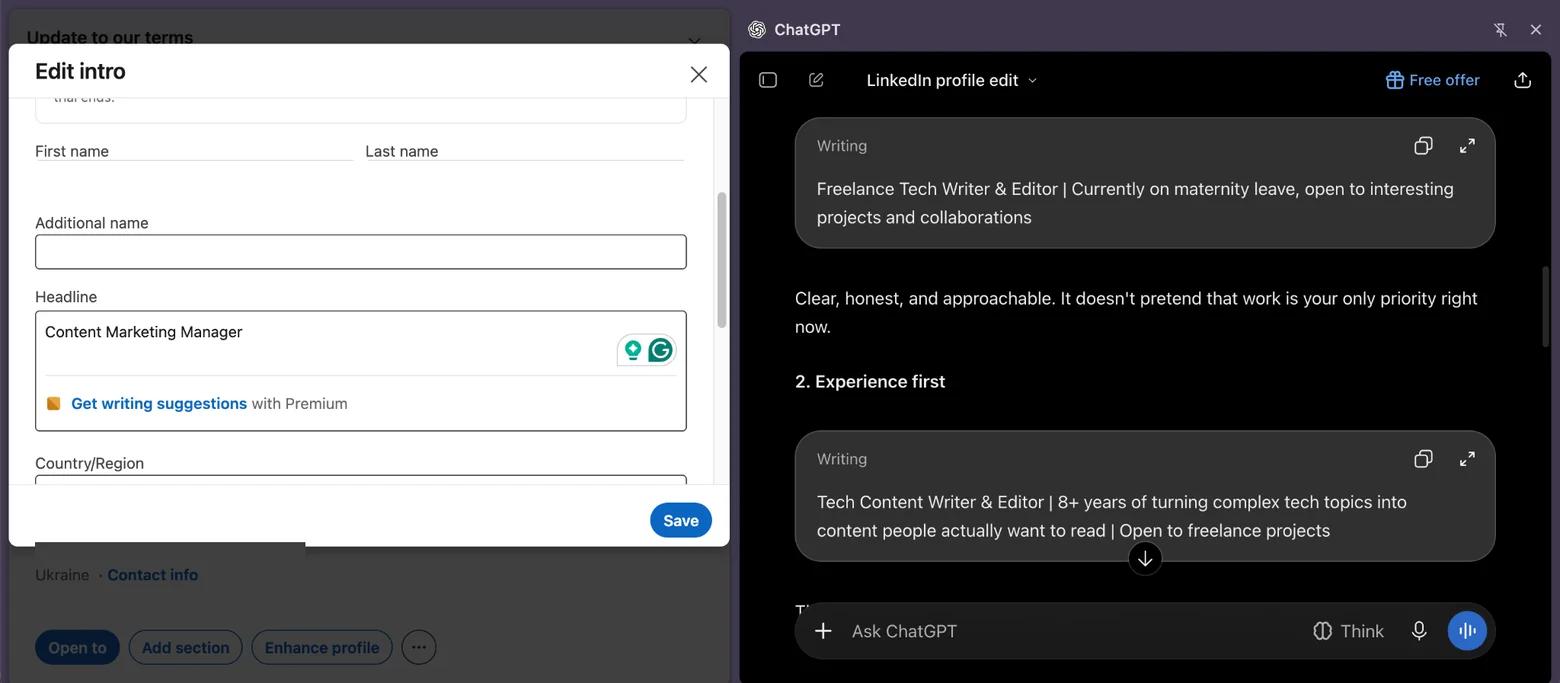
Of course, I had to compare these apps with my go-to (until now) AI text generator: ChatGPT. I found a way to use it without constantly switching tabs, thanks to its Chrome extension.
When I open the extension, a chat sidebar appears next to the page I'm working on. ChatGPT can analyze the page content, and it remembers my previous chats, so I don’t need to explain everything from scratch. I can also select a piece of text on the page, type my prompt, and ask ChatGPT to work with it. No need to take screenshots or to copy and paste text.
There's one difference compared with the Mac apps I tested: the chat stays in the browser tab where I opened it. If I switch to another tab or app, it doesn't follow me. Still, the conversation is saved in my ChatGPT history, so I can return to it later.
For my LinkedIn headline, ChatGPT didn't deliver the best suggestions I got during this test. I expected more, considering how much context it already has about me, my lifestyle, and my professional background. Apparently, knowing more about me doesn't automatically translate into better writing.
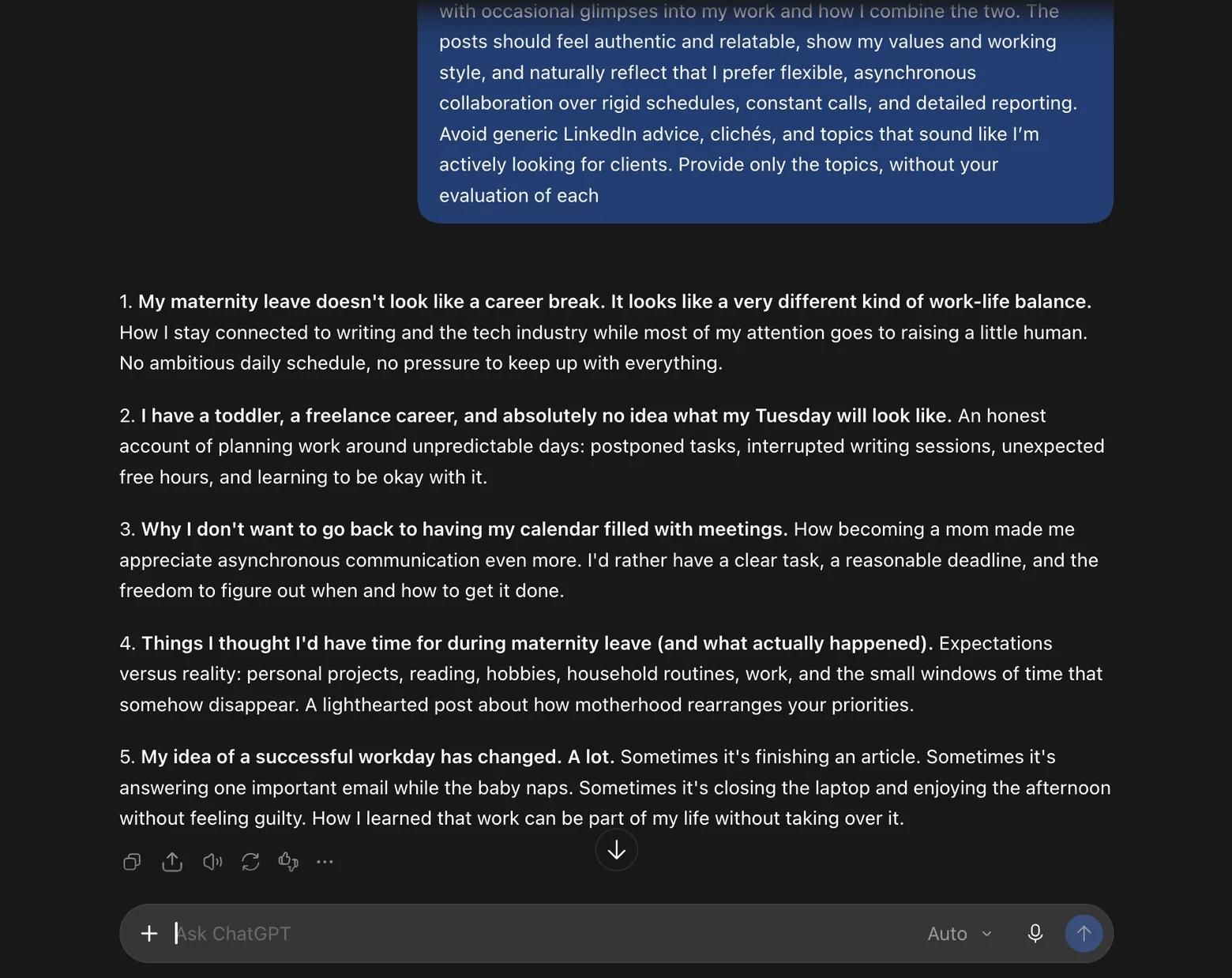
The second test went much better, though. I liked ChatGPT's suggestions for LinkedIn posts, and a few of them are good enough to make it into my content calendar.
ChatGPT for AI text generation
Is ChatGPT the best AI text generator? Well, I have noticed both strong and weak ideas in my test.
Pros:
Chrome extension lets you use ChatGPT in the browser without switching tabs
Can analyze the content of the page you're working on
Understands selected text without requiring you to copy and paste it
Keeps conversations in your ChatGPT history, even after you close the sidebar
Has access to your saved context and can tailor suggestions to your background
Even the free version is good enough for quality and deep writing work
Cons:
The sidebar stays in the browser tab where you opened it; it doesn't follow you between tabs or apps
LinkedIn headline suggestions weren't as strong as I expected, despite ChatGPT having plenty of context about me
Output quality can vary depending on the writing task
ChatGPT works for writers who want an AI assistant that already knows their background and can help brainstorm ideas that fit their interests, lifestyle, and work. The Chrome extension also makes it convenient to work with existing web content without copying and pasting.
How to get better results from any AI text generator
You may have noticed that the prompt I used for my LinkedIn test was much longer than the headline I wanted to generate. That's intentional. I know how much context matters for the quality of AI-generated text. The more clearly you explain what you need, who you are, and what you're trying to achieve, the better chance you have of getting something useful.
Here are five things I try to include when writing prompts:
Explain the context. Tell AI who you are, what you're working on, and who will read the text.
Be specific about the task. Explain whether you need ideas, an outline, a first draft, or a polished version of something you've already written.
Describe the tone and style. Explain to AI how you want to sound.
Set clear boundaries. Mention what to avoid, whether that's clichés, generic advice, salesy language, or topics you don't want to cover. Also explain what you want instead.
Treat it as a conversation. Don't expect the first answer to be perfect. Ask follow-up questions, point out what you dislike, and request revisions. You can also ask AI to explain why it suggested something or identify the weakest options.
Here's how I'd turn a vague request into something more useful, using my LinkedIn post brainstorming test as an example.
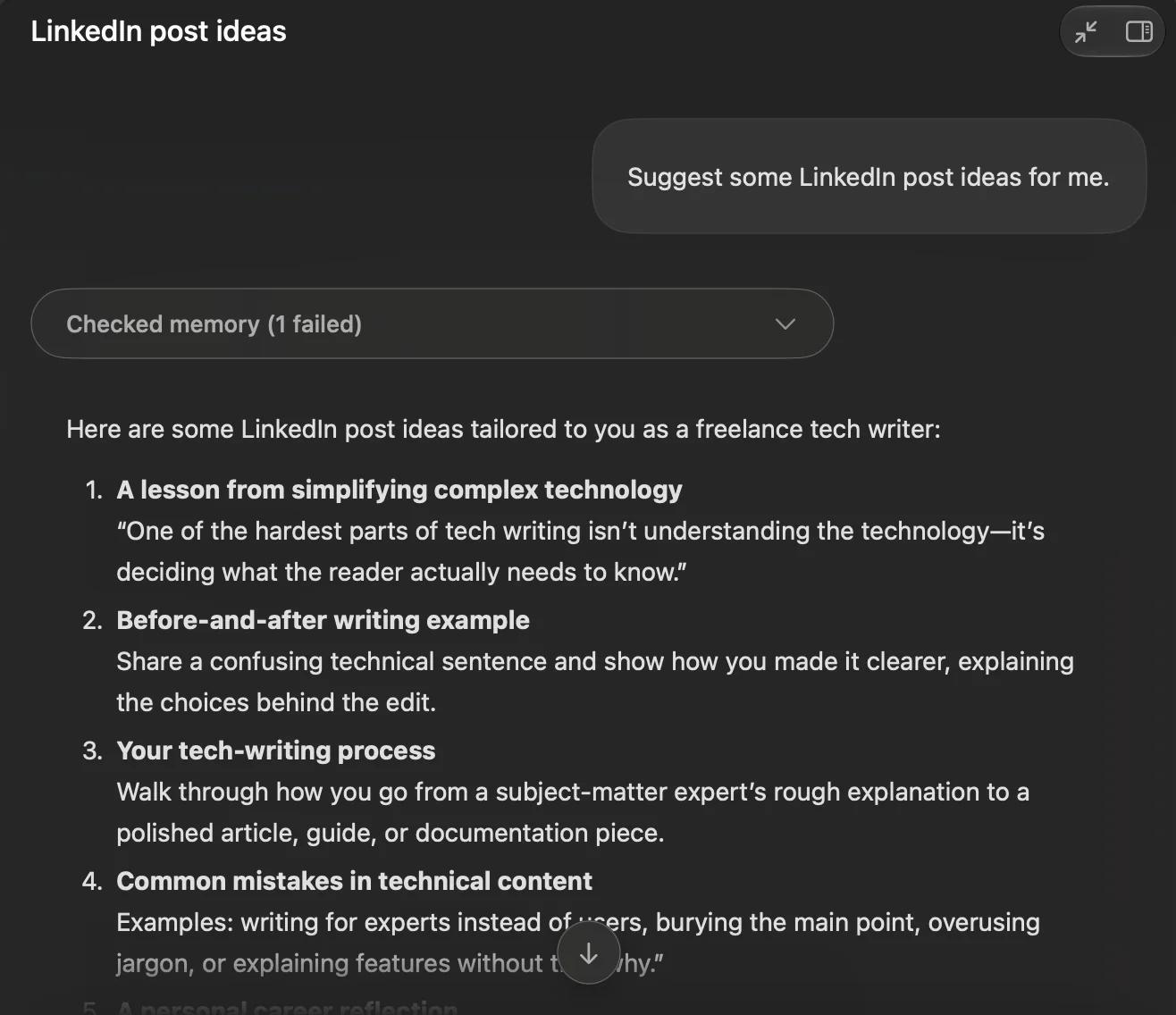
I could go with "Suggest some LinkedIn post ideas for me." and get the following result from Eney:
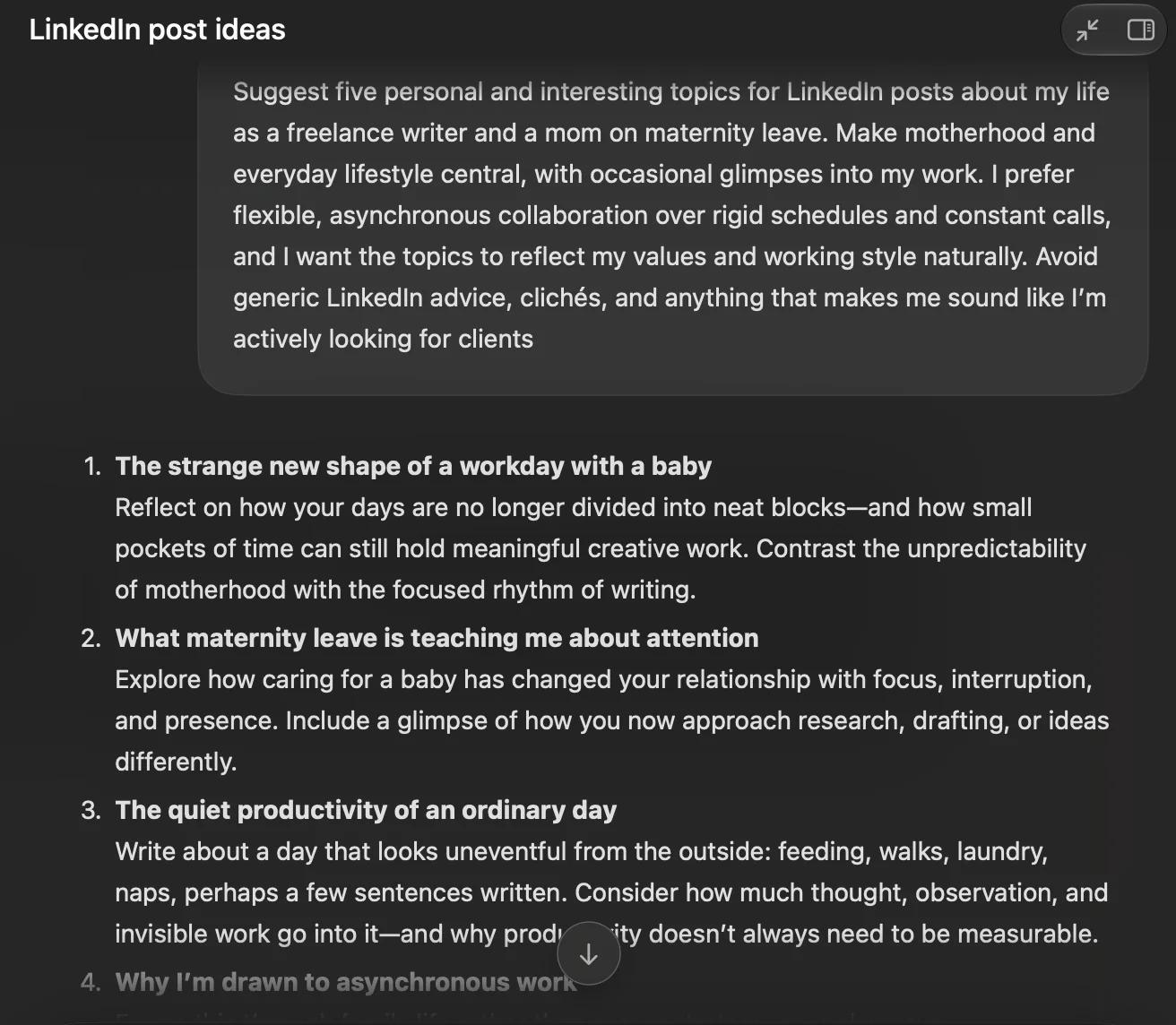
But a more detailed prompt would get me completely different post ideas:
The difference is clear: the second prompt gives AI a much better understanding of what I'm looking for.
Personally, I'd rather spend a little more time writing a detailed instruction upfront than keep asking for revisions and polishing a generic result. A good prompt won't guarantee a perfect first draft, but it can save you quite a bit of back-and-forth.
How to choose the right AI text generator
From my tests, here's which AI writing tools fit different workflows:
Don't choose an AI text generator just because it has the most features. Think about your everyday writing tasks and pick a tool that makes them easier. Sometimes a small chat window is all you need; other times, you'll want a full workspace where you can think, experiment, and pick up where you left off. If you need more than a text generator, browse other apps for writers to round out your setup.
Which AI text generator should you use on Mac?
After testing all these AI text generators, Eney is my favorite for everyday AI assistance on Mac. Its ability to understand what's on my screen and generate text based on that context makes it especially convenient. BoltAI 2 is a better choice if you like experimenting with different models, Plus if you need quick text actions, and the good old ChatGPT if you want a capable assistant for brainstorming and longer writing tasks.
For everyday writing, Eney is my top pick. It combines text generation, brainstorming, and screen-aware assistance. If you want more control over AI models, try BoltAI 2. For longer writing tasks, ChatGPT is also a strong option.
Can I use an AI text generator inside any Mac app?
Yes. Apps like Eney, BoltAI 2, and Plus offer system-wide shortcuts or quick actions. However, their features differ: some can access selected text or screen content, while others require you to provide context manually.
Are there free AI text generators for Mac?
Yes. ChatGPT and Claude offer free plans that you can use on a Mac. BoltAI 2 and Plus are included in Setapp Membership, which comes with a 7-day free trial. Eney has its own 14-day trial with 10,000 AI credits.
Can AI-generated text be detected?
AI detection tools can estimate whether text was generated by AI, but they're not reliable proof. They can flag human-written content or miss AI-generated text. Don't treat their results as definitive.
Which AI text generator is best for long-form writing?
Eney, ChatGPT and Claude are good choices for developing ideas, creating outlines, and drafting longer pieces.
Too much to keep track of?
Let Eney bring your work together and help you get it done






 Best solution
 Best solution