Build an AI workflow by bringing the assistant to your cursor. One shortcut in the app you're already using replaces copy-pasting into a browser chat.
Audit your week first. Pick three repetitive tasks before you install anything.
Choose one AI layer. Pinchbar, Elephas, or BoltAI gives you one shortcut across your Mac, and Eney lets you point at anything on your screen and act on it.
Move writing and email into AI-assisted apps. Use TextSoap and Craft for drafts and Spark Mail for email.
Try these apps with Setapp. They're all in Setapp Membership, free for 7 days. Pinchbar is also free to install with a Setapp account. Eney is sold separately on Setapp Marketplace and is free to download, with 10,000 credits in the first 14 days.
We all get stuck on a message reply sometimes. What I do in this situation is close the Mail app, open an assistant in a browser, and ask for a quick style fix or ideas. Copying and pasting only takes seconds, but clicking between windows breaks your train of thought.
I know this pain, too. Much of the time is wasted because of that quick switch. But it's even harder to focus when you keep switching between windows. Setting up an AI workflow on your Mac can help you get rid of this problem by having all the tools you need in one window.
The purpose of this guide is to show how to use AI on Mac while building one in five steps, so your AI helper will come to your text, rather than you having to go to it.
Why rebuild your workflow instead of adding another chatbot?
There is no one who would like to keep paying for a bunch of active memberships that only make them slower. You buy a tool to save time, but every time you have to edit a sentence, you still have to leave your file, open a browser, and wait for a chat window. You get distracted, and the only conclusion you can make is that the utilities you are paying for are of very little help.
A real Mac AI workflow automation brings the assistant directly to your cursor. All you need to do is highlight your draft text, hit a keyboard shortcut, and watch as the corrected version is displayed in the same place.
Summarizing long threads and generating quick email drafts
Free (AI features use credits)
Elephas, BoltAI, TypingMind, Craft, TextSoap, and Spark Mail are included in Setapp Membership, a subscription to 300+ Mac, iOS, and web apps. Pinchbar is free to install with a Setapp account. Pinchbar, Elephas, BoltAI 2, TypingMind, and Craft use AI credits. Eney is sold separately as a standalone app on Setapp Marketplace and runs on its own AI credits plan, from $14.99 per month.
Step 1: Review your week and pick 3 tasks to hand to AI
Don't install anything yet. Most people fall into this trap of downloading five popular AI tools without even knowing what problem they are supposed to be solving. Those random software programs just end up creating unnecessary clutter on your computer. First of all, you need to identify the time-consuming tasks.
I use AI for daily tasks on Mac. So, after making it a messy place with tools I never used, I realized this drags my productivity down. What I came up with to keep this under control was to have a quick Friday review. During this time, I go through my sent emails and completed to-dos to identify time-consuming repetitive tasks.
Here's a quick template I use for that:
Parameter
Question
Example
Task
What action are you taking?
Drafting routine replies to client status updates
Regularity
How regularly does it happen?
Four times every afternoon
Time cost
How long does it always take?
15 minutes per batch
To begin with, choose three assignments from your list. Then just give software the opportunity to take care of your everyday tasks on Mac. After that, concentrate on those things that you hate doing the most. The best candidates are always the ones that require the same steps each time.
Look at it this way: one of your day-to-day jobs might be extracting clean action items from long discussions in message chains or tidying up messy notes after a meeting. Last but not least, concentrate on the daily tasks that you dread every single morning. Get them off your plate as a priority.
Step 2: Settle on an AI layer that works across your Mac
The goal:
You press one shortcut, and the assistant produces the prompts inside the app you work in. No need to visit a website.
What to do:
Plugins for AI productivity on Mac stay inactive until activated by you. It's just one keyboard shortcut that you press, send the prompt over your document, and you get back to your workflow. And you didn't even have to use your browser to do all of that.
The next step is to connect that shortcut to your favorite tasks. These usually include trimming long paragraphs, correcting rough grammar, coding small snippets, and turning project updates into clean checklists. Pick one of these to avoid conflicting shortcuts:
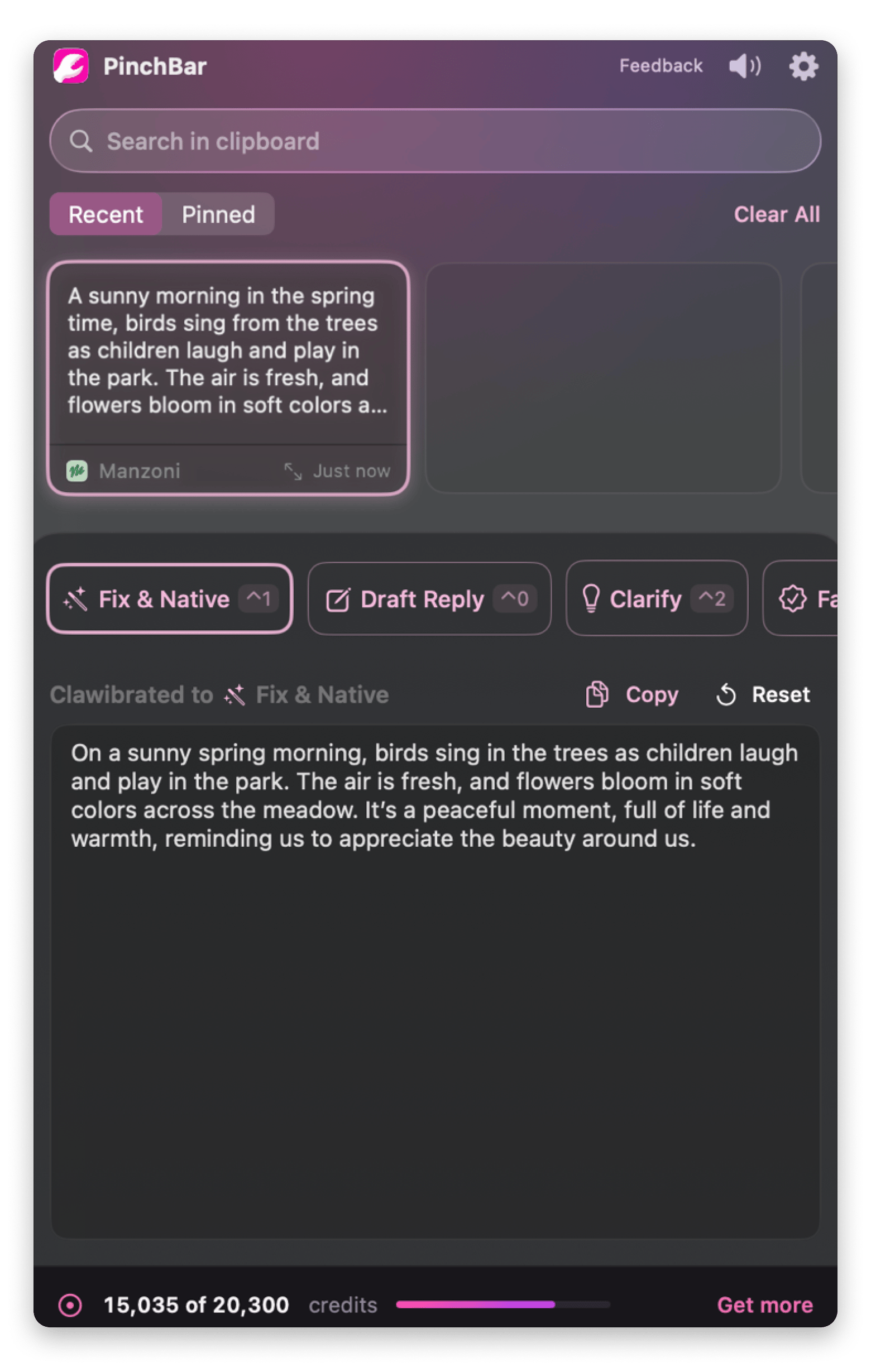
Pinchbar lives in your menu bar and works through your clipboard. Copy or highlight text, and a pop-up offers one-click actions like rewrite, summarize, or translate. It also keeps a searchable clipboard history and locks sensitive items like passwords and tokens.
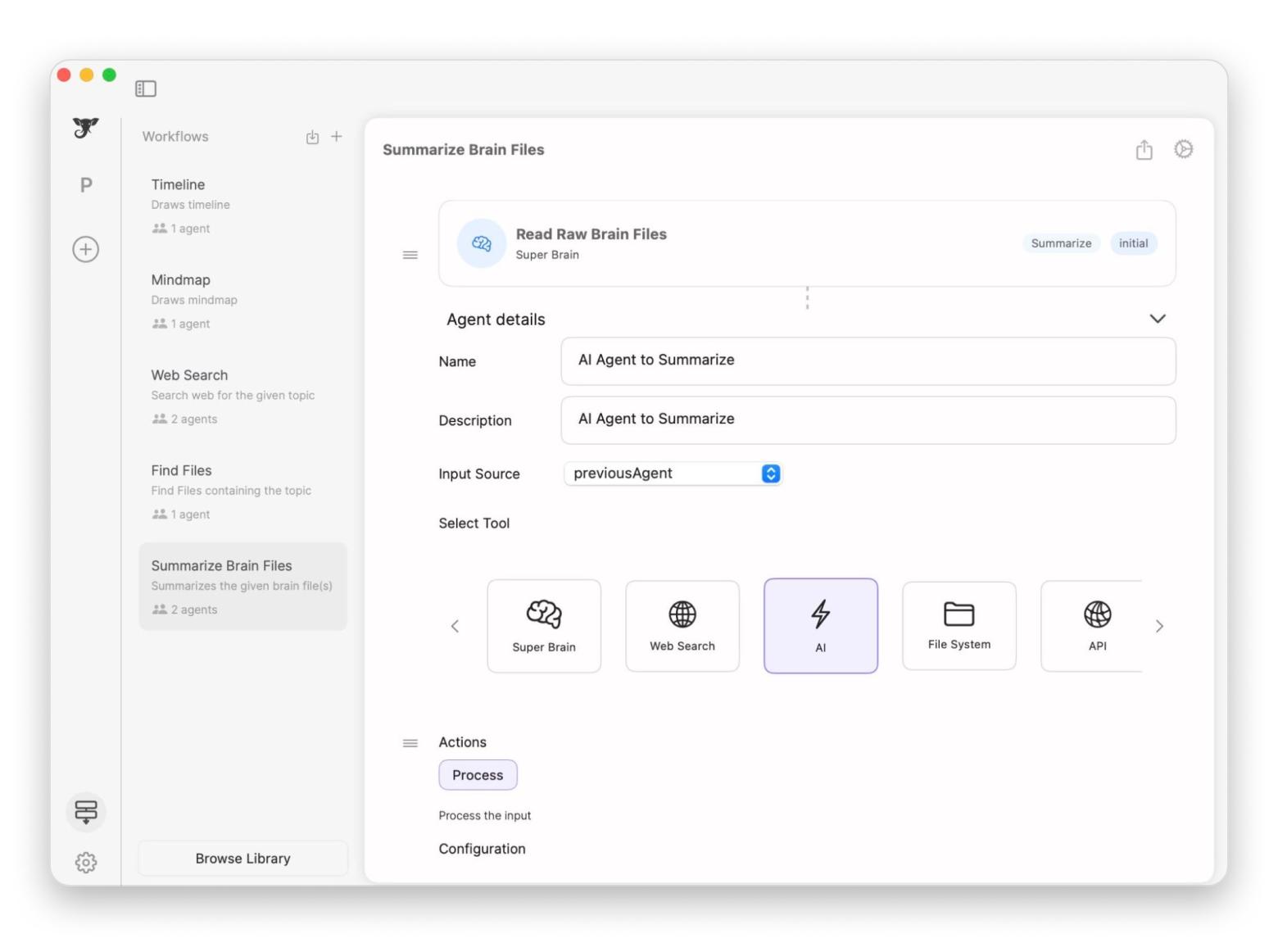
Elephas triggers via a global shortcut and reads your local PDFs or notes, citing facts directly from offline files.
BoltAI runs AI commands inline in the apps you already use. It lets you switch between local models through Ollama or LM Studio and 300+ cloud models.
Eney is a proactive AI assistant for Mac and iPhone that works with your email, calendar, files, and everyday apps. Eney Wand lets you point at text, numbers, images, or files on your screen and act on them without copy-paste or switching apps. It needs macOS 15 or later and an M-series chip.
TypingMind acts as a central desktop interface for multiple frontier models, complete with a prompt library, chat folders, and chat search. For more picks, see the list of the best AI apps for Mac and iPhone.
Example:
Whenever I am in the mood for typing with peace and getting on with things undisturbed, I rely on Pinchbar. Sometimes I will be halfway through an email and then realize the tone is not quite right. I will highlight the text and, from the list of alternatives displayed in Pinchbar, pick the one I like the most.
The feature is available as an icon at the upper edge of the screen. If I have to clarify or check facts, I simply click the icon, having highlighted the excerpt at hand, then select the necessary action, and my text automatically changes to the new version right on the spot without any additional window opening up and thus messing up my monitor, which is just a way of getting things sorted out quickly. With the help of this tool, I also manage to compose replies for emails or messages a lot.
One limitation:
Pinchbar doesn't get what you are saying unless you select the text, so it needs highlighting to work properly. Furthermore, it works in complete isolation from your document. It gets selection as the only way of knowing the content.
Tasks that involve dealing with contracts and sensitive information, trade secrets, or IPI, P and generally handling very critical documents have to be taken seriously when securing the data. When you need your information to stay on your Mac, Elephas enables you to create a local AI brain to be used for the most common tasks. The advantage is that it stores your files/drafts under lock. This app also has rich privacy-related configurations for large organizations and more specific cases that I recommend taking a closer look at.
Step 3: Move writing and notes into AI-assisted apps
The goal:
Turn rough thoughts into finished drafts in an editor that works on the page, with no extra tabs.
What to do:
Using an AI layer, your biggest time waste when writing is switching from your text app to an online chat. Keep your workflow simple: first, organize your information, then write your piece.
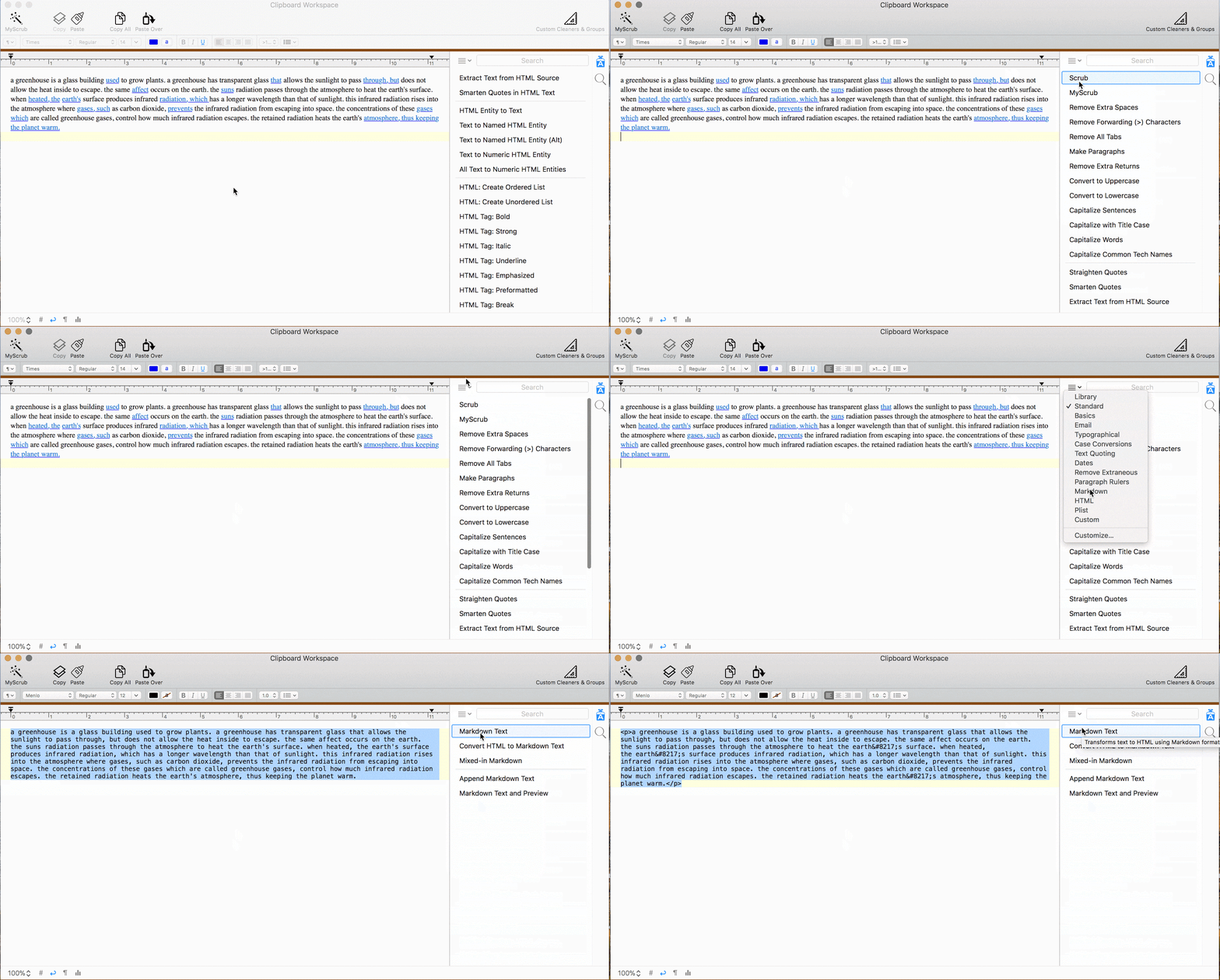
Finding sources is the beginning of a good writing process. Accumulating, sorting them out, and structuring them are the steps to take. I typically have an immense amount of info to organize before the actual writing part, and oftentimes the raw material needs to be reviewed and fixed. Notes can come out in random ways when you get the text from the web or files,s o they often include odd spacing and broken lines. I use TextSoap mainly to clean up these weird formatting issues quickly and avoid manual intervention. The app opens a global menu inside your writing apps, and you can fix these oddities with a single click.
Craft is a good helper for assisting in drafting your texts. A major plus is that there's no need to open a new window, which means that if I'm using Google Docs or Notes, I just call it up when my cursor is pointing wherever, and there's no need for a separate tab, etc. 'Craft' is very capable of shortening sentences, polishing rough wording, etc. In fact, many times I've used it just to produce pieces that are well-stocked with authoritative sources and visual blocks.
One example app:
My usual start of article writing is just a few scattered ideas. Using Craft's templates, I have a starting point which helps me gradually develop my ideas from notes to an article plan. With some changes on my side, along with selecting pieces that best seem to correspond, the writing becomes my own. Once I'm satisfied with the outline, the assistant in 'Craft' helps me add structure to it and get a better review.
One limitation:
Built-in document apps may struggle to handle a full-length creative draft and will often give you flat, robotic writing. You're best off using them for outlines, summaries, and tone adjustment, etc. Your job is to provide the main idea and to make sure everything on a smaller scale is correct.
Step 4: Streamline email and project planning
The goal:
Clear your inbox and map project milestones without clicking through every email or sorting long lists by hand.
What to do:
Email and project planning drain hours because they arrive as unstructured noise. You wake up to a twelve-message thread with three buried action items, just as your manager sends over a multi-phase launch plan. Sorting through both turns your morning into pure administrative overhead.
Let these two tools do the sorting for you:
Spark Mail combines your accounts into one inbox. It summarizes long threads into brief points, flags critical notes, then drafts quick replies right inside your compose window.
Taskheat converts complicated projects into visual dependency flowcharts. Instead of looking at an endless list of fifty tasks, you link phases into a flow. Its Upcoming tab lists the tasks that need your attention next.
One example app:
My brain struggles with flat lists when deadlines stack up, so Taskheat was an easy choice for me. Looking at my work as a series of steps connected by strict dependencies helps me quickly spot where the problems are. This allows me to automate tasks with AI on Mac or immediately catch what holds up the entire release, so I see the first move clearly.
One limitation:
Automated email drafts miss workplace politics and unspoken context. A generated draft might sound a bit cold or promise a deadline you cannot meet. Every time, read the message first.
Step 5: Establish privacy limits and review what works
The goal:
Keep sensitive documents off cloud servers and delete apps you do not open.
What to do:
Using AI to boost your AI productivity on Mac does not have to come at the expense of your data privacy. Keep your private work separate from online tools. For example, client files and financial paperwork should not be uploaded to the cloud. Instead, you can generate something with a local model, i.e., offline models that are in Elephas or BoltAI with Ollama. Web services like Claude or ChatGPT should be used only to draft ordinary copy and public research.
Also, a monthly budget should be kept track of. Check periodically how many AI credits are left in Setapp. The Mac plan allows for 1,000 credits per month, and they can get used up during a busy week.
Every month, put a reminder in your calendar to review installed apps. Check what apps you have on your computer and if there are some that you haven't been using, delete them. It is much more effective to keep two utilities you actually use than allowing the presence of multiple unnecessary apps on your drive.
One limitation:
On-device models use your Mac's unified memory only. They provide privacy assurance but offer simpler reasoning, and they can choke on very large multi-page files when compared with advanced cloud models.
Build your AI workflow on Mac one task at a time
The main idea here is not to automate every one of your habits. What the change of workflow does is to get rid of the annoying tasks that constantly interrupt you during your workday.
Select one writing task or email chore from your audit of the week, dedicate one shortcut to an assistant, and continue to work with it for several days. Then, after these few days, implement another one. A few desktop specialized tools will save you significantly more time than ten browser tabs.
Pick one repetitive task from your notes, connect it to a quick key combination, and use it this week. Try Elephas, BoltAI, Craft, TextSoap, Taskheat, and Spark Mail free for 7 days with Setapp Membership. It covers 300+ apps for $14.99 USD + tax per month, so you're not paying for separate services, and you can cancel anytime. Pinchbar is free with a Setapp account, and its AI features run on AI credits.
FAQ
How can I use AI on Mac without slowing down?
Before installing anything, examine your week. Identify the repetitive chores that take up the most of your hours. Decide on a tool that will accomplish those specific things so you don't end up with your computer loaded with programs that you won't use.
What is the most effective setup to run smart assistants across all my Mac apps?
Have a single global keyboard shortcut that invokes the assistant at your cursor location. Apps such as Pinchbar and Elephas actually float above your current work screen. When you select words in Mail and Notes, you can rewrite them without having to open a web browser.
Can I use AI on Mac without sending my data to the cloud?
Yes, especially with the modern Apple chips. Small offline models can be handled with ease by the Macs that feature Apple's own chips. BoltAI is one of the apps that connects with local systems like Ollama so your private notes and financial files remain on your computer.
Which tasks are worth automating with AI first?
You should start with the recurring daily tasks that come back each day. For instance, removing bad formatting from text that has been copied from the web, writing email responses, extracting to-do points from call summaries, or breaking down projects into steps.
Is Setapp a good way to try several AI tools for Mac productivity?
Of course! You only need a single account to gain access to Craft, Spark Mail, Elephas, Pinchbar, and dozens more. You can see how every single app fits your typical schedule without having to create new logins or juggle separate monthly fees.






 Best solution
 Best solution