Emulsio — best for precision; automatic analysis, rolling shutter correction, before/after preview.
Movavi Video Editor — best for pro workflows; batch stabilization, color correction, AI denoising.
Get more video editing apps with Setapp Membership. FREE for 7 days. It includes 260+ apps for creativity, AI, productivity, and more. No ads, hidden fees, or usage limitations. Cancel before day 7 = $0.
Video stabilization comes in handy if you often shoot or edit videos. It can smooth out your handheld iPhone shots, tame the jitter that often comes with GoPro videos, and fix unintentional shakes that cause viewer discomfort. In other words, it can take your clip from “kind of unusable” to what you had in mind when you started the recording.
You don’t even need advanced video editing skills or Hollywood video editing software. In this guide, I’ll take you through different video stabilizer apps, from the built-in iMovie to more professional ones like Movavi Video Editor. I’ll also show you how to stabilize video clips, step by step.
Here’s a quick overview if you’d like to scan the guide.
You want to…
Do this
Quickly stabilize a clip for free on Mac or iPhone
Use iMovie > Import your video > Enable Stabilization > Export
Fix shaky iPhone or GoPro footage with advanced control
Use Emulsio > Adjust stabilization strength > Preview side-by-side
Stabilize multiple clips and refine with pro editing
Use Movavi Video Editor > Batch import > Stabilize > Export
Use online stabilizers for short, non-sensitive clips
Before stabilizing shaky footage on a Mac or iPhone, make sure you have the video saved locally. Tools like All Video Downloader help you quickly download clips from various websites, so you can import them straight into your video stabilizer app and fix camera shake without extra steps.
Stabilize videos with iMovie (Free solution)
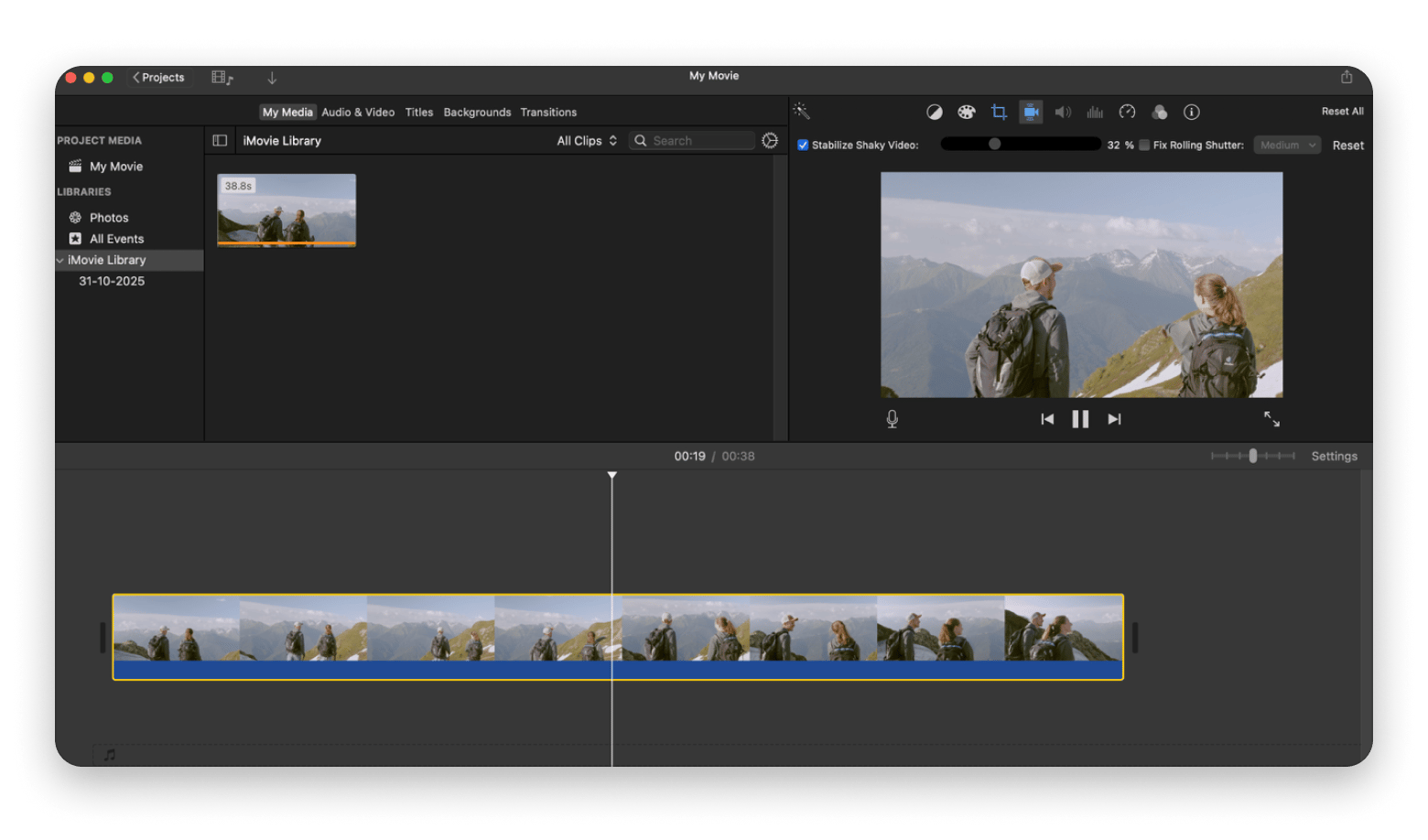
iMovie is the best free video stabilizer for both Macs and iPhones. The app is Apple’s beginner-friendly video editor, and it’s totally free. If it’s not already in your Mac or iPhone, you can download and install it from the App Store.
How to stabilize video in iMovie
Here’s how to stabilize video clips on a Mac using iMovie:
Open iMovie and create a project.
Import or drag and drop your video.
Click the clip in the timeline (shows editing icons).
Select the Stabilization icon (a little shaky camera).
Check Stabilize Shaky Video.
Adjust the stabilization strength slider and preview the result.
Export your video (click project video > File > Share > File> Next > Save).
If you don’t want to transfer the video, here’s how to use the iPhone video stabilizer feature in iMovie.
Open iMovie and create a new movie.
Tap your clip > settings icon > enable Stabilization.
Adjust the slider and preview.
Export the video (projects > movies > Done > Share).
If you want more editing options later, you can AirDrop the video to your Mac.
Pros and cons of iMovie
Here’s a look at iMovie's strengths and weaknesses as a video stabilizer and editor.
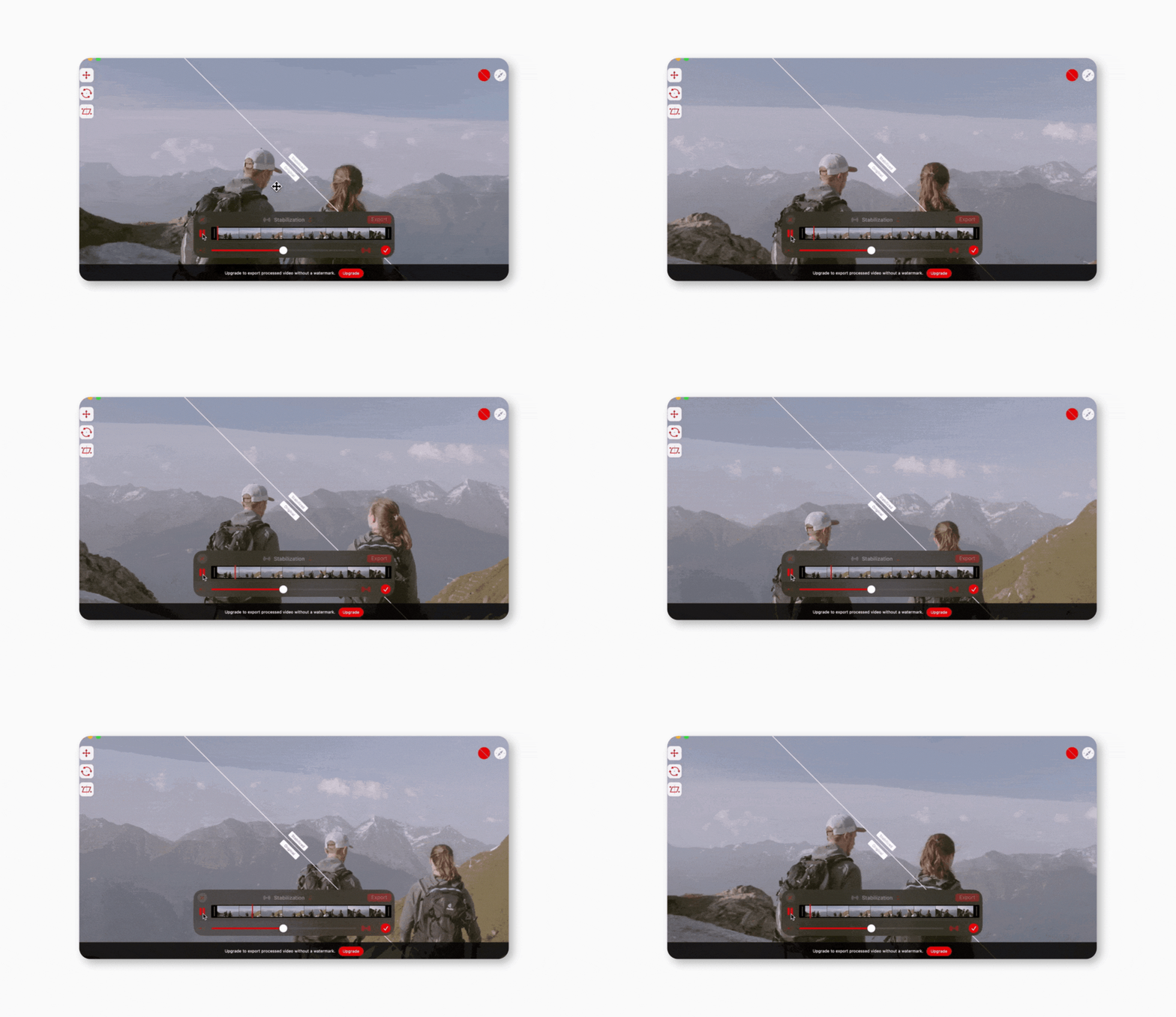
Emulsio goes beyond iMovie’s basic stabilization to let you control how smooth the video becomes. It can analyze the motion and give you controls like stabilization adjustment, rolling shutter correction (crucial for fast or GoPro-like footage), and before/after previews.
The editor has a macOS and iOS version, and it’s actually the go-to iPhone video stabilizer app for most creators who want a complete editor on their phones.
Step-by-step guide for Emulsio
Here’s how to stabilize video clips on Mac using Emulsio:
Open Emulsio.
Click Stabilize.
Select a video from your files.
Adjust the slider (if need be) and preview the results side by side.
Export video (Export > Export)
If you want to use the video stabilizer app on an iPhone:
Open Emulsio.
Tap Import video and choose your clip.
Drag the Stabilization Strength slider.
Toggle Original / Stabilized to preview.
Tap Export Video.
If you’d like to continue editing the video on your Mac, ensure you export with the original resolution.
Key benefits of Emulsio
Here are the advantages you gain with Emulsio:
Automatic analysis and stabilization.
Rolling shutter correction to fix warped or “jello” motion.
Side-by-side preview for on-point stabilization control.
App available for both macOS and iOS.
If you’d like more editing functionalities, you can save the video and load it using the “Edit” option.
Movavi Video Editor: Professional Mac stabilization
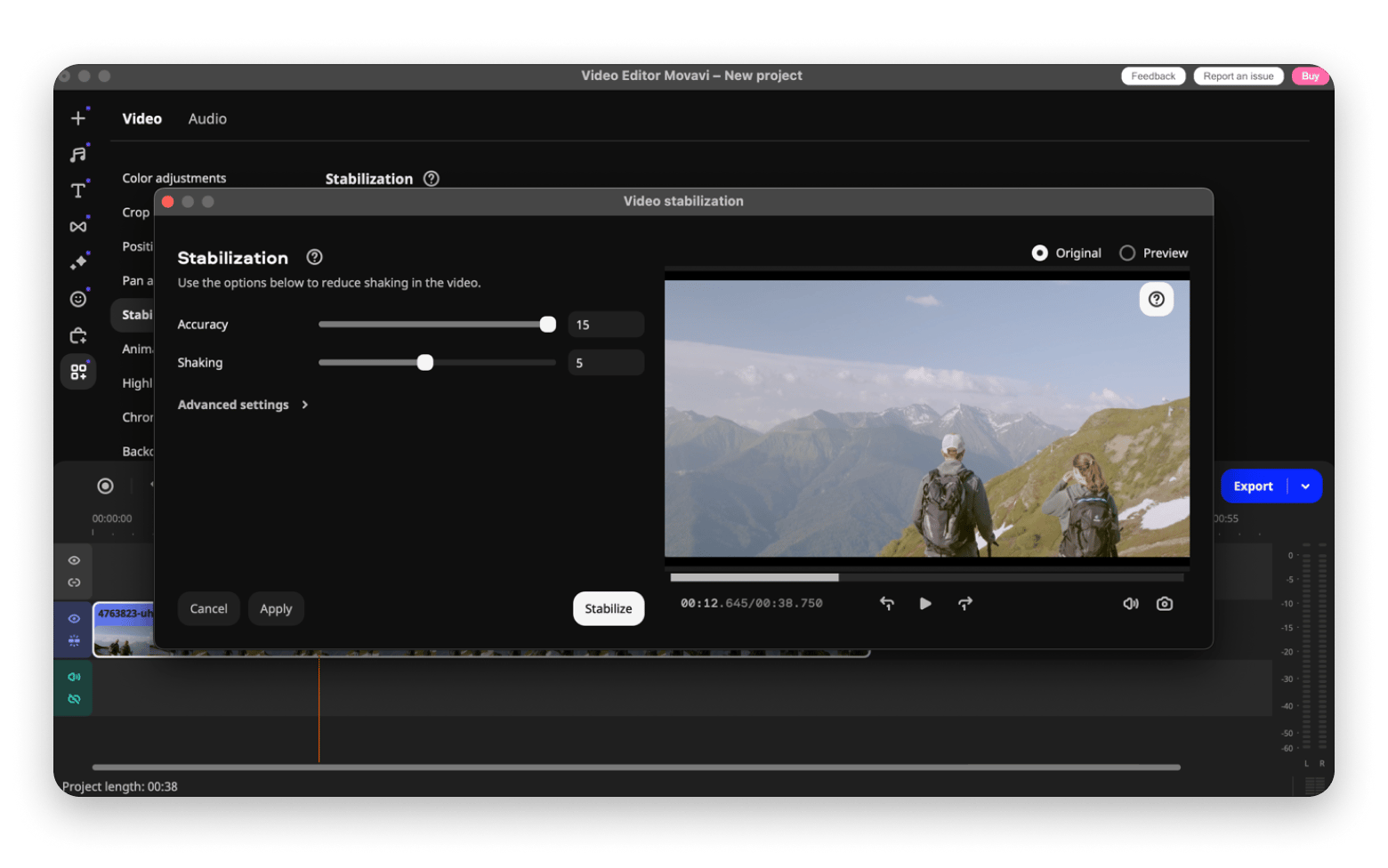
If you are dealing with footage that needs to look studio-ready, use Movavi Video Editor to stabilize your shots. It’s more of a complete video editing software Mac tool as it gives users advanced options like color correction, motion tracking, audio denoising, and AI background removal. It also supports all video formats and lets users process multiple clips at once.
Double-click on the video to add it to the Timeline.
Go to More Tools > Video > Stabilization > Stabilize.
Adjust the slider (if necessary) and click Stabilize. Preview the result.
Export file (File > Save movie as a media file > Export).
Advantages over free solutions
Movavi Video Editor will require a license purchase, but it offers lots of advantages over free alternatives like iMovie.
Smart stabilization level detection.
Better control over video stabilization quality.
Multi-format export.
Color correction and stabilization.
Timeline editing.
Advanced editing features for a pro look.
AI features like denoising and auto-subtitles.
You also get high-quality export as the video isn’t compressed.
Online video stabilizers
If you only need to stabilize one video and don’t feel like installing an app, you can still use free online video stabilizers. Sites like Kapwing, CapCut, and Ezgif Video Stabilizer let you upload, stabilize a video, and download the processed file.
However, the video you get will be in a lower resolution, and you can’t upload long videos. Plus, you’ll be giving out your file (it will be saved on their server), so only use these web apps for videos that aren’t sensitive.
How to stabilize video online
Most online video stabilizers have a similar flow.
Visit the online video stabilizer.
Upload your video.
If available, adjust the intensity of stabilization.
Download the stabilized video.
Note that all free online video stabilizers have file size limits.
Pros and cons of online stabilizers
Pros:
Free for basic stabilization
No installation required
Accessible from any device
Cons:
Potential privacy issues since files are uploaded to external servers
Upload and processing time can be slow for large files
Resolution almost always drops
No batch editing
If you have a short clip and are in a hurry, online video stabilizer apps are convenient. But if you are looking for quality and control, use iMovie as it’s also free.
Tips for professional video stabilization
Here are some pointers to help increase the output quality:
Most video editors will suggest a stabilization level. Use it first and preview. Only adjust minimally.
Always preview your footage before exporting it. It helps avoid re-exporting videos, which can take time.
Always preserve the original quality and confirm your stabilizer doesn’t quietly change it.
Stabilization often trims the edges to compensate for movement, so always watch out for too much crop. If you are losing important aspects of your subject, reduce the stabilization.
You can also take advantage of other features provided by pro video editors like Filmage Editor and CameraBag Pro to enhance the final look of your video.
Avoiding common mistakes
Here are a few things to watch out for:
If you crank up the stabilizer too much, your subject will look like it’s floating. Don’t overdo it.
Avoid changing the aspect ratio, as people’s appearance may change.
If your footage was shot at 60 fps, keep it that way. Dropping it to 30 fps will likely introduce stutter that stabilization can’t fix.
Avoid uploading sensitive footage to online tools. If it’s not a social media clip, use an offline tool.
These will help you reduce editing time and avoid redoing the process.
Why video stabilization matters for Mac and iPhone users
Besides looking a bit “off,” shaky videos change how people experience your content.
Common shaky video scenarios
Some of the best footage is taken while on the move, but it can appear shaky in lots of situations:
When filming with your iPhone while walking. The phone will likely capture every step you take.
GoPro videos are often taken when in motion, and they can be quite shaky when mountain biking, snowboarding, or skating.
If your laptop is on your lap, your webcam recording can be shaky, especially when you are also typing.
To make them look more professional, you can airdrop videos recorded on iPhone or other devices and load them into a video stabilizer app.
Consequences of unsteady videos
When you don’t stabilize your videos:
Social media algorithms won’t rank them well.
People may have a negative perception of your content in the future.
Editing becomes harder as every cut feels a bit jumpy.
Viewers will quickly skip the content as the motion is distracting.
When you stabilize your footage, the focus goes back to the story you are trying to tell.
Final thoughts on video stabilization for Mac and iPhone
Stabilizing shaky footage is easy when you know the right tool. If you are looking for a simple process, you can use iMovie as it’s free, built-in, and easy to use. When you want a dedicated stabilizer for either Mac or iPhone, Emulsio will give you more precision and a side-by-side preview. There’s also Movavi Video Editor, which is more of a complete video editing software Mac tool.
Besides stabilization, you can also enhance your videos, images, and creative projects using various other Mac video editors. Setapp gives you the opportunity to explore tools that fit your workflow as it provides 260+ apps under a single subscription. You can take advantage of its 7-day free trial to check out editors like CameraBag Pro and Filmage Editor.
FAQs
What is the best free video stabilizer for Mac and iPhone?
iMovie is the best free video stabilizer for Mac and iPhone. It’s built into both platforms, is completely free, and the stabilization process is quite simple.
Can I stabilize multiple videos at once on a Mac?
Yes, apps like Movavi Video Editor make it easy to stabilize multiple videos as you can import several into the editor’s Timeline. It saves a lot of time if you are a creator or video editor.
How do I stabilize iPhone videos without losing quality?
You can stabilize iPhone videos without losing quality by preserving the original framerate, aspect ratio, and resolution. Emulsion and Movavi give you complete control over these.
Are online video stabilizers safe and reliable?
Online video stabilizers are convenient, but they aren’t safe and reliable. There are privacy concerns as you are uploading your video to an unknown server, and these editors also significantly reduce the resolution. They’re only good for small, non-sensitive clips.
Which professional Mac app offers the best stabilization for shaky footage?
Emulsio offers the best stabilization for shaky footage as it automatically analyzes the file and recommends a stabilization level. It also provides a side-by-side preview that lets you ensure precise stabilization without overdoing it.
Curious how others get more done with Setapp?
See how real users apply Setapp apps for writing, creative work, productivity hacks, and beyond.






 Top-rated on Setapp
 Top-rated on Setapp