- Fillable PDFs remove friction from any document workflow.
Instead of the print > write > scan cycle, recipients type directly into the form and submit it digitally. This speeds up processing and keeps everything organized.
- Nitro PDF Pro is the quickest way to create a fillable PDF on Mac.
Two clicks — Edit > Create Form Fields for Page — and the app automatically detects and inserts text fields, checkboxes, radio buttons, and signature fields. Available on Setapp.
- Adobe Acrobat gives you the most precision, but comes with trade-offs.
It offers advanced field formatting and auto-detection, but requires a paid subscription and has a steeper learning curve than most casual users need.
- For scanned documents, run OCR first before creating form fields.
Prizmo converts scanned PDFs into editable text using OCR, making it possible to use automatic field detection afterward. Skipping this step means adding every field by hand.
- Nitro PDF Pro and Prizmo are both included in Setapp.
You can try both free for 7 days via Setapp, alongside 260+ other Mac productivity tools, with no separate licenses needed.
Before I can share a PDF, I’ll always ensure that it’s fillable. I find that it makes it easy to handle everyday documents. I won’t send recipients through the frustrating print > write > scan process, and it also speeds up processing. Workflows are much smoother.
If you’d like to create fillable PDF forms, there are several options. You can use pro tools like Adobe Acrobat and Nitro PDF Pro, and there are also free online alternatives that only need a browser.
All these options work best for different types of tasks and users. I’ll show you how to create a PDF form using all of them so you can choose the one that suits your workflow. I’ve also added a few practical tips that can help make the process smoother and your PDF form look more professional.
| I want to… |
Do this |
| Make a fillable PDF quickly |
Use Nitro PDF Pro for automatic field detection |
| Convert a scanned document to editable text |
Use Prizmo for OCR conversion |
| Create a fillable PDF for free |
Use an online tool like PDFescape or DocFly |
| Add signature fields |
Use Nitro PDF Pro or Adobe Acrobat |
If PDF issues persist, the Fix My Mac GPT tool is a good next step. Describe what's happening, and it'll walk you through targeted fixes rather than generic troubleshooting steps.
How to create a fillable PDF using Adobe Acrobat
Adobe Acrobat has been the no.1 PDF reader and editor since the format was created in the early 90s.
Creating a fillable PDF in Adobe is super-easy, as most of the work is automated, and you get a degree of precision that other tools can’t match.
The tool can automatically detect form fields in a PDF document, helping avoid lots of repetitive tasks. It inserts text fields, checkboxes, drop-downs, radio buttons, and signature fields.
The only downsides are that it has a pricey subscription and there's a bit of a learning curve for beginners.
Step-by-step Adobe fillable PDF creation
Here’s how to create a fillable PDF in Adobe:
- Go to Tools > Prepare Form.
- Open the PDF.
- Add or edit the different field types created.
- Save your PDF.
The tool ensures highly accurate and professional fields.
Pros and cons of Adobe Acrobat
Pros:
- Auto-detection saves a lot of time and effort
- Precise alignment and formatting
- Supports all types of fields, including e-signatures
- Widely compatible across devices
- Overall, a powerful tool for professionals
Cons:
- Requires a subscription
- Learning curve for beginners
- Can feel a bit overkill for casual fillable forms
Create a fillable PDF using Nitro PDF Pro (Setapp)
Nitro PDF Pro is the best PDF Editor for Mac if you’d like a simpler but professional alternative to Adobe Acrobat. The tool is available on Setapp, so you don’t need to pay for an extra license.
The best part about Nitro PDF Pro is that you only need two clicks to create a fillable form. It has an option that automatically scans PDFs and inserts textfields, checkboxes, radio buttons, and e-signature fields.
This simplicity makes Nitro PDF Pro the best fillable form PDF creator for most casual and professional users.
Step-by-step Nitro PDF Pro fillable PDF creation
Here’s how to create a fillable PDF form in Nitro PDF Pro:
- Open PDF Nitro Pro.
- Click Open File and select your PDF form.
- Go to Edit > Create Form Fields for Page.
- Save the document.
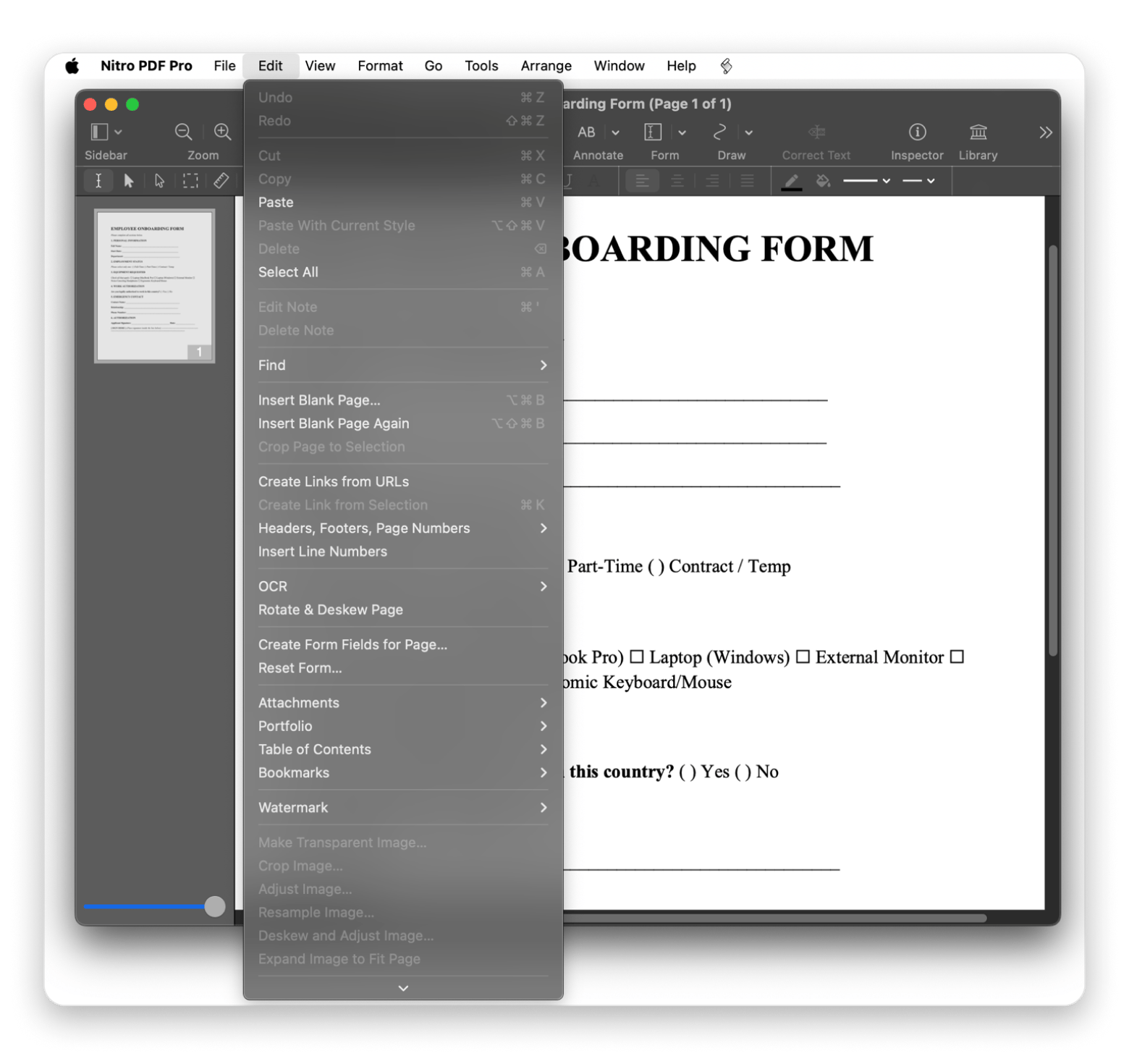
It’s as simple as that when creating fillable PDF forms with Nitro PDF.
How to add fields in Nitro PDF Pro
If you’d like to add extra fields or create new ones in your PDF, Nitro PDF Pro makes that process easy.
The first thing you need to do is display the form fields. For this, go to View > Form Fields.
From there, go to the Form drop-down in the toolbar and select between:
- Text fields for names, addresses, or comments
- Checkboxes for multiple selections
- Radio buttons for single-choice options
- Dropdowns for structured lists
- Signature fields for approvals and agreements
- Button for form submission.
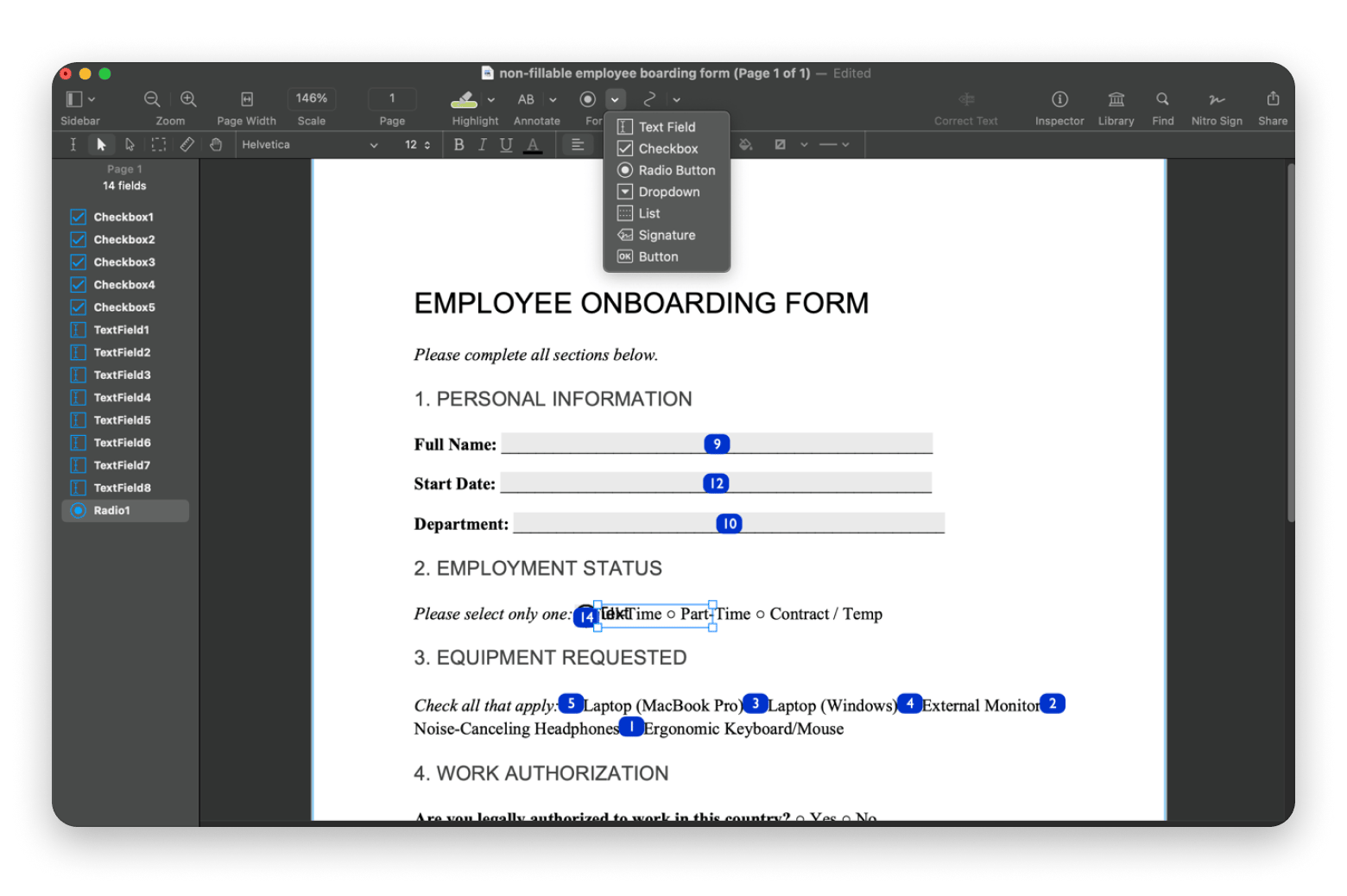
When you select a field, it will display on your PDF. You can drag and drop it to your desired location and customize the name and size.
Benefits of Nitro PDF Pro for Mac
Nitro PDF Pro can prove to be the best PDF editor if you are looking for speed, power, and control. It has an interface that feels a bit familiar, so there’s a minimal learning curve, if any.
One of Nitro PDF Pro’s biggest strengths is its ability to simplify complex tasks. For example, creating a fillable PDF form requires only two clicks, as do many other tasks.
You’ll also have access to features like conversion, merging, annotations, OCR, e-signatures, and secure sharing
How to create a fillable PDF online (free tools)
You can use free PDF editors like PDFescape and DocFly to create a fillable PDF when you are short on time. You won’t need to install any software, and there’s no learning curve. Plus, they run right on your browser, so you can use them on any device.
However, online PDF editors require users to upload their documents to unknown servers. This means your data can be compromised, so avoid uploading any sensitive files.
Apart from that, you won’t get any automation, so you’ll need to add form fields manually. But at least they all offer an interface that suits beginners.
Online PDF editors step-by-step
Most online PDF editors use a similar procedure for creating a fillable PDF:
- Open the online tool.
- Navigate to the fillable form tool.
- Drag and drop the form.
- Go to Form Fields and drag and drop to position.
- Click Download.
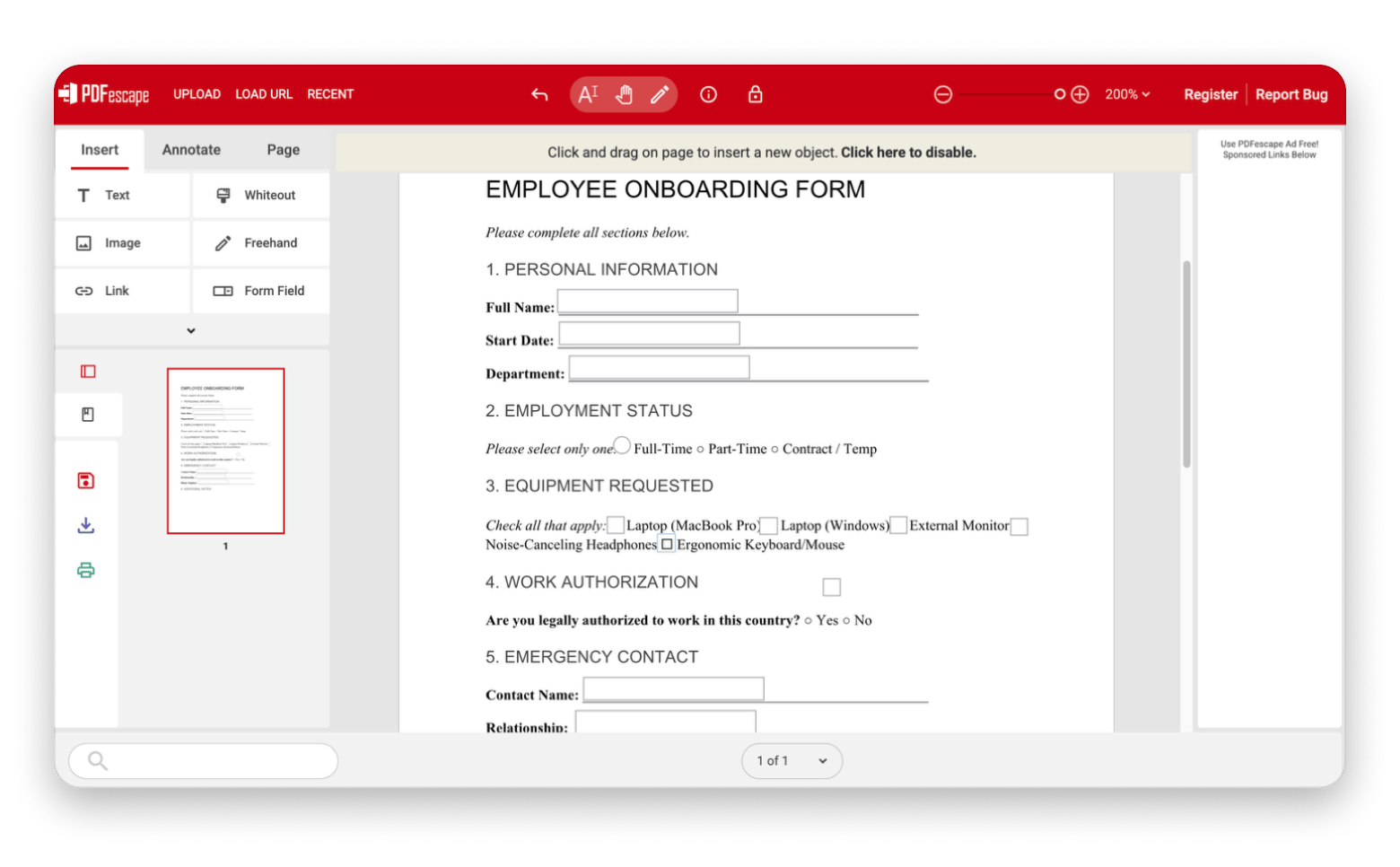
The process is fast and easy, but only use online tools for non-sensitive documents.
Create fillable PDFs from scanned documents (Prizmo)
When working with scanned documents, you won’t be able to use automatic field detection to add form fields without OCR. The only option you’ll have is to use the manual method. But even then, it will only help respondents, not you, as you can’t use automatic form analysis.
This means if you are working with scanned PDFs, it’s good to convert them to editable text before creating a fillable PDF form.
The best tool for this is Prizmo, which is available on Setapp. The app scans an entire document for text using OCR, then automatically converts it to an editable format.
Steps to convert scan → fillable form
Here’s how to convert a scan PDF to editable text:
- Open Prizmo.
- Choose the PDF or image.
- Adjust the image if it’s of poor quality (optional)
- Click Text on the main toolbar.
- Click Recognize Text.
- Click Add to select text that may be missing (optional).
- Click the export button > Export as File > Save.
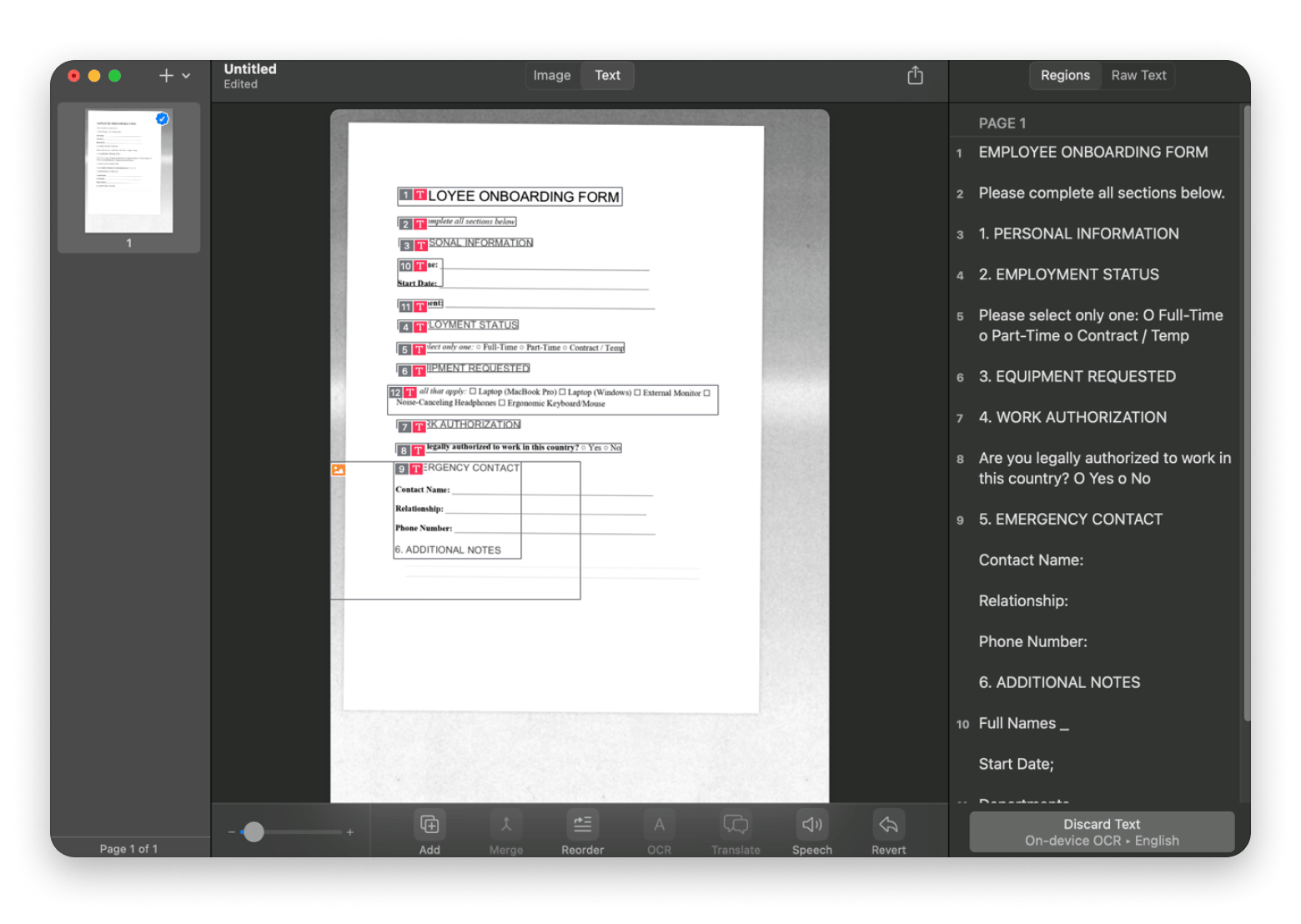
When you open the new PDF with any PDF editor, it will recognize the text.
Tips for creating professional fillable forms
Here are a few tips I use that can help you create a fillable PDF that looks professional:
- In fields like emails and phone numbers, use field validation. Otherwise, it will make automatic processing harder as people can make mistakes.
- Name your form fields logically, as it’s crucial for automated processing.
- Align your form fields and space them cleanly. Use consistent fonts and sizes, and avoid cramming them into a single page.
- Ensure the form fields are well-labeled and the font is readable.
Before you share the files, always test them fully to ensure everything is working.
Why creating a fillable PDF is important
When you create a fillable PDF, you remove friction from the entire filling and submission process. People can type directly into the document and even submit it without sending an email. This simplifies the entire workflow and ensures it remains fully digital, making the processing bit much easier.
There’s also the professional aspect of it. When you give users a clean, interactive form, it shows that the process is intentional and makes it easy for them to do their part or even be willing to participate in your exercise.
When you should make a PDF fillable
Not every PDF needs to be fillable, but there are plenty of cases where it can save a lot of time and keep things organized.
Here are some examples to help you know when to create a fillable PDF:
- Onboarding employees: You don’t want messy printouts when collecting personal details and tax info.
- Legal agreements: These usually need clear fields for names and signatures.
- Online applications: Creating fillable forms makes it easier for you to receive and process the applications.
- Questionnaires and surveys: You won’t be asking too much from the respondents as they only need to fill out a PDF, not print and scan.
- Order forms or invoices: It’s a great way to standardize data entry and reduce errors.
If you allow the users to submit the form directly, you’ll also make processing much faster, as a computer can pull out the responses.
Problems with non-fillable PDFs
Static PDFs usually mean that people have to print the form, fill it by hand, and scan it to recreate the PDF. This is a slow way of doing things when you consider the digital workflows we are used to.
In case someone makes a mistake, they then need to redo the whole print > write > scan process. This usually leads to frustration, delays, and even lost documentation. Plus, some clients will send back photos instead of PDFs, and some of the handwriting may not even be easily legible.
When you make a PDF fillable, you simplify the process and save your time and that of the respondents.
Final thoughts on creating fillable PDFs
Considering the many options you can use to create a fillable PDF, the right choice comes down to what you are working on and how much control you want.
Adobe Acrobat offers the most advanced features but also has a larger, more complex workflow. Nitro PDF Pro offers the best balance of ease of use while also featuring advanced features like automatic field detection and OCR.
Free online tools are limited and a bit risky, but they still get the job done. You can complement them with Prizmo to make scanned PDFs editable.
Both Nitro PDF Pro and Prizmo are available on Setapp, a platform that offers 260+ productivity tools. You can check out the two or any other Setapp app using Setapp’s 7-day free trial.
FAQ
How do I create a fillable PDF for free?
You can create a fillable PDF for free using online tools like PDFescape and DocFly. However, these upload your files, so they should only be used for non-sensitive documents. The alternative is a low-cost offline option like Nitro PDF Pro, as it’s part of Setapp’s library.
How do I turn a scanned document into a fillable PDF?
You can turn a scanned document into a fillable PDF using Prizmo. It uses OCR to turn image text into editable text, allowing you to create fillable PDFs with other tools. You can also use Nitro PDF Pro to do both tasks as it’s equipped with both OCR and automatic form field creation.
Can I create a fillable PDF without Adobe?
Yes, you can create a fillable PDF without Adobe by using tools like Nitro PDF Pro. It offers automatic form field creation like Adobe Acrobat, but it’s a simpler tool suitable for both pros and casual users.
Why aren’t my form fields working?
Form fields may not work when they aren’t set as editable, if they overlap, or if the PDF was saved incorrectly. To solve this, reopen the file and check the field properties. It’s always good to test each before exporting the form.
How do I add signature fields?
You can add digital signature form fields using Adobe Acrobat or NitroPDF Pro. Free PDF editors don’t provide this option.






 Best solution
 Best solution