Pick the tool that fits your workflow.Eney upscales whole folders on your Mac, Adobe Firefly keeps the most detail, and Upscale.media handles fast 2x edits in the browser with no sign-up.
Free limits differ a lot. Upscale.media is capped at 2x, Picsart gives about 5 free credits a week, and Image-Upscaling.net offers a small daily quota tied to your IP.
Results depend on the image. Illustrations came out clean in every tool, but portraits sometimes looked painted, and small text, like camera model names, often warped. Test at 2x before going to 4x.
Cloud tools mean uploading your files. For client photos or scans with personal details, a local app keeps everything on your Mac.
Process images locally on Mac. Get Eney on Setapp for batch upscaling, free for 14 days. To shrink the finished files, try Compresto, which is included in Setapp Membership with a 7-day free trial.
Finding a reliable way to AI upscale an image for free depends on how you work: use Eney by MacPaw for bulk Mac tasks, Adobe Firefly for high-quality detail retention, or Upscale.media for fast web edits.
After a free upscaler stamped a giant watermark across my 600-pixel trade-show banner photo, I went looking for ones that don’t. I tested the top free tools on the same three images. Below: where each one caps your daily use, and how to upscale a whole folder on your Mac without sending a file anywhere.
What AI image upscaling actually does
A standard editor enlarges a photo with bicubic interpolation. It pulls the existing pixels apart and blurs the gaps between them. An AI upscaler works another way. A super-resolution model guesses what the missing texture should look like and draws it in.
The scale setting is simple. 2x doubles each dimension. At 4x, a 500 by 500 image becomes 2,000 by 2,000, and at 8x, it becomes 4,000 by 4,000.
A common use case for AI upscalers is old family photos. Another one is a blurry product shot that needs to become a print file or a sharp Retina image. Keep in mind that the added detail is invented, so faces and small text can come out wrong.
How I tested free AI upscalers
I judged each of the five tools I tested on the same five criteria:
Quality at 2x and 4x. I paid attention to quality. Is the text on the product shot still readable, and does the portrait still look like skin?
Watermarks. This is the main reason I started looking for more AI image upscalers.
Free limits. How many images can I upscale for free?
Whether I had to sign up. Preferably, I wanted an AI image upscaler with no sign-up.
Whether the file got uploaded anywhere. The upload question mattered most to me. A client’s wedding photos, or a scan with someone’s name on it, shouldn’t go to a server I know nothing about.
I put the same three images through every tool: a portrait, a product shot with text, and a low-res illustration.
The best free AI image upscalers in 2026
The best free AI image upscalers right now are Eney, Adobe Firefly, Upscale.media, Picsart, and Image-Upscaling.net, and the right one depends on whether you need privacy, quality, or speed.
The table below compares all five tools, with detailed descriptions following:
Eney: Best for secure batch image upscaling on Mac
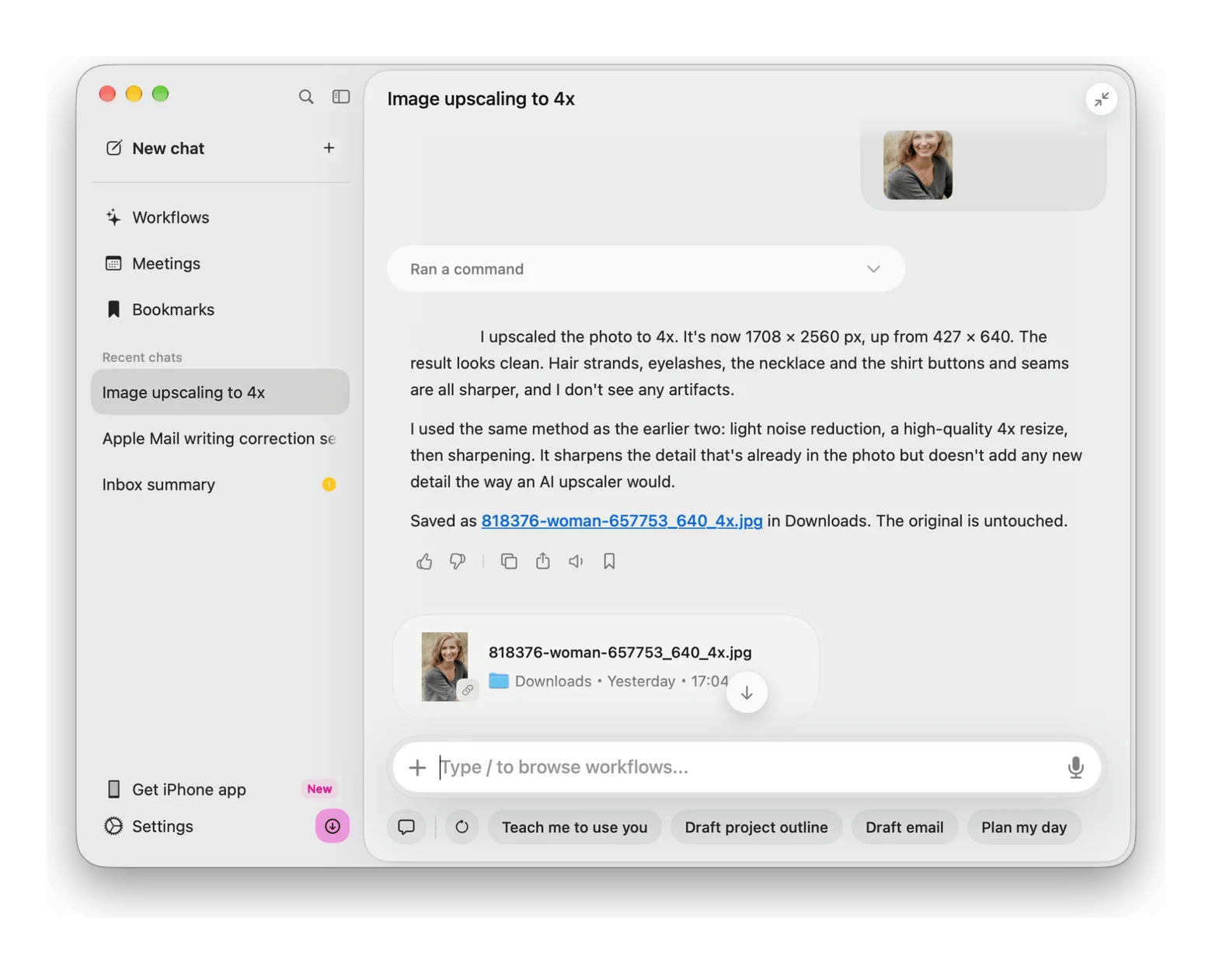
Eney is a native Mac assistant that handles secure bulk image upscaling, though the quality of its 4x upscaling depends heavily on your source file.
The tool did a solid job enlarging digital illustrations and basic textures during my test. Things got a bit unpredictable with finer details, though. When I tried to upscale a product shot, it couldn’t fully recover small text like “FUJIFILM” or specific camera model numbers. I also noticed that human portraits sometimes looked a little too sharpened or heavily processed, rather than completely natural.
Despite those quirks, the actual desktop workflow is incredibly smooth. You can just grab a whole folder of images and upscale them locally without uploading a single file to the web. Just keep in mind that you need an M-series Mac running macOS 15 or newer.
Cost: Free for 14 days with 10,000 AI credits, then plans from $14.99/mo incl. tax.
Upscale.media: Best for free 2x web upscaling
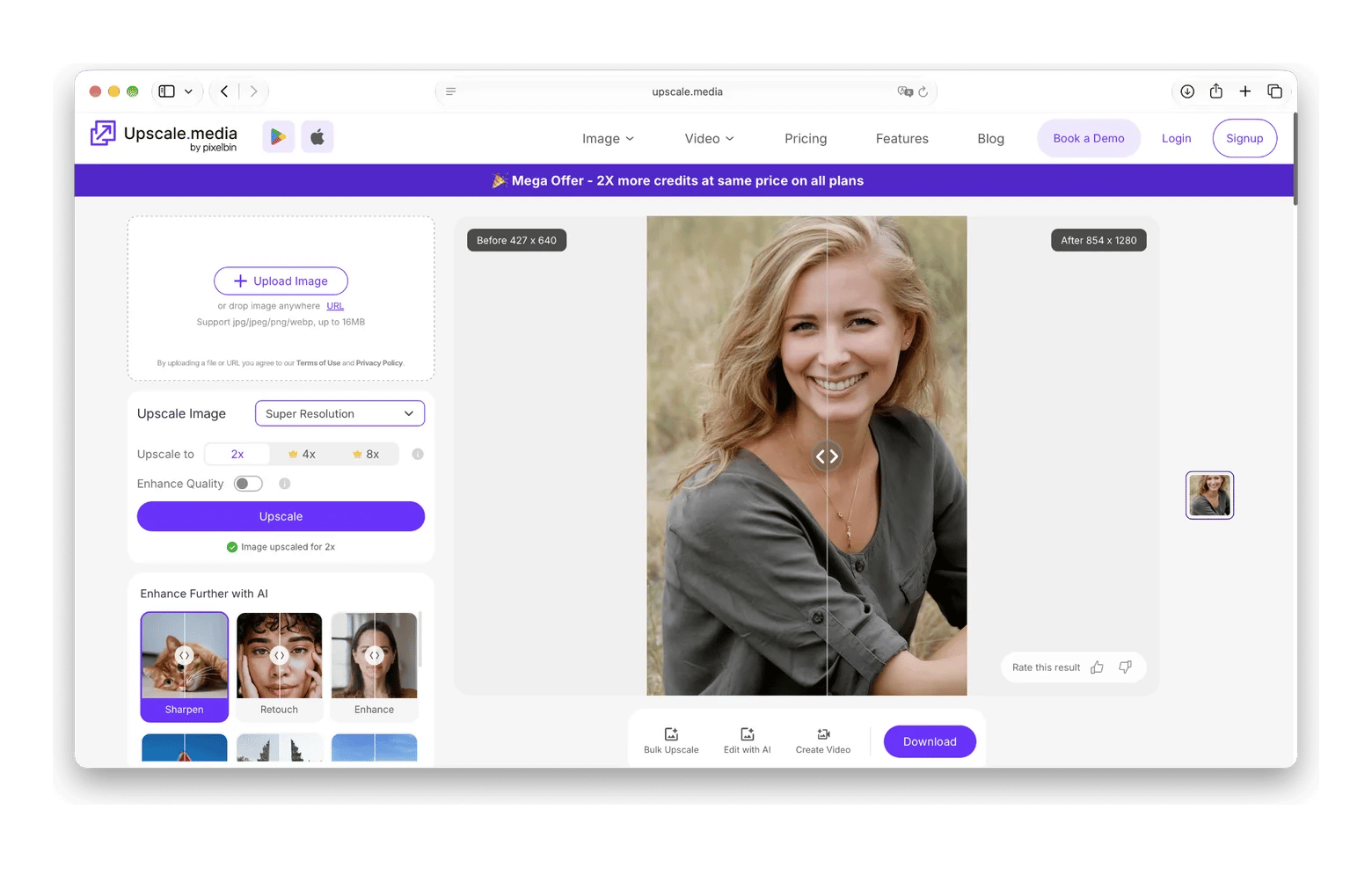
Upscale.media is a solid AI image upscaler with no sign-up required. The output is actually impressive for a basic browser app. It handled my portrait test naturally and delivered clear photo-quality improvement without making the skin look like plastic. A really nice touch on the site is the interactive slider on the results page. You can drag it back and forth to see the exact before-and-after difference before you decide to save the file.
Note that you can only upscale at 2x for free. For 4x or 8x, you have to pay. They also limit the number of images you can process per day without an account, so it’s really only for the occasional edit.
Cost: Free for limited 2x edits. Then one-time packs start at $4.99 for 30 credits (about $0.16 per image).
Adobe Firefly upscaler: Best for detail retention
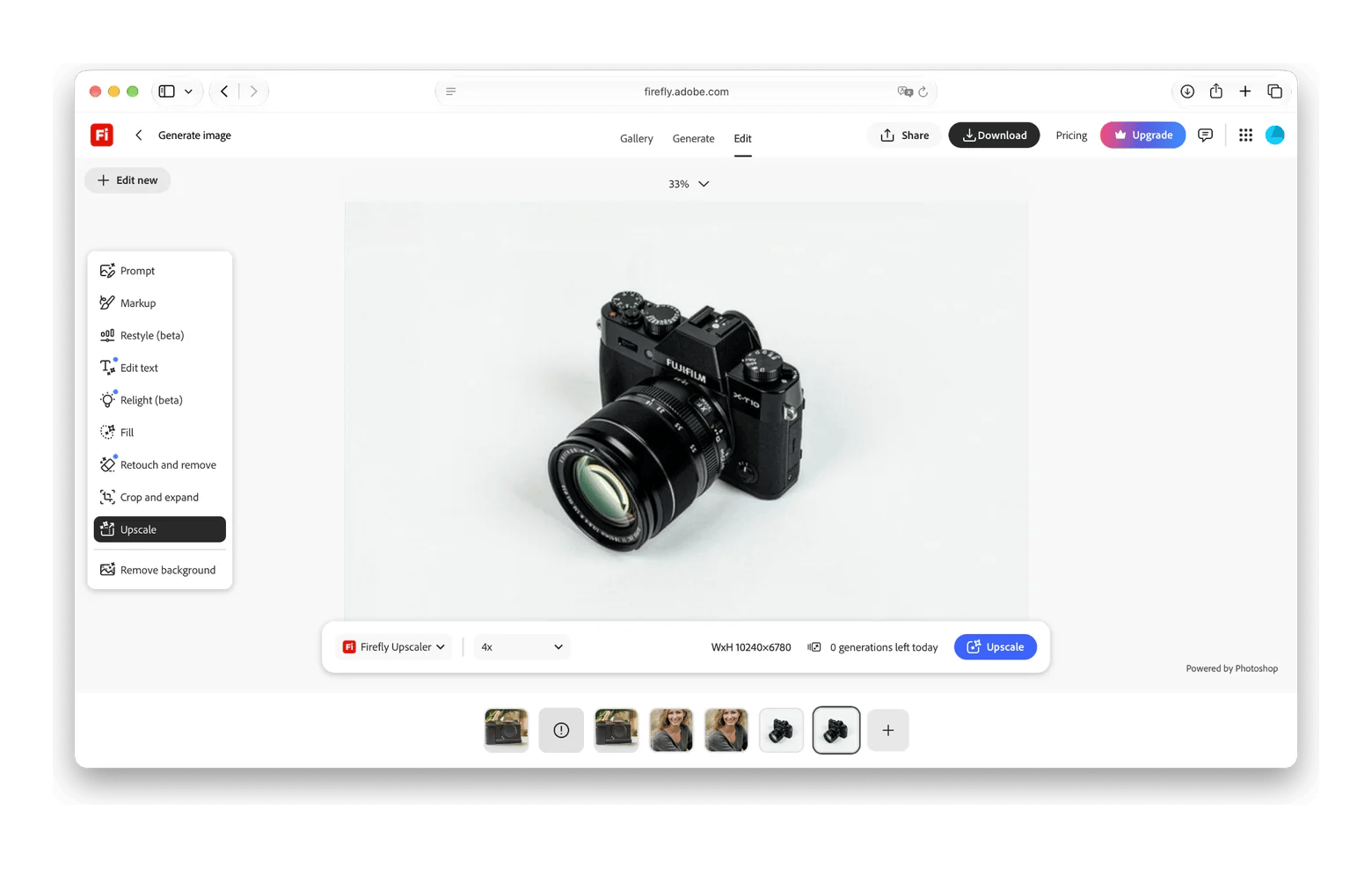
Adobe integrated a highly capable super-resolution AI right into its Firefly web platform. During my tests, the detail retention on a low-res digital illustration was fantastic. It pushed the file to 4K cleanly, completely avoiding those weird, plastic-looking artifacts around the edges that cheaper tools usually leave behind. You do have to sign in with an Adobe ID to use it.
Cost: Free daily allowance, then plans from $9.99/mo (roughly $0.05 per image).
Picsart AI upscaler: Best for upscaling in a design workflow
Picsart is mostly known as a massive design suite, but it actually includes a solid free AI image upscaler online right inside its web toolkit.
When I ran my test files through it, the digital illustration looked fantastic at 4x scale. The software smoothed out the jagged edges perfectly without ruining the original art style. The photography tests were more of a mixed bag. The tiny text on the camera product shot got a little warped, and my portrait lost some natural skin texture and took on a slightly painted look.
The main frustration here is the credit system. You have to create an account, and the free tier only hands out a very tight allowance of about 5 credits a week. If you are working on a real project, you will burn through that in minutes. Upgrading to the Pro tier gets you 500 credits for $15 a month. That is a decent deal if you also plan to use their templates and video editors, but it feels steep if you just want to enlarge a few photos.
Cost: 5 free credits a week, with Pro plans starting at $15/mo (or $10.50/mo billed annually).
Image-Upscaling.net: Best for pay-as-you-go upscaling
If you want to upscale an image for free, with no watermark and without handing over your email address, Image-Upscaling.net is as straightforward as it gets.
When I ran the test files through it, the output quality depended heavily on which processing model I selected. The basic “Plus” model did a great job with the digital illustration at 4x, keeping the edges very sharp. For the product shot and the human portrait, though, I had to use their slower diffusion model; otherwise, the small text would warp, and the skin wouldn't look natural.
You get a small free daily quota (linked to your IP) which is more than sufficient for a few quick edits. When that's used up, there are no expensive monthly subscriptions. You simply top up a prepaid balance, and most images cost between 1 and 8 cents to process (depending on the model you select).
Cost: Free daily quota, then pay-as-you-go from $0.01 to $0.08 per image.
How to get the best results from a free AI upscaler
The best results come from a good source file, a model that matches your image, and a cautious scale setting. These seven tips come from what worked, and what failed in my tests:
Start with the best source file: Track down the highest-quality original version you can find, because feeding a heavily compressed file into an upscaler just amplifies the existing digital noise.
Crop before upscaling: Trim away any unnecessary background before you process the image to save yourself rendering time and precious daily credits.
Export as PNG, not JPEG: Save your final upscaled images in a lossless format to preserve all those newly generated crisp details without introducing fresh compression artifacts.
Use face-tuned models for portraits: Switch to a specialized facial recovery setting when processing human subjects; otherwise, your photo might end up with the same unnaturally smooth, painted look I saw during some of my portrait tests.
Pick the model that matches the content: Choose the specific algorithm designed for your asset, just like I had to use entirely different processing rules to rescue the tiny text on my camera product shot versus the bold lines of my digital illustration.
Test at 2x before jumping to 4x: Run a basic 2x enlargement first, as pushing a file straight to a massive 4x scale is usually what causes weird artificial hallucinations around fine details.
Know what upscaling cannot fix: Accept that even the smartest AI cannot magically reconstruct fundamental photography mistakes like severe camera shake, motion blur, or a completely missed focus point. If blur is the real problem, try to unblur the image on your Mac before upscaling it.
With these habits in place, the next step is picking the tool that fits how you work.
Which free AI image upscaler should you choose?
If you are comfortable uploading your photos to a browser, Image-Upscaling.net and Upscale.media will get the job done fast. You can drop a file in and download the larger version in seconds without any setup. Just keep in mind that these quick web tools usually enforce very strict daily limits before they ask for payment.
If you don’t mind creating an account or eventually committing to a subscription, Adobe Firefly and Picsart are worth a look. The clear advantage here is the output quality. Both platforms give you access to much stronger processing models, which makes a noticeable difference when you need to retain complex details.
When you prefer to run things locally on your Mac, Eney is a highly practical option. The standout feature is its batch-processing capability, letting you drop an entire folder of files into the app to upscale them all at once.
Start with a 14-day free trial of Eney on Setapp for batch upscaling. To shrink the results, try Compresto with Setapp Membership, free for 7 days, along with 300+ other apps.
FAQ
Can I upscale an image for free without a watermark?
Yes. Upscale.media and Image-Upscaling.net offer watermark-free edits within daily free limits. Adobe Firefly and Picsart also provide free, watermark-free generations, but they require an account.
What’s the best free AI image upscaler that doesn’t require an account?
Image-Upscaling.net is the top choice because it lets you use advanced models without forcing you to sign up or create a profile.
Is there a free AI image upscaler that works offline without uploading my images?
Yes. Mac users can run Eney locally on their device, keeping files entirely private. You can test it for free for 14 days with 10,000 AI credits included.
How far can I upscale an image before quality drops?
A 2x enlargement is almost always safe. Pushing files to 4x often creates artificial textures, over-sharpened portraits, or unreadable text, depending on your source image.
Are free AI upscalers safe to use with personal or confidential photos?
Cloud-based web tools require you to upload your files to external servers. To keep private photos entirely on your device, local processing with a desktop app like Eney is the safest route.
AI tools for Mac, iPhone, and iPad
Generate and improve text, create summaries, and tackle your tasks faster.





 Best solution
 Best solution