ABBYY FineReader PDF is a solid ABBYY FineReader alternative but a heavy OCR tool — if you've outgrown it or find it overpriced, there are lighter, more affordable alternatives that do the job just as well.
Nitro PDF Pro is the best all-around alternative — it covers OCR, PDF editing, e-signatures, and document conversion without the enterprise complexity or Adobe pricing.
For scanning and OCR specifically, Prizmo is a strong companion — it processes documents in 26 languages, works offline, and pairs naturally with other PDF editors.
Your use case drives the choice — need PDF-to-Excel conversion? Able2Extract. Academic annotations? Skim. Developer API? OCR.Space. Full-featured editing? Nitro PDF Pro.
ABBYY FineReader PDF used to be my favorite PDF editor for years. But over time, the software became too heavy for my workflow and a bit pricey for my budget. So I started looking for a better alternative.
I tested 30+ tools that are popular right now. Some were more advanced, had a learning curve, and were better suited for corporate use. Others were simpler and better for individual users, students, and small businesses.
Top ABBYY FineReader alternatives for Mac: ABBYY FineReader vs leading alternatives
Below are the strongest ABBYY FineReader alternatives for Mac that I found. Some are lightweight OCR tools, and others are enterprise-grade PDF suites. A few are better options for business teams, and others for casual users. We'll focus on the most important features like OCR accuracy, PDF editing capabilities, document conversion quality, pricing model, and Apple Silicon compatibility.
Here's a brief overview of how ABBYY FineReader compares to its major alternatives before we go into more details:
Free plan available; paid plans start at $30/month
Skim
Students, researchers, and PDF annotation
Free and open-source
Before diving into each tool, if you're dealing with long PDF documents as part of your workflow, the PDF Summarizer GPT tool is worth keeping in a tab. I used it while reviewing dense documentation during this round of testing — it cut down the reading time significantly without losing the key points.
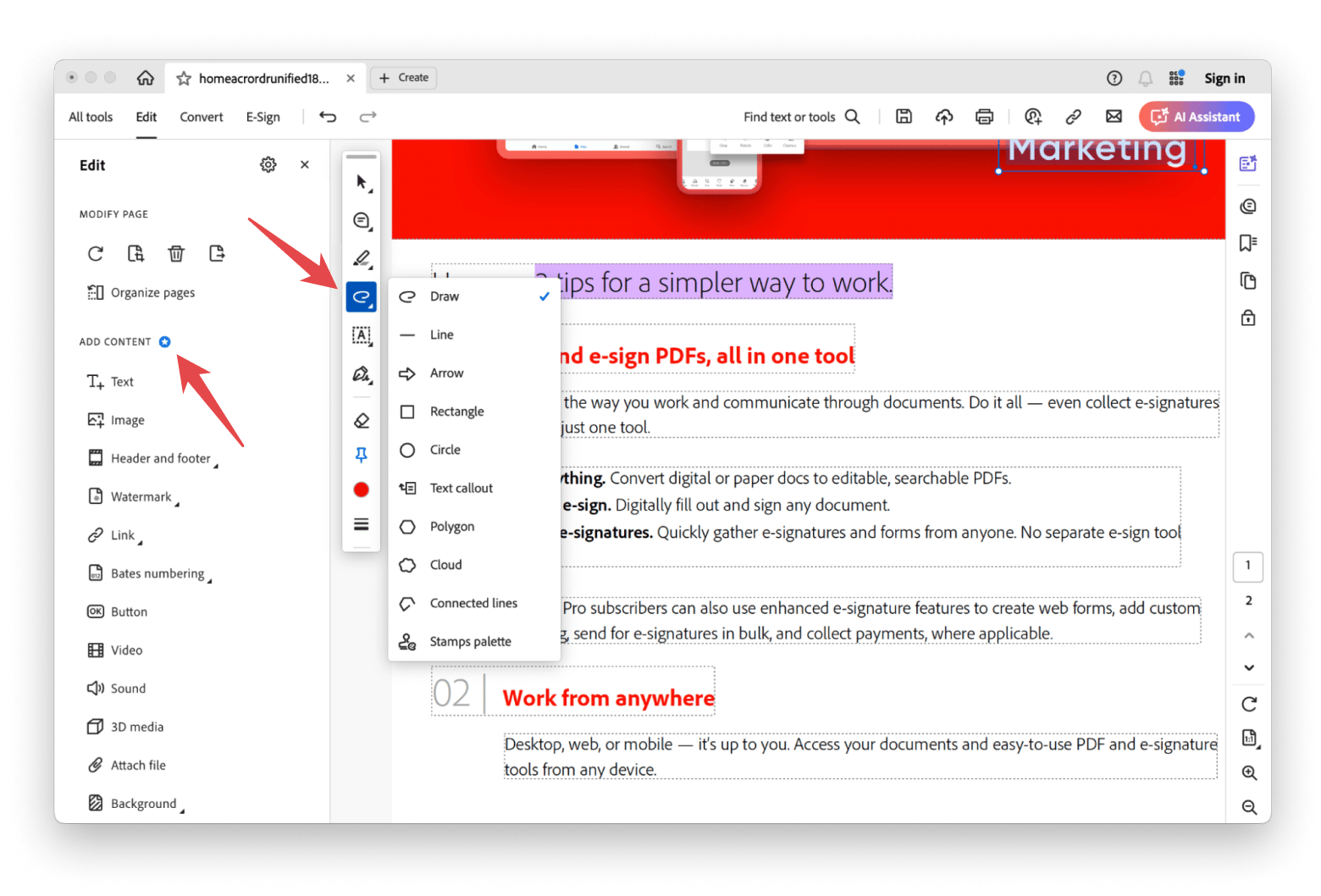
Adobe Acrobat Pro: Best choice for Mac teams who need end-to-end PDF workflows (editing + OCR + signing)
Adobe Acrobat Pro is the ABBYY FineReader alternative for teams that need end-to-end PDF workflows, combining editing, OCR, e-signatures, and cloud collaboration in one tool.
Where this tool really shines is in workflow management. You can do things like edit text and images inside PDFs, organize files, collect signatures, and compare document versions, among other things. If you're in the business, legal, education, or corporate sector, this tool is the gold standard. It connects easily with apps you use on a daily basis, like Microsoft 365, Google Drive, Slack, Salesforce, Dropbox, and other Adobe apps.
It's not without drawbacks. Compared to other Mac PDF editors, it’s a bit on the expensive side. Some users also say the app can feel slow on older Macs or when working with larger files.
Pros
OCR works well with scanned files
Syncs across Mac, iPhone, and iPad
Signing and sharing documents is very easy
Works smoothly with Microsoft 365 apps
Great for legal, corporate, and business teams
Cons
Subscription is pricey
Can be slower on older Macs
Some tools take time to learn
Too heavy for casual users
Nitro PDF Pro: Best option if you want an advanced non-Adobe PDF editor on Mac
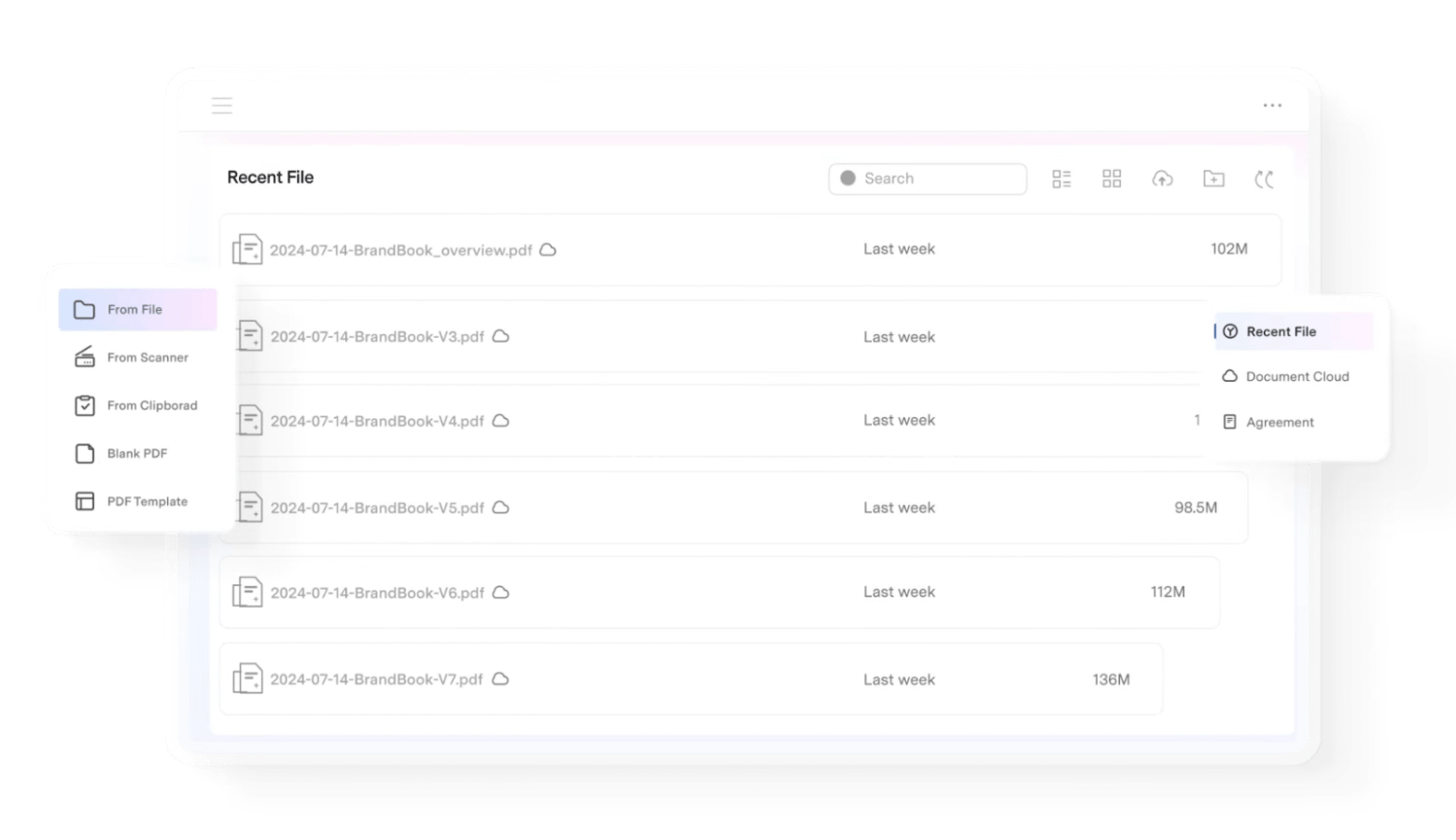
What if you need PDF software but don’t want to deal with Adobe’s ecosystem? Then Nitro PDF Pro is an awesome tool you should definitely check out. You’ll find all the features you would normally expect from a PDF tool, like PDF editing, OCR, document conversion, annotations, e-signatures, password protection, and more.
What makes it different (and arguably better) than Acrobat is the interface. It’s clean, and you probably won’t have any issues finding your way around. You get all the basics of a powerful PDF editor without being overwhelmed by enterprise-focused tools or expensive subscription fees.
Pros
Easy to use and straightforward interface
More affordable than Adobe Acrobat Pro
Strong PDF editing and conversion tools
Great for merging and organizing files
Includes OCR and e-signature features
Cons
Can be a bit slow with larger documents
Some users report occasional bugs
OCR tools aren’t the most advanced
If you want a deeper look at how Nitro PDF Pro stacks up against other Mac PDF tools, the best PDF editor for Mac guide covers the full field — including compression, search, and AI features.
Wondershare PDFelement: Ideal for Mac users who want a full PDF suite with clearer up-front pricing
Wondershare PDFelement might be a good pick for you if you want a full PDF suite without being caught off guard later with high monthly plans or fees. It has all the basic features you'll need, without the complexity of ABBYY FineReader PDF.
If you're new to PDF software and need something simple that you can learn quickly, then PDFelement fits that criterion really well. Its OCR tools are also solid. The software can recognize scanned text in many different languages. You can also convert PDFs into editable Word, Excel, or searchable PDF files
Source: pdf.wondershare.com
Pros
Onboarding shouldn't take more than an hour
Comes with solid OCR features
You'll get all the basic features for editing PDFs
Great for everyday PDF tasks
Cons
AI tools may require extra payments
Can feel slow with larger documents
Readiris PDF: Best choice for affordable OCR + scanning + PDF conversion on Mac
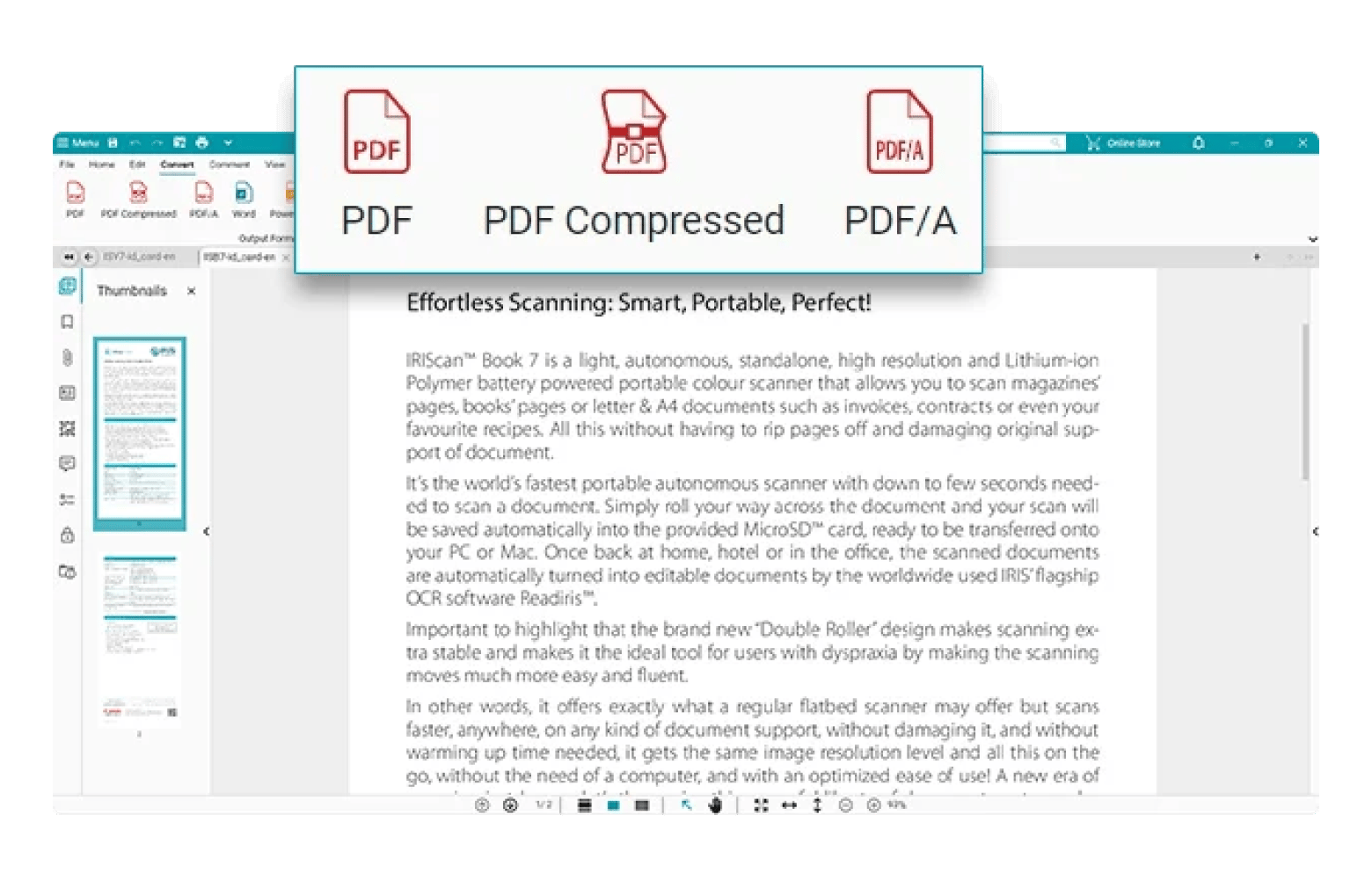
Readiris PDF is a great budget-friendly option if you want better OCR and document scanning features than what ABBYY FineReader PDF can offer. In fact, this tool is popular for its powerful OCR engine that supports 130+ languages.
You can scan documents, batch convert files, merge PDFs, rearrange pages, annotate documents, and compress large files from one place. Readiris also integrates with tools like Google Drive and OneDrive, which is a plus if you work across multiple devices.
All in all, this PDF software is a top-notch tool for casual users or small businesses that mainly need OCR and scanning tools. The pricing model is also stress-free. You just buy the lifetime license and don't have to worry about another monthly subscription.
Source: iriscorporate.com
Pros
Great pick for casual users and small businesses
Powerful OCR features
Scans paper documents quickly
More affordable than its competitors
Simple interface that’s easy to learn
Cons
The interface can feel a bit outdated
Not a good fit if your needs are more advanced
OCR results may need small adjustments afterward
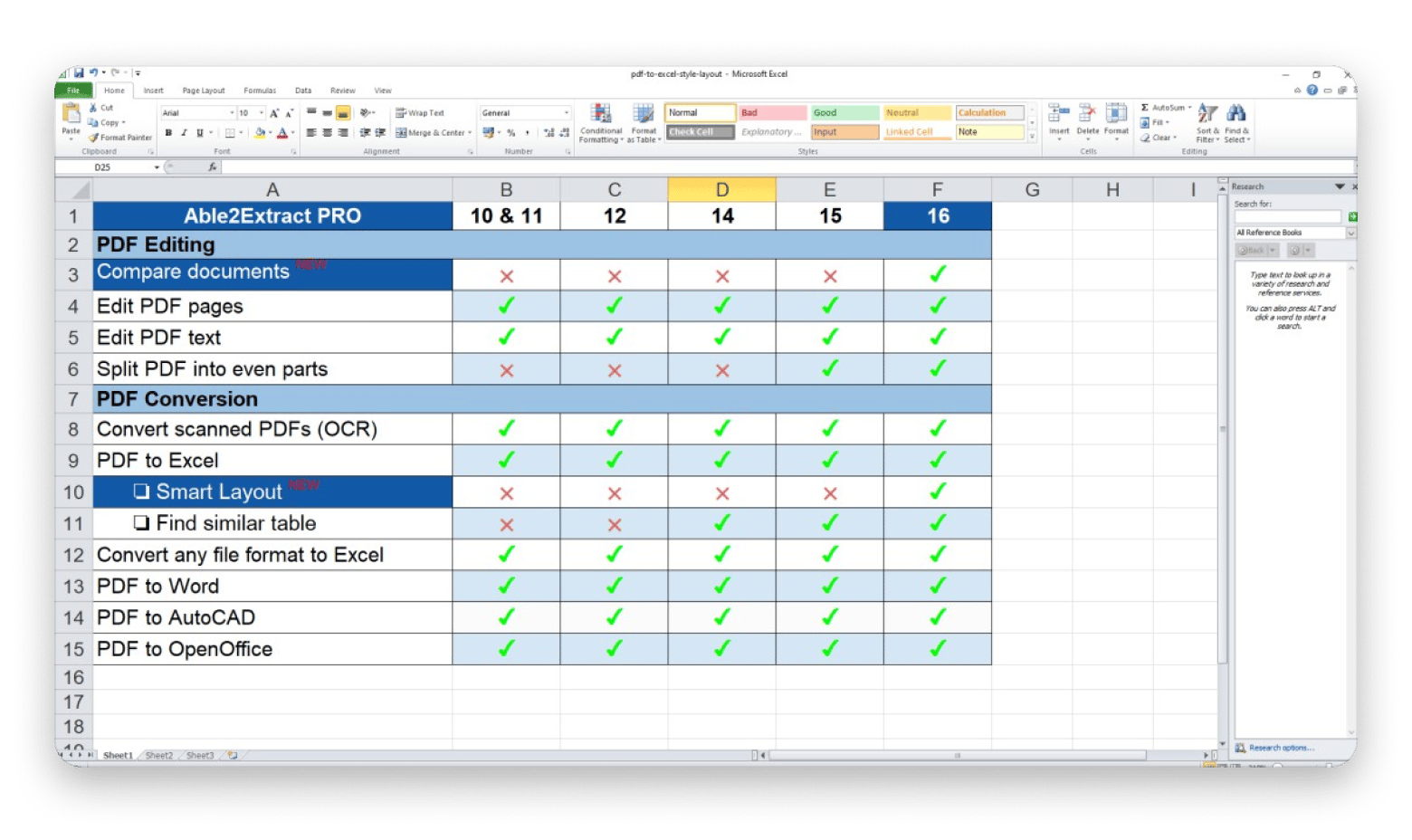
Able2Extract Professional: Best option if you live in spreadsheets (PDF to Excel conversion) and accept Rosetta on Apple silicon
Does your work revolve a lot around spreadsheets, invoices, financial reports, or large amounts of PDF data? Able2Extract Professional’s best feature is its PDF-to-Excel conversion capability.
This tool won’t mess up tables during conversion. It does a great job of keeping rows, columns, numbers, and formatting intact. This makes it a useful tool for accountants, analysts, business users, or anyone who regularly works with spreadsheets and business reports.
Its OCR capabilities are also solid. You’ll be able to convert poorly scanned PDFs into editable Excel, Word, PowerPoint, CSV, and AutoCAD files. If you read online reviews, you’ll notice that users often praise how the software handles complicated tables and numerical data compared to many of its competitors.
Just keep in mind that Able2Extract Professional relies on Rosetta 2 in certain setups. So if you prefer working with native Apple Silicon apps, this isn’t one.
Source: investintech.com
Pros
Excellent PDF-to-Excel conversion capabilities
Great pick for accountants, analysts, and business users
Has advanced OCR features that handle scanned tables well
One-time purchase instead of a recurring monthly subscription
Flexible and easy to use, even for non-technical users
Cons
Apple Silicon support could be better
The interface feels more practical than modern
Some tools take a bit to figure out
OCR.Space: Best for occasional OCR or developers who want an API (not a Mac desktop workflow)
Finally, a PDF editor you don't have to install on your Mac! OCR.Space is fully web-based and a great pick if you don't need a full desktop PDF editor. It does the basics well, like extracting text from images, screenshots, scans, or PDFs.
It has a generous free plan and a developer-friendly API. Just access the web version and upload your image or PDF directly through the browser. Or you can connect the OCR API to apps, scripts, workflows, or automation tools. You’ll also get access to several OCR engines, including one focused on handwriting recognition and another optimized for tables and special characters.
Pros
Built for developers looking for a flexible OCR API
Great for casual use
Fully web-based, so no software installation needed
Supports many OCR languages and engines
Generous free plan
Cons
You won’t get full PDF editing features
Results depend a lot on scan quality
Advanced data extraction tools are pretty basic
The paid API can be hit or miss sometimes
Skim: Best choice for academics who need fast PDF reading and annotation (not OCR)
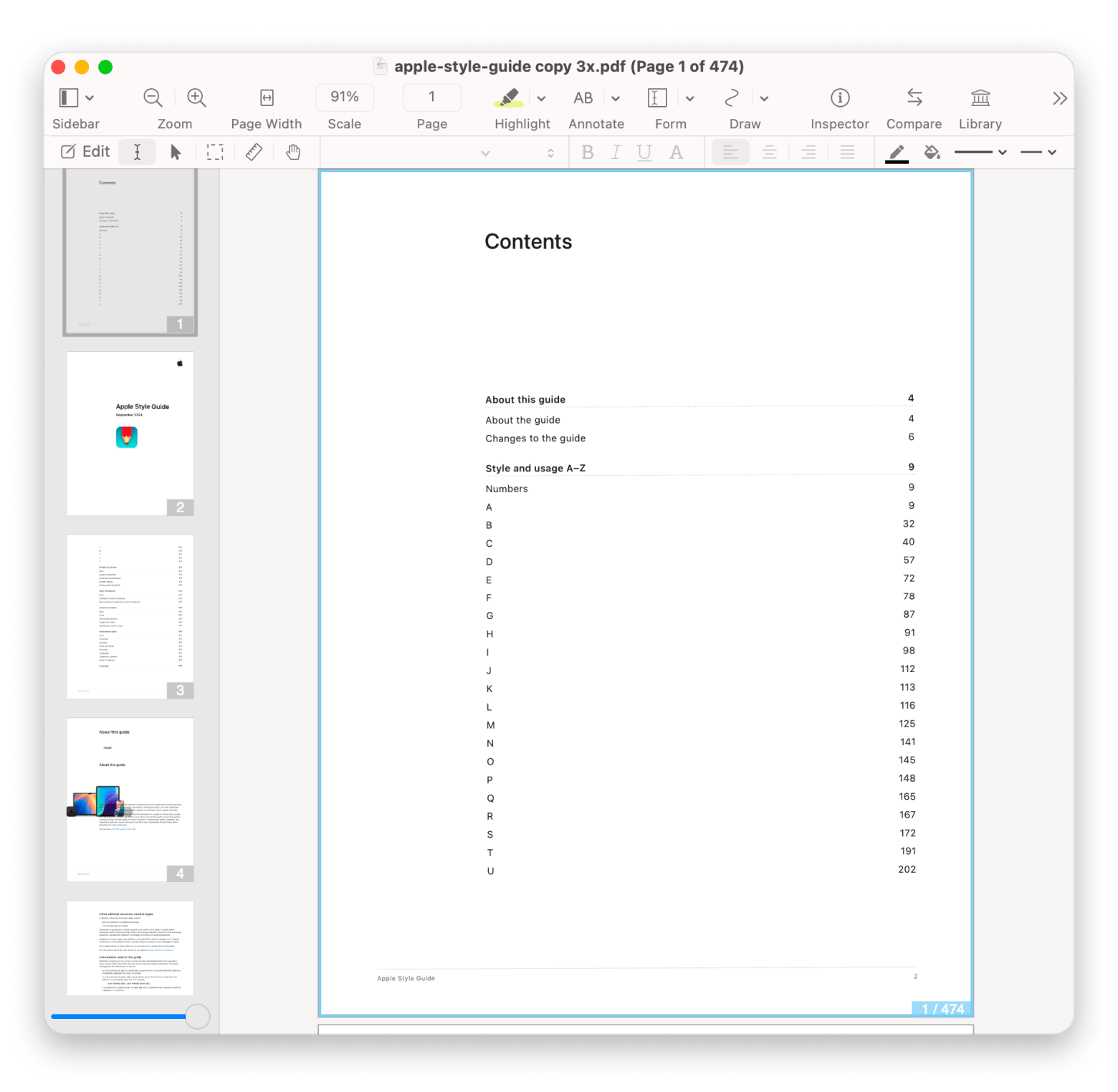
If you were wondering whether there’s a PDF app built specifically for students, researchers, academics, or people who spend hours reading scientific papers, there is! It’s called Skim, and it’s a free, open-source PDF reader made for Mac. It’s loved by many users because it’s affordable and much faster than heavier PDF apps.
One of its best features is the annotation tools. You can highlight text, add notes, underline sections, create snapshots, and organize all your annotations inside a dedicated sidebar. There’s also LaTeX and SyncTeX support, which is super useful for people working with academic or technical documents. You’ll probably also love some of its other handy features, like the reading bar, fullscreen reading mode, smart cropping, bookmarks, and visual page history.
Pros
Free and open-source, so it’s great for people on a budget
Made for students, researchers, and academics
Strong LaTeX and SyncTeX support
Smoother experience than heavier PDF apps
Cons
Doesn’t come with OCR, PDF conversion, e-signatures, form creation, or advanced document editing tools
The interface looks a bit outdated
Annotations may not transfer perfectly
Choosing the right alternative (Mac-first recommendations)
After testing 30+ tools, the pattern that emerged was clear — most people leaving ABBYY FineReader are either paying too much, dealing with unnecessary complexity, or both.
That would depend on your needs and what you need the tool for. For example, if you care about OCR accuracy, then Readiris PDF or Able2Extract Professional makes a lot of sense. For reading and annotating academic papers, Skim is a good pick. And if you want a tool that's part of the Adobe ecosystem, Adobe Acrobat Pro is the sensible option.
Out of all the tools on this list, Nitro PDF Pro is the best-balanced option for most Mac users. Done reading? The fastest way to replace ABBYY FineReader is already waiting. Nitro PDF Pro and Prizmo are both on Setapp — one subscription, 270+ Mac apps, 7-day free trial. Start My Setapp Trial.
There's a free seven-day trial, so make sure you check out Nitro and many other Mac apps to see how they fit your workflow.
FAQ
Is there a free version of ABBYY FineReader?
ABBYY FineReader only has a free seven-day trial. During the free trial, you can test features like OCR, PDF editing, and document conversion before you decide on a paid plan. If you need a PDF editor with a free plan, then tools like Skim and OCR.Space are great options.
How much does Abbyy OCR cost?
ABBYY FineReader PDF for Mac costs €69/year. It’s a standalone license that you pay for yearly, instead of subscribing month by month.
What is the best free PDF reader?
One of the best free PDF readers is Skim. It’s lightweight, fast, and excellent for reading, annotating, and organizing PDFs. Another solid free choice is Apple’s built-in Preview app, especially for basic everyday PDF viewing and markup.
Is ABBYY FineReader good?
Yes, ABBYY FineReader PDF is one of the best OCR tools on the market. It can scan and convert documents with high accuracy. It’s particularly strong at turning scanned PDFs into editable Word or Excel files. However, some Mac users feel the software looks outdated and more complex than newer alternatives.
What's the best OCR software for Mac? Is anything better than ABBYY FineReader?
ABBYY FineReader PDF is one of the best OCR tools for Mac, especially for scanned document conversion. If you want something simpler and more modern, Nitro PDF Pro offers strong OCR alongside PDF editing, e-signatures, and a cleaner interface.
Get PDF editor with OCR
Nitro PDF Pro lets you change anything about your PDF docs.






 Best solution
 Best solution