Nitro PDF Pro
is the top PDF editor for Mac. It offers full editing, OCR, e-signatures, and seamless macOS integration, making it ideal for professionals managing complex documents.
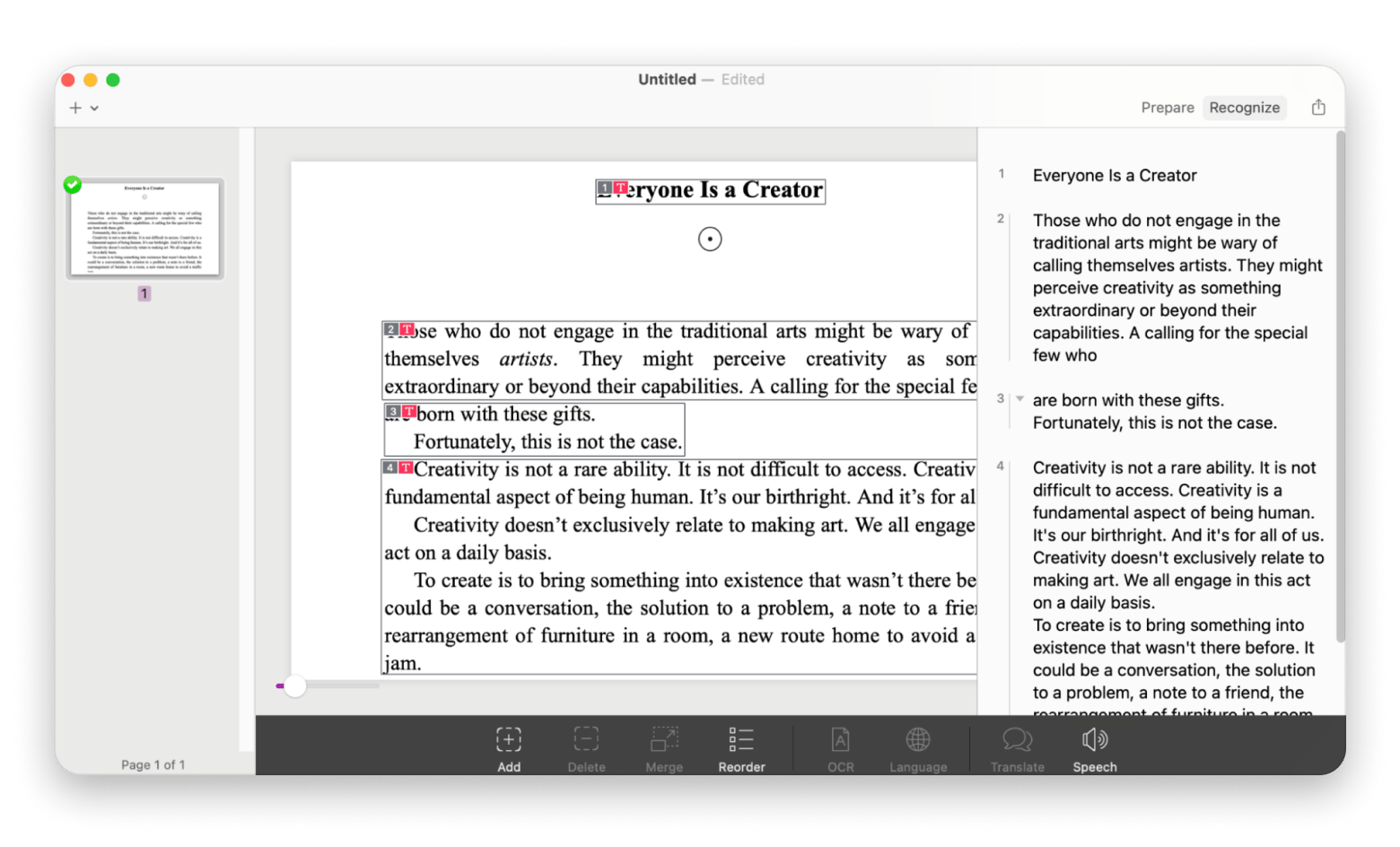
Prizmo excels at scanning and OCR. Perfect for turning paper documents into editable PDFs, it also supports text-to-speech and multiple languages for accessibility.
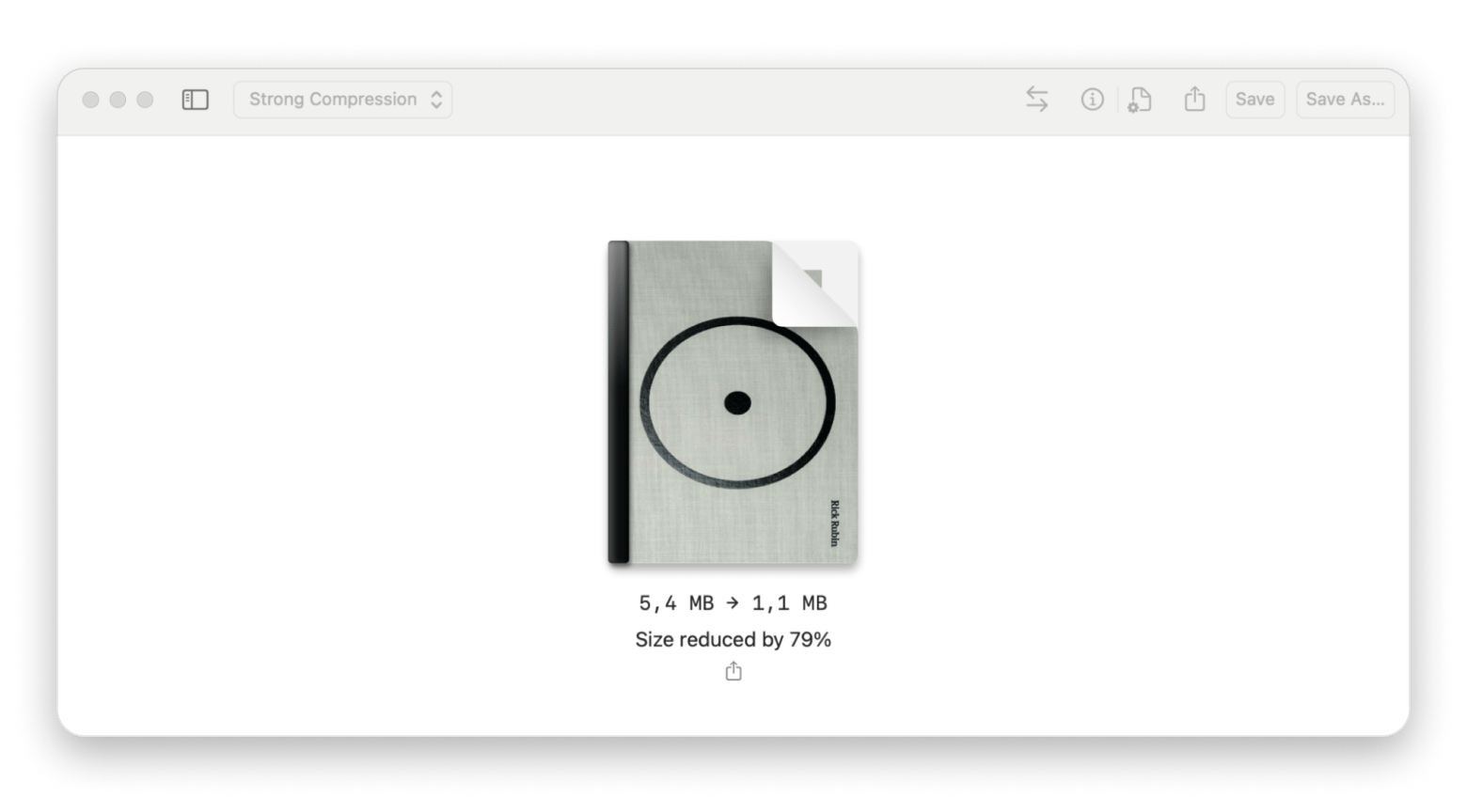
PDF Squeezer handles compression efficiently. It reduces PDF file sizes without quality loss, ideal for emailing or uploading large, image-heavy documents.
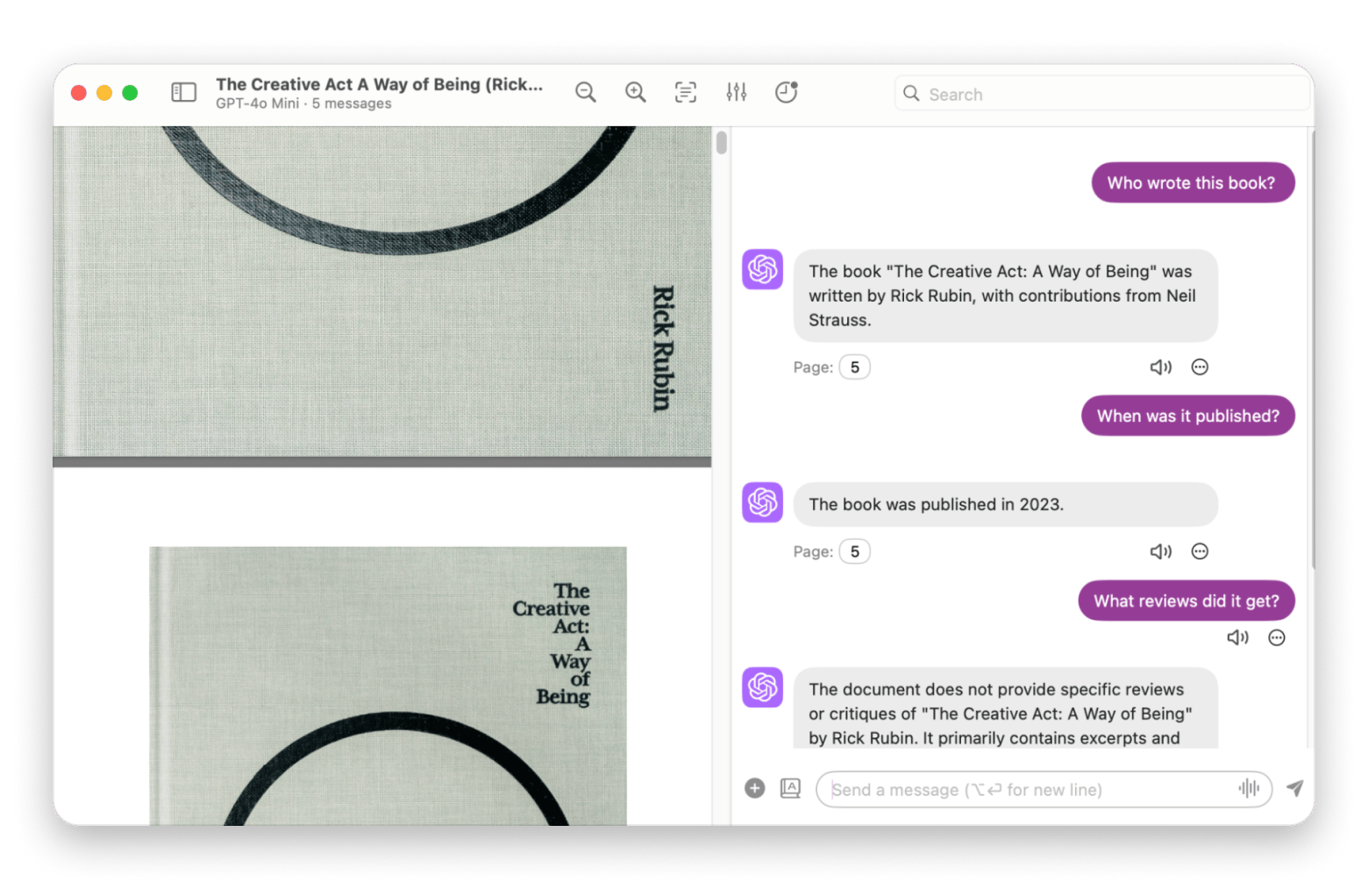
PDF Pals provides secure AI interactions with PDFs. Run entirely locally on your Mac, it lets you query and analyze PDFs while keeping your data private.
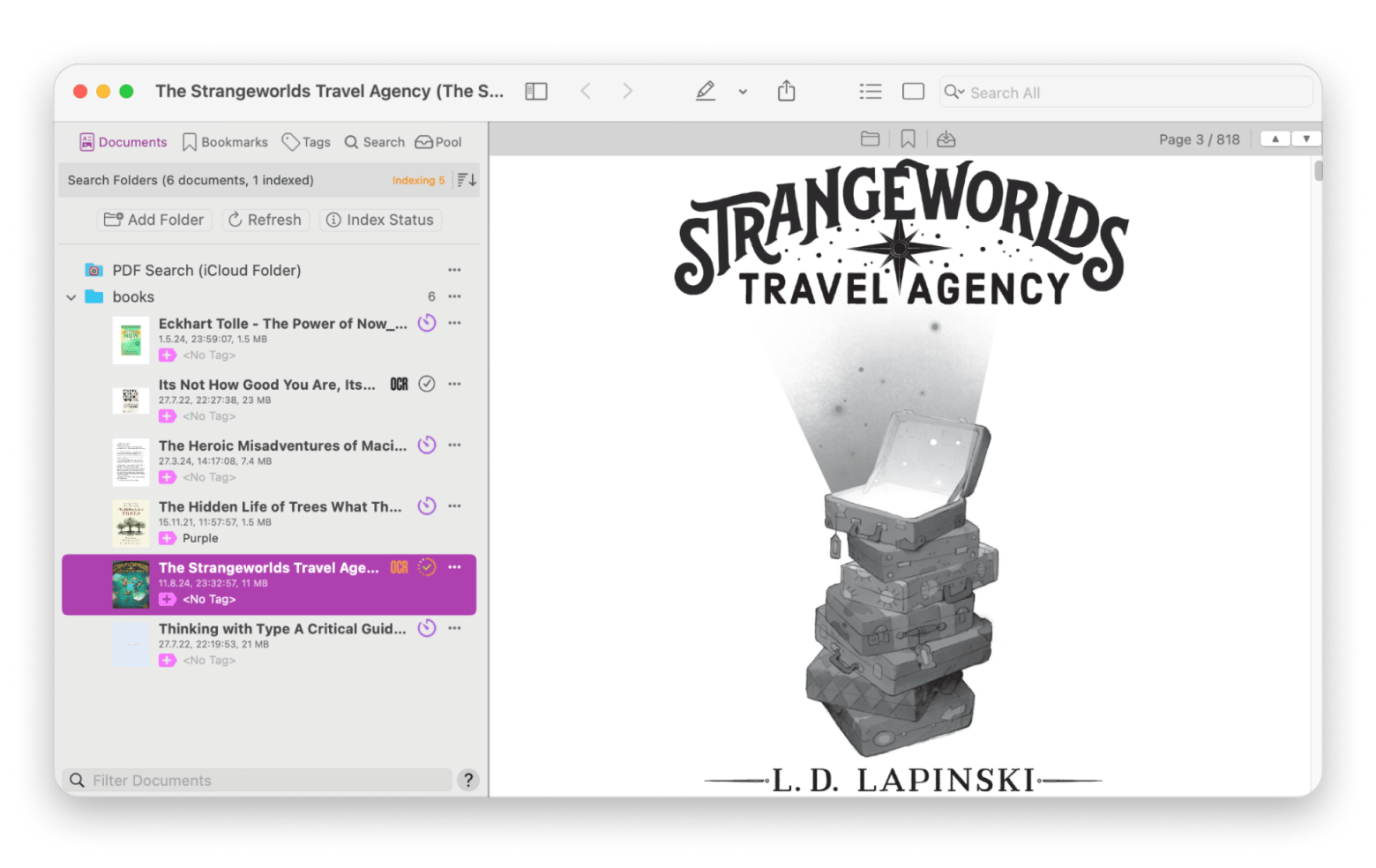
PDF Search speeds up research across multiple PDFs. AI-powered search helps you quickly find relevant content in large document libraries, though it doesn’t offer editing capabilities.
Setapp gives access to all these PDF tools in one subscription. Try them free for seven days via Setapp
to cover every part of your PDF workflow efficiently.
I never thought I'd use PDFs for reviewing contracts, signing invoices, and organizing research papers, but here I am.
PDFs have been a part of my workflow for a few years.
That’s what led me to search for the best PDF editor for Mac in 2026. And today, I’m sharing my top picks to help you find the one that fits your needs.
Top PDF editor for Mac picks
Let’s start with a quick overview of the best specific PDF editor apps for Mac before we dive deeper:
OCR, text-to-speech, and PDF scanning features ($9.99/month via Setapp).
Need to summarize your PDF? Try this free custom GPT for summarizing any long PDF into a clear takeaway.
Best PDF editors for Mac in 2026
I've tried plenty of PDF tools, and these are my favorites. Each one comes with its own advantages and limitations. Some are great for quick edits, and others are packed with advanced features.
Prizmo: Scan and OCR any document
Prizmo is built for scanning, OCR, and converting images to searchable PDFs. It’s handy for turning paper documents into digital files with minimal effort.
Pros: This PDF editor provides excellent OCR accuracy and supports multiple languages. It's a top-notch tool for digitizing printed material.
Cons: One downside is that it's not a standalone editor, but it's best paired with a dedicated PDF editing app.
Key features:
Converts scanned documents into editable, searchable text with high accuracy
Reads documents aloud in multiple languages for better accessibility
Fixes perspective, brightness, and clarity for cleaner scans
Easily saves and accesses files via iCloud, Dropbox, and other services
Exports scans as PDF, DOCX, TXT, and more to suit your workflow
Best for: Users who frequently scan and digitize documents or need accessibility features like text-to-speech.
Nitro PDF Pro: Advanced work with PDFs
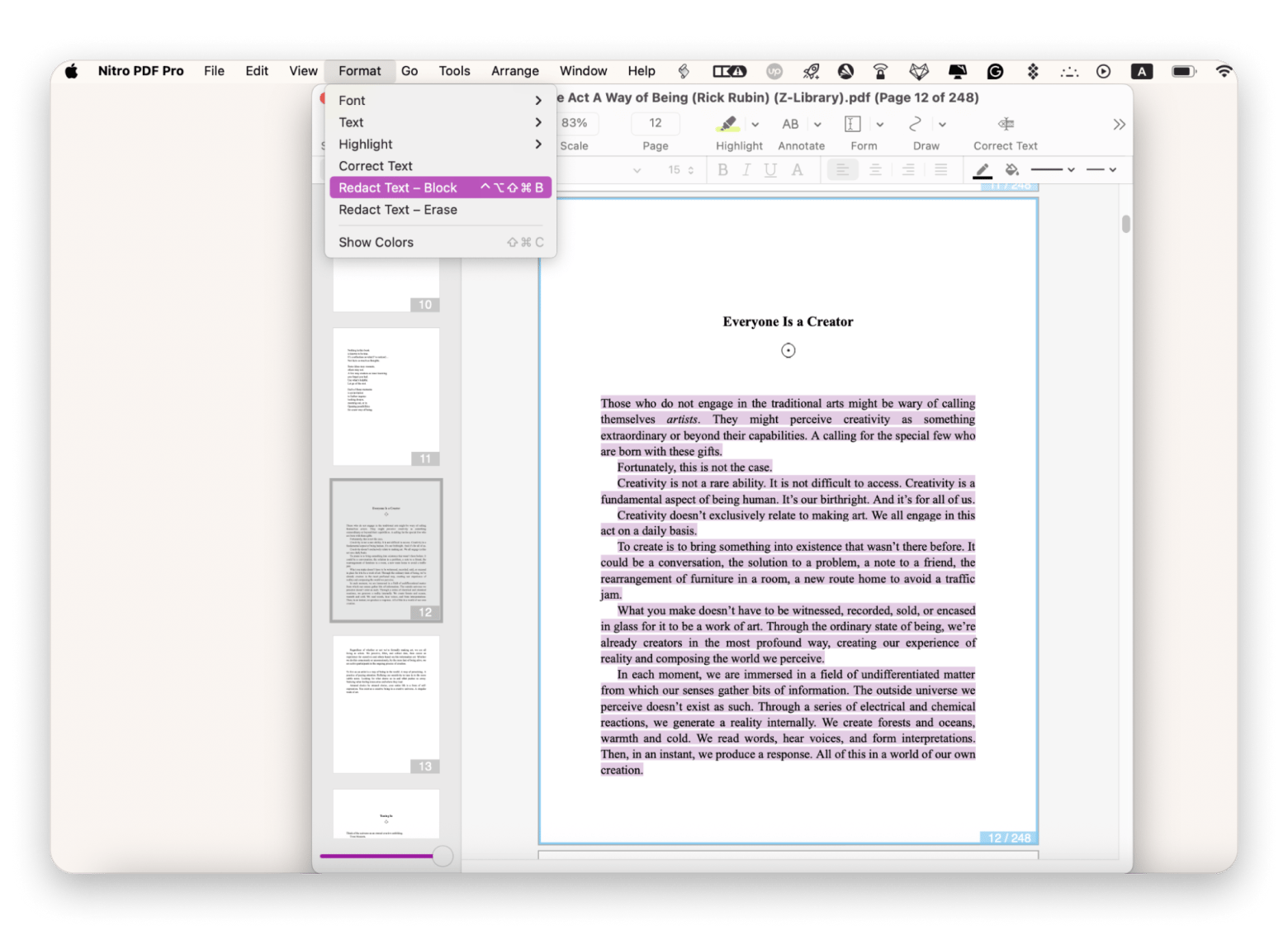
Nitro PDF Pro from Setapp is a powerful PDF editor built natively for macOS. It’s packed with everything from OCR to e-signatures and is great for managing complex documents.
Pros: It offers powerful features, but still feels smooth. It's native to macOS, which makes it easy to set up. A great pick if you need to edit, sign, and manage PDFs without switching tools.
Cons: If you're only doing light edits, it might feel a bit bloated. There’s a slight learning curve, especially for first-time PDF editor users.
Key features
Edit text, images, and pages directly within PDF files
Use OCR to turn scanned documents into searchable, editable text
Add annotations, audio notes, and secure e-signatures
Sync and save files with popular cloud services
Rearrange pages, fill forms, process files in batches, and use text-to-speech
Best for: Ideal for professionals, teams, and anyone who works with complex PDF workflows daily.
If your PDFs are bloated, PDF Squeezer slims them down without losing quality. It’s perfect when you need to compress a bunch of files at once, especially if you’re trying to email them.
Pros: There's no need to wait for your files to shrink, as this tool does the job in seconds. It makes sending files by email or uploading to the web way easier.
Cons: It doesn’t offer actual PDF editing, so you can't modify text or images. It's purely focused on compression.
Key features:
Compresses PDFs with no quality loss
Supports batch processing and reduces file sizes by up to 90%
Especially effective for reducing the size of image-heavy documents
Best for: Anyone who often needs to shrink PDFs for sharing or uploading, especially when sending emails or posting online.
PDF Pals: Chat with your PDFs using AI
PDF Pals lets you ask questions and get answers from your PDFs, like having a conversation with the document. It's super helpful for research and academic work, and everything runs locally on your Mac.
Pros: It runs fast on macOS, keeps your data private, and doesn’t upload anything to the cloud.
Cons: It requires an API key from a supported provider for full functionality.
Key features:
Chat with your PDFs right on your Mac, no internet needed
Everything runs locally, so your files stay private
Supports multiple files, OCR, citations, and chat customization
Best for: Mac users who want a secure, local AI assistant to interact with PDFs, like researchers and students.
PDF Search: Find anything in a PDF with AI
PDF Search acts like a research assistant for your PDFs. It uses AI to scan through huge libraries and gives you fast, accurate results ranked by relevance.
Pros: It's fast and easy to use, which makes it great for researching or studying large collections of PDFs.
Cons: Lacks an editor, so it needs to be paired with an editing tool.
Key features:
Search across tons of PDFs instantly using AI
Filter results and see them ranked by relevance
Syncs smoothly between devices over Wi-Fi
Best for: Researchers, students, and anyone working with large PDF libraries who need to find content quickly.
Free vs. paid PDF editors: Which one do you need?
Free Mac PDF editors like Preview or Smallpdf are fine for reading, signing, or quick notes.
Paid editors, such as Nitro PDF Pro, are better for text editing, OCR, merging, and daily PDF tasks, offering more accuracy, control, and efficiency.
Best PDF editor for MacBook users
As a longtime MacBook user, I’ve found no single PDF tool does it all, and that’s okay. I use Nitro PDF Pro for editing, PDF Squeezer to shrink files, PDF Search to quickly find info, Prizmo for OCR, and PDF Pals to interact with documents offline. Each app has its role.
If you're a freelancer and need more than just a PDF editor, check out thesetop apps for freelancers that can enhance your productivity.
How to choose the right PDF editing software
Not sure which PDF editor on Mac is the best pick for you?
Here are some rough guidelines:
Do you need to edit text and images in PDFs? Go with Nitro PDF Pro.
Do you work with scanned documents? Prizmo is your go-to app.
Do you want to interact with your PDFs and extract or analyze content using AI? PDF Pals is the best choice for you.
Do you need lightweight compression and conversion? You can't go wrong with PDF Squeezer.
Do you need to search through large PDF libraries? There's no better tool for your needs than PDF Search.
Also, don't forget to check whether the software supports your macOS version and runs well on your hardware.
What makes a good PDF editor for Mac?
When I evaluate any Mac PDF editor, I focus on several factors. Here’s what I think a great PDF editor for Mac needs to bring to the table:
User-friendly interface: The editor needs to have a smooth, responsive, and clean UI. If it's cluttered or clunky, it's not the best choice for you, especially if you're a beginner.
OCR functionality: If you work with scanned documents, you need to look for an editor that comes with OCR support. You'll be able to turn documents into editable PDFs with ease.
Annotations & markup: A great editor must come with annotations and markup features, which are critical for reviewing documents and leaving notes.
Form filling and signing: If you’re like me and deal with endless forms, you’ll want a fast tool. Look for one that lets you save your signature so you can reuse it anytime.
MacOS compatibility: Look for an editor that works smoothly with your macOS to avoid any annoying glitches later.
Privacy and offline functionality: It's always better to get a PDF editor that works offline to be able to use it even without an internet connection. Also, look for a tool with great privacy features to keep your sensitive files secure.
Value for money: If you need something basic, most free tools can get the job done. But if you need more advanced features, choose an editor that offers them at a fair and reasonable price.
Take these factors into consideration when choosing the best PDF editor, and there’s a good chance you’ll be happy with your choice.
Revolutionize your workflow with the best PDF editor for Mac
PDFs are part of everyday work, whether you're reviewing contracts, scanning documents, filling out forms, or editing files for school or business. Having the right PDF editor for Mac makes a huge difference in speed and efficiency.
With tools like Prizmo for scanning and OCR, Nitro PDF Pro for full editing, PDF Squeezer for compression, PDF Pals for private AI chats, and PDF Search for lightning-fast keyword lookup, you can cover every part of your PDF workflow with ease.
The best thing is that these five tools are all available on Setapp, a platform that gives you access to 260+ Mac and iOS apps. There's a free seven-day trial, so use it to take some of these PDF editors for a spin to see if they fit your workflow.
FAQ
What is the best PDF editor for Mac in 2026?
The best PDF editor for Mac in 2026 is Nitro PDF Pro from Setapp with a free 7-day trial. It offers full editing, OCR, secure e-signatures, and seamless macOS integration. It's ideal for professionals who need powerful, reliable tools. Other awesome options are tools like Prizmo, PDF Squeezer, PDF Pals, and PDF Search from Setapp.
Is there good free PDF editing software for Mac?
Yes, there are good free PDF editing software for Mac available. Preview works for basics, and tools like Smallpdf offer free web-based editing.
Can I edit a PDF without Adobe Acrobat on Mac?
Yes, you can edit a PDF without Adobe Acrobat on a Mac. Apps like Nitro PDF Pro from Setapp (7 days free) offer powerful editing features, including OCR, form filling, and annotations.
Which PDF software is best for MacBook users?
For MacBook users, Nitro PDF Pro from Setapp is a top choice thanks to its full-featured editing, native macOS design, and smooth performance. It handles everything from OCR to form filling. Other great choices are Prizmo, PDF Squeezer, PDF Pals, and PDF Search from Setapp.
What’s the best way to modify PDFs on macOS?
The best way to modify PDFs on macOS is by using a dedicated PDF editor like Nitro PDF Pro from Setapp (available with a free 7-day trial with Setapp Membership). It lets you edit text, sign documents, fill forms, and run OCR. For lighter tasks or specialized needs, apps like Prizmo, PDF Squeezer, PDF Pals, and PDF Search are great options too.






 Best solution
 Best solution