Skip iTunes for everyday transfers:AnyTrans for iOS from Setapp lets you pick specific photos, videos, music, contacts, and messages and move them between your iPhone and Mac without Finder’s syncing workflow.
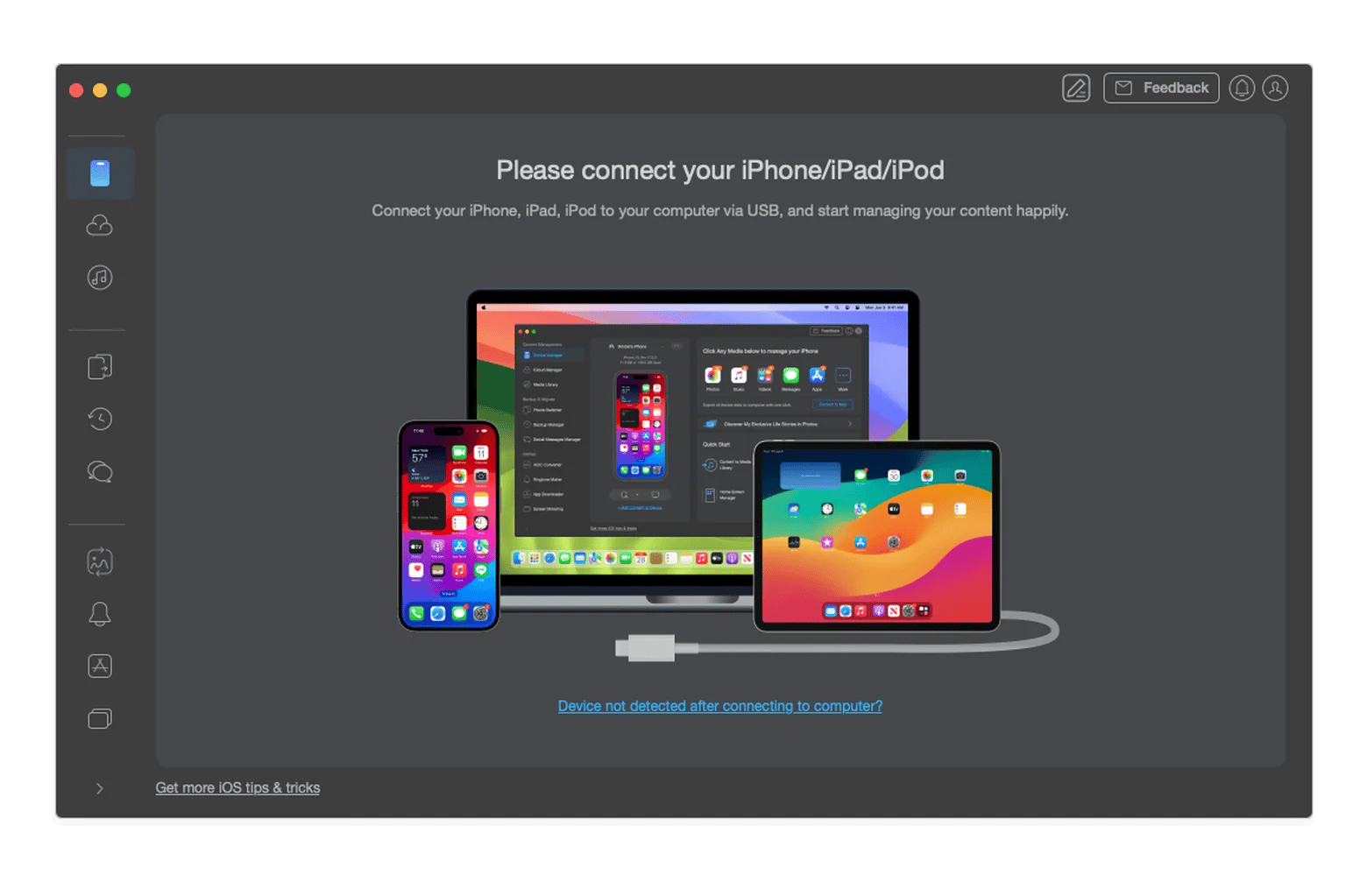
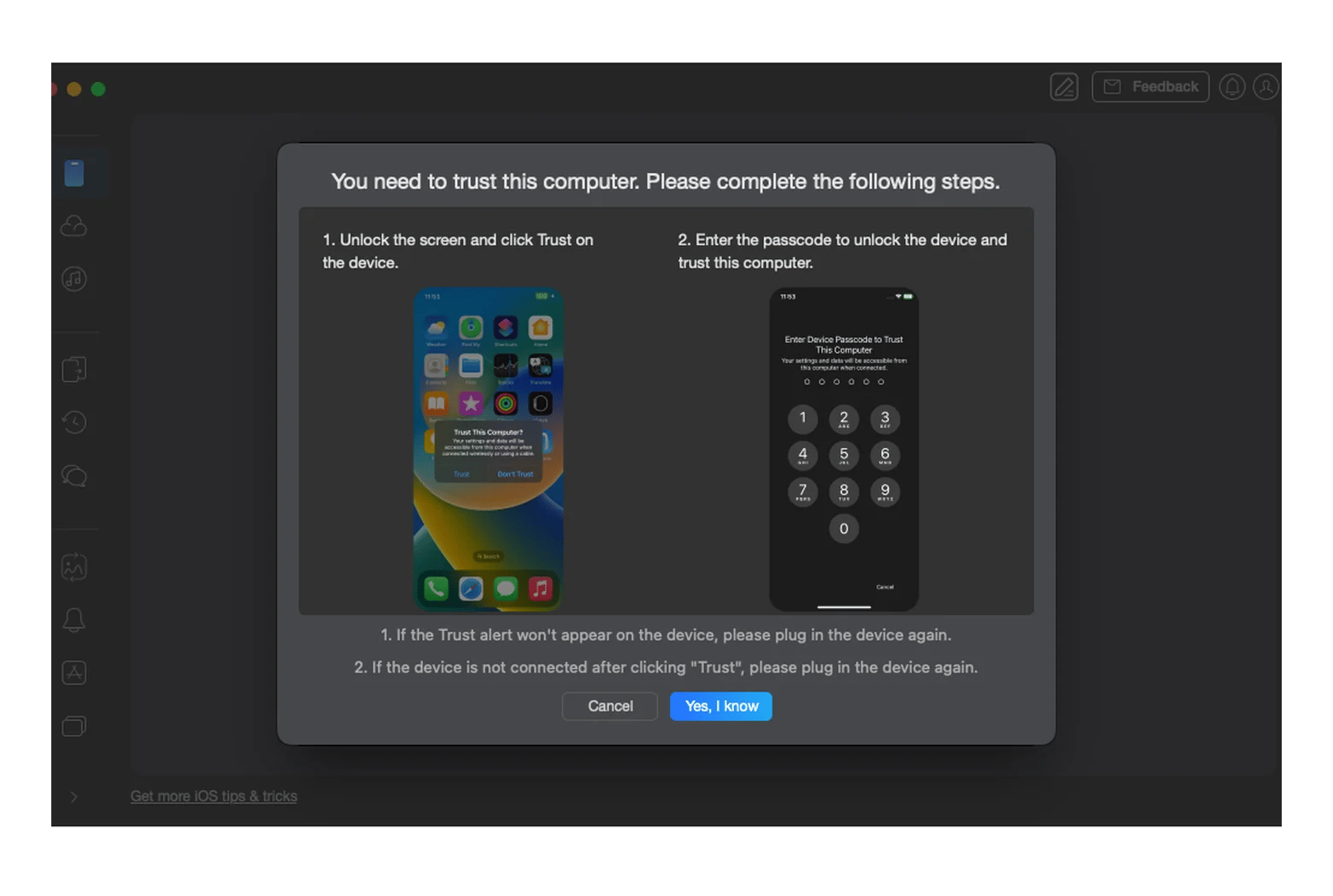
Connect by USB: Plug in your iPhone, unlock it, tap Trust (and enter your passcode if asked), and you’re ready to transfer your files.
Keep your existing music library: Moving individual tracks doesn’t trigger Erase and Sync, so your current iPhone music stays put.
Move only what you need: Pull a handful of vacation photos to your Mac, save selected SMS conversations, or transfer chosen data to a new iPhone without copying the clutter.
AnyTrans for iOS from Setapp is a Mac app by iMobie that transfers selected photos, videos, music, contacts, messages, and WhatsApp data between an iPhone and a Mac without Finder sync or iTunes. It can also back up an iPhone to your Mac and move chosen content to a new iPhone. It’s included in Setapp Membership.
In this article, I will help you decide whether this app is the right choice for you and its most relevant use cases.
What is AnyTrans for iOS?
Developer: iMobie
Platforms: Mac (macOS 10.13 or later), iPhone, iPad, and iPod touch
Cost: Included with Setapp Membership ($14.99 USD/mo + tax)
Best for: Moving selected files between iPhone and Mac without Finder sync
Catch: Needs a connected iPhone, and you must tap Trust on it
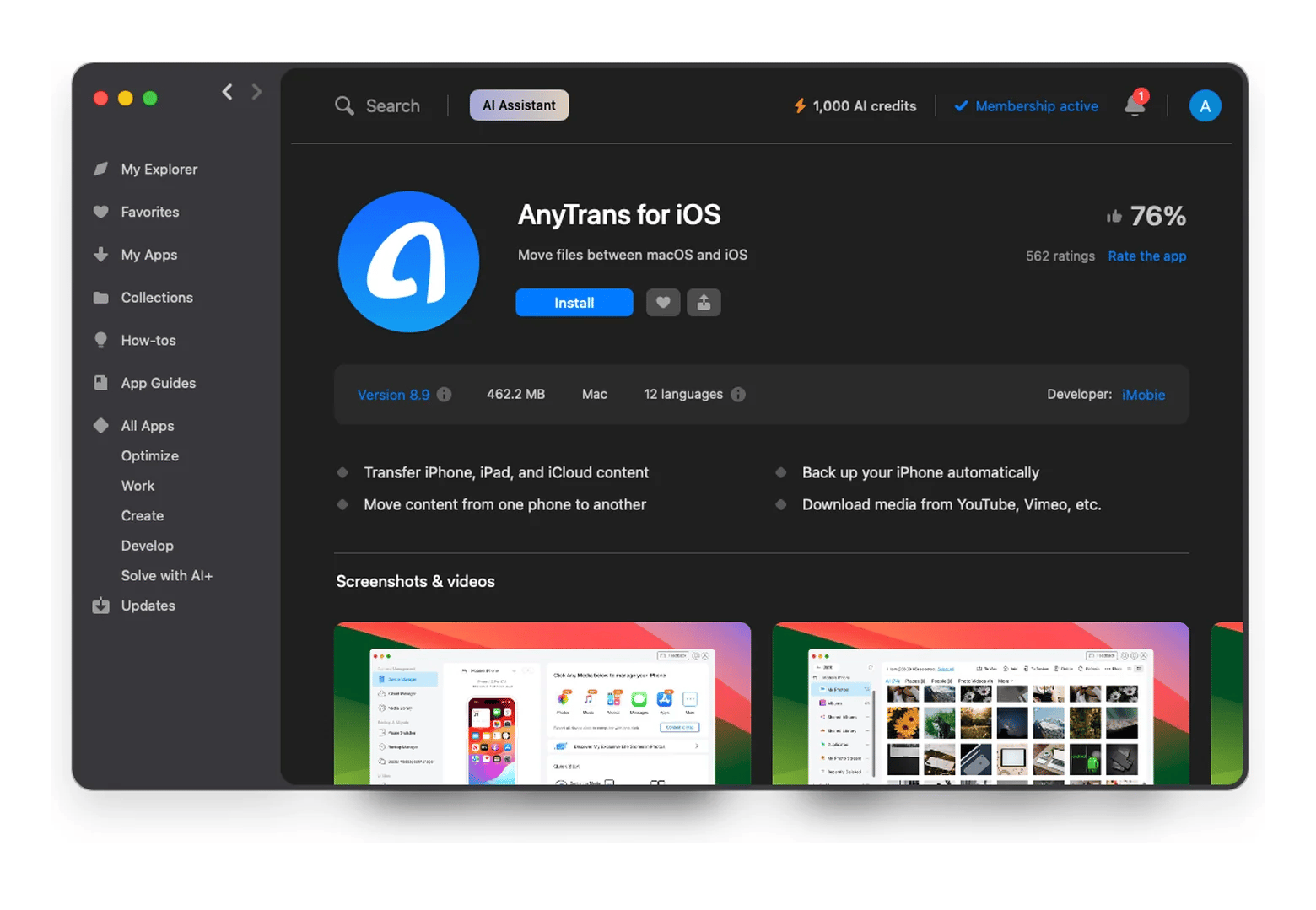
AnyTrans for iOS is a file transfer app for Mac, built by iMobie and available through Setapp, a curated app subscription that includes 300+ Mac, iOS, and web apps for a flat monthly fee. The app lets you transfer, organize, and manage content between your iPhone and Mac.
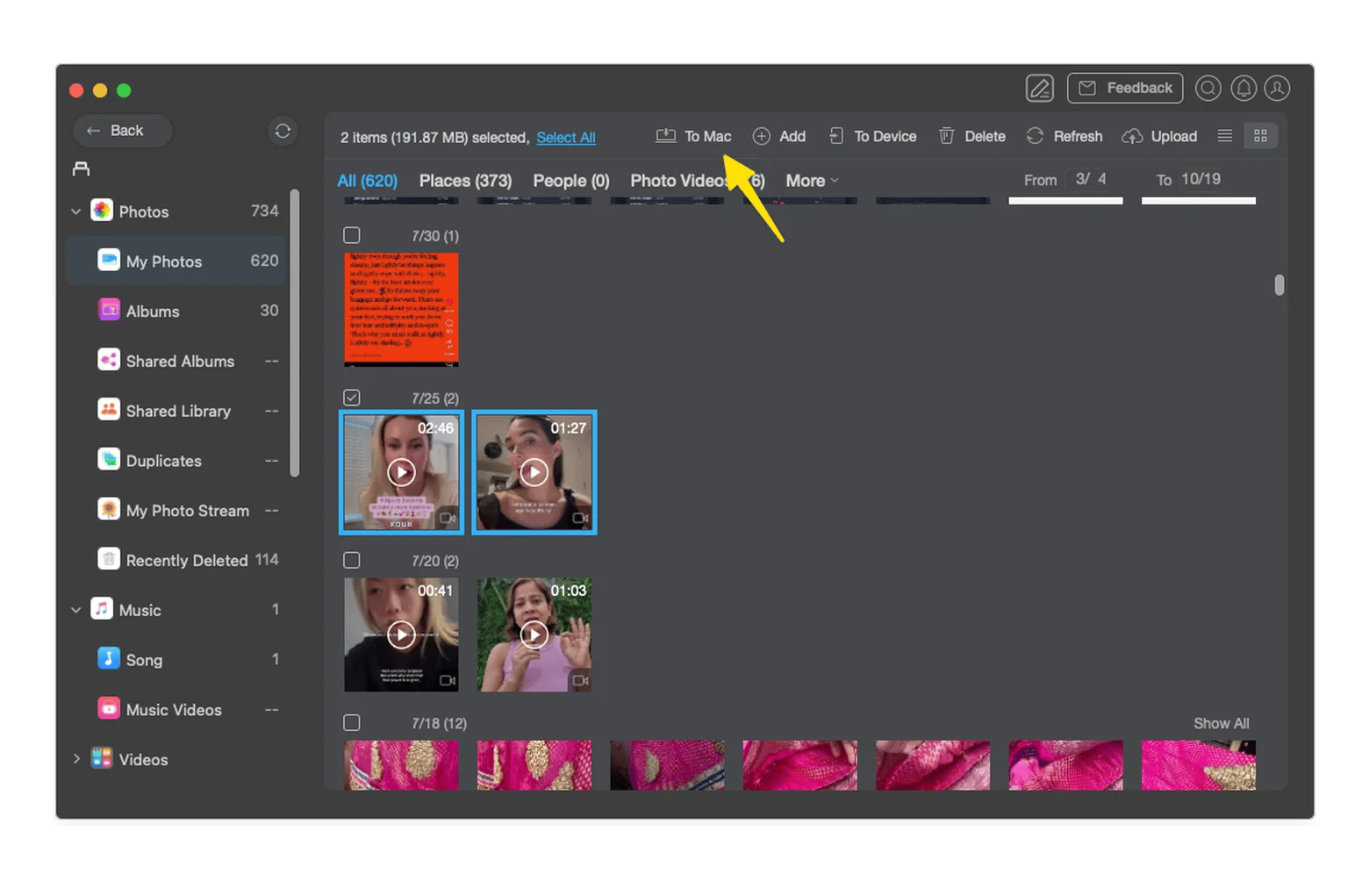
AnyTrans for iOS lets you transfer photos from iPhone to Mac without iTunes and gives you greater control over your data. For example, if you just want to move a few files between your iPhone and Mac without going through the entire syncing process.
Apart from file transfers, AnyTrans for iOS also offers tools to back up and restore iPhone data, move selected content from an old iPhone to a new one, and manage iTunes and iCloud content.
This article mainly discusses file transfers between an iPhone and Mac. But if you’re looking to transfer and sync files between two Macs, this Mac-to-Mac transfer guide can offer some perspective.
How to set up AnyTrans for iOS on Mac
You can set up AnyTrans for iOS on your Mac with just a few simple steps. I’ll walk you through them.
Install AnyTrans for iOS via Setapp
AnyTrans for iOS can be accessed through the Setapp Membership. Here’s how to get the application up and running:
Get your Setapp Membership: Follow the on-screen instructions on the Setapp website.
Once the app recognizes your iPhone, you can begin transferring your files.
What does Trust This Computer mean?
Trust This Computer lets your phone trust the computer and establish a connection. If you accidentally tap Don’t Trust, you can disconnect and reconnect your cable to see the alert again.
What can AnyTrans for iOS do?
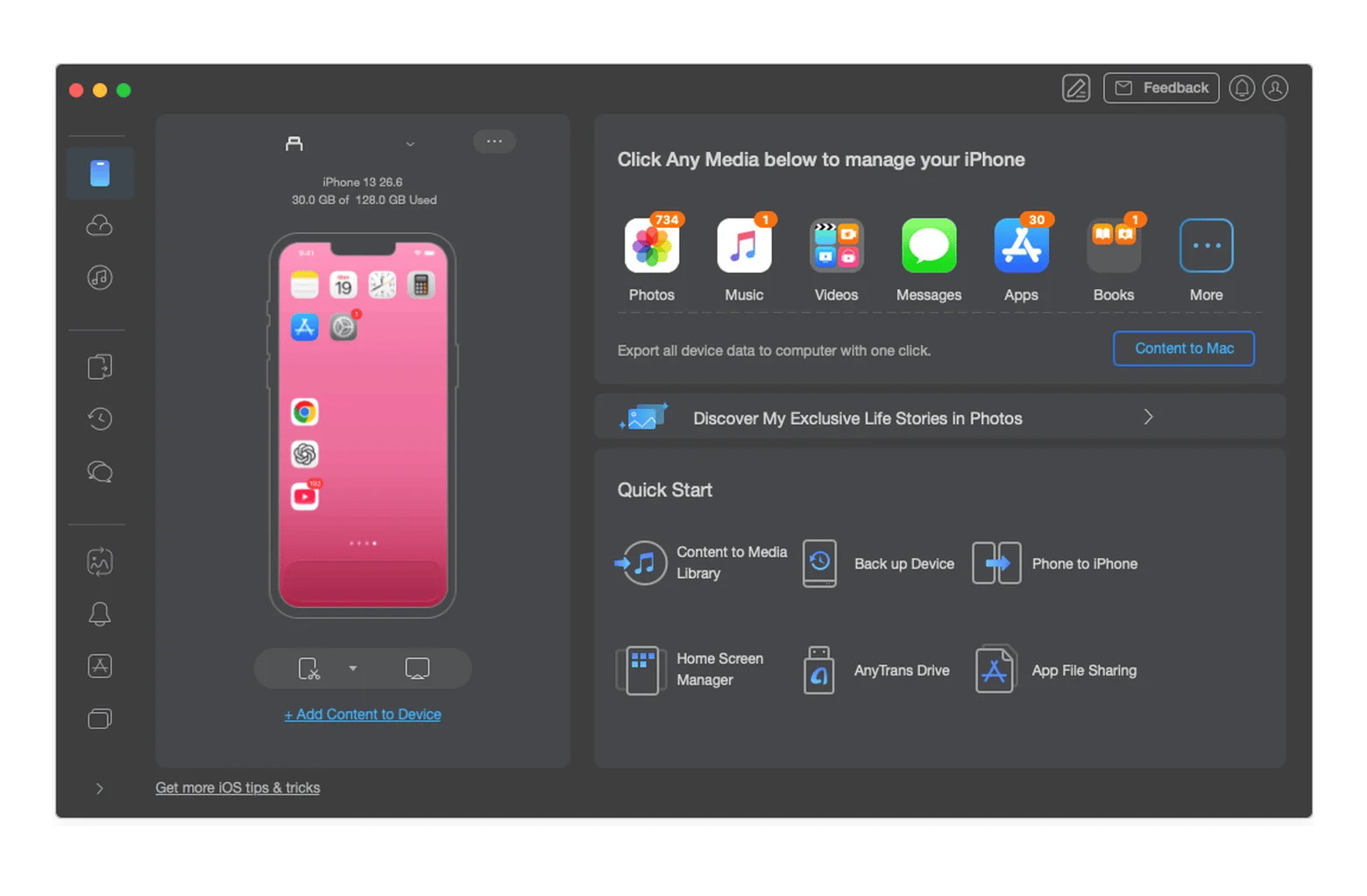
AnyTrans for iOS makes file transfers between iPhone and Mac much more convenient than traditional methods. You can move photos, videos, and music, manage contacts and messages, and transfer content between iPhones seamlessly.
Here’s a quick summary of what AnyTrans for iOS can do:
Feature
What you can do
Best for
Photos and videos
Transfer in either direction
Pulling a few trip photos
Music
Move single tracks
Keeping your library intact
Contacts and messages
Edit, organize, and save
Saving key conversations
iPhone to iPhone
Choose content to move
Switching without clutter
Full backup
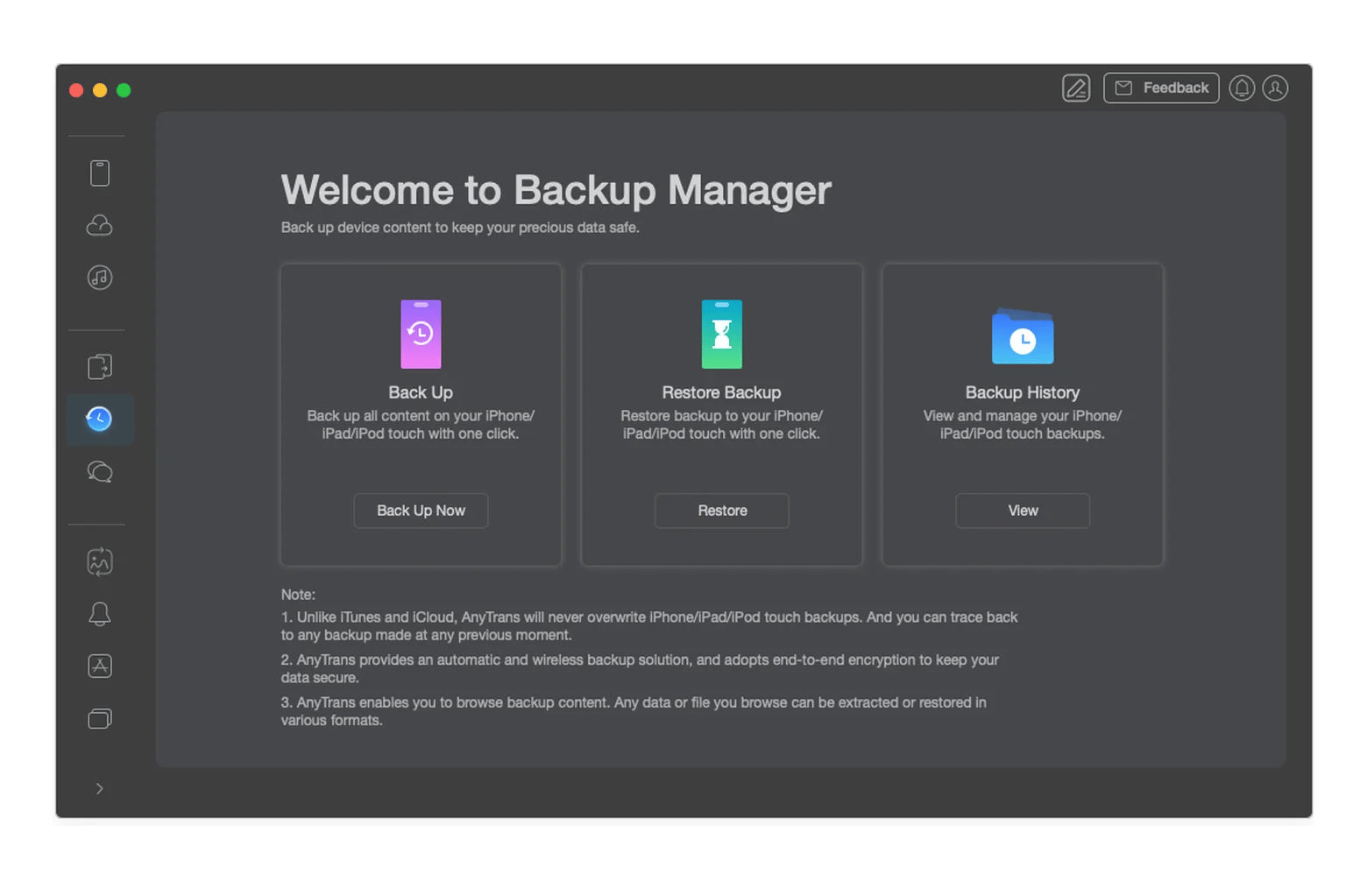
Back up locally to your Mac
Browsing backups by file
AnyTrans for iOS also includes wireless screen mirroring, HEIC/JXL to JPEG/PNG conversion, custom ringtone creation, and bulk app transfer.
How to transfer photos and videos between iPhone and Mac
AnyTrans for iOS transfers selected photos and videos between iPhone and Mac in either direction. You can still use Apple’s Photos app and Image Capture to transfer selected photos and videos from your iPhone to your Mac, but transferring them the other way (Mac to iPhone) works a little differently.
Transferring photos and videos from your Mac to your iPhone uses Finder’s syncing workflow, which users find tedious for selective transfers. This is where AnyTrans for iOS helps. It offers an alternative workflow for transferring supported files in either direction.
How to transfer music without erasing your iPhone library
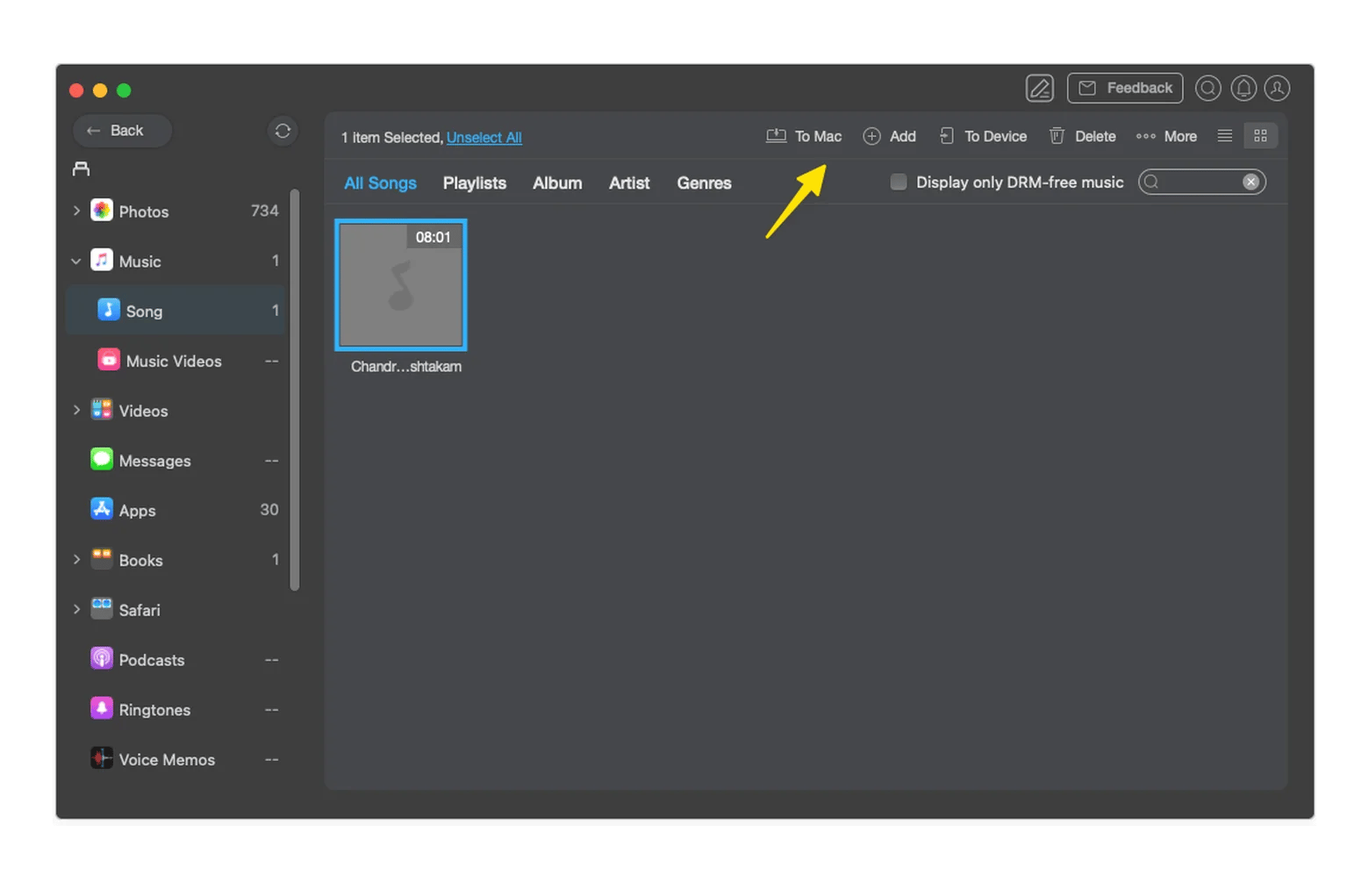
AnyTrans for iOS transfers individual music tracks between your Mac and iPhone without Finder’s Erase and Sync, so your existing iPhone music stays in place.
This can be especially true if you are working with a different library on your iPhone. Choosing Erase and Sync with a different library can completely replace the existing synced music of the selected content type on your iPhone. AnyTrans for iOS helps you transfer music files individually without relying on a syncing workflow.
How to manage iPhone contacts and messages on Mac
AnyTrans for iOS lets you view, edit, organize, and save individual contacts and messages from your iPhone on your Mac. Managing individual contacts and messages on the iPhone isn't straightforward, and this app helps you tackle that pain point. With AnyTrans for iOS, you can bypass complicated workflows to edit contacts, organize your address book, and save important conversations.
How to transfer selected data to a new iPhone
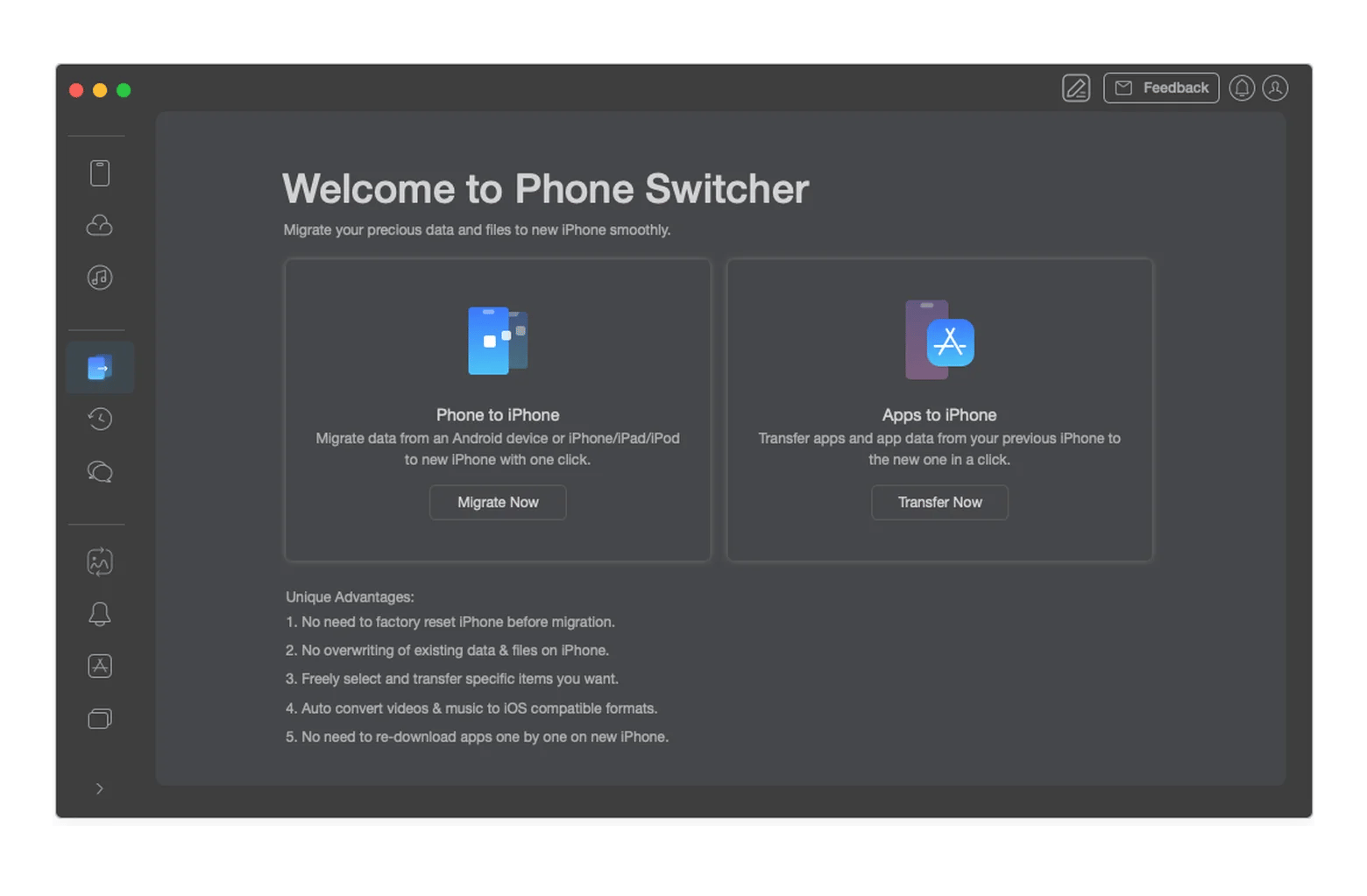
AnyTrans for iOS moves only the content you choose from an old iPhone to a new one, instead of copying everything. When you use Apple’s built-in transfer option, a lot of unnecessary data ends up moving to the new phone. AnyTrans for iOS gives you a lot more control over what you transfer.
How to back up your iPhone to your Mac
AnyTrans for iOS backs up your iPhone to your Mac and lets you browse the backup file by file. You can still back up to iCloud as well. It’s always safe to have a backup of your data in the cloud, but to access it, you will also need access to a compatible device. Having a local backup of files on your Mac lets you access them quickly and provides an extra layer of protection.
Use cases for AnyTrans for iOS
AnyTrans for iOS offers a quick, simple solution for multiple everyday use cases. For instance, the app comes in handy when you are switching to a new iPhone, trying to transfer your favorite photos from your iPhone to your Mac, or planning to save a few important conversations from your phone. Let’s explore some of these use cases in detail.
Switching to a new iPhone
When you switch to a new iPhone, the first thing you do is move files from your old iPhone to your new one. Apple’s traditional workflow fully syncs your old iPhone to your new one, giving you little control over what you transfer. This often results in unnecessary clutter being transferred to your new phone. AnyTrans for iOS gives you more control over what you transfer to your new iPhone, and what you’d like to skip.
Selectively pulling vacation photos to Mac
Imagine you’re back from a vacation and want to transfer a few of your favorite vacation photos to your Mac. However, transferring your entire photo library just to copy a handful of files can take up unnecessary time. AnyTrans for iOS lets you choose just your favorite files and transfer them to your Mac, making it easier to organize your memories.
Saving SMS conversations locally
Your phone might contain important conversations you wouldn’t want to lose. However, backing up a few conversations to your Mac might require a full device backup. AnyTrans for iOS helps you navigate this effectively. It lets you transfer only essential SMS conversations to your Mac without having to do a full backup of your iPhone.
How does AnyTrans for iOS compare to iTunes and Finder sync?
iTunes and Finder mostly rely on Apple’s built-in syncing workflow for data transfers, while AnyTrans for iOS offers dedicated tools to select, manage, and transfer information. Here are the key differences between the two:
Data transfer: AnyTrans for iOS lets you select specific content for transfer, while iTunes and Finder rely on Apple’s built-in syncing options.
Photo management: Apple’s Photos app and Image Capture move selected photos from iPhone to Mac, but moving photos from Mac to iPhone uses Finder sync. AnyTrans for iOS lets you pick photos and send them in either direction.
Contacts and messages: iTunes and Finder focus primarily on backups and syncing over managing contacts and messages. AnyTrans for iOS provides an edge here and lets you access and manage individual contacts and messages.
Backups: Both iTunes / Finder and AnyTrans for iOS can create backups of your iPhone on your Mac. But with the former, the backups aren’t designed for browsing individual files. When you create backups in AnyTrans for iOS, the tool also lets you browse and manage files.
Moving to a new iPhone: Moving via iTunes / Finder sync can mean transferring unnecessary clutter along with essential files from your old phone to your new phone. AnyTrans for iOS offers a cleaner way to select and transfer only what is needed.
The difference comes down to control: Finder sync moves everything, while AnyTrans for iOS moves only what you pick.
Is AnyTrans for iOS the best iPhone file manager for Mac?
If you often move specific files between your iPhone and Mac, yes, it’s a strong choice. AnyTrans for iOS lets you pick exactly which photos, tracks, contacts, and messages to transfer, keep your existing music library intact, browse your backups file by file, and move only what you need to a new iPhone. If you only back up with Finder now and then, Apple’s built-in tools may be enough.
AnyTrans for iOS is included in Setapp Membership with 300+ other apps. Start your free 7-day trial and cancel anytime.
FAQ
Is AnyTrans for iOS free?
AnyTrans for iOS is a paid application. It is included in the Setapp Membership with 300+ other apps and offers a 7-day free trial plan. Setapp Membership starts at $14.99 USD/mo + tax.
Does AnyTrans for iOS work with iPhone 18 and iOS 27?
Yes. iMobie lists support for iPhone 18 models and iOS 27, and the Setapp version runs on macOS 10.13 or later. AnyTrans updates regularly, so check that your installed version lists your iOS version before connecting a new iPhone.
Can AnyTrans for iOS transfer WhatsApp data?
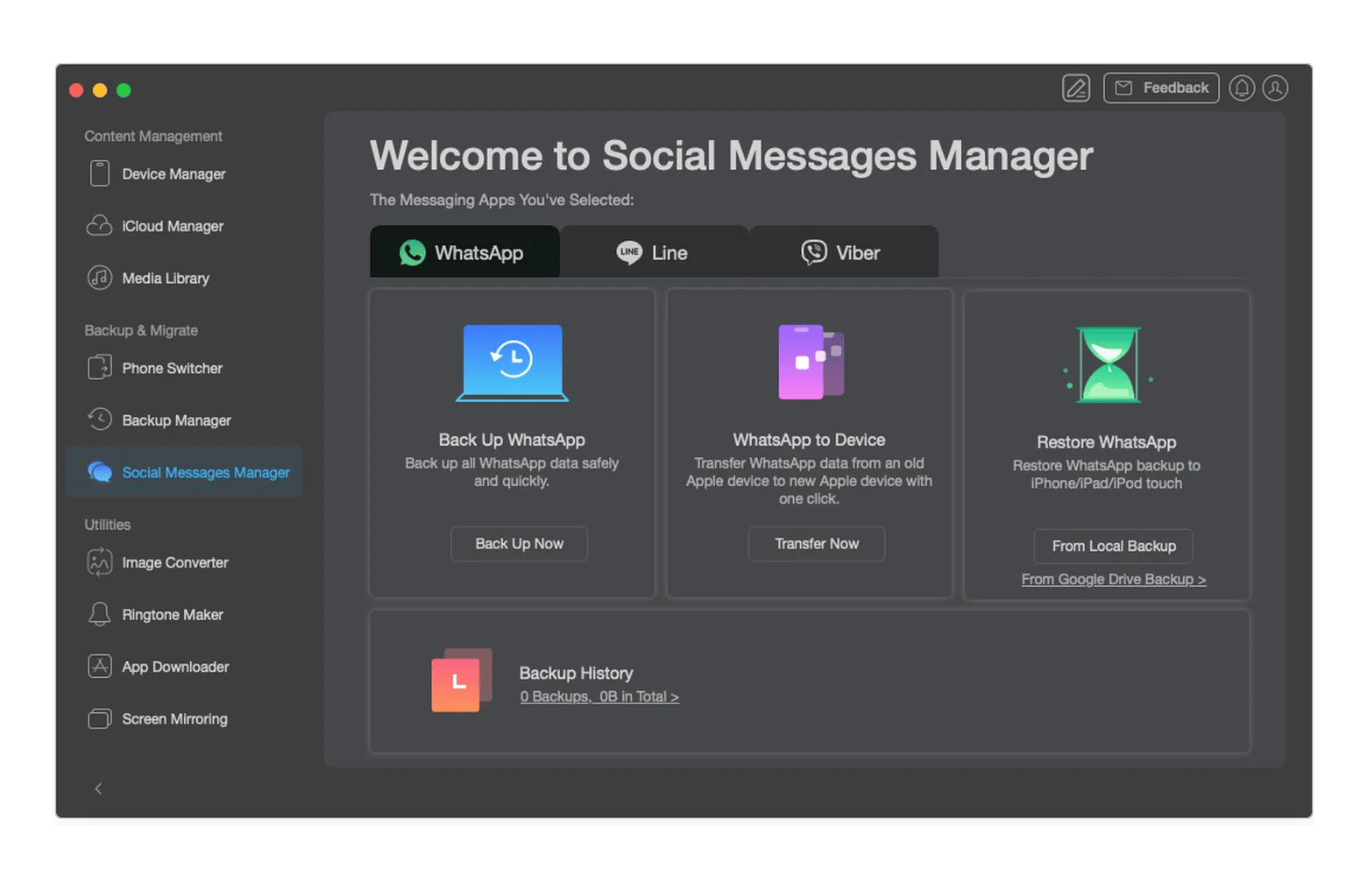
Yes, AnyTrans for iOS supports transferring WhatsApp data, including associated media (photos, videos, and audio files), between compatible devices. This can help when you switch to a new iPhone by letting you move your existing WhatsApp data to the new device.
Is AnyTrans for iOS safe to use?
Yes, AnyTrans for iOS is developed by iMobie and helps you manage, transfer, and back up your iPhone data. To use it safely, download the app through Setapp and use encryption when backing up sensitive information. Ensure you review the app’s privacy practices before use. Here’s a handy guide on how to check a Mac app before installing it.
What's the difference between AnyTrans for iOS and iTunes?
Finder (on macOS Catalina and later) and iTunes (on older Macs and Windows) are Apple’s built-in apps for syncing content and backing up iPhones. AnyTrans for iOS is a third-party application that offers dedicated tools to transfer, manage, and work with specific supported data.
How do I transfer photos from iPhone to Mac without iTunes?
Use Photos or Image Capture, or AnyTrans for iOS to pick specific photos. In AnyTrans, connect your iPhone by USB, tap Trust, and choose the photos to move. Photos and Image Capture cover iPhone to Mac, while moving photos from Mac to iPhone otherwise uses Finder sync.
Can I transfer music to my iPhone without erasing it?
Yes. AnyTrans for iOS moves individual tracks, so it doesn’t use Finder’s Erase and Sync, which replaces the synced music of that content type on your iPhone. Your existing music stays in place.
Keep Apple devices in sync
Enjoy full-way data transfer with AnyTrans for iOS.






 Best solution
 Best solution