Mac trackpads are brilliant by default, but Apple limits the built-in gestures. BetterTouchTool (BTT) is a Mac app, available on Setapp, that adds custom trackpad gestures, keyboard shortcuts, and window snapping. As a trackpad power user, I’ll show you how to set it up in about five minutes and build five setups worth trying first.
Here’s a quick map of the problems BTT solves and where to find each fix:
Problem
Fast fix in BetterTouchTool
Want more trackpad gestures
Add a trigger in Trackpad
Need custom keyboard shortcuts
Record one in Keyboard
Apple tiling is too limited
Turn on window snapping
Gestures stopped working
Re-enable Accessibility
Want to control your Mac remotely
Use the BTT Mobile app
What is BetterTouchTool (BTT)?
BetterTouchTool is a Mac app that lets you create custom trackpad gestures, keyboard shortcuts, mouse actions, and window snapping. It was developed by Andreas Hegenberg (operating as folivora.ai) and has been around for over 15 years. BTT is literally a default for longtime Mac users.
Here’s what you can customize with BTT:
Trackpad: Taps, swipes, and clicks with one to five fingers, plus corner clicks and shapes you draw.
Magic Mouse: Taps and swipes on the mouse's surface.
Keyboard: Your own keyboard shortcuts and key combos.
Regular mouse: Actions for the extra side buttons.
Touch Bar: Your own buttons in place of Apple's defaults.
Stream Deck: Set up its buttons right inside BTT, without installing Elgato's app.
iPhone and iPad: The BTT Remote app turns your phone into a wireless trackpad or button panel for your Mac.
The best part is you can set each customization globally for your whole Mac or just for one app. That way, you save fingers and time without anything clashing.
Beyond custom gestures, BTT also comes with a clipboard manager, a screenshot tool, and window snapping. It’s really a good deal. Once you get the hang of it, you won't want to go back.
Below, I’ll show you how to set it up and five BetterTouchTool gestures and setups that are worth trying first.
How to set up BetterTouchTool on Mac
BetterTouchTool is included in Setapp Membership, a single subscription that offers 300+ apps at $14.99 USD/mo + tax. Setup takes about five minutes.
Install BetterTouchTool via Setapp
Activate your Setapp Membership.
Open Setapp on your Mac.
Search for BetterTouchTool.
Click Install.
Open the app and grant the permissions it requests. The BTT icon shows up in your menu bar right away.
Next, a quick look at the interface.
BetterTouchTool interface overview: Triggers and actions
The BTT interface is simpler than it looks. Before starting, just know that a "trigger" is the gesture you do, and an "action" is what happens because of it.
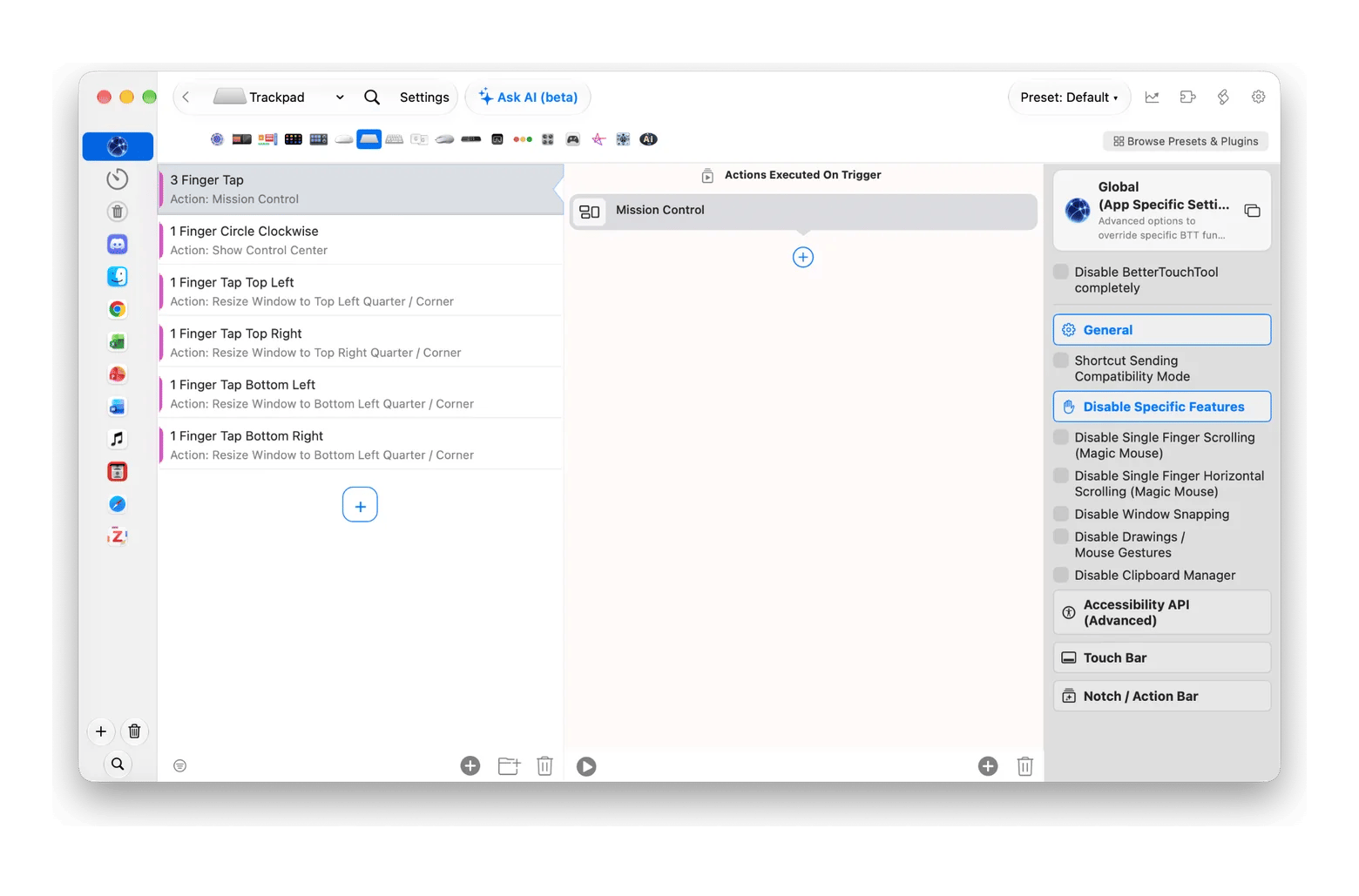
Once you open BTT, the interface will look like the image below. The main window has five areas:
App list: This is where you add apps for app-specific gestures. The topmost globe icon is for global customizations.
Trigger categories: The horizontal bar with a list of input devices.
Trigger list: Where you add triggers (e.g., three-finger tap).
Action list: Where you assign actions to each trigger (e.g., three-finger tap to close tabs).
Configuration sidebar: Extra options, like turning the trigger on or off, showing a pop-up when it fires, and more.
My tip is to just stick to trackpad gestures for the first few days. Give yourself a little hands-on BetterTouchTool tutorial. Create a few global trackpad customizations and see if they work. Then add some app-specific ones and see how the same gesture does different things in different apps. It’ll start making sense pretty quickly.
Grant Accessibility permissions
BTT needs Accessibility access to read gestures and move windows. It usually asks the first time you open it, but here's the manual route, just in case:
Choose Apple menu > System Settings > Privacy & Security > Accessibility (or Device Control and Data Access for macOS 27).
Turn on BetterTouchTool. If it's not listed there, click + and add it from Applications > Setapp.
Quit BTT and open it again.
If gestures ever stop working after a macOS update, quit BTT and turn Accessibility off and on again for it. BTT will also ask for Screen Recording access for its screenshot tools.
Best BetterTouchTool features for everyday Mac users
Before we get hands-on, here’s a quick tour of BTT's biggest features.
Create custom trackpad gestures with BetterTouchTool
This is BTT’s bread and butter. You can customize taps and swipes with one to five fingers, corner clicks, Force Click, and even shapes you draw. Most BetterTouchTool gestures on Mac are tiny, but they add up fast.
You can also customize your Mac trackpad beyond what System Settings allows, like cursor speed.
Create keyboard shortcuts with the Hyper Key
With BetterTouchTool keyboard shortcuts, you can trigger almost any action or menu item.
My favorite trick is the Hyper Key. It turns Caps Lock into a Control-Option-Shift-Command combo, so your new keyboard shortcuts never clash with existing ones. For example, Caps Lock + S can open Safari without clashing with anything.
Snap windows with BetterTouchTool
Your Mac can already tile windows. Drag one to the edge of the screen, and it fills half. That's fine for two windows side by side.
The window snapping feature in BetterTouchTool does more. You can:
Create your own snap areas, like thirds or corners
Resize windows with keyboard shortcuts
Move a window to another display in one step
Touch Bar customization (for older MacBooks)
Still using a MacBook Pro with a Touch Bar? BTT swaps Apple’s default strip for buttons and widgets you’ll actually use, like battery, weather, or app controls.
BTT Remote is a free app for your iPhone or iPad. It lets you control your Mac from your phone, which is useful when you’re giving a presentation or sitting away from your desk. It needs BetterTouchTool running on your Mac.
5 useful setups to get started with BetterTouchTool
Here’s my starter pack. This is the mini BetterTouchTool tutorial I’d hand to anyone trying for the first time.
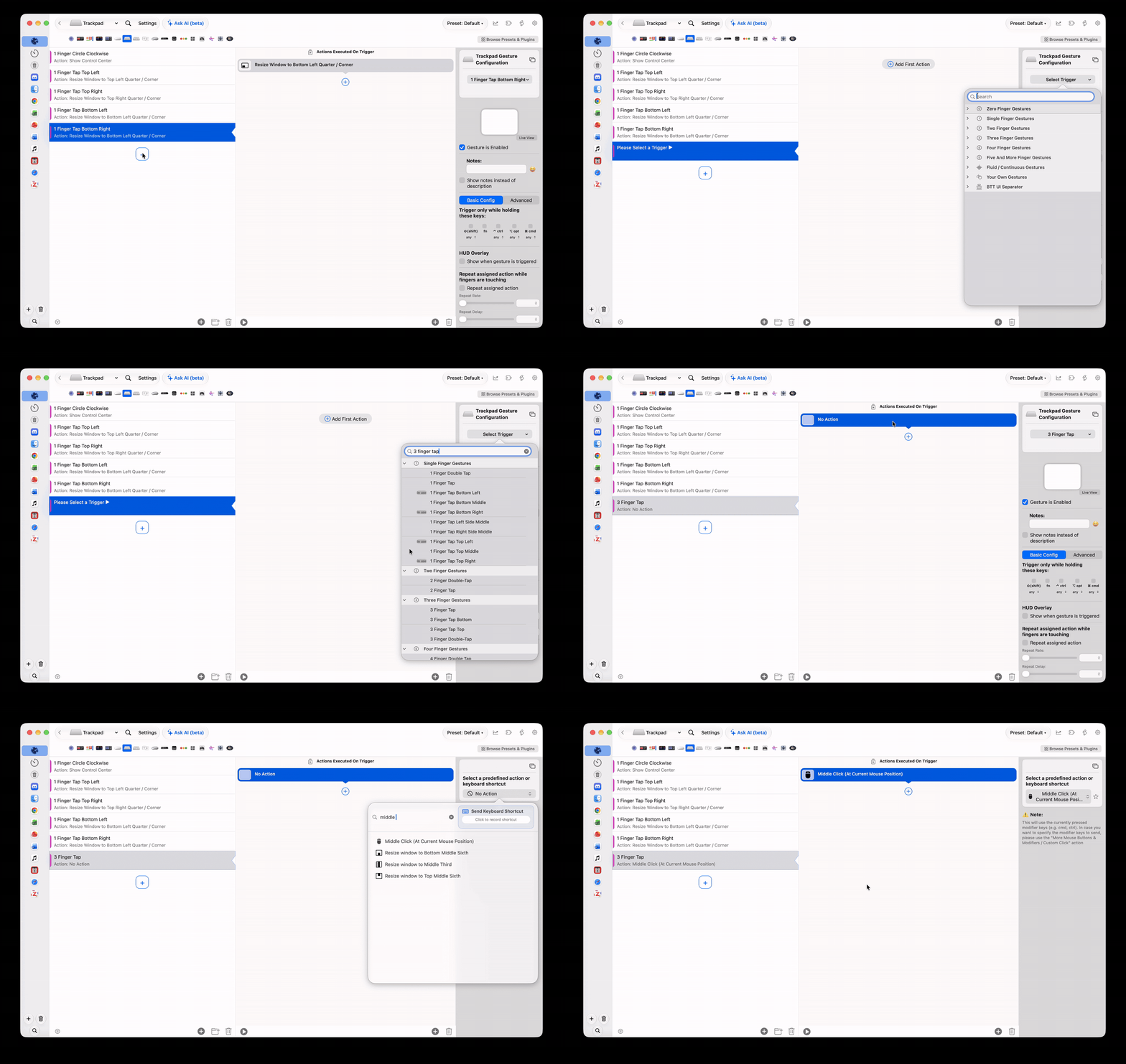
1. Three-finger tap for middle click
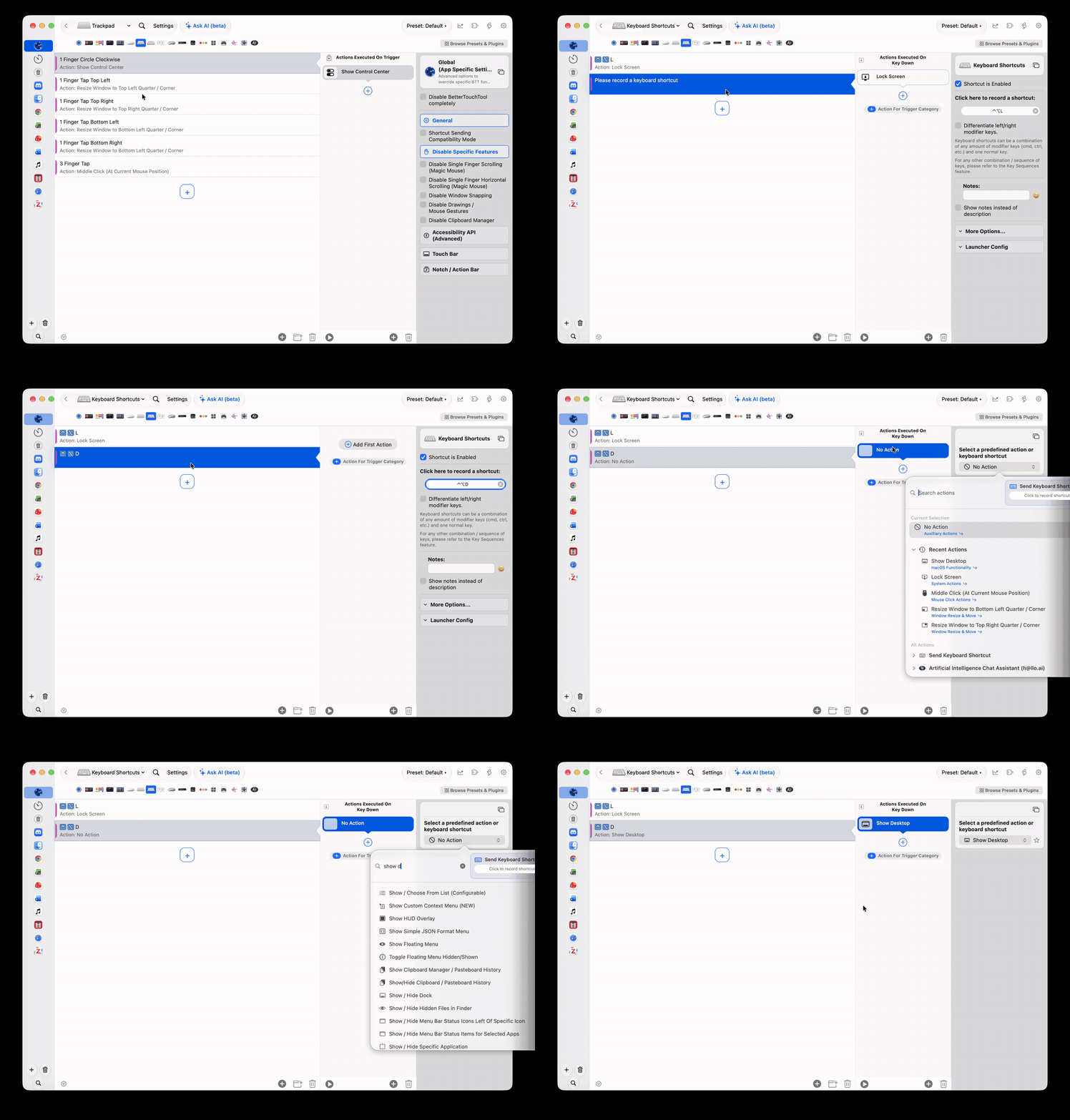
Go to Trackpad, click +, choose Three Finger Tap, and add the Middle Click action.
Now it works just like a mouse’s middle click. Great for opening and closing tabs.
2. Rotate to change the volume
Another playful, nice gesture. In the same way as the first one, go to Trackpad, add Rotate Right as a trigger, and choose Volume Up as the action. Then do the same for Rotate Left with Volume Down.
Now rotate two fingers on the trackpad, like turning a knob. The volume will change. I personally love this one. But if it’s not for you, you can always switch to another gesture later.
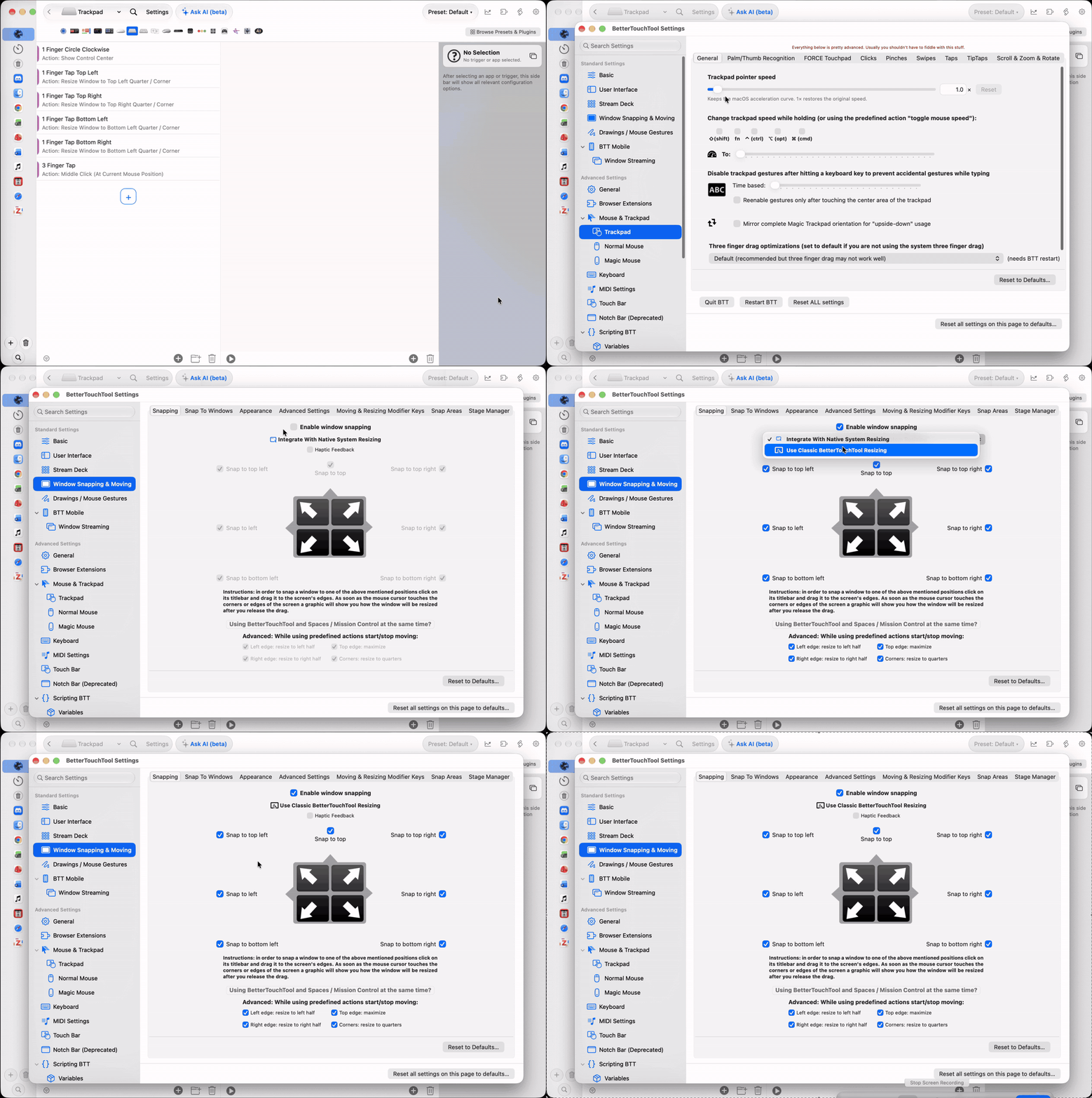
3. Drag to snap your windows
Open BTT Settings > Window Snapping & Moving. Select Enable window snapping, then choose Use Classic BetterTouchTool Resizing from the drop-down.
Now you can drag any window to a screen edge to fill that half, or to a corner to fill a quarter.
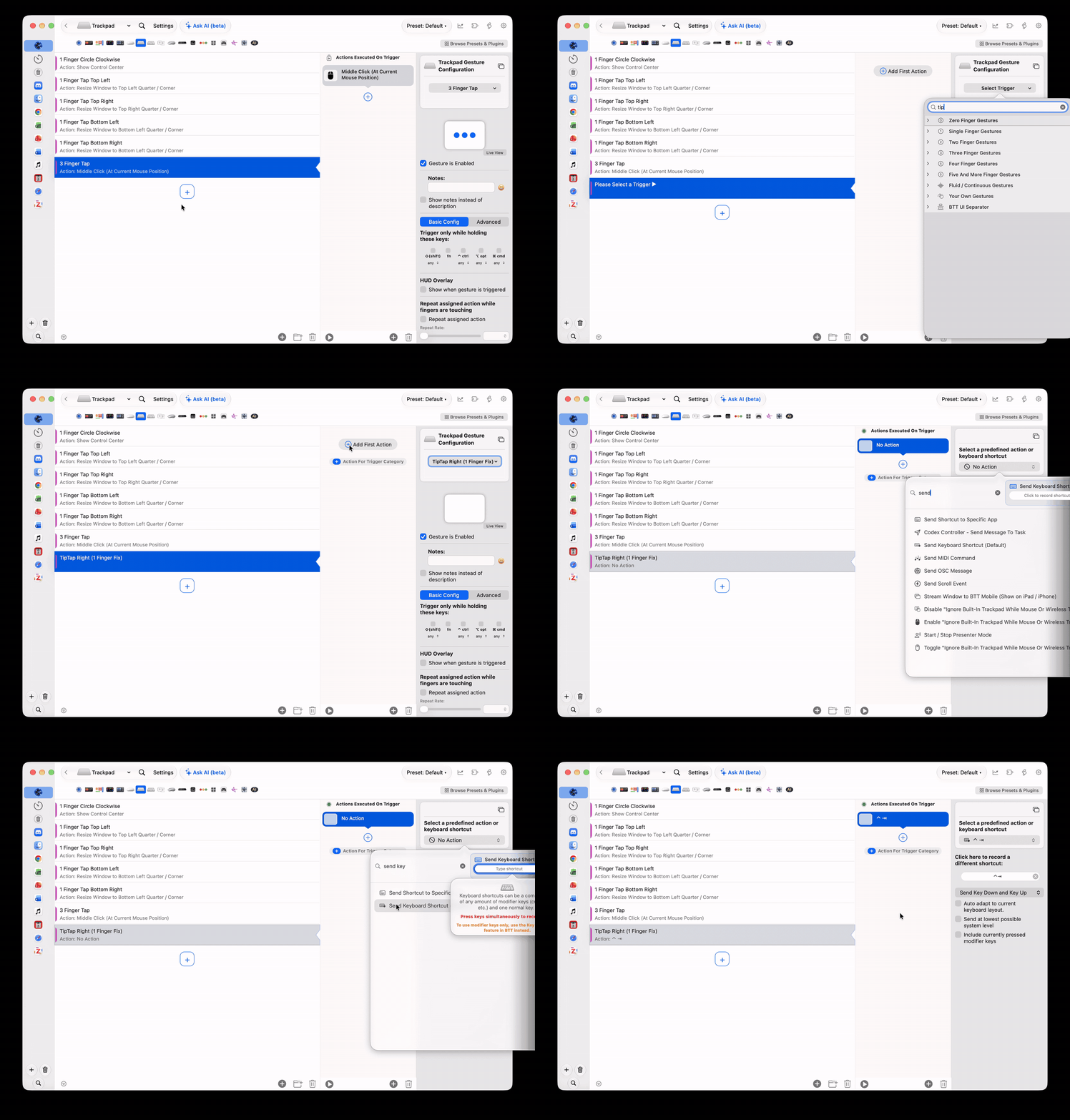
4. TipTap to switch browser tabs
A TipTap means resting one finger on the trackpad and tapping once with a second finger. Tap to the right of your resting finger for a TipTap Right. Tap to its left for a TipTap Left.
By default, your Mac uses Control-Tab to go to the next tab and Control-Shift-Tab to go back. Let’s replace those with TipTaps, so you can switch browser tabs without the keyboard.
In Trackpad, add TipTap Right as a trigger, then choose Send Keyboard Shortcut as the action and press Control-Tab. Do the same for TipTap Left with Control-Shift-Tab.
Done. Now you can just TipTap to flip through tabs in any browser.
5. Keyboard shortcut to show your desktop
Go to Keyboard and click +. When it asks you to record the shortcut, press Control-Option-D. Then choose Show Desktop as the action.
Live with them for a few days until they're muscle memory, then add the rest. Otherwise, you'll forget what half your gestures do.
BetterTouchTool for power users
Once the basics feel natural, BetterTouchTool becomes a full automation layer for your Mac. This is where it gets nerdy (in a good way):
Scripting: Run JavaScript, AppleScript, or shell scripts, or trigger actions via its URL scheme or command-line tool.
Conditional activation groups: Apply one rule to a group of apps (like all your browsers) instead of rebuilding the same gesture five times.
Presets and sharing: Export your setup, move it to another Mac, or import community presets like this set on GitHub.
BTT’s power moves can be tricky for a beginner to set up. But once you see the results, it's worth the time.
Is BetterTouchTool for Mac worth it?
If you live on your trackpad or keyboard, yes. BetterTouchTool for Mac fills the gaps Apple leaves open: extra gestures, the option to customize trackpad Mac settings, window snapping, and scripting. Follow this BetterTouchTool tutorial, set up a few gestures, and check back in a week. You probably won't want to go back.
No, BetterTouchTool for Mac is a paid app, but it comes with a free trial. It's also included in Setapp Membership, which comes with a free 7-day trial and gives you access to 300+ other Mac, iOS, and web apps for a flat monthly fee. Downloading directly from folivora.ai gets you a 45-day trial before you need a license.
What can BetterTouchTool do?
BetterTouchTool lets you control your Mac your own way, with custom trackpad gestures, keyboard shortcuts, mouse actions, and window snapping, plus extras like a clipboard manager and Stream Deck support.
Does BetterTouchTool work on macOS Sequoia?
Yes, BetterTouchTool works on macOS Sequoia. It requires macOS 12 Monterey or later, and the developer’s release notes also cover macOS 26 and macOS 27.
How do I add gestures in BetterTouchTool?
To add BetterTouchTool gestures, open BTT and choose For All Apps or a specific app. Choose Trackpad from the trigger categories, click +, and pick a gesture. Then click Add First Action and choose what it should do.
Is BetterTouchTool on Setapp updated regularly?
Yes, BetterTouchTool on Setapp gets regular updates, and Setapp installs them automatically.






 Best solution
 Best solution