Google Lens has no native Mac app To replicate its features on Mac, you need to match the tool to your specific workflow: OCR, document scanning, or visual/reverse image search.
For copying text from your screen, use TextSniper It's the fastest Mac-native option — trigger it with a keyboard shortcut, and the text lands straight on your clipboard.
For scanning physical documents, use Prizmo It goes further than Google Lens: handles multi-page layouts, corrects perspective, and exports to PDF or DOCX, all processed locally on your Mac.
For web-based visual search, try Bing Visual Search It works in any browser with no install — the closest free equivalent to Google Lens's search-with-image feature on Mac.
Google Lens lets you identify objects, extract text from images, translate text with the camera, or run a quick visual search. On a Mac, though, the experience often breaks down. You’re pushed into browser workarounds, or you end up stitching together multiple apps to recreate Google Lens’s all-in-one flow.
The problem is that Google Lens-style rarely lives in one truly Mac-native tool. So most Mac users switch for one of two reasons: reliable OCR (copy text from anything) or reverse/visual image search (find matches, sources, or similar images)
Below, I’m mapping the best alternatives to the specific workflows Mac users actually need.
Official docs describe usage in the Pinterest mobile app, not Mac desktop
Free feature
If you're figuring out which OCR or visual search setup fits your workflow, I've found the Productivity Tools GPT useful for quickly comparing Mac tools — just describe what you're trying to do, and it suggests where to start.
TextSniper: Fast OCR from anything on your Mac screen
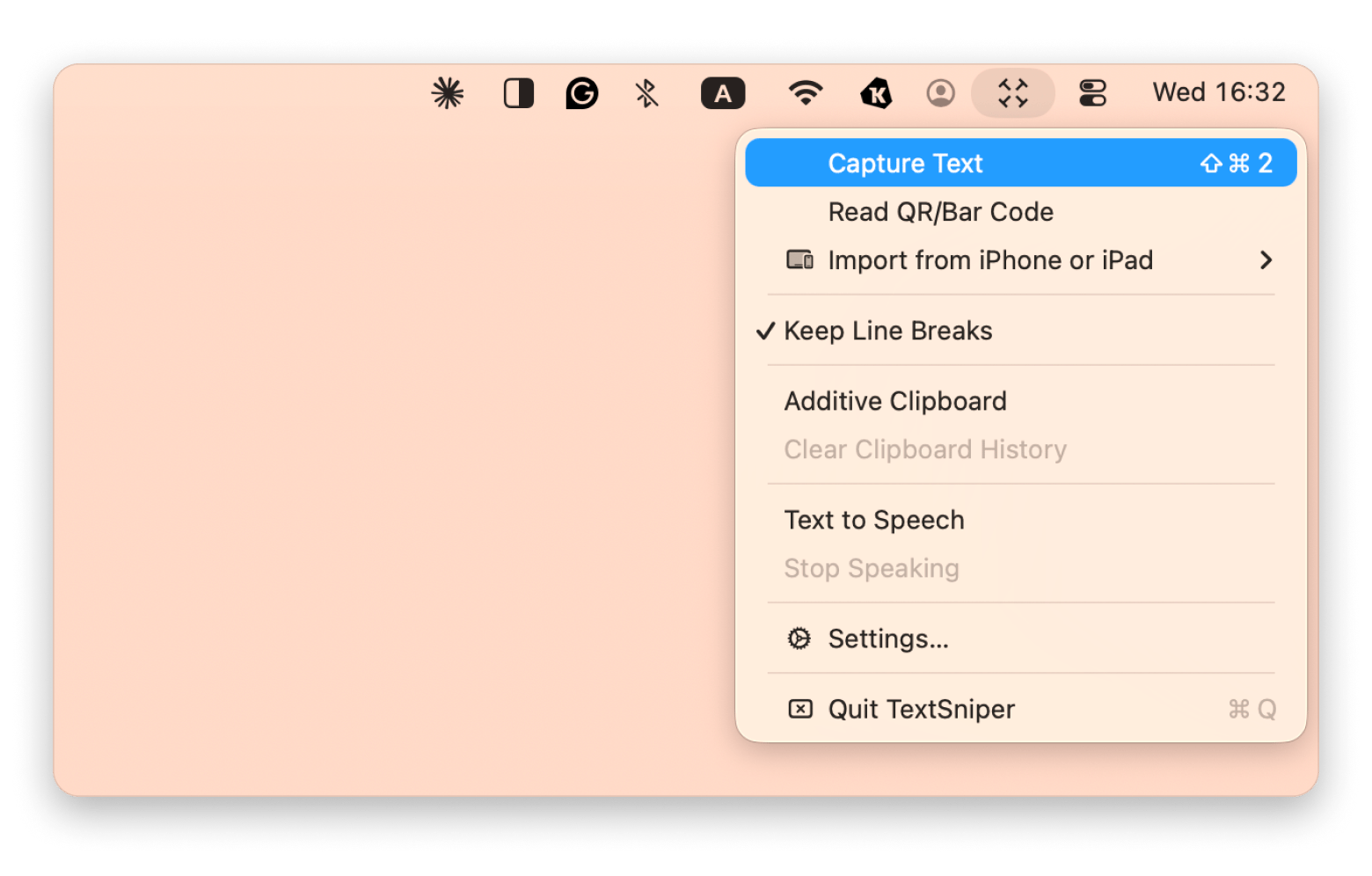
TextSniper is a great alternative if you need to quickly extract text from any visual, either a still photo or a video. The app lives in your menu bar, and you can activate it with a click or using a Shift + Command + 2 shortcut.
If you want to capture a text, just draw the selection box over any part of your screen (a screenshot, a paused video frame, a non-selectable PDF, a photo), and TextSniper pulls the text straight to your clipboard.
Plus, the app can scan QR and bar codes and turn the selected text into speech (I often use this feature to read the Spanish text aloud to check my pronunciation).
Pros:
Lives in your menu bar. Trigger with a customizable keyboard shortcut
Works on any on-screen content: images, PDFs, videos, websites, anything visible
Supports QR code recognition in addition to standard OCR
Cons:
It won't identify objects or reverse search an image
Accuracy depends on image quality and font clarity, as with any OCR tool
Prizmo: Strong, privacy-focused scanning and OCR for Mac
If TextSniper grabs text from your screen in real time, Prizmo goes deeper. The app scans and extracts text from physical documents, including invoices, receipts, scans (even old and damaged), handwritten notes, posters, ads, business cards, and more. You can simply take a photo of a doc on your iPhone and open it via Prizmo.
Once you upload a file to Prizmo, you can not just extract the text but also edit it, find errors, and save it as an accurate, editable PDF or Word/DOCX file. Plus, you can auto-correct your file to make it look like a professional file — straight pages or correct perspective.
The app lets you translate text into over 50 languages, so you can instantly create a localized copy of your doc.
Pros:
Handles multi-page documents and structured layouts (tables, forms, columns) better than most OCR tools in this category
Processes documents locally — no image is sent to an external server, which matters if you're scanning anything sensitive
Supports a wide range of languages for OCR
Available on Setapp
Cons:
Heavier workflow than a quick screen capture: better for deliberate scanning sessions than ad-hoc text grabs
If your only need is grabbing text from something on screen, TextSniper is faster for that specific task
Apple Visual Look Up: Native photo identification on Mac
Apple Visual Look Up feature is already installed on your iPhone (iOS 15 and later) and Mac, and it lets you identify different objects, including pets, landmarks, plants, and more, in photos and videos.
However, it doesn’t detect text or any other advanced features, so if you’re looking for something basic (for visuals only), it must be it.
Source: support.apple.com
Pros
Built in — no extra install
Mac-native, so it works within the Photos workflow
It’s centered on your photos, not “search the web with a camera” like Google Lens
Apple visual intelligence (iPhone): Best for camera translation in the Apple ecosystem
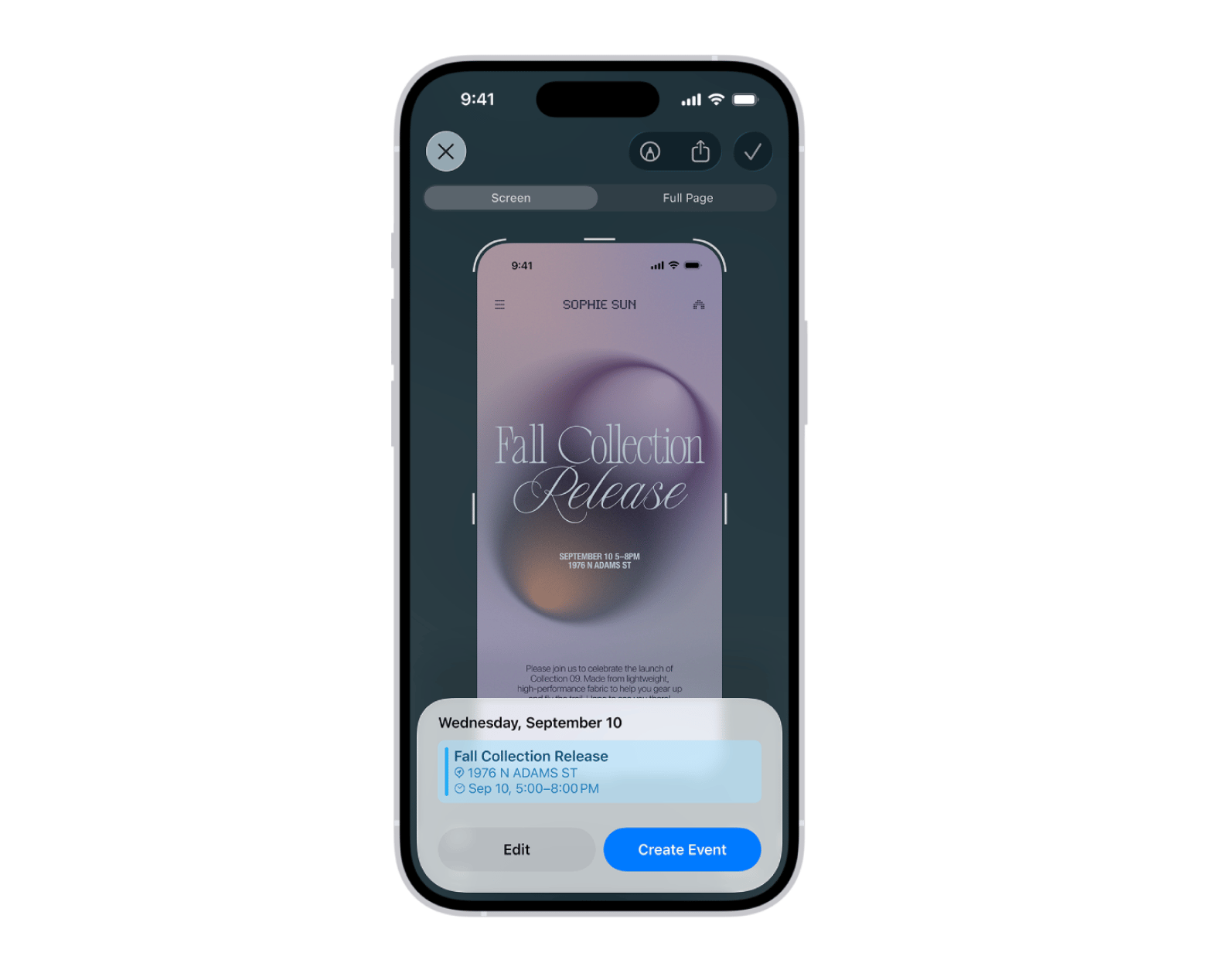
Apple's visual intelligence is another built-in Apple feature on iPhones, and the closest alternative. It was released along with Apple Intelligence, and it’s a good tool to learn your surroundings. To use it, open your Camera Control settings on your camera and point at the things you want to know about. For example, you can point the camera at the restaurant, and it can find the name, opening hours, and telephone number for bookings. Additionally, you can use ChatGPT within the feature to ask additional questions.
The downside of this alternative is that it requires a recent iPhone, specifically, iPhone 15 Pro or Pro Max, or any iPhone 16 or later model.
Pros:
Very Google Lens-like for camera usage + text understanding (translation/summarize/read)
Cons:
Not a Mac app. In practice, you’ll use it on iPhone and move results back to your Mac (Notes, Messages, clipboard workflows)
Bing Visual Search: Ideal for fast web-based visual search on Mac
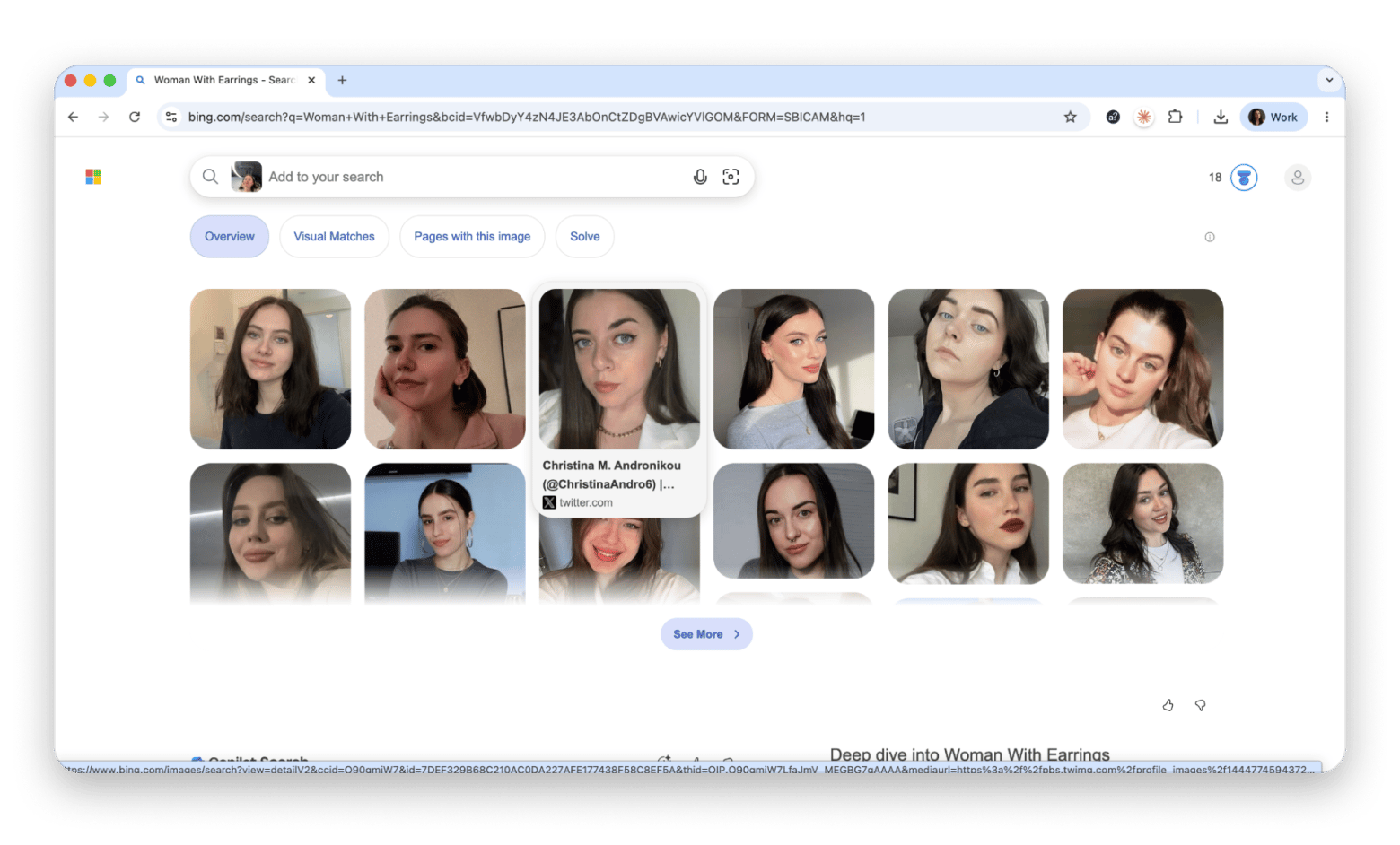
Bing Visual Search works in your browser without extra setup. It can literally search the web using the image, and it’s one of the most straightforward options. The flow is simple: upload an image, then click search to see the results. The interface is simple, but in my experience, Google Lens is more precise in its search results.
However, I think the tool can get you some entertainment. When you open the tool, your camera turns on immediately, and you see your face, so you can take a photo. The tool analyzes your photo and displays visually similar images in the Bing search results. In my case, it was a girl with silver earrings, so Bing found images of girls with similar haircuts and earrings:
That’s also a fun way to find your “twin” online, haha.
Pros:
No app needed; works in every browser, such as Safari/Chrome/etc.
Great for quick identification and finding similar images online — very close to the “visual search” side of Google Lens
Not Mac-native, so you’re always working in a browser tab.
A cluttered screenshot sends Bing down the wrong path. CleanShot X fixes that before you upload. Blur, crop, and annotate before searching — cleaner input, better results. Try CleanShot X Free.
NormCap: Free, Mac-native screen OCR
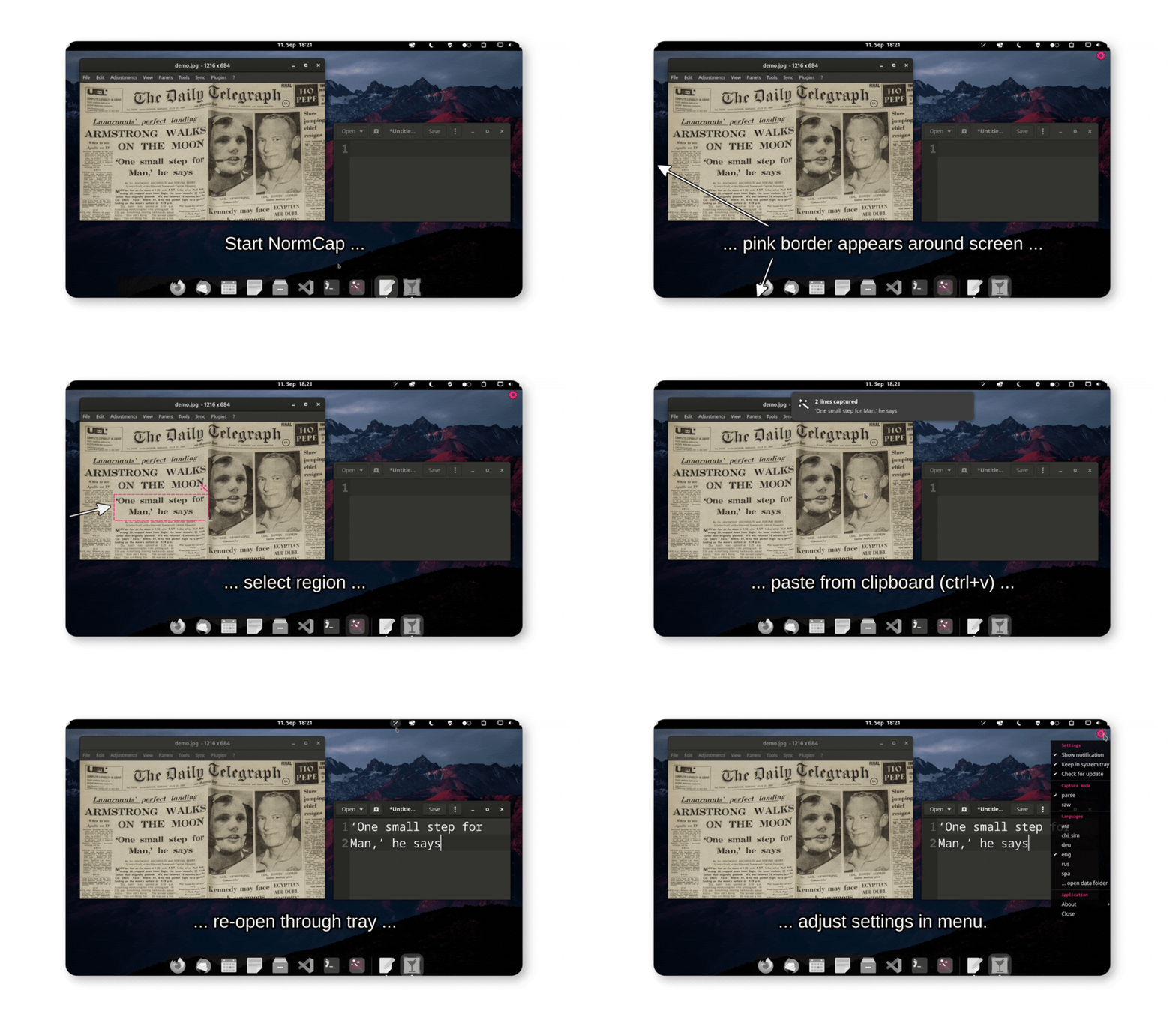
NormCap is a free, open-source tool that uses Tesseract OCR to extract characters from visuals. It’s simple, multi-platform (supports Linux, Windows, and macOS), and operates locally.
But being simple means it has some downsides. It may be less reliable with stylized fonts or high-contrast backgrounds. I noticed it sometimes struggles with cursive or rarely used fonts (I tested it on the Lobster font). And when I tried to extract black text from the red background, it struggled to capture the entire text. So, unless you need to extract anything more complex than black text on a white background, you’re good.
Pros:
Free, open-source, native app workflow
Feels like the “OCR part” of Google Lens, but optimized for desktop speed
Cons:
OCR only: no object identification, shopping, or visual search
Permissions required on first launch: go to System Settings > Privacy & Security and click Open Anyway
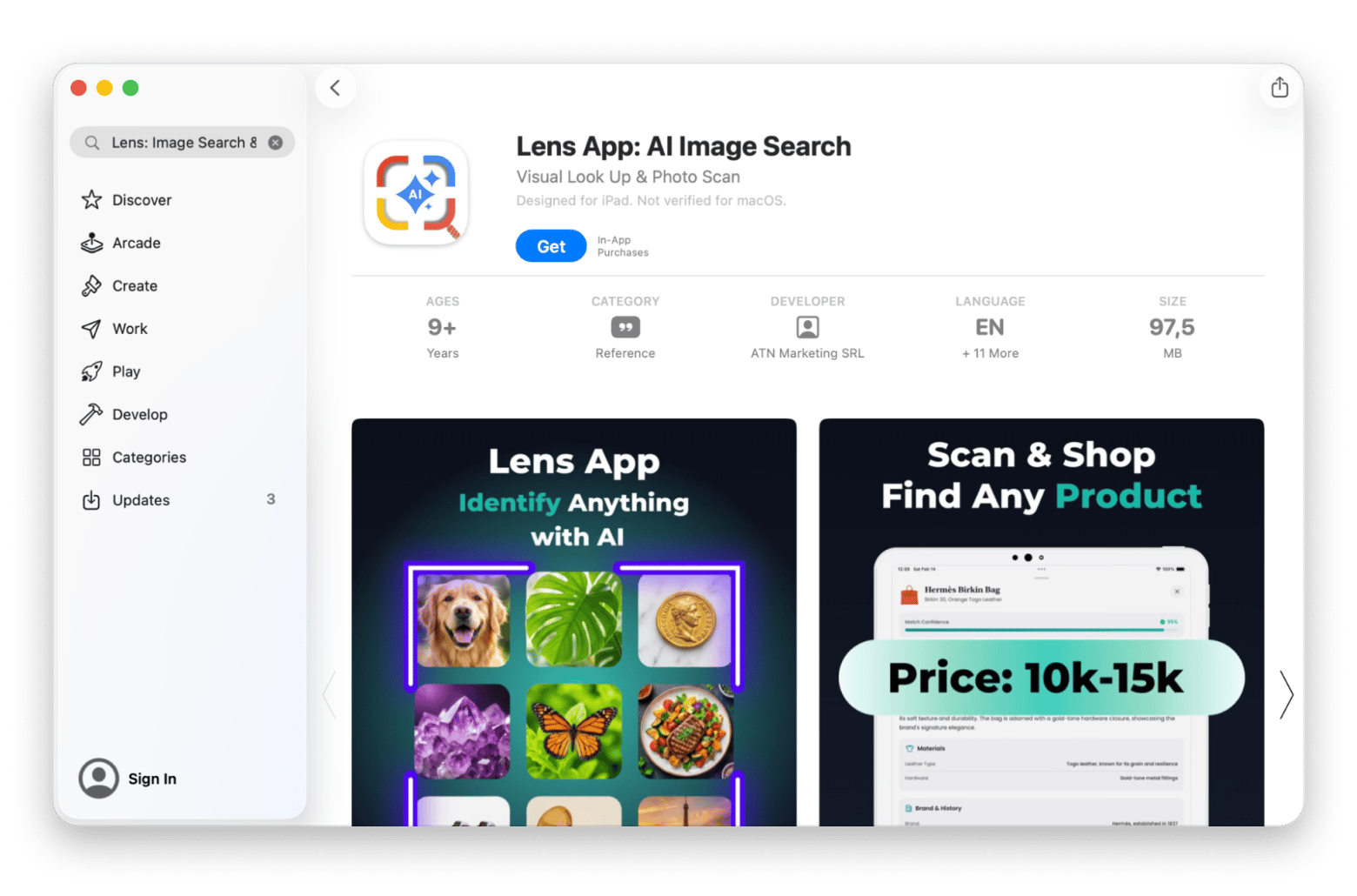
Lens: Image Search & Identify: Best option if you want an App Store “Lens-style” toolkit on Mac (Apple Silicon)
This one was a surprise in testing. Lens: Image Search & Identify is an App Store app that explicitly lists a wide menu of Google Lens-style capabilities: identification across categories, reverse image search, and live translation, and it’s compatible with Apple silicon Macs.
The app shares a similar style, and you can notice the similarities in the app icons, too. But I think it’s a solid alternative, as it’s also AI-integrated and goes into more detail than Google Lens (though it depends on the image, of course).
Pros:
Includes live translation and reverse image search per listing
Can run on an Apple silicon Mac (so it can be Mac-accessible without a phone)
Cons:
Subscription-heavy if you need full usage (weekly/monthly), based on the IAPs shown
Like many Lens-style apps, real-world quality depends on your subject and lighting. I treat it as a flexible tool.
CamScanner: Scanner and OCR tool with official macOS support
If your Google Lens usage is really document-centric (receipts, handouts, forms), CamScanner is better compared to Adobe Scan than to Google Lens since both apps focus primarily on document scanning and PDF workflows.
Though it doesn’t focus on object scanning, it’s still a good tool to use among people working with lots of documents.
The Mac-specific detail that matters is that CamScanner is not mobile-only. Its official download page explicitly says it supports iOS, Android, macOS, Windows, and web.
Pros:
Official multi-platform support, including macOS
Convenient multi-page & batch scanning
Cons:
Document scanner/OCR category tool, not general object recognition like Google Lens
Requires cloud uploads for full functionality
Adobe Scan: Mobile scanning and OCR for Acrobat workflows
Adobe Scan is an OCR app that produces PDFs and integrates with Acrobat/Document Cloud. It’s excellent for clean document capture, but it’s not trying to be a general visual search engine like Google Lens.
Still, it’s a great tool for editing scans, thanks to its AI features. I tested it on a document with a text that looked blurry in the scanned photo. The AI let me sharpen the text, and it immediately became clearer (and the features work on the handwritten text too). Plus, it can remove shadows, a common problem with scanned documents.
Pros:
OCR into editable/searchable PDFs
Scans accessible on Acrobat desktop/web/mobile
Cons:
Document-first, not object identification like Google Lens
Best experience assumes you’ll move scans into Acrobat for deeper work. So if you’re not into Acrobat, that might be inconvenient
TinEye: Non-commercial reverse image search for provenance lookups
TinEye is a focused reverse image search tool. It’s useful for when you need to verify where an image came from (or find copies). For example, if you find an image online and want to confirm it's royalty-free before using it, you can drop it into TinEye to see how widely it's been used. But I think the tool is great for personal use, helping you detect unauthorized reposts of your images, which is a common problem.
You can add the tool as an extension to the most popular browsers and scan images while online. And you don't have to worry about privacy. TinEye won't save or index your images.
Pros
Purpose-built for reverse image search
Free for non-commercial use
Cons
Not a Google Lens replacement for OCR/translation/object ID; it’s reverse-search focused
Summary: Choosing the best Google Lens alternatives for Mac
If, for some reason, you’re not a fan of Google Lens or want a tool with more advanced or upgraded features, you have plenty of options to choose from. Here’s my recommendation on what to pick based on your needs:
For a native Mac feature: Use Apple Visual Look Up inside Photos.
For OCR (copy text from anything): Use TextSniper for fast screen grabs, or Prizmo if you need structured document OCR with editable output. NormCap is a free open-source option if you'd rather not subscribe.
If your main need is web-based visual search (the classic Google Lens "search with image" move): Use Bing Visual Search — and pair it with CleanShot X to crop and blur your screenshot before uploading for cleaner results. Keep in mind Microsoft's note that uploaded photos may be used to improve services.
If you need document scanning + OCR across devices: Prizmo processes everything locally and exports to PDF or DOCX — or try CamScanner (official macOS support) and Adobe Scan if you're already in the Acrobat ecosystem.
If you want an App Store Google Lens-style toolkit: Try Lens: Image Search & Identify.
To make sure nothing you copy gets lost: Paste keeps your full clipboard history searchable, so any text you grab with TextSniper or Prizmo is always a click away.
TextSniper, Prizmo, and CleanShot X — the Mac answer to Google Lens — are all on Setapp. Everything you need to copy, scan, and search visually on Mac — free for 7 days, cancel anytime. Start My 7-Day Free Trial. Already know which app you need? Browse the Setapp Marketplace for standalone options.
FAQ
Is there something better than Google Lens?
Better options depend on which Google Lens feature you need:
For Mac-native photo identification, start with Apple Visual Look Up in Photos.
For fast desktop OCR (copy text from anything), TextSniper can be better on Mac because it's purpose-built for screen workflows and lives in your menu bar.
For document scanning with editable output, Prizmo goes further than Google Lens — it handles multi-page documents, fixes perspective, and processes everything locally.
For web visual search without installing anything, Bing Visual Search is one of the simplest replacements in a Mac browser.
Is Google Lens no longer free?
Google Lens is still free to use, and it doesn’t require a subscription.
What's the Apple version of Google Lens?
On Apple platforms, there are two relevant Apple equivalents, depending on what you mean:
On Mac, the closest built-in equivalent is Visual Look Up in Photos (object identification inside your photo library).
On iPhone, the closest match to Google Lens’s camera-first behavior is Apple visual intelligence, which includes translating/summarizing text and identifying items.
Which Lens app is free?
The free Lens alternatives for Mac:
Bing Visual Search is free to use in a browser.
NormCap is free and open-source for OCR on Mac.
Apple's built-in Visual Look Up is included with macOS.
Alternative to Google Lens for image search?
For Mac users, alternatives to Google Lens are:
Bing Visual Search for general “what’s in this image?” web searching (upload/drag/URL)
TinEye, if your goal is reverse image search for provenance (free for non-commercial use).
Alternative to Google Lens for camera translation?
The most Google Lens-like option is Apple's visual intelligence on iPhone 16 and later (also supported on iPhone 15 Pro/Pro Max), which explicitly includes translation, summarizing, and text reading.
For Mac (Apple Silicon) use, Lens: Image Search & Identify lists live translation as a feature. If your translation need is document-based (scanned pages, PDFs), Prizmo supports 50+ languages and processes everything locally.
Scan books, receipts, and documents
Create searchable PDFs out of photos with text using Prizmo.






 Best solution
 Best solution