Mirror or stream: JustStream sends your whole Mac screen or individual video files to your TV wirelessly, with no HDMI cable.
Works beyond AirPlay: It connects to Apple TV, Chromecast, and DLNA-compatible smart TVs on the same Wi-Fi network.
Settings that matter: You can adjust mirroring resolution, streaming quality, bitrate, buffer, and stereo downmixing in Preferences.
AirPlay may be enough: If your TV supports AirPlay and you only mirror occasionally, macOS already covers it.
Try it with Setapp: Get JustStream and 300+ other apps with Setapp Membership, starting with a 7-day free trial.
JustStream is a Mac app that lets you mirror your screen or stream videos wirelessly to a TV. Want to watch a movie on the big screen, share photos with family, or show a presentation without gathering everyone around your MacBook? You don't need to move files around or deal with cables.
This JustStream review covers setup, how mirror and stream modes differ, which settings matter, and when built-in AirPlay is enough.
JustStream from Setapp is a media streaming utility for macOS. It acts as a bridge between your Mac and your TV, letting them communicate even when they use different streaming technologies. You can use it with Apple TV, Chromecast, and compatible smart TVs without installing additional software on the receiving device or connecting your MacBook with an HDMI cable.
JustStream requires macOS High Sierra (version 10.13) or later. Your Mac and receiving device should also be connected to the same Wi-Fi network so the app can discover the display and establish a connection.
How to set up JustStream on Mac
Getting JustStream ready takes only a few steps. You install the app on your Mac, connect it to a compatible TV or streaming device, and choose what you want to share. The process takes a few clicks. I’ll guide you through it.
Install JustStream via Setapp
You can get JustStream through Setapp, a curated app platform offering 300+ apps for Mac, iOS, and web. There are two ways to get it:
Setapp Membership. JustStream is included with a Setapp subscription that gives you access to 300+ other Mac apps at $14.99 USD/mo + tax and comes with a free 7-day trial.
JustStream only. You can get JustStream as a single app from $4.99 USD/mo + tax.
After you activate your Setapp subscription, you can install JustStream directly from the Setapp desktop app:
Click Install and wait for the download to finish.
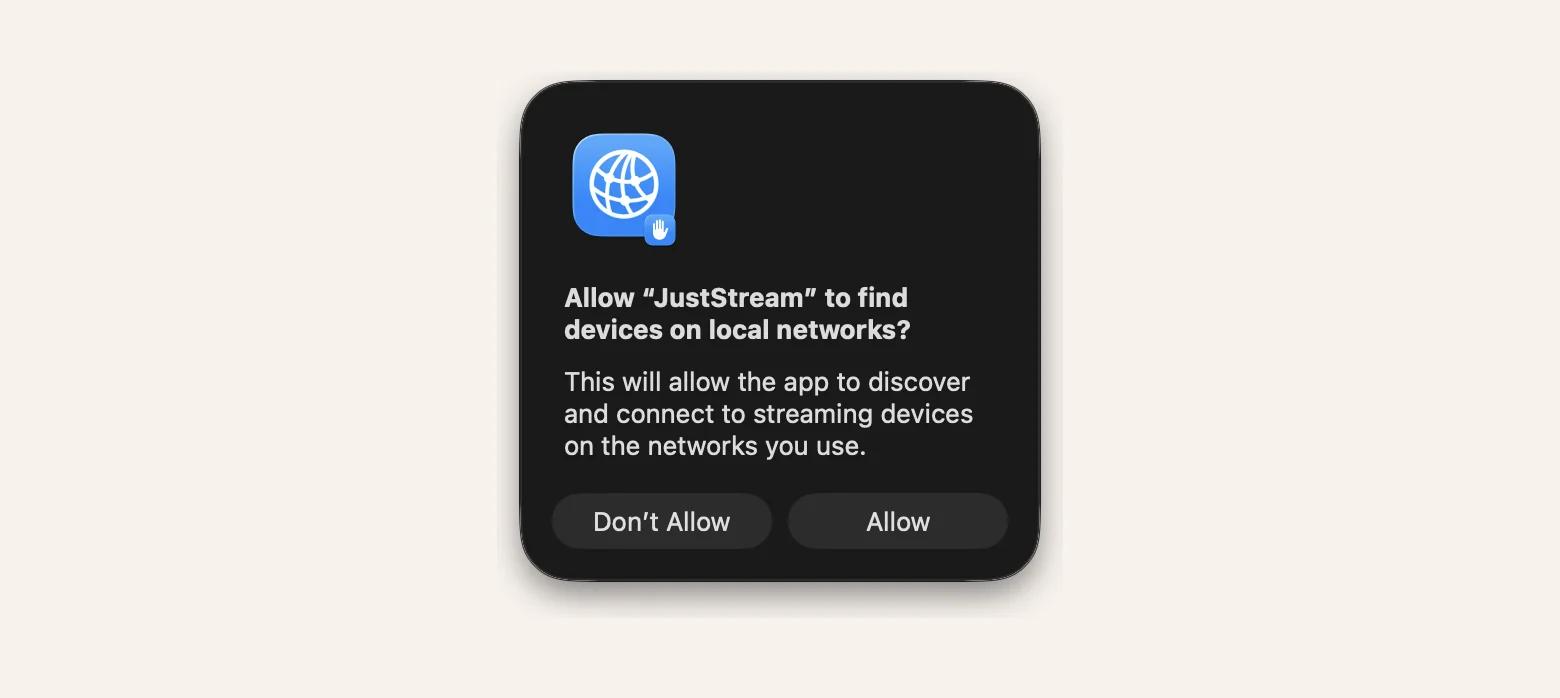
Allow JustStream to find devices on local networks.
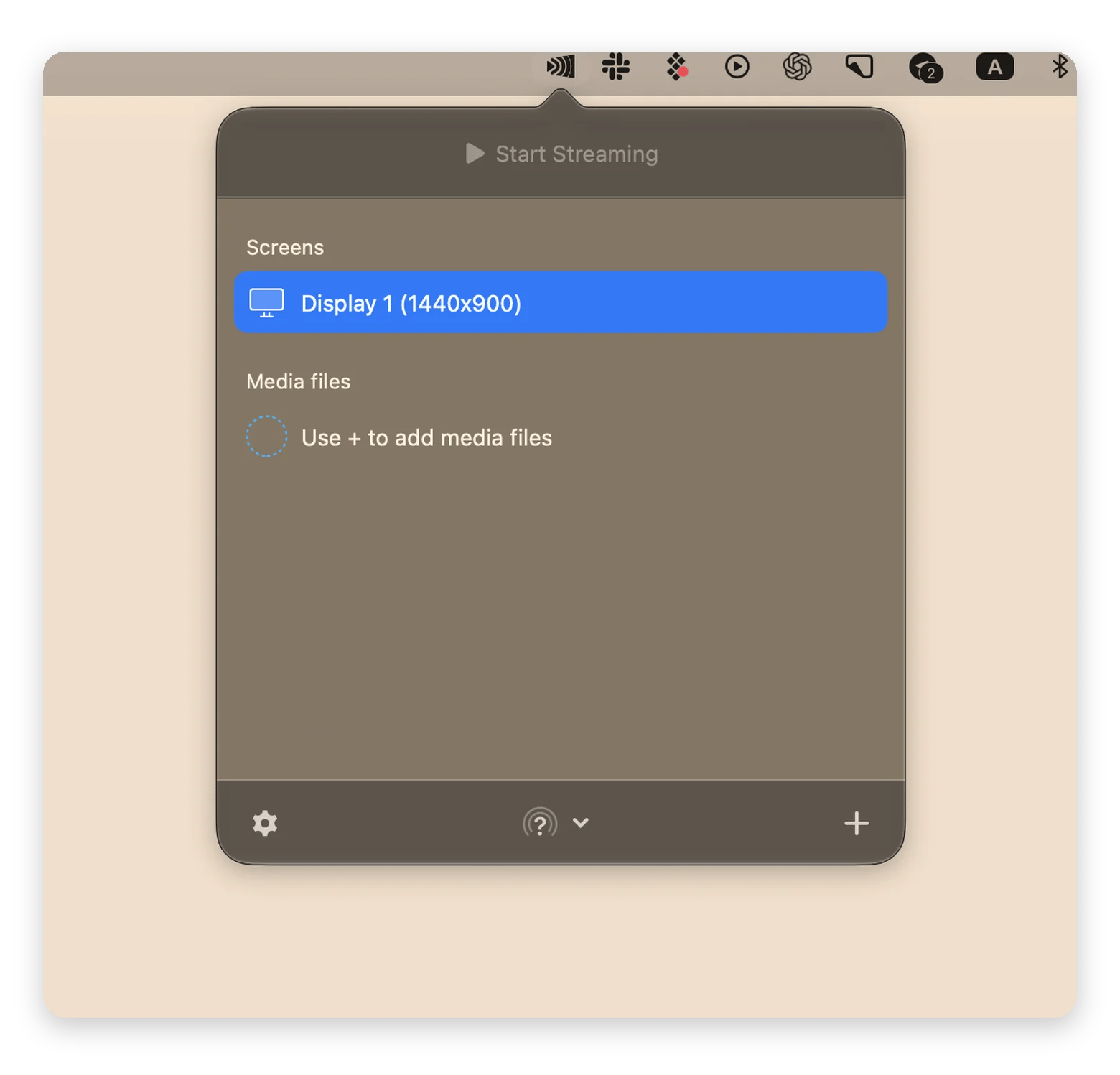
JustStream runs in the macOS menu bar, so you can access its controls without keeping a separate window open.
Connect JustStream to your TV or streaming device
Before connecting, make sure your Mac and TV or streaming device are turned on and connected to the same Wi-Fi network. Then follow these steps:
Click the JustStream icon in your Mac's menu bar to open the app.
Click the arrow next to the AirPlay icon at the bottom of the app window to see available devices.
Choose your TV, Apple TV, or Chromecast from the list.
Your next step depends on whether you want to stream from Mac to TV or mirror your screen.
If your TV doesn't appear, check that both devices are on the same network and that your TV is discoverable. You may also need to allow JustStream access to your local network in macOS settings.
Screen mirroring vs. video streaming in JustStream: What's the difference?
JustStream gives you two ways to share content with your TV. The right choice depends on whether you want to show everything happening on your Mac (screen mirroring) or stream a video.
Here’s how they compare:
Aspect
Screen mirroring
Video streaming
What it sends to TV
Your entire Mac screen
Selected video or audio files
Best for
Presentations, browsing, apps, and demos
Movies, TV shows, and music
Mac display
Everything visible on your selected screen appears on the TV
You can continue using your Mac independently while the media file is playing
How to start
Click the arrow next to the AirPlay icon, and choose your TV from the list.
Click the + button in the bottom-right corner, choose what you want to share, and click Start Streaming.
Key features of JustStream
JustStream offers a range of settings that let you customize streaming to suit your needs, devices, and network.
Wireless screen mirroring with JustStream
If you are using multiple screens in your Mac setup, you can choose which screen to mirror and customize what appears in the output.
A few useful controls make screen sharing more flexible:
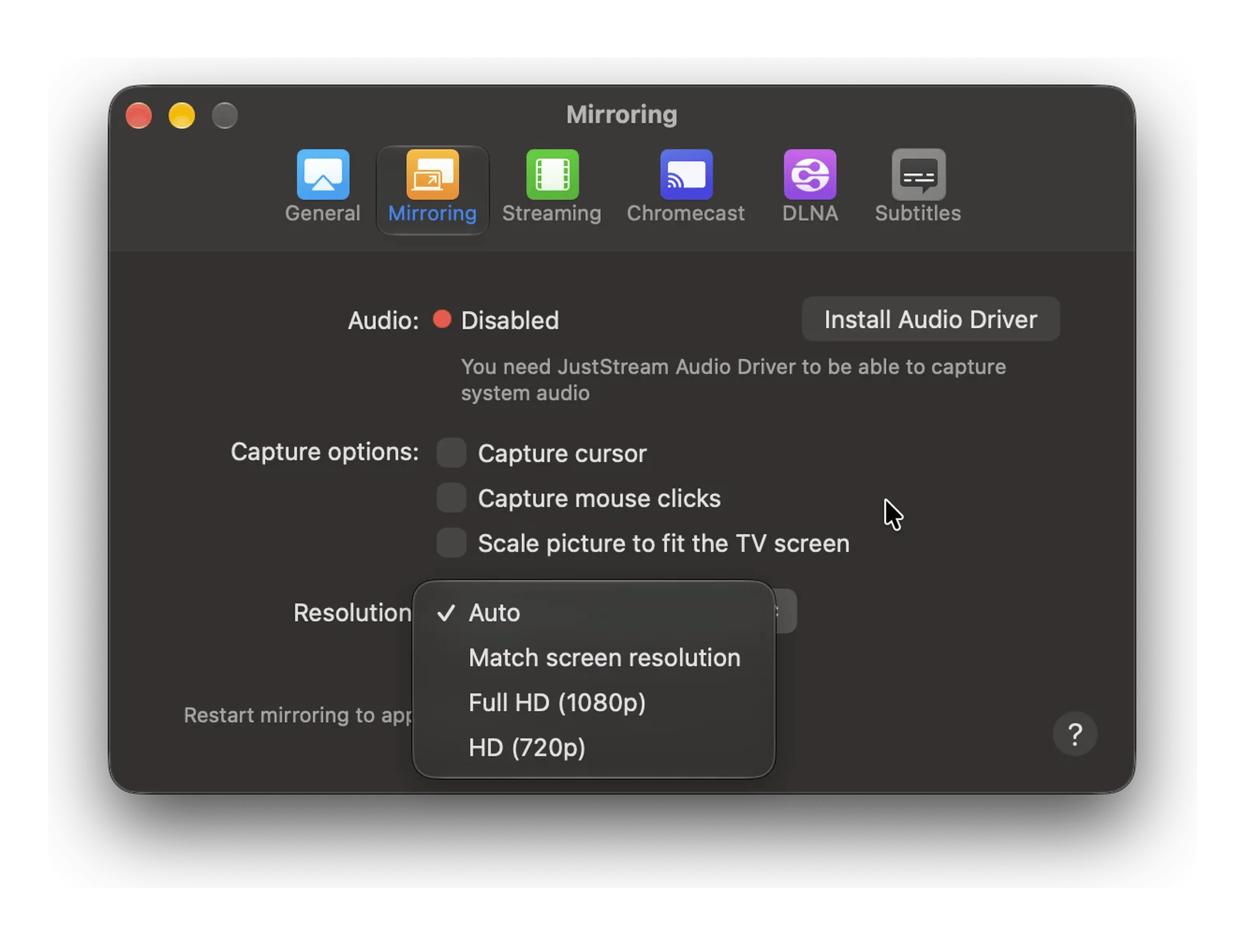
Show or hide the cursor: You can include mouse movements when demonstrating something or hide the cursor when watching content.
Highlight mouse clicks: This feature displays a circle around each click to make on-screen actions easier to follow.
Fit the picture to your TV: Adjust the mirrored image to match the TV's aspect ratio and avoid unnecessary black borders.
This gives you more control over screen sharing than simply sending your desktop to another display.
If you want to watch a movie or play a video without mirroring your entire desktop, JustStream can send media files directly to your TV. It supports popular video, audio, and subtitle formats, and can create playlists for continuous playback.
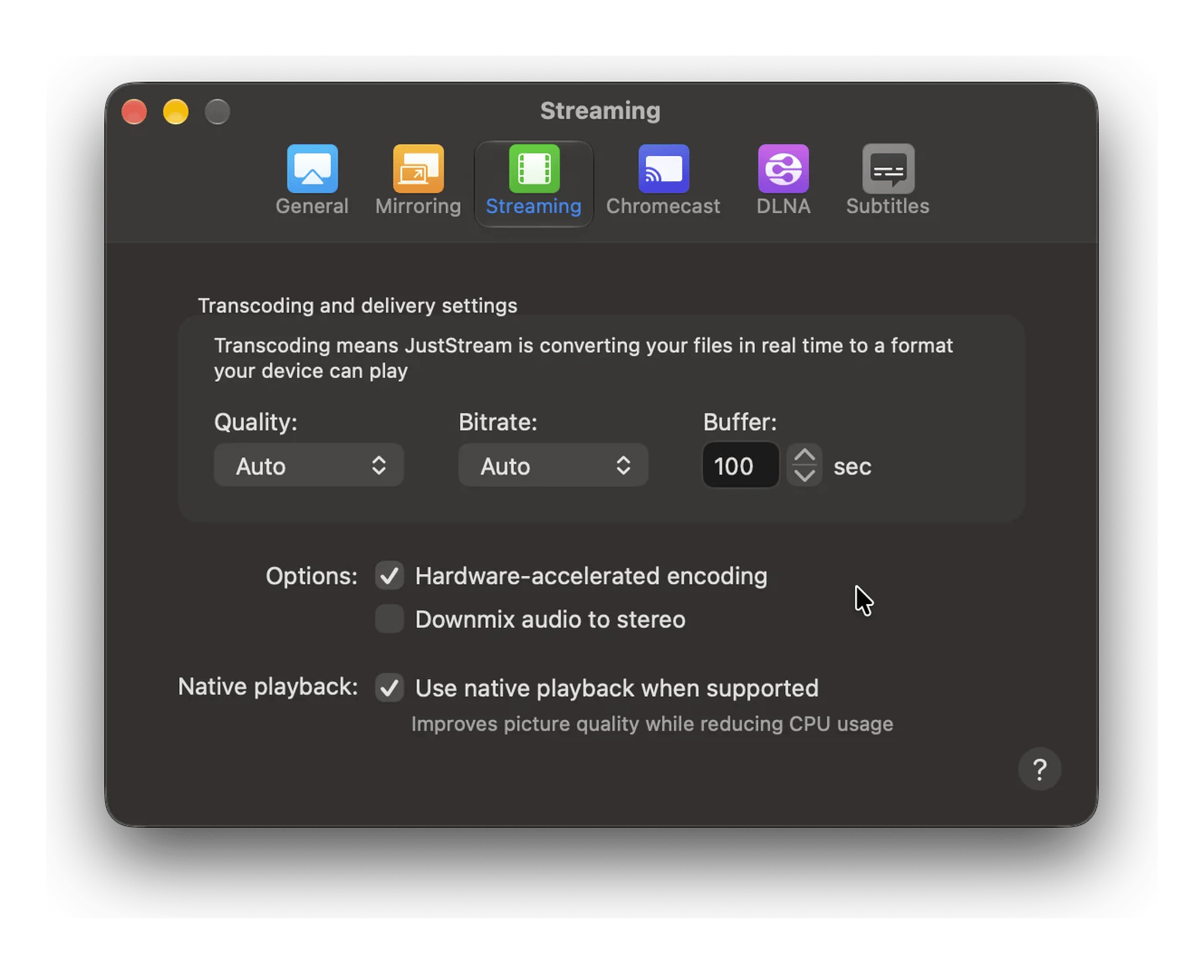
One useful feature is native playback. When your receiving device supports the file's format, JustStream sends it without converting it first. This reduces the processing load on your Mac and preserves the original media quality.
If the TV can't handle the file's format, JustStream can transcode it on the fly into a compatible format.
JustStream audio routing options
JustStream handles audio differently depending on what you're sharing.
When streaming a video or audio file, JustStream sends the sound along with the media. Screen mirroring, however, is muted by default.
You can turn audio on by going to Preferences > Mirroring > Install audio driver and granting microphone access.
JustStream also offers a Downmix audio to stereo option for video streaming. It converts multichannel audio into stereo when the receiving device doesn't support the original audio format. This can help resolve playback issues where a video appears on the TV but has no sound.
To turn it on, open Preferences > Streaming and select Downmix audio to stereo.
JustStream quality settings: Resolution, bitrate, and buffer
You don't have to stick with one output quality for every connection. JustStream for Mac lets you adjust resolution and other playback settings depending on whether you're mirroring your screen or streaming a media file:
Setting and path
What you can adjust
Mirroring resolution Preferences > Mirroring
Choose Auto, match your screen resolution, Full HD (1080p), or HD (720p).
Video streaming quality Preferences > Streaming
Set the maximum output resolution for streamed video.
Bitrate Preferences > Streaming
Adjust the video bitrate during transcoding.
Buffer Preferences > Streaming
Set the buffer length from 90 to 1,200 seconds.
Hardware acceleration Preferences > Streaming
Enable GPU-based encoding for H.264 video.
JustStream can also stream 4K video, but results depend on your Mac's processing power, network bandwidth, and the receiving device's capabilities. Native playback is preferable when possible because transcoding high-resolution video requires considerably more processing power.
What can you use JustStream for?
JustStream can be useful in different situations, both at work and in your free time, like watching movies, presenting slides, or playing recorded demos on a TV.
Movie night without Apple TV
You don't need an Apple TV to watch a movie from your Mac on a bigger screen. If your TV supports Chromecast or DLNA, JustStream can connect your Mac to it wirelessly. Open the video file in JustStream, choose your TV, and start playback.
This is handy if you have a movie saved on your Mac but don't want to transfer it to a USB drive or connect your laptop with an HDMI cable. You can also keep your Mac available for other tasks while the video plays on the TV.
Presentations on a large display
A laptop screen isn't ideal when you're presenting to a group. With JustStream, you can mirror your Mac's screen to a TV, so everyone can follow your slides, charts, or live demonstrations without crowding around your desk.
The same feature is useful for more casual occasions, too. For example, when you want to show photos from a recent vacation to your family on a bigger screen.
Streaming recorded demos or videos
If you need to show a product demo, tutorial, or recorded walkthrough, you can stream the video file directly to a TV. This is useful for team meetings, training sessions, or sharing a recorded explanation with a group. You can prepare the video in advance and play it on a larger display without moving the file to another device.
JustStream vs. built-in AirPlay: Which one do you need?
macOS already has AirPlay, so you might wonder why you'd need another app to connect your Mac to a TV.
If you have an Apple TV or an AirPlay-compatible smart TV, the built-in feature may be all you need. Check out this guide on how to AirPlay from Mac to TV for more detailed instructions.
JustStream becomes more useful when you want to connect to a wider range of devices or have more control over media playback.
AirPlay devices, Chromecast, and compatible DLNA devices
Screen mirroring
Yes
Yes
Video file streaming
Yes, to compatible AirPlay devices
Yes, including to supported Chromecast and DLNA devices
Format conversion
Depends on the receiving device and supported formats
Can transcode unsupported media formats on the fly
Playback settings
Basic system controls
Options for resolution, bitrate, buffering, and audio
Setup
Built into macOS
Requires installing a separate app
When JustStream makes sense
JustStream is worth it if your TV doesn’t support AirPlay or you need more control over playback. It mirrors your Mac screen or streams video files to Chromecast, DLNA smart TVs, and AirPlay devices over Wi-Fi, and it converts formats your TV can’t play.
If your TV already supports AirPlay and you only mirror occasionally, built-in AirPlay in macOS is enough.
Choose JustStream when you want to cast from Mac to Chromecast, stream files in any format, or adjust resolution, bitrate, and audio. Try it free for 7 days with Setapp Membership. Or get JustStream on its own from $4.99 USD/mo + tax.
FAQ
Is JustStream free on Mac?
No, JustStream isn’t free, but you can try it with a 7-day free trial of Setapp Membership. After the trial, you can keep using JustStream and 300+ other Mac, iOS, and web apps available on Setapp at $14.99 USD/mo + tax or cancel anytime.
Does JustStream work without Apple TV?
Yes, JustStream can connect your Mac to compatible smart TVs and streaming devices, including Chromecast and DLNA-enabled TVs. You don't need an Apple TV, but your Mac and receiving device should be connected to the same Wi-Fi network.
Can JustStream stream to Chromecast?
Yes. JustStream supports Google Chromecast and Chromecast Ultra, as well as compatible Google Cast-enabled devices. You can mirror your screen or stream from Mac to TV individual video files. Just make sure both devices are connected to the same Wi-Fi network.
Does JustStream support 4K?
Yes, JustStream supports 4K streaming. However, smooth playback depends on your Mac's processing power, network bandwidth, and the receiving device. For the best results, your TV or streaming device should support native 4K playback. If JustStream has to transcode the video, the output quality may decrease.
Is JustStream on Setapp safe?
Setapp reviews apps before adding them to its catalog and checks new versions against its quality, functionality, safety, and privacy guidelines. This includes security screening and checks for potentially unwanted behavior. These measures add a layer of protection.






 Best solution
 Best solution