Hide the clutter:Bartender moves rarely used menu bar icons into a hidden section and keeps the ones you need in view.
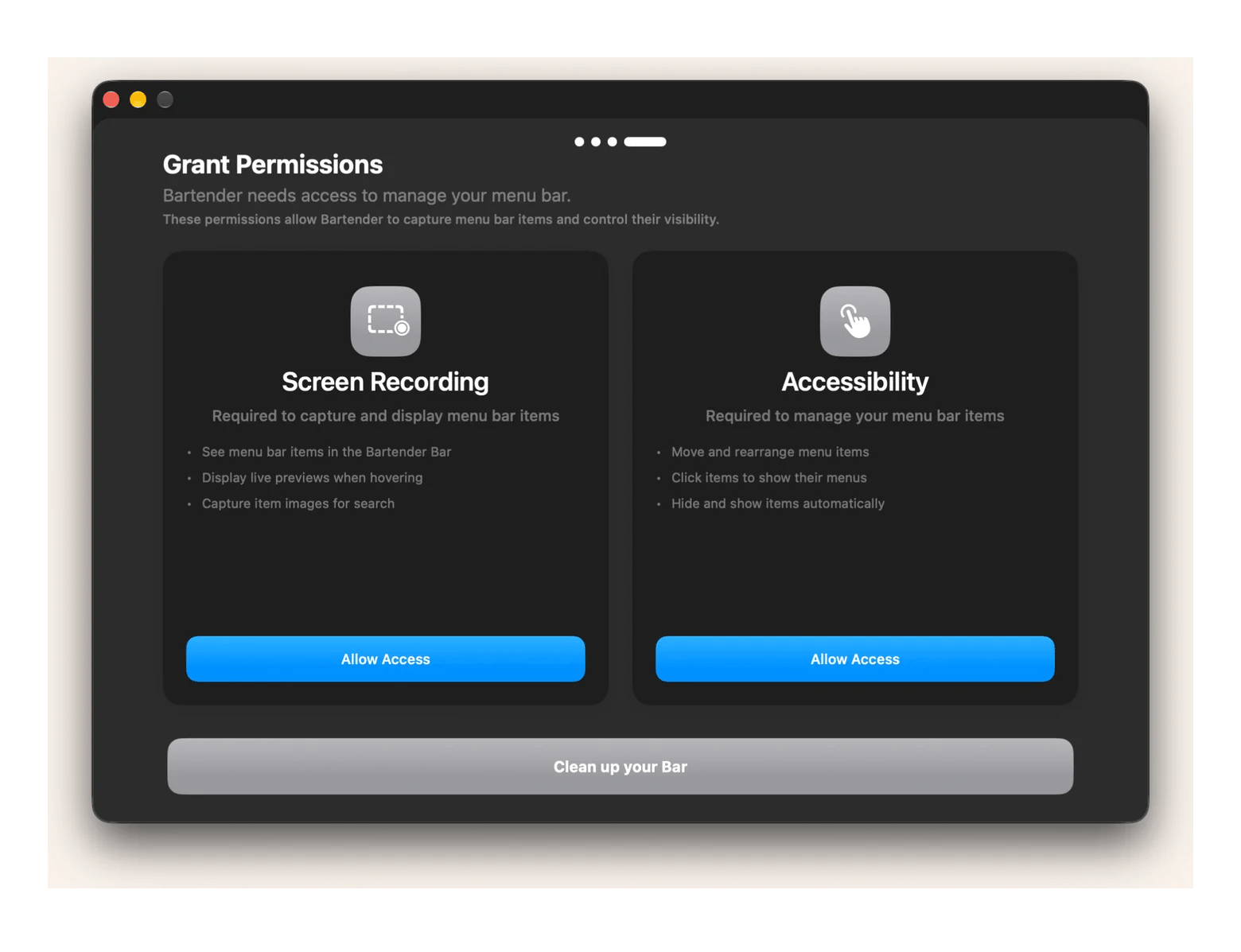
Set up in minutes: Install it through Setapp, then turn on Screen Recording and Accessibility permissions so Bartender can manage your menu bar items.
Pick your mode: On-demand mode gives you manual control, while Live mode reorganizes your menu bar automatically.
Automate your layout: Use triggers and profiles to show the right icons for work, focus, or presentations.
Try it free: Bartender is included in a Setapp Membership with 300+ apps and a 7-day free trial.
Bartender from Setapp gives you more control over your menu bar by letting you clean up your cluttered space in a click and keep only essential icons.
Your Mac’s menu bar can get crowded surprisingly quickly. After installing a few apps, their icons start piling up in the menu bar. And when you’re sitting in a new café and need to connect to Wi-Fi, you end up scanning a row of tiny icons trying to spot the one you actually need.
Here’s how to set up the Bartender app, Mac’s effective menu bar organizer.
Bartender is a menu bar manager for Mac that lets you hide rarely used icons, keep essential ones visible, and reveal hidden items when you need them. You can also use triggers and profiles to change your menu bar automatically for different situations. This gives you a cleaner menu bar without having to quit the apps themselves. It’s available through a Setapp Membership or as a standalone app.
Here’s what Bartender can do:
Menu bar problem
How Bartender helps
Mac menu bar: too many icons visible
Hide extras in Hidden Items
Need quick access to apps
Keep them in Shown Items
Work and home setups differ
Switch profiles per workflow
Icons needed only sometimes
Add triggers for conditions
Can’t find a hidden icon
Search for it in Bartender
How to set up Bartender on Mac
To set up Bartender on Mac, get it through Setapp, install it, and turn on Screen Recording and Accessibility permissions. The whole process takes a few minutes.
Activate your subscription
You have two ways to get Bartender through Setapp:
Setapp Membership. Bartender is one of 300+ apps included in a single Setapp subscription at $14.99 USD/month + tax. You can try every app in the catalog with a 7-day free trial.
Bartender only. If you only need Bartender and don’t plan to use other Setapp apps, you can subscribe to it on its own from $19.99/year.
Download and install via Setapp
To get the app on your computer:
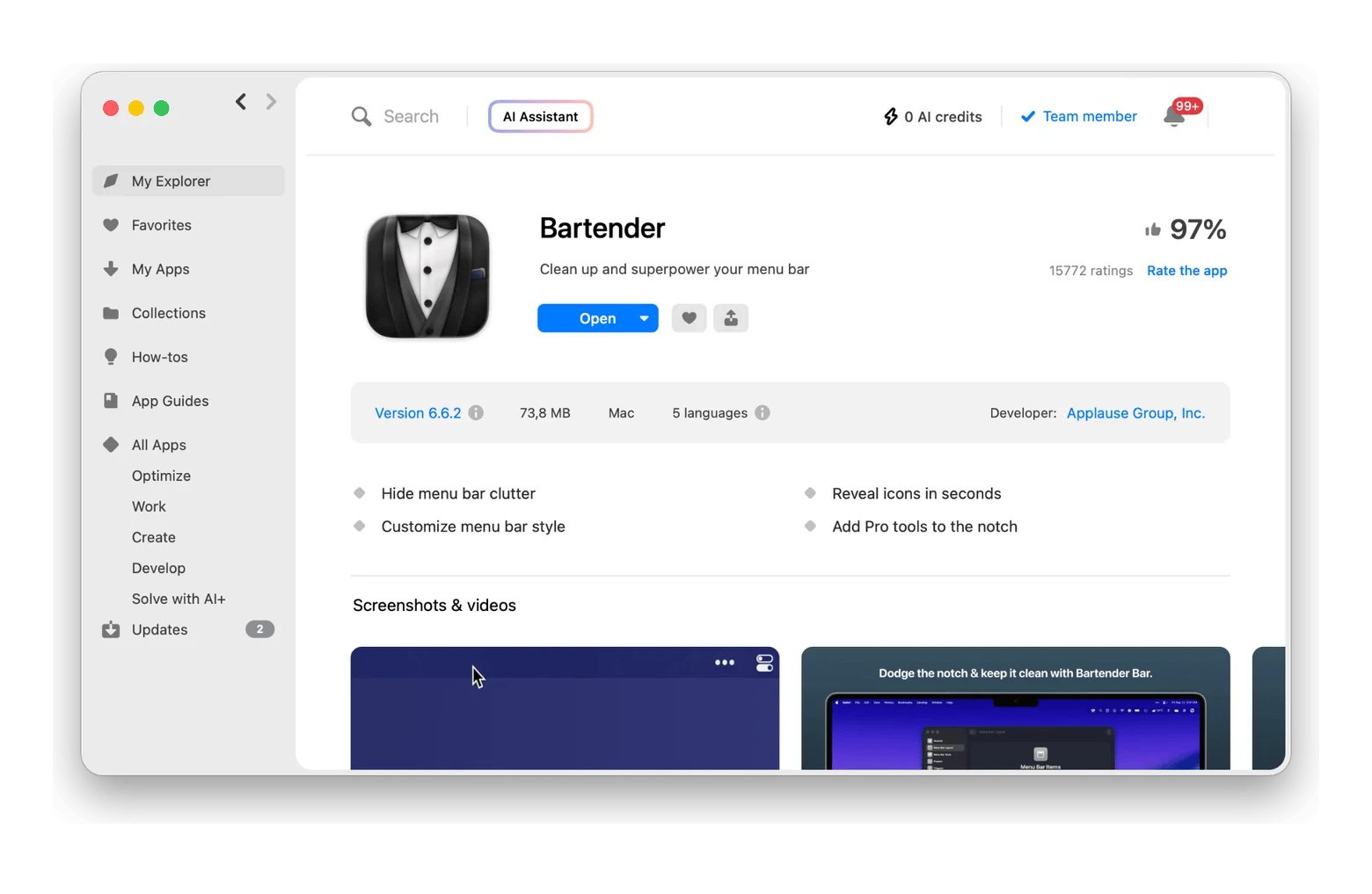
Open Setapp on your Mac.
Search for Bartender.
Click Install and wait for the installation to finish.
Grant the required permissions
Bartender needs some system permissions to manage your menu bar items. To grant them:
Click Get Started to launch Bartender Mac app for the first time.
Follow the setup prompts to see which permissions are required.
Open System Settings > Privacy & Security.
Find the Bartender app, Mac screen recording and accessibility permissions need to be enabled.
Confirm the changes with your Mac password or Touch ID if prompted.
To apply the changes, you will have to quit and reopen Bartender.
What happens when you first launch Bartender?
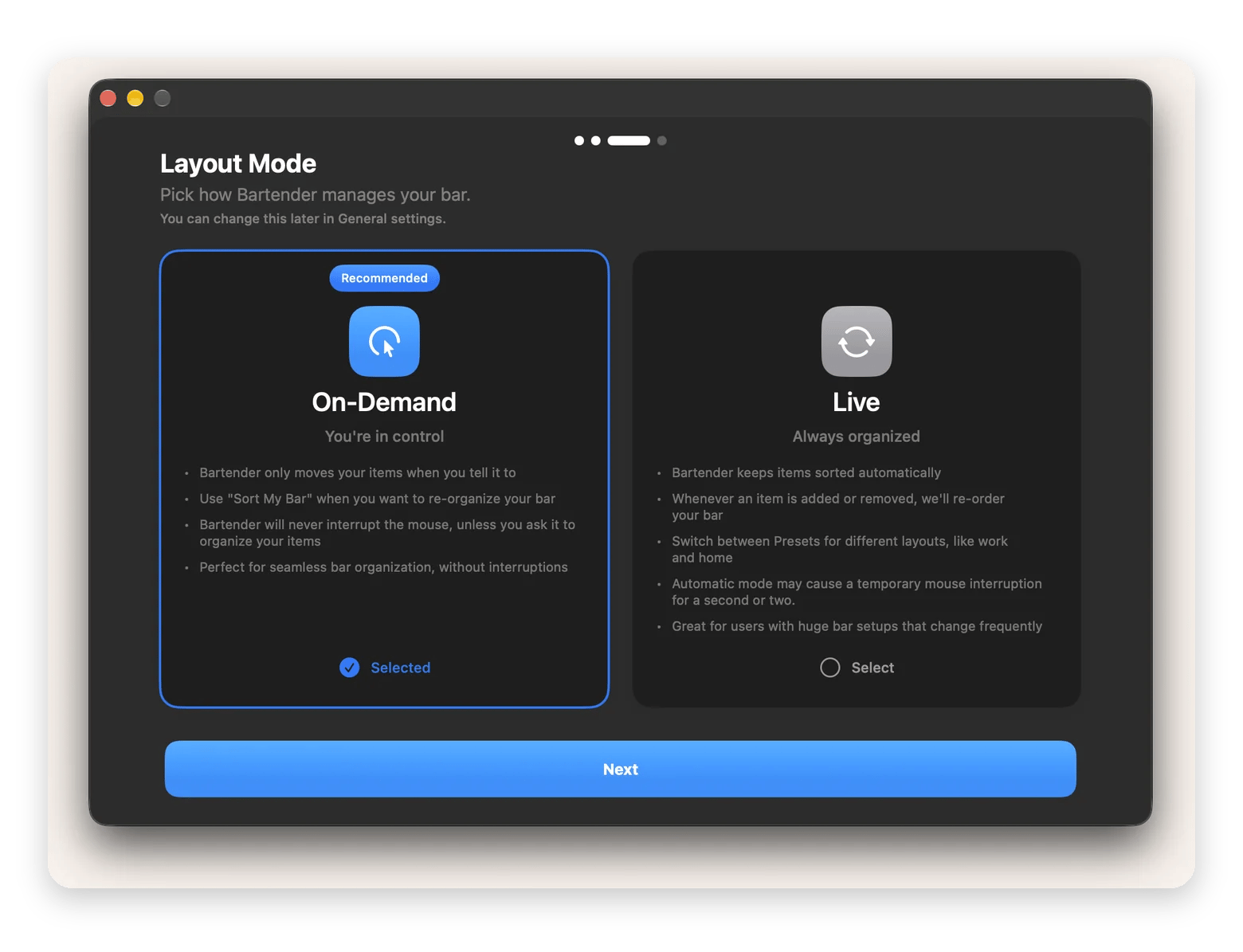
When opening Bartender for the first time, you will have to choose the layout mode:
Here’s the mode comparison overview:
Feature
On-demand mode
Live mode
Control
You organize your menu bar manually
Bartender organizes your menu bar automatically
Sorting
You can sort items in your bar when needed
Items are automatically reordered, depending on conditions
Presets
This feature doesn’t work in on-demand mode
You can create different presets for workflows like work and home
Potential interruption
No automatic changes
May briefly interrupt mouse movement while reorganizing
Best for
Users who want full control over what they see in their menu bar
Users who want their menu bar organized at all times without their input
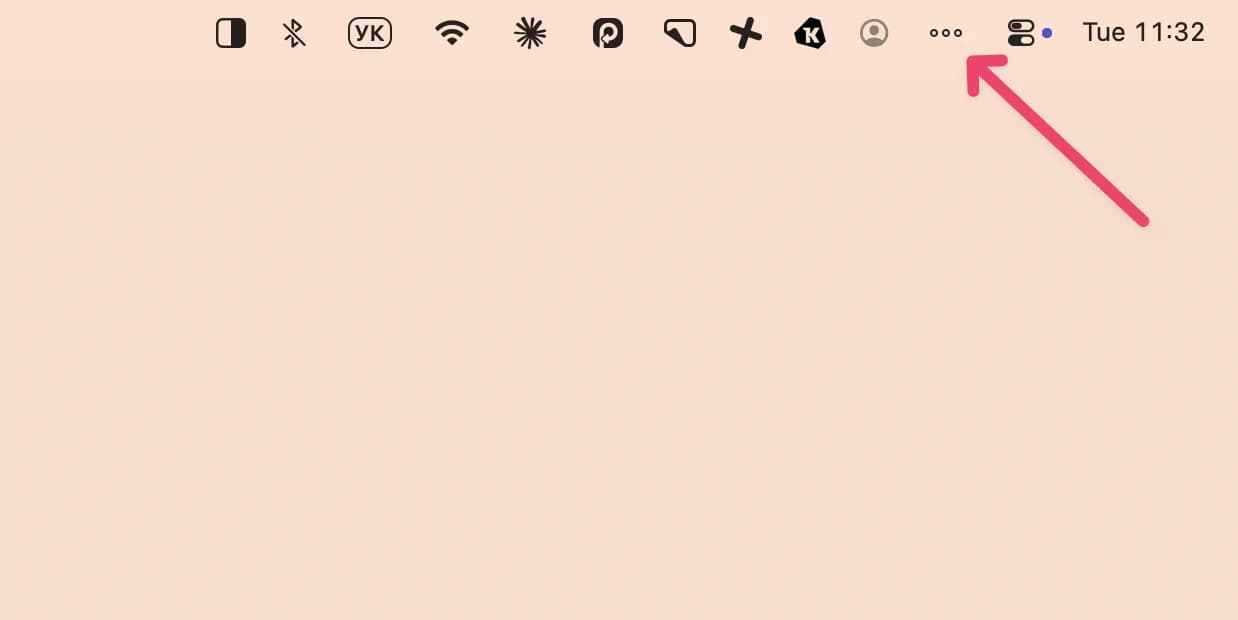
From now on, you can access Bartender from your menu bar: right-click the three dots and select Bartender Settings:
You can start with basic customization in the Menu Bar Style tab and set the perfect look.
How to use Bartender — Key features
The most interesting and useful features live in other tabs, such as hiding menu bar items, setting up triggers, and more.
How to hide and show menu bar items in Bartender
Bartender lets you decide which menu bar items stay visible and which ones stay hidden without the need to quit them.
To organize your menu bar:
Right-click the three dots of the Bartender menu bar icon > Choose Bartender Settings.
Click Menu Bar Layout.
Drag items between sections, depending on how often you use and want to access them:
Shown Items — will always be displayed in the menu bar;
Hidden Items — will appear on request (upon swipe, click, or hover, depending on your settings);
Always Hidden Items — are the ones you don’t ever need and don’t want them to appear in your menu bar at all. But if you change your mind, you can always reach them in Search.
Palette — acts as a virtual toolbox at the bottom of the window, holding special design tools like Spacers or Labels that you can drag into your menu bar to organize your layout.
Your changes will apply automatically.
These are the basic settings to declutter your menu bar. But Bartender 7 for Mac can do much more.
How to set up Triggers in Bartender
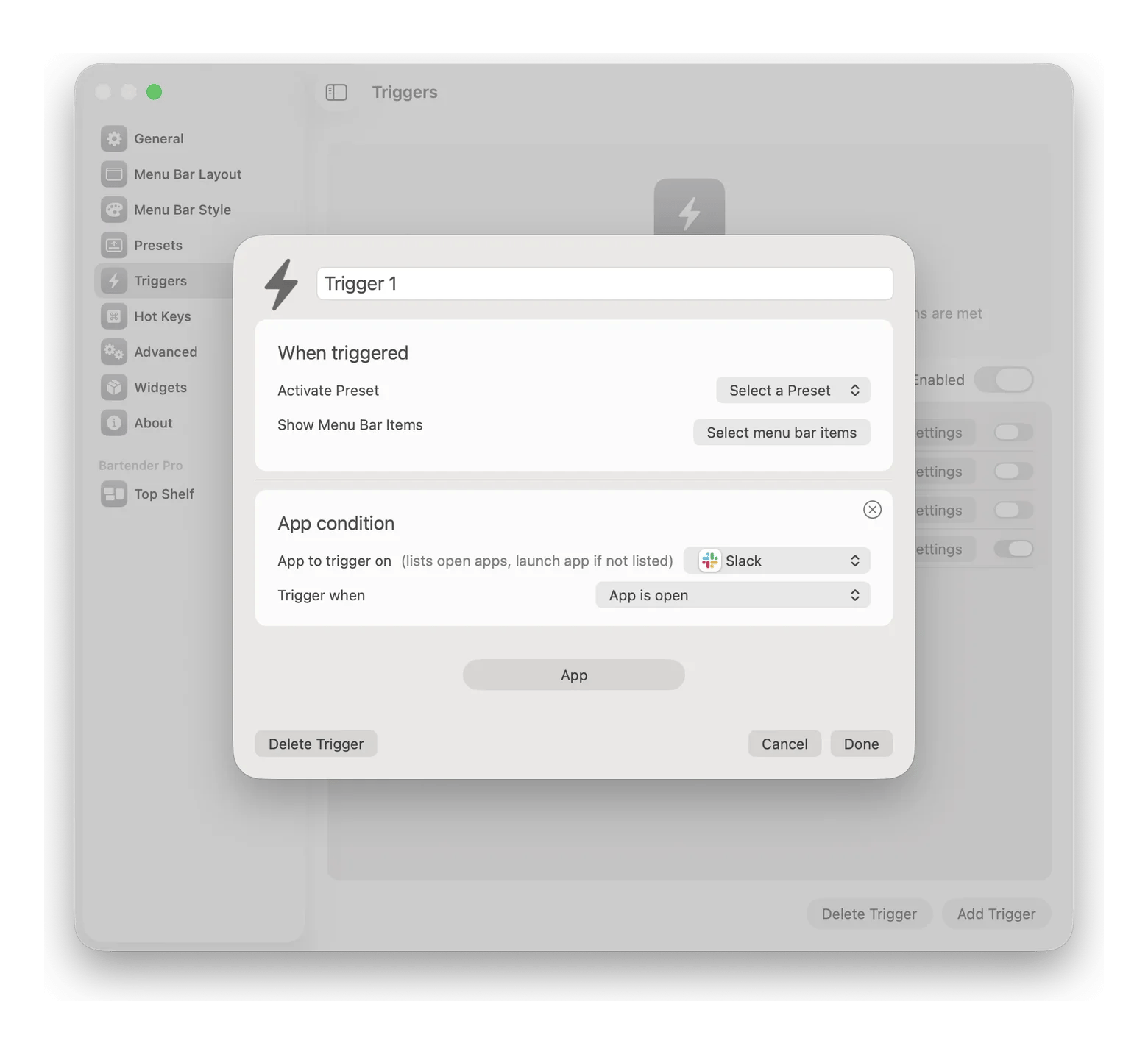
Triggers let Bartender automatically change your menu bar when certain conditions are met.
For example, you can:
Show your VPN icon when you connect to public Wi-Fi;
Show battery information when your Mac switches to battery power;
Switch to a work preset during working hours;
Show specific items when you’re at a particular location.
To set up a trigger:
Right-click the three dots of the Bartender menu bar icon > Choose Bartender Settings.
Click Triggers.
Create a new trigger and choose its conditions.
Select what Bartender should do when those conditions are met.
Save the trigger.
After setting up the triggers, all changes in your menu bar will apply.
Search inside Bartender
This feature saves your life if you have dozens of menu bar items and even grouping them doesn’t solve the task.
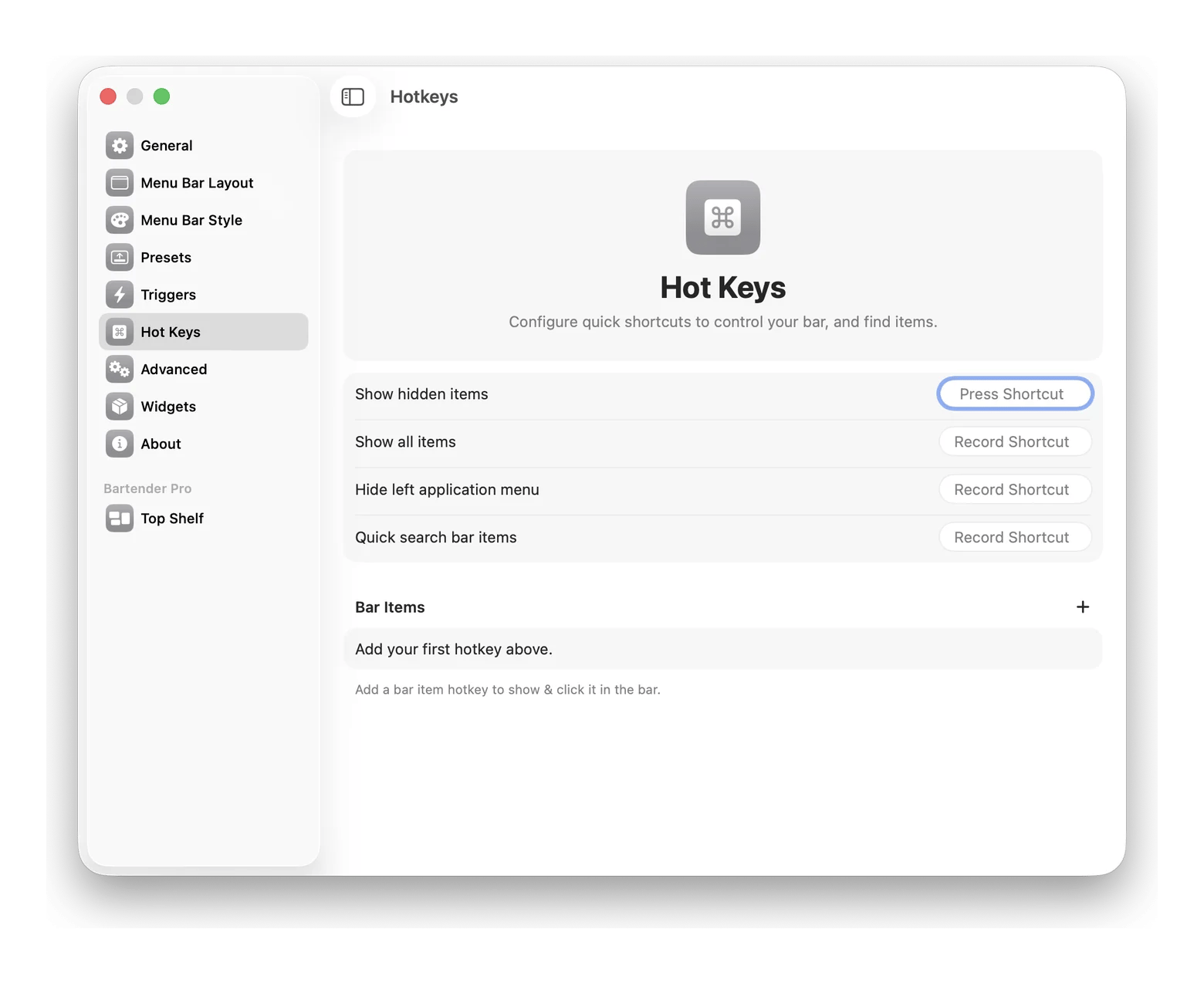
In the settings, you can set a hotkey combination to quickly search menu bar items. With this shortcut, you get to the needed app without even reaching for your mouse.
How to search menu bar items in Bartender
Bartender’s search lets you find any menu bar item with a hotkey, without reaching for your mouse. If you have dozens of items and grouping them doesn’t help, set a search shortcut in the settings.
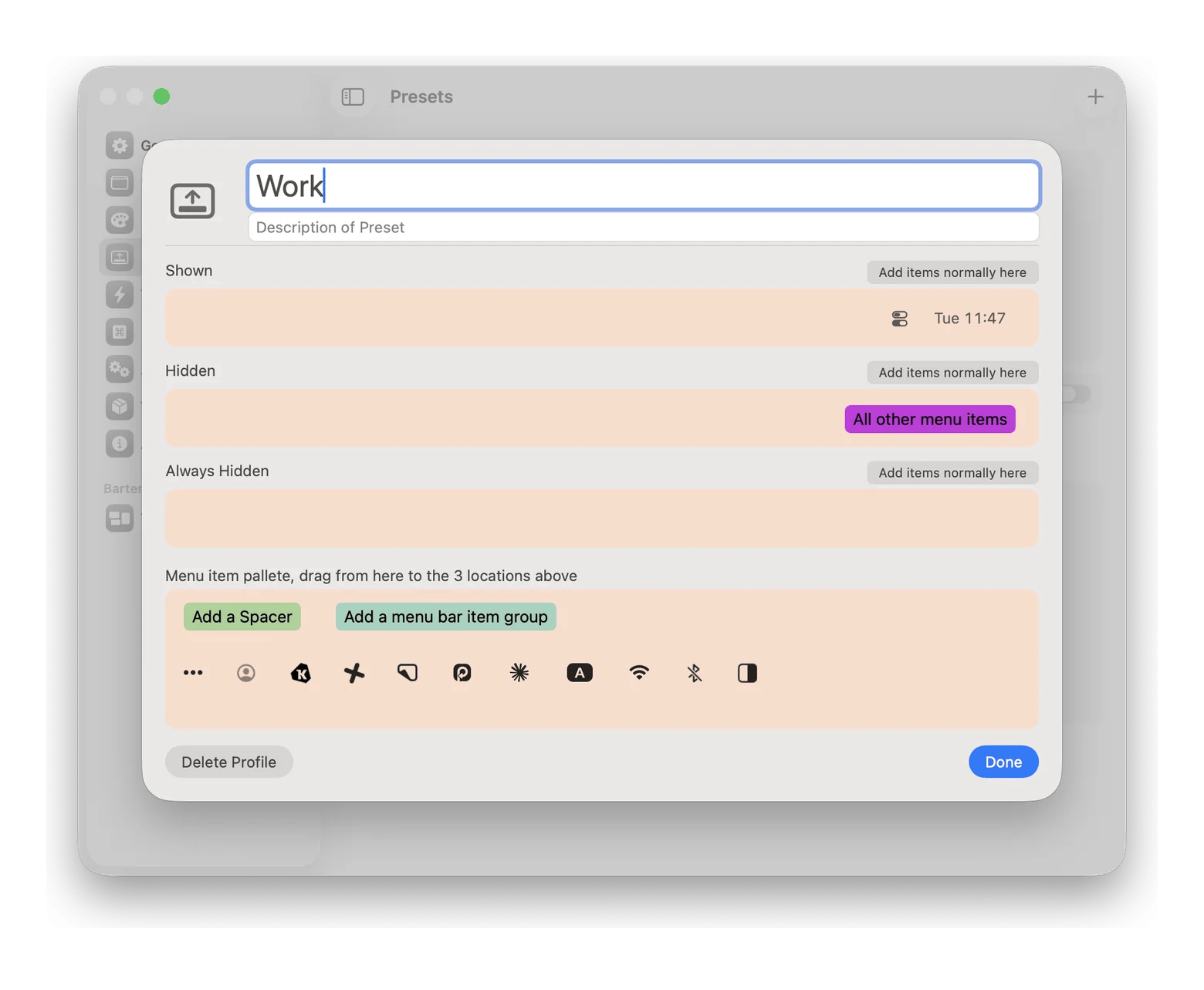
For example, you could create separate presets for:
Work — keep your work-related tools visible;
Focus — hide almost everything;
Presentation — show only the items you need while sharing your screen;
Home — switch back to your usual setup.
How can you use Bartender in everyday situations?
Bartender is more than a way to hide menu bar icons Mac users are often overwhelmed with. You can use it to create different setups for different situations. Here are a few ways to make it work for you.
Minimal focus mode for deep work
With Bartender, you can hide the icons that aren’t relevant to the task and leave the essentials visible. Your apps keep running in the background, and the hidden items are still there when you need them. When it’s time to check in or switch tasks, bring them back into view.
Presentation mode
You’re about to share your screen in a meeting or stream something. The slide deck is ready, but the menu bar is showing personal apps and utilities your audience doesn’t need to see.
Use Bartender to clear those icons from view before you present or start a screen recording. Keep the controls you might need, hide the rest, and bring back your usual menu bar when the meeting is over.
Different profiles for different parts of your day
Your menu bar needs can change as the day does. During work, you might want quick access to project tools and work chat. And once the workday’s over, you might want to switch to a personal setup that keeps the apps and utilities you use in your own time close at hand.
With Bartender profiles, you can create an arrangement for each routine and switch when it’s time to move on. Your work tools can fade into the background after hours, while the things you use to unwind or manage everyday life take their place.
Bartender vs. built-in macOS options: Which should you use?
Bartender isn’t the only way to customize the menu bar on Mac. macOS native functionality lets you choose when the menu bar hides, adjust which built-in controls appear, and rearrange some status icons. That can be enough if you only want to make a few simple changes.
Automatically hide or show the menu bar, and choose which built-in controls appear.
Choose which menu bar items to show or hide, then reveal hidden items when you need them.
Organize app icons
Rearrange some status icons.
Manage and group menu bar items
Adapt to different situations
Adjust settings manually when your needs change.
Use presets and triggers to change what appears in the menu bar.
Best for
Simple changes to the menu bar and built-in controls.
More control over a crowded menu bar and preset automation
Organize your Mac menu bar with Bartender
A crowded menu bar can make it harder to find the controls and apps you need. Bartender lets you keep essential items visible, hide the rest until you need them, and create different layouts for work, focus, or presentations.
No, but you can try Bartender free for 7 days through Setapp. After the trial, keep using Bartender and 300+ other apps for $14.99 USD/mo + tax, or cancel anytime.
What is Bartender used for on Mac?
Bartender helps organize menu bar icons: hide items, reveal them when needed, and search for them. You can also automate the changes in your menu bar layout with profiles and triggers.
Does Bartender work on the latest macOS versions?
Yes. Bartender supports macOS 14.0 and later, which includes both Sonoma and Sequoia.
How do I show hidden icons in Bartender?
Click, hover, swipe, scroll, or use a hotkey to reveal hidden items in Bartender, depending on your settings.
Is Bartender on Setapp the same as the standalone version?
Yes. With a Setapp Membership, you get the same version of Bartender as the standalone app, alongside 300+ other apps.
Clean menu bar with Bartender
Organize menu bar items and keep your desktop tidy.






 Best solution
 Best solution