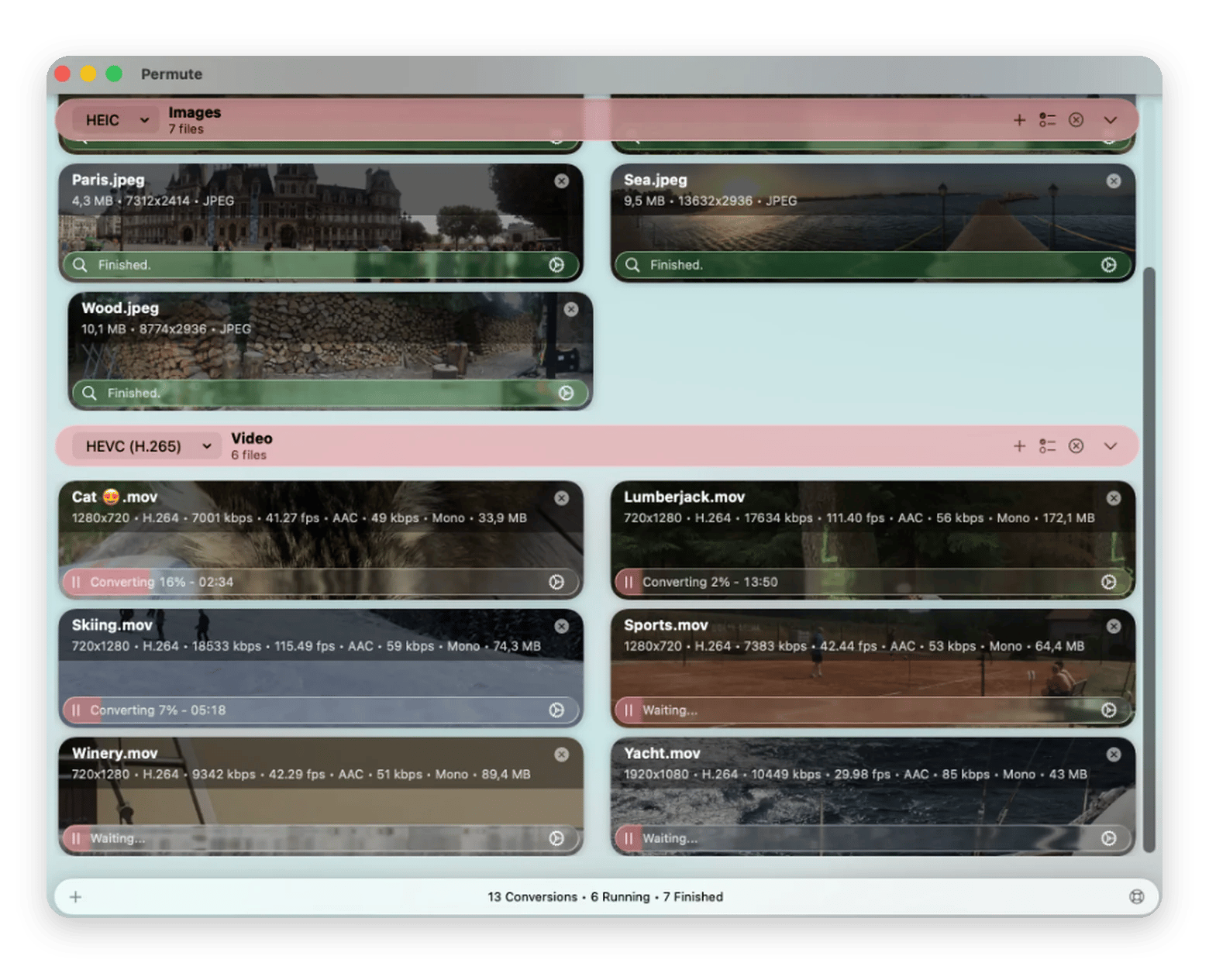
Permute has a drag-and-drop interface — intuitive interface to easily convert all your files on the go!
Supports a wide range of formats — hassle-free conversion for all commonly used image, video and audio formats
Batch conversion — just drag and drop multiple files to convert them all in one go.
Easy integration with Downie — automate your conversions if you need downloads in a particular format
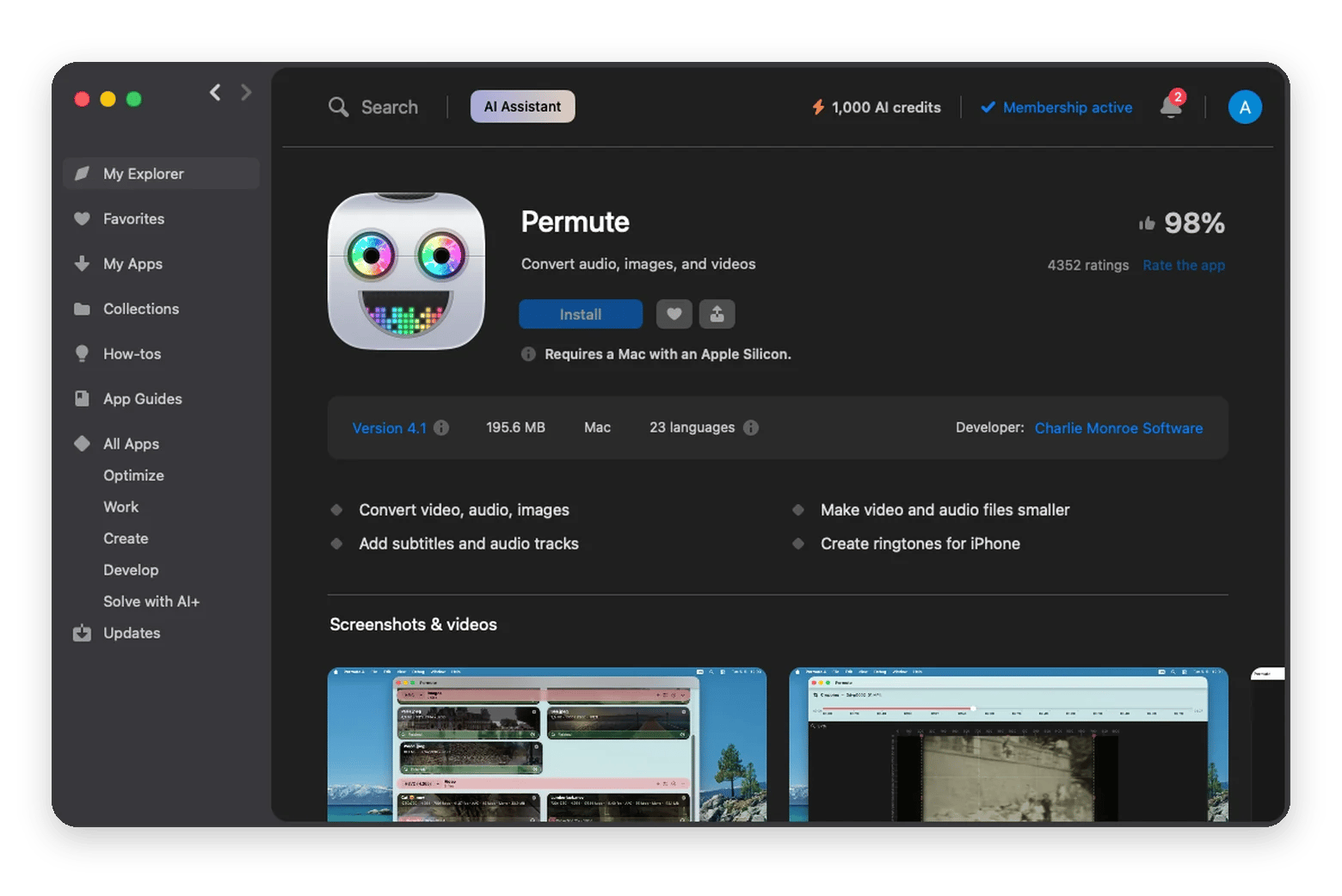
Permute is available to try on Setapp — The app is included in Setapp Membership with 300+ other apps. Start a free 7-day trial and cancel anytime.
Permute is an easy media converter for Mac that lets you handle all your media file conversions in one place. It covers a wide range of file formats and allows you to convert different files without having to switch between applications.
Before I found Permute, I’d often wonder which application to use for a particular file conversion, and often resort to online converters for a quick fix. While online converters got the job done, there were frequent issues with upload limits and wait times. Also, I wasn’t always sure about how safe it was to upload my personal files to an unknown website.
That’s when I found Permute. This all-in-one media converter for Mac does a fantastic job at file conversions, supporting a wide range of video, audio and image formats, to help you convert all your files in one place!
What is Permute for Mac?
Permute is an all-in-one media converter for Mac that lets you convert all your media files in one place. If you work with tools that frequently require conversions to different file formats, adding Permute to your workflow will save you significant energy and time.
Permute has a simple drag and drop interface that makes file conversions easy and hassle free. Apart from file conversion, Permute can also handle additional tasks such as media compression, audio extraction from files, and batch processing of files.
How to use the Permute app on Mac
To use Permute, you will have to download and install it via Setapp. Follow the pointers below to understand how to set up and use Permute.
Install via Setapp
Permute can be accessed through the Setapp Membership on Setapp, a subscription platform that offers 300+ macOS, iOS, and web apps for a flat monthly fee.
Here’s how to get the app up and running:
Complete the purchase: Follow the on-screen instructions on the Setapp website to complete your Setapp Membership.
Add your file: Drag and drop the video, audio or image file that needs conversion into the Permute window. You can also use the option to add a file from your Mac.
Choose the output format: Choose the desired format you’d like to convert the file into.
Start the conversion: Click the Convert button to start the conversion
Find the converted file: Once the conversion is complete, find your converted file and check whether it opens as expected.
Batch conversion of files
Permute lets you convert several files in one go, without having to repeat the same steps individually for each file. Follow the steps below for batch conversion.
Add your files: Drag and drop all the files that require conversion. You can also use the option to browse and add files manually.
Choose output format: Choose the format you’d like the files to be converted to.
Start batch conversion: Click Convert to start the conversion
Find converted files: Once the conversion is complete, find your converted files. Check whether they open as expected.
Adjust output quality settings
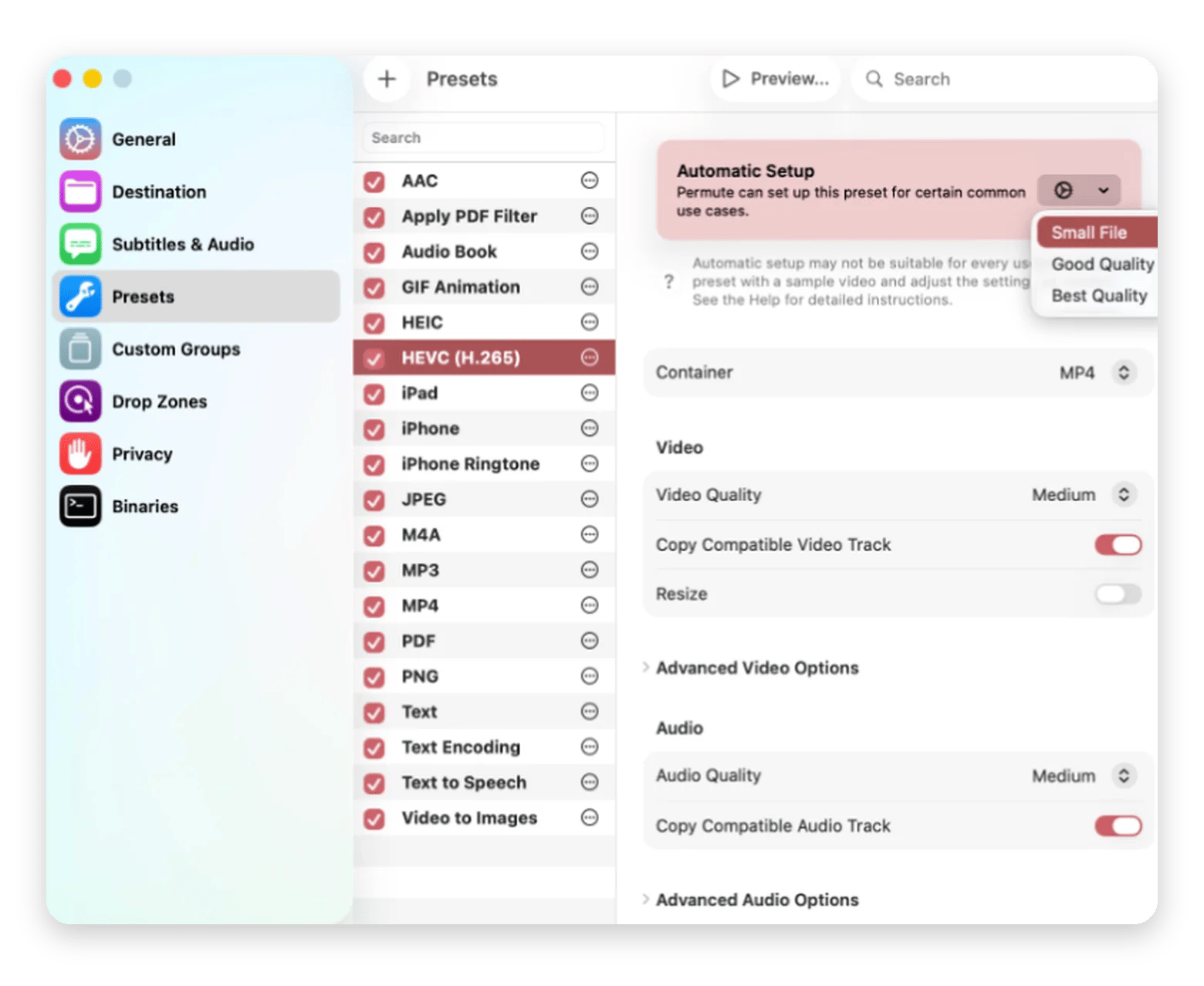
With Permute, you can also control the output quality while converting your files. You may encounter options to adjust the resolution, video quality, audio settings, and file size. The availability of these quality settings may depend on the file type and the selected output format.
What can you convert with Permute?
Permute is built to handle file conversions across a wide range of video, audio and image formats. Let’s explore this in more detail.
Video formats (MP4, MOV, AVI, MKV…)
If you want to make a video easier to share or prepare it for another device/tool, Permute can help convert your video files on Mac. The app supports common video formats like MP4, MOV, AVI and MKV, and can make video conversions a breeze.
Audio formats (MP3, AAC, FLAC, M4A…)
If you work with music files, recordings or audio content, file conversions may be an essential part of your job. Permute supports several audio formats such as MP3, AAC, FLAC, and M4A, adding speed and ease to your workflow.
Image formats (if supported)
Permute also supports commonly used image formats like HEIC, JPEG, PNG, WebP, and AVIF. So, if you’d like to convert an image for easier sharing, or to upload it to another application, Permute can help you do it in a jiffy. Permute also offers options to resize images as part of your workflow.
Permute + Downie integration
If you want to automate file conversions during downloads, the Permute + Downie integration might be something you might want to explore.
Downie is a Mac app that lets you download videos from supported websites. While some websites have a straightforward download link to download videos, many others don’t. This is where apps like Downie can help you download supported videos. You can also learn how to effectively download videos on Mac in this guide.
If you already use Downie and want to automate file conversions for downloaded videos, you can integrate Permute with your Downie app.
To integrate Permute into your Downie workflow, follow these steps:
Open Downie.
Go to Preferences > Post-processing
Select Permute as the application to process downloaded files
Choose the appropriate conversion preset if the option is available
Save your selections
Once it is configured, Downie can automatically pass on the completed downloads to Permute for conversion.
Use cases for Permute
Some common use cases for Permute include converting video for iPhone/iPad, extracting audio from video, and preparing files for YouTube upload. Let’s see how Permute helps across these use cases.
Converting video for iPhone/iPad
One of the most common use cases for Permute is when a video file does not play properly on an iPhone/iPad. This is one of the reasons I think it’s one of the best video converters for Mac - it lets you easily convert any supported file to a format like MP4, so that it can play flawlessly across all your Apple devices.
Extracting audio from video
If you need to convert MP4 to MP3 on Mac, Permute does this in seconds. If the output audio required is an everyday audio file (a speech, interview or a music track), you can select a compressed format like MP3 or AAC as the output format. If you’re looking for lossless conversion, select a format like FLAC.
Preparing files for YouTube upload
Before uploading a video to YouTube, you often need to convert it into a suitable format, or adjust its size or quality settings. Permute handles this easily making it a great choice for YouTubers and content creators.
Is Permute the best file converter for Mac?
Yes, Permute is among the best file converters available for Mac. It stands out because of its ease of use, and ability to support a wide range of file conversion formats. Permute lets you convert all your media files in one application without having to switch between applications. It offers some added benefits as well apart from file conversion. Permute can help you compress files, merge videos, add subtitles, and much more.
Permute is a paid file manager for Mac. The app is included in the Setapp Membership with 300+ other apps and offers a 7-day free trial. Setapp Membership starts at $14.99 USD/month + tax.
What formats does Permute support?
Permute supports a wide range of media formats. This includes most of the commonly used formats like MP4, AVI, WMV, HEVC, ProRes, WebM, MP3, AAC, FLAC, HEIC, AVIF, and WebP. You can also adjust the output quality with its conversion settings and presets.
Can Permute convert video to audio-only?
Yes, you can convert video to audio-only with Permute. You just need to upload the video and select the output format and Permute will handle the conversion. Remember to select compressed formats like MP3 or AAC for regular audio output, and FLAC for lossless conversion.
Is Permute better than HandBrake?
Both apps are great; the choice depends on your needs. HandBrake is free and open-source and focuses mainly on video conversions. It lets you fine-tune a lot of settings, like video size, quality and compression-related settings before conversion. Permute is good for basic, everyday conversion across a large range of audio, image and video formats. But if your focus is video conversion and you need to get into the nitty-gritties of video conversion, HandBrake may be better.
Does Permute work on Apple Silicon Macs?
Yes, Permute works on Apple Silicon Macs. Each Permute version has a compatible OS and hardware requirement, so it’s a good idea to check your Mac processor and macOS version before installing a specific Permute version. Permute 4 requires macOS 26 and above, on an Apple Silicon Mac. If you’re using an older Mac or an earlier version of macOS, you may want to check an earlier Permute version.
Get a universal media converter
Permute quickly converts files in a required format.






 Best solution
 Best solution