Set up in minutes: To use Spark Mail on Mac, install it from the Setapp desktop app and connect Gmail, Outlook, iCloud, or other accounts in one inbox.
More than Apple Mail: Spark Mail manages your attention, not just your messages. Apple Mail has no shared drafts or email templates, and Spark Plus on Setapp includes the Spark +AI writing tools and the AI Assistant.
Smart Inbox cuts the noise: Spark Mail groups emails into personal, newsletters, and notifications, so priority messages come first.
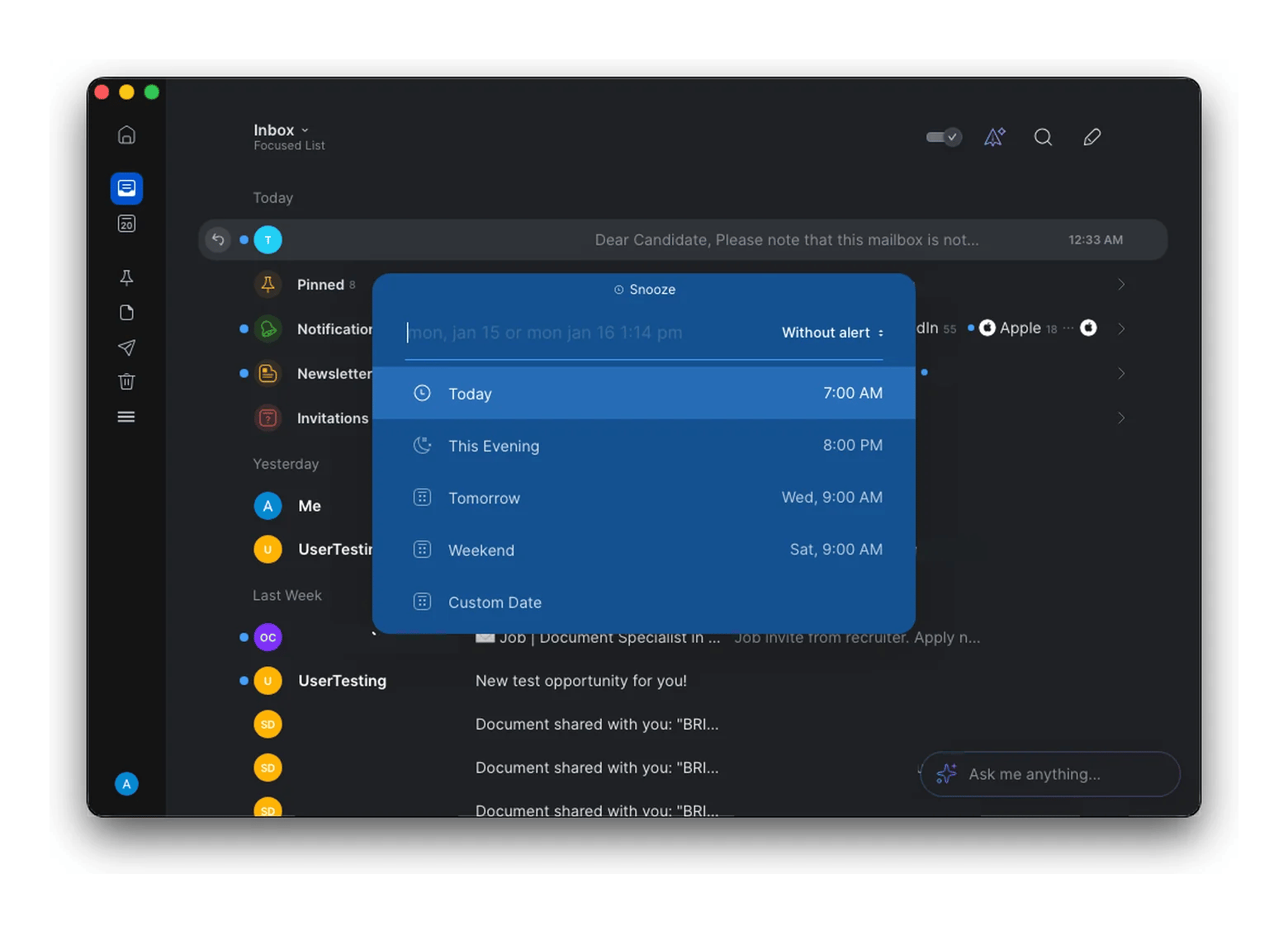
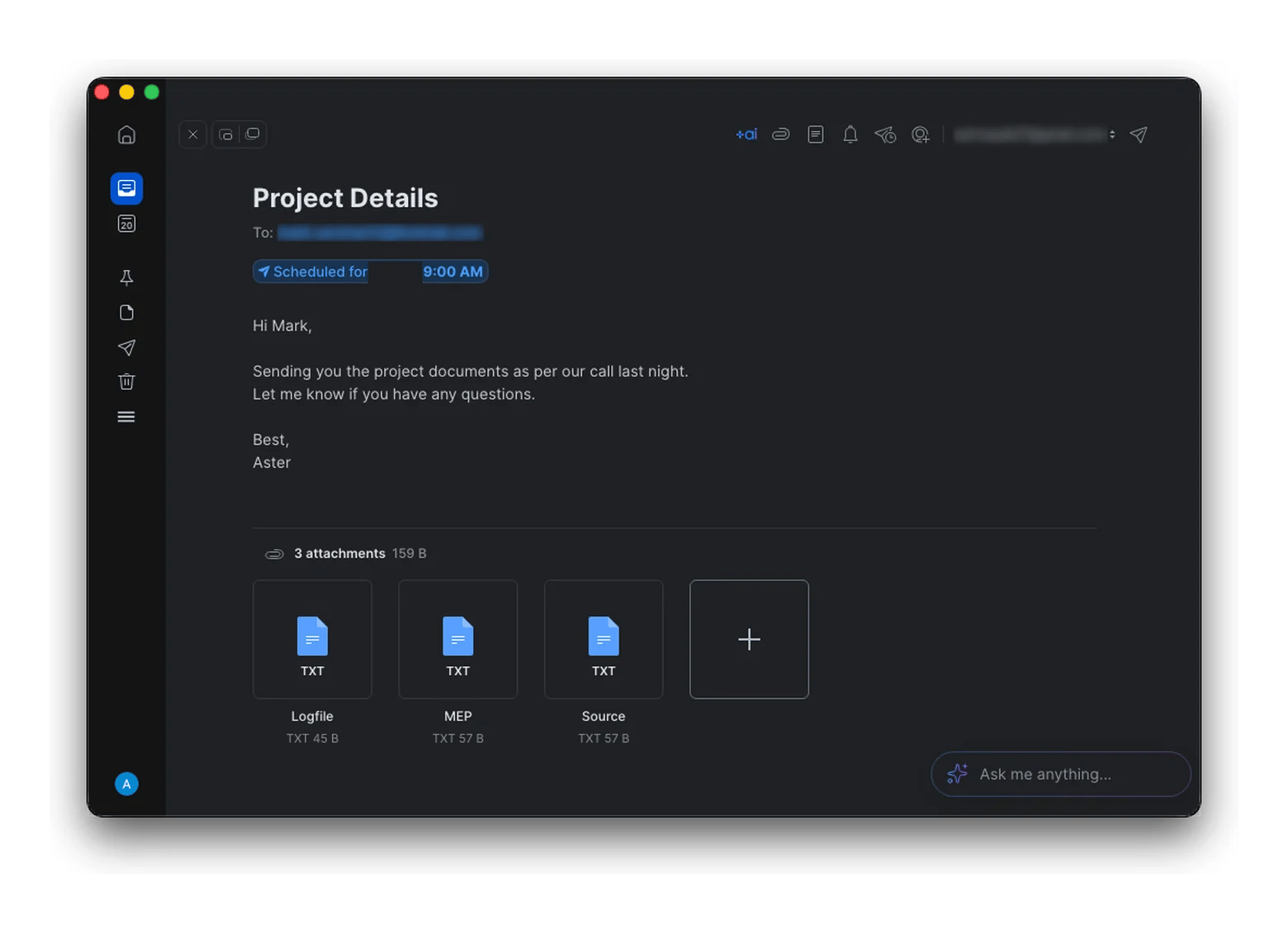
Snooze and Send Later: Bring emails back when you’re ready, and schedule messages to arrive during working hours.
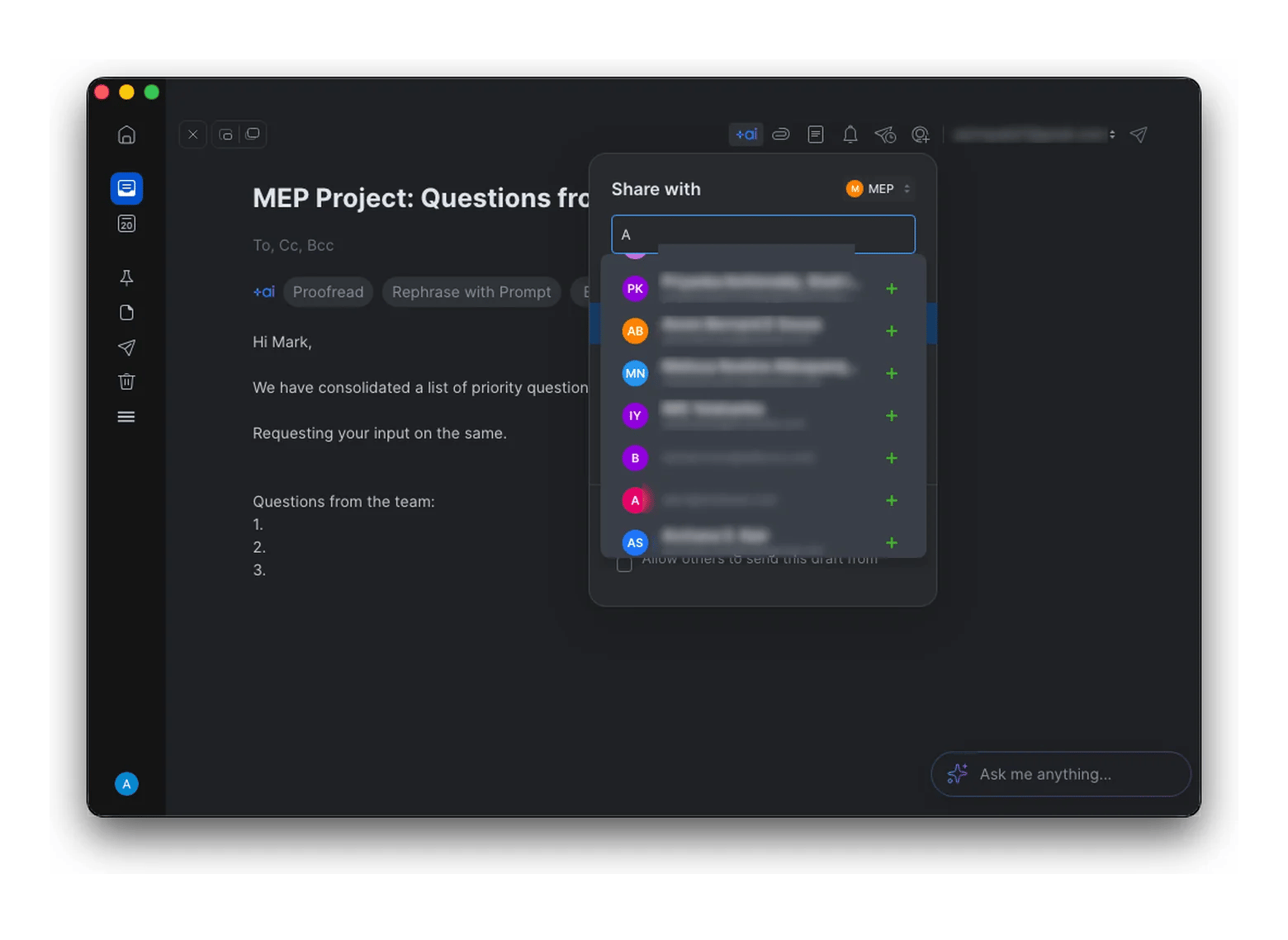
Collaborate and try it free: Share drafts with your team in real time. Spark Plus is included in Setapp Membership with 300+ macOS, iOS, and web apps. Try it free for 7 days.
Spark Mail from Setapp is a Mac email client by Readdle that sorts your inbox into personal mail, newsletters, and notifications. It also lets you snooze emails, schedule them with Send Later, and share drafts with your team. Spark Plus is included in Setapp Membership.
Email overload is a real problem for most of us. In this guide, I’ll show you how Spark Mail can help you regain control, along with the best ways to use it.
What is Spark Mail?
Spark Mail is an email client by Readdle that sorts, prioritizes, and organizes your inbox. It runs on Mac, iPhone, iPad, Windows, and Android, and it comes in Free, Plus, and Pro plans. Setapp includes Spark Plus.
Spark Mail does much more than a basic email inbox. It helps you prioritize and focus on the emails that need your attention most. Spark’s Smart Inbox separates important messages from the less important ones, and it also has email scheduling, reminders, and follow-up tools to help you stay on track.
Developer: Readdle
Platforms: Mac, iPhone, iPad, Windows, and Android (the Setapp version covers Mac and iOS)
Requires: macOS 12 or later
Setapp version: Spark Plus
Cost: Included with Setapp Membership ($14.99 USD/mo + tax); Spark also has a free plan
How to set up Spark Mail on Mac
Setting up Spark Mail on Mac is pretty straightforward. Follow the steps below.
Install Spark Mail via Setapp
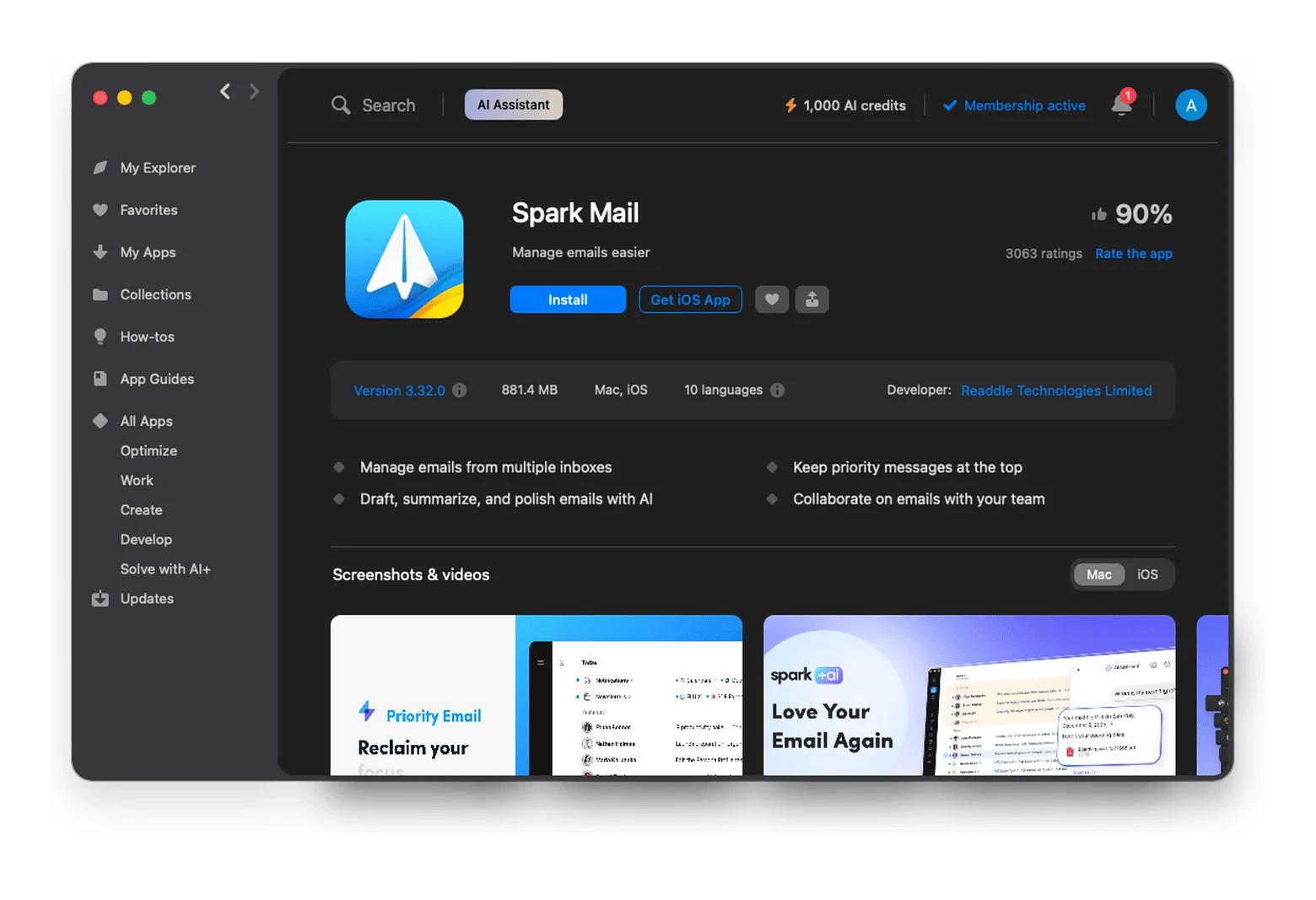
Spark Mail is included in Setapp Membership, a subscription that includes 300+ macOS, iOS, and web apps for a flat monthly fee.
Here’s how to get the app up and running:
Start your membership: Follow the on-screen instructions on the Setapp website.
Install Spark Mail: Open the Setapp desktop app and search for Spark Mail. Click Install.
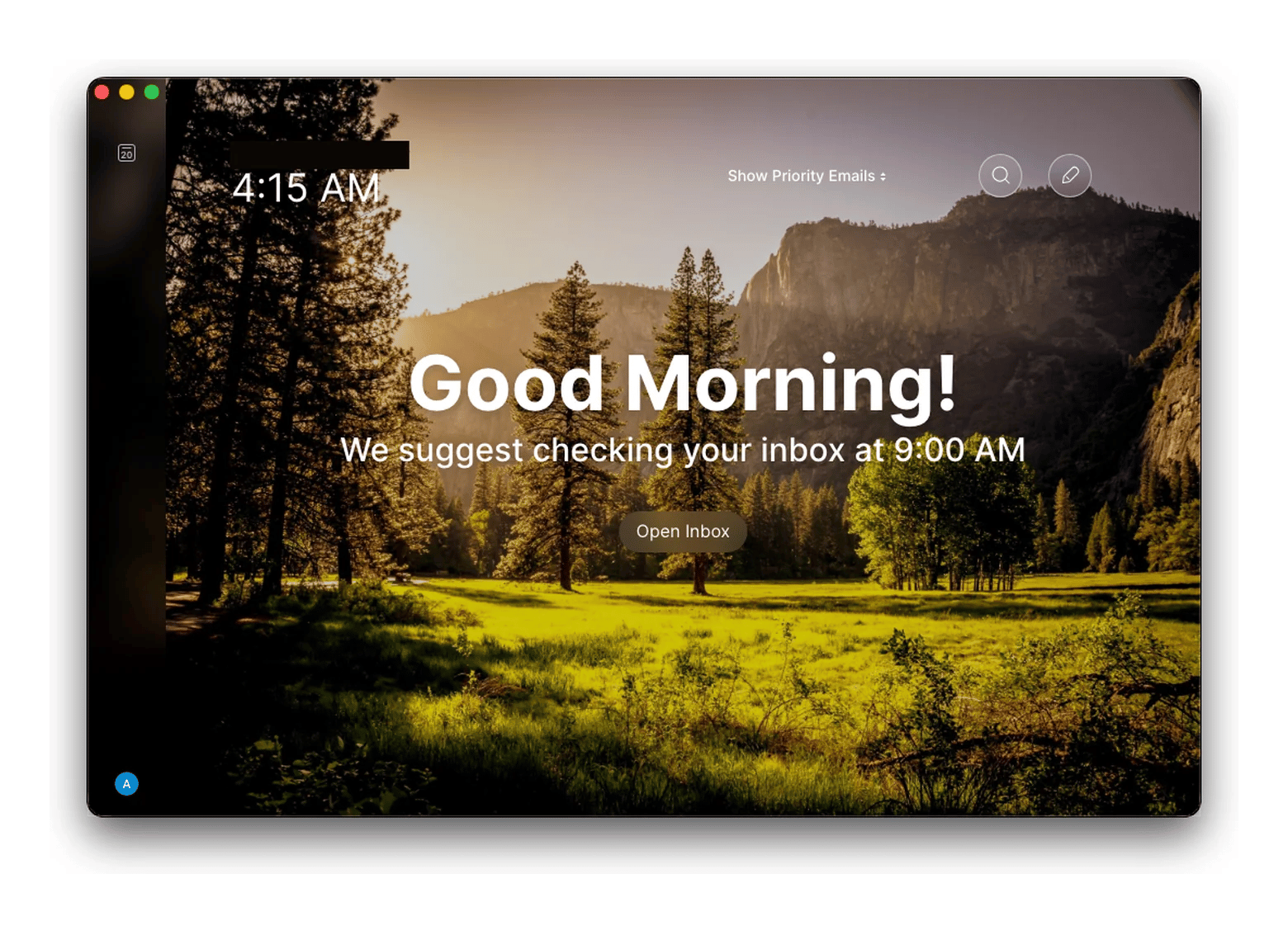
Launch Spark Mail: Once the installation is over, launch the app.
Once Spark Mail is installed, you can add it to your dock to make accessing it quicker.
Connect email accounts to Spark Mail
You can connect multiple email accounts to Spark Mail, including Gmail, iCloud, Yahoo, Exchange, and Outlook. Follow the instructions below:
Launch Spark Mail on your Mac.
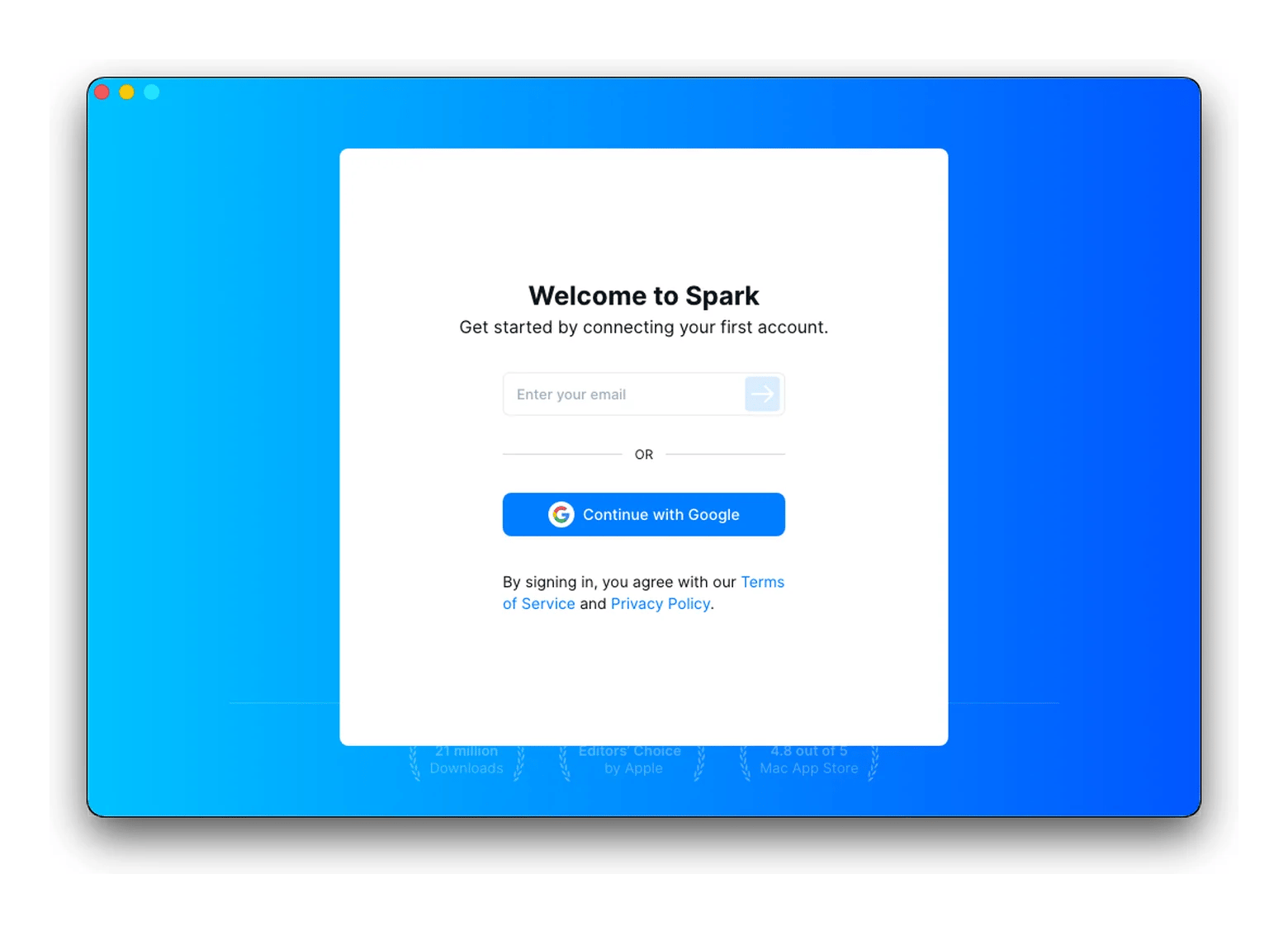
Type in the email address you want to connect to Spark Mail.
Follow the instructions to sign in to your account.
Review the permissions your email provider requests, then click Allow or Agree to let Spark Mail access your account.
Click Start Using Spark to open your inbox.
To connect more email accounts, go to Settings > Accounts > Add an account and repeat the above instructions.
First look at Spark Mail’s Smart Inbox
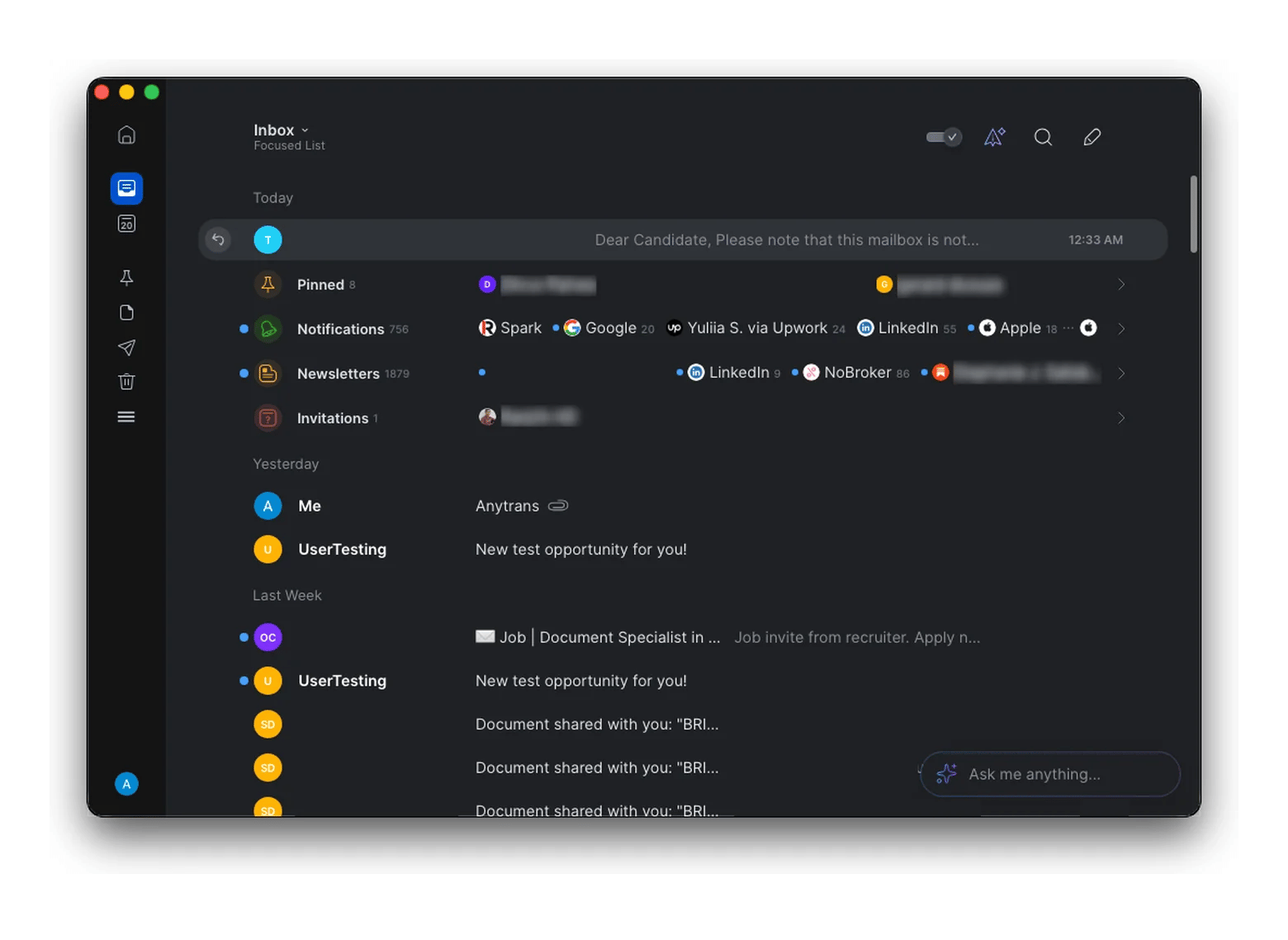
Spark Mail’s Smart Inbox sorts emails by priority, so you know which ones need your immediate attention and follow-up. It offers email categories such as personal, notifications, and newsletters, but you can customize them to match your preferences. You will see that incoming automated updates and newsletters are grouped under separate sections, so that they don’t clutter your inbox.
What are the key features of Spark Mail?
Spark Mail offers several features like Smart Inbox, snooze and reminders, email scheduling, email templates, smart email collaboration for teams, and AI assistance for your emails. The detailed description of each feature follows below.
Smart Inbox and automatic categorization in Spark Mail
Spark Mail’s Smart Inbox feature helps you decide which emails need your attention and which ones can wait. It sorts emails into categories like personal, newsletters, and notifications so you can quickly see your priority emails. You can customize these categories based on your preferences. You can also opt for a Classic Inbox style if you want to see all your emails in chronological order.
Snooze and reminders in Spark Mail
Spark Mail lets you snooze emails and set reminders to ensure no email goes unattended. If you see that an email needs future attention but can wait, you can snooze it for a specified time duration. Spark brings the email back to your inbox when the snooze period is over. You can also set reminders to help you follow up on important emails without worrying you’ll forget about them.
Send Later feature in Spark Mail
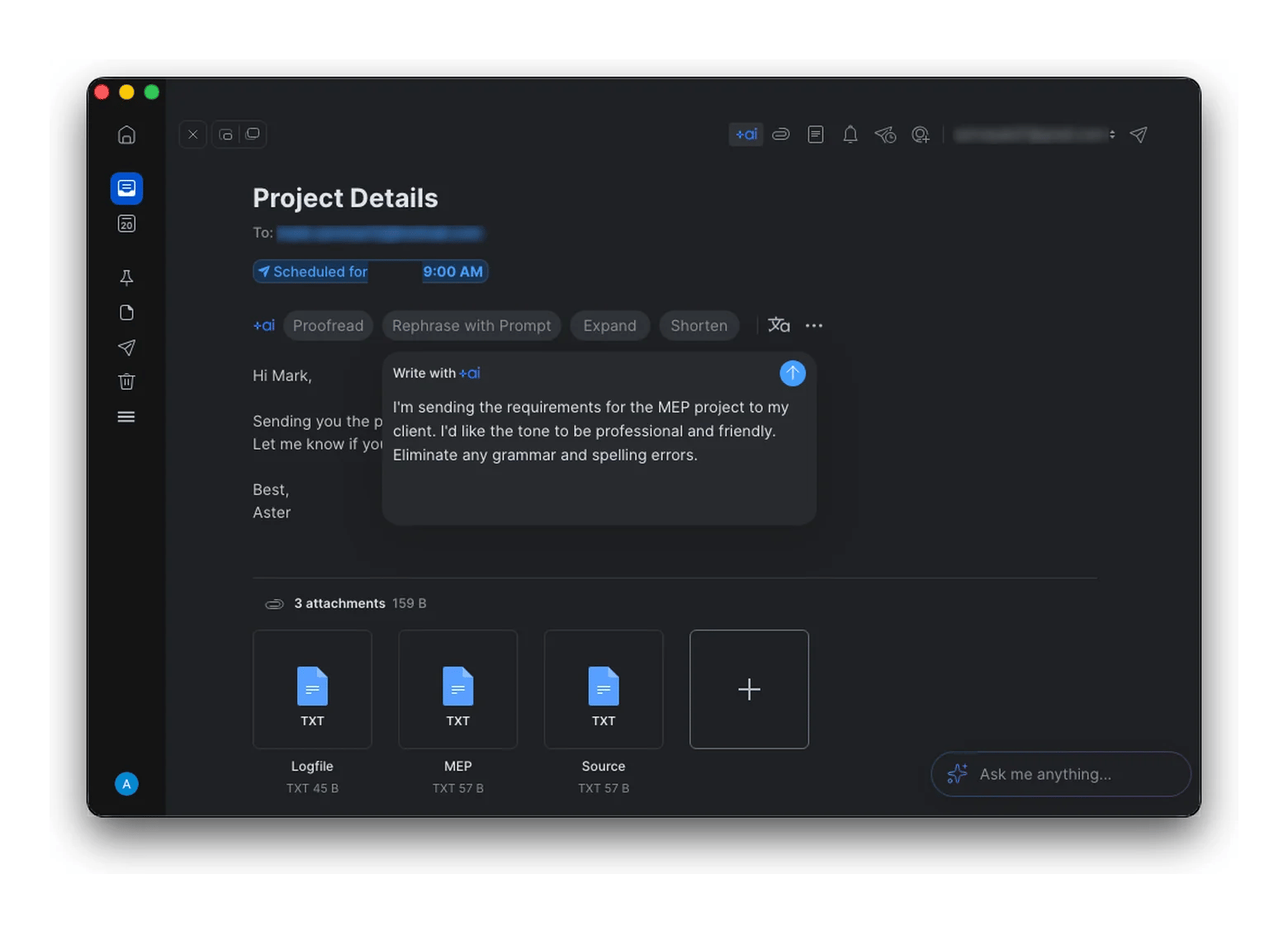
Send Later in Spark Mail lets you compose messages in advance and schedule them to be sent at a later date and time. This is great for preparing work emails in advance, replying to someone outside your time zone, or just ensuring that an email arrives during someone’s working hours.
Email templates and signatures in Spark Mail
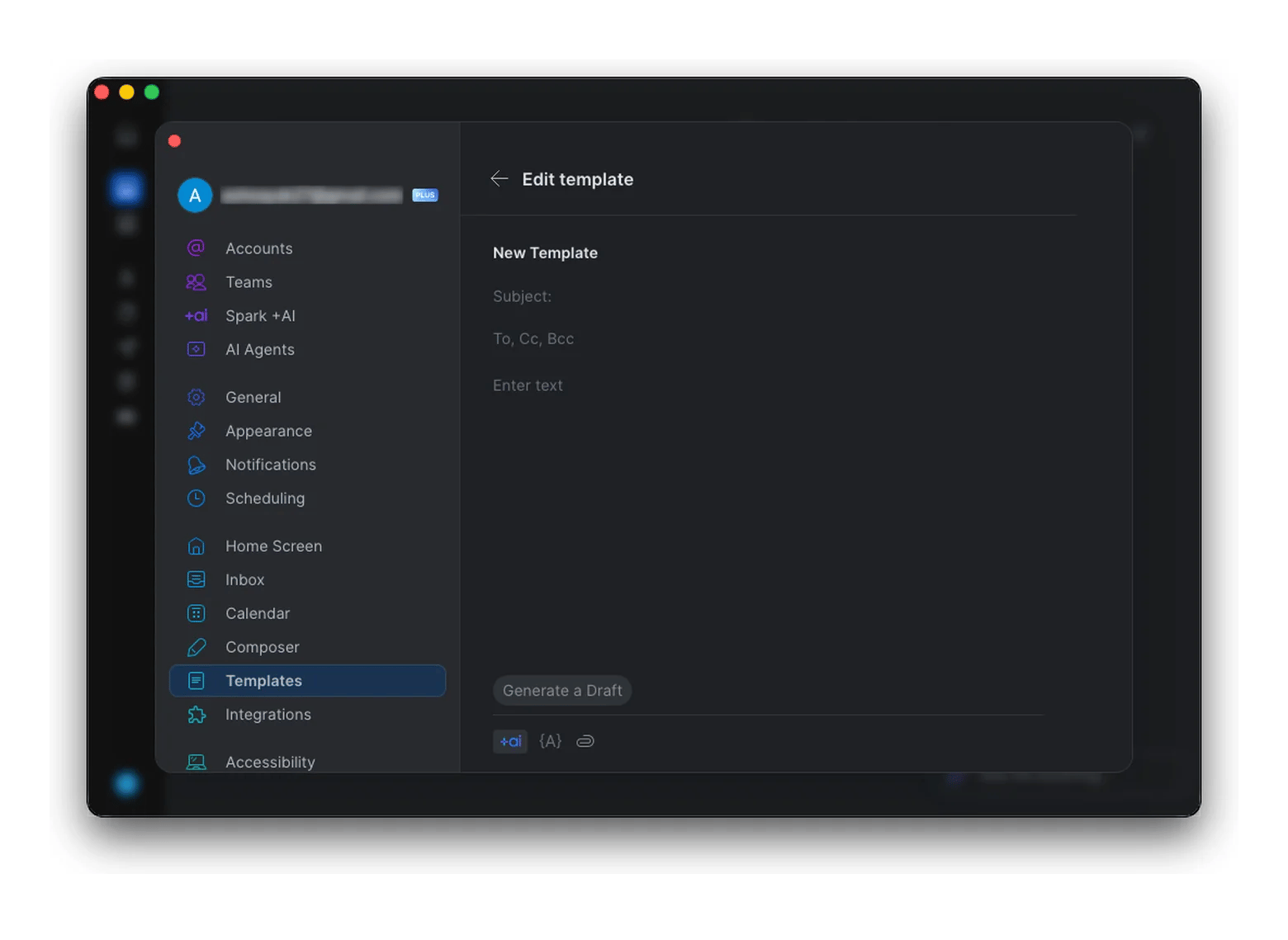
Spark Mail lets you set up your own email templates, which help you draft similar emails quickly instead of starting from scratch each time. Templates are part of Spark Plus, the version you get with Setapp.
You can also set up signatures to add to all your emails automatically. A signature is a block of text that includes your name, contact info, designation, and other important details. You can opt for signatures to make your emails look consistent and professional.
Can you collaborate on emails in Spark Mail?
Spark Mail lets you share an email draft with teammates and edit it together in real time before sending. Team members can work on one shared draft in real time and post comments, based on their access level and permissions. Teams can use it to review client emails and agree on replies. Shared inboxes, read statuses, and unlimited assignments need Spark Pro, which Setapp doesn’t include.
How does Spark Mail’s AI help you write emails?
Spark +AI is Spark Mail’s set of AI writing tools. It drafts replies, rephrases messages, adjusts tone, proofreads, and summarizes long threads. Spark’s separate AI Assistant finds and summarizes emails when you ask in natural language. Both are included in Spark Plus, and AI features share a monthly quota.
On Setapp, you get the Spark Plus version of Spark Mail, which includes Spark +AI and the AI Assistant, so you can draft, rewrite, and polish emails without paying for a separate plan.
What are the best Spark Mail tips for productivity?
Spark Mail is designed to improve your workflow and save time. Make the most of it with these simple tips:
Review in batches: Review your emails in groups instead of attending to each one the moment they land. This can help you spend less time on email-related tasks and let you focus on more important activities. You can choose to snooze, set reminders, or reply immediately, based on the priority and need.
Learn or set up your own keyboard shortcuts: If you notice yourself performing the same actions, set up shortcuts on Spark Mail for these actions. Keyboard shortcuts build muscle memory and save you time in the long run.
Group emails by sender: Here’s a tip for email categorization. If you notice that you receive several emails from a particular person, it’s a good idea to categorize emails based on the sender. This helps keep all the related emails in one place, making them easier to find and review.
Use quick replies: For emails that need just a brief acknowledgment, Spark Mail’s Quick Replies can help you save time and get the job done in a flash. This works when emails need generic responses like “Sounds good” or “Thanks!”.
Undo accidental actions: Spark Mail offers an Undo option to quickly reverse accidental actions such as send, delete, archive, move, or read. Use Undo to quickly reverse the task at hand instead of digging through folders to rectify your mistake.
Both Spark Mail and Apple Mail are great email clients, but Spark Mail offers an extra layer of control to help you manage a busy inbox. Here’s a quick side-by-side comparison of the two:
Smart Inbox separates priority emails from notifications and newsletters
Helps organize emails into folders and categories
Multiple accounts
Gmail, Outlook, Exchange, Yahoo, iCloud, and more
Gmail, Outlook, Exchange, Yahoo, iCloud, and more
Send Later
Supports email scheduling
Supports email scheduling
AI assistance
Drafting, rewriting, and summarizing (Spark Plus, available with Setapp Membership)
Apple Intelligence Writing Tools on supported devices
Team collaboration
Shared drafts and private email discussions (Spark Plus, available with Setapp Membership)
Not available
Email templates
Create and reuse email templates and shared templates for teams
Not built in
Pricing
Paid, available on Setapp from $14.99 USD/mo with a 7-day free trial
Free on Apple Devices
Best for
Busy inboxes and team email
Simple, built-in email
If you juggle several accounts or work on emails with a team, Spark Mail gives you more control. If you only need a simple inbox, Apple Mail is still a solid free option.
Setapp includes Spark Plus. Spark Pro features (shared inboxes, read statuses, unlimited AI Meeting Notes) are not included.
Is Spark Mail the best email client on Mac?
While Spark Mail and Apple Mail both bring all your email accounts together, Spark Mail has the edge in prioritizing, sorting, and organizing your emails. If you want a smart manager for your busy inbox, I highly recommend Spark Mail. It helps you cut through the noise and see what’s happening in your inbox each day.
Spark Mail has a free plan for Mac with Smart Inbox, smart notifications, snooze, and scheduled send. Spark Plus adds AI features, custom templates, and essential team collaboration for $10 USD a month or $99 a year direct. Setapp Membership includes Spark Plus and 300+ other apps from $14.99 USD/mo + tax, with a 7-day free trial.
Is Spark Mail safe?
Spark Mail encrypts your data, runs on Google Cloud infrastructure, and says it is GDPR compliant. Like any email client, it needs access to your account, so review the permissions and Spark’s privacy policy before connecting. Apps on Setapp are also notarized by Apple.
Does Spark Mail work with Gmail?
Yes. Spark Mail works with Gmail, Outlook, Exchange, Yahoo, iCloud, and other providers. Connecting Gmail doesn’t change your existing messages; Spark only gives you ways to manage them. Follow the steps in this guide to connect your account.
What's the difference between Spark Mail and Apple Mail?
Apple Mail is Apple’s free built-in email client with basic organization. Spark Mail adds a Smart Inbox, snooze, templates, shared drafts, and AI writing tools. Spark has free and paid plans, and the paid features you get on Setapp come from Spark Plus.
Is Spark Mail on Setapp the full version?
Setapp includes Spark Plus, not Spark Pro. Plus covers Spark +AI, the AI Assistant, 40 AI Meeting Notes a month, custom templates, and essential team collaboration. Pro adds shared inboxes, read statuses, unlimited AI Meeting Notes, and a HubSpot integration. It costs $20 USD a month or $199 a year and must be bought from Spark.
Does Spark Mail work on iPhone and Windows?
Spark Mail runs on Mac, iPhone, iPad, Windows, Android, and Apple Watch. The Setapp version covers Mac and iOS, and your accounts sync across your devices.
Can Spark Mail summarize emails?
Yes. Spark +AI summarizes long threads, drafts replies, rephrases messages, and adjusts tone, and the AI Assistant finds and summarizes emails when you ask in natural language. Both are in Spark Plus, which Setapp includes. AI features share a monthly quota.






 Best solution
 Best solution