TablePlus is a native database manager for Mac that lets you connect to, query, and edit PostgreSQL, MySQL, SQLite, and other databases from one app. It includes an SQL editor, inline data editing, safe mode, and query history.
Does it sound like something that would match your daily workflow? Let’s review how to set up the TablePlus app and use its main features.
What is TablePlus?
TablePlus is a native database manager for Mac that puts all your database work in one desktop app.
Your development workflow may involve several databases, each with its own connection settings, tools, and interface. Instead of juggling separate clients, you can use one database manager on your Mac.
Manage connections to different database systems from one interface.
Running queries and checking results
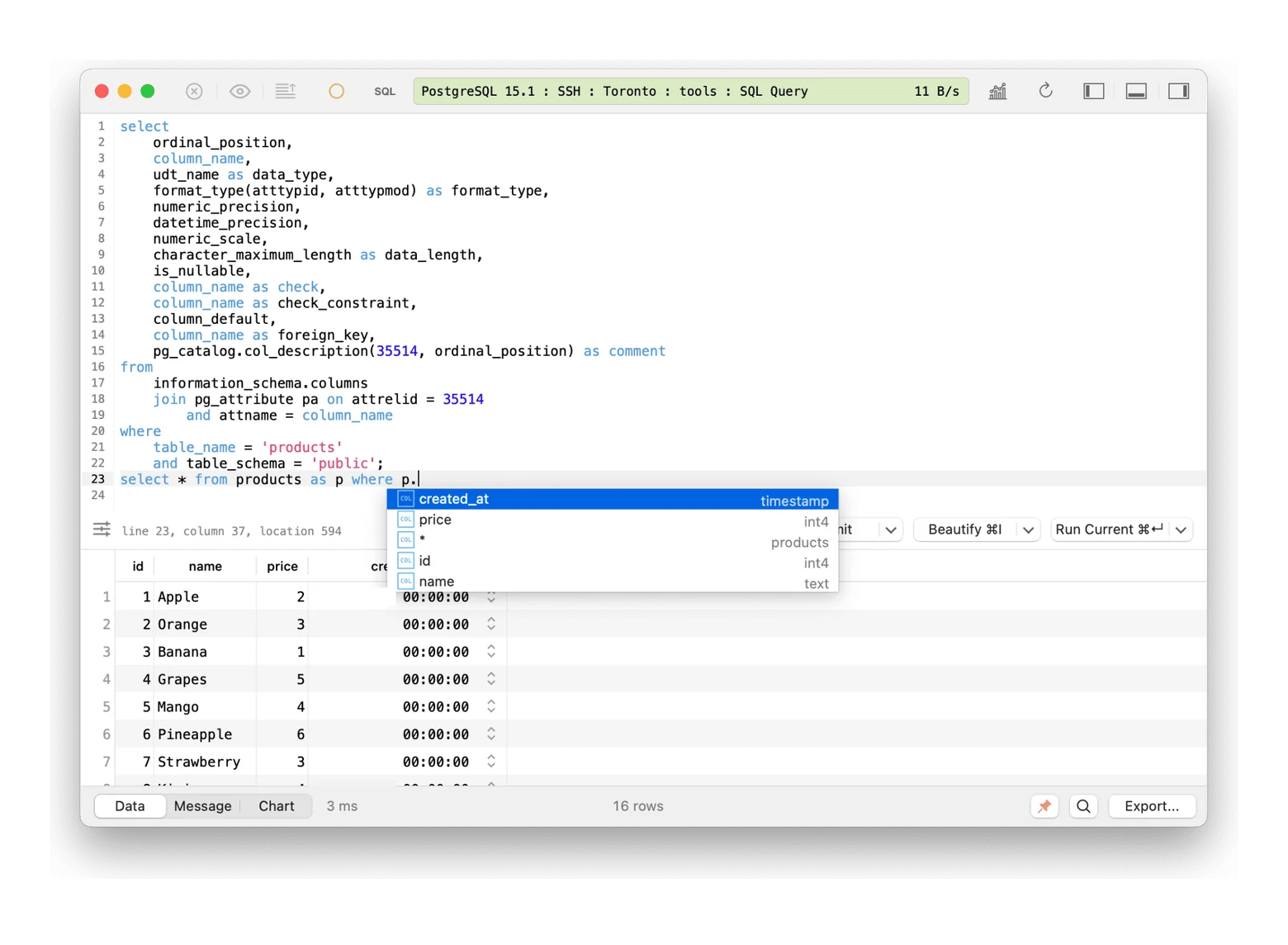
Write SQL queries and view results in the built-in query editor.
Inspecting and updating records
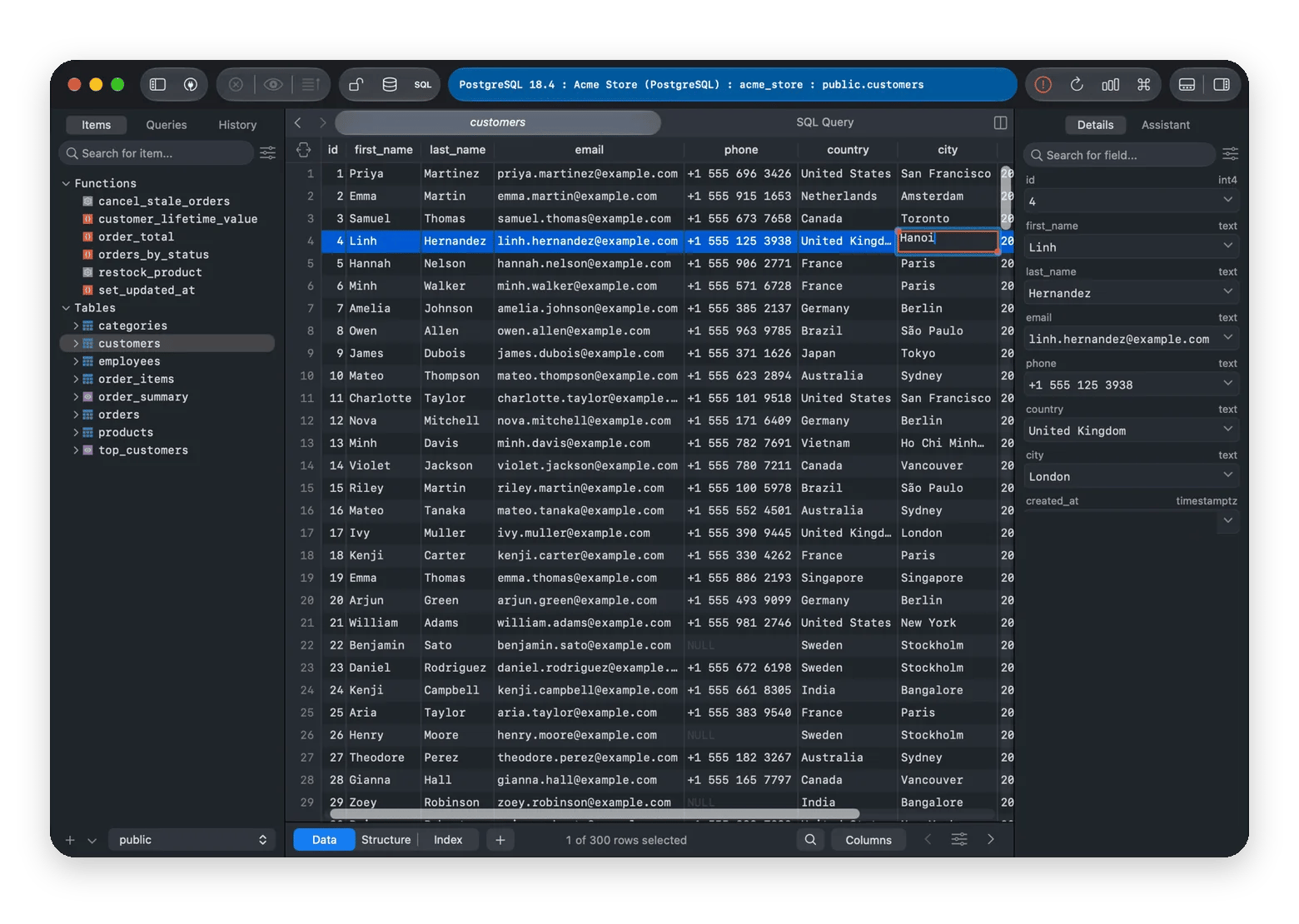
Browse table data and edit records directly in the interface.
Working with multiple projects
Keep database connections organized and open the ones you need.
Navigating SQL syntax
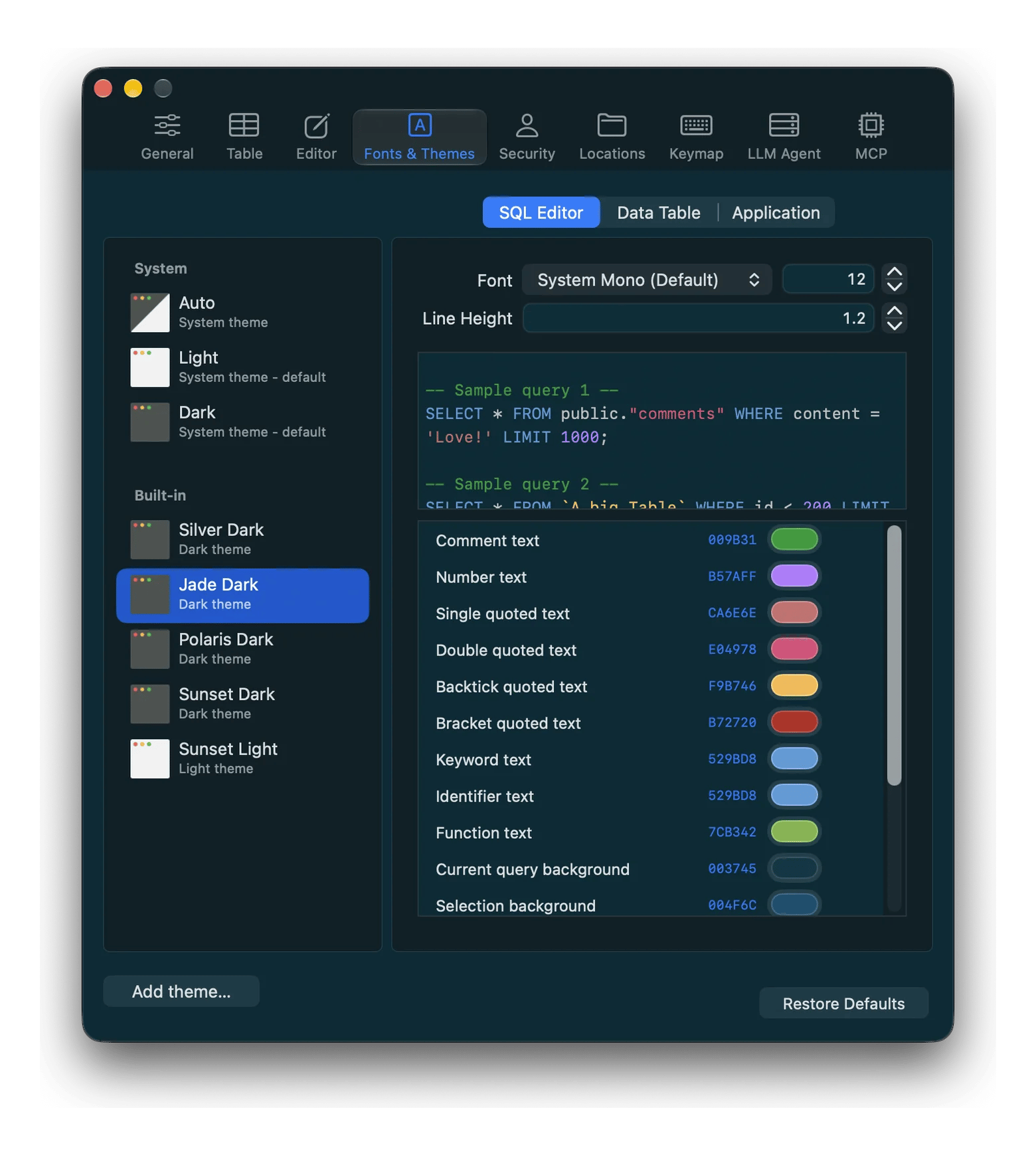
Use syntax highlighting to make queries easier to read and edit.
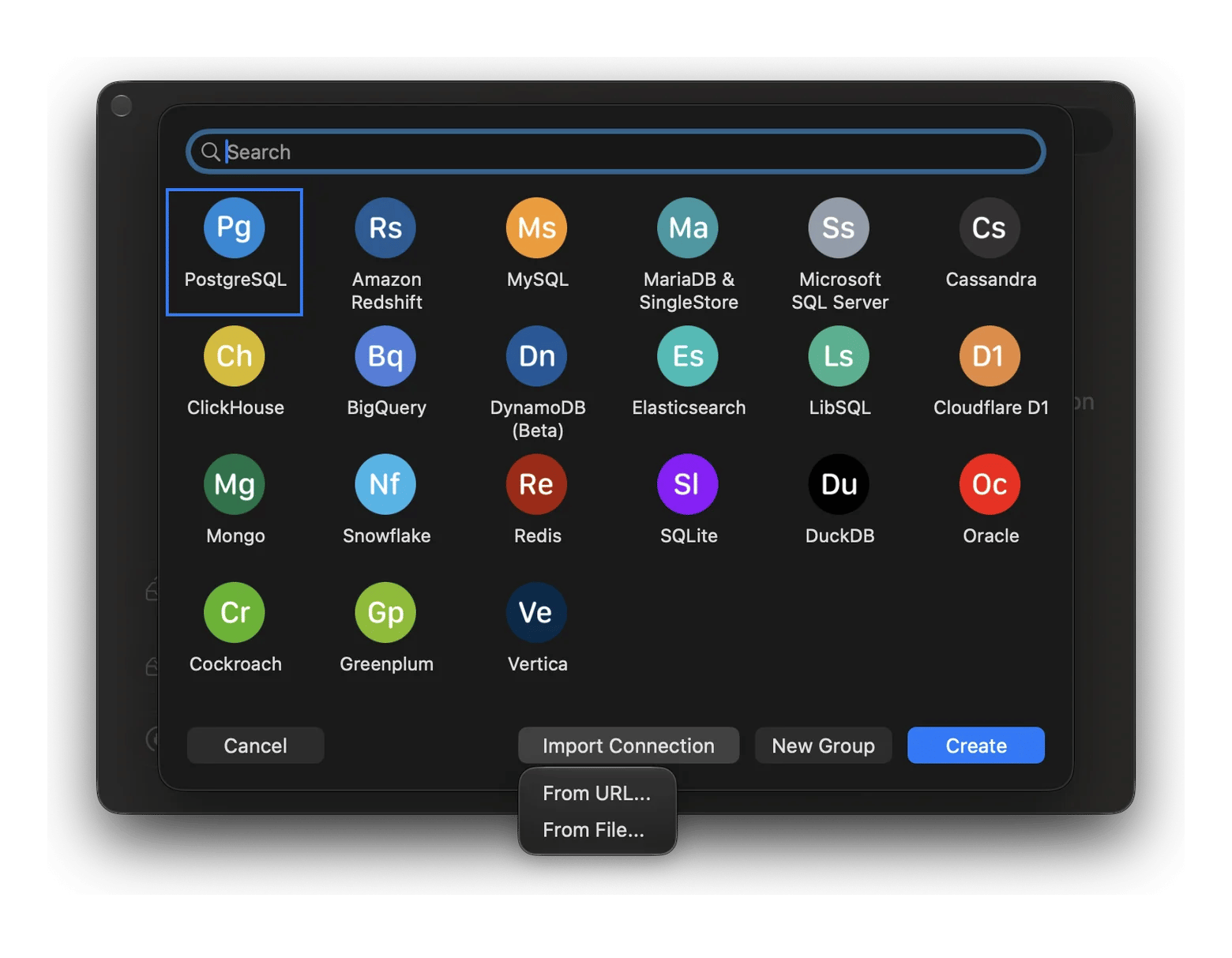
You can use TablePlus for Mac to work with a range of databases, including:
PostgreSQL
MySQL
MariaDB
SQLite
Redis
MongoDB
CockroachDB
Most popular databases are covered, and plugins can add more drivers.
How to set up TablePlus on Mac
TablePlus is one of 300+ apps included with a Setapp Membership. Setapp makes it easy to get started. You automatically get the app version that works with your macOS, and Setapp handles updates and licensing.
Before we move to the TablePlus review, here’s the quick installation guide.
Install via Setapp
If you already have Setapp installed on your Mac, the process takes just a few clicks.
Open Setapp and search for TablePlus.
Open the app’s page and click Install.
Once the installation finishes, launch TablePlus.
TablePlus on Setapp requires macOS 12.0 or later.
If you’re new to Setapp, download the desktop app and sign in first. Don’t miss the 7-day free trial and test TablePlus in your work before committing to a subscription.
Create your first connection
Follow these steps:
Open TablePlus
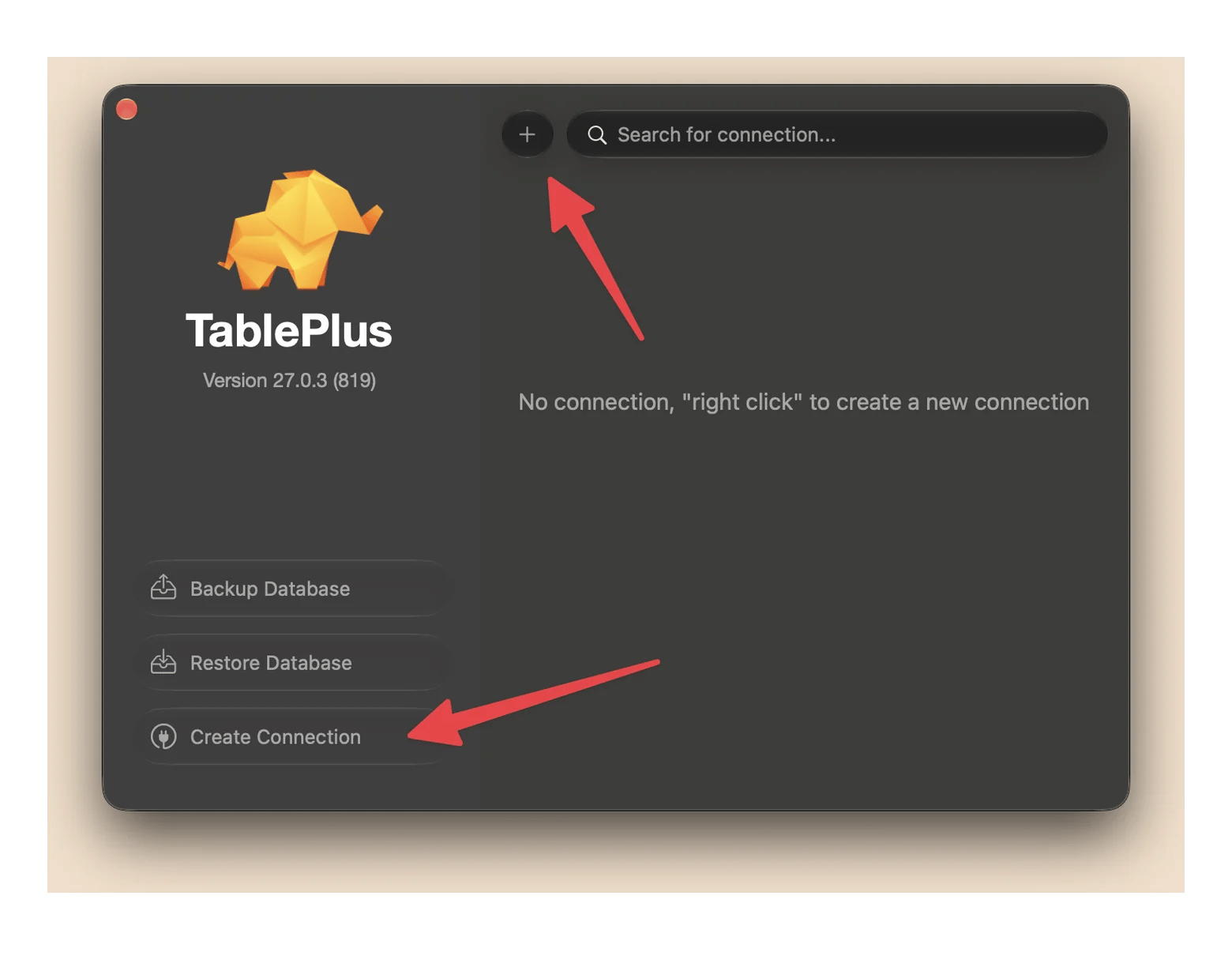
Click Create Connection or the + button.
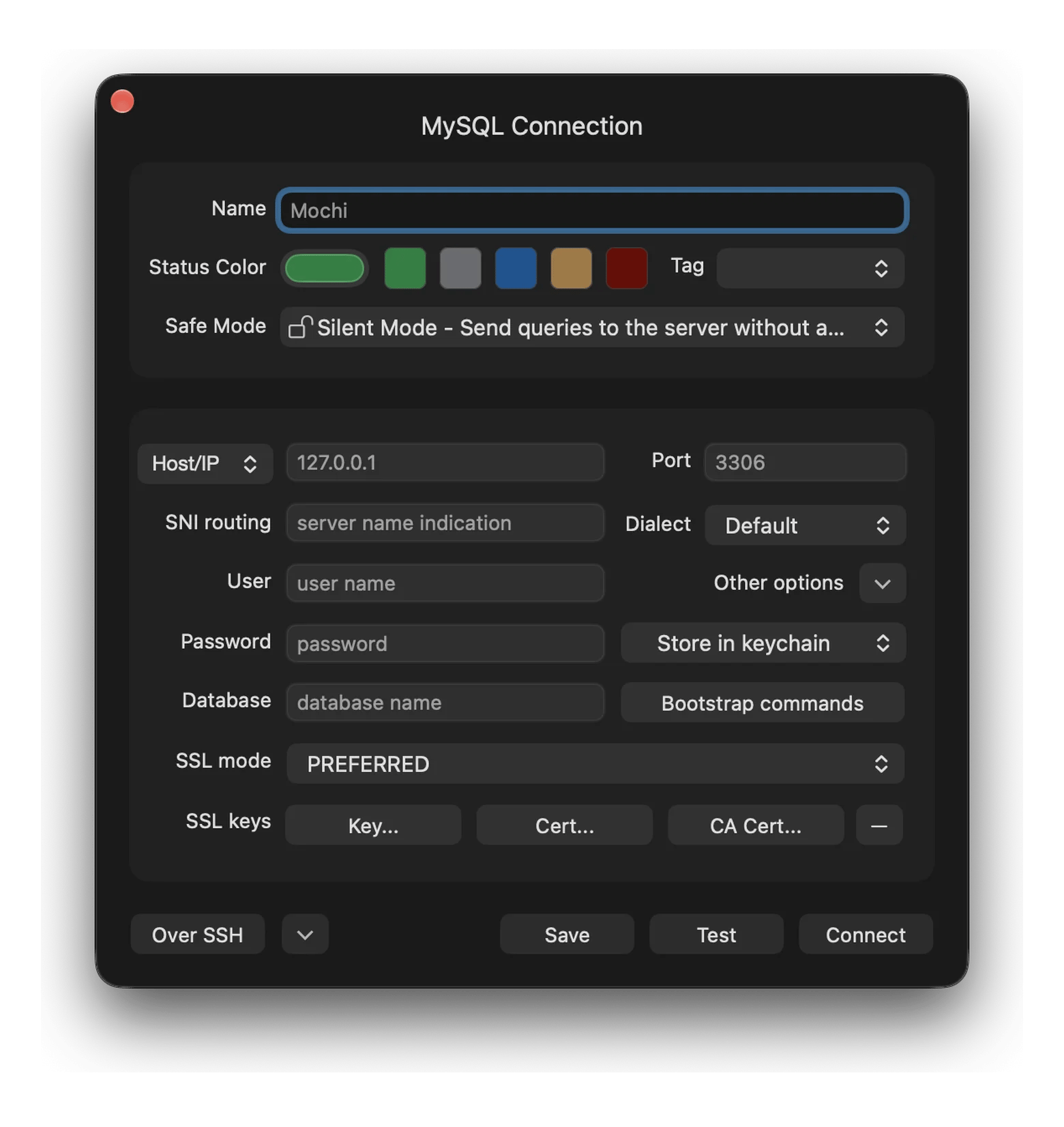
Enter the connection details provided by your database administrator or hosting service.
Click Test to check whether TablePlus can connect. If the test succeeds, save the connection and open it.
TablePlus Mac app also lets you import a connection URL instead of entering each field manually. Use the URL supplied by your project or database provider, and avoid sharing connection strings that contain credentials.
If you connect to databases over SSH, you don’t want to worry about where your credentials are stored. TablePlus keeps database and SSH passwords in your Mac’s Keychain instead of syncing connection credentials to the cloud.
Organize connections with groups
Are you working on several projects and afraid that you might be lost in a long list of databases? With TablePlus, you can group saved connections. For example, you can create separate groups for each project or keep development, staging, and production connections apart.
To create a group:
Open the TablePlus app welcome screen.
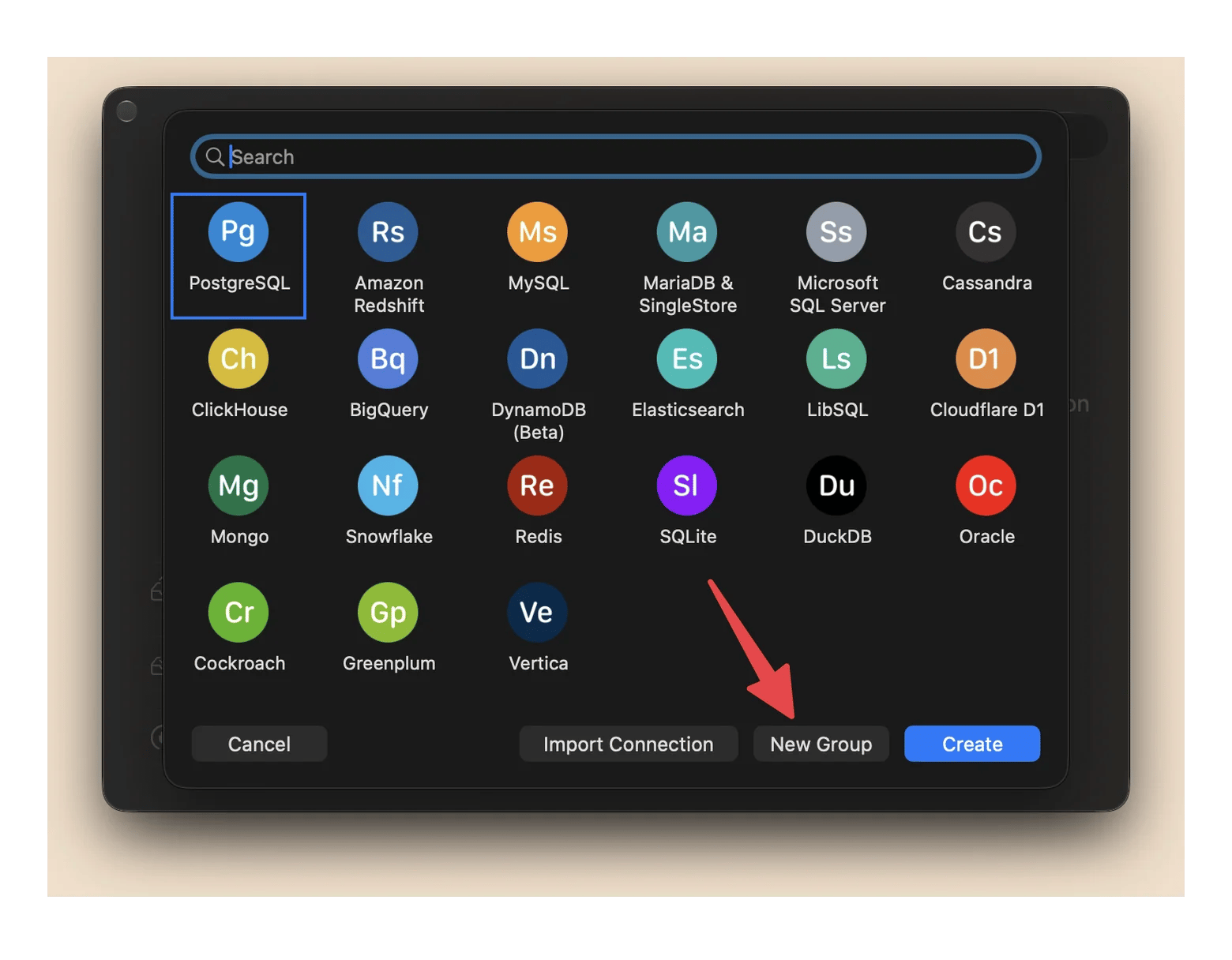
Click Create Connection or the + button, then choose New Group.
Enter a group name, upload your icon or leave the default one, and save the group.
Drag existing connections into the group.
There are even more options to organize your databases:
Rename or delete a group by right-clicking it and choosing the relevant option.
Assign colors to individual connections to distinguish environments at a glance.
For example, use different colors for staging and production to make the active environment easier to spot in the list.
Key features of the TablePlus app
With TablePlus database manager, Mac users can simplify their coding routine. Let’s explore the app's most useful features.
How to edit data inline in TablePlus
Edit database records directly in a table view, much like working with a spreadsheet. To do so, double-click a cell to change its value, then review and commit your changes when you’re ready. You don’t need to write an UPDATE statement for every small correction.
You can also preview the SQL statements TablePlus will execute before committing changes. If you change your mind, discard the pending edits instead.
How to run and reuse SQL queries in TablePlus
As you write a query, TablePlus for Mac can flag syntax issues and give completion suggestions.
Need a query again? Find it in the History tab, or save it as a favorite so it’s easy to reuse. No need to rewrite the same SQL each time.
Multiple tabs and split view
TablePlus reviews praise the support of multiple tabs and windows.
When you're debugging a feature that touches several tables, keeping everything open makes it easier to compare results. TablePlus lets you work with multiple connections, tables, and query editors in tabs or windows.
You can also split the SQL editor or open query results in separate tabs. This is useful when you want to compare two queries without repeatedly switching between screens.
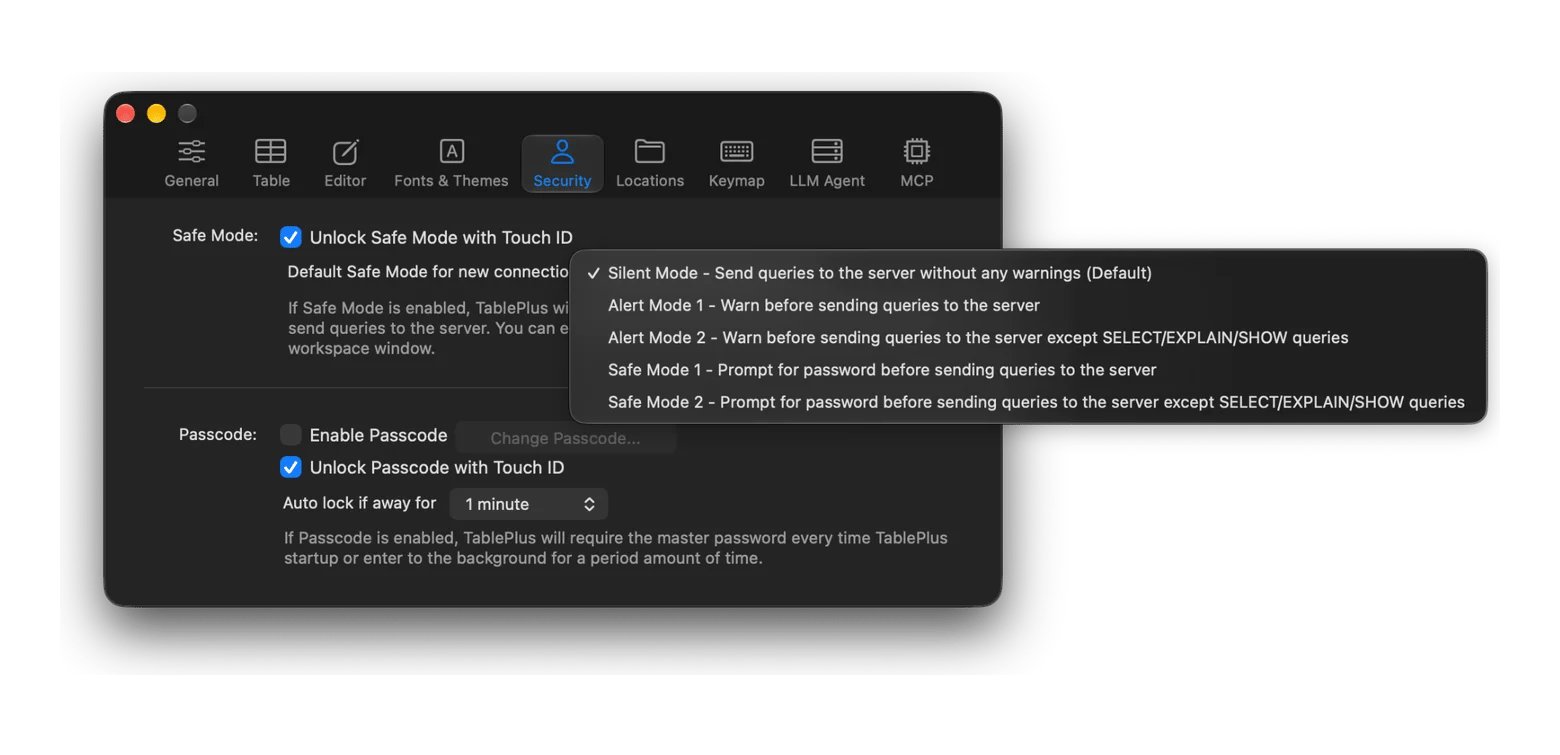
Safe mode in TablePlus adds a warning or a password prompt before queries reach your database. You set it for each connection, so you can protect production and leave development open. To change the level, click the safe mode button in the toolbar or open the connection's settings. To set the default for new connections, press Command + , and choose Security.
Dark mode support
Do you prefer dark mode for long coding sessions? Or do you want the app to follow your macOS settings? TablePlus can do both, with even more customization options.
To set the app appearance, open TablePlus > Preferences > Fonts & Themes, select your preferred theme, and set the editor colors.
How to use AI in TablePlus
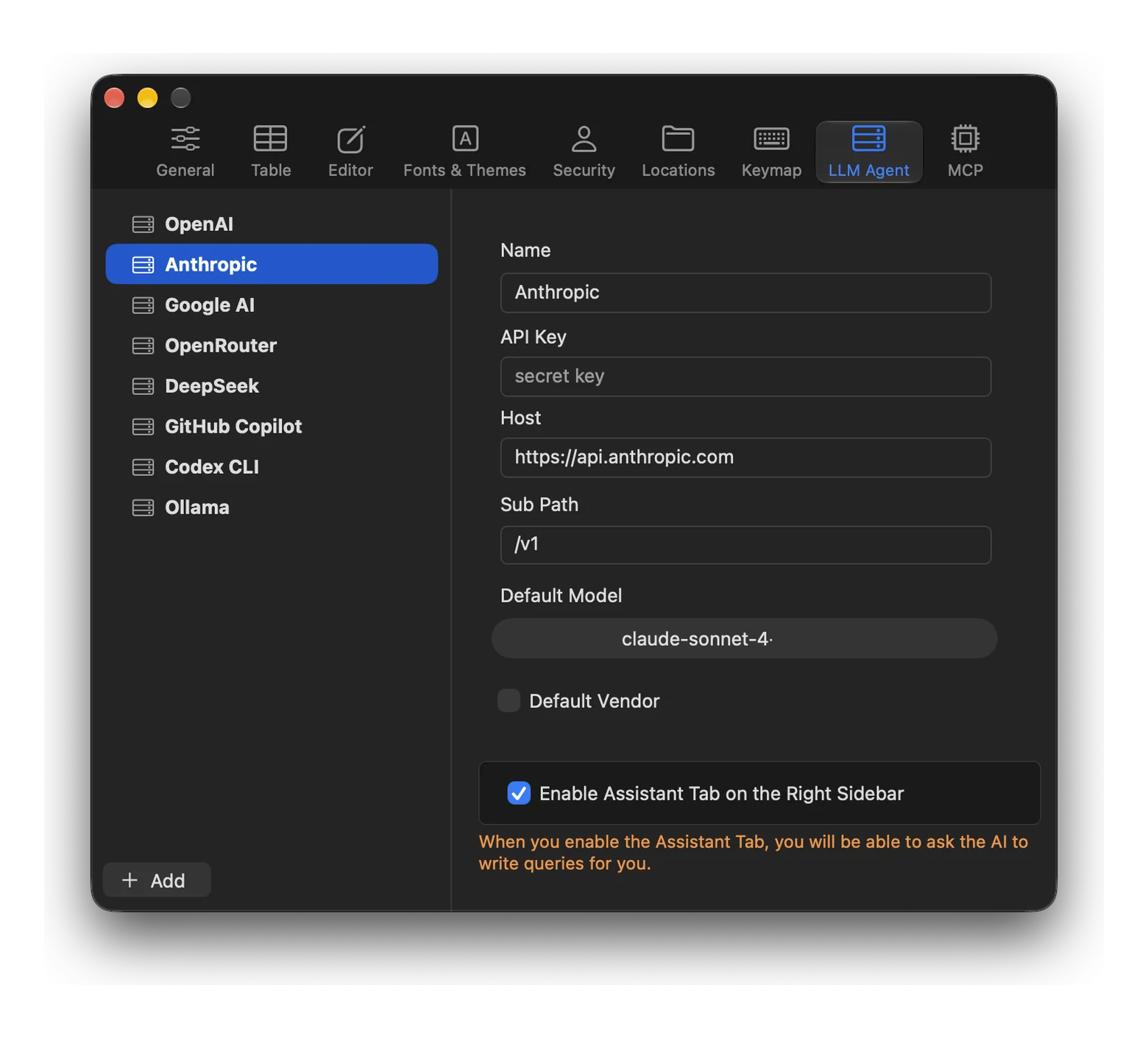
If you are used to working with an AI assistant, TablePlus lets you bring your buddy to help you write SQL queries, explain existing ones, and explore your database using natural-language prompts. You can connect a provider you already use in your work, such as OpenAI, Anthropic, Google AI, etc.
Note that the TablePlus app is just the interface for working with AI models and agents, not the AI model itself. Note that the assistant sends your messages, and the results of queries it runs, directly to the provider you choose. If your data must stay on your Mac, use a local model with Ollama.
TablePlus is a great tool for everyday database-related tasks. You can use it alongside the CLI and your existing development tools.
Inspect data quickly: TablePlus vs. CLI psql/mysql
You can do all the work in the CLI, but should you? In certain cases, a GUI is more convenient and saves you time.
Task
TablePlus is handy when…
The CLI is better when…
Browsing records
You want to scan, sort, or filter rows visually.
You know the exact query or need to inspect results in a script.
Running a quick check
You want to run a query and see results in the same workspace.
You’re already in the terminal or need to chain commands.
Editing data
You want to change a value in a table and review the edit before committing.
You need a repeatable update or want to control every change with SQL.
Comparing databases
You want to keep connections or query results open in tabs.
You need to automate comparisons across environments.
Repeating a workflow
You want to revisit saved connections and query history.
You want commands in version control or to run them in a deployment script.
TablePlus is not here to completely replace the work in the command line. The CLI remains useful for scripting and automation, while the TablePlus app makes interactive data exploration more convenient.
Make schema changes without migration headaches
Before changing a MySQL table, it helps to understand its existing structure. TablePlus MySQL Mac editor lets you inspect the schema and make changes through its interface or by running SQL directly.
For larger projects, keep schema changes in version-controlled migrations. That makes them easier to review, reproduce, and apply consistently across development, staging, and production.
Debug production queries safely
When investigating a production issue, use TablePlus to avoid unwanted changes. Start with a database account that has read-only permissions. Safe Mode can provide an extra layer of protection, but database permissions are a more reliable safeguard against accidental writes.
If you still doubt whether TablePlus is the best app for your tasks, compare its features with other MySQL clients for Mac.
TablePlus tips and shortcuts
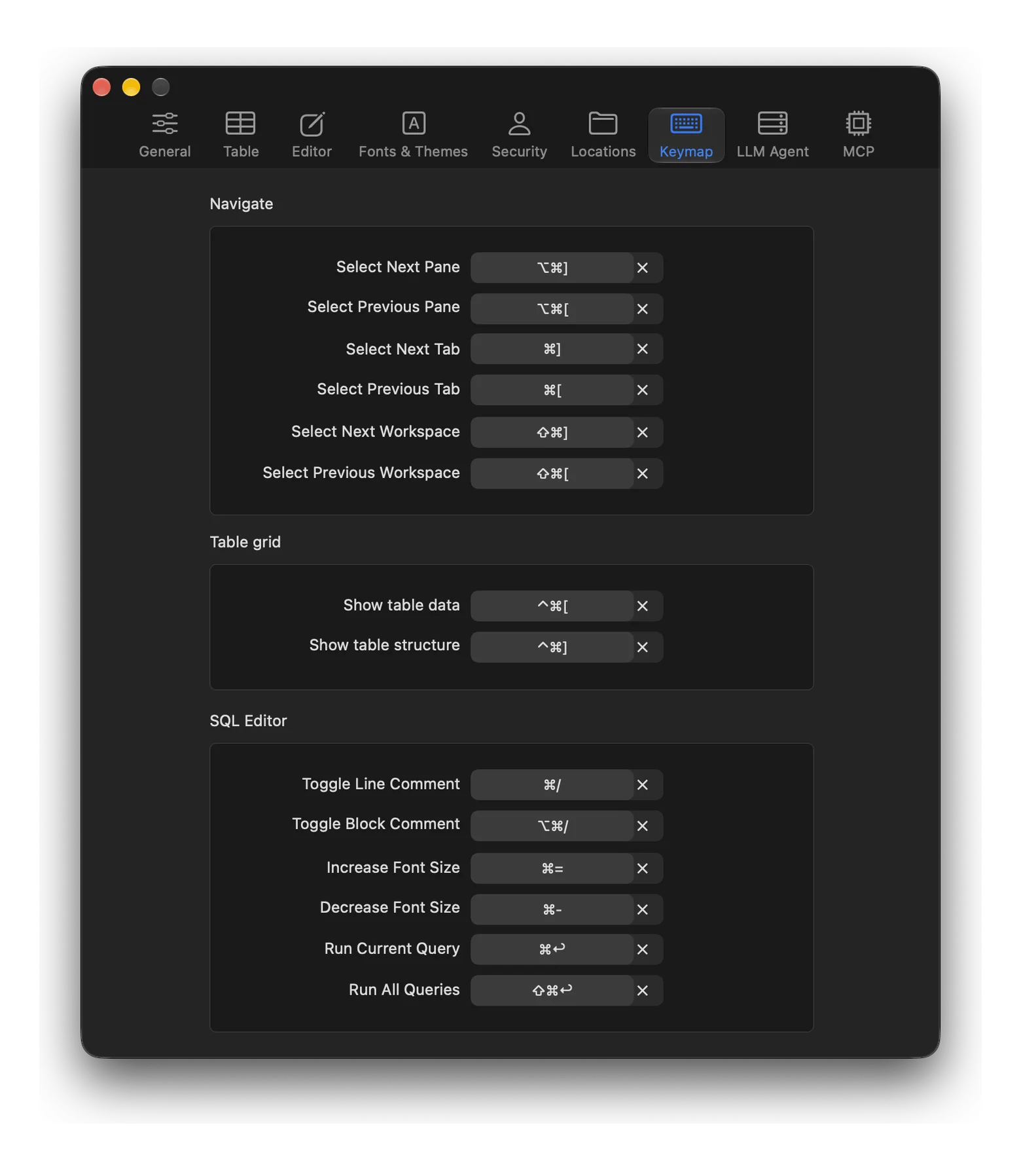
Keyboard shortcuts help you navigate TablePlus on a Mac without constantly reaching for the mouse. Here are seven useful key combinations to start with.
Shortcut
What it does
Command + P
Open the Open Anything field to quickly find databases, tables, saved queries, and app features.
Command + E
Open a new SQL query editor tab.
Command + Return
Run the current SQL statement or selected query.
Command + Shift + Return
Run all queries
Command + S
Commit the changes to the database
Command + [ OR Command + ]
Switch to the previous or next tab.
Command + F
Open filters when viewing table data, or find text in the SQL editor.
You can find all TablePlus shortcuts in the app's guide. You can also change some of them in the app: press Command + , and choose Keymap.
A simpler way to work with databases on Mac
When working on a complex project, every additional tool may add friction. TablePlus app gives you one place to work with different databases without constantly jumping between clients. You can keep using the CLI when it makes sense and turn to TablePlus when a visual interface is more convenient.
You can access TablePlus through a Setapp subscription alongside 300+ other Mac apps. Setapp offers a 7-day free trial, so you can test TablePlus in your workflow before committing to a subscription.
Which databases does TablePlus support?
TablePlus supports PostgreSQL, Amazon Redshift, MySQL, MariaDB, SQLite, Microsoft SQL Server, Redis, MongoDB, CockroachDB, and many other databases.
Is TablePlus better than DBeaver?
Neither is better for everyone. Choose TablePlus for a clean, native Mac interface and fast everyday work. Choose DBeaver if you need its broader set of database development and administration tools. Prefer to compare? SQLPro Studio from Setapp is another multi-database client on Setapp.
How do I import SQL files in TablePlus?
To import a plain .sql file, connect to your database and choose File > Import > From SQL Dump… Select the file, check its encoding, and click Import. Reload the workspace if needed. For full backups created with tools such as pg_dump or mysqldump, use TablePlus’s Backup & Restore workflow instead.
Is TablePlus on Setapp the full version?
Yes. With Setapp Membership, you get the full version of TablePlus for as long as your Membership is active.
Powerful apps live on Setapp
Ditch defaults and discover new gems on one app platform.






 Best solution
 Best solution