Clearing Safari cache is the quickest way to clear app cache on iPhone. Go to Settings > Apps > Safari > Clear History and Website Data. You'll be logged out of most sites, but passwords saved in iCloud Keychain stay intact.
For third-party apps, offloading is the safest first step. It removes the app and its cache but keeps your documents and settings — go to Settings > General > iPhone Storage and tap Offload App.
Many popular apps have built-in cache tools. Check Spotify, TikTok, and Chrome settings before offloading — you can free up space without touching your account or data.
If storage is still tight after clearing cache, look at videos and Messages attachments. These tend to take up far more space than cached files. Go to Settings > General > iPhone Storage > Messages to find and remove large attachments.
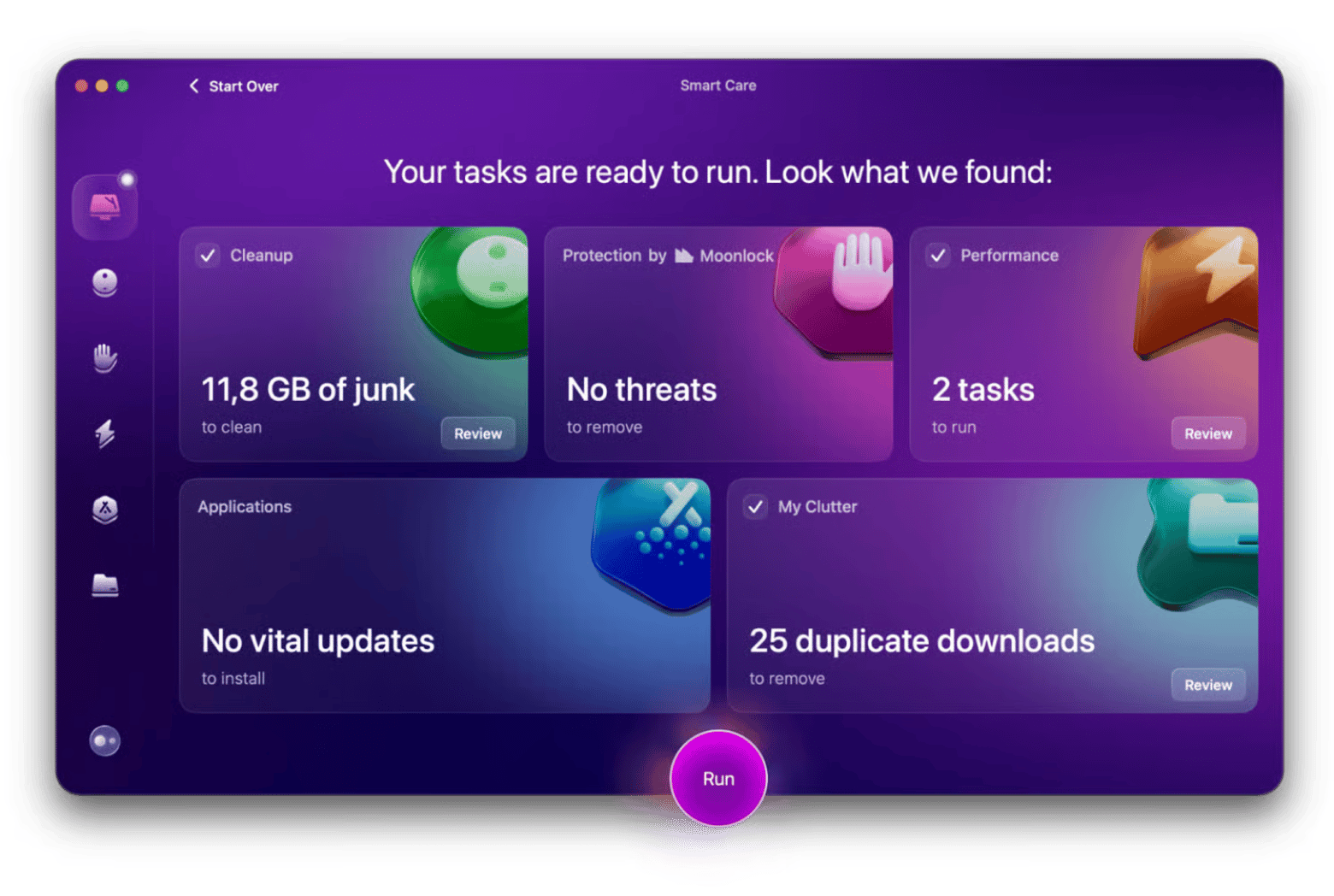
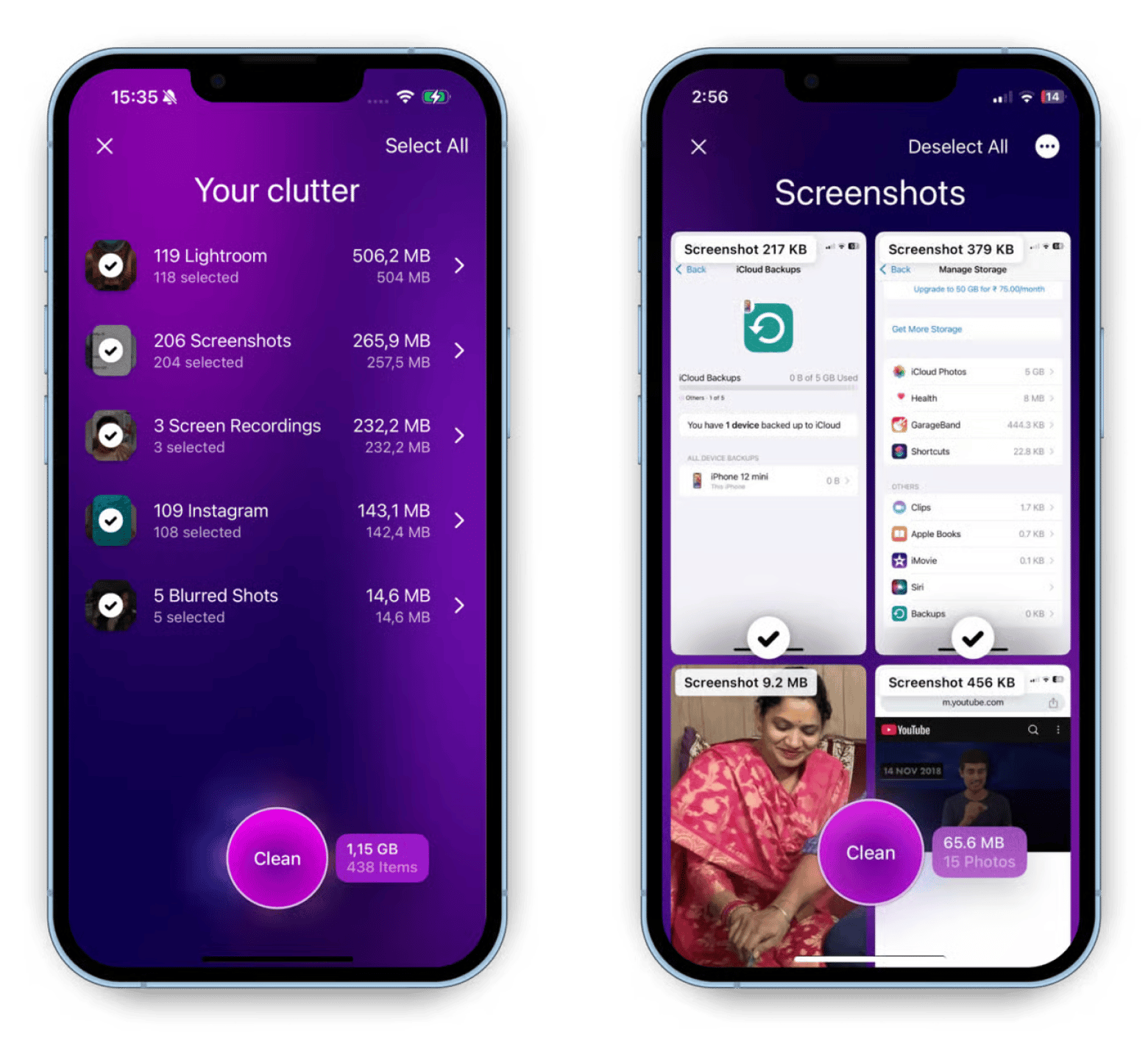
CleanMy®Phone handles the deeper cleanup that manual cache clearing can't reach — duplicates, large files, and old items. Try CleanMy®Phone free for 7 days and let it find what's actually taking up space.
You can easily clear app cache through your iPhone Settings, built-in app cache tools, or by reinstalling the apps.
I'm going to walk you through each method so that next time you're on vacation and the most amazing sunset is happening in front of your eyes, no "Storage Almost Full" alert will ever stop you from filming it.
Your iPhone can accumulate gigabytes of app cache. Here's how to clear it in order to free up space and what to do if your storage is still full afterward.
What happened?
Do this:
Safari eating storage with old browsing data
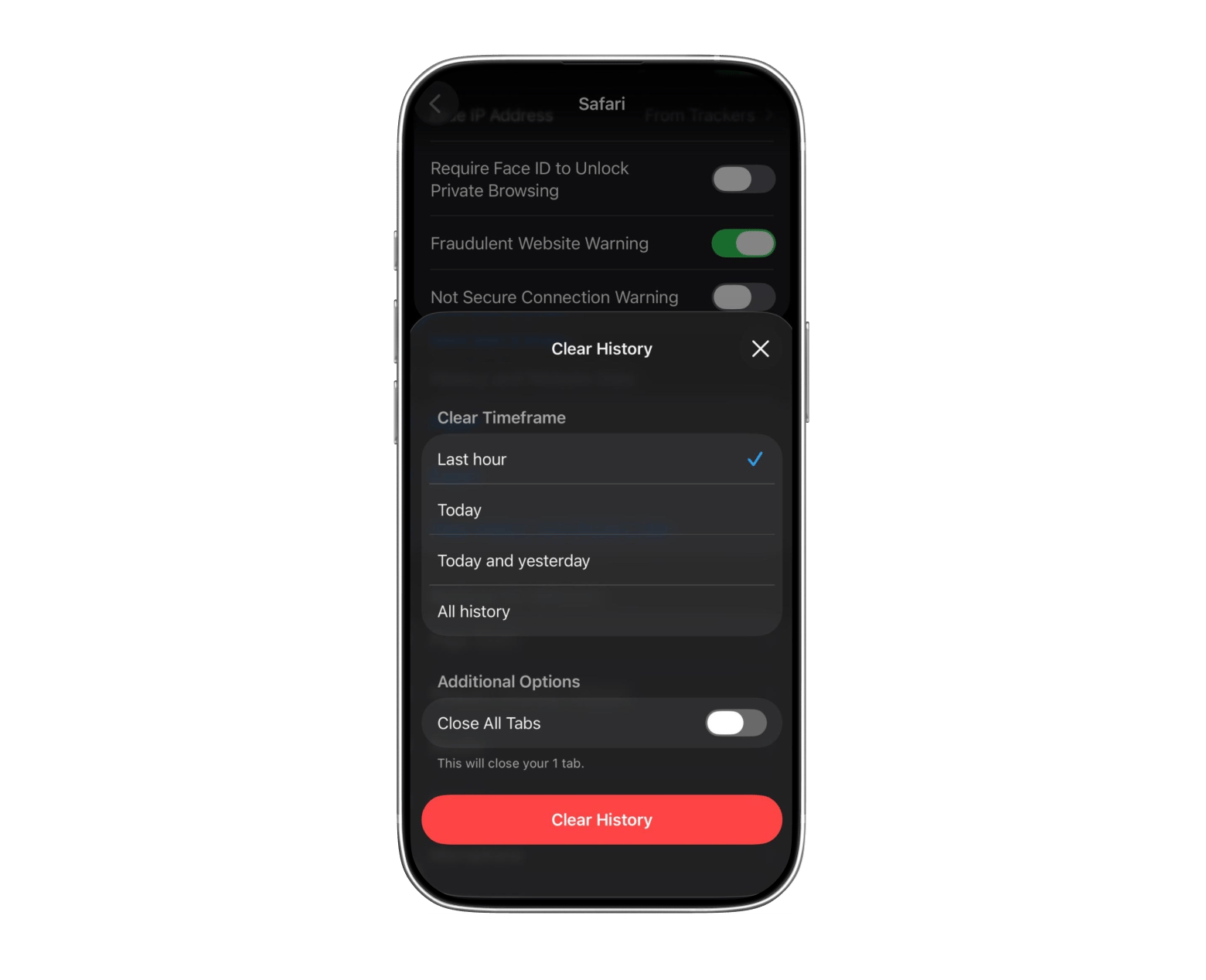
Clear history and website data via Settings > Apps > Safari.
Third-party apps accumulating cache over time
Offload or delete and reinstall via Settings > General > iPhone Storage.
Apps like Spotify or TikTok storing large cache files
Use the app's own cache/storage settings to clear without reinstalling.
Cache cleared but still low on storage
Delete large files, videos, unused apps, or move photos to iCloud.
Struggling to keep iPhone storage under control
Use CleanMy®Phone to clean photo storage of duplicate and large old files.
If you're not sure which of these methods applies to your specific app or situation, the iPhone Help Assistant is worth a quick check. I've used it when I couldn't figure out whether offloading or deleting was the right call for a particular app — it gives a clear answer without wading through Apple support docs.
How to clear Safari cache on iPhone
The first thing you should check is the Safari cache, as a large part of the cached data on your iPhone probably comes from it in the form of website files and cookies.
To clear Safari history and website data, follow these steps:
Open Settings on your iPhone.
Go to Apps > Safari.
Scroll down and tap Clear History and Website Data.
Choose a time range (you can choose between Last Hour, Today, Today and Yesterday, or All History).
Tap Clear History.
And done! You've removed your cached files. If you choose All History, Safari will clear all the stored browsing data. Just a heads-up — you'll need to sign in to most websites after you remove the cached data.
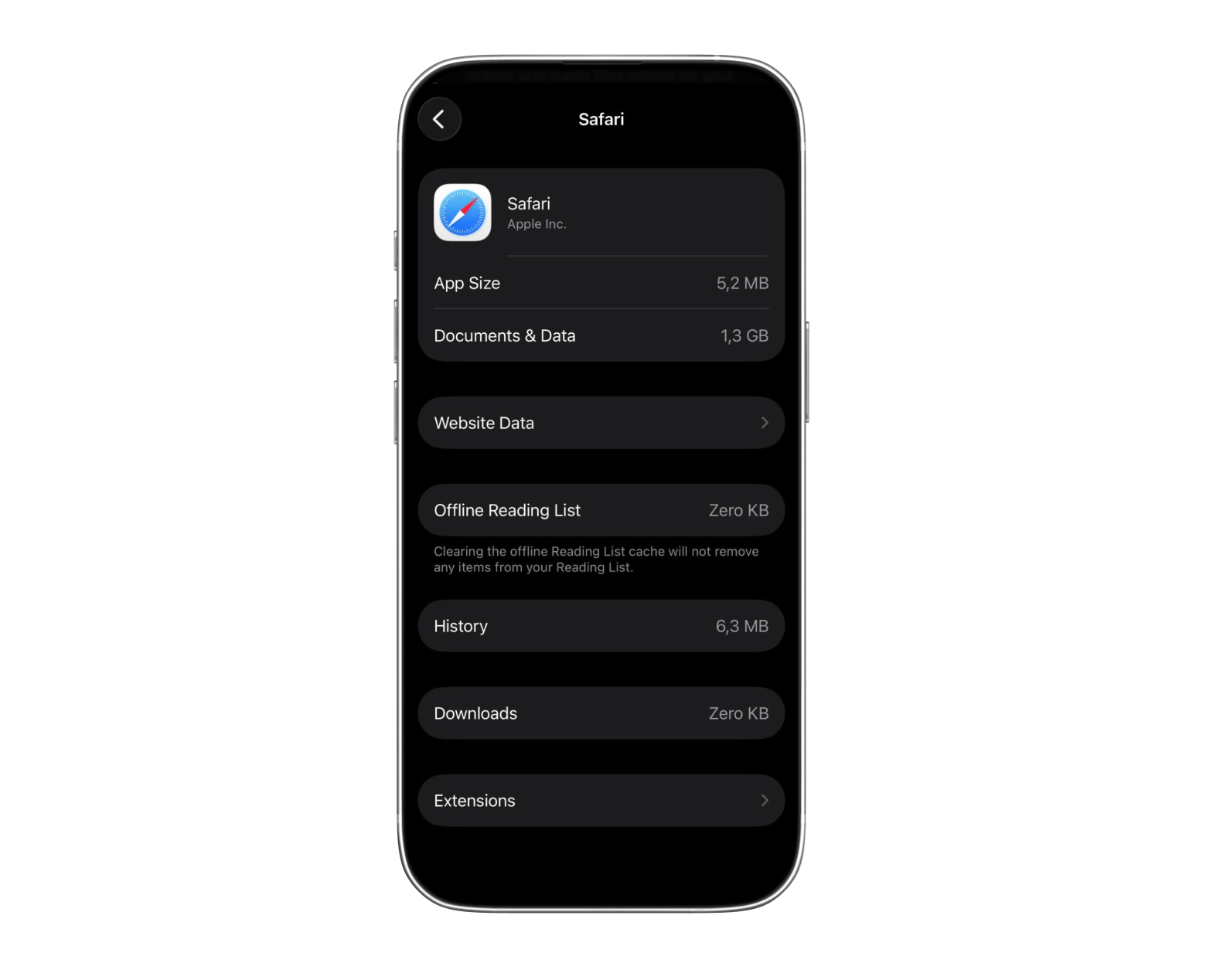
Another option is to clear Safari data from iPhone storage. Here's how:
Open Settings.
Tap General > iPhone Storage.
Scroll down and find Safari.
Check how much storage it's using.
Follow the available options to remove website data and free up space.
Deleting Safari cache removes data like browsing history and cookies. Your passwords will remain available if you're using iCloud Keychain. Your bookmarks and reading lists will also remain.
How to clear cache for third-party apps on iPhone
There are a few methods you can use to clear the third-party apps' cache on your iPhone.
Method 1: Offload the app
Just follow these steps (you have to do this for each app separately):
Open Settings.
Tap General > iPhone Storage.
Choose the app you want to clean up.
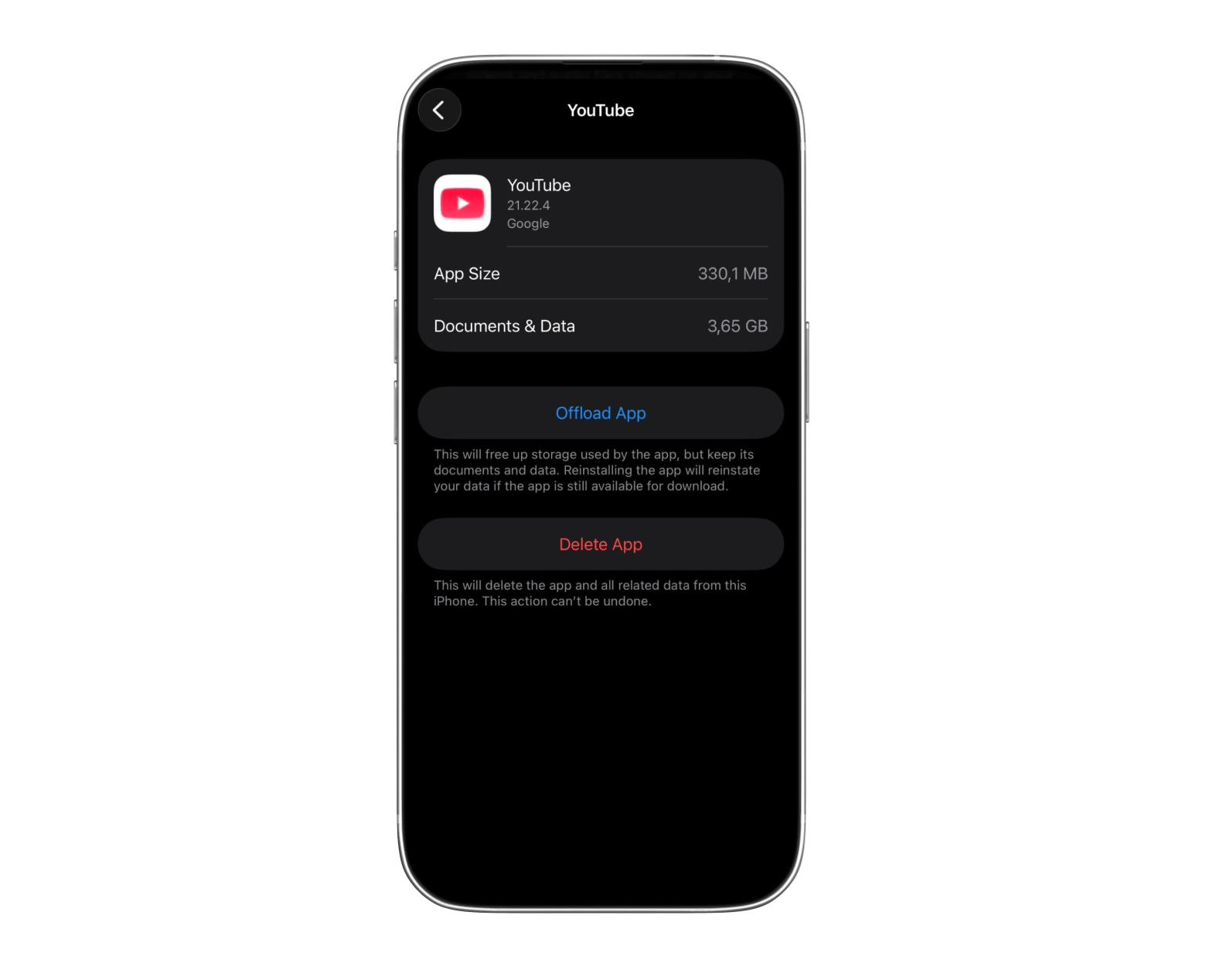
Tap Offload App.
Confirm.
Offloading the app deletes the app and its temporary data and cache, but keeps your documents and settings.
Method 2: Delete and reinstall the app
If you've offloaded apps but still don't have enough space on your iPhone, then try deleting and reinstalling the app. This way you'll remove the app and its cache.
Open Settings > General > iPhone Storage.
Choose the app.
Tap Delete App.
Reinstall it from the App Store.
This seems like a super easy task, but just in case you're having some difficulties with uninstalling apps, here's where you can find a more detailed explanation on how to delete apps from your iPhone.
Method 3: Check the app's management tools
The last option is to check whether the app has its cache management tools. For example, Spotify has a Storage section in its settings where you can clear cached files. The steps vary from app to app, so check the app's settings before offloading or deleting it. This option is the fastest way to free up space without affecting your account.
How to clear the cache for specific popular apps
Here are short step-by-step guides for some of the most popular iPhone apps:
Safari: Safari has a built-in option for clearing the cache on the iPhone. Go to Settings > Apps > Safari > Clear History and Website Data.
Facebook: If Facebook is using a lot of storage on your device, the best option is to offload the app. Go to Settings > General > iPhone Storage or delete and reinstall it.
TikTok: Open TikTok > Profile > Menu > Settings and Privacy > Free Up Space. From there, you can delete cached files without deleting the app.
Spotify: Open Spotify > Settings and Privacy > Data-saving and offline > Storage, then tap Clear Cache. This will delete temporary files but won't affect your downloaded music and playlists.
Instagram: Instagram has a cache-clearing option in its settings on some versions of the app. If you don't see it, then the best option is to offload or reinstall the app through iPhone Storage settings.
Chrome: You can clear browsing data on Chrome directly from the app. Open Chrome > Menu > History > Clear Browsing Data. There's no need to delete the app.
To sum up, first, you want to check whether the app has its own cache settings. If not, then offload the app by going to Settings > General > iPhone Storage.
What is app cache, and why does it build up on the iPhone
App cache are temporary files that apps store on your iPhone so that they load faster and work better. For example, Instagram may store some images you've viewed so it doesn't have to download those files again. Similarly, Spotify may save some album artwork for the same reason.
The problem is that these files add up over time as apps constantly save new content, especially the ones like TikTok, YouTube, Safari, and Facebook.
Clearing the cache won't damage an app or cause any problems. The app will just download new temporary files the next time you open it. It may be a bit slower than usual, but it'll work normally.
What to do when cache clearing does not free up enough space
So you've cleared your cache, but you still don't have enough storage space on your iPhone. Try these steps next:
Check which apps take up the most storage by going to Settings > General > iPhone Storage. The heaviest apps will appear first. Review the list and delete the ones you don't use anymore.
Maybe there's an app that you rarely use, like TikTok, for example. Offload it by going to Settings > General > iPhone Storage. Then, choose the app, and tap Offload App.
Videos take up the most storage space, especially if they're shot in a high-quality mode. Go to your Photos app and delete any videos you don't need, or transfer the files to an external hard drive and then delete them from your device. Also, review downloads inside apps like Netflix, Disney+, YouTube, Spotify, and Apple TV.
You can also move your photo library to iCloud if you see that photos and videos take up the most storage space. Go to Settings > Apple Account > iCloud > Photos and turn on Sync this iPhone. Then enable Optimize iPhone Storage to keep smaller versions of your photos on the device.
Messages sometimes contain photos, videos, voice notes, and GIFs, and they can end up taking several gigabytes of storage. The fix is quite easy. Open Settings > General > iPhone Storage > Messages to find large attachments, and then remove them.
Upgrade to a higher iCloud storage plan or get a new phone with more storage space. This is the best option if you regularly run out of space, even though you clean up your device every few weeks.
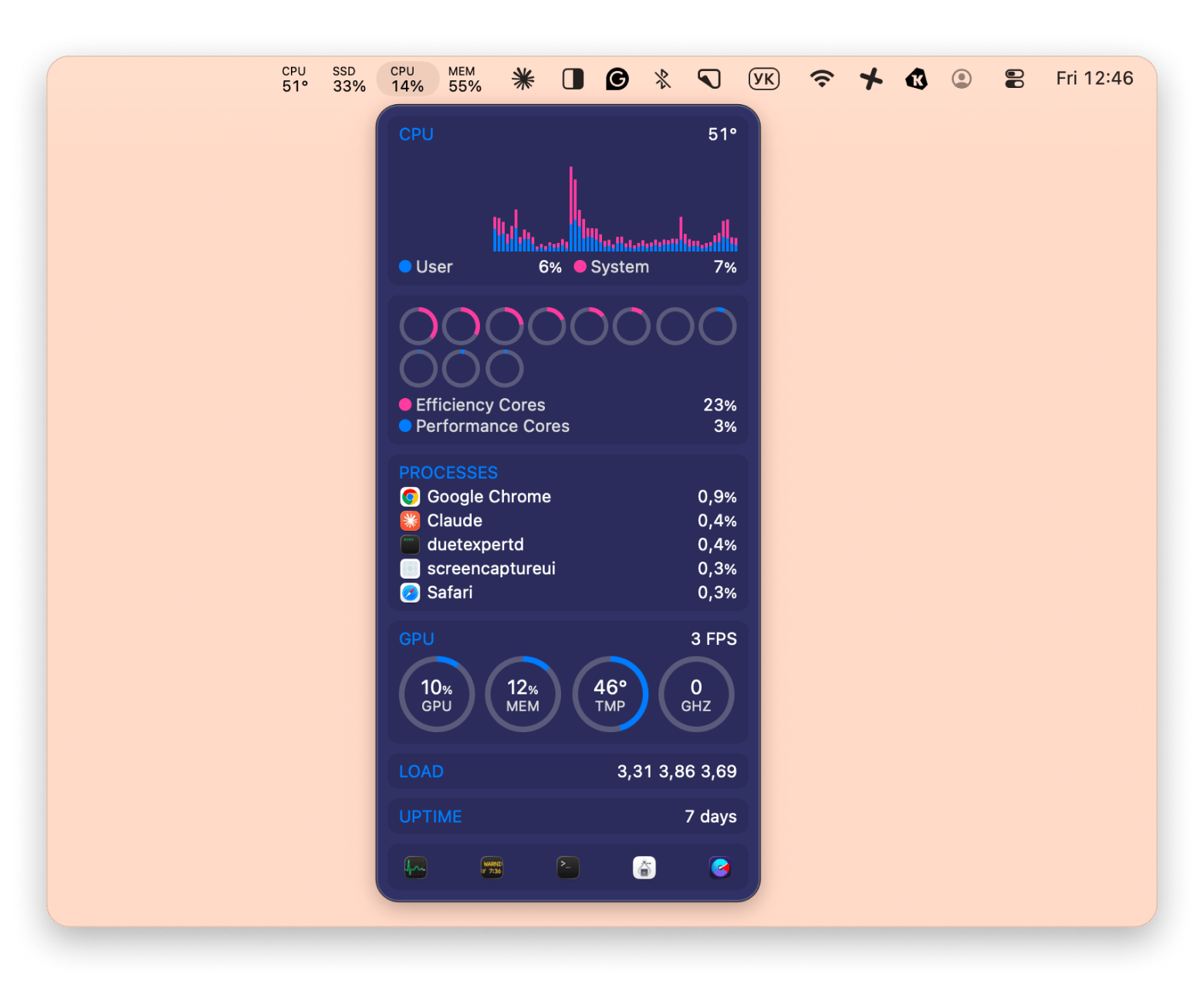
If you also use a Mac, you may find yourself running out of storage on both devices. Get an app like iStat Menus to keep an eye on disk usage and memory so that you always know where your storage space is going.
Stop reacting to storage warnings. iStat Menus shows you exactly where your Mac's space is going — in real time. Disk usage, memory, CPU — all in your menu bar. Rated 97% by 5,000+ users. Free for 7 days on Setapp. Try iStat Menus Free.
Clear the app cache on iPhone today and keep storage under control
That sunset-storage-warning moment doesn't have to repeat itself. Once you know where to look — Safari's own settings, the offload option under iPhone Storage, and the in-app cache tools hiding inside Spotify, TikTok, and Chrome — clearing cache on iPhone stops being a mystery and becomes a five-minute habit. If you've worked through this guide and storage is still tight, the next move is usually trimming larger items like videos, Messages attachments, or unused apps rather than chasing cache alone.
And if you split your time between iPhone and Mac, CleanMy®Phone and CleanMyMac handle the deeper cleanup on each device, while iStat Menus keeps you ahead of the next storage warning instead of reacting to it.
You cleared the cache — now keep iPhone and Mac storage under control for good. CleanMy®Phone, CleanMyMac, and iStat Menus are all in Setapp. 250+ apps, one subscription, free for 7 days. Start My Free Trial. Already know which app you want? Browse Setapp Marketplace for standalone options.
FAQ
Does clearing app cache on an iPhone delete any of my personal data or saved information?
Clearing the cache removes temporary files that apps use to load content faster, but doesn't delete your personal data. Some apps may log you out after a cache clear, so you may need to sign in again the next time you use them.
Why does the iPhone not have a clear cache button as Android does?
Unlike Android, Apple doesn't have a cache-clearing button. iOS automatically handles temporary files in the background. This means you need to clear the cache through individual apps or use the offload feature.
How often should I clear the app cache on my iPhone to keep it running fast?
Some signs that you have to clear the app cache on your iPhone include the app taking up too much storage or being sluggish. As a rule of thumb, if you have 64GB of storage and often run out of space, then clear the cache every few months.
Will clearing the cache fix an app that keeps crashing or freezing on an iPhone?
Yes, clearing the cache can resolve crashes or freezing if the app's cached files become outdated or corrupted. If this doesn't fix the issue, then you may need to update the app or reinstall it.
Is offloading an app the same as deleting it, and will I lose my data if I offload?
Offloading an app is different than deleting it. You'll delete the app itself, but your documents and data will remain on the device. If you try to reinstall it, your information will quickly be restored.
Powerful apps live on Setapp
Ditch defaults and discover new gems on one app platform.






 Best solution
 Best solution