To use ChatGPT on iPhone, download ChatGPT from the App Store (iOS 17+): Open the App Store, search for ChatGPT by OpenAI, tap Get, and launch the app. You can sign in, create an account, or use it anonymously on the free plan.
Connect ChatGPT to Siri via iOS 18.2+: Go to Settings > Apple Intelligence & Siri > Extensions > ChatGPT and tap Set Up. Once enabled, Siri can hand off complex questions to ChatGPT without you opening the app.
The free plan covers most use cases: Text chats, voice conversations, image uploads, and image generation are all available for free — with usage limits. ChatGPT Plus removes those limits and adds priority access and agent-mode features.
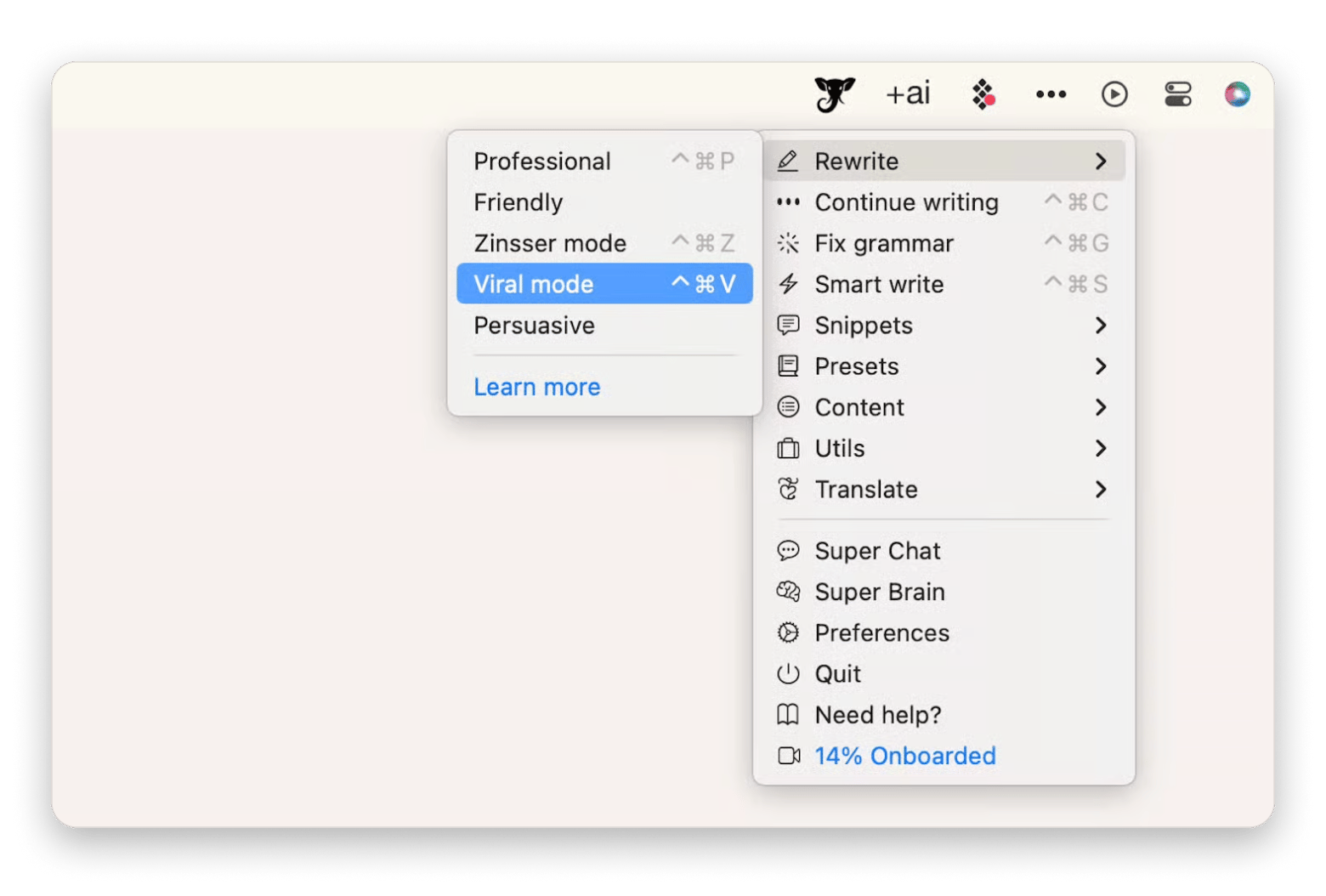
Tip: use ChatGPT from any app on Mac: Elephas lets you highlight text in any Mac app and ask ChatGPT to summarize, rewrite, or explain it — no copy-pasting required. Requires Setapp AI credits or your own API key.
Juggling ChatGPT, Claude, and other AI tools? TypingMind and Elephas bring them all into one place. Try both on Setapp — free for 7 days.
I've been using ChatGPT on my Mac for years, and then one day, when I was on vacation, I had some work issues come up. As I didn't have my laptop nearby, I had to download it on my iPhone. I've been using it ever since, even more than on my Mac. And I connected it with Apple Intelligence and Siri for even better efficiency and advanced capabilities.
I'll share the step-by-step process for how to use ChatGPT on iPhone, so that you can use it more effectively from day one.
How to download and set up the ChatGPT app on iPhone
Downloading ChatGPT on your iPhone is pretty straightforward. You can get it for free and start chatting right away.
Here's a step-by-step ChatGPT iPhone app setup:
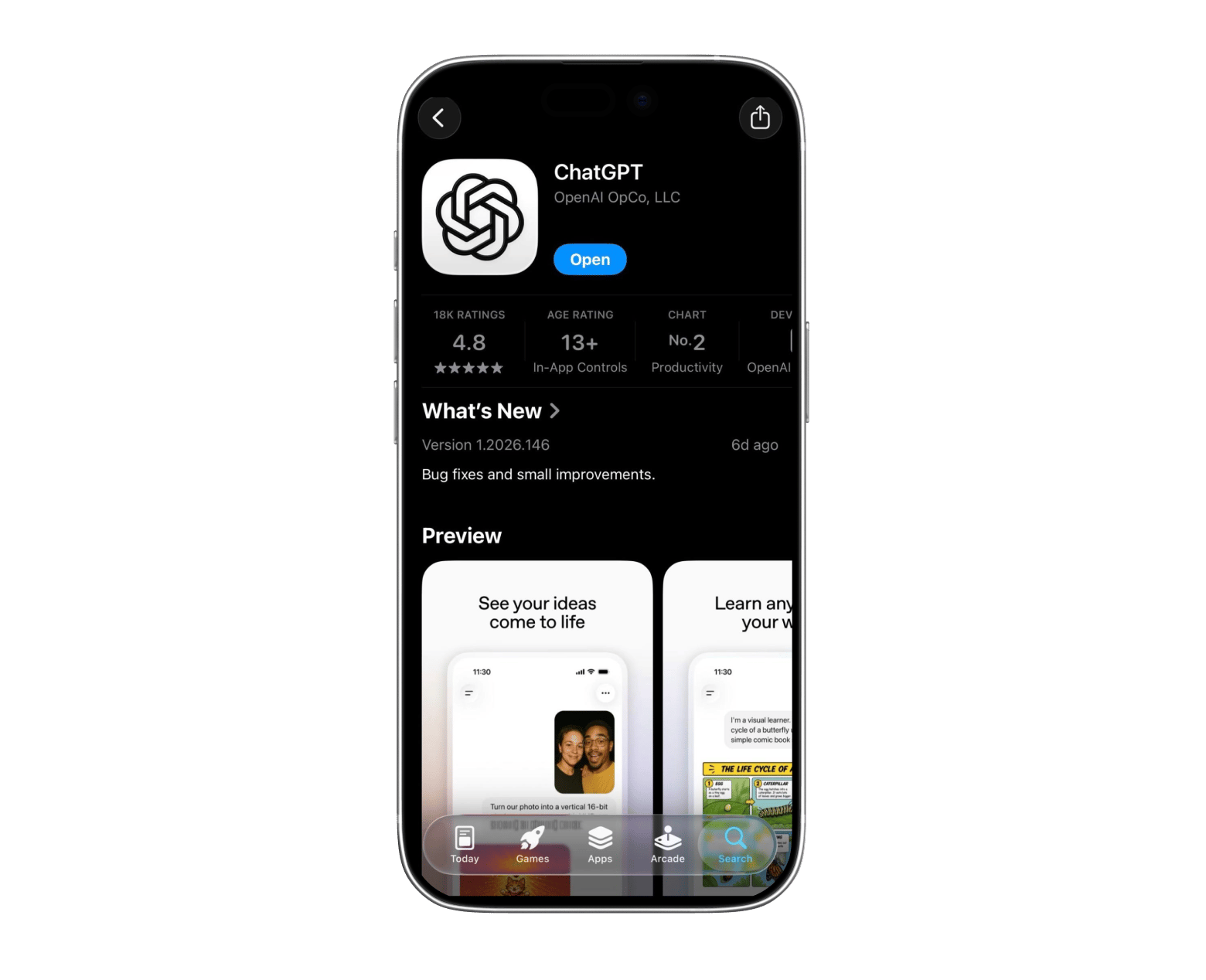
Open the App Store on your iPhone.
Find the ChatGPT app published by OpenAI.
Tap Get to install it.
Check whether you have installed a compatible version of iOS. ChatGPT needs iOS 17.0 or later.
Launch the app from your Home Screen once the installation is done.
The first time you open ChatGPT, you'll have the option to sign in, create an account, or continue without one.
If you just want to try it out, continue without creating an account. You'll get access to the free plan in anonymous mode and won't have to share any personal details.
But if you choose to sign in with an account, all your chats will be saved and synced across your devices. For example, if you open a chat on your iPhone, you'll be able to continue the conversation from your Mac or iPad.
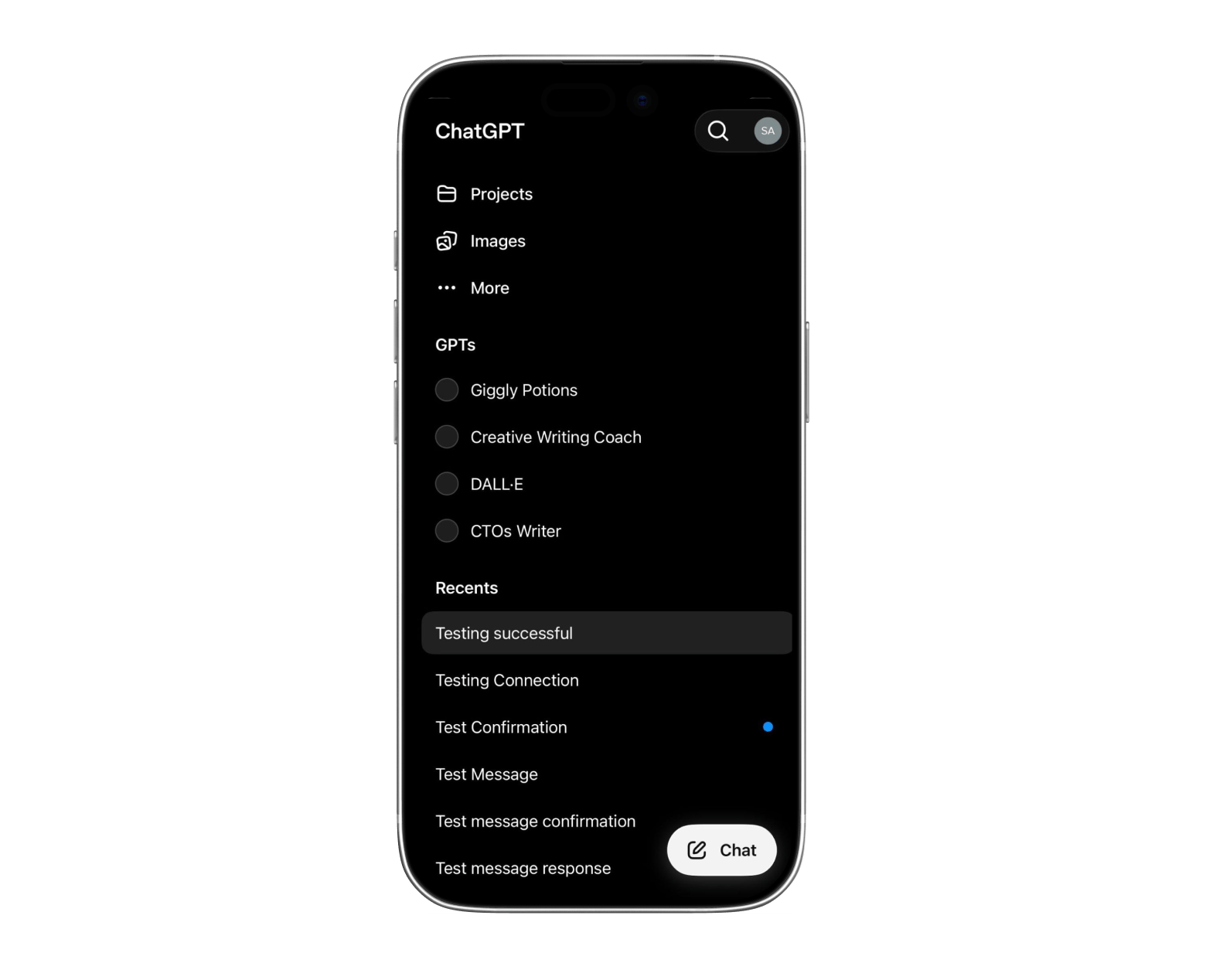
To start a conversation, just tap the Chat button in the bottom right corner of the screen. Then, enter a question or a prompt. ChatGPT will generate an answer in a few seconds, and you can ask as many questions as you want.
The free version gives you access to the core features — text chats, voice chats, image and file uploads, and image generation — though some, like image generation, come with daily limits. The downside is that free users hit message limits and may need to wait before chatting again. After that, ChatGPT switches you to a faster mini version until the timer resets. ChatGPT Plus comes with stronger reasoning, higher usage limits, faster response time, agent-mode capabilities, custom GPTs, and task automation, among many other features.
If you're also using a Mac and want to explore what else is out there, check out our roundup of ChatGPT alternatives for Mac.
How to use ChatGPT with Siri and Apple Intelligence on iPhone
iOS 18.2 was an important update as it added ChatGPT to Apple Intelligence and Siri. With this integration, Siri can use ChatGPT to answer more complex questions. And the best thing is you won't have to open the ChatGPT app at all.
If you're new to Apple Intelligence entirely, the guide to Apple Intelligence features explains how the whole system works before you layer ChatGPT on top of it.
Here's how to turn on ChatGPT in Siri on your iPhone:
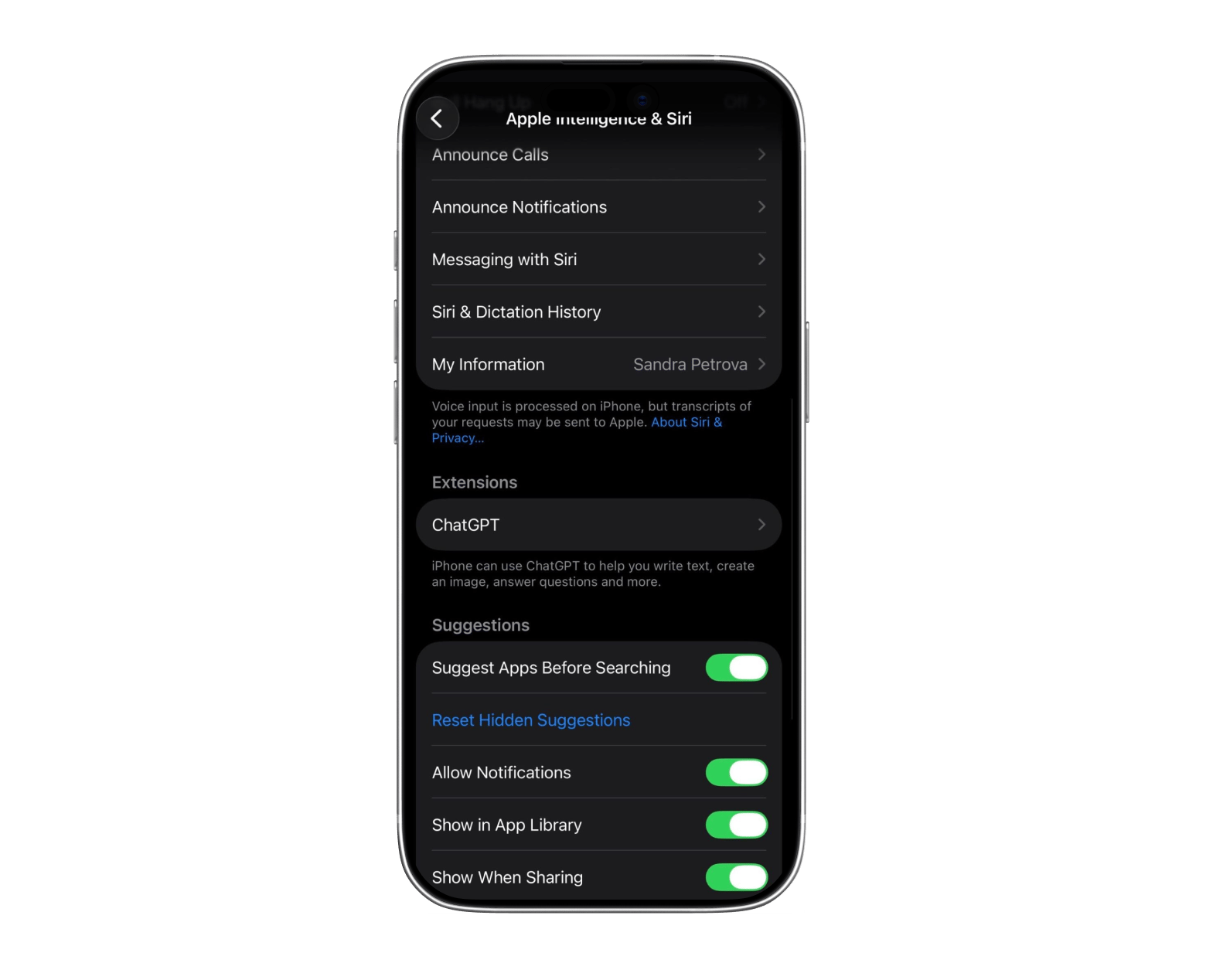
Open Settings.
Scroll down and tap Apple Intelligence & Siri.
Scroll down to Extensions and tap on ChatGPT.
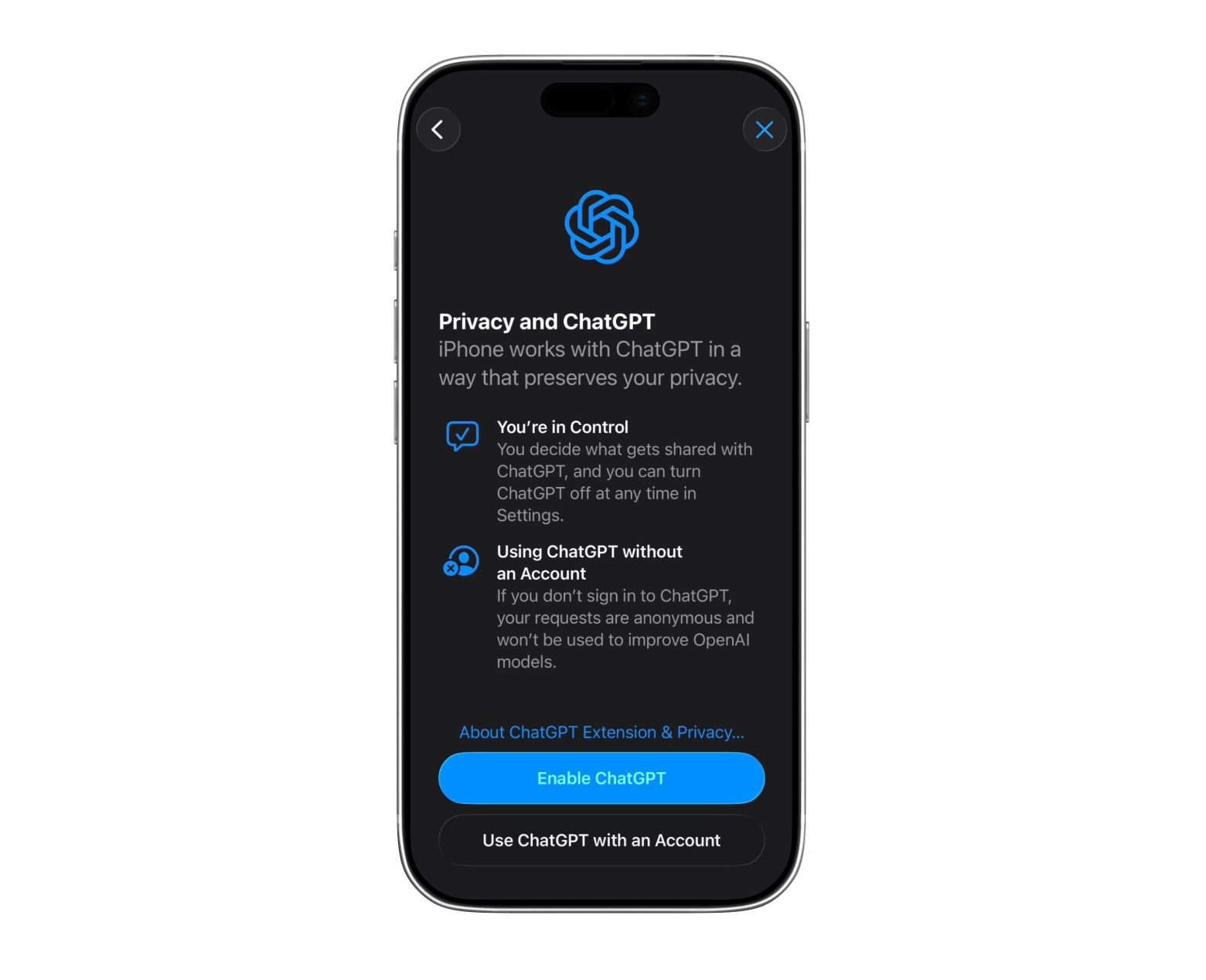
Tap Set Up.
Choose whether you want to use ChatGPT with or without an OpenAI account.
Follow the setup instructions.
If you're using the free plan, keep in mind you'll have daily limits. But if you connect your ChatGPT Plus account, you can get higher limits and access to premium features.
What you can actually do with ChatGPT on iPhone
ChatGPT is fast becoming the default for quick answers, but it does a lot more than that. But the app can do much more than simple conversations. Here are some of the best features it offers:
Text conversations: You can ask ChatGPT to summarize a long document, explain a complex topic, brainstorm ideas for your personal or business projects, or draft a reply to an email. For example, you can copy-paste a medical document and ask ChatGPT to explain it to you in simple terms.
Voice conversations: If you're too lazy or busy to type, you can also talk to ChatGPT. For example, let's say you have an interview lined up. You can have ChatGPT ask you interview questions, and you can respond out loud.
Image analysis: You can upload images and documents for analysis. Maybe you're trying out a recipe for the first time. You can upload a photo of the recipe, and ChatGPT can clarify the instructions.
Image generation (limited with the free plan): This is another powerful feature for content creators, especially if you're a content creator. For example, let's say you're writing short stories. You can bring your characters to life by sharing the character info in ChatGPT, and it'll have an illustration ready for you in a minute.
The thing with using ChatGPT for help is that you have to copy the text, open the app, paste it, and then ask your question. Elephas is an app that removes all those steps and brings AI tools into your Mac apps. For instance, you can highlight text in a document and ask Elephas to summarize, explain, rewrite, or answer questions about it. And the best part is you won't have to leave the app you're using.
Want to go further? We've rounded up the best AI apps for iPhone that pair well with ChatGPT for different workflows.
ChatGPT free vs. Plus on iPhone — What is actually different
If you're still unsure whether you should go with the Free plan or Plus, here's a side-by-side comparison to see what the Free plan lacks and the Plus offers.
Feature
ChatGPT Free
ChatGPT Plus
AI model access
Access to OpenAI's latest models with usage limits
Higher limits and access to the most capable models
Messages
~10 per 5-hour window, then switches to mini model
~160 per 3-hour window, then switches to mini model
Voice conversations
Available
Available with higher limits
Image uploads and analysis
Available with limits
Higher limits
Image generation
~2–3 images/day
Significantly more, priority access
Advanced tools
Limited access
Expanded access and higher usage caps
Response speed during peak times
Standard
Priority access
In short, if you use it occasionally for asking questions or writing emails, the free plan is enough. But if you're a heavy user who will be using it daily for work or school, then the higher limits can make a big difference. And don't forget that if you connect ChatGPT Plus with Apple Intelligence, you'll access additional capabilities.
Tips to get more out of ChatGPT on iPhone
To make the most out of the app, there are a few simple habits that can make using it even more productive:
Tell ChatGPT a little about yourself and how you want to work. Maybe you're a content creator who's creating short-form videos for YouTube and Instagram. Share this info, and ChatGPT will give you more relevant responses.
Use the Projects feature to stay organized. For example, you can create a Project for work-related chats and another one for your personal hobby.
Share content directly from other apps. Let's say you're reading a webpage in Safari. Just tap the Share button and send the content to ChatGPT for a quick summary.
When using ChatGPT through Apple Intelligence, it can understand what's currently on your screen. For example, while reading an article, you can ask ChatGPT to summarize the main points, or ask it to explain a recipe without copying and pasting the text.
Let Siri handle complex requests. Siri can pass complex questions to ChatGPT automatically. This is useful for planning trips or brainstorming ideas.
Use ChatGPT on iPhone to its full potential
ChatGPT on iPhone is genuinely useful — not just for quick questions, but for voice conversations, image analysis, document summaries, and hands-free help through Siri. The Siri integration via Apple Intelligence is what makes it feel native to iOS rather than like a third-party add-on.
If you're already comfortable with the basics, the biggest unlock is pairing ChatGPT with tools that extend it:
TypingMind brings ChatGPT and other AI models into one interface on your Mac, meaning no tab-switching and no lost history.
Elephas takes it further by putting AI directly inside any app you're already using.
ChatGPT is more powerful when it's part of a bigger AI toolkit. TypingMind, Elephas, and 270+ more Mac and iOS apps are on Setapp — try them all free for 7 days. Start My Free Trial. Or browse Setapp's AI apps before signing up.
FAQ
Does using ChatGPT on iPhone through Apple Intelligence require a ChatGPT account?
No, you can use ChatGPT on iPhone through Apple Intelligence without creating or signing into an account. There are some benefits to connecting your OpenAI account, though. You'll be able to sync your conversations and access any benefits included with your subscription
How do I switch from GPT-3.5 to GPT-4o on the iPhone ChatGPT app?
Open the ChatGPT app and start a new chat. Tap the model name near the top of the screen to open the model selector. Free users can switch between the default model and a mini fallback. Plus users get additional options including reasoning models. The available models change as OpenAI updates its lineup, so check the selector for the latest options on your account.
Is ChatGPT on iPhone safe to use for personal or work-related conversations?
Yes, ChatGPT is safe to use for everyday tasks, but don't share sensitive information. You should also review your company's policies on AI tools and data sharing before you use ChatGPT for work-related conversations.
Why is ChatGPT not showing up in my Siri settings on iOS 18?
One common reason why ChatGPT is not showing up in your Siri settings on iOS 18 is that your device doesn't support Apple Intelligence. Update your device and check whether Apple Intelligence is available in your region.
Can I use ChatGPT on an older iPhone that does not support Apple Intelligence?
Yes. Even if your iPhone doesn't support Apple Intelligence, you can still download and use the ChatGPT app from the App Store. You'll have access to features such as text chats, voice conversations, image analysis, and image generation, but Siri integration won't be available.
Powerful apps live on Setapp
Ditch defaults and discover new gems on one app platform.






 Best solution
 Best solution