Vexel is the best pick for long reads. It turns articles, documents, and books into natural-sounding audio in 28 languages, with cloud AI voices and local voices for offline use.
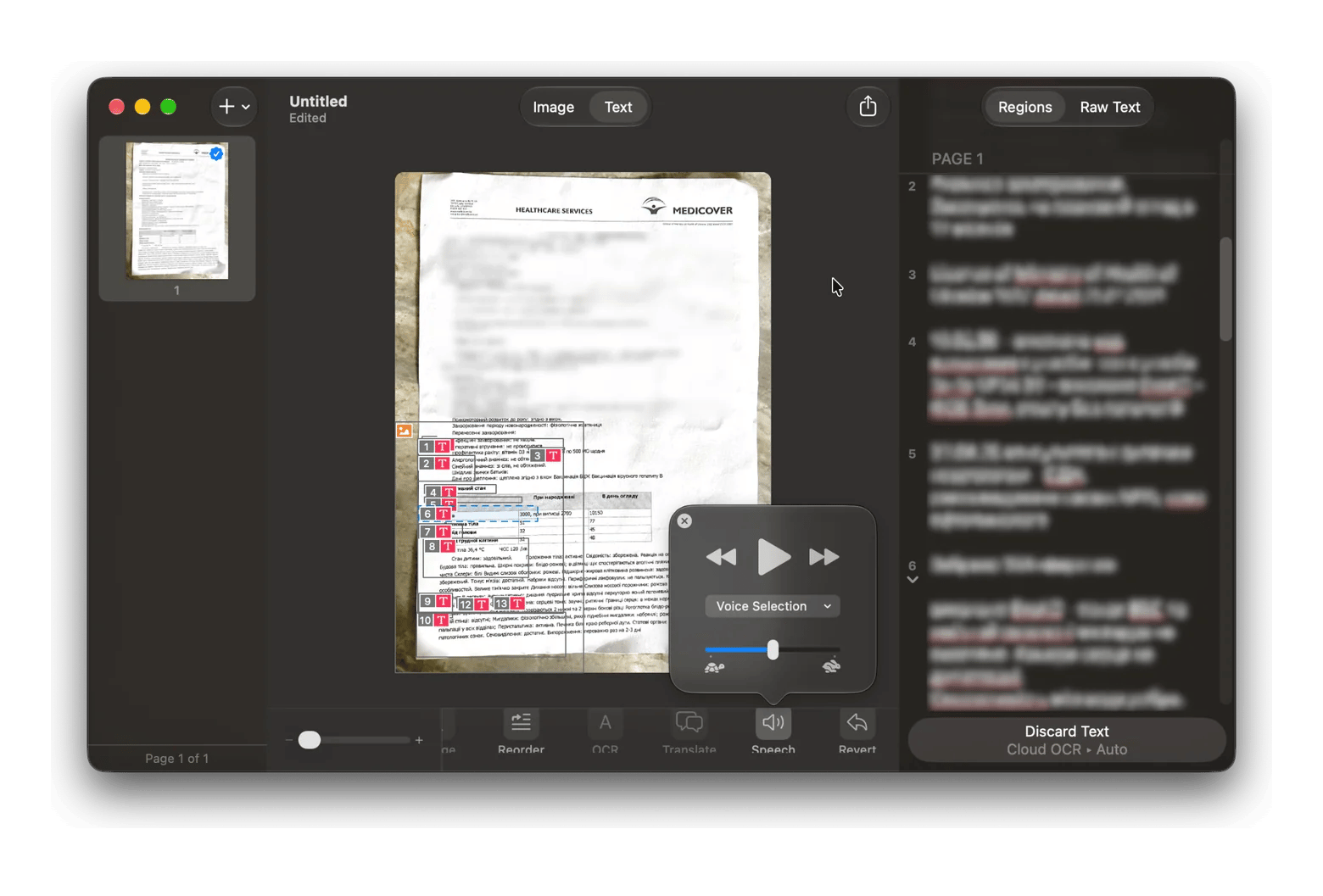
Prizmo reads scanned documents aloud. Take a photo on your iPhone, let Prizmo recognize the text in 100+ languages, then listen. Its voice is more robotic than Vexel’s, so use it mainly for scanning.
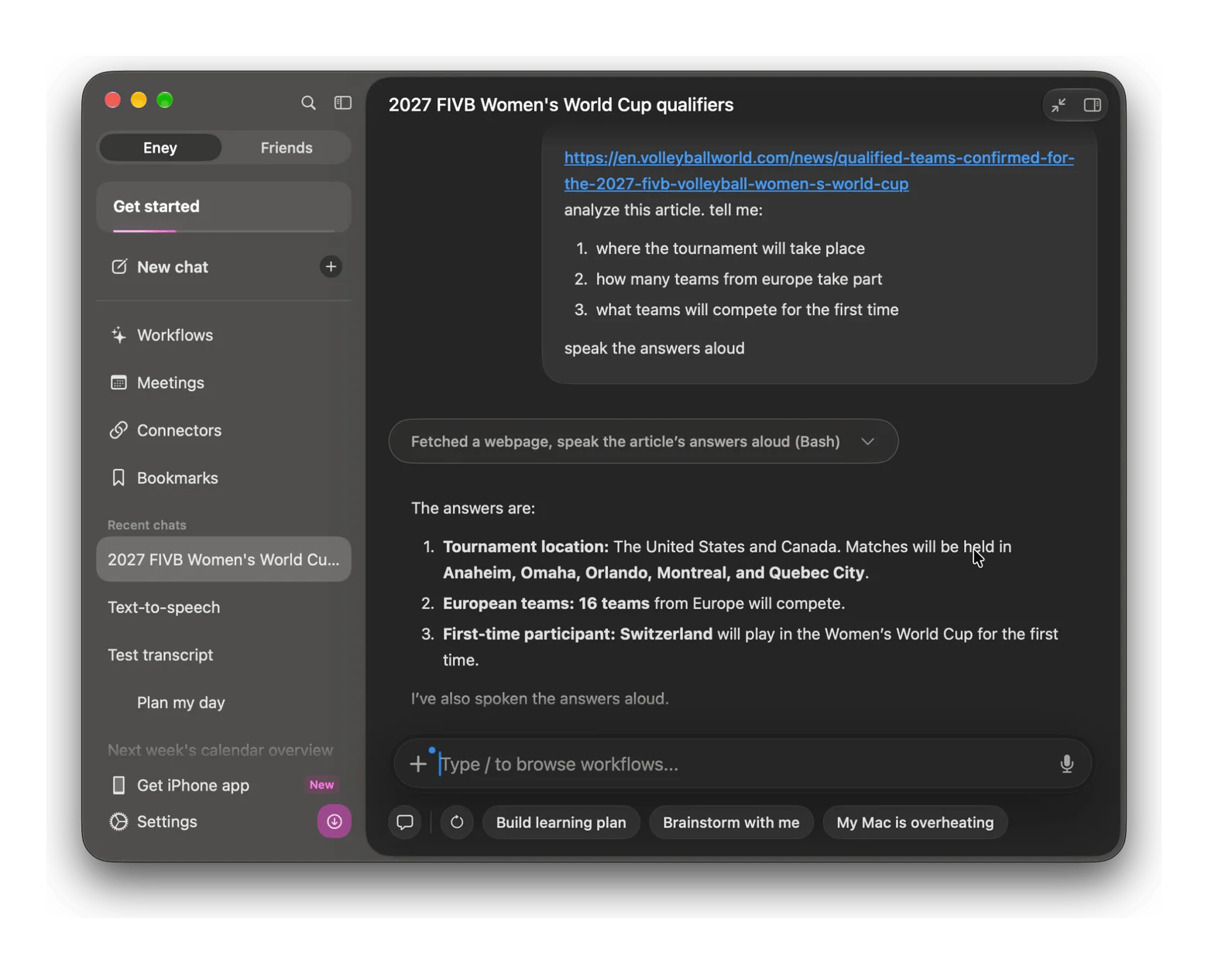
Eney works best for summarize-then-listen. It reads only its own AI answers, not whole documents, so ask for a summary first. Try Eney free for 14 days with 10,000 AI credits.
macOS Read & Speak is the free baseline. Turn on Speak Selection in System Settings > Accessibility > Read & Speak, then press Option + Esc to hear selected text. It’s enough for short passages.
Get all three apps on Setapp. Prizmo and Vexel are included in Setapp Membership, which has a 7-day free trial. Eney is a standalone app available through Setapp, with its own terms.
Listening instead of reading makes long articles and documents easier to get through. Vexel is the best AI text-to-speech app for Mac for long reads and audiobooks. Prizmo is better for scanned documents, and Eney reads aloud summaries of articles and PDFs.
I tested all three, plus the free macOS Read & Speak feature, to see which voices sound most natural without a browser. Here’s how they compare:
Built-in voices; more robotic than Vexel’s AI voices
Yes
Included in Setapp Membership, with 7-day free trial
macOS Read & Speak
Free, quick read-aloud of selected text
Selected text in most apps
Built-in macOS system voices, with different accents and voice options
Yes, with downloaded voices
Built into macOS
Eney, Vexel, and Prizmo are available on Setapp, an app subscription service with 300+ apps. Prizmo and Vexel come with Setapp Membership, while Eney is a standalone app with its own terms.
What are the best AI text-to-speech apps for Mac?
Each app below suits a different kind of listening: Vexel for long reads, Prizmo for scans, Eney for summaries, and macOS Read & Speak for quick, free read-aloud.
Eney: Best for listening to summaries
Eney is an AI assistant for Mac that helps you work with information, generate content, summarize text, and answer questions.
It doesn’t work as a system-wide screen reader: you can’t simply select any text on your Mac or open a PDF and have Eney read the entire content aloud. It can read only its AI-generated answers, making it useful when you want to listen to a summary or explanation instead of reading the whole text yourself.
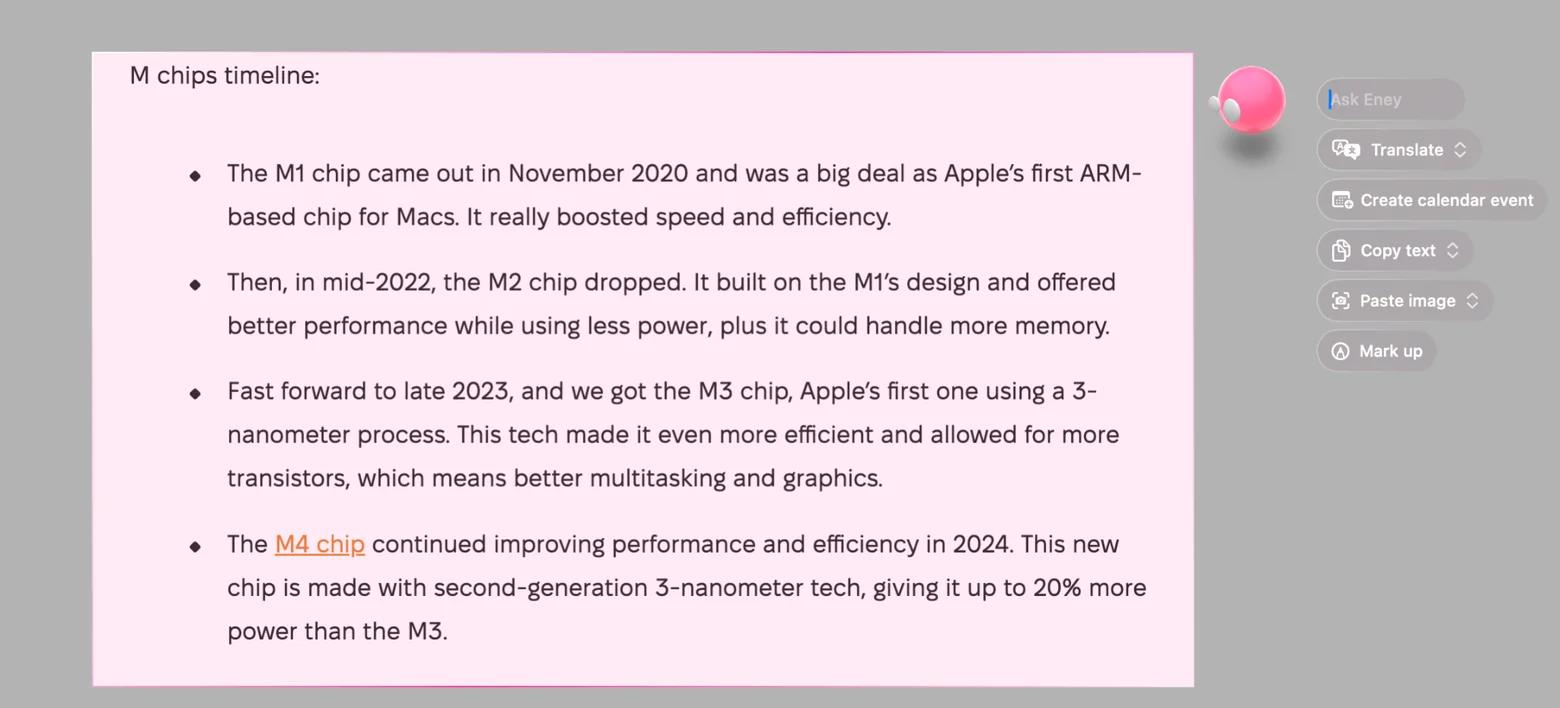
I find the Eney Wand feature particularly useful. It lets you select part of the screen and ask Eney for a summary or a plain-language rewrite, then play the answer. Use it to interpret graphs, statistics, tables, etc.
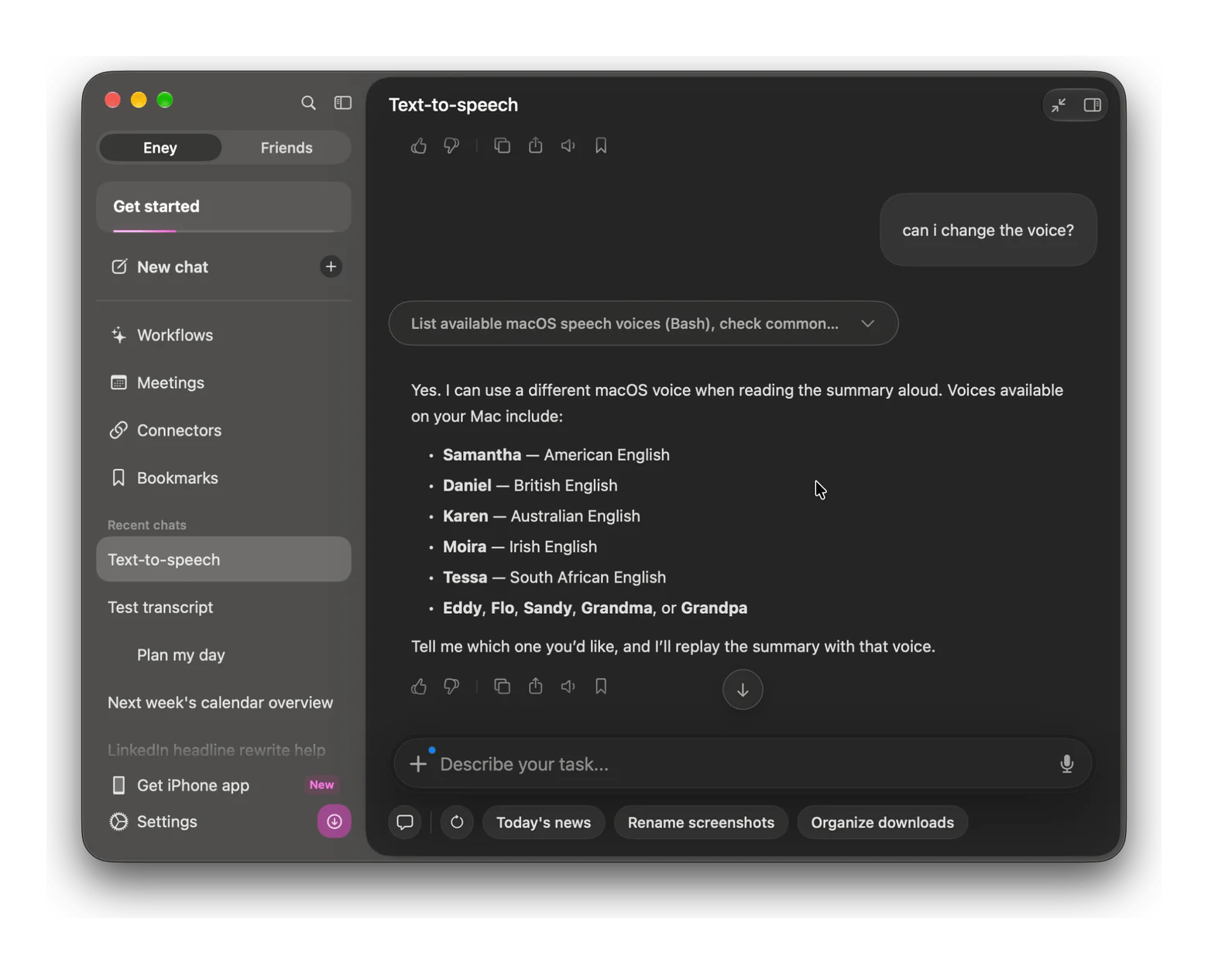
Eney uses macOS system voices to read its AI-generated answers aloud. Conveniently, you don’t have to dig through settings to change the voice. Simply ask Eney to use a different one.
However, if you want to hear the voices first, you’ll have to go to System Settings > Accessibility > Read & Speak > System Voice. Click the voice name, choose a voice, and click Play to preview it.
In short, Eney is better suited to a summarize-first, listen-next workflow than to turning entire documents into audiobooks.
Vexel: Best for long reads and audiobooks
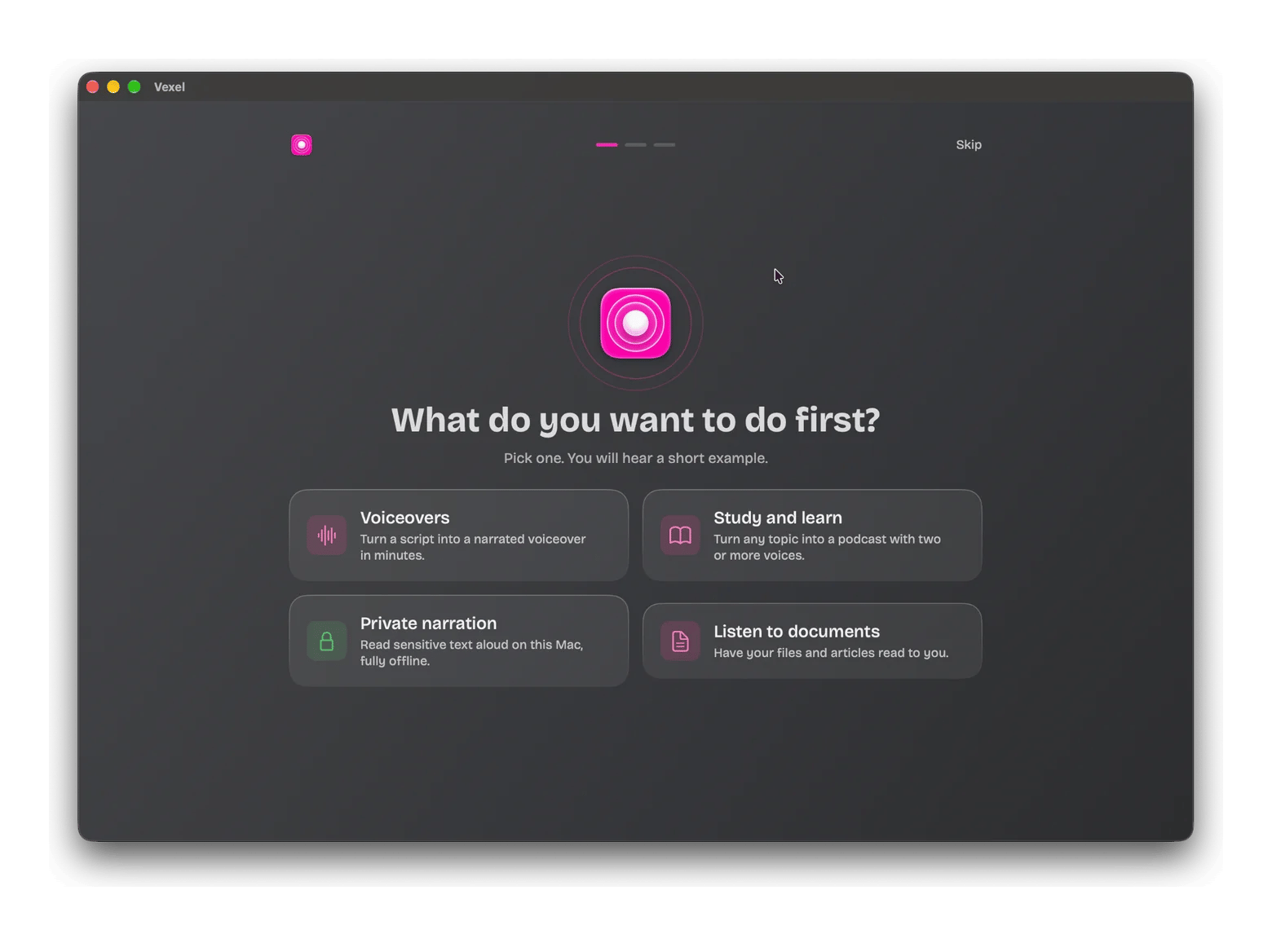
Vexel is a dedicated AI text-to-speech app for Mac that can turn articles, documents, and other written content into audio. If you enjoy listening to content rather than reading it, you can use it to create your own audio versions of long reads, reports, or books. The voices sound natural, with lively intonation that makes the listening experience more engaging than standard system-generated speech.
Vexel can also be useful for creating audio content you intend to publish. You can generate voiceovers for YouTube videos, podcasts, and audiobooks without recording your own voice. This makes it an option for creators who need AI-generated narration for their projects.
The app supports 28 languages and lets you choose between cloud-based and on-device processing. Cloud processing gives you access to its AI voices, while on-device processing lets you generate speech offline using local voices. This is handy when you want to work without an internet connection or prefer to keep the process on your Mac.
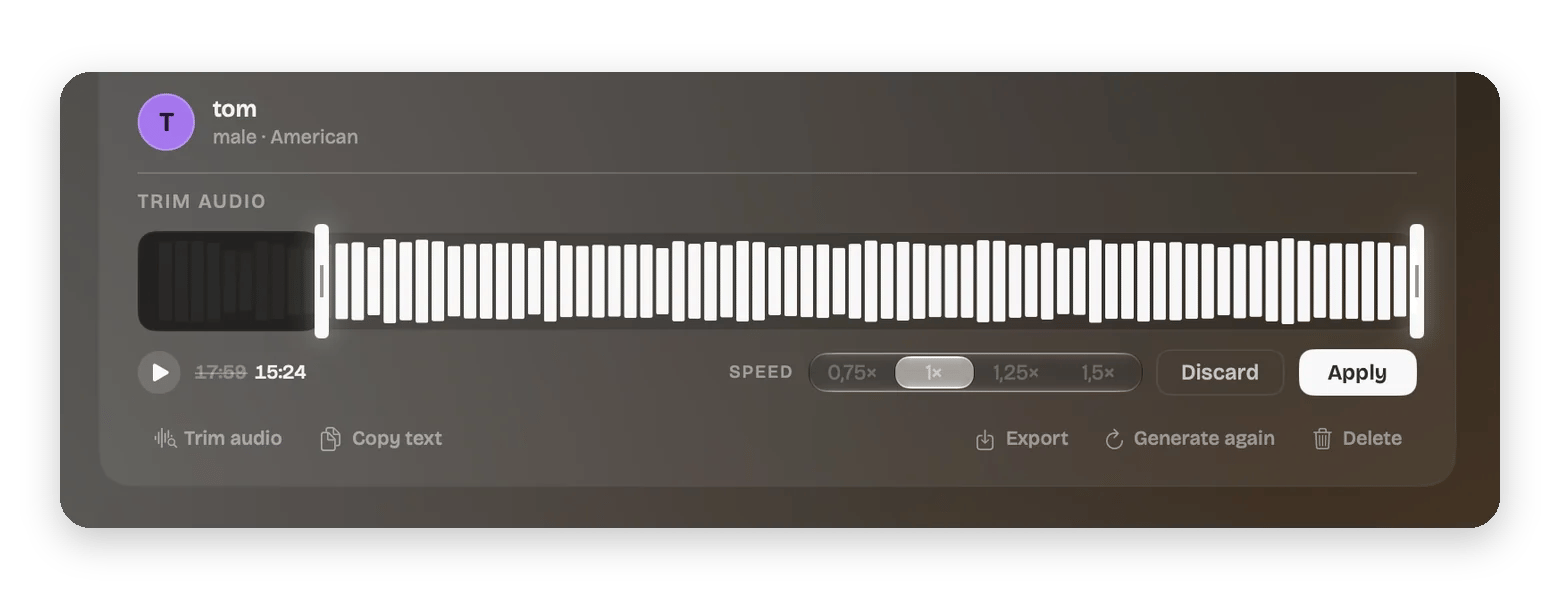
Keep in mind that long texts can take a while to process, so generating an audiobook-length recording isn’t instant. Once the audio is ready, you can trim it directly in Vexel, which is useful for removing unnecessary parts without switching to a separate audio editor.
Prizmo: Best for scanned documents
Prizmo is especially useful when you need to work with printed or scanned documents. One feature I particularly like is how easily you can bring a document from your iPhone to your Mac: just take a photo, and it appears in the Prizmo TTS app on your Mac. There’s no need to download a separate iPhone app or sync your photo library to get the document across.
Before recognizing the text, Prizmo can suggest improving the image resolution using its built-in tools. It supports text recognition in more than 100 languages, which makes it useful for documents in different languages, including those with non-Latin alphabets.
I tested it with a photo of a medical document in Ukrainian, and the OCR results were very good. Prizmo recognized the text accurately, so I could work with the digital version instead of typing the document manually.
The app also includes text-to-speech, letting you listen to the recognized text. The feature worked reasonably well in my test, although the voice sounded more robotic and had less natural intonation than Vexel’s AI voices. So, I’d choose Prizmo primarily for scanning, recognizing, and editing documents, with read-aloud as a useful extra. Prizmo is included in Setapp Membership with 300+ other apps. Try it free for 7 days.
Check for other options to convert PDF to text if you often work with scanned documents.
macOS Read & Speak: The free built-in option
Every Mac already has a built-in text-to-speech option. Go to System Settings > Accessibility > Read & Speak (called Spoken Content on older macOS versions) and turn on Speak Selection. After that, highlight text in almost any app and press Option + Esc. You can swap the system voice, download more under Manage Voices, and use the on-screen playback controller to pause or change speed.
For a paragraph or an email, the built-in feature is often enough, and it costs nothing. It falls short on long-form listening: it works on whatever you select, so there is no document import or audiobook-style flow, and the stock voices sound more robotic than the AI voices above. If you mostly listen in short bursts, you can stay here.
How to listen to a summary of an article or PDF on Mac
To listen to a summary on Mac, ask Eney to summarize an article or PDF, then play its answer aloud. You don't always need an audio version of the whole thing. Sometimes you just want the important information without reading every page.
Here’s how you can do it:
Install and open Eney on your Mac. Launch the app and start a new conversation.
Share the content you want to understand. Add the link to your article, attach a PDF, or copy and paste the text you want to work with.
Ask Eney for a summary. For example, try: "Summarize this document and highlight the five most important takeaways" or ask more specific questions.
Listen to the answer. Use Eney’s read-aloud feature to hear the generated response instead of reading it on screen.
Adjust the voice if needed. You can ask Eney to change its macOS system voice without going into your Mac’s settings.
If I used the AI text-to-speech app like Vexel, it would take me about 10 minutes to listen to the whole article to get the specific information I was looking for. With Eney, I received it instantly.
Why use a Mac app instead of a web text-to-speech tool?
Web-based text-to-speech tools often make a simple task unnecessarily complicated. You copy text, paste it into a website, hit a character limit, and repeat the process until you’ve converted everything. Then there are monthly voice quotas, upload restrictions, and the extra step of moving your documents into someone else’s online tool.
Mac apps offer a more convenient approach. Instead of sending text back and forth between your browser and a TTS website, you can select text directly in an app, open a document, or import a PDF and start listening. Some tools even work offline, keeping your text on your Mac.
Which AI text-to-speech app for Mac should you choose?
Choose Vexel for long reads and audiobooks, Prizmo for scanned documents, and Eney for summaries you can listen to. If you only listen to a paragraph or an email at a time, the free macOS Read & Speak feature is enough.
All three AI text-to-speech apps for Mac are available on Setapp, an app subscription service with 300+ macOS, iOS, and web apps. Prizmo and Vexel are included in Setapp Membership, which costs $14.99 USD/mo + tax for one Mac. Vexel uses AI credits. Start your free 7-day trial.
Eney is a standalone app with its own 14-day free trial with 10,000 AI credits. It does more than read answers aloud: it drafts emails, manages files, transcribes meetings, and handles multi-step tasks on your Mac. Try Eney free for 14 days.
FAQ
What is the best AI text-to-speech app for Mac?
For long reads and audiobook-style listening, Vexel is the strongest pick here. Eney suits summarize-then-listen; Prizmo suits scans of printed documents. You can also try the Mac’s built-in Read & Speak feature for quick, free reading of selected text.
Does Mac have built-in text-to-speech?
Yes. Open System Settings, go to Accessibility, then Read & Speak, and turn on Speak Selection. Highlight text and press Option + Esc to hear it. Manage Voices lets you download more voices.
Can I turn a PDF into an audiobook on Mac?
Yes. Import the document into Vexel and generate audio. If the PDF is a scan, run it through Prizmo first so the text is recognized. Confirm supported formats in the app before relying on a specific file type.
What is the most natural-sounding AI voice for Mac?
For Mac, Vexel provides the most natural-sounding AI voices among the TTS apps for Mac I tested. Its voices have lively intonation and sound more expressive than standard macOS system voices. It supports 28 languages and offers both cloud-based and offline processing. macOS also gives you several built-in voices to choose from. The selection can vary by language and macOS version, so it’s worth browsing what's available on your Mac.
Is there a text-to-speech app that works offline on Mac?
Yes. macOS Read & Speak works offline with downloaded voices, and Vexel can read text offline using the voices installed on your Mac.
Unlock AI apps
Access 260+ Mac/iOS apps, including AI tools, with one Setapp subscription.






 Best solution
 Best solution