The best MCP apps for Mac depend on how you want to use AI. BoltAI 2 is best for easily adding and managing MCP servers without editing files, while TypingMind lets you use multiple AI models and MCP tools in one chat interface.
You've probably scrolled through many "best MCP servers" directories by now. Most are useful, but you don't need everything on them. Too many servers can slow Claude down, and most end up unused. For everyday Mac use, two or three cover the essentials: files, calendar, notes, and the web. Below are the Mac apps and servers worth installing first, plus a 5-minute setup to connect Claude to your files.
What is MCP and what does it do for you?
MCP (Model Context Protocol) connects AI assistants like Claude to your files, tools, and workflows, so they can read your files and take action on them directly.
Every connection has four parts:
AI model: The main AI you’re using, like Claude.
App or data: The app or data you want to power up with AI (like your files, Google Calendar, or Notion).
MCP client: The MCP app where you type your questions and that handles the connection (like BoltAI 2 or Claude Desktop).
MCP server: The “key” that gives AI access to one tool. Each tool needs its own key.
There are thousands of MCP servers for Claude and other AI models. If you’ve been chatting with Claude and copy-pasting or uploading documents, MCP makes life a lot easier:
Claude connects directly to your files and apps.
No more copy-pasting or uploading files into every chat.
AI can perform tasks on your files, not just talk.
You can run AI tasks on files just with keyboard shortcuts.
No re-uploading after every change, since AI can now see the latest version.
You don’t need to know how the protocol works, just connect it right. If you’re curious anyway, see Setapp’s AI hub and the official MCP site to learn the technical side.
Mac apps that support MCP at a glance
Many apps now work as MCP clients, from coding editors like Cursor to chat apps like LM Studio. For everyday users, these are the four standout MCP apps for Mac. All of them work well with Claude and don’t need deep technical skills.
If you want to switch between models and manage servers in one window, BoltAI 2, a native Mac AI chat app available on Setapp, suits you. If you only use Claude, Anthropic’s own apps are hard to beat on setup. You can get both BoltAI 2 and TypingMind through Setapp Membership, a subscription with 300+ apps for Mac, iOS, and web, and try them free for 7 days.
BoltAI 2 is the easiest MCP client on Mac because you add servers in Settings instead of editing files by hand. Of all the MCP apps for Mac I tried, BoltAI 2 felt the least like a developer tool. It’s a native Mac app, and you can manage MCP servers from its Settings. It works with Claude, GPT, Gemini, or a local model. That means you can run the same tools on each and see which one handles a task best.
You can add a server with a few clicks:
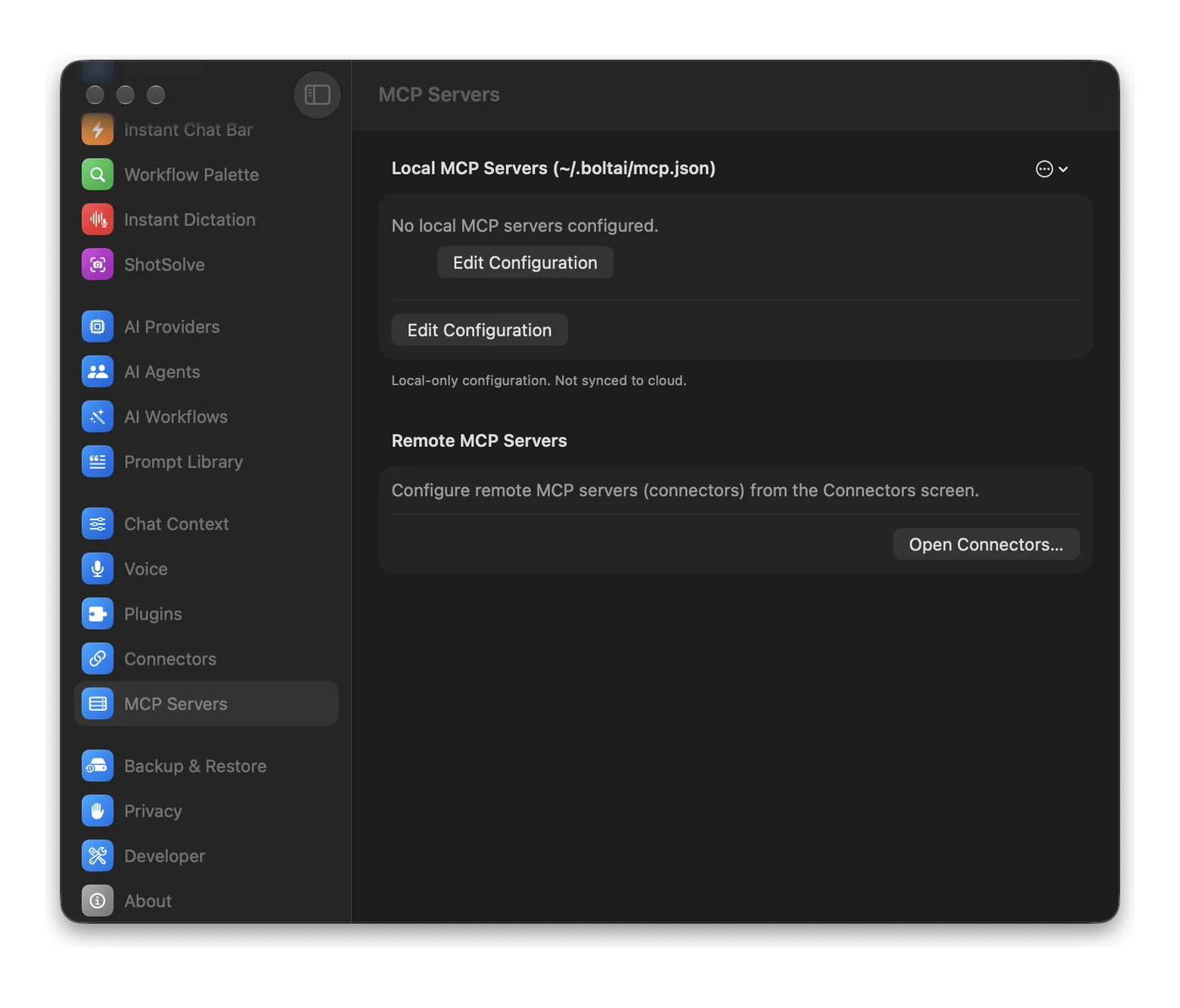
Local servers: Open BoltAI 2 > Settings > MCP Servers.
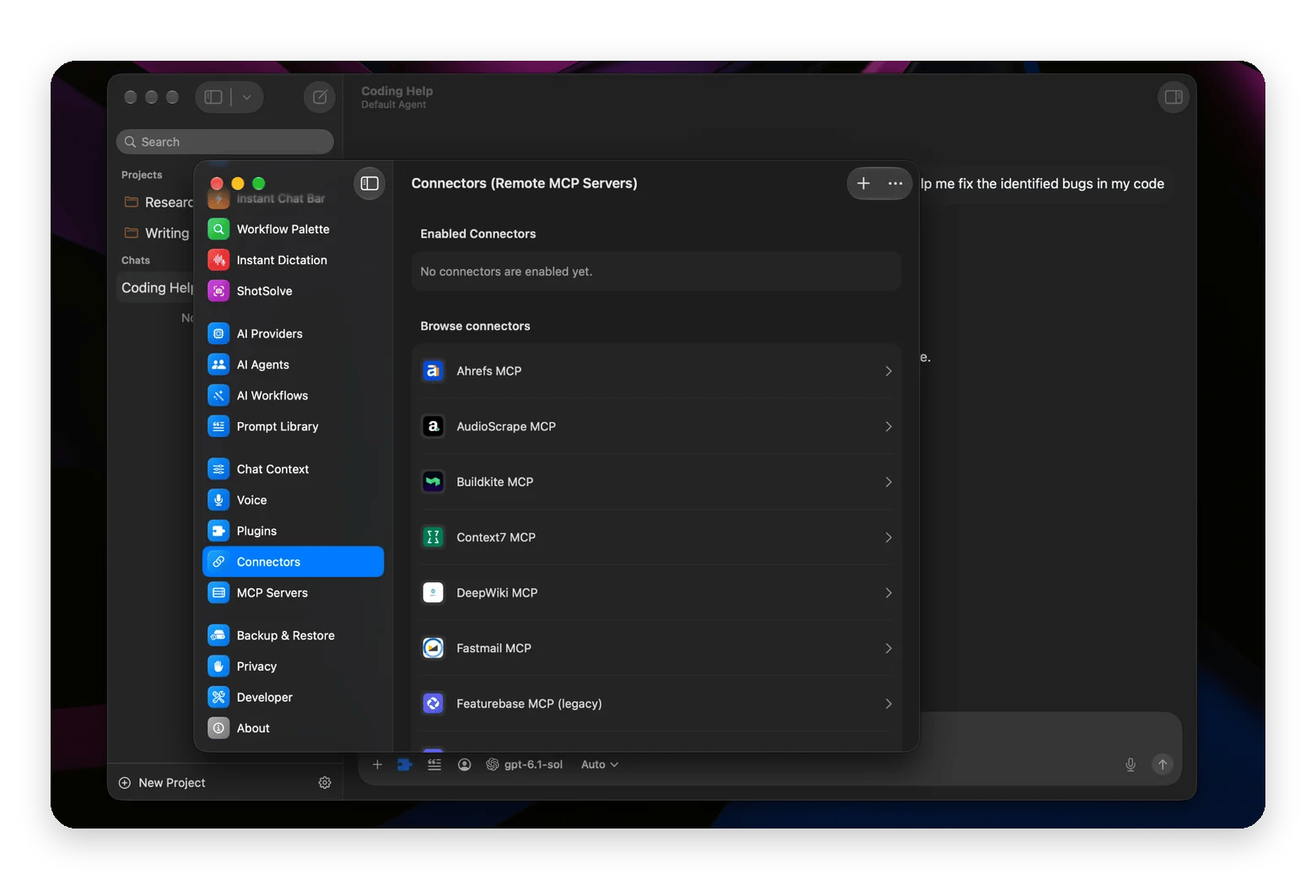
Online services: Open BoltAI 2 > Settings > Connectors, browse ready-made ones like Context7 or Fastmail, and click Connect.
Existing setups: On the MCP Servers screen, open the menu and choose Import from Claude Desktop or Import from Cursor. This is my favorite touch, since BoltAI 2 copies your servers over in one click.
On Setapp, BoltAI 2 runs on AI credits or your own API key.
One limit: most local servers run through Node.js, so you’ll need to install it first if you don’t have it.
Claude Code: MCP for your coding workflow
Claude Code is Anthropic’s coding agent, and the Terminal is where most people use it. MCP turns it into something that knows your whole project.
You need just three commands to start with setup:
claude mcp add to connect a server
/mcp to see what’s connected
claude mcp remove to drop a server you no longer need
Tip: for GitHub alone, Claude Code works fine without MCP, but the server helps when you want issues and code in one view.
TypingMind: MCP with a prompt-power interface
If you’re someone who keeps ChatGPT, Claude, and Gemini open in three separate tabs, TypingMind suits you. It puts Claude, GPT, Gemini, and many more AI models in one clean chat window. Your folders, prompt libraries, and AI agents live there too. For me, it feels organized.
What I like is that your MCP servers show up as plugins, right next to TypingMind’s built-in ones. You use them like any other tool in the chat. You can also switch models in the middle of a conversation and keep the same tools, which is handy when Claude and GPT disagree on something.
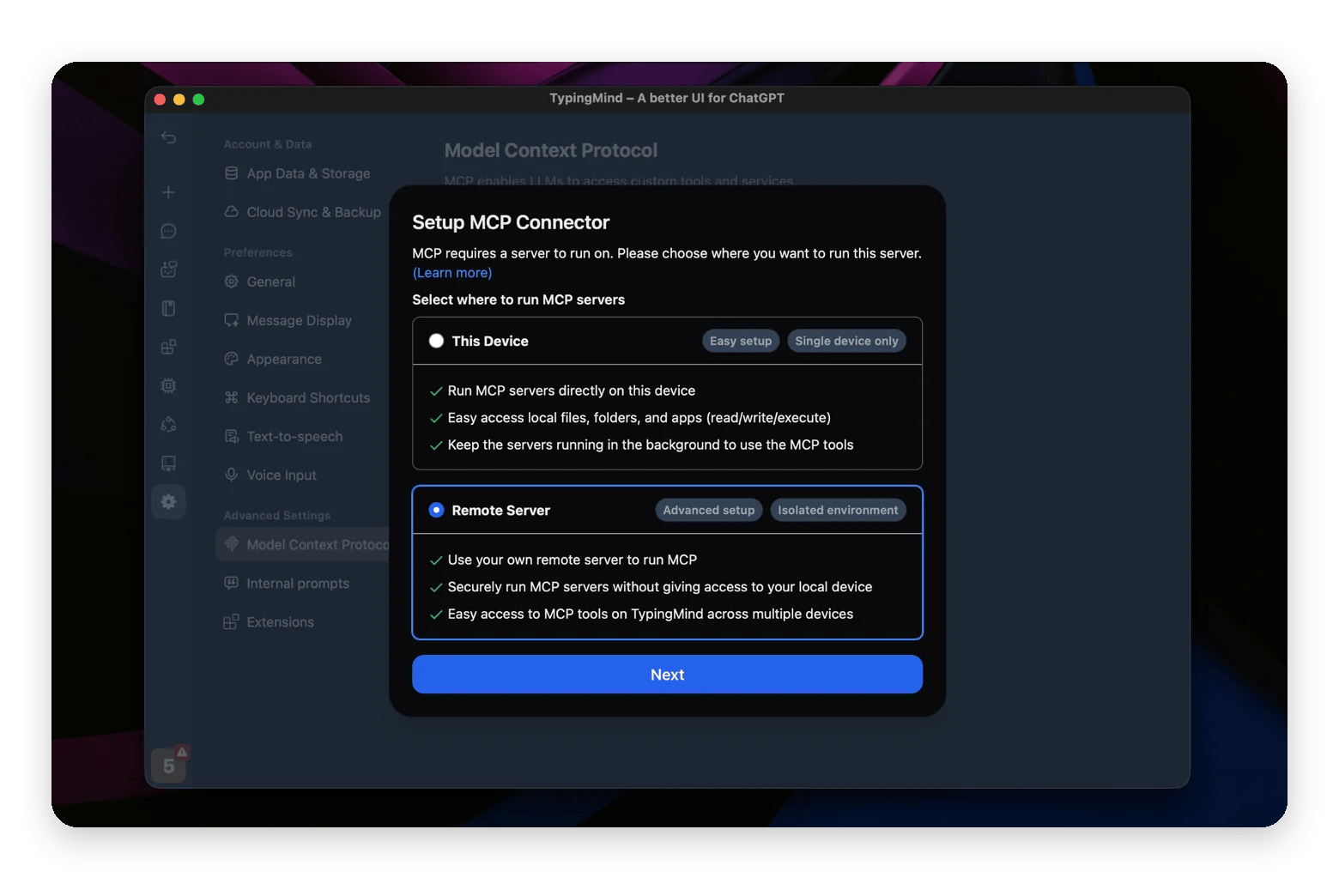
To set it up, go to Settings > Advanced Settings > Model Context Protocol, run the small connector in Terminal, and paste your server list.
It’s a great pick if you already live in TypingMind. Just keep in mind the connector runs on your Mac, needs Node.js 18 or later, and has to stay running in the background, which is one extra step BoltAI 2 and Claude Desktop don't ask for.
Claude Desktop: The first-party baseline
Anthropic’s own Claude app is the baseline, and it handles MCP well now.
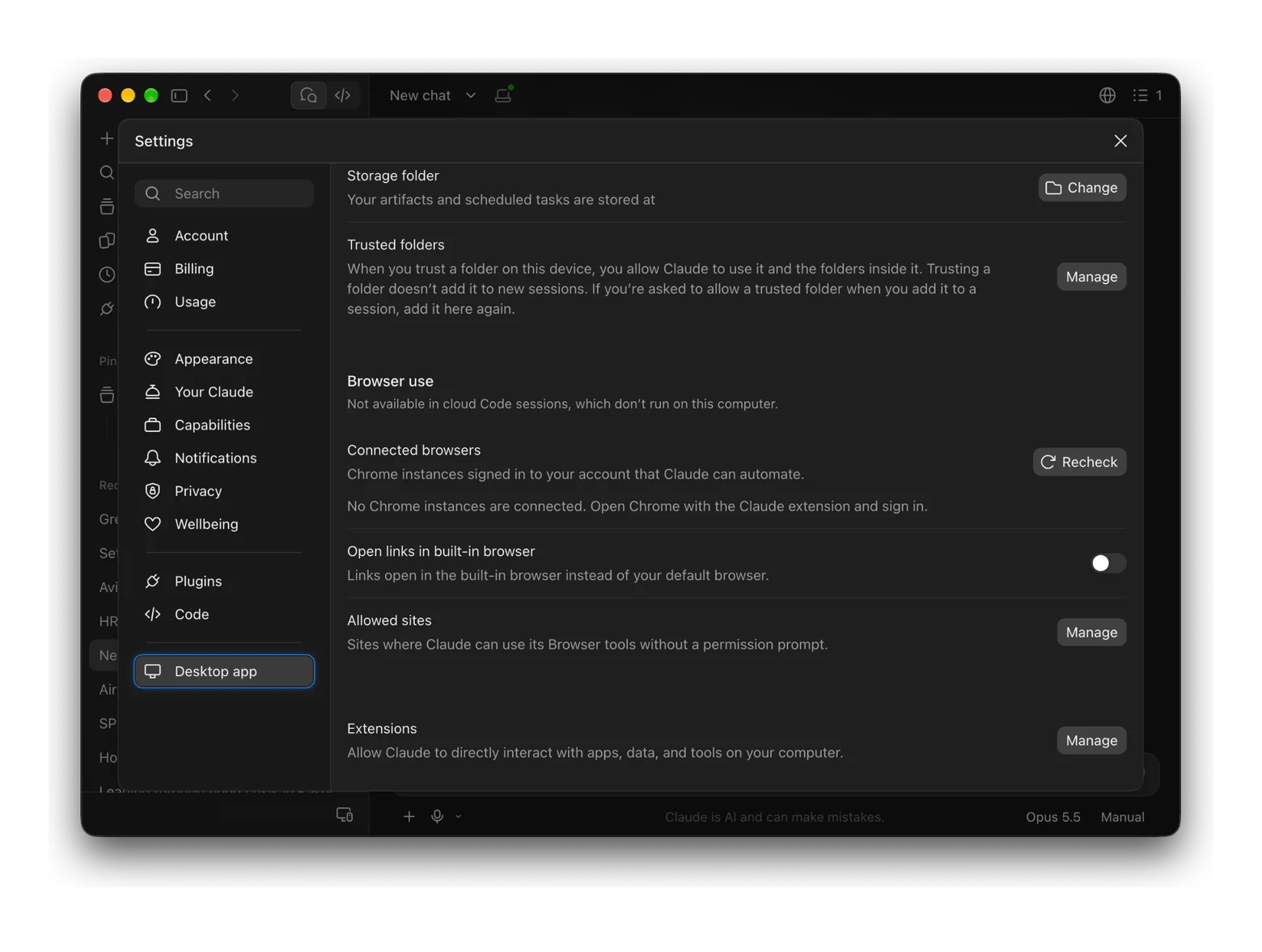
To set up MCP, go to Settings > Desktop app > Extensions > Manage > Browse extensions, and install servers in one click. No Node.js setup needed.
The catch is that it only works with Claude models, so BoltAI 2 and TypingMind make more sense if you want to switch models and keep everything in one place.
The 7 best MCP servers to install first
These are the best MCP servers I use for everyday Mac work. I picked for what they let Claude do, not for how impressive they look in a directory:
Filesystem (official): Lets Claude find, read, and organize files in the folders you choose. Best with BoltAI 2 or Claude Desktop.
Calendar: Lets Claude check your schedule and find free slots. Use Claude’s Google Calendar connector, or an Apple Calendar server like apple-mcp. Best with Claude Desktop or BoltAI 2.
Playwright: Lets Claude open web pages, click, and fill in forms in a real browser. Best with BoltAI 2 or Claude Code.
GitHub (official): Brings your issues, pull requests, and code into the chat. Best with Claude Code.
Brave Search: Gives Claude live web results, so answers aren’t stuck at its training date. You’ll need an API key. Best with BoltAI 2 or TypingMind.
Notion or Obsidian: Lets Claude search and write in your notes. Notion has an official server, and Obsidian works through community ones. Best with Claude Desktop or BoltAI 2.
Gmail or Fastmail: Lets Claude search your inbox and draft replies. Gmail works through Claude’s connectors, and Fastmail is in BoltAI’s connector list. Best with Claude Desktop or BoltAI 2.
Bonus: Setapp MCP server. Built into Setapp Desktop 4.0.1 and later, it lets your AI agent find the right Setapp app for a task, check your access, and open it. Connect your agent in one click in Setapp Settings > AI Agents. Setapp asks before every install or purchase.
My advice: think about the kind of work you do first, then add MCP servers one by one, starting with the ones you need most. Don’t add a bunch at once just because a directory lists them. Every server you add is one more thing with access to your data, and one more set of tools for the AI to juggle.
How to connect Claude to your Mac in 5 minutes
Here’s how to connect Claude to apps and files on your Mac, using BoltAI 2 and the official Filesystem server:
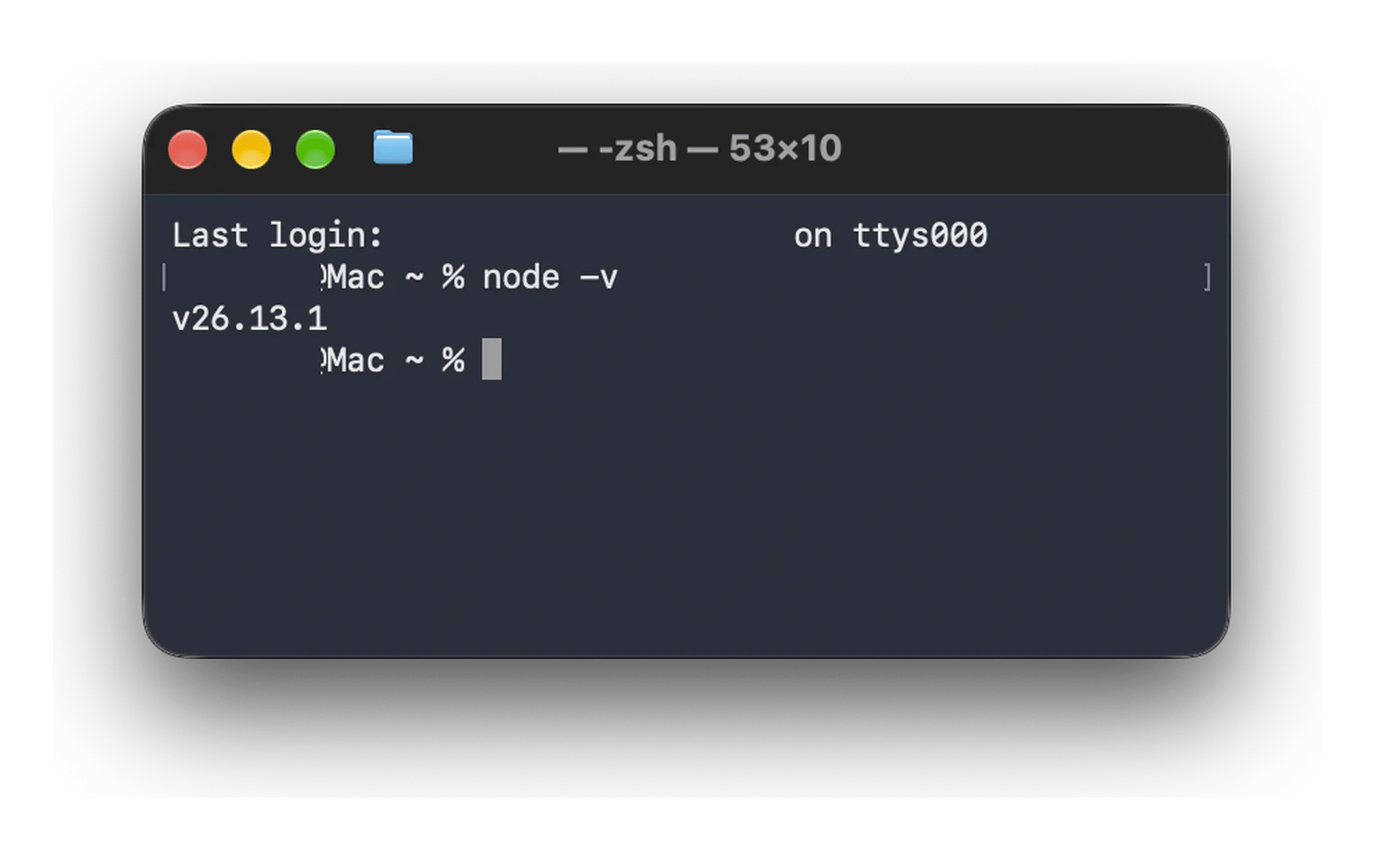
Now, install Node.js if you don’t have it yet. Download the LTS version from nodejs.org and open the installer. Not sure if you have it? Type node -v in Terminal and press Return. If you see a version number, you’re all set.
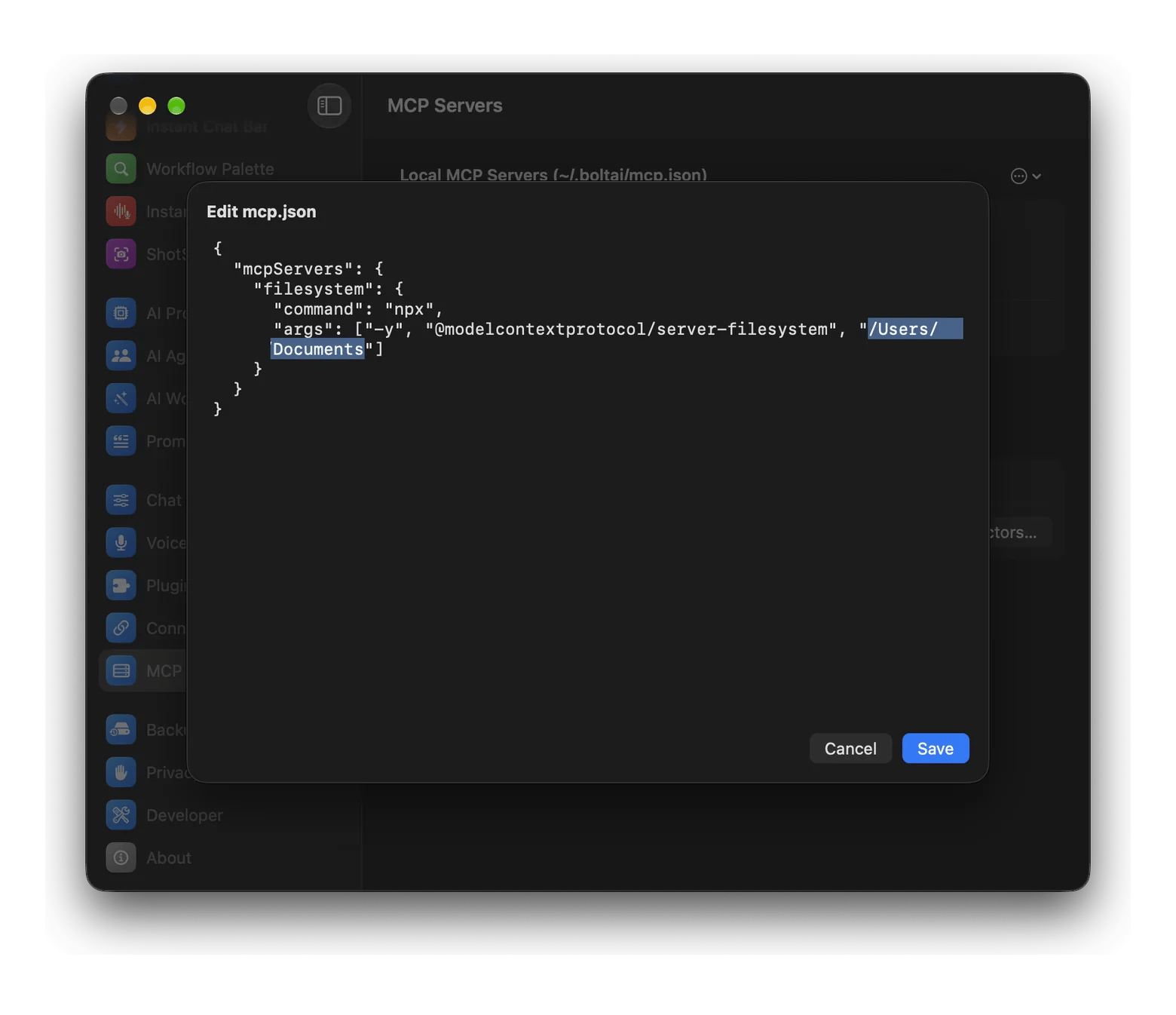
In BoltAI 2, go to Settings > MCP Servers and click Edit Configuration.
Paste the config below. Replace the folder path /Users/yourname/Documents with the path of the folder you want to connect, and click Save:
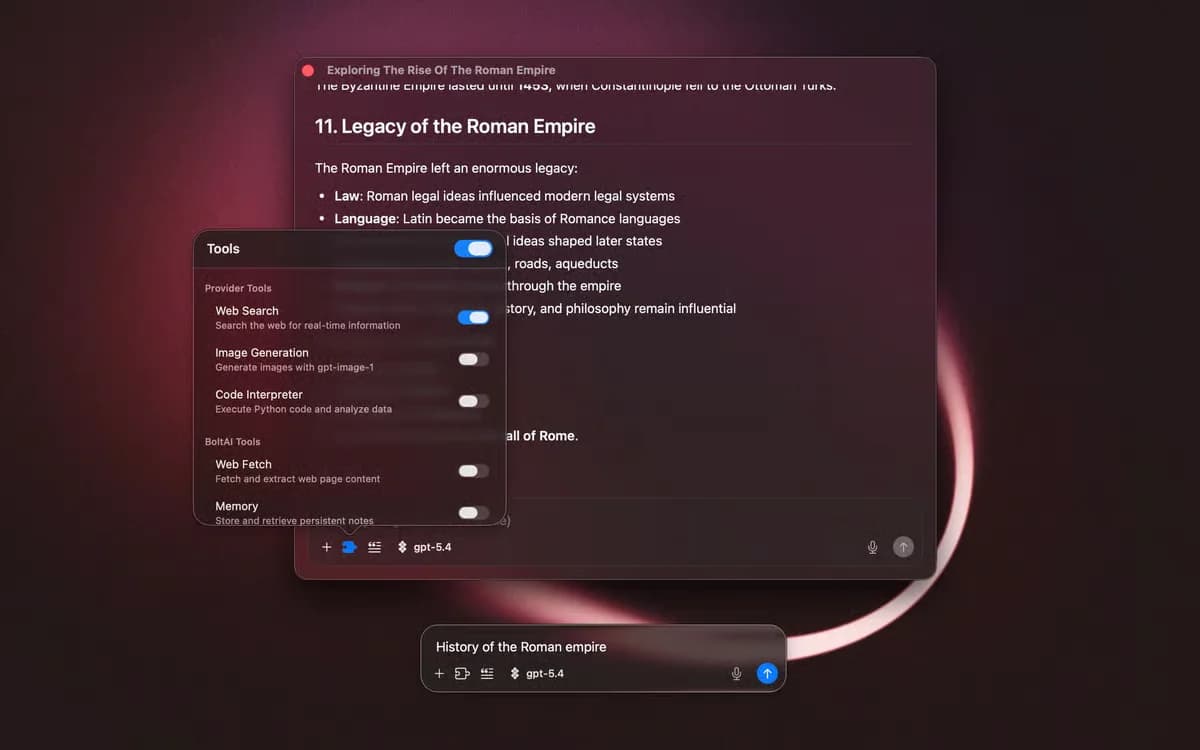
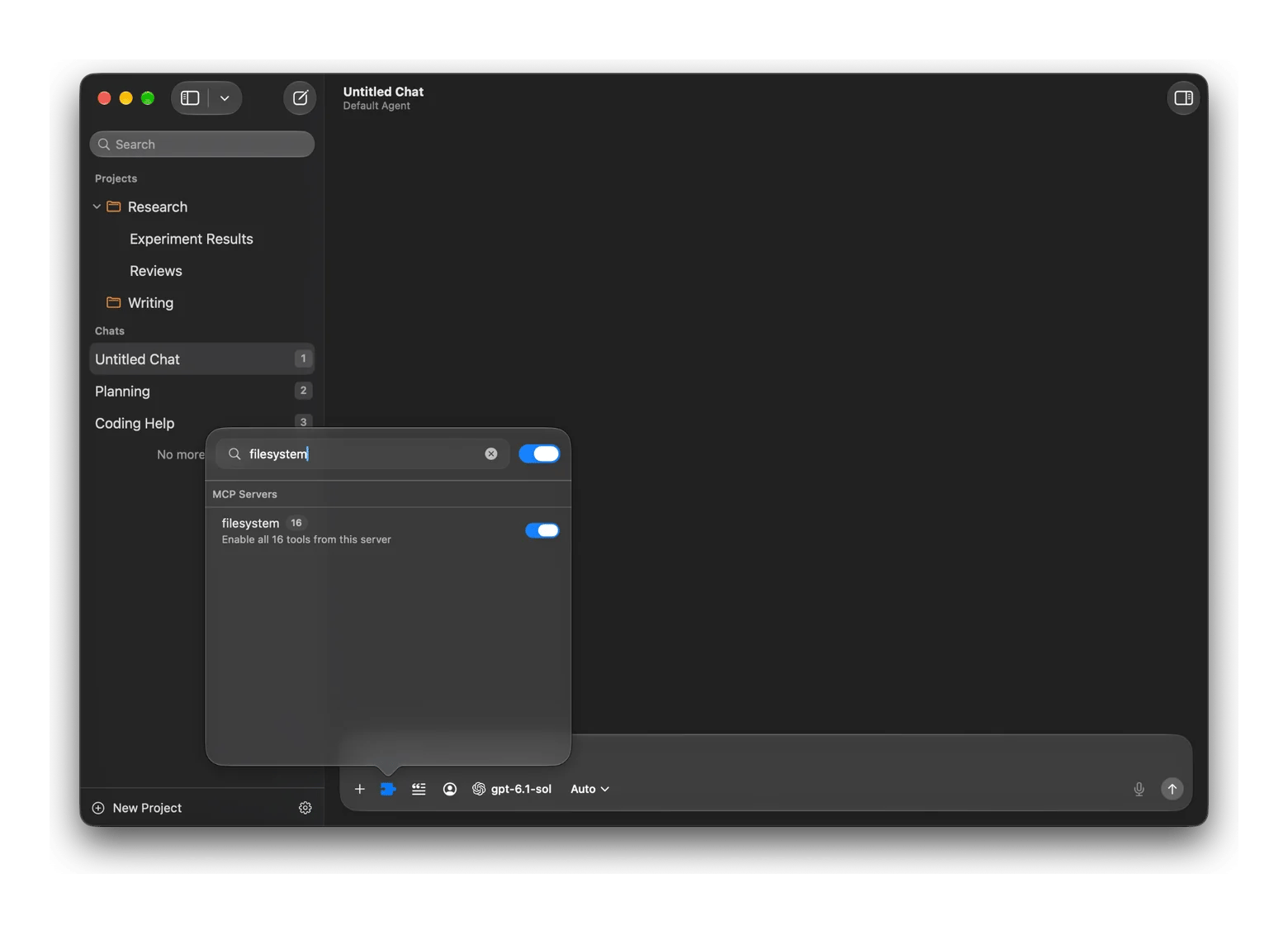
Start a new chat and turn on the filesystem tool from the Tools menu. Then give it a simple task, like: “List the files I changed this week.”
To add more, repeat step 5 with another server, like Calendar or Brave Search.
A word on safety: What you’re granting access to
MCP servers get access to your real data, so be careful about what you share. Treat them like apps you install:
Stick to official servers or well-known open-source ones that are actively maintained.
Give only the necessary permissions, like one folder instead of your whole home folder.
Check what tools a server exposes before you turn it on.
Keep approval prompts on for anything that sends, changes, or deletes.
Setapp’s MCP server asks you to confirm in Setapp before every install or purchase.
And remember: whatever a server reads goes to the AI model you’re using.
The best MCP apps for Mac, in one subscription
BoltAI 2 and TypingMind are both included in Setapp Membership, along with 300+ apps, from $14.99 USD/mo + tax. That’s two solid MCP clients for Mac, plus Setapp AI credits to run them, or the option to plug in your own API key in one plane. Try BoltAI 2 and TypingMind free for 7 days, and cancel anytime.
Claude Code and Claude Desktop come straight from Anthropic with a Claude plan. Setapp Desktop also has its own MCP server, so your AI agent can find, open, and install Setapp apps for you.
The best MCP servers to install first are Filesystem, Calendar, and a web search server like Brave Search. Filesystem lets Claude find and summarize your files, Calendar lets it check your schedule, and search keeps its answers current. Add GitHub or Playwright later if you code or want to automate browser tasks.
Which Mac apps support MCP?
The main MCP apps for Mac are BoltAI 2, Claude Desktop, Claude Code, and TypingMind. BoltAI 2 and TypingMind work with Claude and other models and are included in Setapp Membership. Claude Desktop installs servers in one click but works with Claude only, and Claude Code brings MCP to the Terminal for coding.
How do I connect Claude to my files on Mac?
To connect Claude to your files on Mac, add the official Filesystem MCP server to an app like BoltAI 2 or Claude Desktop, and point it to one folder, like Documents. In BoltAI 2, go to Settings > MCP Servers > Edit Configuration. In Claude Desktop, install it from Extensions. Then ask Claude to find or summarize a file.
Is MCP safe to use with personal data?
MCP is safe to use with personal data if you’re careful about which servers you install. Use official or well-known servers, give each one access to only what it needs, and keep approval prompts on for actions that send, change, or delete things. Remember that anything a server reads is shared with the AI model you use.
Do I need to know how to code to use MCP?
No, you don’t need to know how to code to use MCP. Claude Desktop installs servers in one click, and BoltAI 2 lets you add ready-made connectors from a list in Settings. Some local servers ask you to paste a short configuration or install Node.js, but that’s copy and paste, not coding.
Does Setapp have an MCP server?
Yes. Setapp Desktop 4.0.1 and later includes one. It lets your AI agent find the right Setapp app for a task, check whether your plan includes it, show prices if it doesn’t, and open or install it. To connect your agent, go to Setapp Settings > AI Agents. Setapp asks before every install or purchase.
Unlock AI apps
Access 260+ Mac/iOS apps, including AI tools, with one Setapp subscription.






 Best solution
 Best solution