ScreenFlow is the closest like-for-like Camtasia replacement on Mac. It combines screen recording, webcam capture, annotations, and video editing in one Mac-native app — same workflow, cleaner interface.
CleanShot X is the best pick for quick documentation and lightweight recording. Included in Setapp, it handles screenshots, GIFs, scrolling captures, and short screen recordings in a fraction of the time.
OBS Studio and DaVinci Resolve are the best free options — but they're complementary, not interchangeable. OBS records; DaVinci edits. Neither replaces Camtasia on its own.
Screen Studio is worth trying if you want polished-looking tutorials without editing work. It automates cursor zoom and scene transitions so your recording looks edited straight out of the session.
The best Camtasia alternatives for Mac are ScreenFlow for an all-in-one workflow, CleanShot X for quick captures and documentation, and Screen Studio for polished recordings with minimal editing.
Camtasia has been one of the most popular screen recording and tutorial creation tools for years. But while it offers several great features and functionalities, it’s often heavier, more expensive, or more production-oriented than most Mac users need day to day.
I’ve tried several other products in the market over the years, and I’ll take you through the best Camtasia alternatives for Mac.
Top Camtasia alternatives for Mac (detailed comparisons)
The Camtasia alternatives we’ll look at don’t try to replicate the same workflow.
From a general point of view, I can group them into:
Direct alternatives that offer screen recording and editing
Lightweight capture apps built for ease of use and quick sharing
General video editors for when the polishing is more important
Before we go deep into the features, here’s a quick overview of the best Camtasia alternatives.
Available in Setapp Membership + 250 more apps for $9.99/mo + tax
Screen Studio
Polished screen recordings with minimal editing
Mac
$29/month or $108/year
OBS Studio
Free, advanced recording
Mac/Win/Linux
Free
iMovie
Free beginner editing on Mac
Mac/iOS
Free
DaVinci Resolve
Pro editing for free
Mac/Win/Linux
Free, Studio $295 one-time
Final Cut Pro
Mac-first pro editing
Mac
$299.99 one-time
Adobe Premiere Pro
Cross-platform pro editing
Mac/Win
From $22.99/month
Loom
Quick async video updates
Mac/Win/Web
Free (limited), $24/user/month
Not sure which of these fits your workflow? The Video Editing Software for Mac GPT assistant can help you match the right tool to your use case — just describe what you're making and how you like to work.
1. ScreenFlow: Best choice for an all‑in‑one Camtasia‑style workflow on Mac
Best for: Direct replacement for Camtasia (screen recording + video editing in a Mac-native app)
Platforms: Mac
ScreenFlow is probably the closest you’ll get to Camtasia if you like the workflow and are moving due to the price or interface. It combines screen recording, webcam capture, editing, annotations, and video editing into a single app.
What I like most about the app is that the interface is more Mac-native compared to Camtasia’s Windows-inspired interface.
Pros:
Closest direct Mac equivalent to Camtasia
Cleaner Mac experience than many cross-platform apps
iOS device recording (iPhone/iPad via USB) supported
Strong option for tutorials, demos, and courses
Cons:
Less suited to advanced editing
Large projects can still become resource-heavy
Fewer collaboration features than cloud-focused tools
Pricing: $199 one-time
ScreenFlow is probably the closest you'll get to Camtasia on Mac. For more options like it, see ourScreenFlow alternatives roundup.
2. CleanShot X: Ideal for fast documentation, screenshots, and lightweight screen recordings
Best for: Teams and creators looking for quick screenshots and video captures without a full editing suite
Platforms: Mac
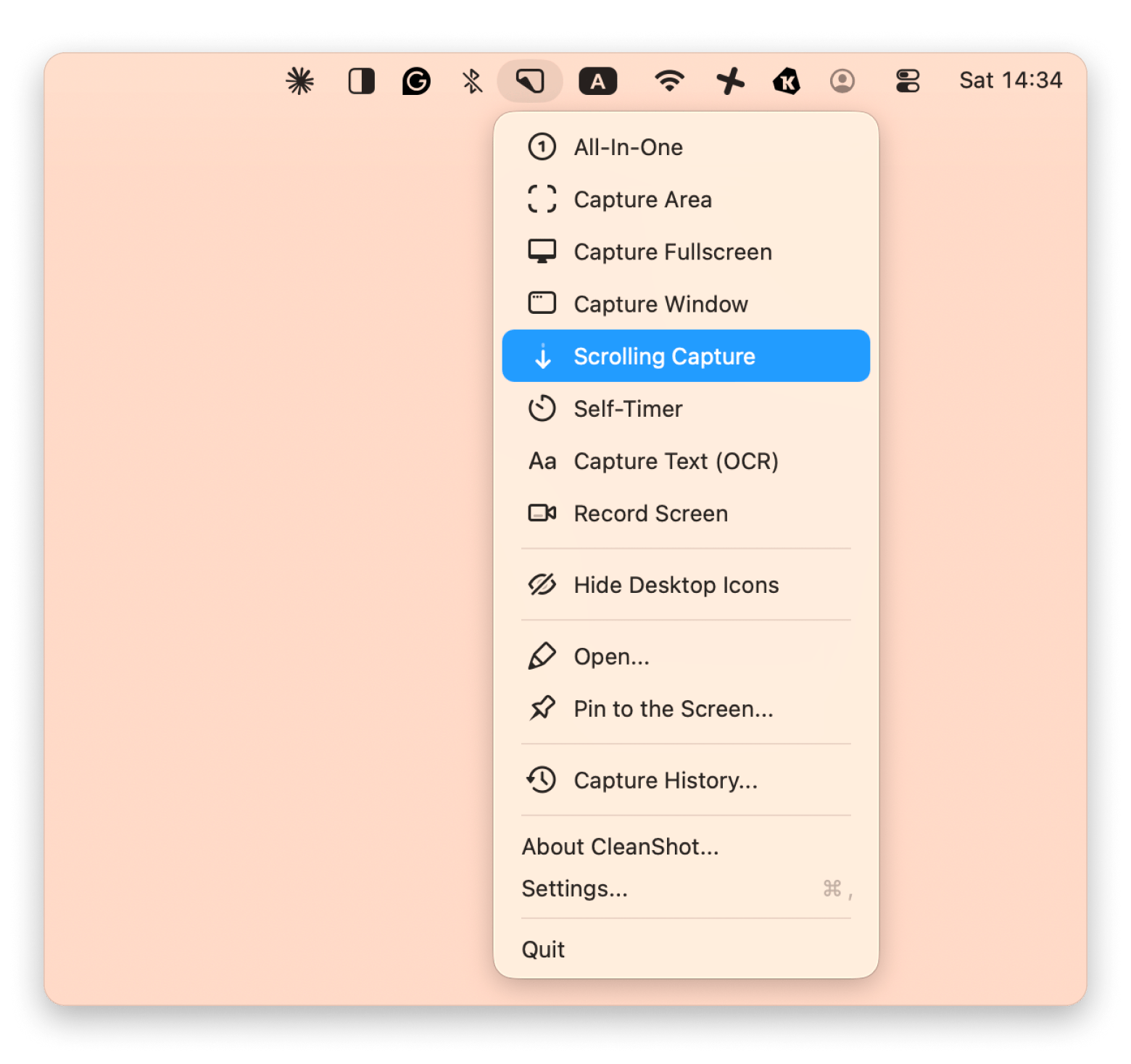
CleanShot X is the Camtasia alternative I often use, as most of my workflows involve simple screen recordings and annotations. It tries to keep the workflow similar to the built-in screenshot and recording tool, but it offers more powerful features.
There are several video recording customization options alongside screenshots, annotations, quick recordings, and scrolling capture, making it one of the best screen recorders for Mac available today. Once you capture a screenshot or video, you can click on a floating thumbnail to enter editing mode. You can also upload it to the cloud for quick shares.
Pros:
Best-in-class screenshot and annotation workflow on Mac
Instant shareable links via CleanShot Cloud
OCR, scrolling capture, GIF recording, and video all in one
Screenshot annotation tools and a video editor
Cons:
Editing tools are limited compared to Camtasia
Less suited for long-form tutorials and courses
Pricing: One of the best bits about CleanShot X is that it’s available on Setapp. This means you don’t need to pay extra if you already have a subscription. If you don’t, Setapp is available from $9.99 + tax per month and has a generous 7-day free trial.
3. Screen Studio: Best option if you want modern-looking screen recordings with minimal setup
Best for: Creators who want polished-looking tutorials and demos without spending hours editing
Platforms: Mac
Source: screen.studio
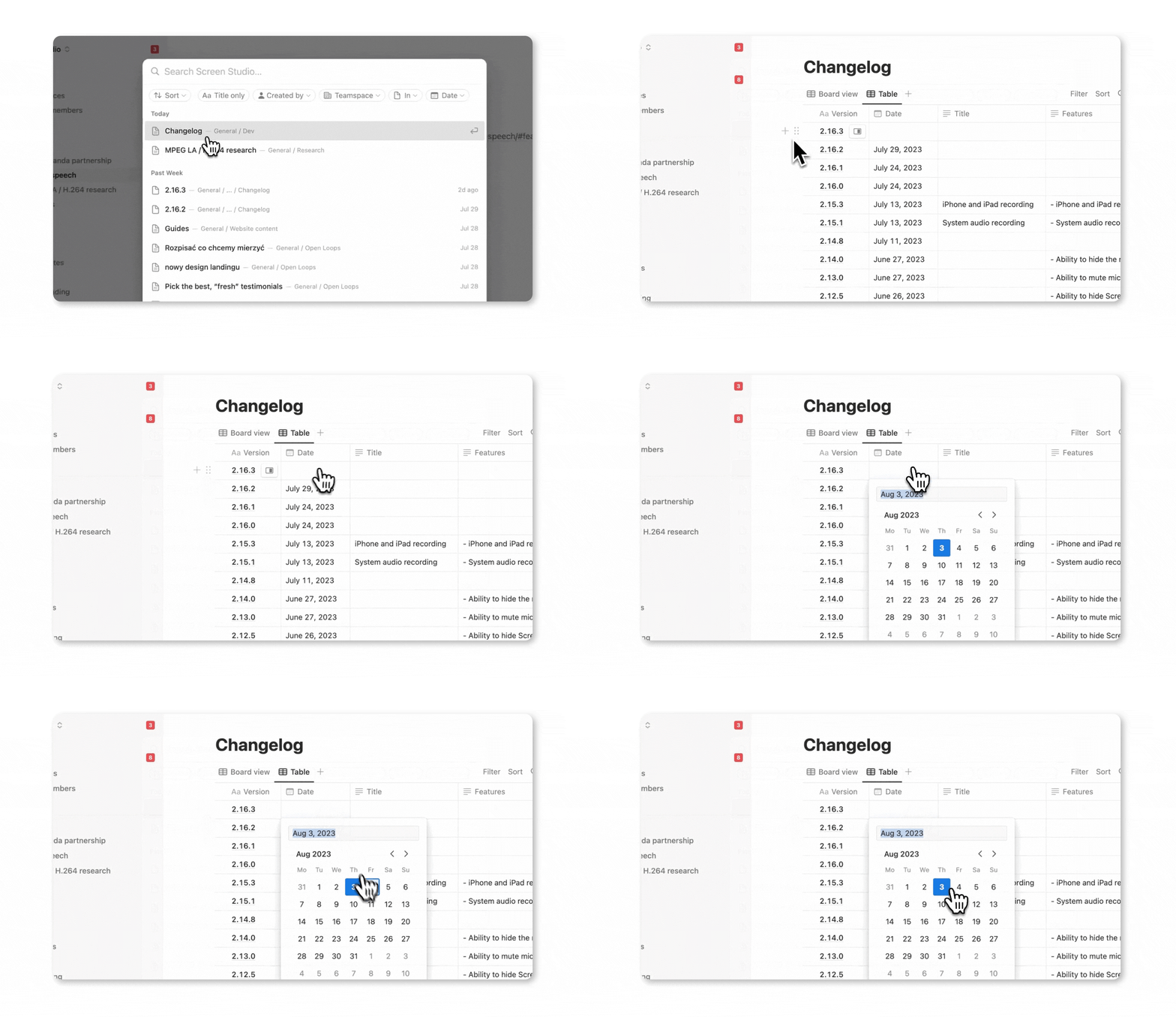
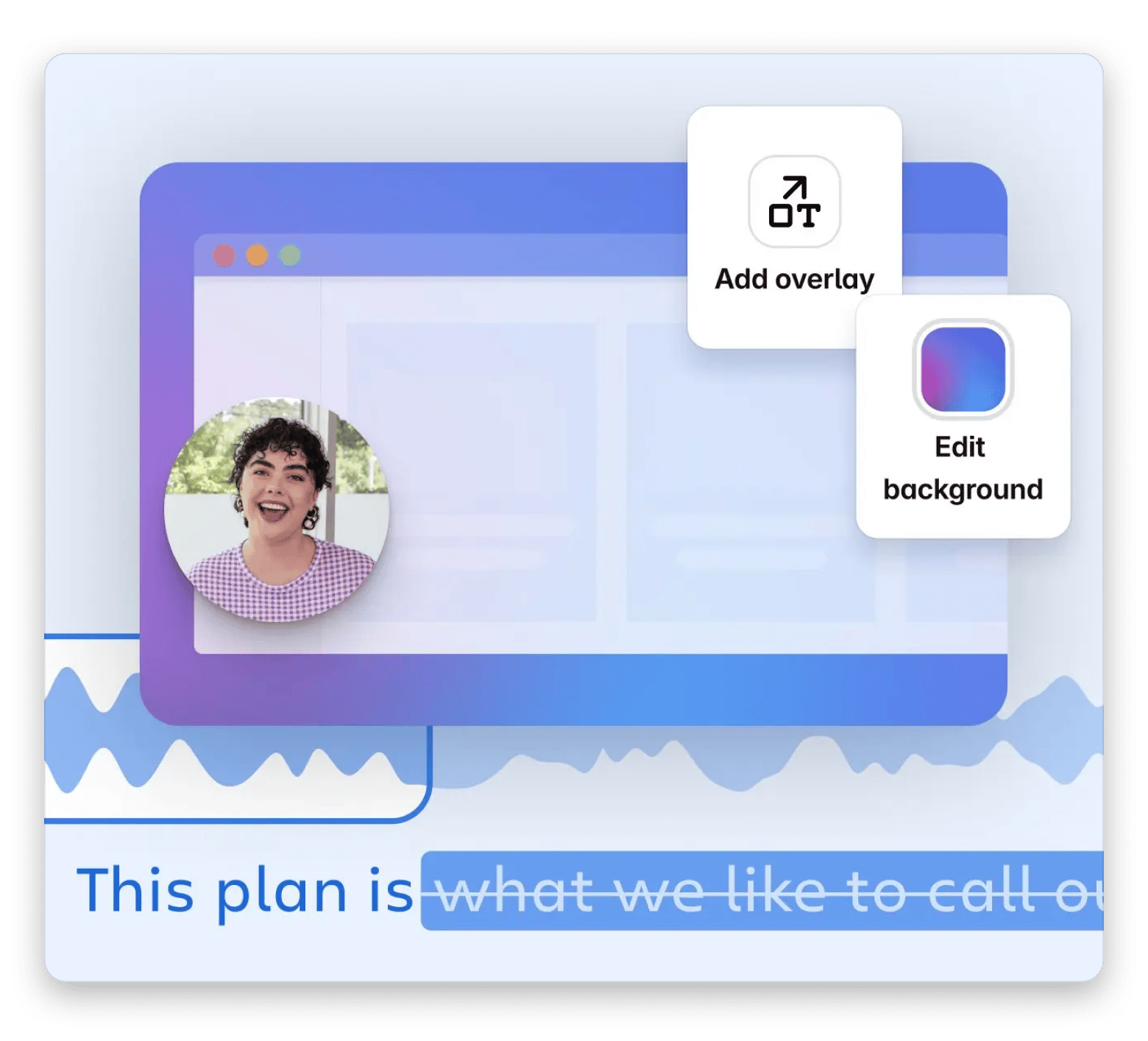
Screen Studio is a much more modern version of a screen recorder compared to Camtasia. Instead of letting you worry about multi-timeline editing and manual polishing, it automates most of that.
When you are recording, it automatically tracks your cursor and mouse clicks to add smooth zoom-ins and shift webcam overlays to avoid blocking the cursor view. When you finish recording, the video already looks edited without much manual effort, and there’s a preset for platforms like YouTube.
Pros:
Automatic cursor zoom and smoothing
On-device AI transcription
Excellent modern visual style
Faster workflow than traditional editors
Cons:
Limited post-recording editing compared to Camtasia or ScreenFlow
Constant auto-zooming can feel disorienting (may need adjustment)
Pricing: $29/month or $108 yearly
4. OBS Studio: Best free option if you’re comfortable with a more technical setup (and you’ll edit elsewhere)
Best for: Mac users who want maximum recording control for free
Platforms: Mac, Windows, Linux
Source: obsproject.com
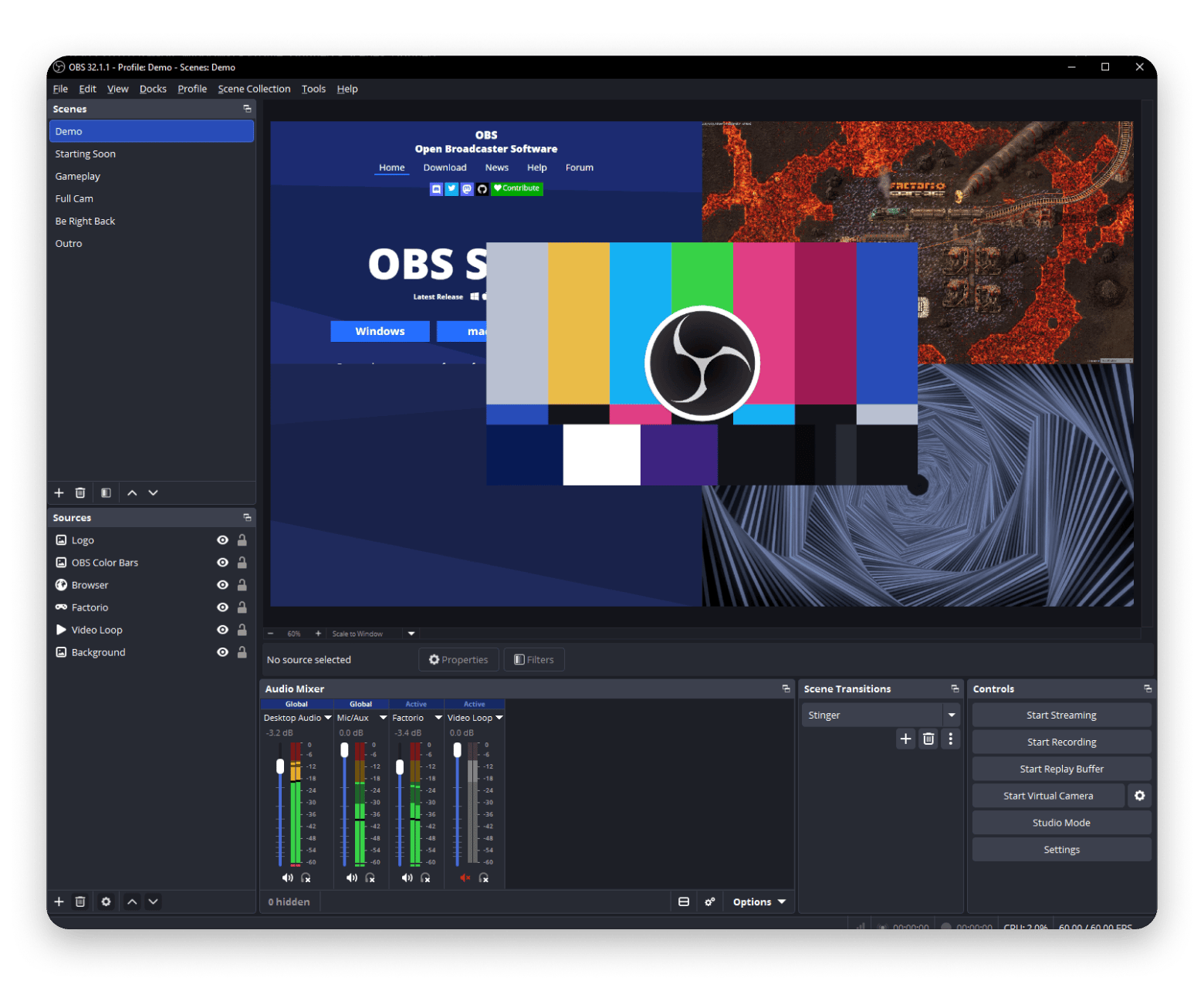
OBS Studio is a great Camtasia alternative, but it’s more of a production studio than a simple screen recorder like CleanShot X. It’s free and open-source, and the community usually creates add-ons that take the functionalities even further.
OBS Studio’s main strength is recording from multiple sources. You can combine webcams, screen captures, gameplay, images, text, and browser sources into a single canvas. This makes it more suitable for tutorials, livestreams, YouTube production, and advanced recording workflows.
No built-in editor, you need a separate tool for that
Not designed for casual or quick capture workflows
Pricing: Completely free and open-source
5. iMovie: Best for beginners who want a free Mac editor (but not a full screencast suite)
Best for: Beginners editing simple videos and screencasts
Platforms: Apple ecosystem
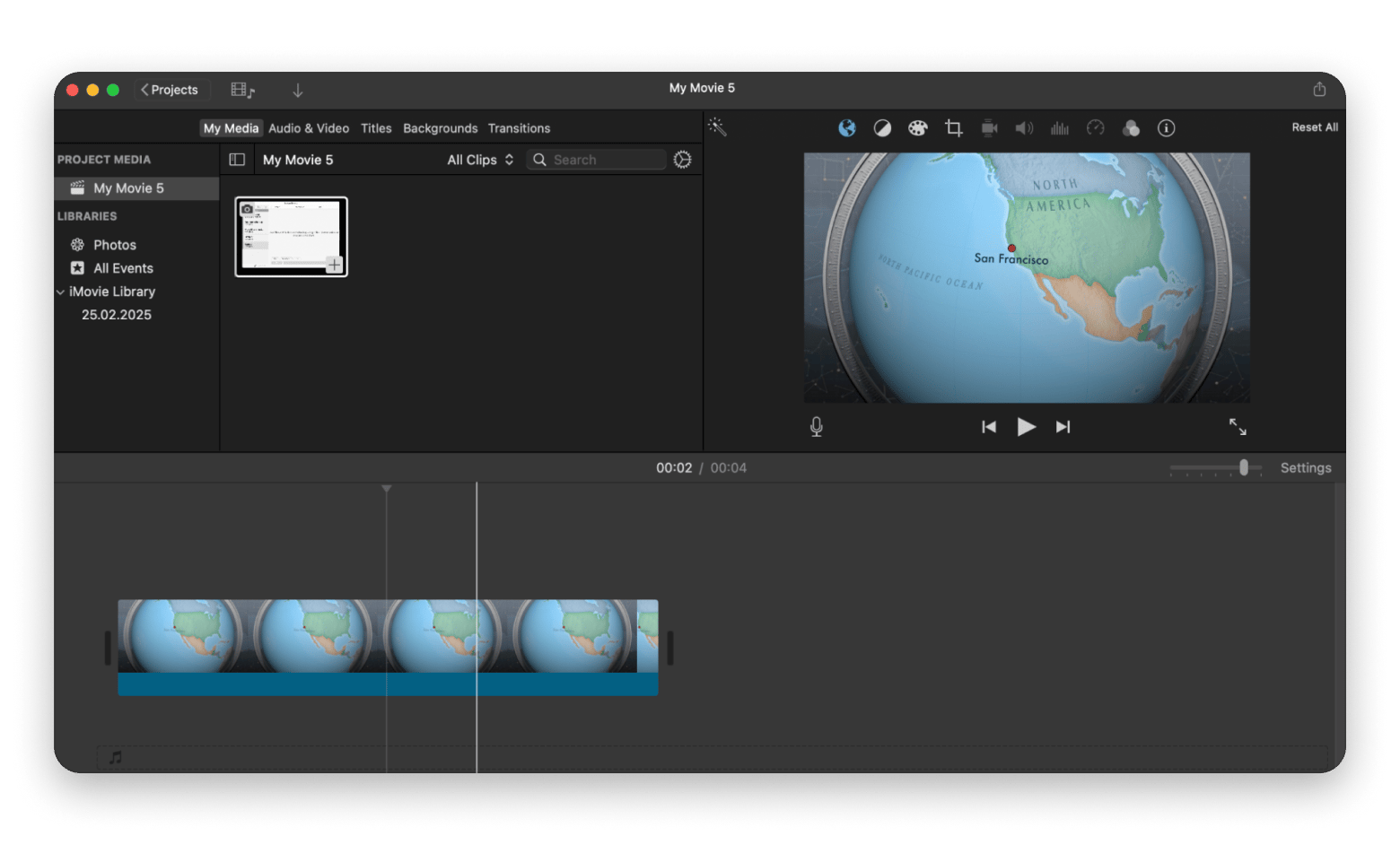
iMovie doesn’t offer screen recording like Camtasia. But if you are okay with the built-in recording tool Mac offers, you can edit your video using iMovie. It uses a simplified version of Final Cut Pro's editor, making it easy for beginners to get started.
While it doesn’t offer annotations to complement recorded videos and blur items, it’s great for stitching together quick YouTube uploads, school projects, and tutorials.
6. DaVinci Resolve: Best option if you want pro editing power for $0 (and don’t mind the learning curve)
Best for: Mac users who want professional-grade video editing (for free)
Platform: Mac, Windows, Linux
DaVinci Resolve is the ultimate video editing upgrade, as it’s free but offers professional-grade video editing. When you’ve recorded your video with a camera, the default screenshot tool, or a more powerful alternative like CleanShot X, DaVinci Resolve gets you into the serious editing territory.
It offers multi-track timelines, advanced color grading, audio post-production, motion graphics, effects, and high-end exports. The only thing it won’t do is record your screen.
Pros:
Free version is a fully professional editor used on real productions
Industry-leading color grading tools
Fairlight audio editor and Fusion VFX are included at no cost
Excellent performance on Apple Silicon
Cons:
Steep learning curve
No screen recording or annotation tools
Overkill for quick walkthroughs and documentation
Pricing: Free (95%) with a one-time payment of $295
7. Final Cut Pro: Best for Mac-first pros who want a one-time purchase editor
Best for: Mac users who want a professional video editor optimized for Apple Silicon
Platform: Mac
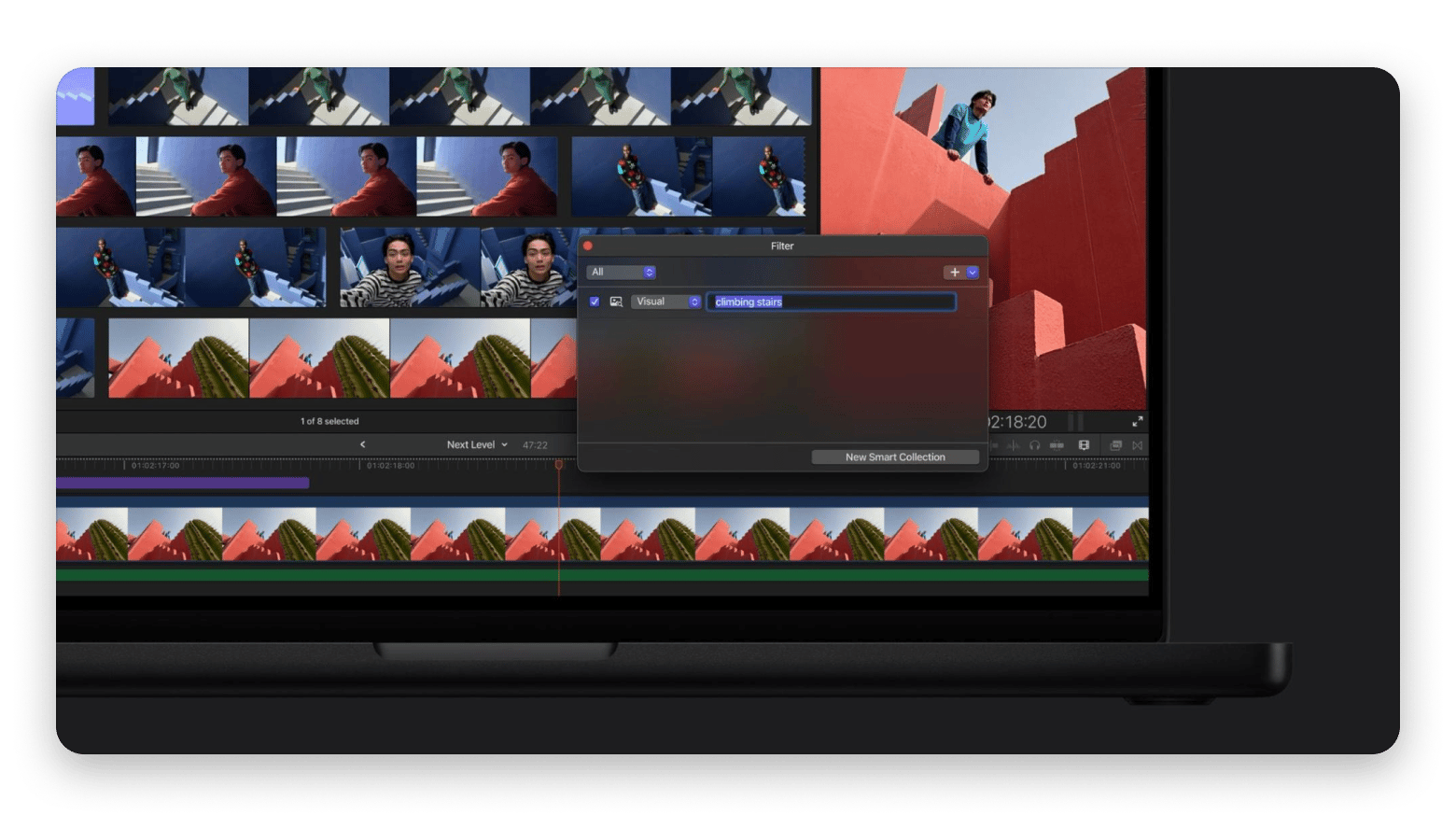
Source: apple.com
Final Cut Pro is the big brother of iMovie, geared towards professional video editors. And being from Apple, it’s fully optimized and offers the smoothest high-quality video editing performance. It doesn’t blow up your fans even during heavy renders.
The only problem as a Camtasia alternative is that it doesn’t offer screen recording.
Pros:
Best-performing video editor on Apple Silicon
Professional editing and production tools
Scales very well for larger projects
Generous 90-day free trial on new Macs
Cons:
High learning curve
No screen recording, callouts, or annotation tools
Overkill for quick documentation videos
Pricing: $299 one-time license
8. Adobe Premiere Pro: Best option if you collaborate cross-platform (and can live with a subscription)
Best for: Teams and editors working across Mac, Windows, and Adobe Creative Cloud workflows.
Platforms: Mac, Windows
Source: adobe.com
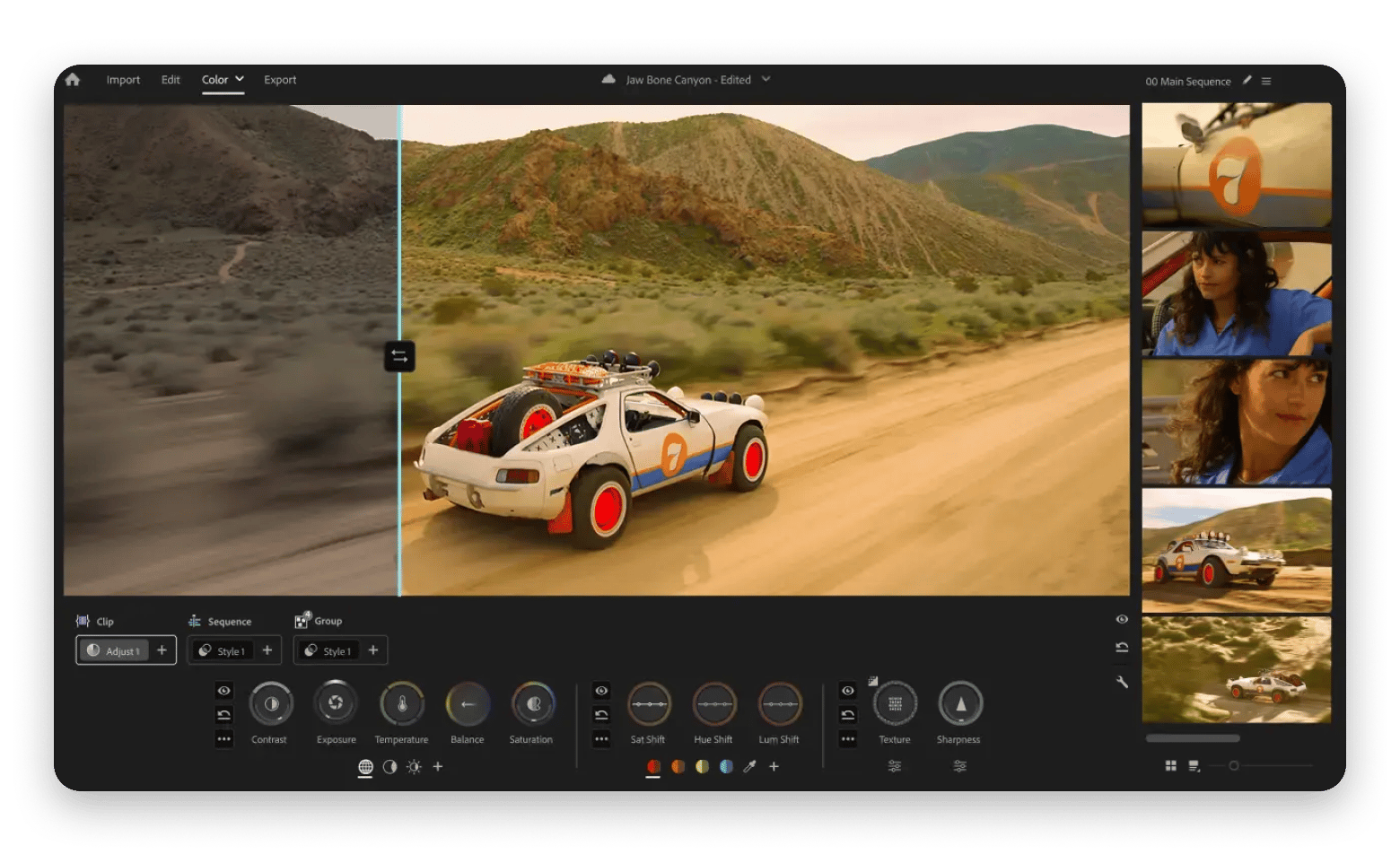
Adobe Premiere Pro is the traditional king of the creative industry. If your team is already paying for Adobe Creative Cloud, you can use Premiere Pro for all the complex editing processes. The integration with After Effects, Audition, Photoshop, and the broader Creative Cloud suite is tight in a way that no other editor matches.
Two problems, though. The first is that there are no screen recording or annotation tools. The second is that you can’t buy the tool outright.
Pros:
Industry standard for cross-platform professional editing
Deep Creative Cloud integration
Very flexible for advanced production workflows
Extensive third-party plugin and preset ecosystem
Cons:
Significantly higher learning curve than Camtasia
No screen recording or annotation tools
Heavy on system resources
Pricing: $22.99/month or $69.99 (Creative Cloud Pro)
9. Loom: Best choice for quick team updates and async video messaging (not full production)
Best for: Teams that need to record a quick screen walkthrough and share a link
Platforms: Mac, Windows, Web, iOS, Android
Source: loom.com
Loom is another great Camtasia alternative, specifically for when you are looking to quickly record and share a video with your team or for marketing purposes. It replaces unnecessary meetings by allowing users to record their screen and webcam. It then immediately uploads the video and automatically copies the link to your clipboard.
The tool has a lightweight editor for minor tasks, and the higher tiers now have AI editing to remove parts of a video using an auto-generated transcript.
Pros:
Easy cloud sharing and link-based collaboration
Timestamp comments and reactions make async feedback easy
AI transcription, auto-chapters, and filler word removal
Tightly integrates with Slack, Jira, Notion, and Confluence
Cons:
Free plan caps at 25 videos and 5 minutes per recording
No timeline editor, callout tools, or annotation layer
Pricing structure is less friendly after the Atlassian acquisition
Pricing: Free, up to $24 per user/month
How to choose the right Camtasia alternative on Mac
The right choice depends on whether you need recording + editing together, or just one of the two.
If you are looking for a workflow similar to Camtasia, ScreenFlow is the easiest recommendation. It follows the same "record > edit > export" workflow. Screen Studio is also great if you want to automate the editing part as much as possible and enjoy a modern interface design.
Options that don’t need a budget are OBS Studio and DaVinci Resolve. However, the former is more of a production-style tool, and the latter is a video editor with no recording option. Final Cut Pro and Adobe Premiere Pro are the other premium editor options. If video editing power is your main priority, our best video editing software for Mac guide covers those options in more depth.
To simplify the recording process as much as possible, you can go with CleanShot X. It’s a more powerful version of the built-in editor, and it makes it easy to record, edit, annotate, and share your recording via a link.
Most of the best Camtasia alternatives for Mac are either expensive, free but complex, or missing half the features. Setapp gives you CleanShot X, Permute, SnapMotion, and 250+ more apps — one subscription, no per-app fees. Cancel anytime. Start My 7-Day Free Trial.
FAQ
What is the best video capture software for Mac?
ScreenFlow is the best Camtasia-style "record + edit" tool for Mac. But if you are looking for a simplified workflow, CleanShot X is the best screenshot and screen recording tool.
Can you get Camtasia for free?
Camtasia has an online version that’s free, but it’s limited to 5 minutes and 25 videos. The starter pack includes the desktop app, but it is watermarked; you need to pay ~$599/year for Pro.
What do YouTubers use to edit videos on Mac?
YouTubers often use Final Cut Pro or DaVinci Resolve to edit videos on Mac. The former is optimized for Mac, while the latter is mostly free.
Is CapCut better than Camtasia?
CapCut is different from Camtasia in that it’s optimized for editing short-form social media videos. Camtasia is built for screen recording and tutorial production. The best Camtasia alternatives are ScreenFlow and CleanShot X.
What is the best free alternative to Camtasia for Mac?
OBS Studio is the best free alternative to Camtasia for Mac. It doesn’t offer a simple workflow, but it covers recording, and more advanced features are available at no cost.
What are similar apps to Camtasia?
Similar apps to Camtasia for Mac are ScreenFlow, CleanShot X, and Screen Studio. If you are focused on the editing side, Final Cut Pro and DaVinci Resolve are the best alternatives.
Best screen capturing app
Use CleanShot X for all your screen recording needs.






 Best solution
 Best solution