What MacNotch does:MacNotch turns the MacBook notch into a customizable hub. You can control music, check your calendar, take notes, run a Pomodoro timer, and monitor system performance from one spot.
Two views: The compact notch shows live info like media, timers, and events at a glance. The expanded view opens on hover and gives you the Dashboard and individual modules.
Setup that fits you: Turn on only the modules you need, then create Profiles for Work, Personal, or Focus time. Switch between them as your day changes.
Works on any Mac: MacNotch runs on macOS 14 Sonoma or later and also works on Macs without a notch and on external monitors. You can hide it from screenshots and screen recordings, which helps during presentations.
Get it with Setapp: MacNotch is included in a Setapp Membership with 300+ other apps for $14.99 USD/mo + tax, and you can try it free for 7 days.
MacNotch for Mac turns your notch into a handy hub for everyday tasks. If you’ve ever been annoyed by that black cutout eating your screen space, here’s a way to make it earn its place. Use MacNotch to control music, check your calendar, jot down notes, start a Pomodoro timer, or monitor your Mac’s performance.
Need the app only? Get MacNotch as a standalone app from $4.99 USD/mo + tax.
What is MacNotch?
MacNotch from Setapp is a notch utility for Mac. It is the solution to a problem that didn’t exist before 2021, when Apple introduced the notch on its redesigned MacBook Pro. MacNotch gives that space a new purpose, turning it into a customizable hub where you can quickly access a range of Mac features without interrupting your workflow. Suddenly, that notch doesn’t seem so annoying.
If you have an older Mac without a physical notch, you can still try MacNotch and customize its interface. The utility works on laptops with macOS 14 (Sonoma) or later. Either way, let’s look at what the app can do and how to set it up.
How to set up and use MacNotch on Mac
Here’s how to install MacNotch on your Mac and get started.
Install MacNotch via Setapp
You can get MacNotch through Setapp, an app subscription service with 300+ apps for Mac, iOS, and web. There are two ways to get it:
Setapp Membership. MacNotch is included with a Setapp subscription that gives you access to 300+ other Mac apps at $14.99 USD/mo + tax and comes with a free 7-day trial.
MacNotch only. You can get MacNotch as a standalone app through Setapp Marketplace from $4.99 USD/mo + tax.
Install and launch the app after you activate your subscription:
Open Setapp on your Mac. If you don’t have it yet, download it from the Setapp website.
Search for MacNotch in the app catalog.
Click Install and wait for the download to finish.
Open MacNotch from your Applications folder.
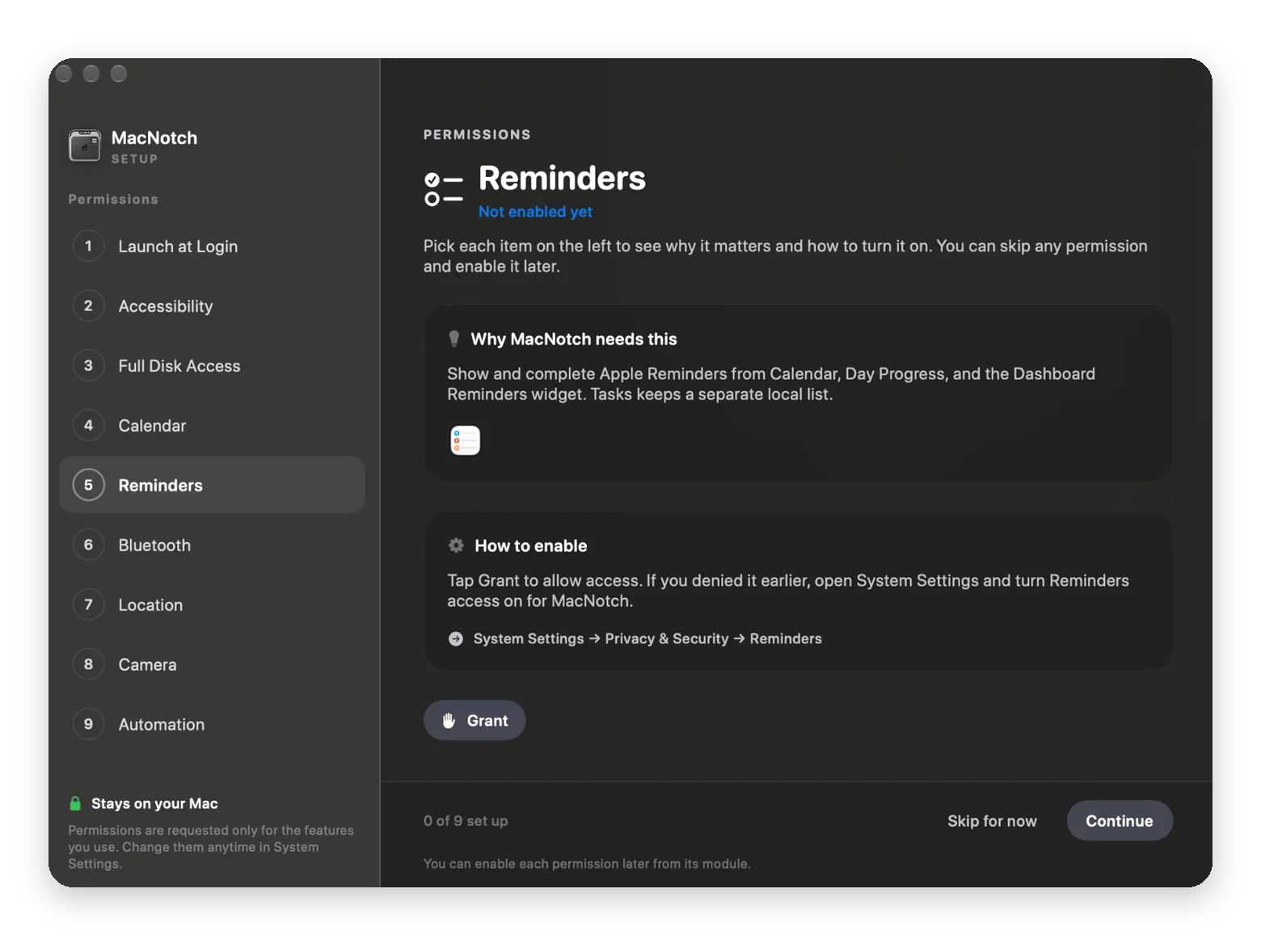
Follow any on-screen prompts to grant the required permissions.
MacNotch helps you create shortcuts for multiple tasks, so it will ask for quite a few permissions.
What can MacNotch do? Modules and views
MacNotch for Mac is a compact control center with several modules you can open when needed. To configure everything to your liking, move the pointer to the notch and click the Settings icon.
The MacNotch interface has two views: a compact bar that keeps essential information visible and an expanded view that lets you access more tools.
The compact notch keeps useful information within reach without taking over your screen. You can set up the collapsed notch layout in Live Activities. It can show what's playing, upcoming events, active timers, Bluetooth status, and notifications. You can check what's happening at a glance and get back to work without opening another app.
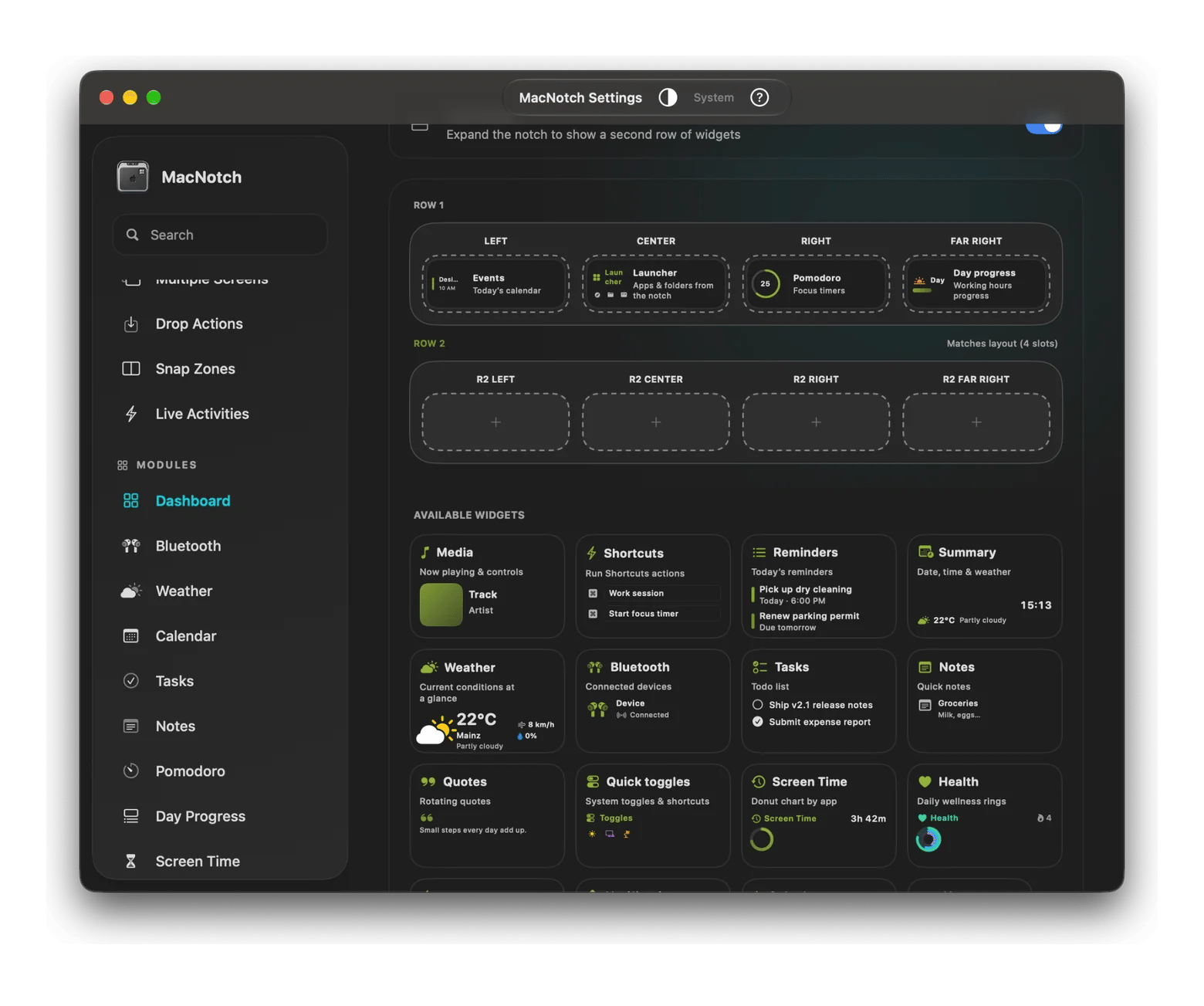
The expanded view appears after you hover and gives you more room to interact with MacNotch. The Dashboard brings together widgets, app launchers, shortcuts, and other information you choose to display. You can also open individual modules for specific tasks:
Media: Control music playback and view album artwork without switching apps.
Calendar and Todo: Check upcoming events and manage reminders and tasks.
Notes and Pomodoro: Capture a quick thought or run a focused work session.
System Monitor: Check your Mac's CPU, memory, and storage usage.
Drop Actions: Drag files onto the notch to AirDrop them, compress them, convert images, or move them to another location.
You don't need to keep every module active. In MacNotch, you can enable the tools you use and leave out the rest. And if your priorities change during the day, you don’t have to reconfigure the notch manually.
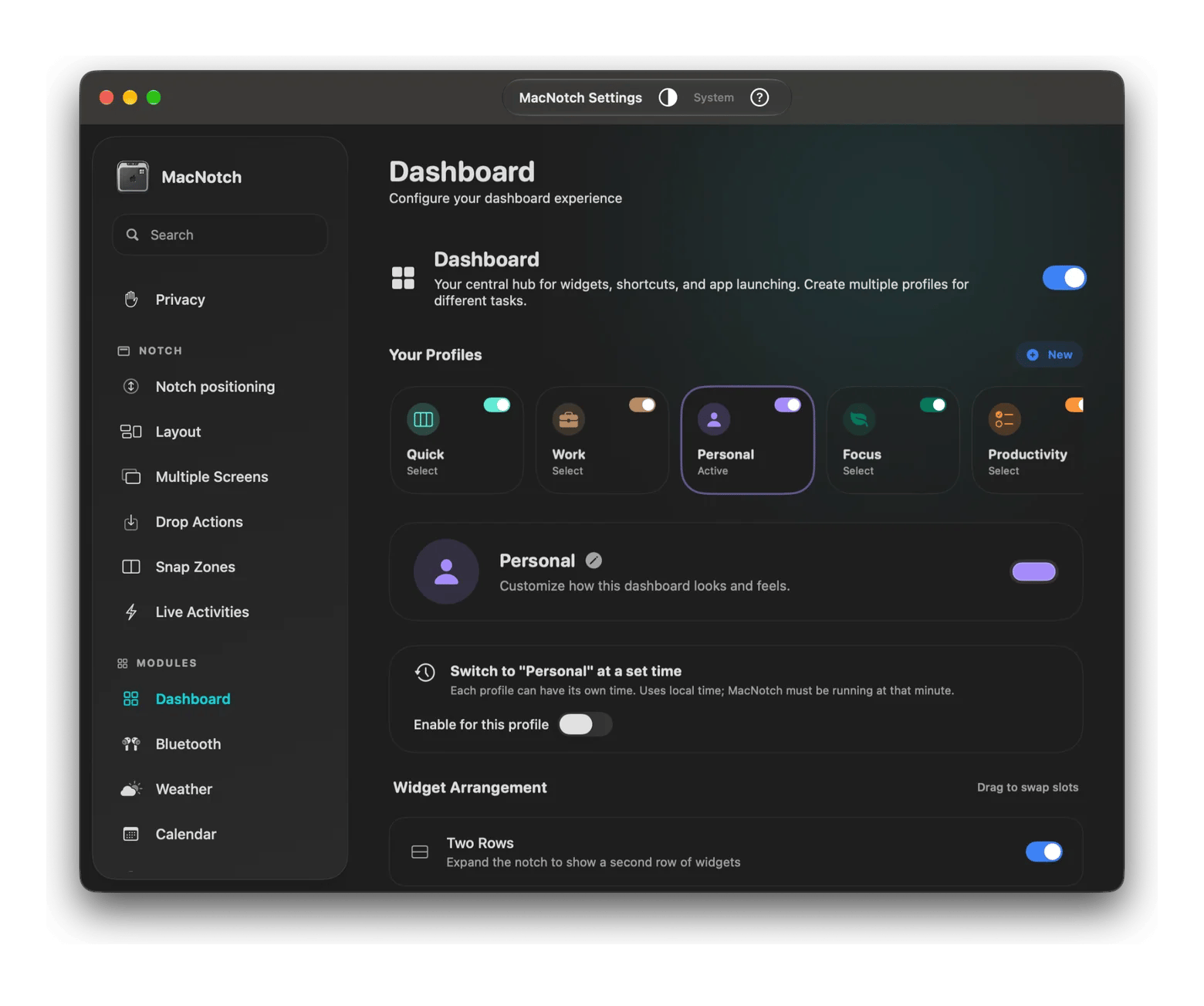
MacNotch lets you create separate profiles for different situations, such as Work, Personal, or Focus. Set up each profile with the modules and tools you need, then switch between them as your priorities change.
How to customize MacNotch
MacNotch app is a set of building blocks that lets you tweak your setup as you want. You decide what appears in the notch, how the interface behaves, and which tools are within easy reach. To adjust these options, move the pointer to the notch or right-click it, then choose Settings.
The settings are organized by feature, so you can customize individual modules without changing the whole setup. Here are the main options worth knowing about:
Enable or disable modules, change their order, and choose which one opens by default.
Dashboard
Arrange the four widget slots, choose what appears in the header, and configure your app launchers and shortcuts.
Profiles
In the Dashboard settings, you can create Profiles. Separate setups for work, personal use, or focus time, and switch between them manually or automatically.
Live Activities
Choose which information appears in the collapsed notch, including media, timers, calendar events, and notifications.
Drop Actions
Choose file actions, organize them, and adjust how they appear when you drag files onto the notch.
Snap Zones
Customize the window layouts available when you drag an app window toward the top of the screen.
Multiple Screens
Choose which displays show MacNotch, your Mac or external monitors, or both.
General
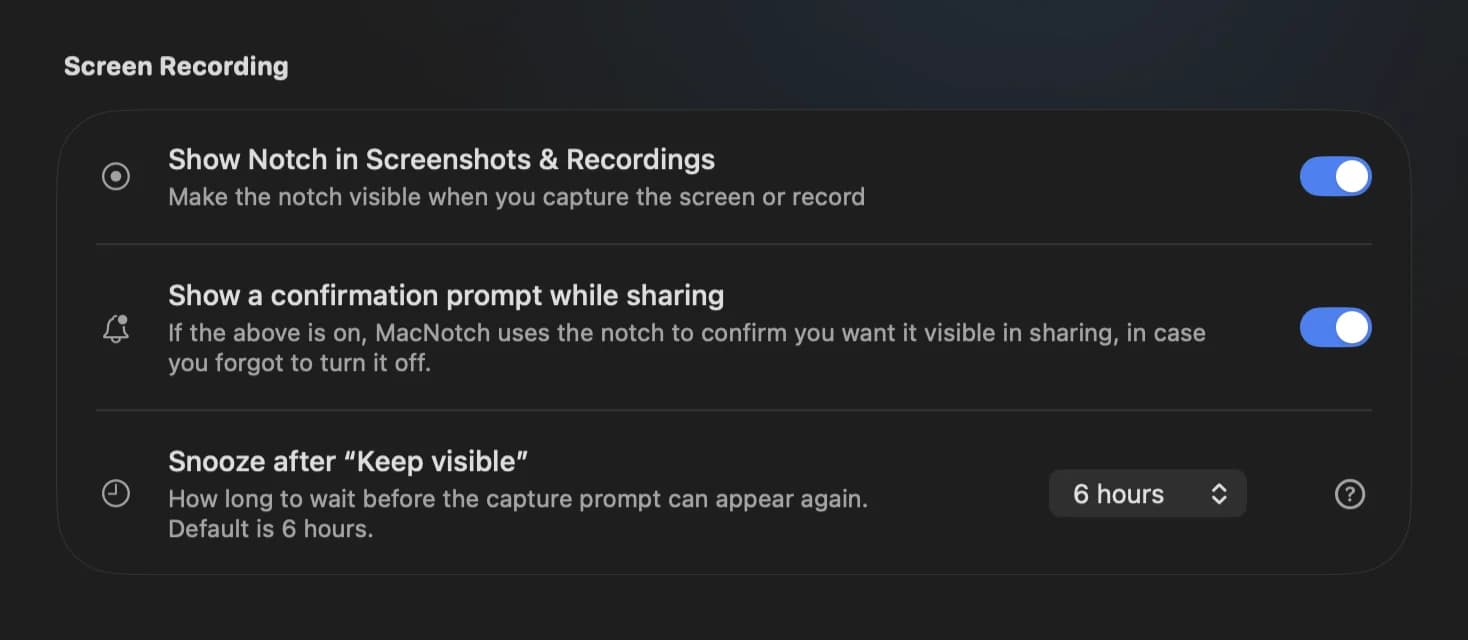
Adjust general app behavior, including whether MacNotch appears in screenshots and screen recordings.
You don't have to configure everything at once. Start by hiding modules you won't use and putting your favorite tools where they're easiest to reach. You can always return to Settings and refine your setup as your workflow changes.
How can you use MacNotch? Practical use cases
MacNotch lets you adapt the notch to each situation. You might want a distraction-free screen when presenting, a minimal desktop when working, or quick access to useful information while multitasking.
Presentation mode in MacNotch: Eliminate visual noise
When you're sharing your screen during a presentation or video call, extra icons and notifications can distract from your content. This app lets you hide the MacBook notch interface from screenshots and screen recordings, keeping your shared screen clean.
You can also create a dedicated presentation profile with the tools you need at your fingertips. Access them through the notch as you present, without pulling your audience's attention away from the main screen.
If you prefer a clean desktop, you probably don't want your screen crowded with widgets, icons, and extra windows. But you still need useful tools close at hand. That’s MacNotch's job: access key features from the notch when you need them and keep your Mac tidy.
Don’t want to move all your desktop icons to the notch? There are more options for a neat yet convenient setup. Find out how to hide desktop icons on Mac.
Add useful info to the notch area with MacNotch
The best part about MacNotch for Mac is that you can tailor it to the way you work, not just use it to control music players and check calendar reminders.
Monitor CPU and memory usage while running resource-heavy tasks.
Handle lots of images
Convert image files through Drop Actions without opening a separate editor.
Lose track of time
Keep a Pomodoro timer handy to structure focus sessions and remember to take breaks.
Multitask across apps
Use Snap Zones to arrange windows into layouts instead of resizing them manually.
Frequently share files
Drop files onto the notch to access actions such as AirDrop, compression, or conversion.
Work with connected devices
Check Bluetooth device battery levels without interrupting your workflow.
Prefer a minimal desktop
Keep useful controls accessible through the notch instead of leaving extra windows open.
Present or record your screen
Adjust MacNotch's visibility to keep its interface from distracting viewers.
These are just a few examples. Mix and match modules to suit your needs, whether you're troubleshooting your Mac, working on creative projects, or managing a busy day. You decide what belongs in the notch and how to use it. The setup is yours to shape.
Make your MacBook notch useful with MacNotch
You might not have asked for a notch on your MacBook, but you can decide what to do with it. MacNotch turns that small strip of screen space into a customizable hub for the tools and information you actually need. Set it up once, tweak it as your routine changes, and let it take a few small tasks off your plate.
No, MacNotch isn’t free, but you can try it with a 7-day free trial of Setapp Membership. After the trial, you can keep using MacNotch and 300+ other Mac, iOS, and web apps for $14.99 USD/mo + tax or cancel anytime.
Does MacNotch work on all MacBooks with a notch?
Yes, all MacBooks with a notch support this utility. MacNotch requires macOS 14 Sonoma or later and supports both Apple silicon and Intel Macs. You don't need a physical notch to use it. The app can display its interface on older MacBooks without one and on external monitors, too.
Will MacNotch cause any issues with full-screen apps?
MacNotch is designed to provide quick access to tools without interrupting your workflow. If you prefer not to see it while working, you can customize its behavior in Settings. You can also hide it from screenshots, recordings, and screen sharing.
Is MacNotch on Setapp safe?
Yes, MacNotch is safe since Setapp reviews apps before including them in its catalog. As with any app, check its requested permissions and make sure you're downloading it from Setapp's official website.





 Best solution
 Best solution