What Path Finder is:Path Finder is an advanced file manager and Finder alternative for Mac. It adds dual-pane browsing, tab presets, and flexible batch renaming for people who juggle lots of files.
Dual panes and tab presets: View two folders side by side to compare contents or move files without switching windows. Save groups of tabs as presets so your usual setup is ready when you need it.
Built-in power tools: A Terminal module follows the folder you’re viewing, and the Drop Stack holds files temporarily before you move them. You can also compress and extract archives without leaving the app.
Works alongside Finder: Installing Path Finder doesn’t disable Finder, so you can switch between the two whenever you like. The customization options take a little time to learn, but they speed up your workflow once you’re familiar with them.
Path Finder from Setapp is an advanced file manager and Finder alternative for Mac, made by Cocoatech. It adds dual-pane browsing, tab presets, multi-step batch renaming, a built-in Terminal module, and a Drop Stack to the file management Finder already covers. It works alongside Finder and is included in Setapp Membership.
For Mac users, Finder is indispensable. It’s where you go for daily file-organizing tasks. But if you’re anything like me and juggle tons of files regularly, you’ve probably spent way more time organizing them in Finder than you needed to. While Finder handles the basics, it lacks a dual-pane view, offers limited batch renaming, and leaves little room for customization. Path Finder fixes all three. It is a savvier alternative to Finder, designed to help you whiz through complex file management tasks.
In this guide, I’ll help you decide if Path Finder is right for your daily workflow and, if it is, how to make the most of it.
What is Path Finder for Mac?
Developer: Cocoatech
Current version: Path Finder 26
Requires: macOS 13 Ventura or later
Best for: People who manage many files and want dual-pane browsing, multi-step batch renaming, and a built-in Terminal module
Cost: Included with Setapp Membership ($14.99 USD/mo + tax), also sold directly by Cocoatech
Catch: Customization options take time to learn
Path Finder is an advanced file manager for Mac developed by Cocoatech. Originally called SNAX, the app has evolved into an impressive toolkit that gives you granular control over your files. The current release is Path Finder 26, which requires macOS 13 Ventura or later. The “26” is Path Finder’s own version number, not a macOS version.
Path Finder adds some standout features to your file management workflow. These include a dual-pane setup, flexible batch renaming, and a highly customizable interface that lets you set up your workspace exactly the way you want, making it a strong Finder alternative for Mac.
How does Path Finder compare to macOS Finder?
As mentioned earlier, Finder covers the essentials of daily file management. But Path Finder gives you more ways to work with your files.
Here’s a quick side-by-side comparison of the two:
Offers advanced options, such as a built-in Terminal module, folder compare and sync (FolderSync), and Drop Stack
File browsing
Single-pane view
Dual-pane view
Tabs
Supported
Supported, along with tab presets
File organization
Basic organizational tools
More options for sorting, organizing, and managing files
Batch renaming
Basic
Multi-step batch rename
Customization
Limited
Modular layout
How to set up Path Finder
It’s pretty easy to set up Path Finder on your Mac. Let’s go through the steps.
Install and launch Path Finder via Setapp
Path Finder can be accessed through the Setapp Membership on Setapp, a subscription platform that offers 300+ macOS, iOS, and web apps for a flat monthly fee.
Here’s how to get Path Finder up and running:
Get your Setapp Membership: Follow the on-screen instructions on the Setapp website.
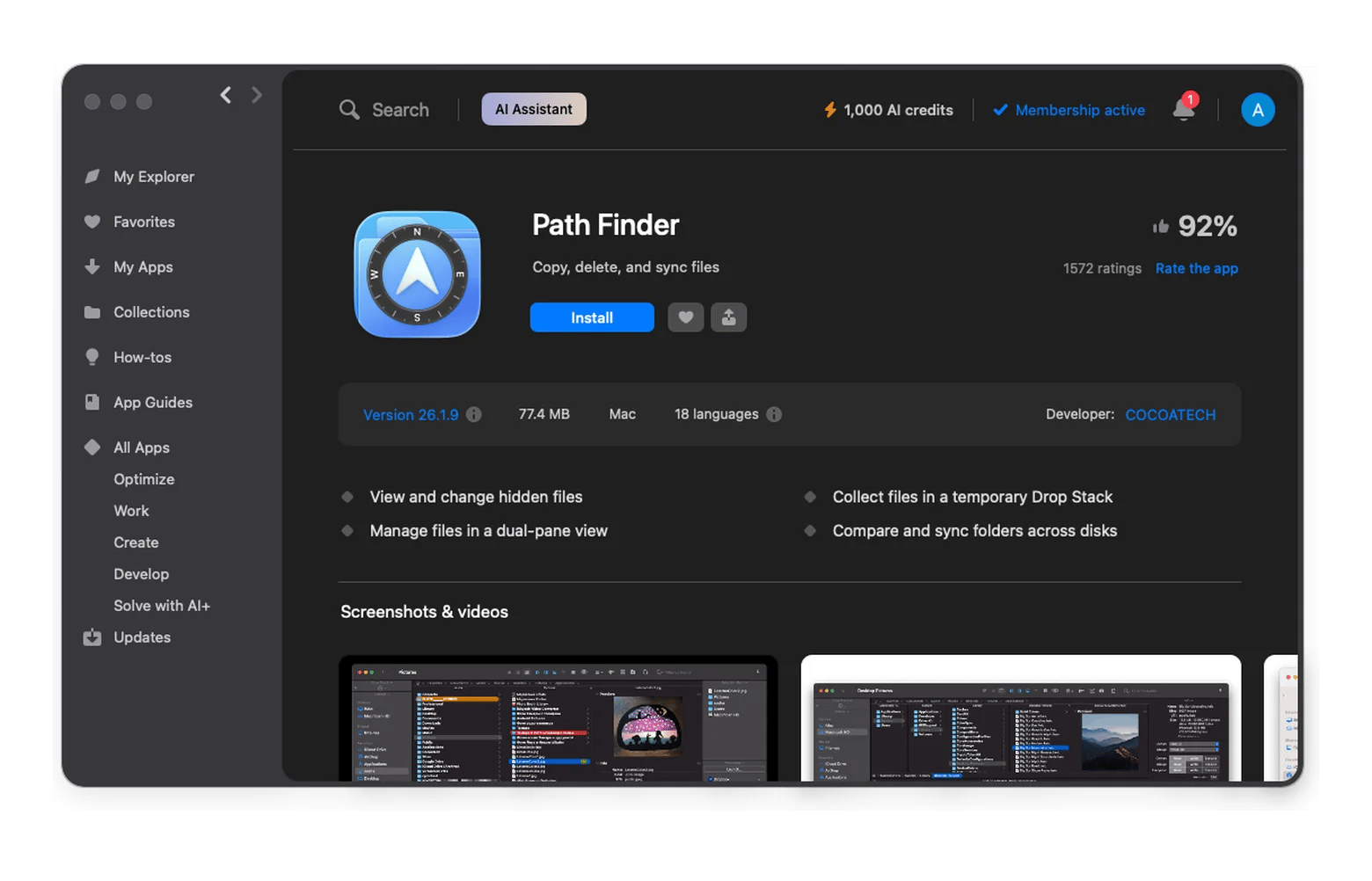
Install Path Finder: Open the Setapp desktop app and search for Path Finder. Click Install.
Launch Path Finder: Once the installation is complete, launch Path Finder.
Set Path Finder as default file manager (optional)
If you want to, you can set Path Finder as your default file manager instead of Finder.
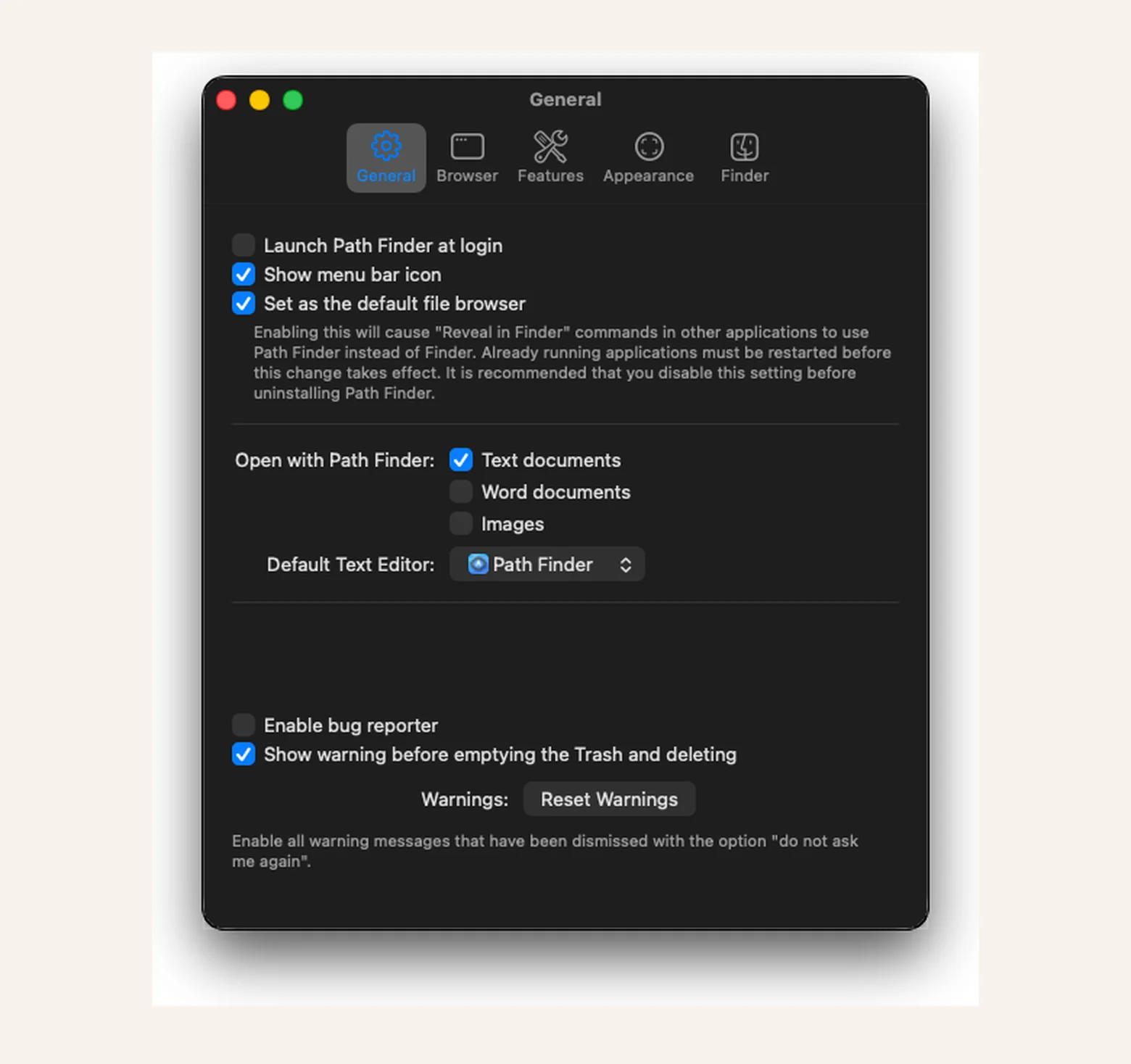
To do this, open Path Finder and go to Path Finder > Settings > General, and select Set as the default file browser.
Path Finder interface overview
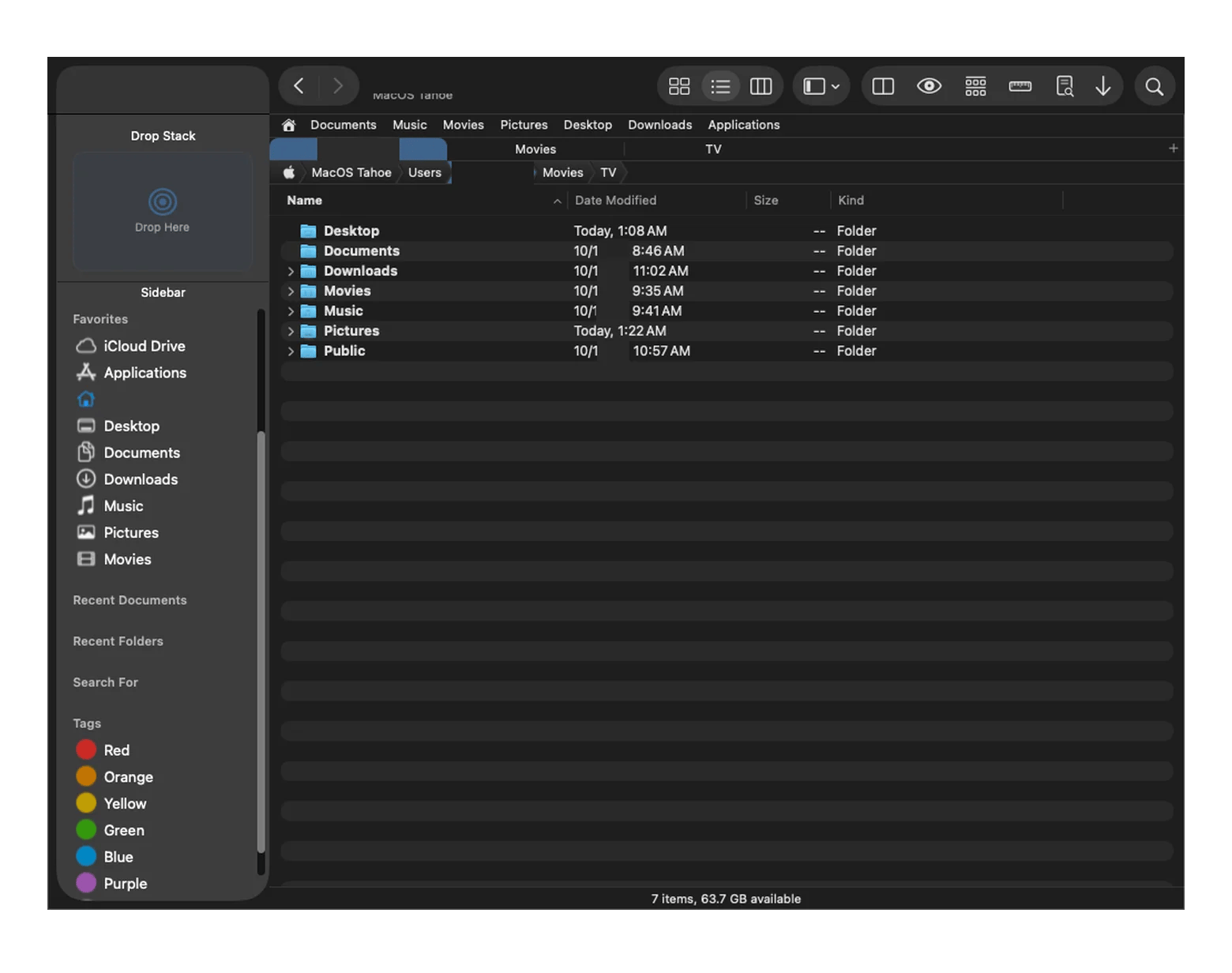
The Path Finder interface is quite similar to Finder, with more meaningful ways to organize your workspace. These are the main things you should know about:
Toolbar: The row of buttons at the top of the window is the Toolbar. The toolbar is useful for saving shortcuts to access common actions (like navigating folders).
Sidebar: This is a panel on the side of the window that helps you access your favorite folders and other frequently used storage locations with a single click, so you don’t have to navigate through multiple folders every time.
File browser: This is the area where your files and folders appear. You can choose different views for how they appear, such as Icon, List, and Column view.
Tabs: This works very similarly to the tabs on your web browser. You can keep multiple folders open in the same window and switch between them via tabs.
Modules: You can drag and drop extra panels (called modules) to your Path Finder window. Some examples include the Preview, Info, Terminal, and Drop Stack modules. Modules let you arrange your workspace to suit your needs.
Learning these main elements can help you quickly get acquainted with the interface.
What are the key features of Path Finder?
Path Finder has great features that make it shine compared to Finder, including dual-pane browsing, tab presets, a built-in terminal, and advanced customization options. Let’s explore them one by one.
Dual-pane browser in Path Finder
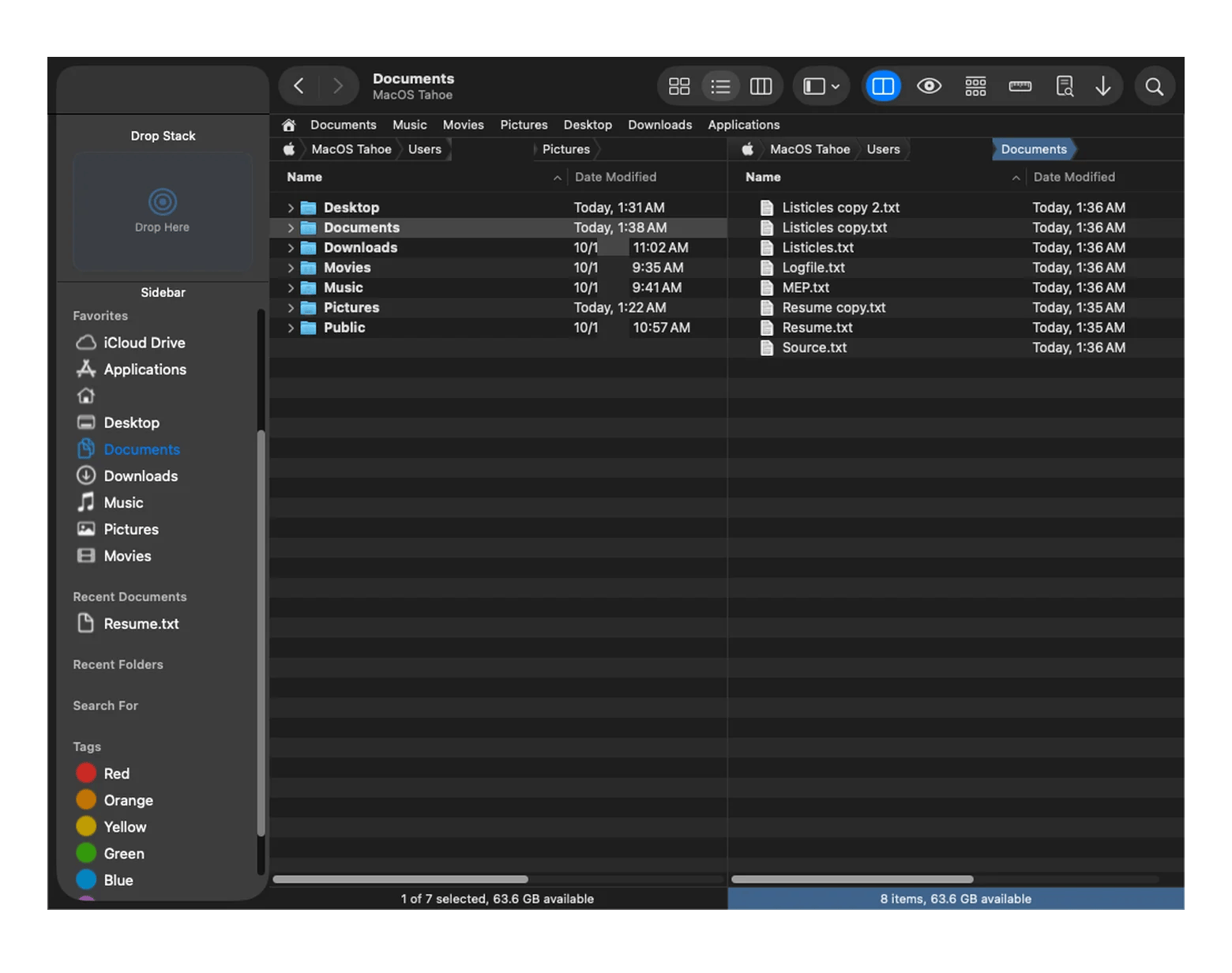
Path Finder shows two folders side by side in one window, so you can compare contents or move files without switching windows. The app lets you view two folder locations and their contents side by side. Dual panes can be very helpful when you need to compare the contents of two folders quickly or move files between them.
Tabs, bookmarks and tab presets in Path Finder
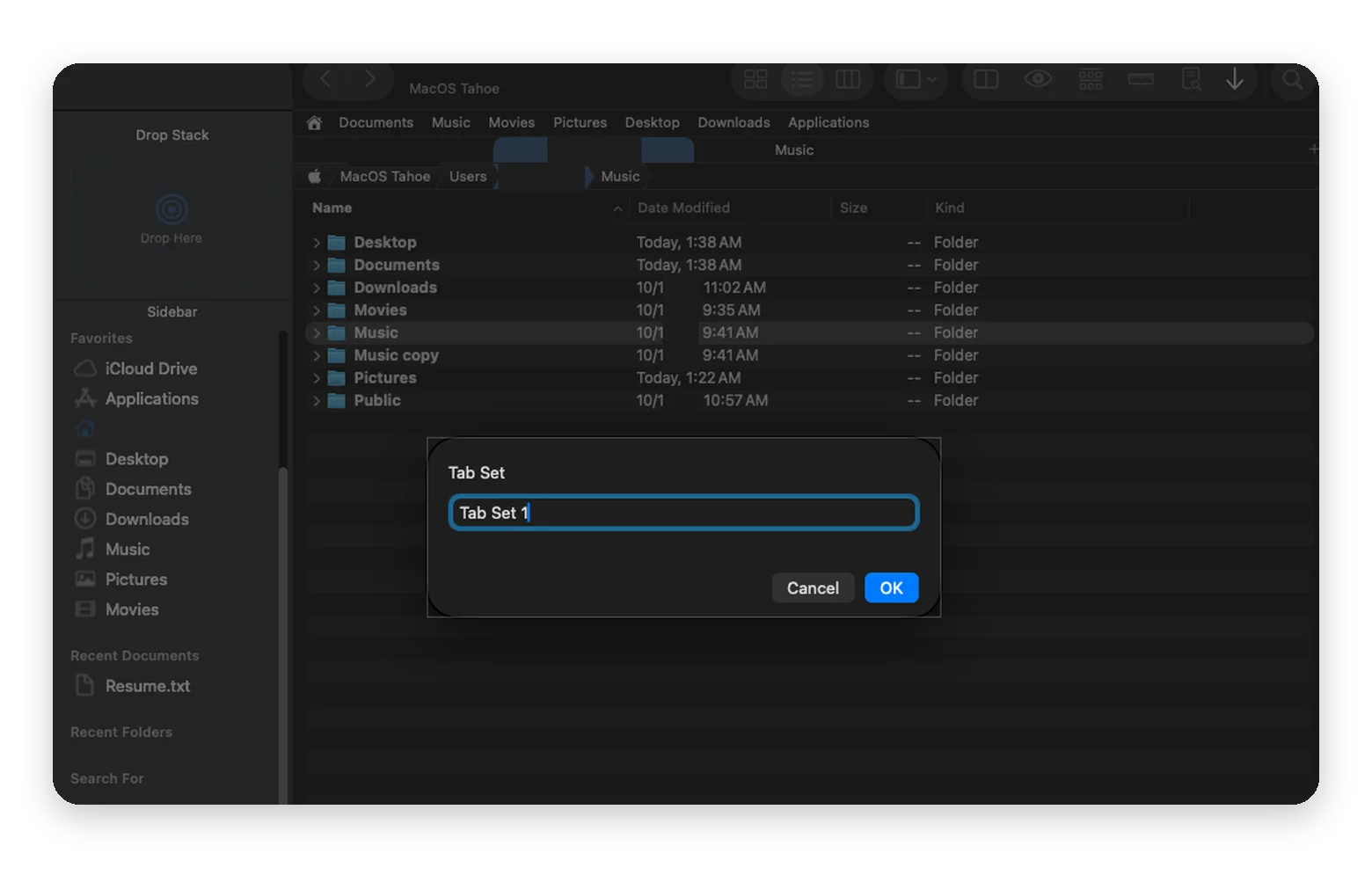
Path Finder has tabs, bookmarks, and tab presets, which save a group of open tabs so you can reopen it in one step.
Yes, Finder also has tabs. But here’s the advantage. If you work regularly with a specific group of folders, Path Finder has an option to save open tab groups for future use inside Tab Presets. That lets you reopen a specific tab group whenever a workflow calls for it.
Path Finder also has a bookmarks bar for saving individual folder locations. You can bookmark a folder location and access it whenever required.
Batch rename files in Path Finder
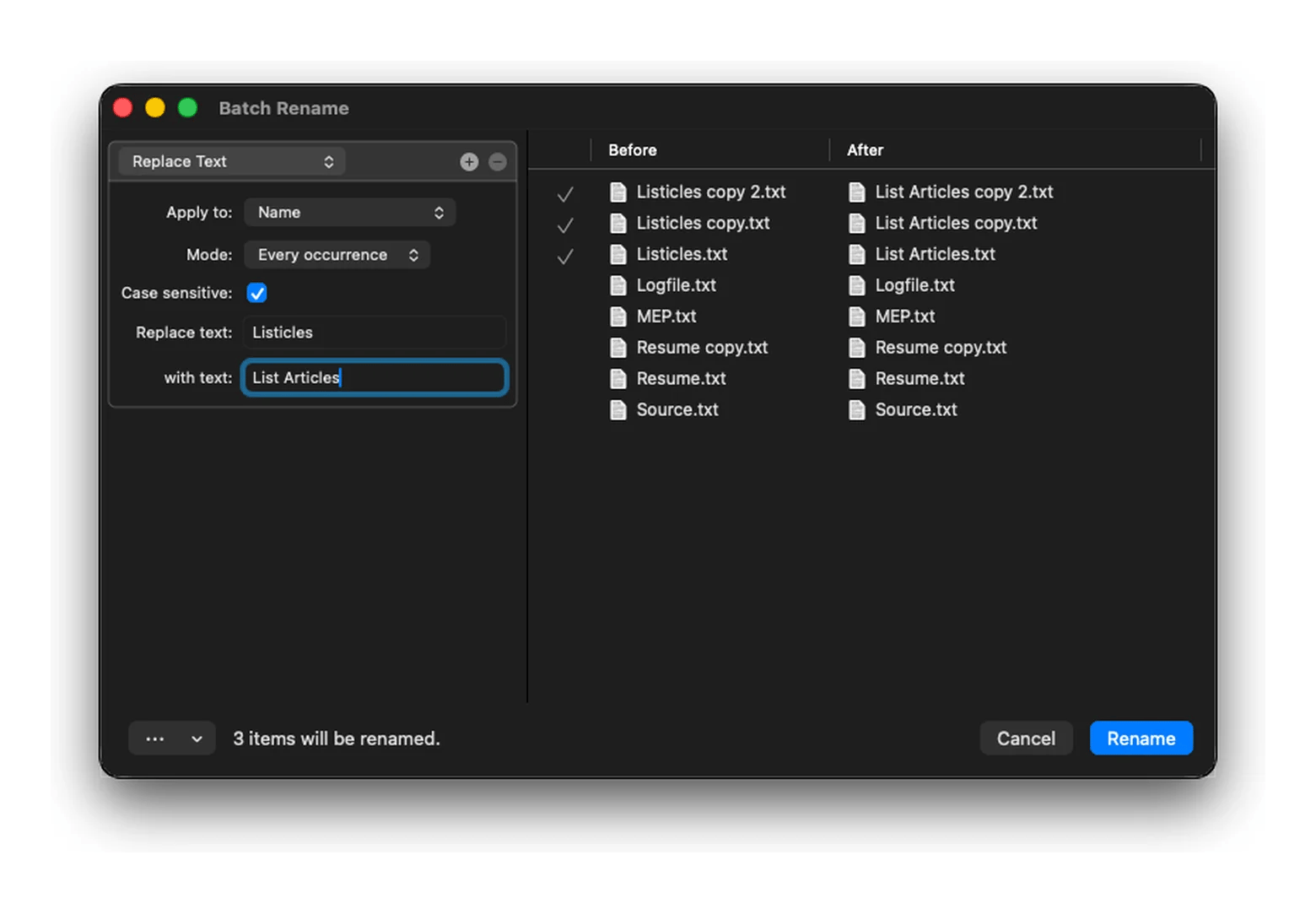
Path Finder renames files in multiple steps you can reorder, while Finder applies one renaming mode at a time.
For example, Path Finder’s batch-renaming interface includes draggable steps that let you add renaming operations and rearrange the order in which changes are applied, unlike Finder's built-in renaming modes. This makes Path Finder more useful when you need to apply multiple renaming operations to a large batch of files.
Built-in Terminal module in Path Finder
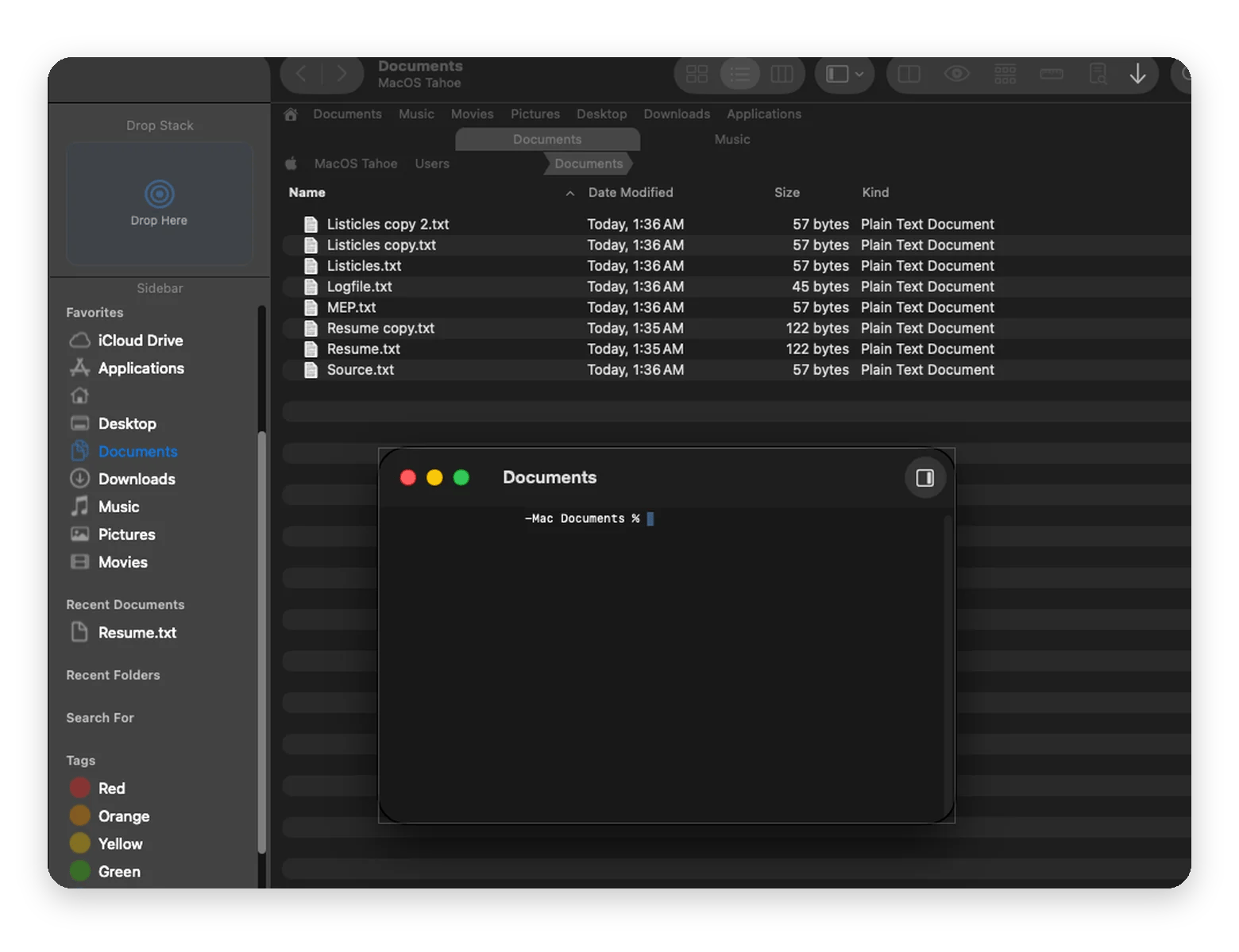
Path Finder offers a built-in Terminal module as part of its interface to help you run command-line commands easily inside an active folder. This means the terminal pane follows the folder that you’re viewing and can help you run commands directly inside that folder (without having to open a separate terminal app).
Path Finder also lets you drag and drop files and folders into this terminal pane to insert a particular path automatically. If you regularly work with scripts or dev tools, this can be a useful feature to have.
Archive and compression tools in Path Finder
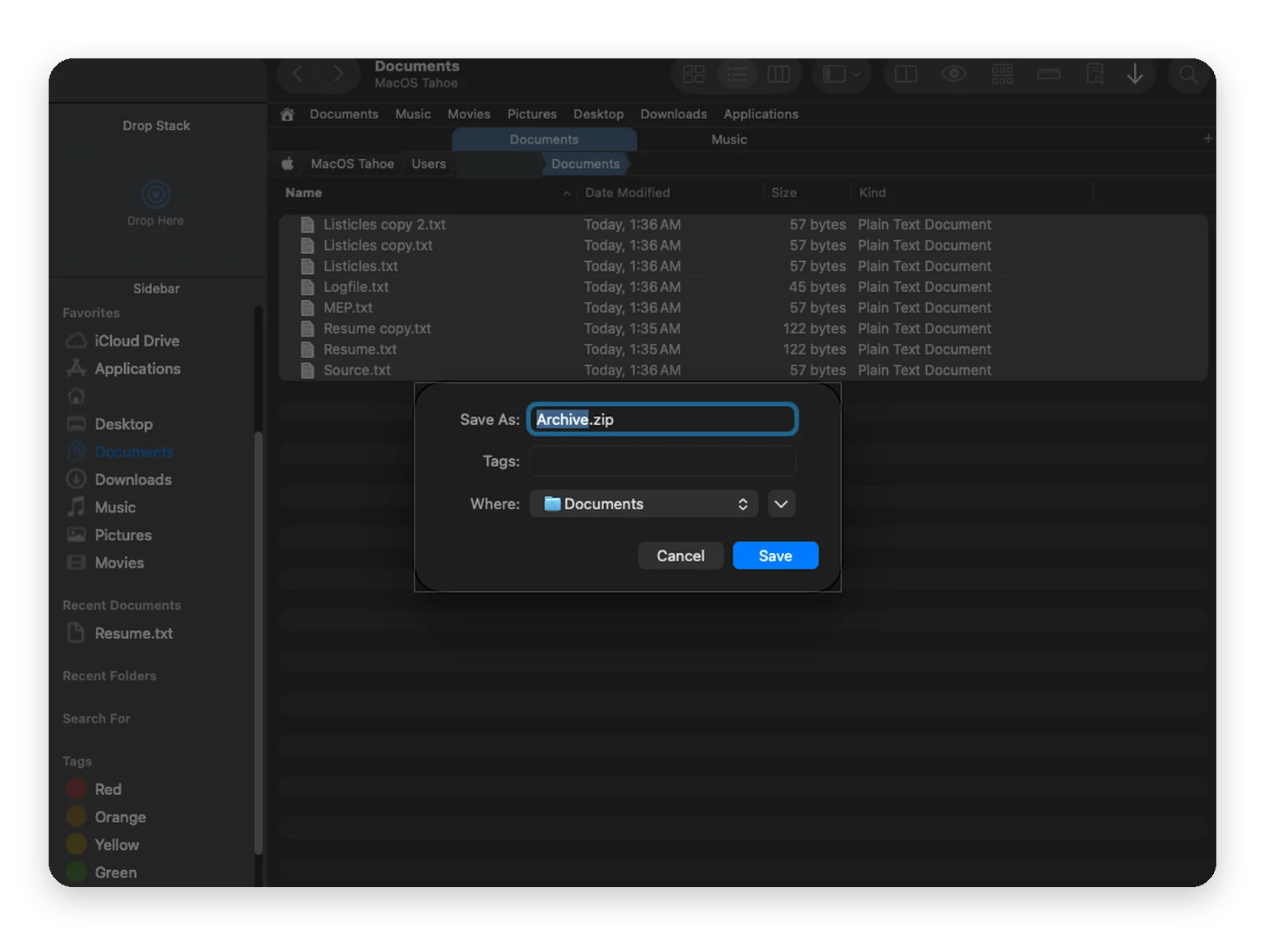
Path Finder allows you to compress files and folders into archives, as well as extract from them without leaving the app. With Finder, you can create and extract ZIP archives, but Path Finder lets you work with multiple formats such as 7z, TAR, ZIP, and other archive formats as well, depending on the operation.
File tagging and labels in Path Finder
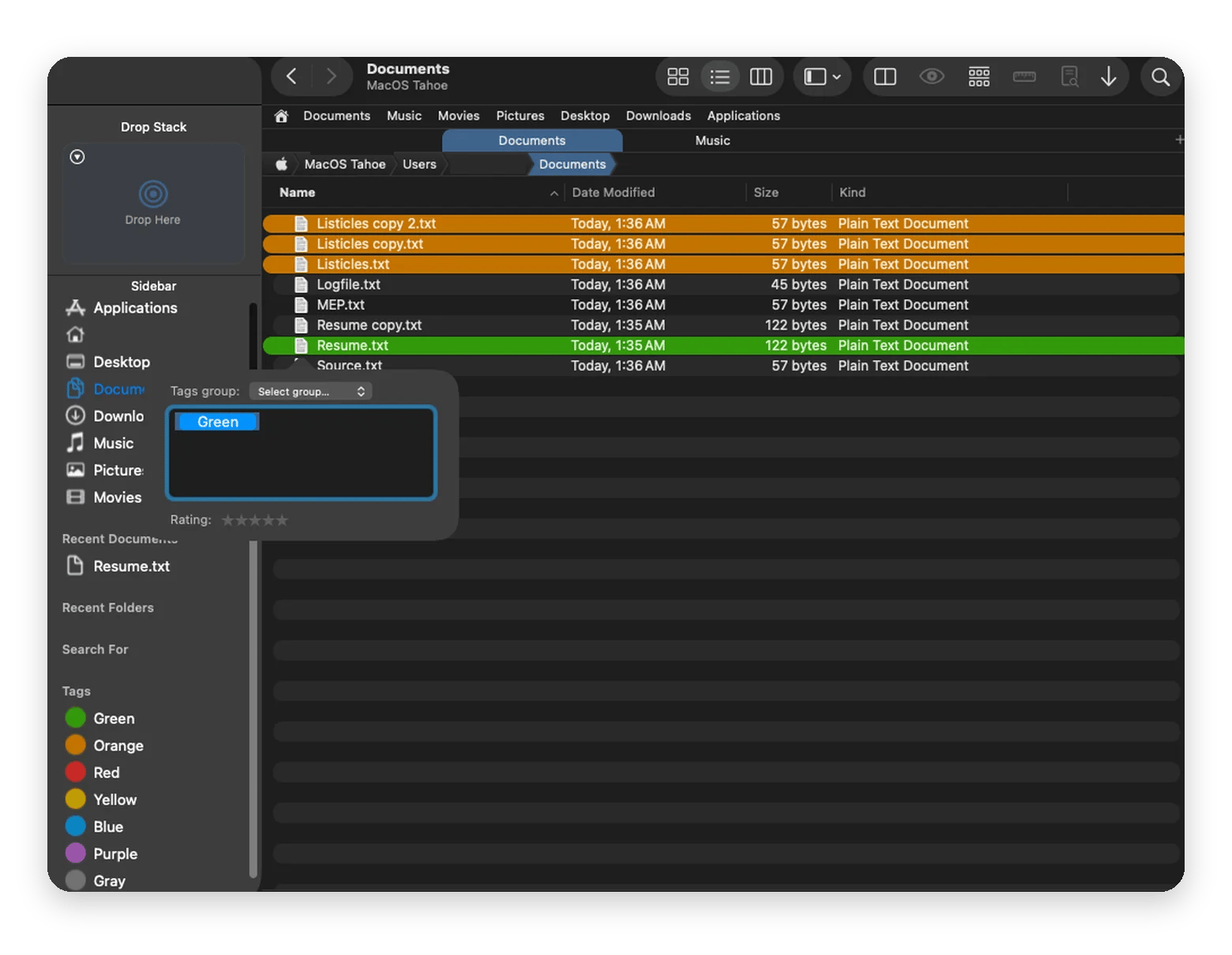
Path Finder lets you organize files and folders using colored labels and tags. Assigning tags and colored labels to files and folders helps you identify and locate them easily when you need to. This is especially useful when you’re working with a large collection of items. While Finder also supports tagging and labels, this feature fits neatly into Path Finder’s broader file-management workflow and makes keeping track of files easier.
Path Finder tips for faster file management
You can make the best of Path Finder’s interface by following a few simple tips. These include learning helpful keyboard shortcuts, using the Drop Stack, saving Tab Presets, using the Path Navigator, and customizing the Toolbar. Let’s look at them one by one:
Learn helpful keyboard shortcuts: You can learn helpful keyboard shortcuts to speed up your workflows. Notice which actions you perform repeatedly, and learn the keyboard shortcut for them.
Use the Drop Stack: Drop Stack is like a temporary holding area for your files before you move them to a destination folder. It can be added as a module to your Path Finder window when needed.
Saving Tab Presets: If you work with a group of tabs repeatedly, saving it to Tab Presets can help you save time. This means you get to save a specific set of tabs as a preset, and can access this set readily when needed for a workflow.
Using the Path Navigator: When you’re working with deeply nested folders, moving in and out of nestings can be tedious. You can avoid this with Path Navigator. Path Navigator shows the current folder’s path as a series of clickable segments. Click on these segments to jump directly to a particular folder without going through the entire folder hierarchy.
Customize the Toolbar: Customize your toolbar by adding frequently used tools and removing unnecessary ones. This helps you reduce visual clutter and keep essential shortcuts handy.
Clean up files regularly: Keeping your Mac clean and organized can help you stay clear-headed and manage files smoothly. Read this guide for friendly, practical tips on cleaning your Mac desktop.
These tips may seem simple, but they are practical ways to speed up your daily workflows.
Is Path Finder the right file manager for you?
If you’re looking for a simple file manager for everyday file tasks, Finder can serve you well. However, if you juggle several files daily, speed and ease can become critical to your workflow. This is where Path Finder can help.
Its dual-pane setup, tab presets, and Drop Stack can make a difference in how you work with files. Path Finder’s advanced customization options can take time to get used to, but once you're familiar, they can significantly speed up your workflow.
No, Path Finder is paid software, but you can try it for free. Setapp Membership includes Path Finder with 300+ other apps, starts at $14.99 USD/month + tax, and comes with a 7-day free trial. Cocoatech also sells Path Finder directly.
Is Path Finder better than Finder?
Path Finder is better than Finder if you manage many files and need dual-pane browsing, multi-step batch renaming, tab presets, a built-in Terminal module, or a Drop Stack. Finder is enough for everyday tasks. The two work side by side, so you can try Path Finder from Setapp without giving up Finder.
Which macOS versions does Path Finder support?
Path Finder from Setapp 26 supports macOS 13 Ventura and later, including Sonoma, Sequoia, and Tahoe. The “26” is the app’s version number, not a macOS version. For older versions of macOS, use Path Finder 11.2, which supports macOS 10.13 High Sierra and later.
Can I use Path Finder alongside Finder?
Yes. Path Finder from Setapp runs alongside Finder and doesn’t disable it. You can switch between the two whenever you like, or set Path Finder as your default file browser in its settings.
How do I enable dual pane in Path Finder?
To enable dual pane in Path Finder, go to View > Dual Browser, or click the Dual Pane button in the toolbar. Path Finder then shows two folders side by side in one window.
What can Path Finder do that Finder can’t?
Path Finder from Setapp adds dual-pane browsing, tab presets, multi-step batch renaming, a built-in Terminal module, a Drop Stack for staging files, and folder compare and sync. It also lets you arrange modules like Preview and Info around your files, which Finder’s fixed layout doesn’t allow.
Who is Path Finder for?
Path Finder from Setapp is for people who manage many files and find Finder’s single-pane layout slow, such as developers, designers, and researchers. If you only need basic file tasks, Finder is enough. The customization options take time to learn, but they speed up your workflow once you’re familiar with them.
Send file paths in different formats
The inbuilt Mac tools only let you send file paths in one format. With Setapp’s Path Finder, you have six options: UNIX, HFS, Windows, Terminal, URL, and Name.






 Best solution
 Best solution