Start with folders and subfolders. Organize your Mac by creating folders and subfolders to categorize documents, photos, and other files. This makes it easier to find and manage your files efficiently.
Use tags and Favorites for quick access. Tag files by project or type, and add frequently used folders to Favorites in Finder to locate important items faster.
Leverage iCloud Drive. Store Desktop and Documents folders in iCloud Drive to free up space and access files across all Apple devices seamlessly.
Keep your desktop tidy with built-in features. Use Stacks, sorting options, and Finder search to quickly declutter and locate files, making your Mac desktop visually clean and functional.
I’m not always great at keeping my Mac clean and organized. But after one stressful day of losing some important files, I realized it was time to change things and get more organized.
If you’ve never done this before, don’t worry. I’ll walk you through a bunch of easy tips on how to organize files on a Mac.
Looking for a free GPT assistant for Mac? Give Fix My Mac GPT a try to quickly sort out any Mac problems.
Manual techniques to organize files on Mac
It’s always helpful to know some manual tips and tricks for how to organize files on a Mac desktop, so I’ll start with a few simple ones to help you clear the clutter.
Creating folders and subfolders
The best place to start is by creating folders and subfolders. This makes it easier to find large files when you need them and is a great first step when learning how to clean up your Mac desktop.
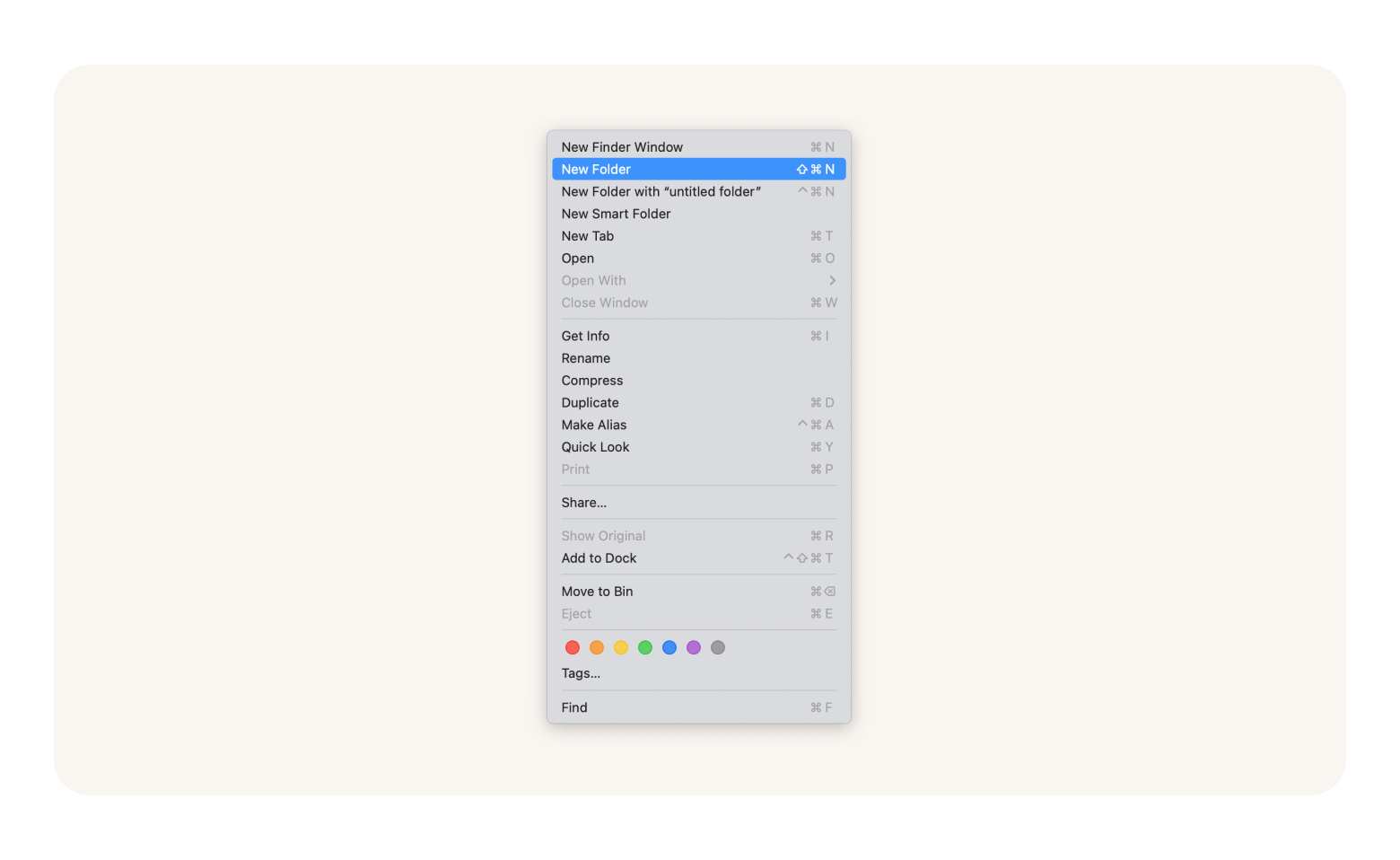
Open Finder and click File > New Folder, or press Shift + Command + N.
Locate the new blue folder labeled Untitled on your desktop.
Click on the name Untitled to highlight it.
Type a new name for the folder and press Return to save it.
Once you’ve created your folder, it’s time to start moving documents and dragging them into it.
You can move files one at a time or several at once. To move items into a folder one at a time, simply select the items you want to move and click and drag them into the desired folder.
To move multiple items into a folder:
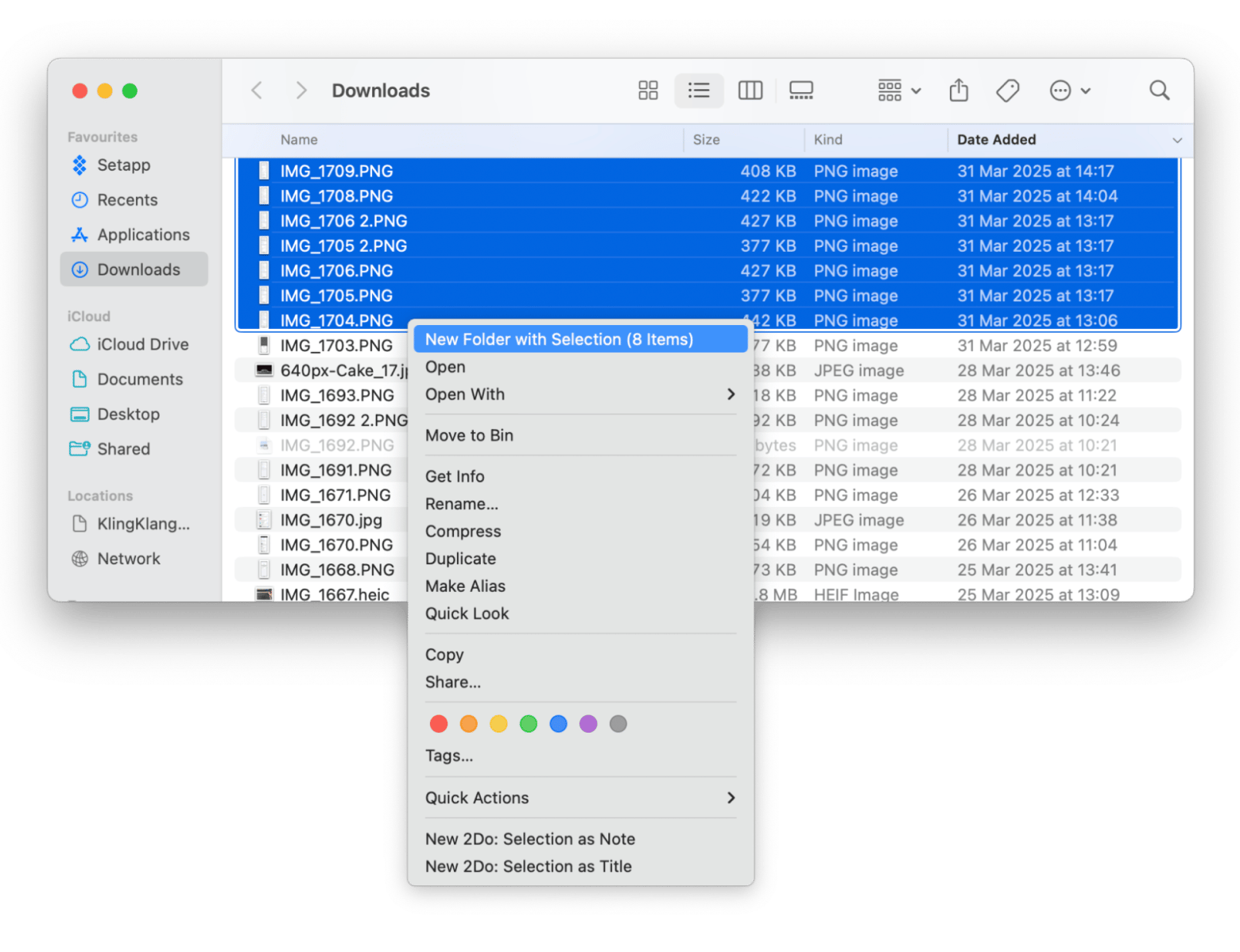
Click and drag your mouse to select multiple items, or Command-click each file you want to select.
Right-click (or Control-click) one of the selected items.
Choose New Folder with Selection from the menu.
Rename the folder if you like.
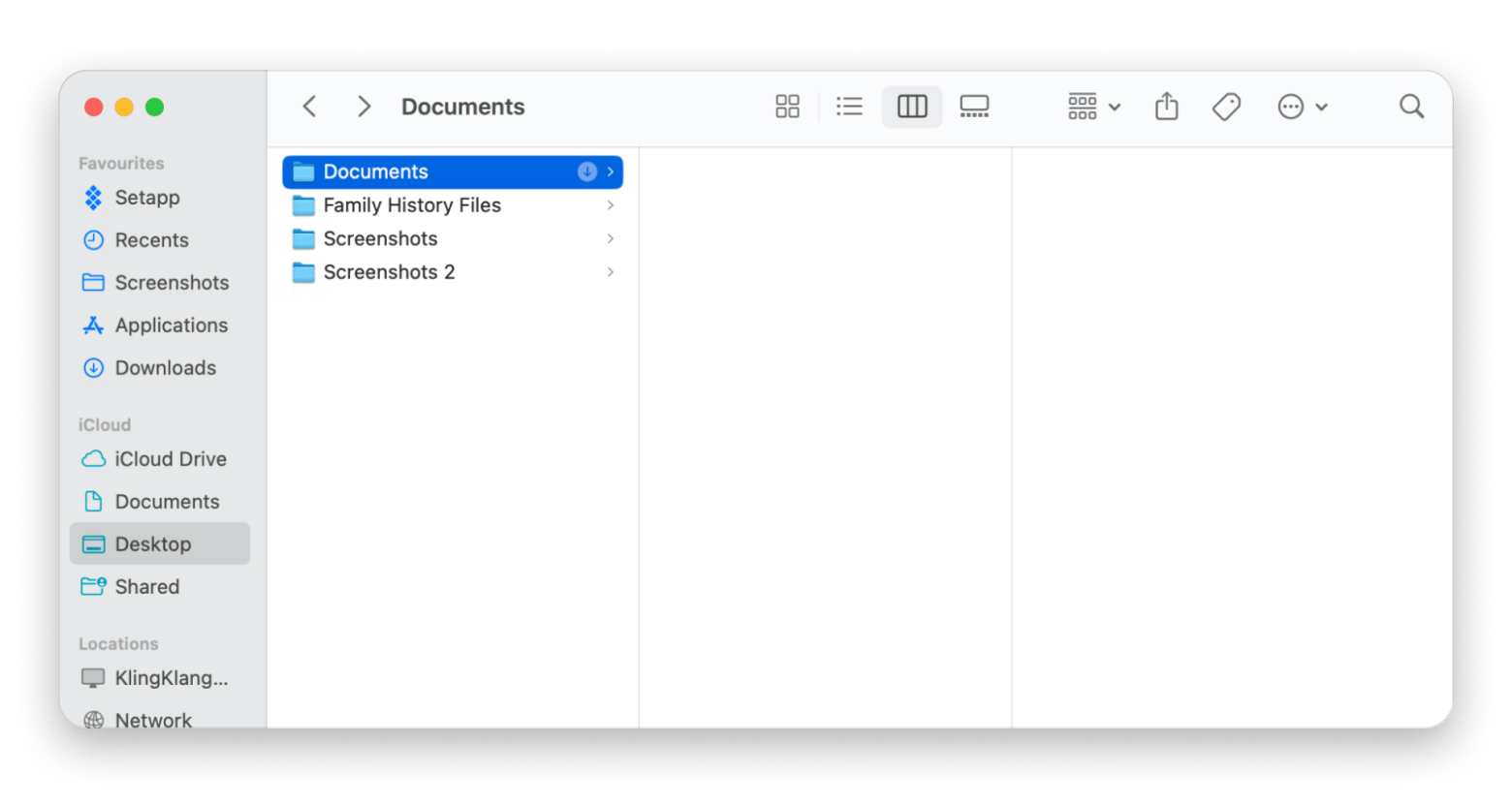
It’s good practice to have a few different folders with different names and a system for categorizing everything. For example, on my Mac home screen, I have separate folders for important documents, photos, videos, books, and screenshots.
Merging similar folders
When exploring how to organize a Mac desktop, it’s smart to merge similar folders from time to time, especially if you have lots of related or duplicate files. For example, my hobby often leaves me with several folders that contain similar information.
To merge similar folders:
Hold down the Option key.
Drag one folder into the location of the other folder.
Select Merge in the dialogue that appears.
Use Favorite folders
Creating Favorite folders is helpful when working out how to clear the desktop on your Mac. It allows me to see all my good stuff at a glance, which is quite handy when I need to locate things quickly.
To use Favorite folders:
Open Finder.
Locate Favorites at the top of the sidebar.
Find the folder on your desktop.
Click, hold, and drag your chosen folder into the left sidebar.
Tag files
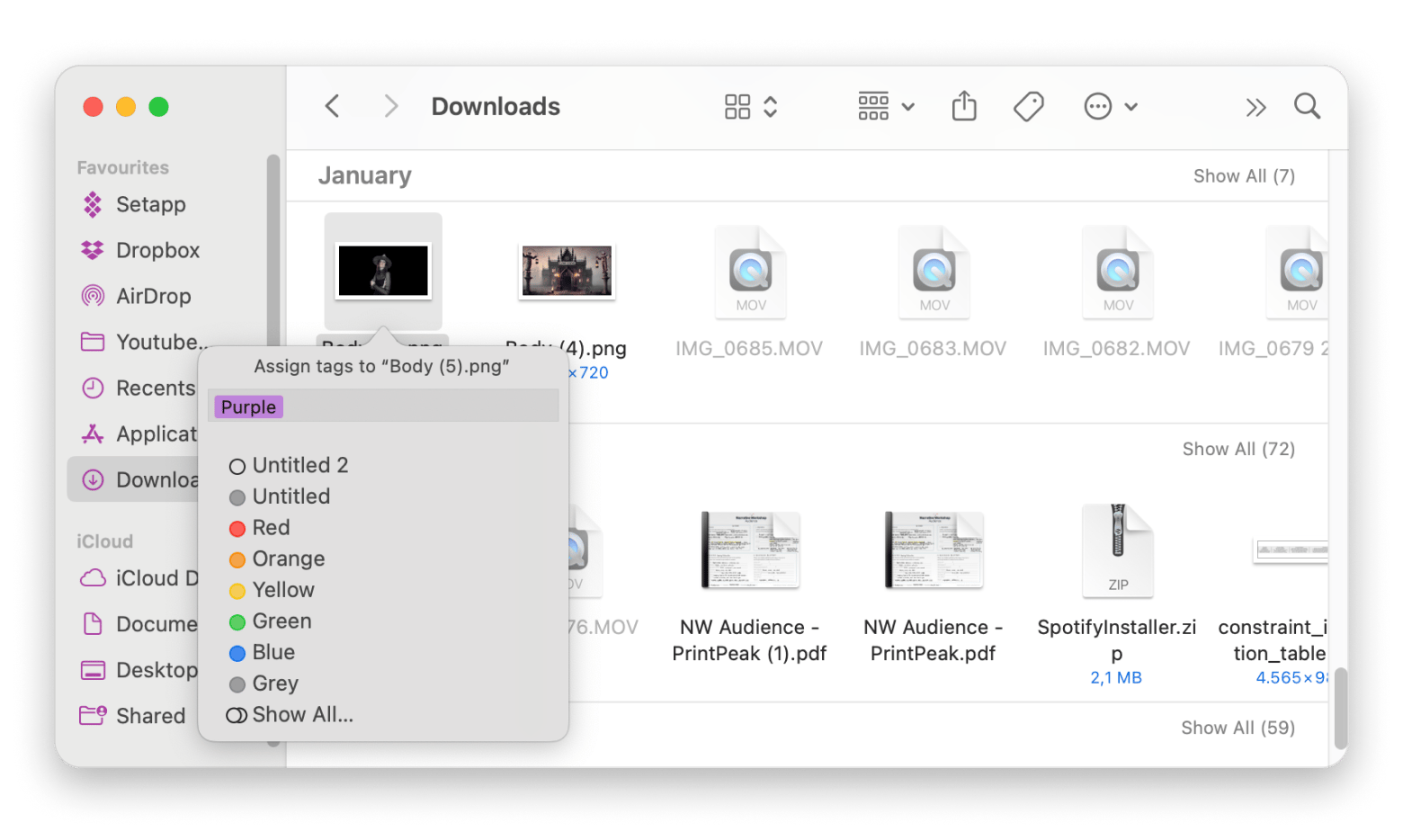
Tagging files is a great way to keep track of everything and find things quickly. I use tags to keep work and personal stuff separate.
Sometimes, I have a hard time finding good names for my files. I always end up creating a “Documents" folder, which eventually becomes full of random items that are hard to sort out.
If you do all your home admin on your Mac as I do, create separate folders for Home Finance, Utilities, and Work Finance, so your invoices stay in the right place.
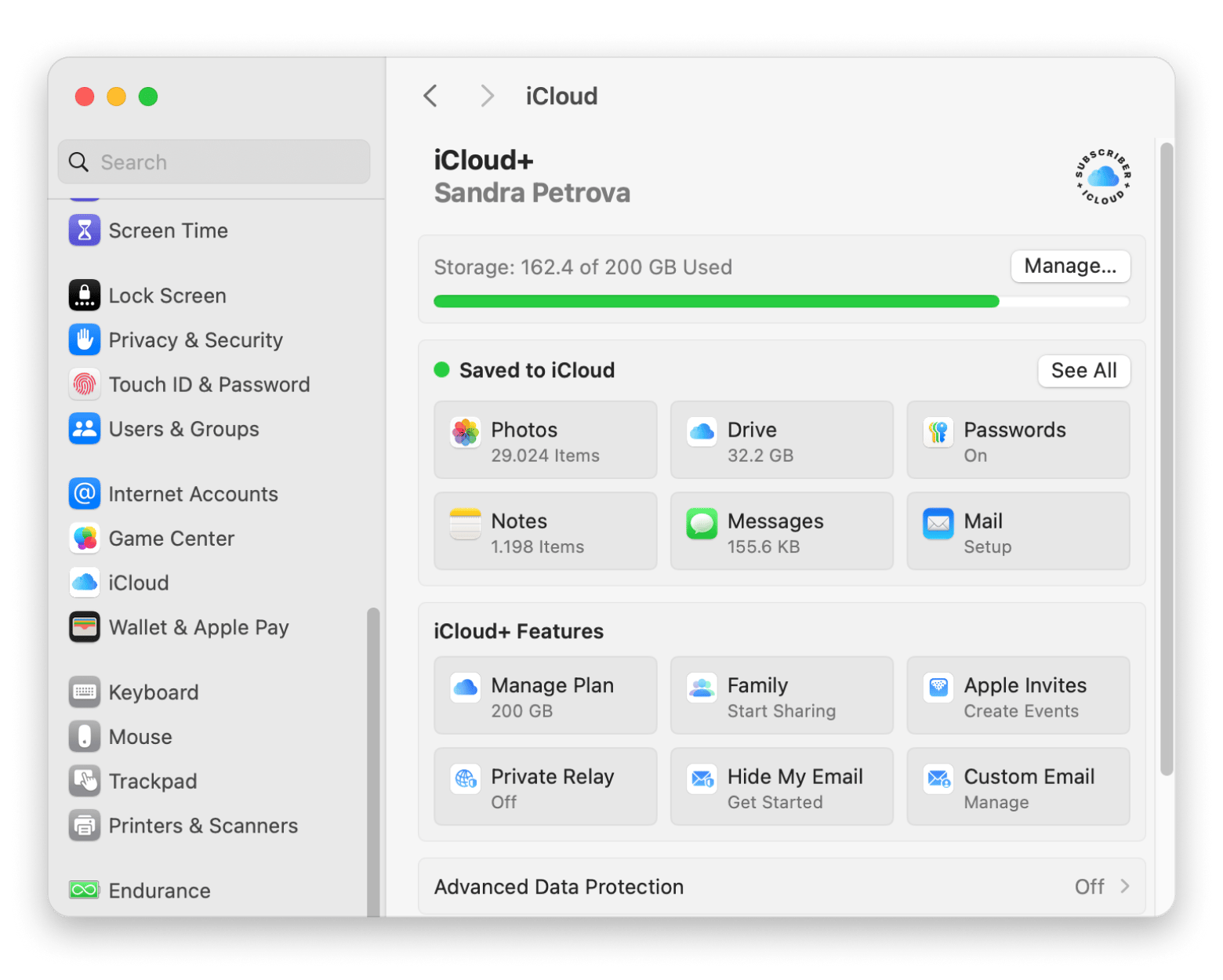
Another great tip is to store files on iCloud Drive. Any device signed into your Apple Account can access your documents, and it also frees up storage space on your Mac.
To store files on iCloud:
Go to the Apple menu > System Settings.
Click Apple Account at the top of the sidebar > iCloud.
Turn on iCloud Drive.
Click the Options button next to iCloud Drive.
Select Desktop & Documents Folders in the sheet that appears.
Click Done to confirm.
External apps can do the job
Apart from taking advantage of the built-in tools Mac offers, many third-party apps can take your game up a level when it comes to organizing your files:
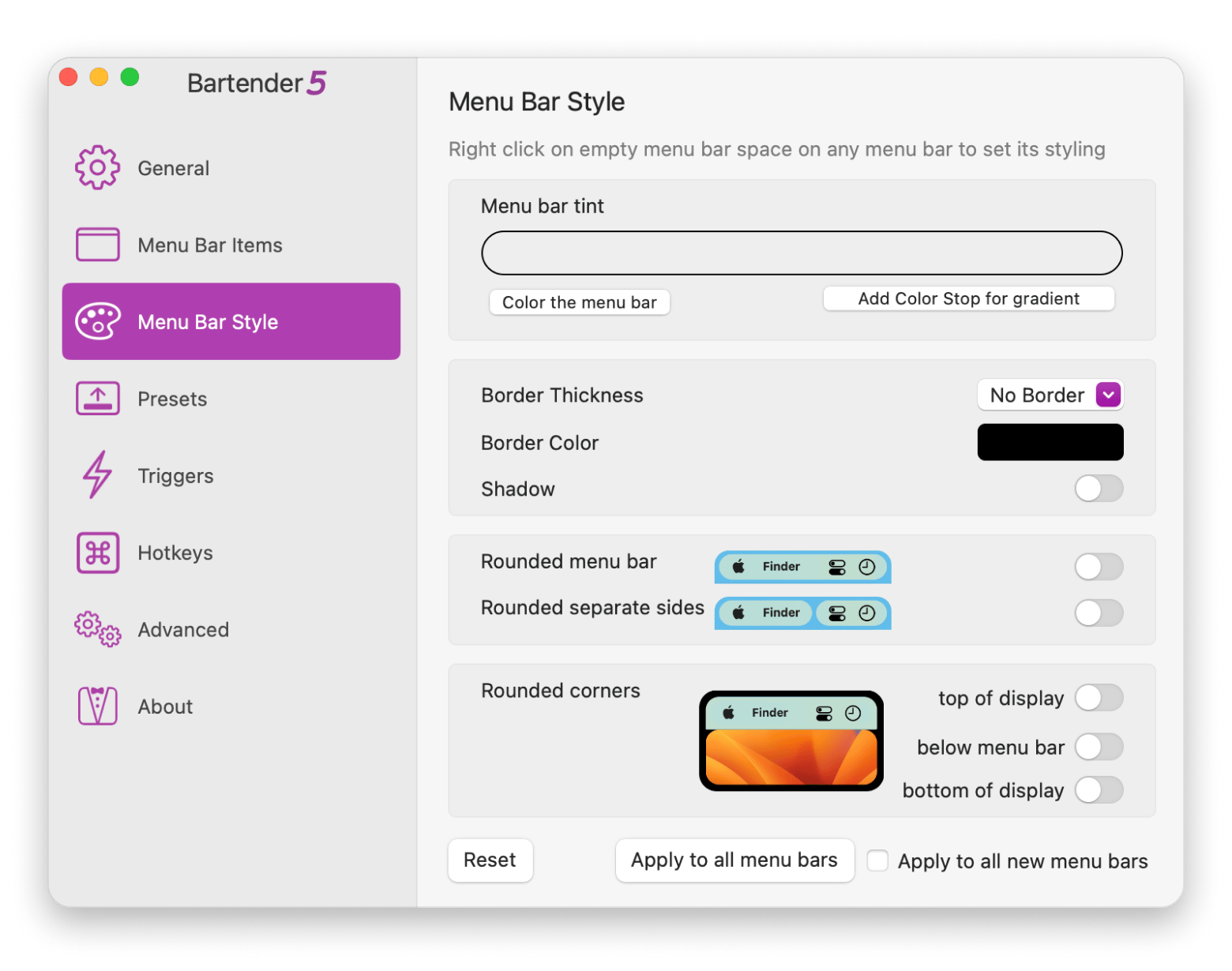
One of the best third-party apps I recommend is Bartender, which clears the clutter from your menu bar. It stays hidden from view while making sure your Mac is running smoothly. You can even personalize the items you want to see and hide the rest.
Mosaic helps me when I want to arrange my windows more efficiently and see all my apps in a way that makes the most sense to me. I can tile apps and resize windows to make them more intuitive to my needs.
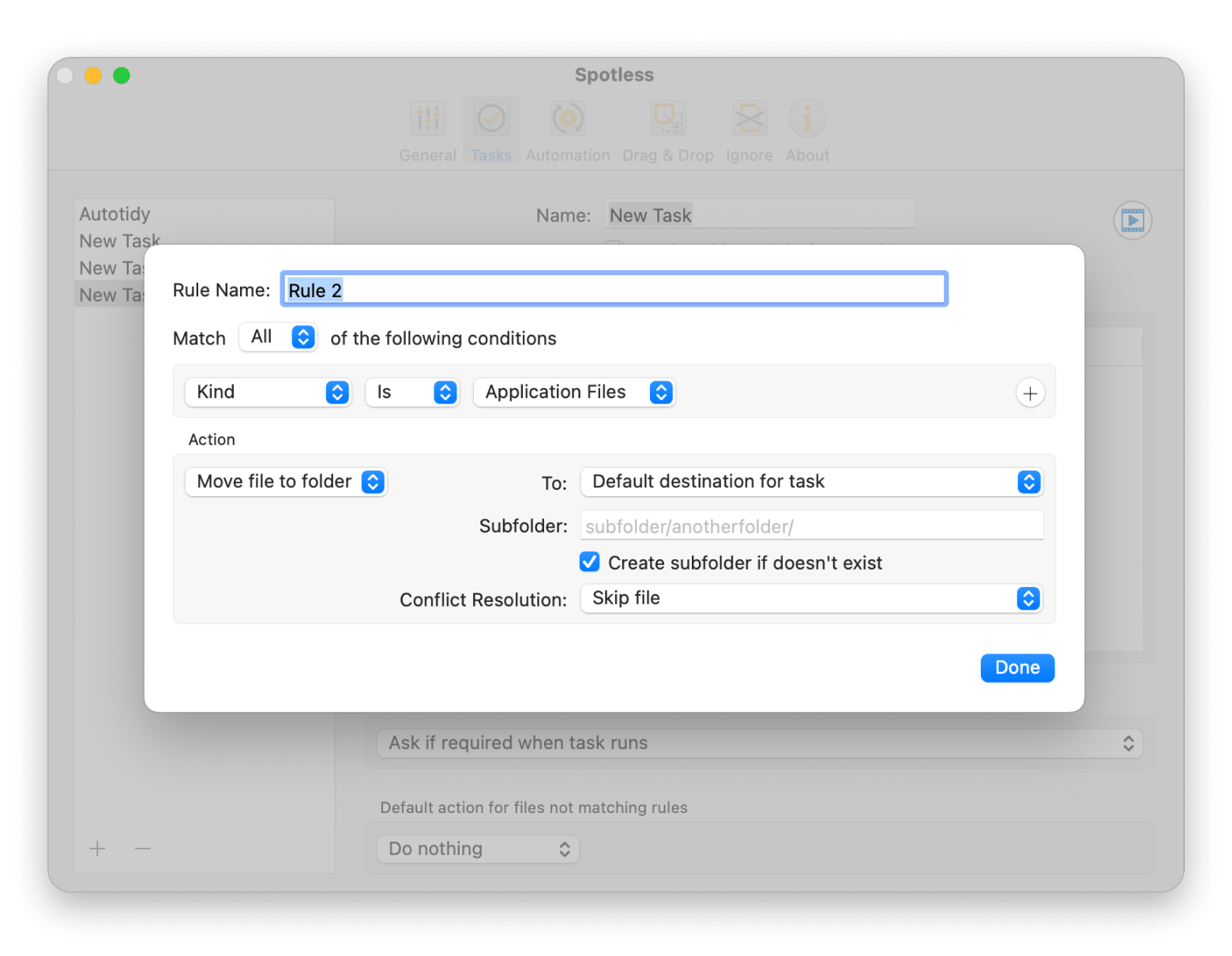
Spotless has been a real game-changer for me. It helps me stay on top of all my files and folders. I set up the rules for how I want things organized, and it remembers everything. It's a great way to keep clutter under control without the constant effort.
Delete redundant files on your Mac
Having duplicate files can take up unnecessary space on your Mac. Luckily, Mac has a neat little option for finding duplicate files.
Sort the results by name, date, or size to easily identify duplicates.
Select the duplicate files and press Command + Delete to move them to Trash.
Arrange files on the desktop
Cleaning up your desktop is super simple and instantly tidies things up. You’ll spot your files in a snap, and your Mac will look so much cleaner. Plus, spending just a few minutes on it really pays off.
To arrange files on your desktop:
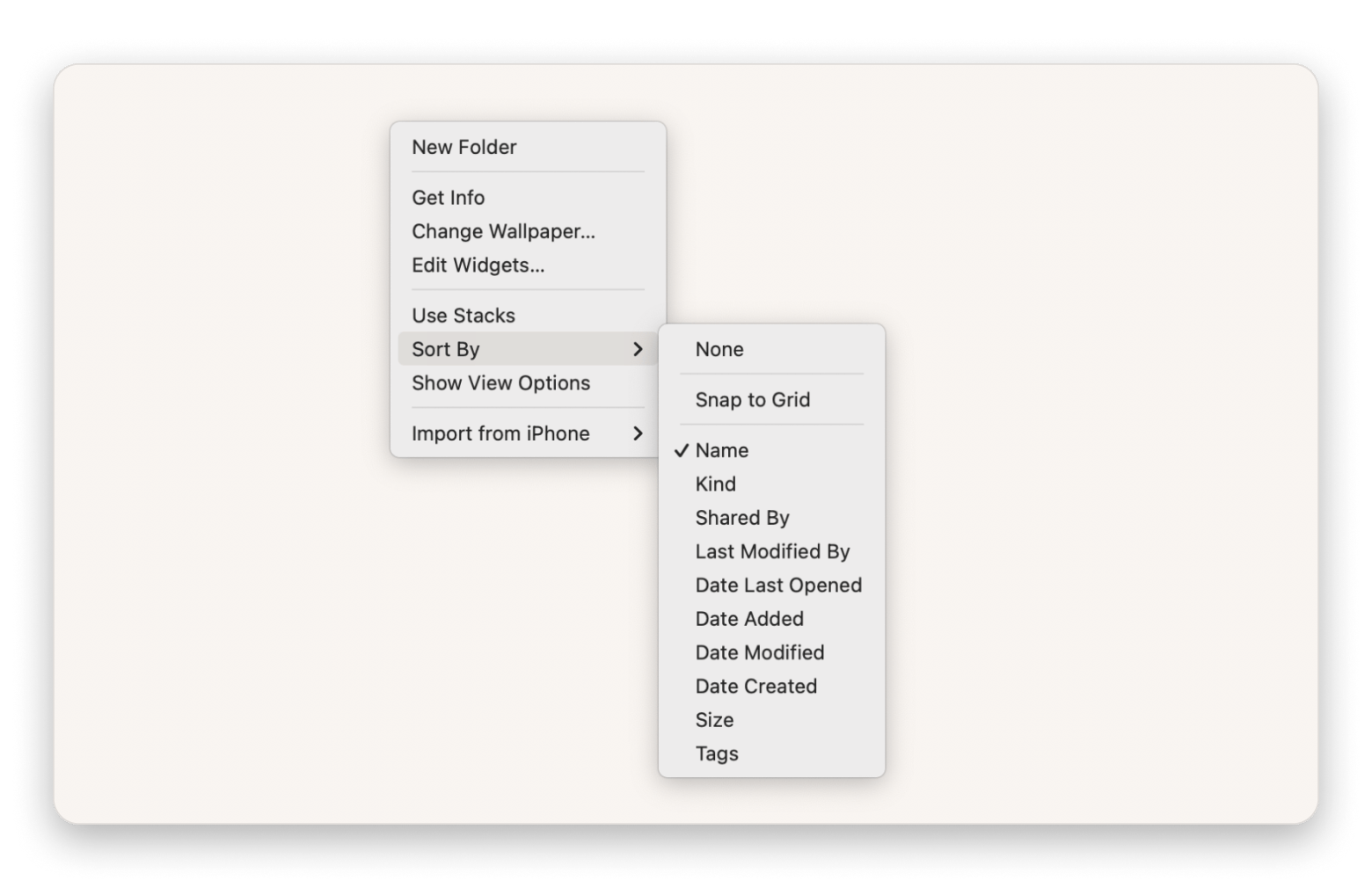
Control-click (or right-click) on the desktop background.
Choose Sort By and pick how you want to sort your files.
Change icon size, grid spacing, and text size if you wish.
Use stacks to group icons on your desktop
Stacks are a great way to tidy your desktop without any effort. They group your files by date, type, or whatever you choose, so you can find what you need in seconds.
To use stacks on your desktop:
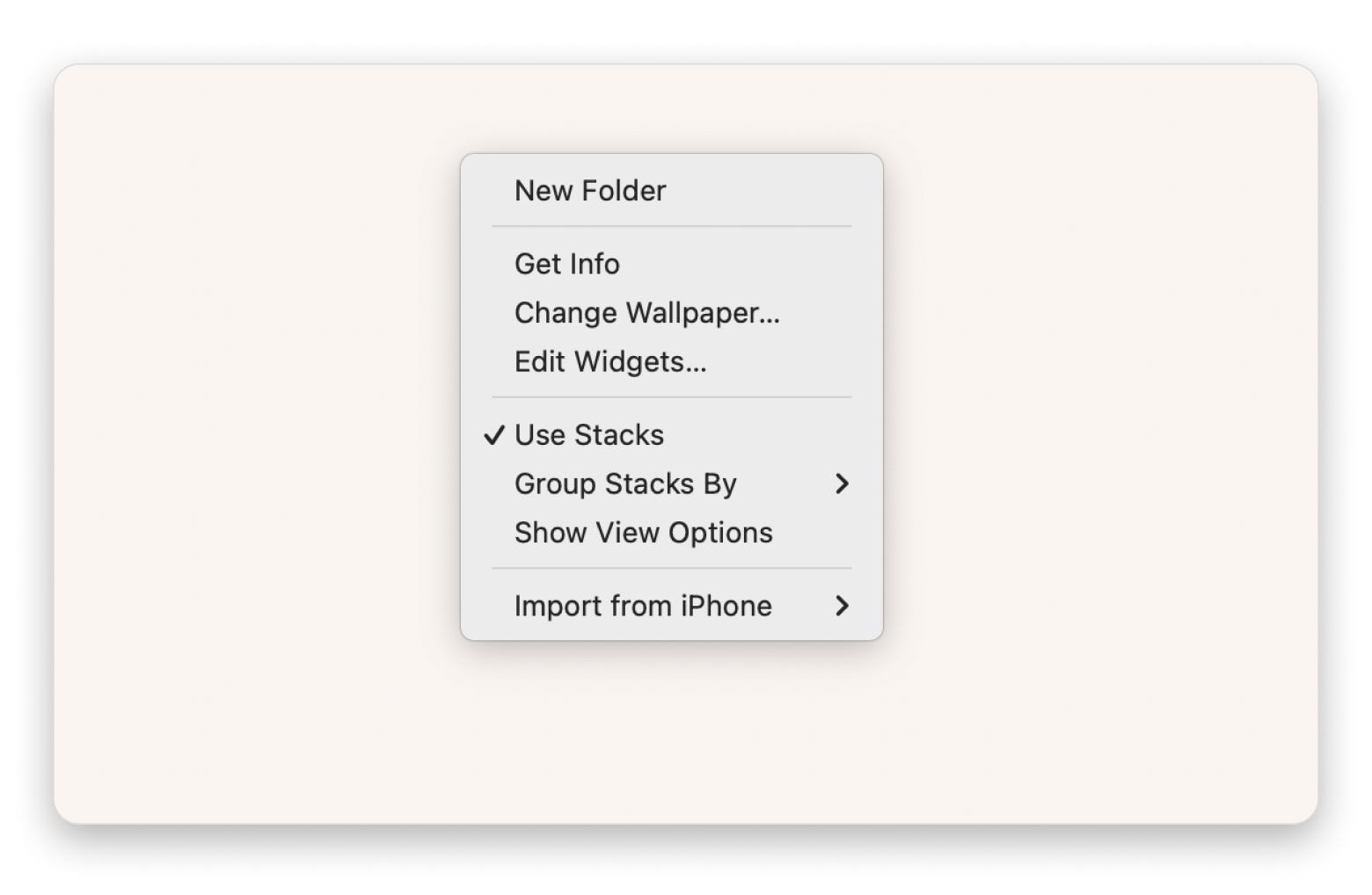
Control-click (or right-click) on the desktop background.
Choose Use Stacks.
Browse files in a stack by swiping left or right, and expand or collapse a stack by clicking it.
Final thoughts on how to organize files on your Mac
Keeping your Mac in order is simple. Start by grouping files into folders, adding tags, and turning on iCloud Drive to clear space and speed things up.
Tools like Unclutter, Spotless, Bartender, and Mosaic take the work off your hands. They sort files, tuck away background clutter, and let you set up your workspace just how you like it.
You’ll find all of these apps in Setapp, a service that bundles over 260 Mac and iOS apps in one download. Try it free for seven days and see which tools fit your workflow.
FAQ
How do I organize files on my Mac desktop?
To organize files on your Mac desktop, start by making folders with clear names, then drag documents into the right spot. Use tags for projects or dates so you can spot files fast. When you're short on time, use apps like Spotless to sort everything.
What is the best way to clean up my Mac desktop?
There are two ways to clean up your Mac desktop. You can either sort files manually into folders or use an app like Unclutter or Bartender to tuck things away. Try both to see what fits your workflow best.
Is Bartender free with Setapp?
Bartender is free with a Setapp Membership for the first 7 days for all new Setapp users. After that, it's included in your Setapp subscription at a flat fee — along with 260+ other apps for Mac, iOS, and web.
How can I quickly locate files on my Mac?
To quickly locate files on your Mac, press Command-F in Finder and type part of the name. You can also use tags or open a Smart Folder for files you use every day.
Are there tools to help manage files on my Mac?
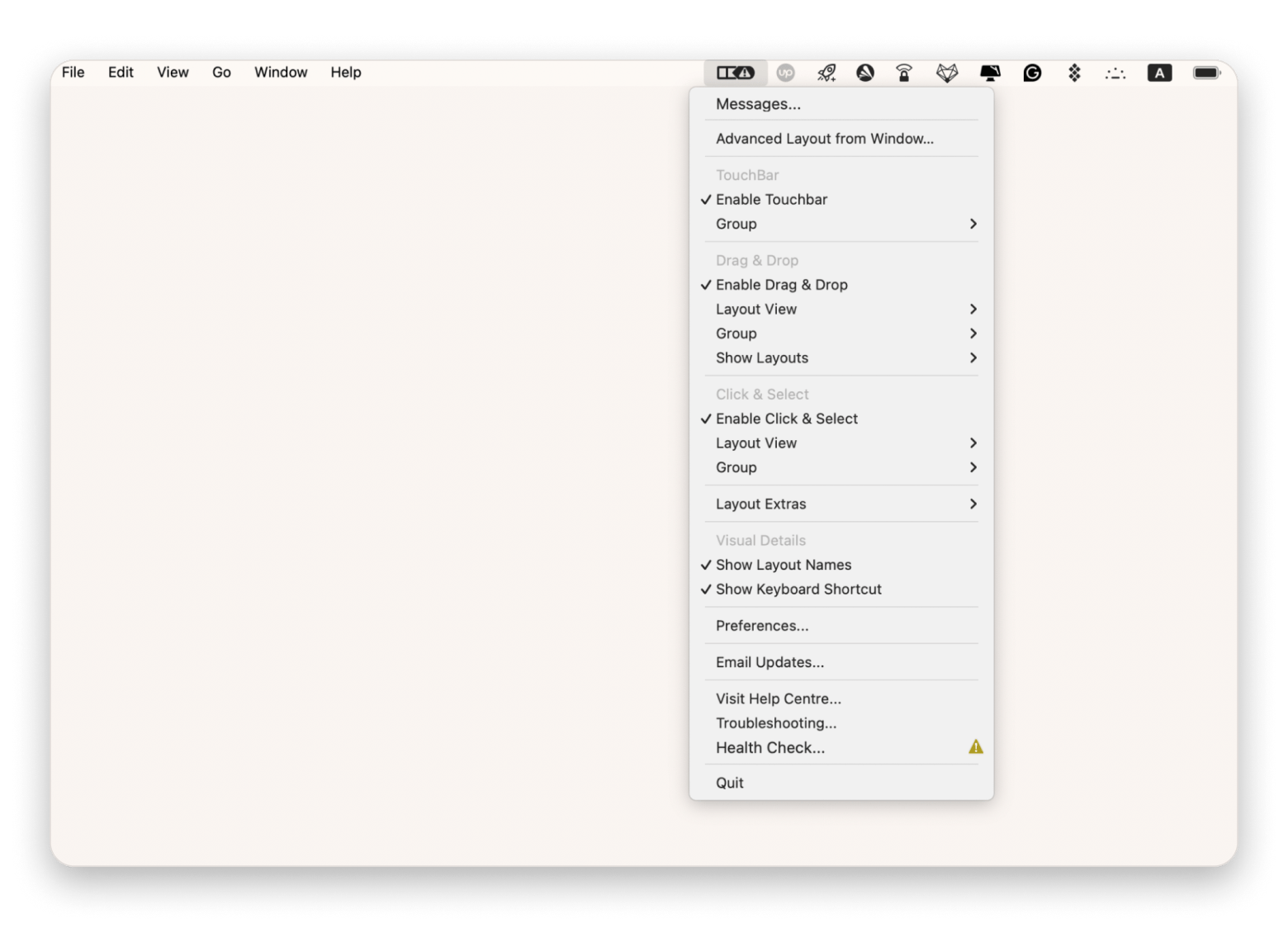
Yes, there are many tools for managing files on Mac. An app like Spotless auto-sorts your folders, while Unclutter gives you a quick stash spot. When you're actually reshuffling files into place, Captain's Deck gives you two folders side by side so you can move things without dragging across windows. Mosaic is an app that assists you with arranging windows. Together, these apps can keep your desktop uncluttered.
How does iCloud Drive assist in file organization?
You need to turn on Desktop & Documents in iCloud settings. Your files will sync across Mac, iPhone, and iPad. That way, you can grab any document from any device without extra steps.
Powerful apps live on Setapp
Ditch defaults and discover new gems on one app platform.






 Best solution
 Best solution