Remove unwanted objects in a few clicks:TouchRetouch erases people, trash cans, signs, and other distractions from your photos on Mac. Paint over the object and click Go.
Object Removal handles most edits: Brush or Lasso around the object, include its shadow, and click Go. If the fill looks soft, brush over that spot and run it again.
Line Removal is made for wires: Brush along a power line or cable, and TouchRetouch detects and erases the whole line. You can also drag between two points to remove only one segment.
No Photoshop needed: Clone Stamp fixes patterned backgrounds like brick walls and fences, and Quick Repair clears dust and blemishes. It also runs on Intel Macs with macOS 10.14 or later.
Try TouchRetouch free on Setapp: It’s included in Setapp Membership with 300+ other apps. Start your 7-day free trial and clean up your first photo today.
TouchRetouch from Setapp is a Mac photo retouching app that removes unwanted objects, people, and wires with a few clicks.
One stray object can ruin an otherwise perfect photo. I tried using Apple Photos Clean Up, but it left muddy patches around fences and cables. Online tools didn’t work for me because they softened my exports. So I switched to TouchRetouch, a solid object remover for everyday users that delivers professional-looking results without the complexity of hardcore editors like Photoshop.
In this review, I’ll show you how to use TouchRetouch on Mac, what it removes best, and tips for best results.
First, let’s look at how TouchRetouch and the Clean Up tool compare:
Has a one-tap tool that detects and erases lines and complex meshes
Tiny details
Struggles with fine textures
You can fix them with Clone Stamp and precise brush
Fill method
Generative AI
Surrounding pixels
Result fidelity
Can invent or alter background
Stays closer to the original
Or get TouchRetouch as a standalone app, from $4.99 USD/mo + tax.
What is TouchRetouch?
TouchRetouch from Setapp is a photo retouching app for Mac that does one job and does it well: it removes unwanted objects in pictures, quickly and easily. It's made by ADVA Soft, the same team behind the popular iPhone version, and it has a 97% rating on Setapp.
TouchRetouch is a great fit if you’re:
A traveler tired of tourists and scaffolding in every shot
A content creator who needs clean photos fast
The family photo person who just wants that trash can gone
This is simply the easiest way I’ve found to erase background objects on Mac.
How to use TouchRetouch on Mac
This is my quick TouchRetouch how-to guide for beginners.
Install TouchRetouch via Setapp and open a photo
You have two ways to get TouchRetouch through Setapp:
Setapp Membership: TouchRetouch is included in a single Setapp subscription offering 300+ Mac, iOS, and web apps for $14.99 USD/mo + tax. You can try all the apps in the catalog for free for 7 days.
TouchRetouch only: If you need TouchRetouch only, you can get it as a standalone app from $4.99 USD/mo+ tax.
How to remove objects from photos with TouchRetouch
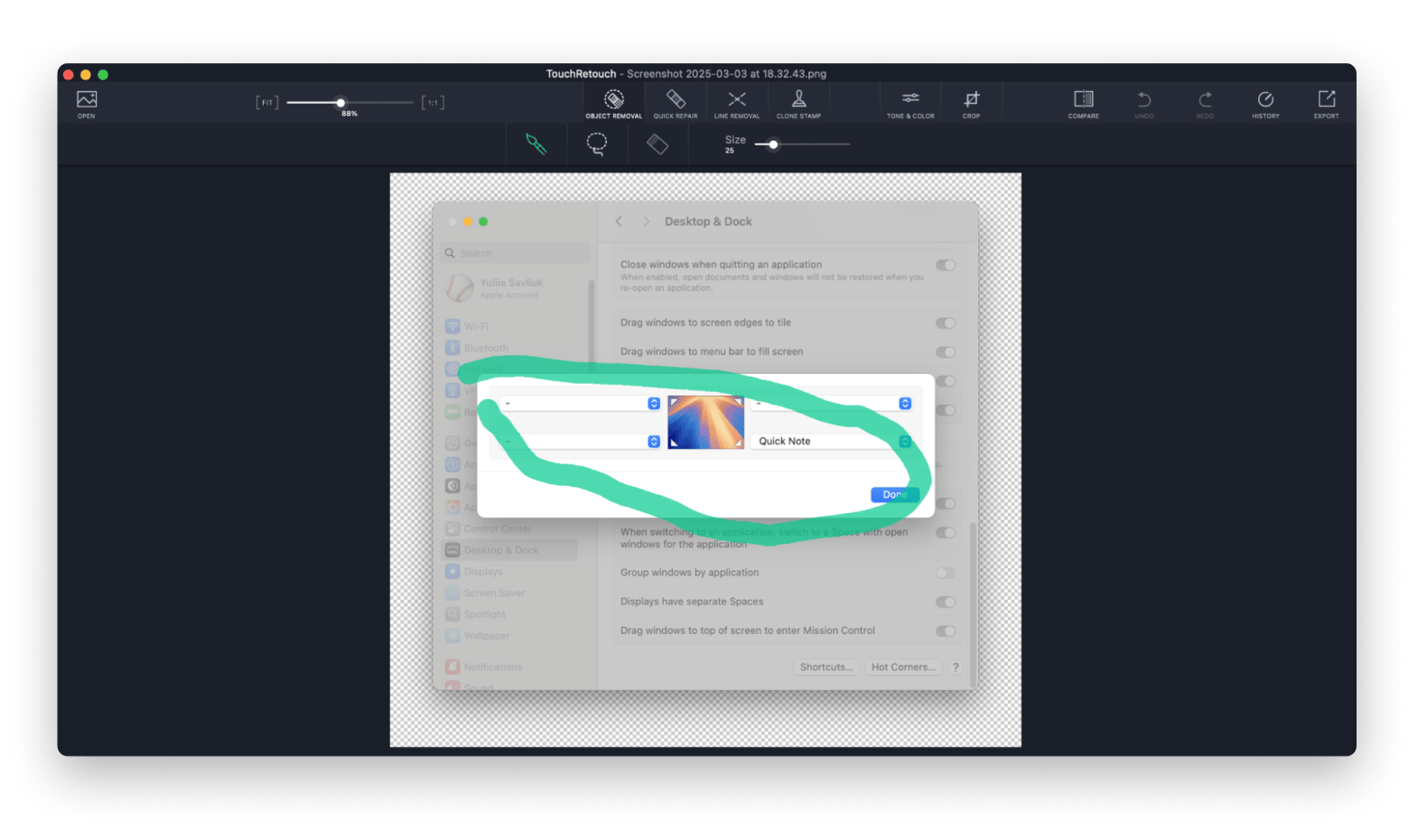
Choose Object Removal > Brush, paint over the object, and click Go.
For bigger objects, choose Object Removal > Lasso and draw around it instead. If the first pass leaves a slightly soft patch, brush over just that spot and click Go again.
Paint a little beyond the edges, and include the shadow for a cleaner result.
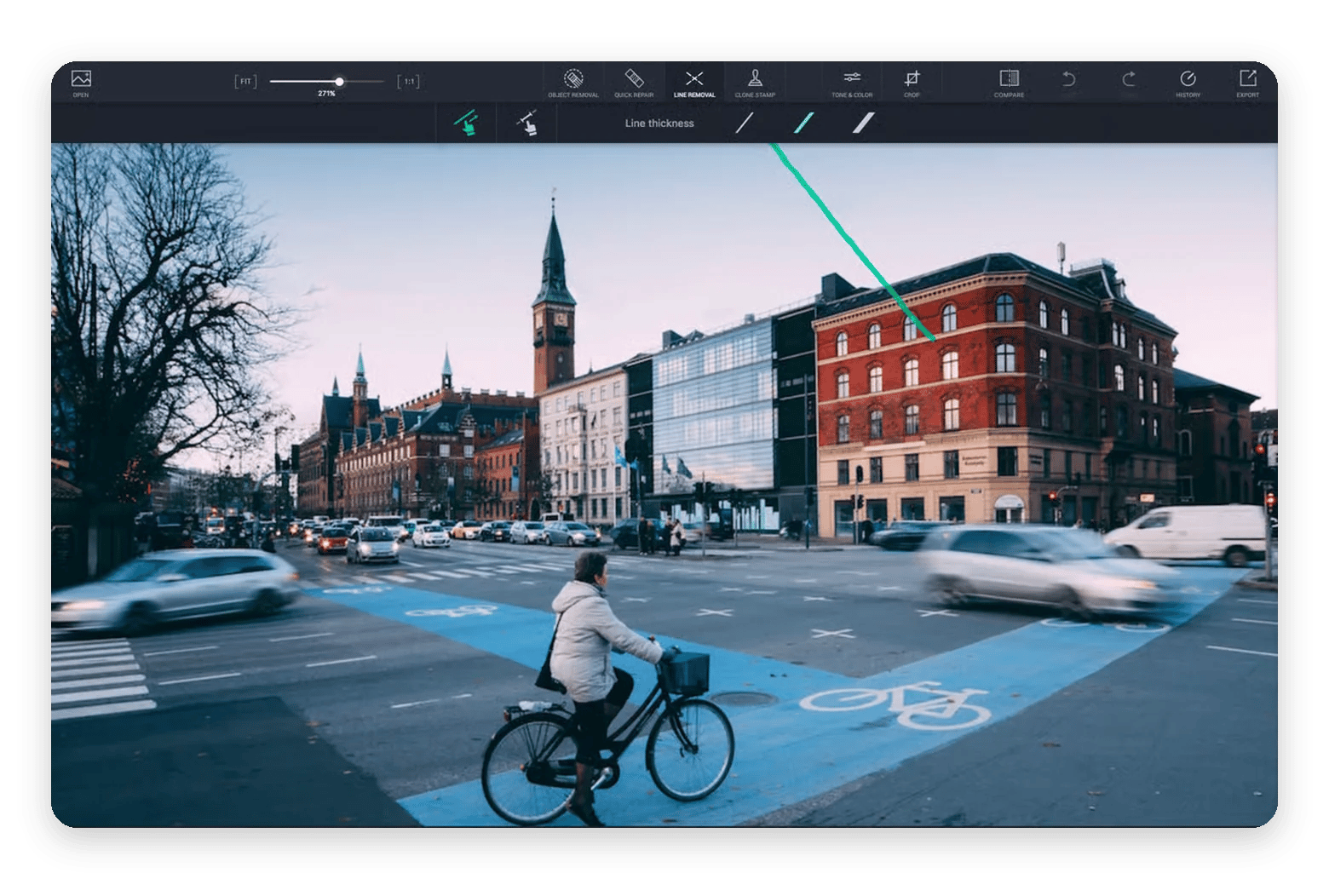
How to remove wires and power lines in TouchRetouch
Choose Line Removal, and you’ll see two options:
Brush along the wire: TouchRetouch will detect the whole line and remove it in one go.
Remove a segment: Drag from one point to another to erase only that part. It’s handy when a wire crosses something you want to keep.
Before you start, set the line thickness to roughly match the wire. If a cable crosses a busy background, remove it in shorter sections for a better result.
Source: https://setapp.com/apps/touchretouch
How to fix patterned backgrounds with Clone Stamp in TouchRetouch
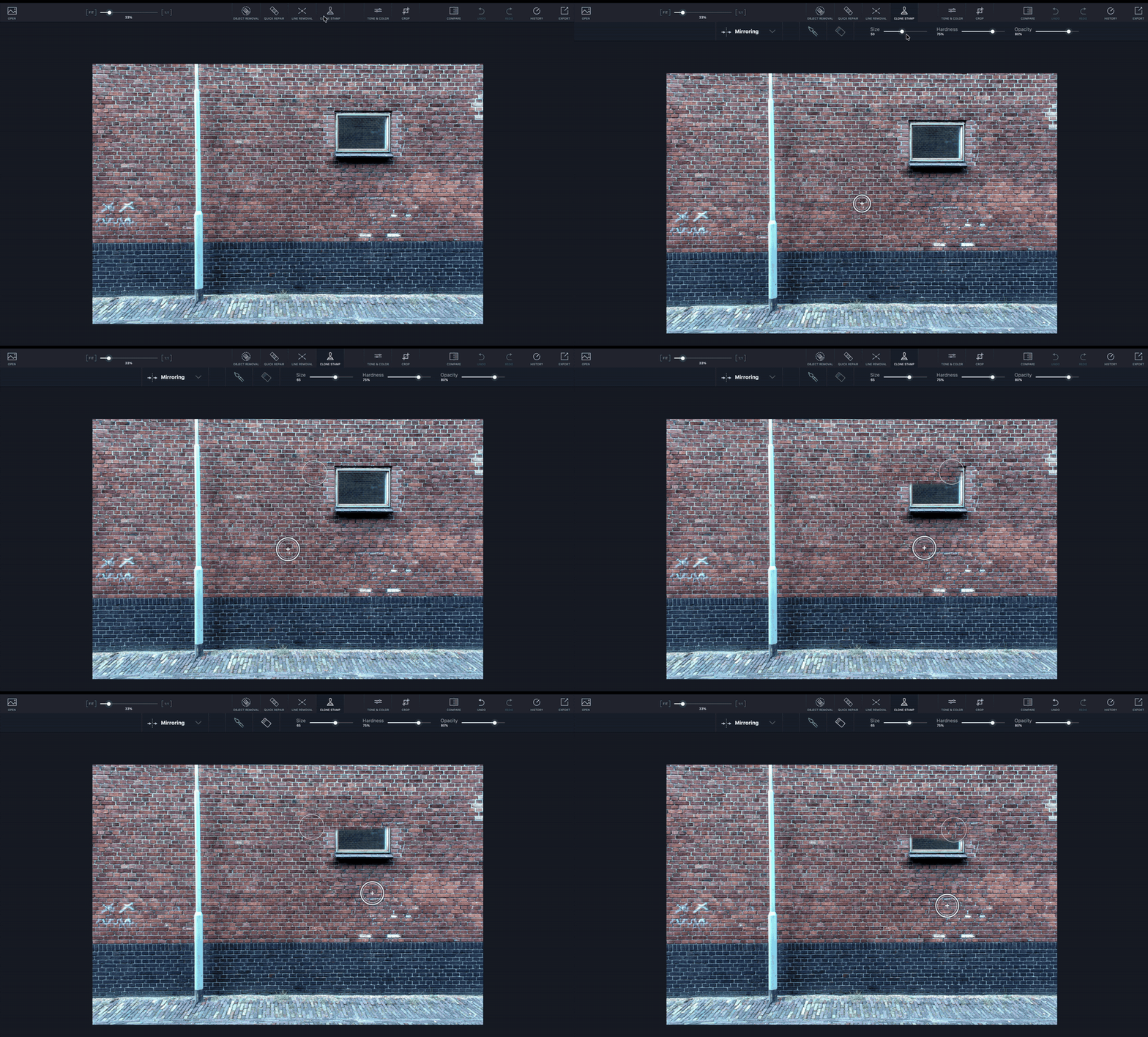
Automatic removal often struggles on patterned backgrounds, like brick walls, tiles, or fences. TouchRetouch handles it smartly with Clone Stamp.
Choose Clone Stamp and set the right settings (Size, Hardness, and Opacity). Then click and hold a clean part of the pattern, and paint over the problem spot.
How to remove dust and blemishes with Quick Repair in TouchRetouch
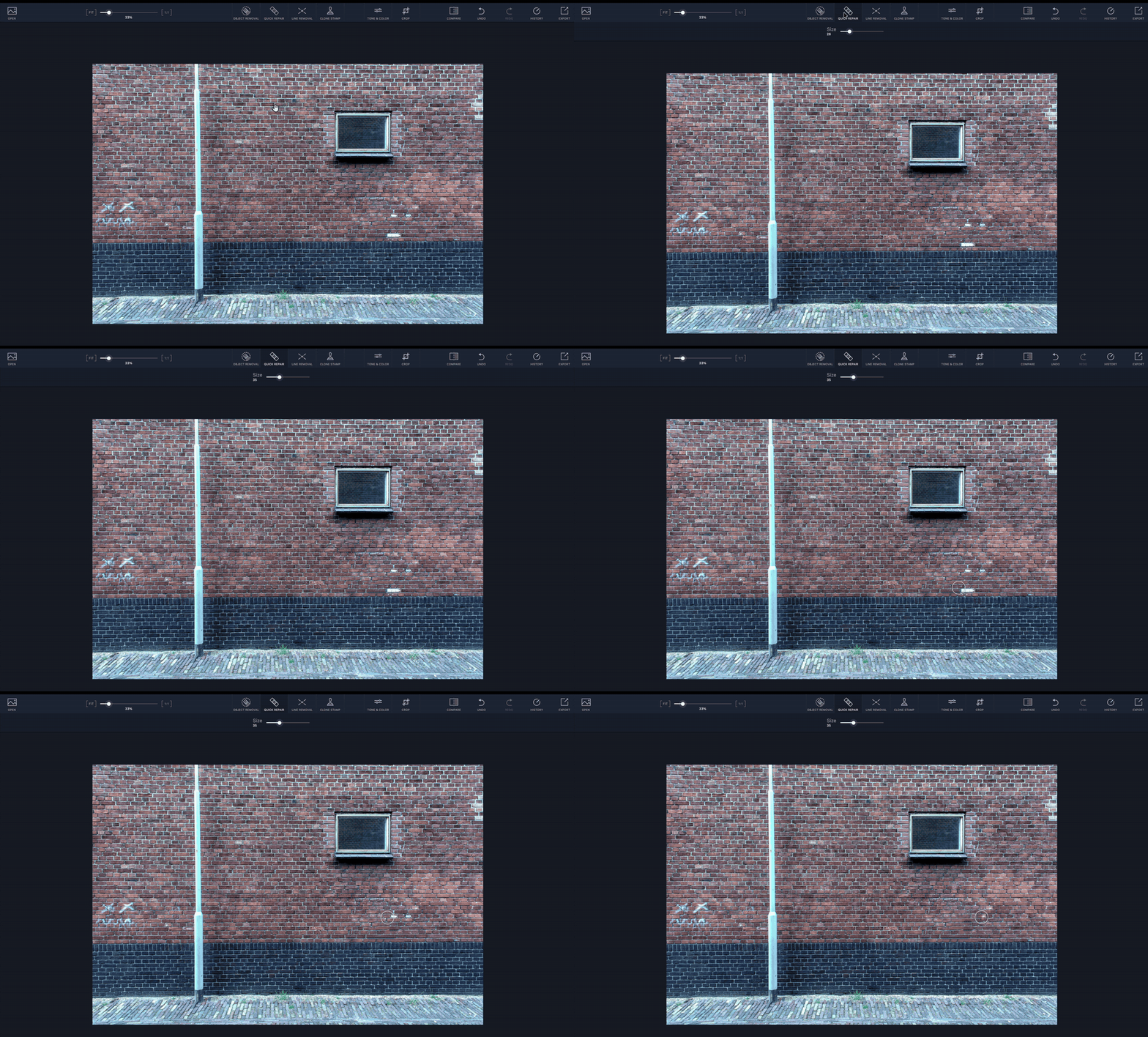
You can easily remove small stuff like dust and blemishes with Quick Repair.
Choose Quick Repair and brush over the spot, and it’s cleaned up right away.
Other TouchRetouch tools and how to save your photos
TouchRetouch also has basic tone and color edits, plus Crop and Compare options. They’re there for a quick finishing touch if you need one. Just don’t expect pro-level filters or artistic edits.
You can export the photo as JPEG, PNG, or TIFF. If you edited through the Photos extension, click Save Changes, and the edit goes straight back to your library.
What can you remove with TouchRetouch?
These are the removals TouchRetouch handles best:
People in the frame: Photobombers and strangers in the background
Wires and cables: Power lines, phone cables, chargers, and other snaking stuff
Clutter: Tourist signs, parked cars, and trash cans
Shadows and blemishes: Small shadows, dust spots on scans, and skin blemishes on portraits
TouchRetouch vs. Photoshop Content-Aware Fill: Which should you use?
Photoshop’s Content-Aware Fill (and its newer Generative Fill) is more powerful than TouchRetouch. But for casual, light edits, it’s overkill. That’s what TouchRetouch is for.
Here’s how they compare:
Feature
TouchRetouch
Photoshop Content-Aware Fill
Ease of use
Simple, download and start
Takes time to learn
Speed of object removal
Click and go
More effort per edit
Cost
Included in Setapp Membership from $14.99 USD/mo + tax, free for 7 days. Or from $4.99 USD/mo + tax standalone
If you edit just to post on Instagram, a blog, or a family album, TouchRetouch is faster and good enough. If it’s a client print or a pixel-perfect edit, open Photoshop.
Tips for best results with TouchRetouch
These are the habits that made my TouchRetouch edits look natural instead of edited:
Use the right tool: Pick between Object Removal, Line Removal, Quick Repair, and Clone Stamp based on what you’re removing. The right tool does half the work.
Work in small sections: For bigger objects, zoom in and remove them bit by bit. If you mark the whole thing at once, there’s too little clean background to fill from, and you may get a muddy patch.
Size your brush slightly larger than the object: Paint a little beyond the edges, so nothing is left behind.
Always remove the shadow too: A leftover shadow is a dead giveaway.
Fix blurry spots with Clone Stamp: If a removal leaves a soft or blurred patch, paint over it with Clone Stamp to restore texture.
Yes, TouchRetouch for Mac is worth it if you want to remove objects, people, and wires from photos without learning Photoshop. After testing it against many online object removers, I’d recommend it for everyday cleanups, since Object Removal, Line Removal, Clone Stamp, and Quick Repair cover most of them.
No, TouchRetouch isn't free on Mac. It's a one-time purchase on the Mac App Store. The easier route is Setapp: TouchRetouch is included in Setapp Membership ($14.99 USD/mo + tax for 300+ apps), and you can try it free for 7 days. You can also get it on its own through Setapp Marketplace.
Can TouchRetouch remove people from photos?
Yes, TouchRetouch can remove people from photos. Choose Object Removal, paint over the person with the Brush, and click Go. It works best when the person stands against a simple background, like sky, sand, or a wall. For people in front of busy scenes, remove them in smaller passes and tidy up with Clone Stamp.
Is TouchRetouch better than Snapseed?
Yes, TouchRetouch is better than Snapseed for Mac users, mainly because Snapseed has no Mac app. Snapseed's Healing tool works well on iPhone, but TouchRetouch gives you the same paint-to-remove workflow on your Mac, plus dedicated line removal.
Does TouchRetouch work on RAW files?
Yes, TouchRetouch works on RAW files, as well as JPEG, PNG, and TIFF. Open the RAW photo, remove what you need, and export it as JPEG or TIFF. If you shoot RAW, do your object removal before heavy color edits, so the fill blends in naturally.
Is TouchRetouch on Setapp the full version?
Yes, TouchRetouch on Setapp is the full version. Every tool is unlocked, including Object Removal, Line Removal, and Clone Stamp, with no in-app purchases. Updates install automatically, making it one of the simplest ways to remove objects from photos on Mac.






 Best solution
 Best solution