The best VirtualBox alternatives for Mac are UTM for a free, open-source option that works on Apple silicon, Parallels Desktop for a polished commercial Windows experience with Coherence mode, and VMware Fusion for teams already in the VMware ecosystem. If you only need a few Windows apps without installing Windows, CrossOver runs them directly on macOS through a compatibility layer.
VirtualBox was once the most popular free virtualization tool for Mac users, but things have changed. Because of issues like limited support for Apple silicon and slower performance, users are now looking for better alternatives.
The best VirtualBox alternatives for Mac at a glance
There are solid VirtualBox alternatives worth considering, and several of them are free. Here's a quick overview before we get into the details:
Option
Best for
What it does
x86 emulation
GPU acceleration
UTM
Free, open-source VM that works on M-series Macs
Full virtual machine app for Mac
Via QEMU
No 3D acceleration
Parallels Desktop
Smoothest Windows experience, gaming, CAD software
Commercial VM with deep macOS integration
ARM guests only
DirectX 11 & OpenGL 4.1
VMware Fusion
Teams already using VMware products at work
VM tool from VMware/Broadcom
ARM guests only
Basic 3D
QEMU
Advanced users, retrocomputing, obscure operating systems
Command-line emulation engine
Broad architecture support
No 3D acceleration
VirtualBuddy
Running macOS betas and testing app compatibility
Lightweight macOS VM tool
macOS guests only
No 3D acceleration
Veertu Anka
iOS dev teams running automated builds across macOS versions
CI/CD macOS build infrastructure
macOS-focused
No general 3D acceleration
CrossOver
Running a few specific Windows apps or games without a VM
Runs Windows apps directly (no VM)
N/A (not a VM)
Full graphics support
Whisky
Was good for gaming; now recommended to use CrossOver instead
Free Wine wrapper (no longer maintained)
N/A (not a VM)
Partial 3D
If you need to pick a cloud service to pair with your VM workflow, the roundup of the best cloud storage apps for Mac covers the options.
VirtualBox doesn't fully support Apple silicon. Its developer preview for ARM Macs lacks stability, has limited Windows 11 on ARM support, and performs worse than alternatives like UTM, Parallels Desktop, and VMware Fusion.
The interface also feels a bit outdated. Windows stays inside a separate virtual machine window, so it never feels like part of macOS. There's no feature like Coherence mode that you get in Parallels, which lets Windows apps behave like native Mac apps.
Compared to other virtualization tools, development has slowed down. Oracle still updates it and is a solid free option for Intel Macs or for running less common operating systems on Windows and Linux hosts. But Mac users with Apple silicon devices have more to benefit from alternatives that focus on newer hardware and deliver new features more consistently.
Detailed reviews of each VirtualBox alternative
Now, let’s look at the strengths, limitations, and pricing of the different VirtualBox alternatives for Mac.
UTM: Best free open-source VirtualBox alternative
UTM is the alternative that's most similar to VirtualBox, so if you want something that looks and feels the same, this is the ideal option.
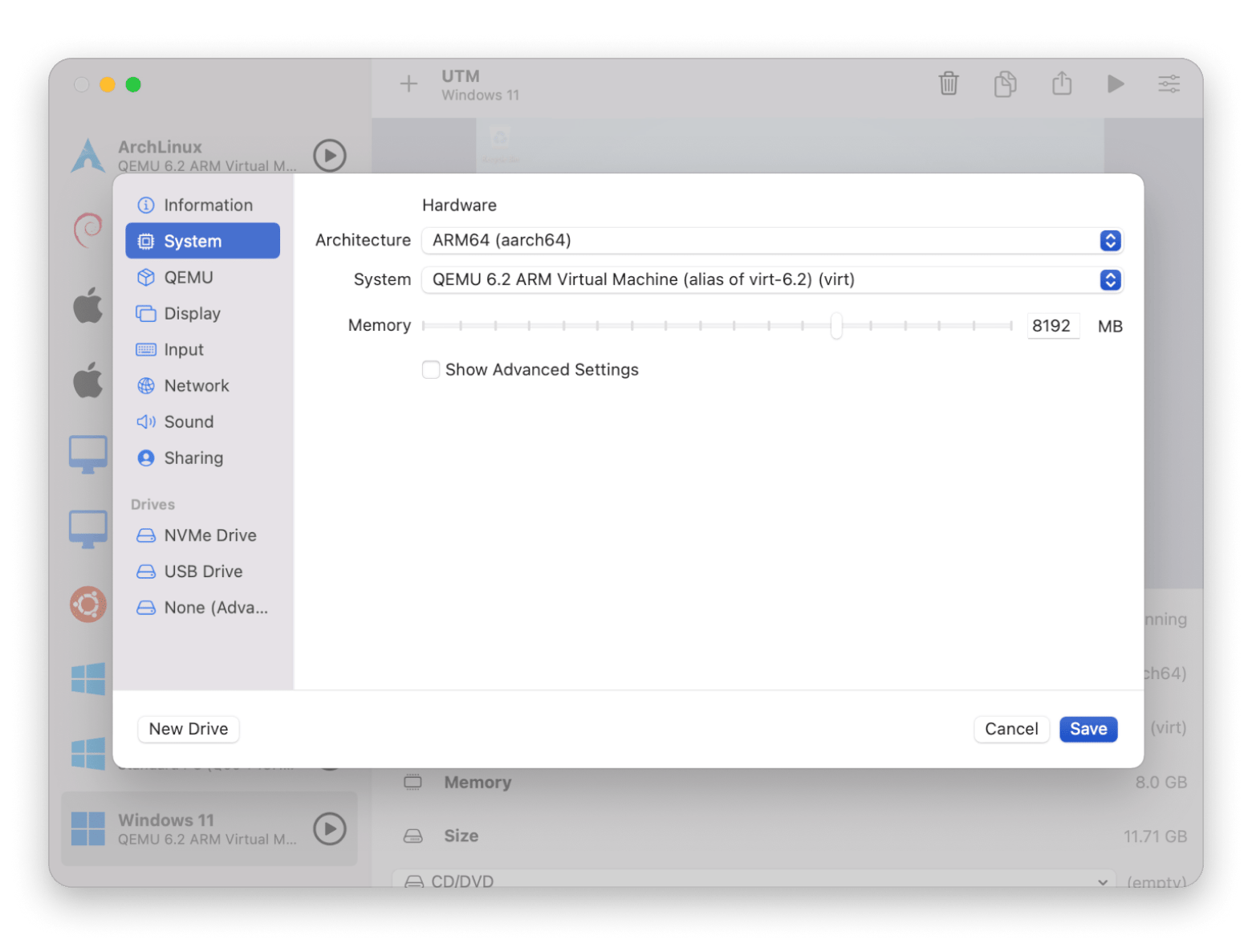
Just like VirtualBox, it's free and open source, but it's built with Apple Silicon in mind. It uses Apple's Virtualization framework to run ARM operating systems like Windows 11 on ARM, Ubuntu, and Debian with good performance. It switches to QEMU for emulation when you need to run older x86 or x64 operating systems. The built-in UTM Gallery lets you download preconfigured virtual machines for popular operating systems.
Pros:
Free and open source — no subscription, no license key
Built for Apple Silicon with native performance via Apple's Virtualization framework
Handles both ARM and x86 guests (switches to QEMU emulation for older systems)
Built-in UTM Gallery with preconfigured VMs for popular operating systems
Cons:
No 3D graphics acceleration, meaning not suitable for gaming or CAD software
Requires downloading your own ISO files and some manual configuration
Less polished UI than Parallels, so expect a learning curve on first setup
Price: At the time of writing, UTM is free. A paid version is also available on the Mac App Store to support development, but it offers the same features as the free download.
Parallels Desktop: Best polished commercial VirtualBox replacement
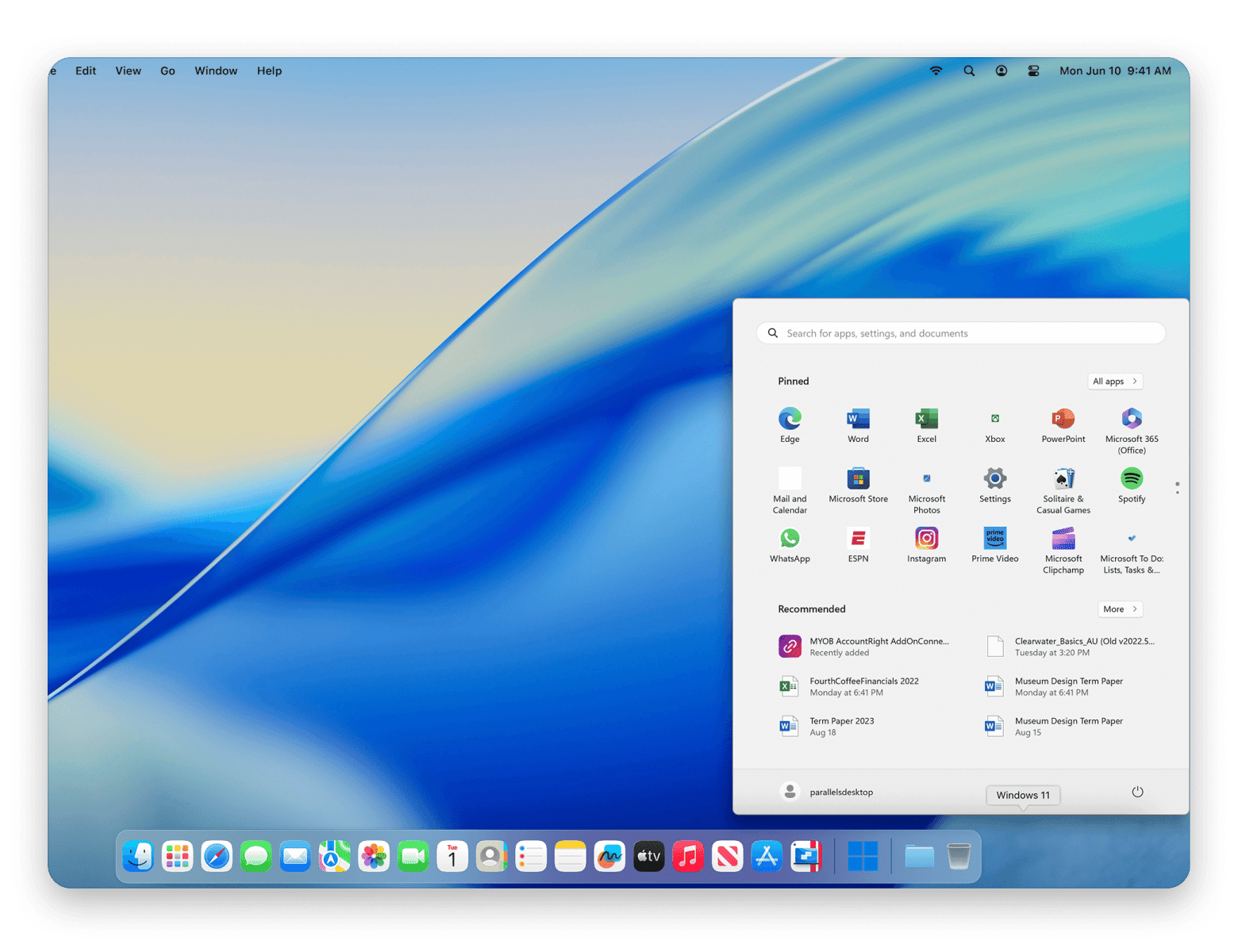
Parallels Desktop is the only virtualization tool with Microsoft's official authorization to run Windows 11 on Apple Silicon. Parallels downloads and installs Windows automatically, so setup is a breeze. Once you're up and running, Windows apps will appear directly on your Mac desktop and will behave as native macOS apps, supported by Coherence mode. The software is also a better choice than VirtualBox for Windows games and graphics-intensive software like AutoCAD, as it supports DirectX 11 and OpenGL 4.1.
It's the best choice for anyone who relies on Windows software and wants it to feel like a natural part of macOS.
Pros:
Only VM tool with Microsoft's official authorization to run Windows 11 on ARM
One-click Windows installation (no ISO hunting or manual setup)
Coherence mode puts Windows apps directly in your Mac Dock and desktop
DirectX 11 and OpenGL 4.1 support for gaming and GPU-heavy software like AutoCAD
Cons:
ARM guests only on Apple silicon: You can't emulate x86 versions of Windows
Annual cost adds up compared to free alternatives like UTM and VMware Fusion
Price: At the time of writing, Parallels Desktop Standard starts at $99.99 per year. The Pro and Business plans are available at a higher price.
VMware Fusion: Best for VMware ecosystem compatibility
VMware Fusion is the ideal option for you if your workplace already relies on VMware. It runs natively on Apple Silicon and supports ARM-based operating systems. Probably one of its major advantages is that it's fully compatible with other VMware products like vSphere, ESXi, and VMware Workstation. This means you'll be able to share virtual machines with colleagues or move development environments between work and home.
Now completely free for all users: personal, commercial, and educational
Runs natively on Apple silicon with ARM-based guest support
Full compatibility with VMware vSphere, ESXi, and Workstation for sharing VMs between work and home
Production-grade snapshot management and encrypted VMs
Cons:
Interface feels more enterprise-focused than Mac-native
Limited 3D graphics support, meaning not a good pick for gaming or GPU-heavy apps
No Coherence-style mode: Windows stays inside its own VM window
Price: VMware Fusion Pro is now free for all users, including commercial and educational use, after Broadcom dropped the paid licensing model in November 2024.
QEMU: Best for hardcore CLI users and edge cases
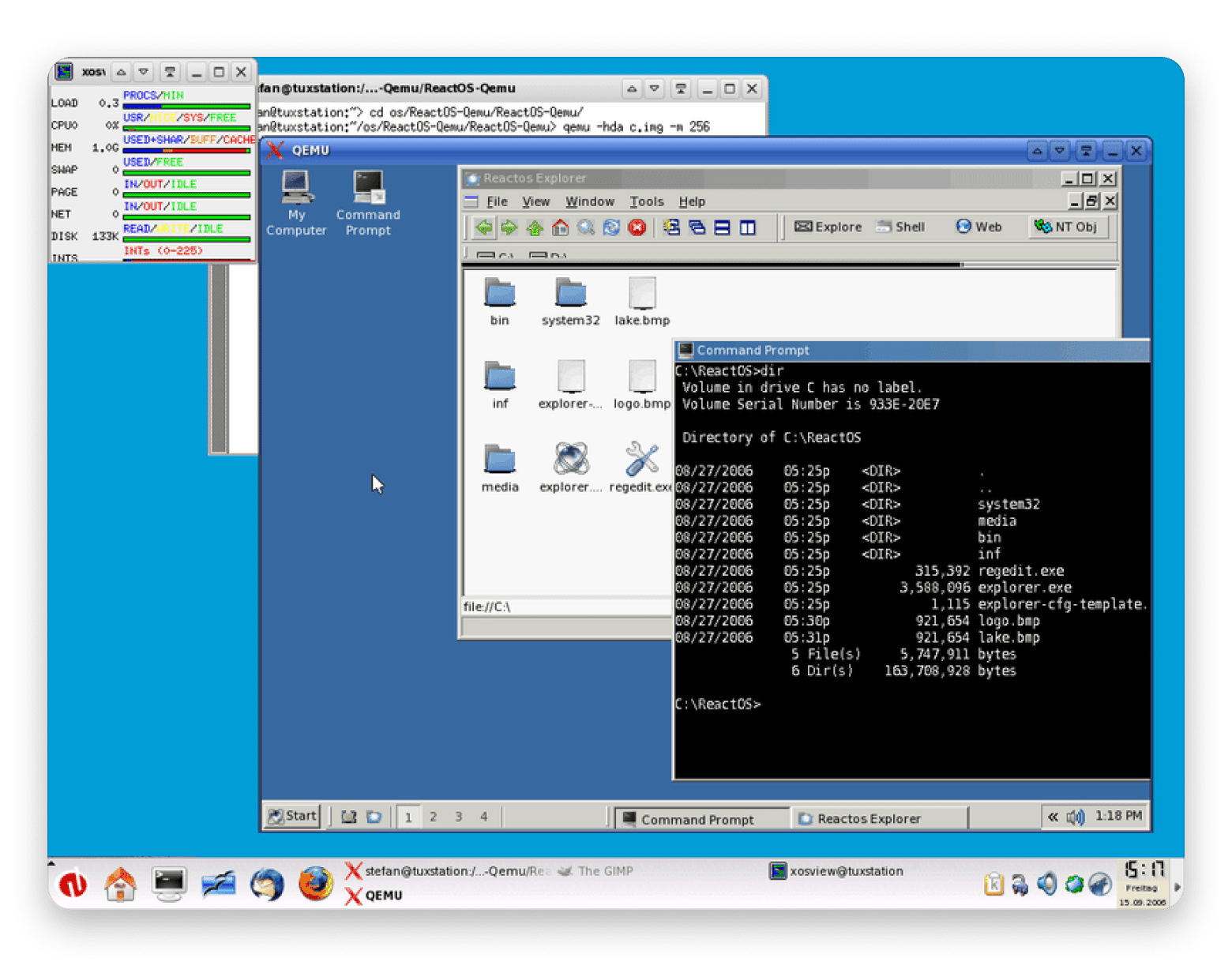
QEMU is the open-source emulation engine that powers UTM, but you can also use it directly from the command line. It supports a huge range of processor architectures, including ARM, x86, PowerPC, MIPS, RISC-V, and SPARC. It's a good choice for users who want complete control over their virtual machines. You can test software across different platforms and play around with older operating systems.
Supports the widest range of architectures: ARM, x86, PowerPC, MIPS, RISC-V, SPARC
Complete control over every VM setting and hardware configuration
Powers UTM under the hood
Ideal for retrocomputing, cross-platform testing, and edge-case operating systems
Cons:
No graphical interface without a frontend like UTM
Steep learning curve; expect significant time reading documentation
No 3D graphics acceleration
Not practical if you just want to run Windows on your Mac
Price: At the time of writing, QEMU is free and open source.
VirtualBuddy: Best lightweight macOS-on-macOS option
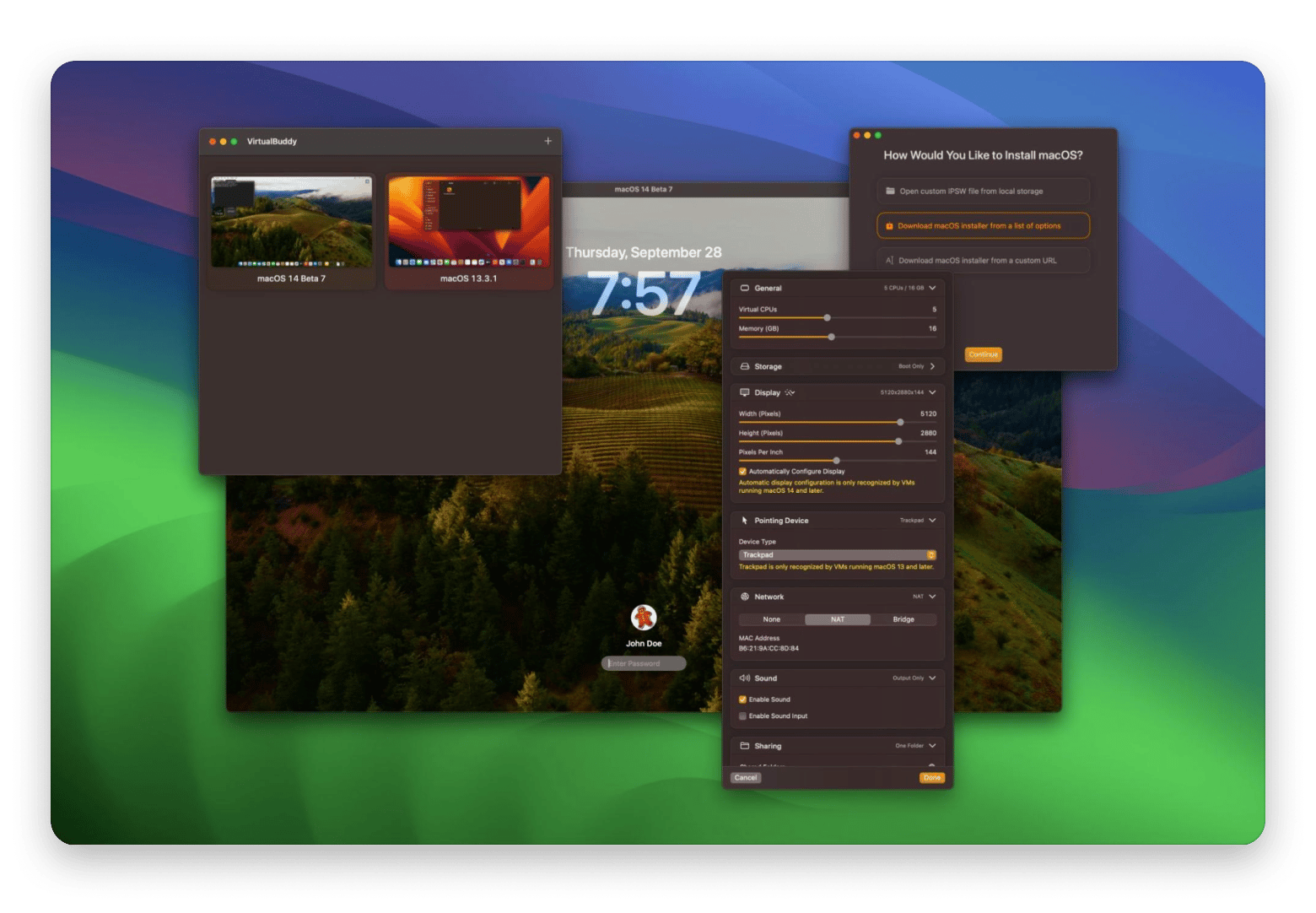
VirtualBuddy is a virtualization tool built specifically for macOS guests on Apple Silicon Macs. It uses Apple's Virtualization framework, so virtual machines run smoothly and feel responsive. You'll have an easy time using it because it's lightweight and easy to set up. It doesn't try to support every operating system in existence, but focuses on macOS.
As such, it's ideal for developers and testers testing beta versions of macOS and checking app compatibility.
Pros:
Purpose-built for running macOS guests on Apple silicon
Uses Apple's Virtualization framework for smooth, responsive performance
Lightweight and easy to set up compared to UTM or QEMU
Perfect for testing macOS betas without risking your main install
Cons:
macOS guests only, so you can't run Windows or Linux
No 3D graphics acceleration
No Intel support
Small community compared to UTM or Parallels, so less troubleshooting help available
Price: At the time of writing, VirtualBuddy is free and open source.
Veertu Anka: Best for CI/CD macOS virtualization at scale
What makes Veertu Anka different than VirtualBox is that it focuses on large-scale macOS virtualization. Teams can create clean, repeatable macOS environments for each build, then remove them when the job is done. This helps prevent one build from affecting another and makes testing more consistent.
This VirtualBox alternative is geared towards iOS development teams that need to test apps across different macOS or Xcode configurations.
Pros:
Built specifically for macOS CI/CD at scale
Each build runs in an isolated VM that's destroyed when the job finishes
Native Apple Silicon support with strong performance on M-series hardware
Integrates with Jenkins, GitHub Actions, GitLab CI, and other CI/CD pipelines
Cons:
Requires CI/CD infrastructure knowledge
Commercial product with custom pricing
macOS guests only: You can't run Windows or Linux
Price: Anka is a commercial product. Pricing is available from Veertu based on the deployment and team requirements.
CrossOver: Best for running Windows apps without Windows
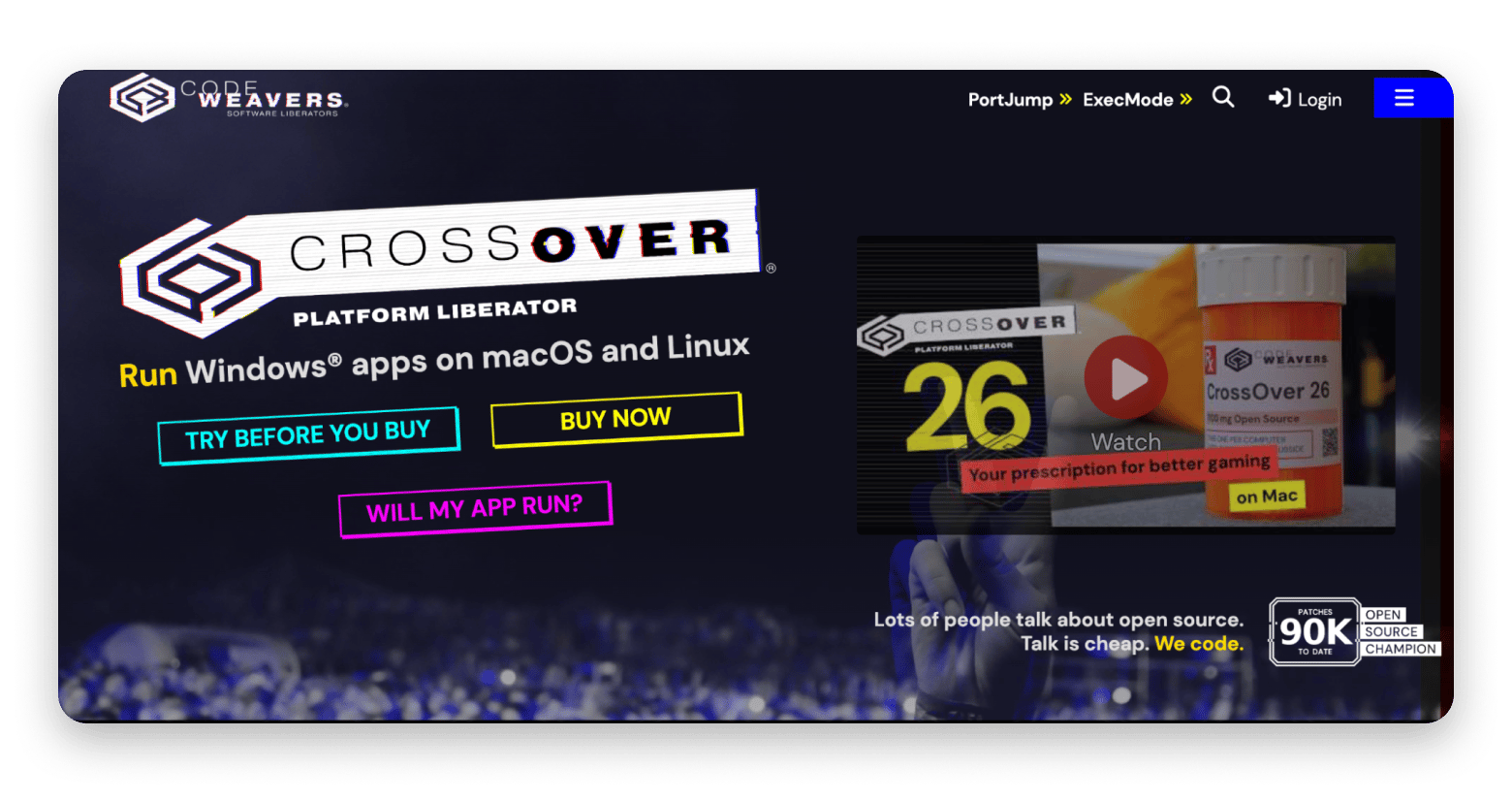
CrossOver is another great VirtualBox alternative that's a smart choice if you only need a few Windows apps and don't want to bother with installing the entire Windows operating system. But unlike VirtualBox, it's not a virtual machine. It uses a compatibility layer based on the open-source Wine project to run Windows software directly on macOS. This means it uses less storage and fewer system resources than a full Windows VM.
It works on both Intel and Apple silicon Macs, and it's great for Windows-only games or creative apps that don't have a Mac version.
Pros:
Runs Windows apps directly on macOS
Uses fewer system resources than a full virtual machine
Works on both Intel and Apple silicon Macs
Good for Windows-only games and creative apps that lack Mac versions
Official compatibility database lets you check app support before buying
Cons:
Not every Windows app works, as some have missing features or fail to launch entirely
Relies on Apple's Rosetta on Apple silicon (native ARM support still in progress)
No full Windows desktop (only individual apps, not the OS itself)
Price: At the time of writing, CrossOver plans start at $39.95/year, with the CrossOver+ tier (includes updates and phone/email support) at $74/year — though frequent promo codes bring it lower.
Whisky: Best free open-source CrossOver alternative
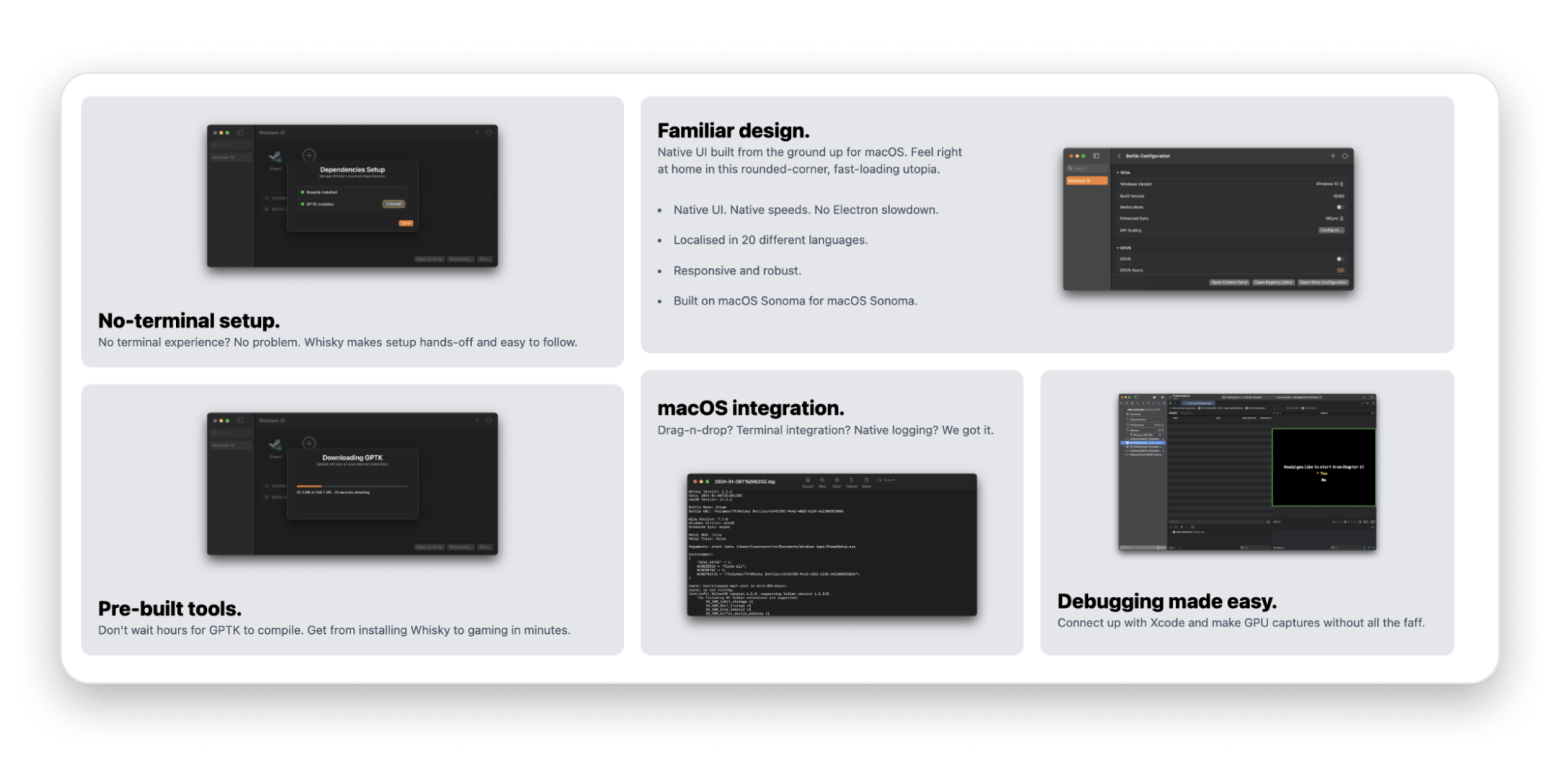
Whisky is built on the open-source Wine project, so you can run Windows applications without installing Windows at all. It works natively on Apple Silicon, and you can organize apps into separate "bottles", which are isolated environments with their settings and dependencies. This means you can easily test different applications without affecting the rest of your setup.
It's quite popular among gamers who want to play Windows-only games without installing the OS.
Pros:
Free and open source — no subscription or license key needed
Native Apple Silicon support via SwiftUI interface
Organized Windows apps into isolated "bottles" with separate settings
Was popular among gamers for running Windows-only titles without installing Windows
Cons:
Note: No longer actively maintained as of April 2025
Developer officially recommends switching to CrossOver
Narrower app compatibility than CrossOver: many programs require manual troubleshooting
Will not receive Wine 8+ upgrades or fixes for specific apps like Steam
Price: At the time of writing, Whisky is free and open source.
Mac tools that make any virtual machine workflow easier
Choosing a virtualization tool is only the first step. Next, you'll have to move files, document issues, and do all kinds of other tasks inside the virtual machine. Although Setapp doesn't have a VirtualBox alternative for Apple Silicon or Intel-based Macs, it includes several apps that make those everyday tasks much easier.
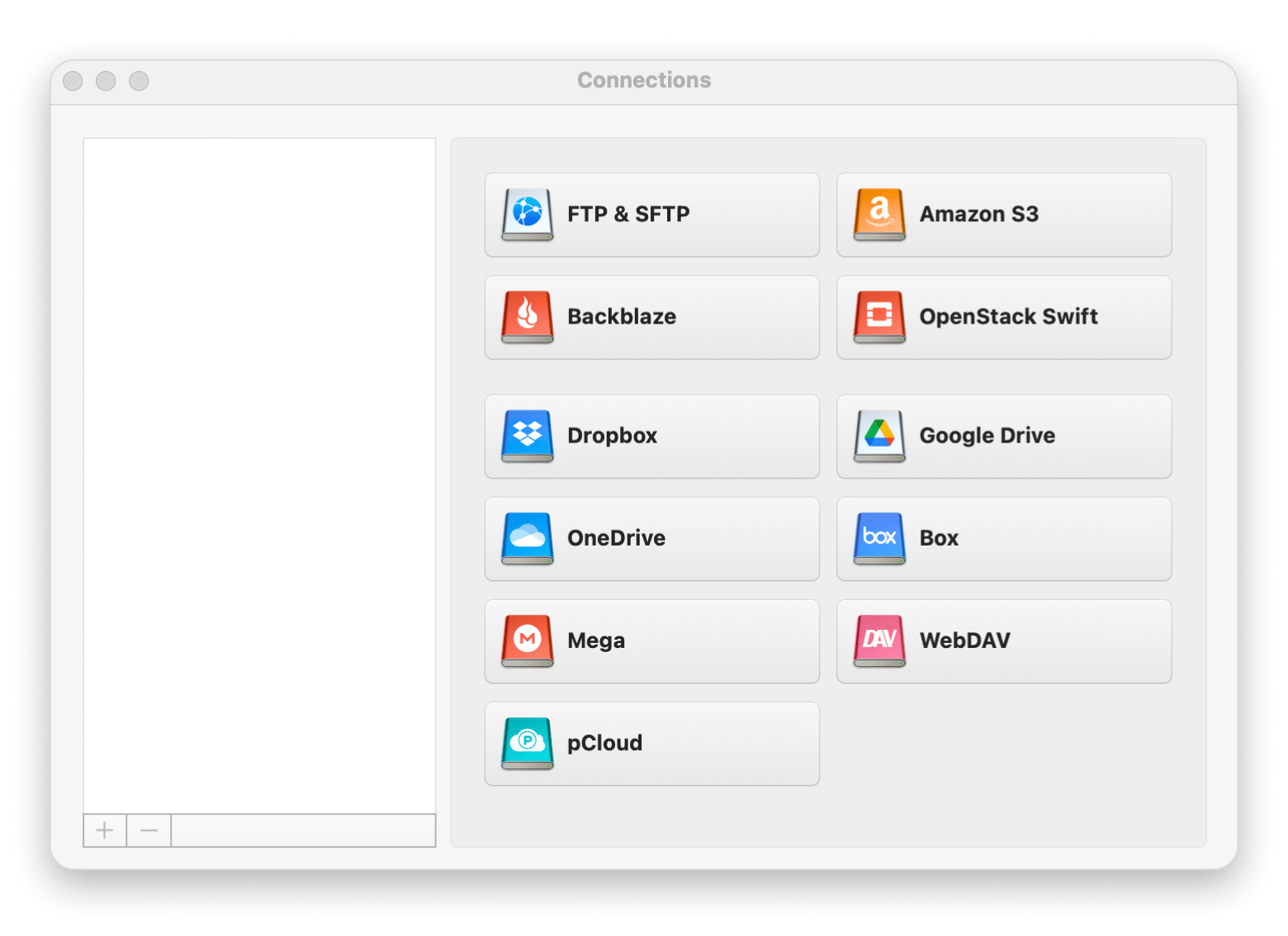
CloudMounter — move files between your Mac and VMs without emailing them to yourself
One of the biggest annoyances of working in a virtual machine is getting files in and out. With VirtualBox, I used to email documents to myself or drag them into a shared folder that broke half the time. CloudMounter fixed that. It mounts cloud storage — Google Drive, Dropbox, OneDrive, Amazon S3 — as native Finder drives, so I can save a file from my Windows VM to a cloud folder and immediately access it from my Mac side without any manual transfer.
It's especially useful if you're running UTM or QEMU, where shared folder support isn't as polished as Parallels. Instead of troubleshooting mount points, you just save to a cloud drive both sides can see.
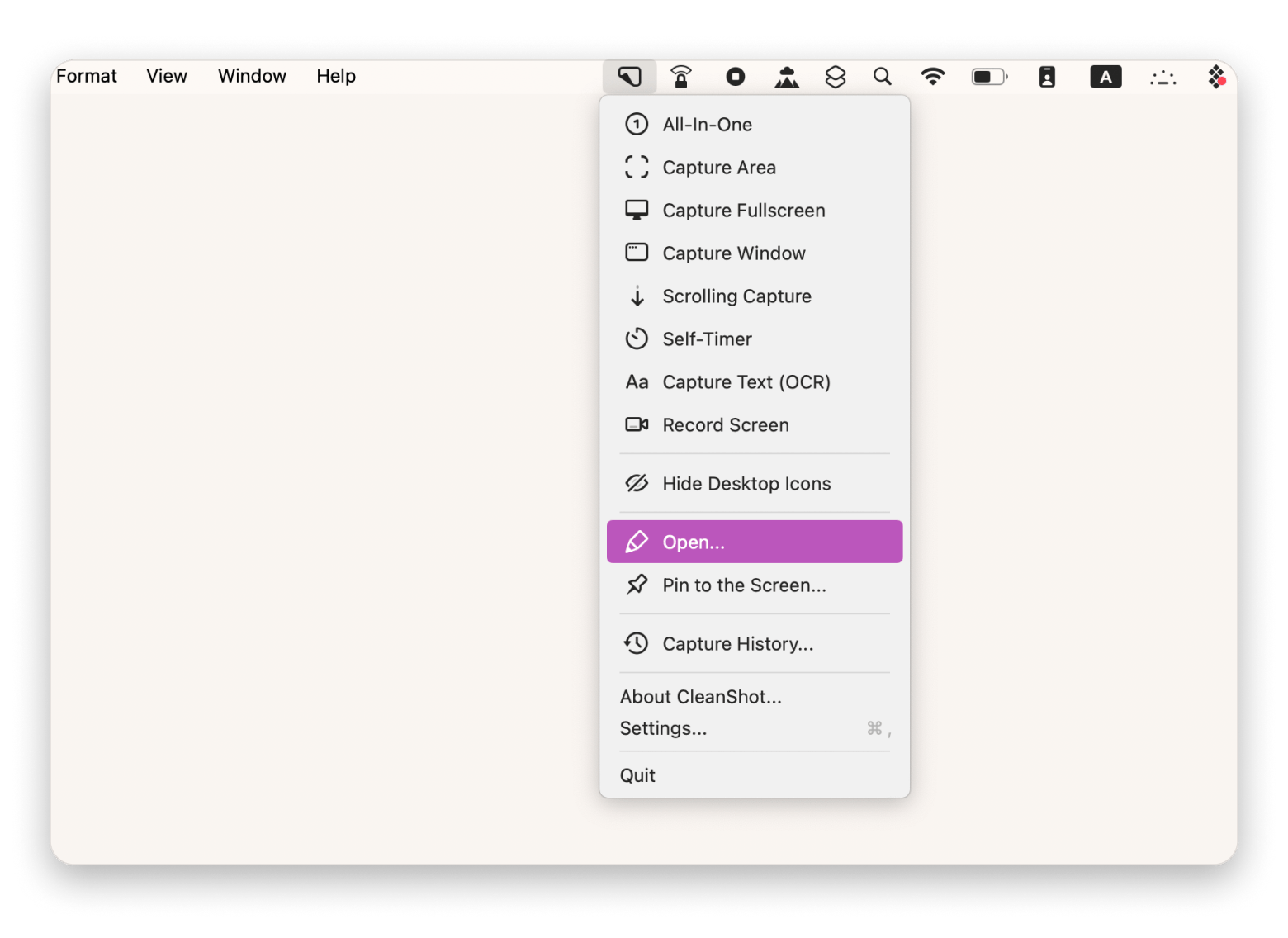
CleanShot X — capture and annotate what's happening inside your VM in seconds
If you document bugs, write tutorials, or just need to show someone what your Windows VM looks like, CleanShot X is the fastest way to do it on a Mac. I use it constantly when testing software in Parallels — capture a scrolling window, blur out a license key, add an arrow pointing to the error, and drop the annotated image into Slack. The whole thing takes about ten seconds.
What makes it better than the built-in macOS screenshot tool is the annotation workflow. You don't have to open Preview or a separate editor as you annotate right in the capture overlay, copy to the clipboard, and move on. When you're switching between macOS and a VM all day, that speed matters.
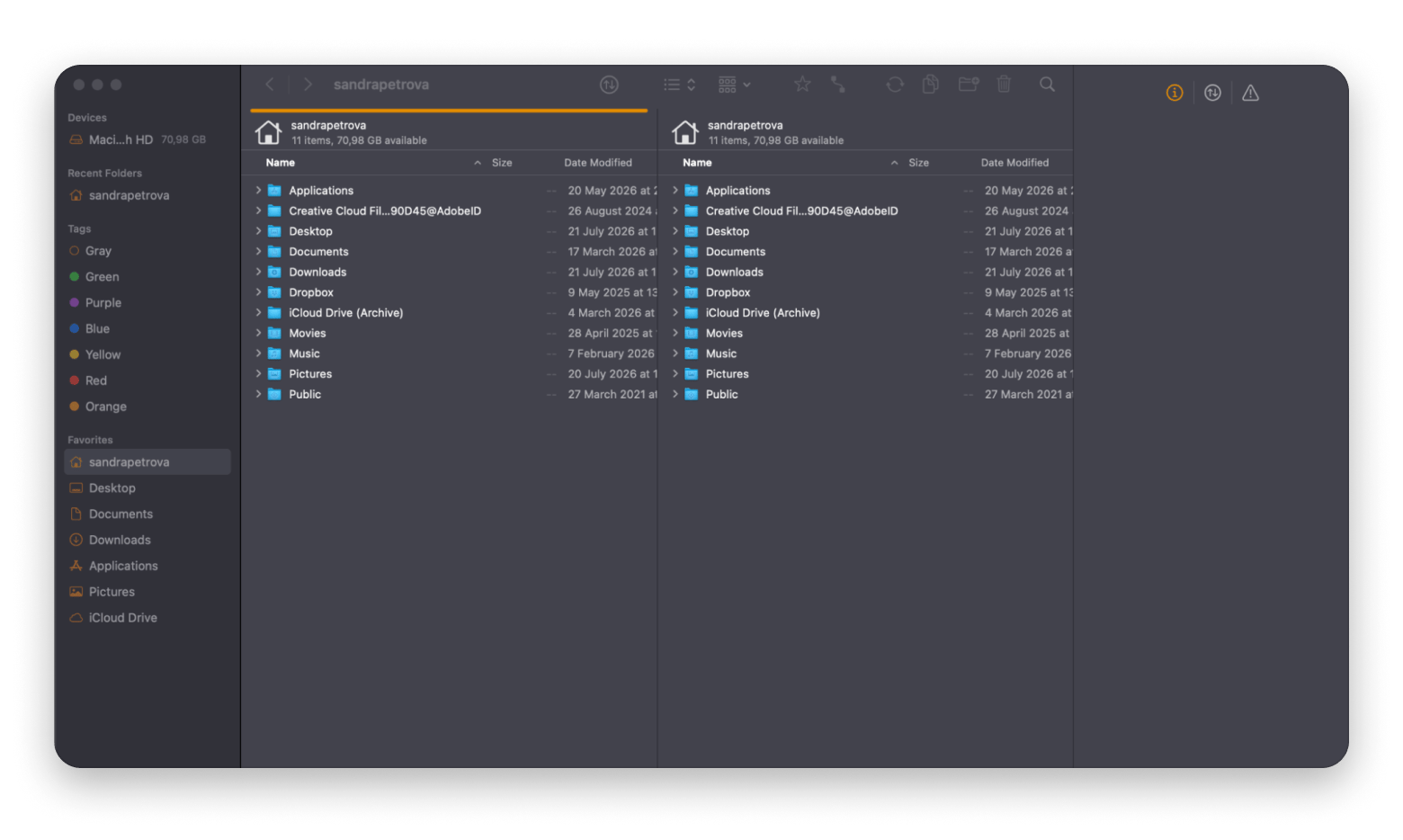
ForkLift — transfer files between your Mac and remote servers without touching the VM
ForkLift is a dual-pane file manager with built-in SFTP, FTP, and WebDAV support. If you're running a Linux VM and need to push files to a remote server, ForkLift lets you do it directly from your Mac — no need to SSH into the VM first, set up keys, and run scp commands.
I started using it when I had a UTM Linux VM for web development and kept needing to deploy files to a staging server. Instead of opening Terminal inside the VM, I just connected ForkLift to the server and dragged files over. It cut a three-step process down to one.
Every time you SSH into your Linux VM just to run an scp command, you're doing three steps for what should be a drag-and-drop. ForkLift handles SFTP transfers directly from macOS. Get ForkLift on Setapp.
Migrating your VirtualBox to a new tool
To migrate your existing VirtualBox virtual machines to a new tool, follow these five steps:
Identify your virtual machine: Check whether you're migrating Windows, Linux, macOS, or another operating system. The migration process is different for different guest operating systems, and some combinations are more compatible than others.
Convert your virtual disk: VirtualBox uses the VDI disk format, which Parallels Desktop, VMware Fusion, and UTM can't open directly. Before importing the VM, use the VBoxManage clonemedium command to convert the VDI file to a supported format such as VMDK or QCOW2.
Create a new virtual machine and import the disk: Next, install your new virtualization tool. Then, create a new virtual machine, and select the converted disk image as the boot drive. If you're moving large disk images between locations, use CloudMounter. It can give you direct access to files stored in supported cloud services.
Install the new guest tools: After the virtual machine starts, install the guest utilities that match your new platform. These improve graphics performance, clipboard sharing, file sharing, and other integration features.
Keep VirtualBox for a while: Don't uninstall VirtualBox right away. Keep it installed for at least 30 days so you have a working copy if something doesn't transfer correctly.
Important note: If you're moving from an Intel Mac to an Apple Silicon Mac, you can't migrate an x86 version of Windows 11 into a native ARM virtual machine. You'll need to create a new VM and install Windows 11 on ARM before moving your files and applications.
Choosing the right VirtualBox alternative for your use case
Not sure which tool to choose? A good approach would be to think about what you need, and then go with the option that best matches your workflow.
I want a free, open-source VirtualBox alternative that works on my Apple Silicon Mac > UTM is the best choice.
I need Windows to feel like part of macOS > No better option than Parallels Desktop.
I run x86 Linux containers and need Apple Silicon to handle them > UTM with QEMU emulation is the right choice.
My workplace already uses VMware products > VMware Fusion is a no-brainer in this case.
I only need to run one or two Windows apps without installing Windows > Get CrossOver (paid) or Whisky (free).
I need to test apps across multiple versions of macOS > VirtualBuddy was built for this.
I'm building macOS CI/CD infrastructure for a development team > Veertu Anka is the correct alternative here.
I'm running an obscure operating system or experimenting with retrocomputing > Get QEMU.
No matter which tool you pick, the workflow around the VM matters just as much as the VM itself. CloudMounter mounts cloud storage as Finder drives so you can move files between your Mac and your guest OS without shared folder headaches. CleanShot X captures and annotates screenshots from inside your VM in seconds. And ForkLift handles SFTP and remote server transfers directly from macOS, so you don't have to SSH into your Linux VM every time you need to push a file.
The VM is only half the workflow. The Mac tools around it are what make it usable. CloudMounter, CleanShot X, and ForkLift — plus 270+ more Mac apps — free for 7 days on Setapp. Start My Free Trial.
FAQ
Does VirtualBox work on Apple silicon Macs in 2026?
VirtualBox has an Apple silicon developer preview, but it has some limitations. It lacks official Windows 11 on ARM support, and isn't as stable as other virtualization tools. Alternatives like Parallels Desktop and UTM are better choices if you have an M-series Mac.
What is the best free VirtualBox alternative for Mac?
The best free VirtualBox alternative for Mac for most users is UTM. It's open source and works natively on Apple silicon. It also supports Windows on ARM, Linux, and macOS virtual machines, and handles x86 operating systems through QEMU emulation.
Can I run x86 Windows on an Apple silicon Mac?
Not as a native virtual machine. Apple silicon Macs are designed for ARM operating systems, so Windows 11 on ARM is the recommended option. If you need x86 Windows software, Windows on ARM can translate many x86 applications, or you can use emulation with tools like QEMU, although performance is slower.
Is Parallels Desktop worth the cost over UTM?
If you use Windows regularly, yes. Parallels offers a smoother setup, better Mac integration, stronger graphics performance, and official support for Windows 11 on ARM. If you only need an occasional virtual machine and don't mind a more manual setup, UTM is an excellent free alternative.
How do I move my VirtualBox VMs to a new tool?
First, convert your VirtualBox VDI file to a format such as VMDK or QCOW2 using VBoxManage clonemedium. Then create a new virtual machine in your chosen app, import the converted disk, and reinstall the appropriate guest tools. Keep your original VirtualBox VM until you're sure everything works correctly.






 Best solution
 Best solution