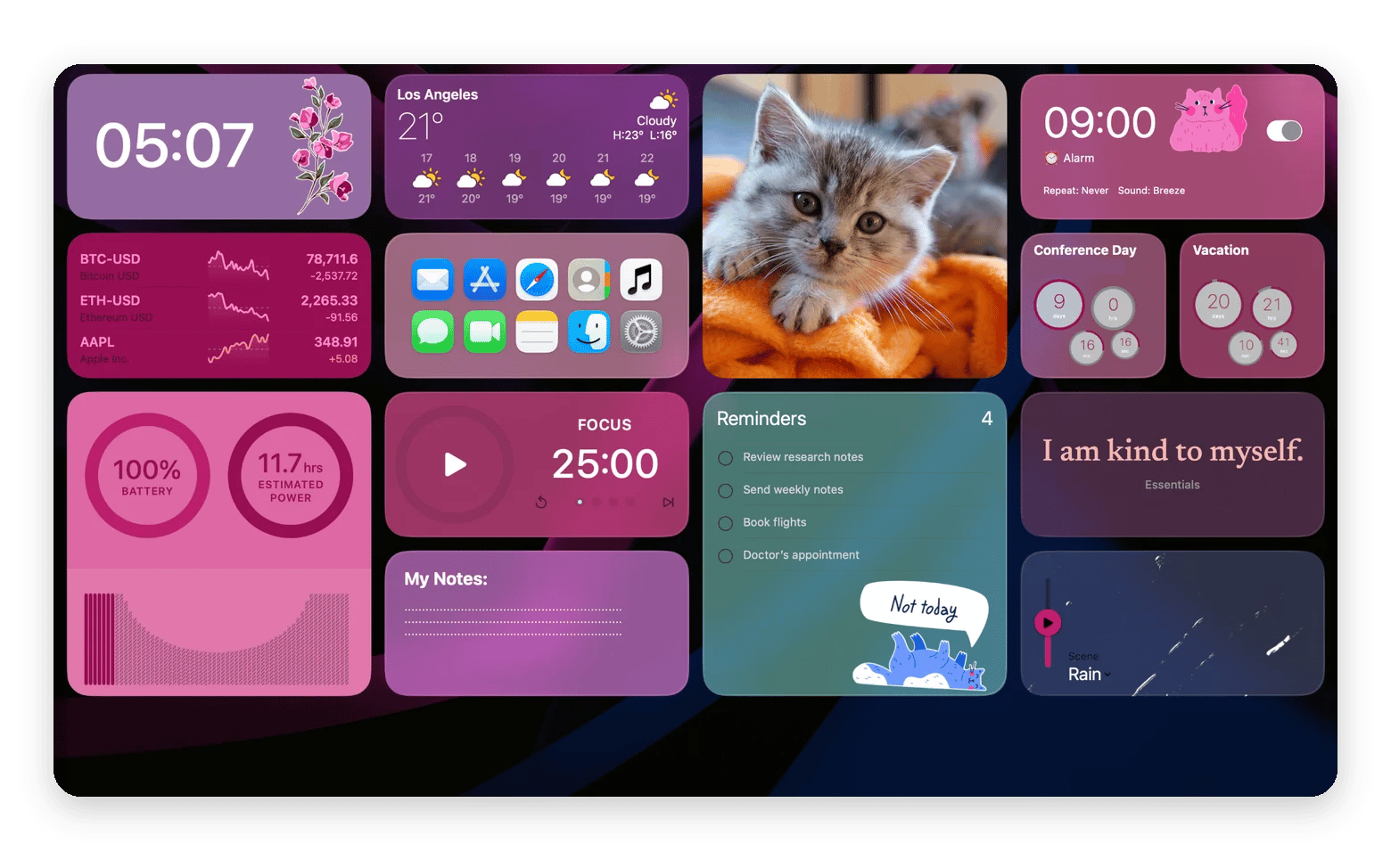
What WidgetWall adds:WidgetWall is a Mac desktop widget app with 30+ interactive widgets. It goes beyond Apple’s built-in widgets, which stick to three sizes and hide behind your windows.
Placement: Drag widgets anywhere, resize them freely, overlap or stack them, and pin the ones you need above your windows.
Customization: Change colors, backgrounds, and transparency for each widget. You can also add stickers and choose from over 1,000 still and animated wallpapers.
Interactive widgets: Check off reminders, control music, track CPU and battery stats, start a Pomodoro timer, or turn any website into a mini browser widget.
WidgetWall for Mac is a desktop widget app, available on Setapp, that lets you place, resize, and pin widgets above your windows. I wanted reminders and updates in view all day, but Apple’s widgets stick to three sizes and hide behind open windows. WidgetWall fixed that, and my desktop stopped being a junk drawer. Here’s what it looks like now.
Here’s how WidgetWall compares with Apple’s built-in widgets on size, placement, and variety:
Feature
Apple widgets
WidgetWall
Sizes
Three sizes
Resize freely
Placement
Behind your windows
Pin above windows
Widget variety
Basics, like clock and weather
30+ widgets
Best for
Light desktop use
Always-visible widgets
What is WidgetWall for Mac?
WidgetWall from Setapp is a desktop widget app developed by Amico Apps. It's one of the easiest ways to add custom widgets to your Mac desktop. You can place them wherever you like, resize them, and even keep them floating above other windows.
Remember Dashboard, which Apple dropped in macOS Catalina? If you’ve missed it, WidgetWall basically brings it back.
You also get more widgets with WidgetWall than Apple offers, including:
Clock, weather, calendar, and alarms (the usual Apple basics)
Live stats for stocks, crypto, Mac performance, and battery
Reminders and sticky notes
Music controls (and a retro iPod)
Web browser and app shortcuts
Photo frames and wallpapers
Pomodoro timer and white noise
Extras like mini games and a lava lamp
And for anyone who loves a styled setup, it also offers fun stickers and a stunning wallpaper collection.
How to set up WidgetWall on Mac
Setting up WidgetWall takes a few minutes: Install it from Setapp, a subscription platform offering 300+ macOS, iOS, and web apps for a flat monthly fee, add a widget from the gallery, and set the app to open at login. Here’s each step.
Your Setapp Membership includes every WidgetWall feature, so there’s nothing extra to buy inside the app. Not a Setapp member yet? Start your free trial and try WidgetWall plus 300+ other apps free for 7 days.
Add your first widget with WidgetWall
To add a widget in WidgetWall:
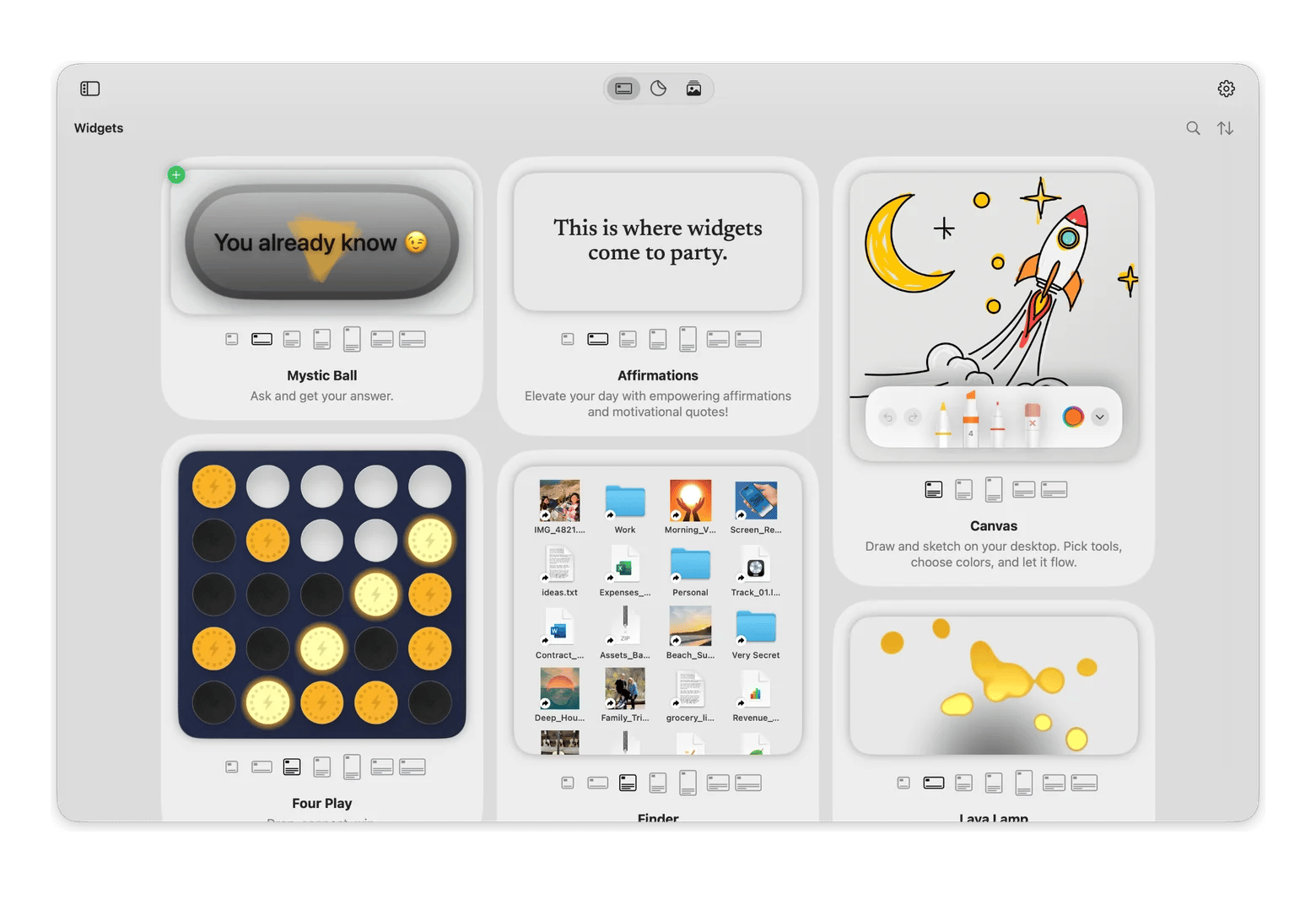
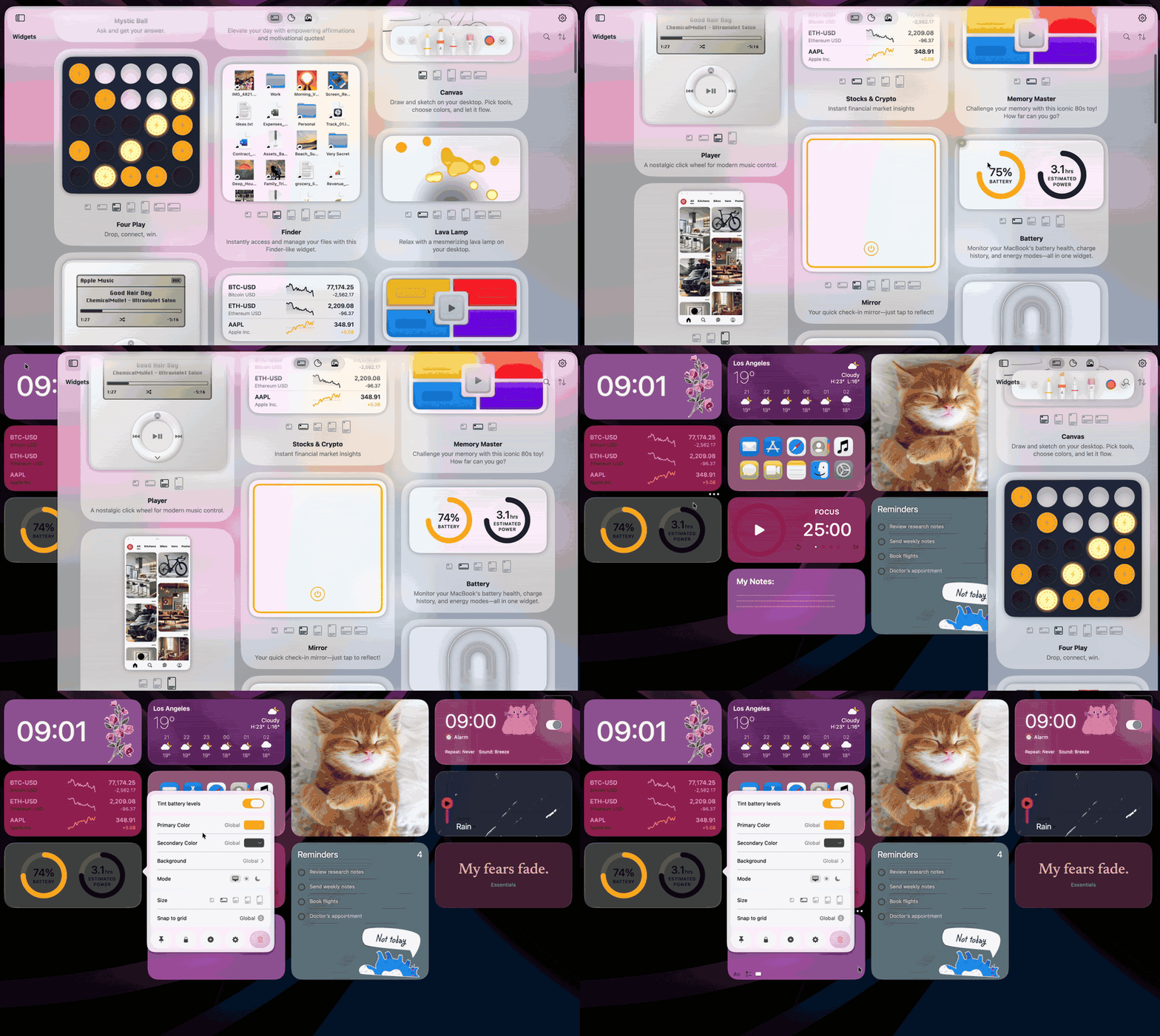
Open WidgetWall and browse the widget gallery.
Click a widget you like to add it to your desktop.
Move the pointer to the widget and click the three-dot icon (…) in its top-right corner to change its size, color, and other details.
Some widgets (like Calendar, Reminders, and Mirror) ask for permission the first time you add them. When you add one, the widget shows an Enable button. Click it, allow access, and then click Restart. To do it manually, go to System Settings > Privacy & Security, find the right setting (like Calendars or Camera), and turn on WidgetWall.
Arrange and customize your WidgetWall layout
And this is the fun part. WidgetWall gives you plenty of tools to design your own space:
Position: Drag widgets anywhere, and overlap or stack them. Pin the widgets you always need above your windows.
Size: Resize widgets freely.
Color and background: Use solid colors, gradients, or your own photos.
Transparency: Tone down backgrounds for a lighter look.
Stickers and wallpapers: Add stickers with click actions, and choose from over 1,000 still and animated wallpapers.
Best widgets to use in WidgetWall
WidgetWall has more than 30 widgets, and Setapp includes them all. Here are the ones worth setting up first:
Clock: Add several clocks if you work across time zones. It's my most-used widget, since I work with clients abroad.
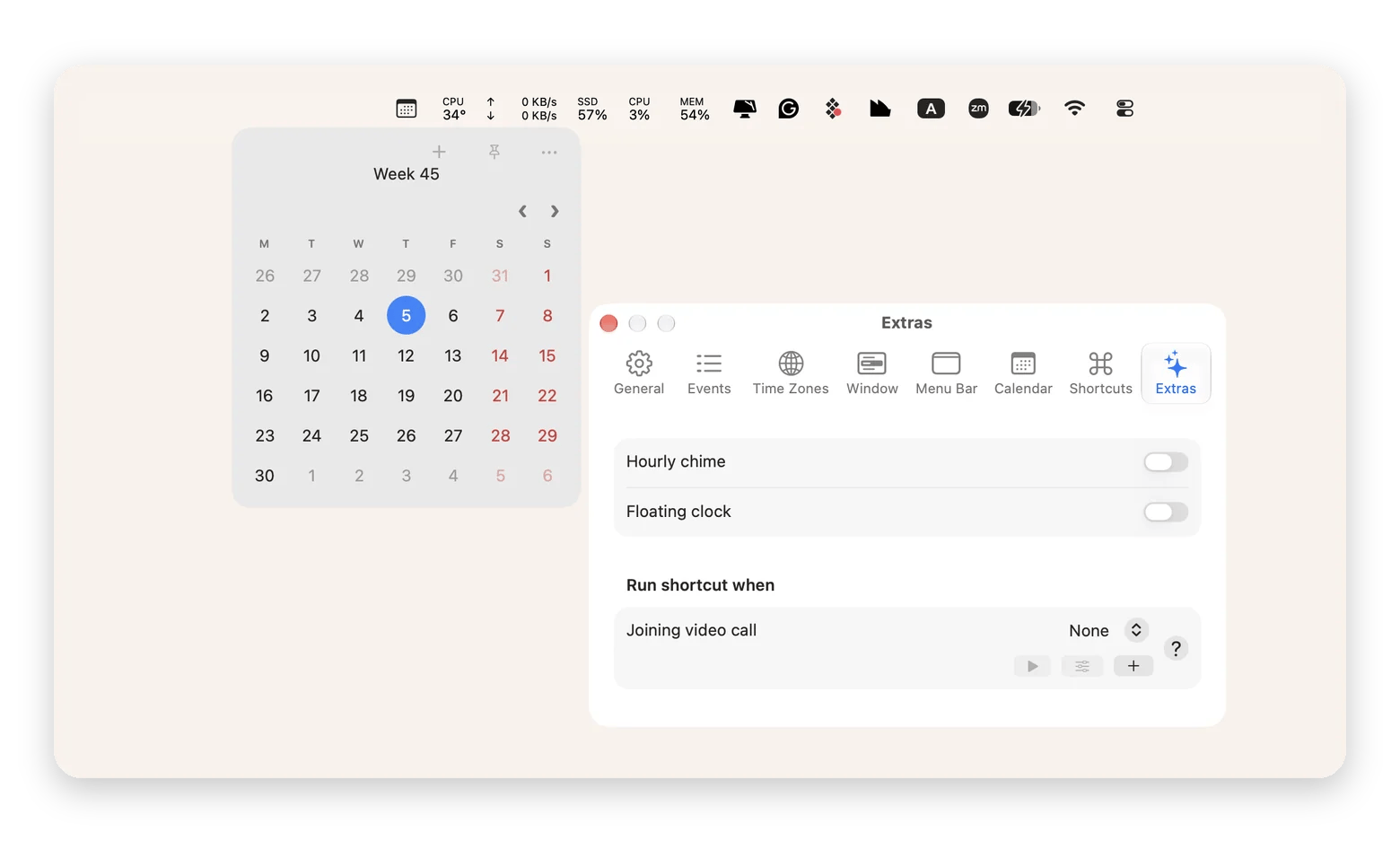
Calendar: The Calendar widget shows events up to three months ahead. It's great for a quick glance. If you'd rather have widgets for your Mac menu bar, Dato from Setapp keeps your calendar one click away.
Weather: Today’s weather and the forecast for the days ahead, right on your desktop.
System stats and battery: Live CPU, RAM, disk, and battery levels. Handy when your Mac suddenly slows down. When the numbers on your stats widget look high, the next step is freeing up RAM on your Mac.
Reminders and notes: Check off reminders and pin sticky notes above your apps.
Music: Play, pause, and skip without switching apps. There's even a retro iPod widget.
WidgetWall also has a few clever extras that can save the day:
Mini browser: Turn any website into a widget. It comes in mobile view, so it feels like having my phone right on my desktop. WidgetWall also has separate widgets for ChatGPT, TikTok, and Pinterest.
Photos: Show pictures from a folder as a live photo frame.
Pomodoro and white noise: Perfect for deep work and getting into a focus mood.
Stocks and crypto: If you trade, keep an eye on prices without opening another app.
Which WidgetWall desktop setups work best?
Widgets are most useful when you take a little time to understand your workflow and pick what actually helps you. Don't fill your desktop with every widget just because it's there. Here are a few setups to see which one fits you.
WidgetWall setup for a minimal, productive desktop
Widgets: Clock + Reminders + Pomodoro timer
Perfect if you're on screen all day and work through tasks one by one. Your time, your to-dos, and your focus session are always in view.
WidgetWall setup for system monitoring
Widgets: Clock + Stats + Battery + Finder + Timer
Great for video editors, developers, and heavy multitaskers. You'll also spot a runaway app before it drains your battery or freezes your Mac. Finder helps you clear out big files when your disk fills up, and Timer keeps track of long exports or builds.
WidgetWall setup for quick access to frequent actions
For anyone who opens the same apps, folders, and sites every day. They work like a second Dock, with everything you need one click away.
Is WidgetWall for Mac worth it?
Yes, WidgetWall is worth it if you want interactive widgets on Mac. Unlike Apple’s defaults, WidgetWall gives you Mac desktop widgets that stay visible and look the way you like.
If you’re not a heavy Mac user and don’t need reminders or planning tools on your desktop, Apple’s built-in options might be enough for you. Check this guide on using widgets on Mac that covers the native side.
The WidgetWall app is free to download from the App Store, but most widgets (like Weather, Calendar, and Stats) need a premium upgrade. With Setapp Membership, every widget is included, and you can try it free for 7 days.
What widgets does WidgetWall have?
WidgetWall has more than 30 widgets, including clock, weather, calendar, reminders, notes, music, system stats, battery, a web browser, photos, Pomodoro, white noise, and stocks and crypto. It also has a nice collection of stickers and wallpapers.
Does WidgetWall work on macOS Sonoma / Sequoia?
Yes, WidgetWall works on macOS Sonoma and Sequoia, as well as newer versions like macOS Golden Gate. It runs on any Mac with macOS 12 Monterey or later. For the latest compatibility details, check the app's Setapp page.
Can I create custom widgets in WidgetWall?
You can’t build a widget from scratch in WidgetWall, but you can get pretty close. Every widget lets you change its size, colors, font, and background. You can also turn any website into a widget with the Browser widget, or make your own stickers that open apps or sites when you click them.
Is WidgetWall on Setapp safe?
Yes, WidgetWall on Setapp is safe. Every app on Setapp goes through a security review before it's published. WidgetWall only asks for the permissions its widgets need (like Calendar, Reminders, and Camera). You can turn any of them off in System Settings > Privacy & Security.
Superpowers for your Mac
Tackle your tasks with dozens of helpful apps on Setapp.






 Best solution
 Best solution