Preview works for short PDFs but requires manual effort. Mac's Preview app lets you add page numbers using text boxes, but you'll need to place and format each number individually. It's free and works offline, making it suitable for documents with just a few pages.
Nitro PDF Pro automates page numbering for professional results. Instead of adding numbers one by one, Nitro PDF Pro applies automatic page numbering across your entire document in seconds. You can customize position, alignment, format, and starting number while keeping everything local and secure.
Online tools are convenient but risky for sensitive files. Web-based editors like SmallPDF and iLovePDF work on any platform, but they upload your documents to their servers. Only use them for non-confidential files like portfolios or newsletters, never for legal or work documents.
Word and Google Docs only work with editable PDFs. You can convert text-based PDFs to Word or Google Docs, add page numbers as you normally would, then export back to PDF. This method fails with scanned documents or image-heavy files where the layout breaks apart.
Get professional PDF tools with Setapp. Apps like Nitro PDF Pro, PDF Squeezer, and PDF Search are available through Setapp's free trial. You'll have access to over 260 Mac apps designed to handle page numbering, file compression, and document searching without privacy concerns.
Page numbers are some of those crucial details that I only realize their importance when they are missing. Even though the PDF looks good, it can slow everything down since I scroll instead of referencing, and printouts are just chaos.
I’ve had to handle the issue quite a number of times in my line of work, and I’ve mastered different ways to add page numbers to PDF files:
Manual addition using Preview on Mac
Online tools like SmallPDF and ILovePDF for quick, non-sensitive files.
Each of these solves the same problem but in different ways. I’ll show you how to add page numbers to a PDF using each on Mac, Windows, and browsers. I’ll also throw in a few tips to help keep your document clean and navigable.
I want to
Do this
Add page numbers to a short PDF on Mac
Use Preview and insert page numbers manually (using text box)
Use an online PDF editor for small, non-sensitive files
Control page number position and alignment
Customize headers, footers, margins, and alignment in Nitro PDF Pro
Keep sensitive documents private
Avoid online tools and use offline PDF editors
Before committing to reading entire PDF reports, run them through this free PDF summarizer. It helps decide which documents deserve your full attention and which ones you can safely skip.
How to add page numbers to a PDF using Preview (Mac)
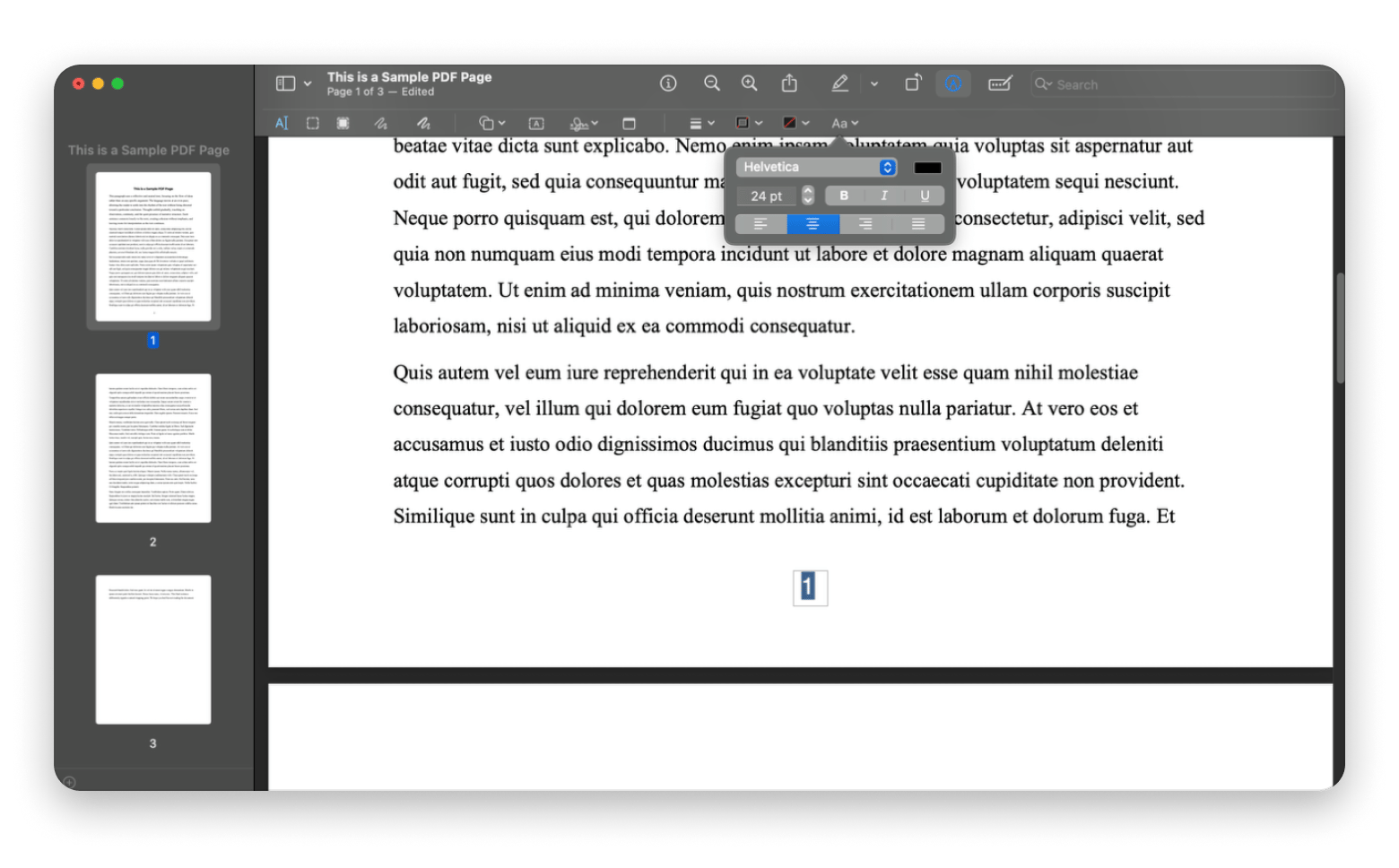
Mac’s built-in Preview can help you add page numbers as it allows editing PDFs. However, the process is quite manual as you’ll need to use the text editor, then adjust the font, size, and placement for each page number.
Step-by-step method using Preview
Here’s how to add page numbers in a PDF using Preview:
Click your PDF to open it in Preview.
Click the Markup toolbar icon.
Click the Text tool.
Drag the text box to the page number location.
Type the page number.
Click the Alphabet icon to adjust font, size, color, and alignment.
Repeat for each page.
Save or export the updated PDF.
Pros and cons of Preview
Pros:
Free and built into macOS
Works offline
Quick for short PDFs
Keeps files local
Cons
Page numbers added one by one
No advanced formatting options
Large documents can be tedious
This method offers a quick solution, but you’ll need a more professional tool like NitroPDF Pro when working with larger or official documents.
Add page numbers using Nitro PDF Pro (Mac)
I find Nitro PDF Pro to be the perfect PDF tool as it’s a dedicated PDF editor. It’s built for situations where you need accuracy and automation, and it delivers on both when adding page numbers.
The tool has an automated tool you can use to add page numbers to any PDF within a few seconds.
How to add page numbers in Nitro PDF Pro
Here’s how to add page numbers to PDFs using Nitro PDF Pro:
Right-click on the PDF > Open with > Nitro PDF Pro.
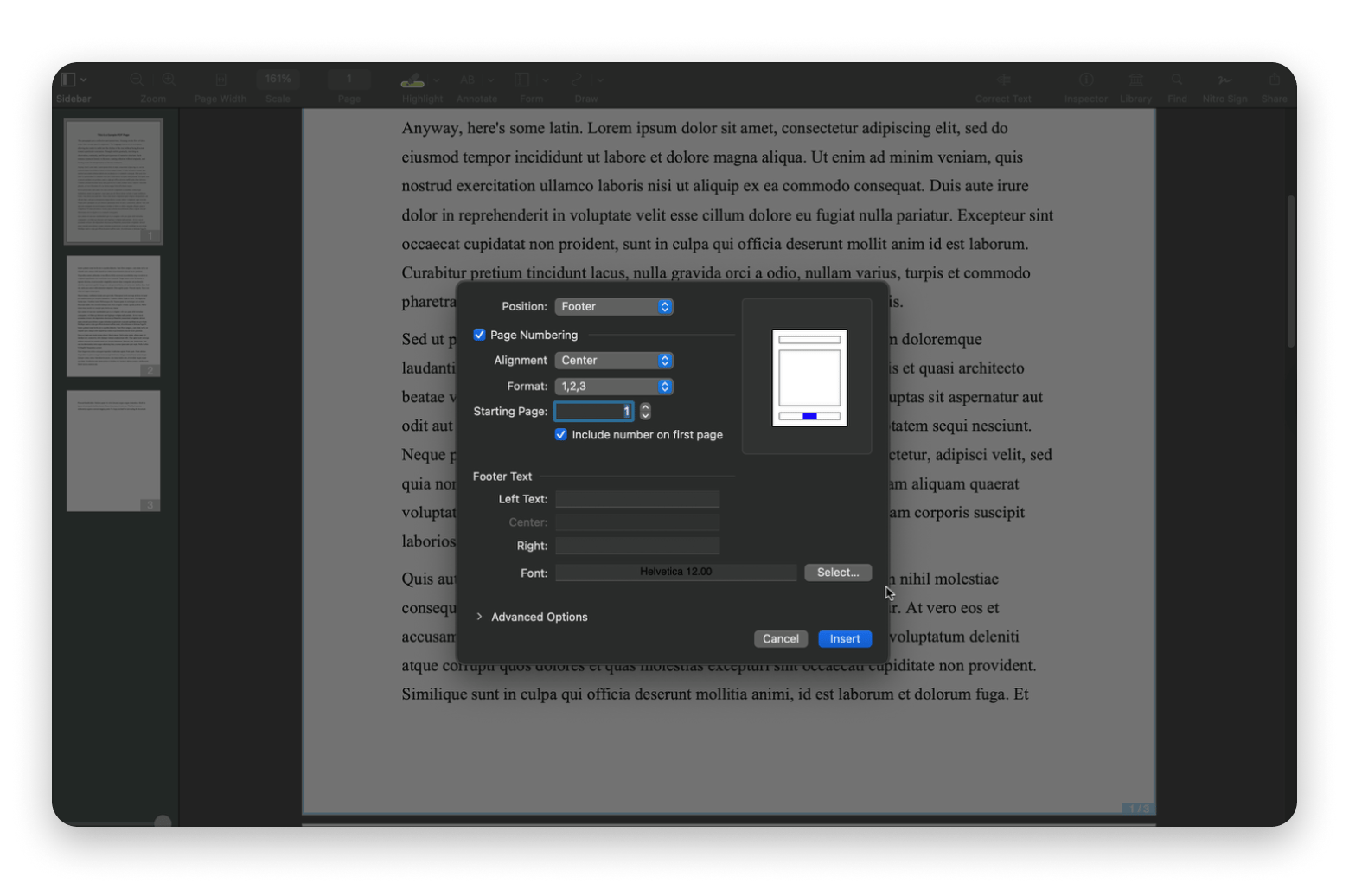
Go to Edit > Headers, Footers, Page Numbers > Insert.
Choose the starting number.
Customize the numbering position, alignment, format, and font (optional).
Click Insert.
Go to File > Save or Export.
One thing I like about the tool is that it saves your last preferences, which helps ensure consistent formatting.
Benefits of using Nitro PDF Pro
Nitro PDF Pro is the best tool when working with PDFs, as it’s simple and precise. It’s designed for people who often work with large or multipage documents, and it can help you cut down on the editing and numbering with its automated tools.
Here are some of its key advantages:
It offers professional accuracy just as if the numbers were added in Word.
It only needs a few seconds to apply page numbering to dozens or hundreds of pages.
It allows you to customize the position, alignment, format, start number, and font.
It offers template numbering, such as Page 1 of 3, and you can even create a custom one. This is quite useful in legal settings.
Everything happens locally, so you don’t have to worry about sensitive documents.
On top of these, Nitro PDF is a complete PDF editor that will let you annotate PDFs, use OCR, and even sign PDFs.
Add page numbers using online tools
There are also plenty of online tools you can use to add page numbers in PDF. These are convenient because they work on any platform with a browser, so you can use them on mobile devices or Windows.
However, they come with a big disclaimer regarding privacy.
While there are some basic browser editing tools that work offline (or so they say), they don’t offer advanced options like page numbering. Those that do, like SmallPDF, iLovePDF, and PDF24, upload your documents to their cloud.
For this reason, I only recommend them if you are dealing with small and non-sensitive files. Maybe your portfolio or club newsletter. If it’s a legal or work document, you’d be better off with an offline tool.
Step-by-step guide for online tools
The specific procedure for adding page numbers to a PDF using an online tool varies by tool, but they tend to follow a similar format.
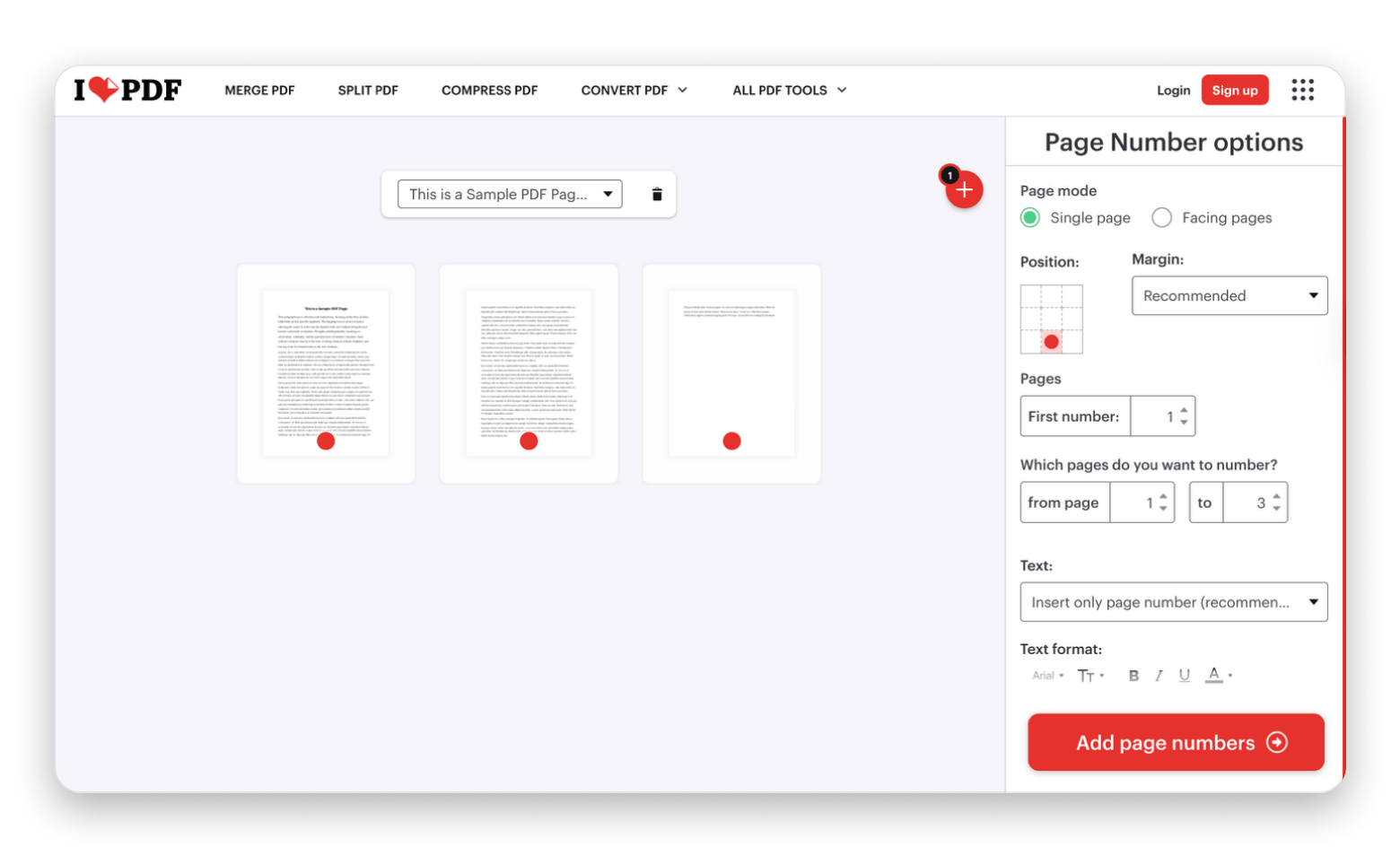
Visit a web app like SmallPDF, ILovePDF, or PDF24.
Navigate to the PDF numbering tool.
Drag and drop your PDF document.
Choose and customize the numbering style (the specific features vary)
Click Add page numbers.
Click Download.
Privacy and limitations of online tools
Online page numbering tools usually upload your file to their servers. This means that if you use them to add page numbers to sensitive or confidential documents, those documents may be exposed to third parties.
These free PDF editor tools also have various other limitations:
Most free online PDF editors have size limits, ranging from a few MBs to a few GBs.
Formatting options like fonts and numbering styles are often limited.
All online platforms keep your files on their servers for a specific period for “processing.”
This means you should only use these tools for casual files.
Add page numbers using Word or Google Docs (PDF conversion method)
If the PDF is editable, you can add page numbers by converting it to an editable document first. This makes it possible to use a word processor like MS Word and Google Docs to add page numbers as you would in a regular text file.
However, note that this method only works with text-based, editable PDFs. Things like reports and essays. If it’s a scanned document, Word won’t process it. If it’s an image-rich one, the layout will fall off, and you’ll do more than triple the work you’d do with a proper PDF editor.
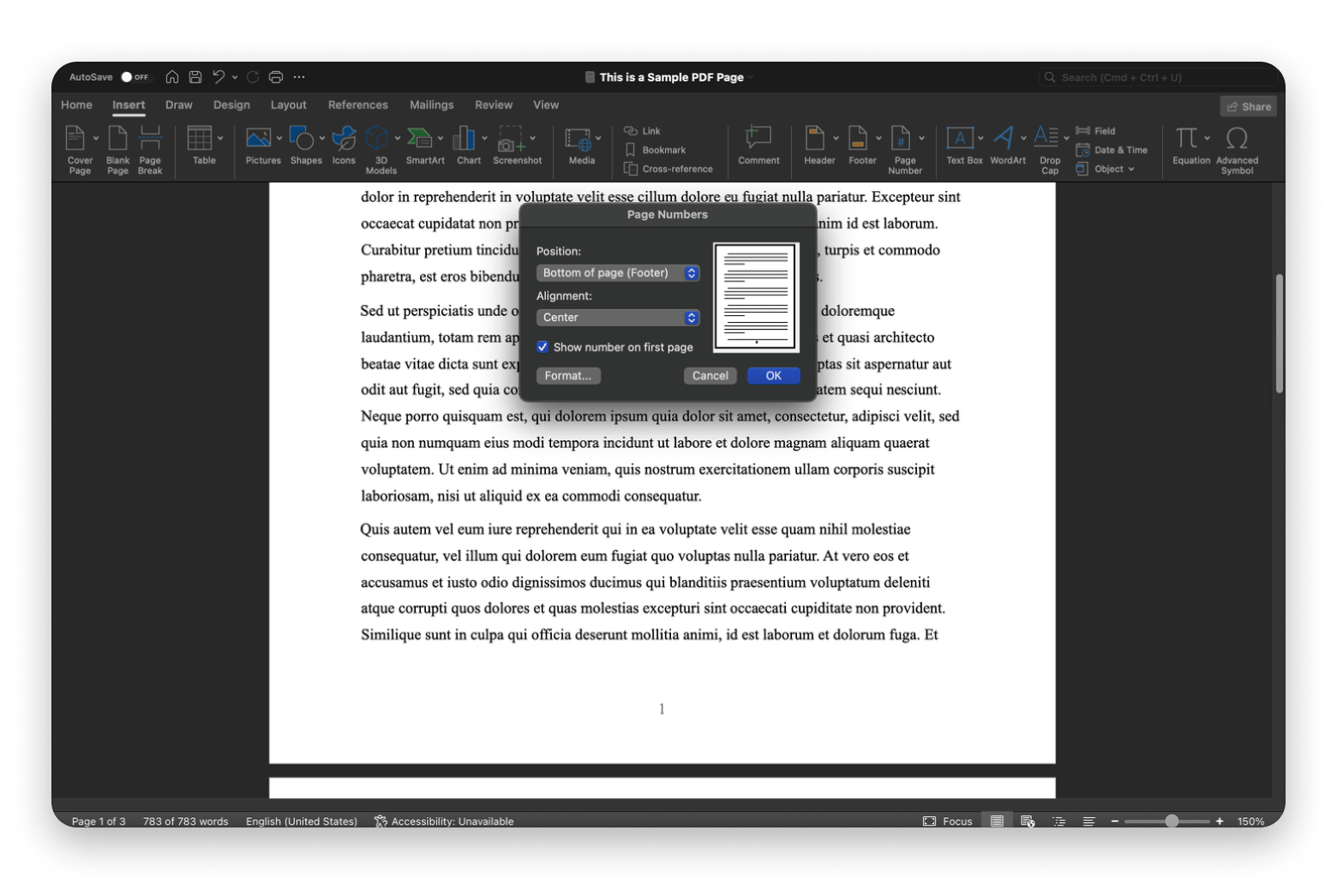
Here’s how to add page numbers to a PDF using Word or Google Docs:
Open Microsoft Word or Google Docs.
Go to File > Open > your PDF.
Go to Insert > Page Number > Page Number.
Adjust placement, alignment, and numbering style (optional).
Click OK.
Export or save the file back as a PDF.
Go to File > Save As > PDF.
If you find the document isn’t editable or the layout requires too much work, opt for an alternative like NitroPDF or an online conversion tool.
Tips for professional page numbering
When you’re editing a professional document, it’s important to ensure precision as small details matter. Here are a few tips I find helpful when adding page numbers to PDFs:
Check the margins to ensure they are consistent across all pages. If they aren’t, they may push page numbers out wide.
Use the same font and size as your other text to ensure everything is clearly visible.
Ensure you start the numbering from the right page. Some documents, like academic papers and books, may require skipping one or several pages.
Some documents may need prefixes or alternate numbering. This is true for legal documents and appendices.
Always preview your file before sharing or printing.
These will help you avoid mistakes and repetitions.
Why adding page numbers to PDFs is important
Page number is a key part of giving a document its structure, especially when you need to move between people and devices.
Common scenarios where page numbers matter
Page numbers are crucial in different situations:
Lawyers need them to avoid misalignment and are actually legally required in court filings.
Teachers need them to enable students to reference material without confusion.
Students are academically required to have page numbers in their dissertations or research papers.
Teams reviewing reports need page numbers for referencing.
Technically, everyone expects you to add numbers to a PDF to demonstrate document integrity and improve navigation.
Consequences of missing page numbers
When page numbers are missing, you immediately start noticing small inconveniences. Printed pages get shuffled, and team references turn into guesses instead of clear directions.
Over time, this creates friction in workflows that should otherwise be simple, so it’s good to know how to add page numbers to PDF and make docs easier to manage.
Common issues and troubleshooting
Even for those of us who edit PDFs all the time, there are still some issues that come up. Here are the most common ones I often come across and how to handle them:
Page numbers overlap text or graphics: This happens when the margins aren’t consistent across the pages. Use a capable PDF editor to move the numbers or increase margins.
Page numbers are missing in print preview: This can happen when the numbers are too close to the edge. Try to reposition them and use standard footer and headers where possible.
Page numbers start at the wrong number: This usually happens when there’s an additional page, like a cover or table of contents. Count the preview pages manually and start the page numbering at the actual first page.
Numbering looks inconsistent across pages: These usually come from manual numbering. Use an automated page numbering tool like Nitro PDF Pro.
These will help you have a cleaner final product.
If you want to try all PDF tools from the article — Nitro PDF Pro, PDF Squeezer, and PDF Search — they are all a part of the Setapp platform. It has over 260 cool apps for your daily work, and you can test them all with the premium feature during a 7-day free trial before committing.
FAQs
How to add page numbers for free
You can add numbers to a PDF for free using the built-in Preview on Mac. Note that the process requires adding the numbers as text, so it’s quite manual. The other option is to use online editors like SmallPDF and ILovePDF, but try to avoid them when dealing with sensitive documents.
How to batch-number PDFs
You can batch-number PDFs by using a PDF editor that can process multiple files, like Nitro PDF Pro. You can also use an online editor like iLovePDF, as it offers the tool for free.
How to number scanned PDFs
The best way to number scanned PDFs is to use a tool that can handle uneven margins and page alignment, like Nitro PDF Pro. Unlike regular or online tools, it will let you manipulate the layout to ensure consistent placement.
How to start numbering from a specific page
Most automated page-numbering tools let you choose where numbering begins. The option is available in the preferences pop-up before you click OK.
Why numbering is not showing in print preview
If numbering isn’t showing in print preview, it’s likely because it’s placed too close to the edge. Try moving the margins or adding a proper header and footer using Nitro PDF Pro.






 Best solution
 Best solution