Watermarks protect documents and clarify their status before they're shared. Whether it's "DRAFT," "CONFIDENTIAL," or a company logo, watermarks immediately signal purpose, ownership, and context. This prevents accidental sharing and unauthorized use of sensitive files.
Preview works for basic watermarking, but lacks professional control. You can add text watermarks in Preview using the text box tool, but adjusting opacity and rotation requires workarounds. For polished, professional results, dedicated PDF tools offer better precision and consistency.
Nitro PDF Pro is the fastest to add clean, customizable watermarks on Mac. Add text or image watermarks in a few clicks, with full control over opacity, rotation, placement, and page ranges. It's available on Setapp and keeps your files offline for better security.
Online tools are convenient but risky for sensitive documents. Services like iLovePDF and SmallPDF work quickly and require no installation, but they upload your files to their servers. Use them only for non-confidential documents — never for legal, financial, or internal materials.
Nitro PDF Pro, PDF Squeezer, and Prizmo are all included in Setapp. Try all three free for 7 days via Setapp, which includes 260+ Mac and iOS apps — no separate licenses needed.
I often add watermarks to PDF documents to mark drafts and protect client work. There are many ways to add a watermark to PDF documents on Mac, ranging from the built-in Preview app to online tools and professional options like Nitro PDF Pro and Adobe Acrobat. They all accomplish the same task, but they vary widely in terms of security and ease of use.
I’ll show you how to add a watermark to a PDF using all these options. I’ll also throw in a few tips I find helpful when adding watermarks to PDFs.
I want to…
Do this
Add a text or image watermark to a PDF
Use Nitro PDF Pro for clean text placement and opacity control
How to add a watermark to a PDF using Adobe Acrobat
Adobe Acrobat has long been known as “the” PDF tool. That’s fair, though, considering that Adobe actually invented the PDF format.
Acrobat was the first tool that could read or edit a PDF, and it’s still quite popular among businesses and professionals. Its biggest strength is the sheer number of features it offers, and one of these is text and image watermarking.
One thing you’ll like about it is that it offers great control over details like opacity, rotation, scale, and placement. It also supports batch processing, so it makes work easier if you deal with a lot of PDFs.
Note: Before watermarking a lengthy PDF, the PDF Summarizer GPT tool can help you quickly identify which sections actually need protection. It extracts key points so you can decide whether to watermark the entire document or just specific pages.
Step-by-step guide for Acrobat watermarks
Here’s how to add a watermark to a PDF using Adobe Acrobat:
Open the PDF.
Click Edit > Watermark > Add from the left pane.
Choose and adjust your watermark options:
Source
Appearance
Position
Click Apply to Multiple Files, add your PDFs, and click OK (optional).
Click OK to apply.
The only downsides are that it’s pretty pricey and there’s a learning curve for beginners.
Add a watermark to a PDF using Preview on Mac (limited method)
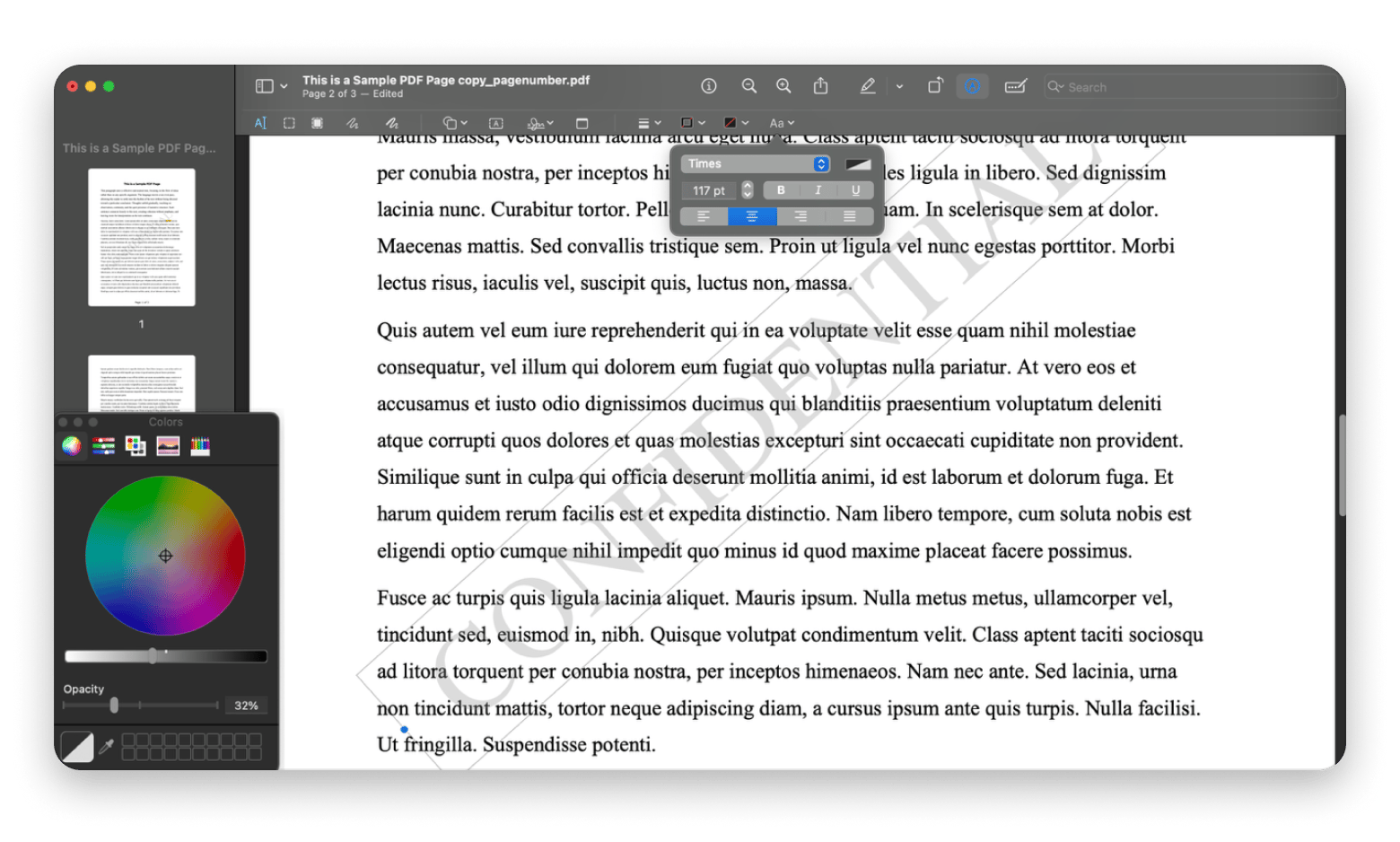
macOS Preview doesn’t really have a watermark option, but there are several tricks you can pull to add a watermark to a PDF using the tool.
This is through the default textbox, although the procedure is a bit complicated. To get a professional look, you’ll need to manipulate several items to do something they aren’t really designed to do.
Here’s how to add a watermark to a PDF using Preview:
Open the PDF in Preview.
Click on the Markup icon.
Click the Text box icon and type your watermark.
Adjust the font, size, and color.
Select the Text box and use the trackpad rotation gesture (two fingers turning a knob) to rotate the text. There’s no built-in option for this.
Lower text opacity by going to Text style > color > Show Colors > Opacity.
Position the text manually on the page.
Copy the Text box across your pages.
Save the PDF.
This method works with a personal document that you want to share with a few people. But if you’d like a professional outcome, you may need to consider a tool like Nitro PDF Pro.
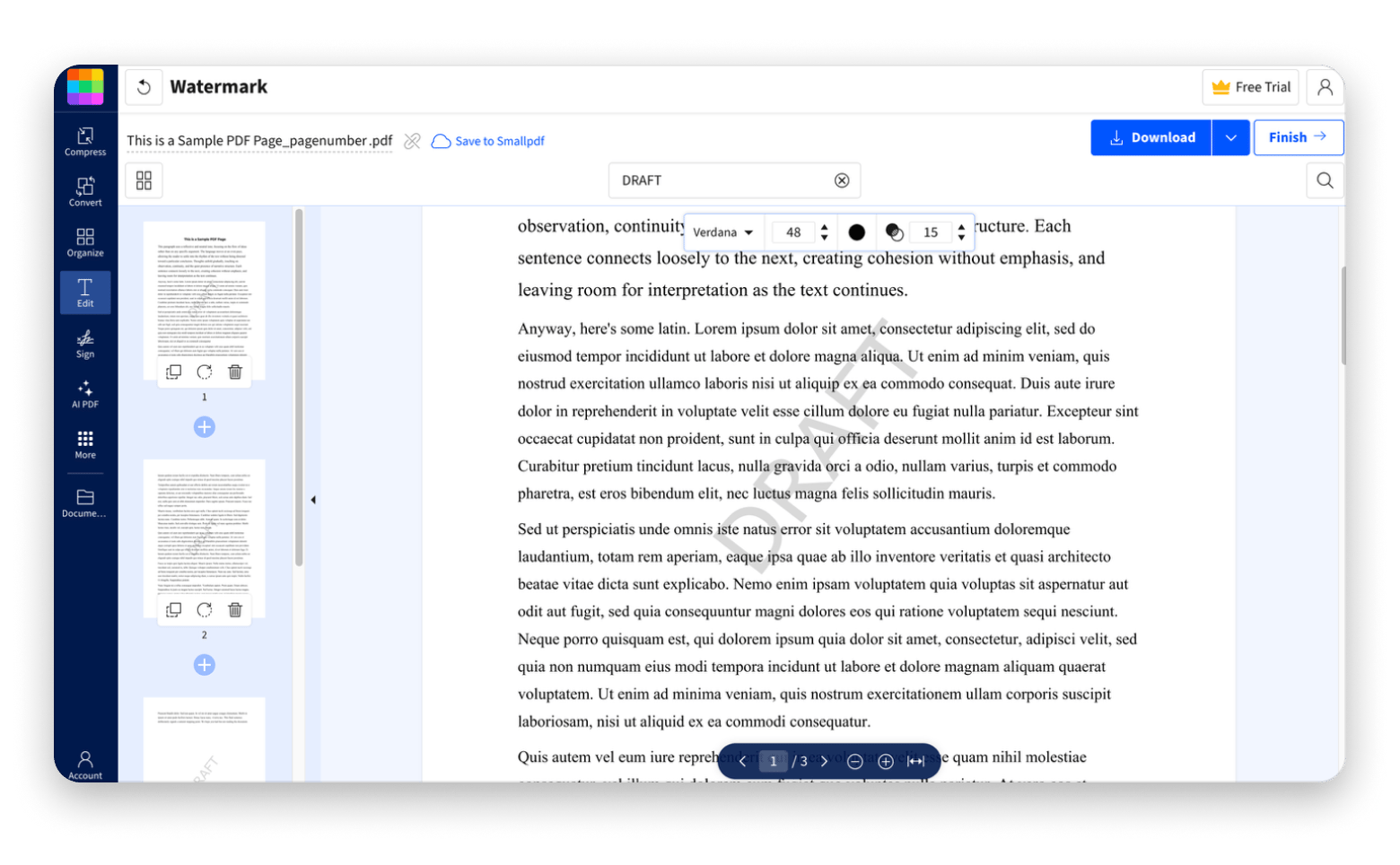
Add a watermark to a PDF online
Online PDF tools can be useful when you want to quickly add a watermark to a PDF. They are fast, easy to use, and mostly free (to some degree).
There are also many alternatives, although I find that iLovePDF and SmallPDF are the only ones that work well with watermarks.
But before you use any online PDF watermark tool, it’s important to understand that online PDF editors upload your file to their servers for processing. They also don’t delete them immediately after you are done, which means you shouldn’t use them for confidential or sensitive documents.
If it’s a regular file, here’s how to add a watermark in PDF online (general procedure):
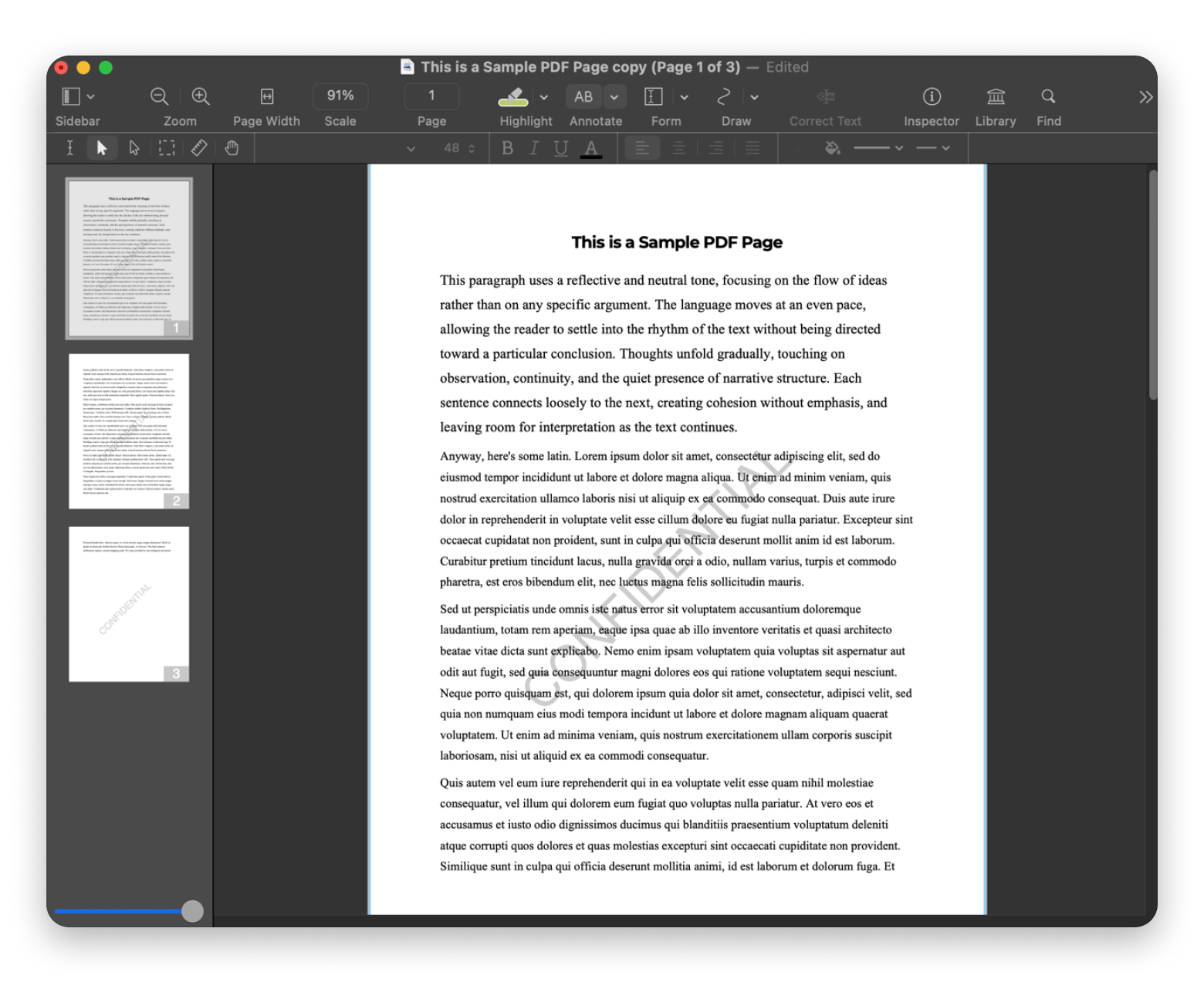
I personally need a tool that can do a bit of everything when dealing with PDFs, so I use Nitro PDF Pro. It has a watermark feature that lets you add a text- or image-based watermark in just a few steps.
The PDF watermark tool gives you the flexibility to customize the text or image however you want, and it will then snap them into place at your preferred location.
Here’s how to add a watermark to a PDF document using Nitro PDF Pro:
Open your PDF in Nitro PDF Pro.
Add the text or image you’d like to use.
Customize the text or image by changing size, font, color, and position.
Go to Edit > Watermark > Convert to watermark.
Adjust opacity and rotation.
Choose page ranges or apply to all pages.
Save the updated PDF.
I find Nitro PDF to be a reliable offline watermark PDF tool, as it also offers other features I often use. These include text/image editing, OCR, form creation, e-signatures, and redaction.
Batch watermark PDFs on Mac
Using a batch PDF watermark tool can save you a lot of work when you have several related documents. It will apply the watermark in one go, saving time and ensuring uniformity and consistency.
The options aren’t many on Mac, but here are some that you can count on:
Adobe Acrobat: It’s the most powerful option as it has a dedicated batch processing feature.
iLovePDF: It’s an online tool, but it lets you drag and drop multiple files. When you set your preferences, it processes all files together and zips them.
This approach can be particularly handy if you work in an office, in a legal team, or in publishing.
Tips for professional & secure watermarking
I work all day with documents, and there are several things I’ve learned that can help you ensure a professional job.
Balance opacity such that it’s visible but doesn’t interfere with the rest of the text. I find that 25-40% works best, but 35%+ is only for sensitive documents. For corporate branding, even 15% – 20% is enough.
Placement is crucial as watermarks can be easily cropped or manipulated. Diagonal (45 °) usually works best.
Always flatten your PDF after applying a watermark. It makes removing it harder.
Offline watermark PDF tools like Nitro PDF Pro offer better control and peace of mind when working with sensitive documents.
Finally, consistency matters in professional settings. Try to use the same wording, font, opacity, and placement across documents.
Common situations where watermarking is essential
When should you add a watermark to a PDF? The need to add a watermark to PDF documents shows up in various ways during regular workflows.
In my case, the most common is "DRAFT" when I share an early copy of a report. It's important as I need the feedback and quality assessment to be focused on the content, not polishing.
Businesses and brands also tend to use logo and text watermarks for invoices, internal reports, and marketing materials.
The legal profession uses an even wider variety, mostly in the form of "CONFIDENTIAL," "INTERNAL USE," and "NOT FOR DISTRIBUTION."
Across all these fields, the key reason to add a watermark to a PDF is clarity. Wherever the document goes, the reader can immediately know the context in terms of purpose, status, and ownership.
Risks of not using watermarks
The main reason to add a watermark to a PDF is to protect your work. Say you don’t indicate a confidential document as such. Recipients can share accidentally or intentionally, which risks falling into the wrong hands.
Watermarking is crucial to prevent others from copying, redistributing, or even repurposing your work without permission.
Why adding watermarks to PDFs matters
Have you ever shared a document only to realize later that it ended up in the wrong hands? That's the moment you appreciate that watermarking isn't something people just do for show. When you're a business, student, legal professional, or creator, it's a form of exercising control over something you've worked hard on. These watermarks aren't limited to the "CONFIDENTIAL" stamp we're familiar with or the "gettyimages" one. They come in many forms, including text, logos, diagonal overlays, and subtle opacity-based marks.
Final thoughts on how to add a watermark to PDF files
As you can see, there are many ways to add a watermark to PDF documents. The choice mainly depends on the situation and your preferences. Nitro PDF Pro and Adobe Acrobat will give you a professional experience, while Preview and online tools are free but have their limitations or risks.
If you need to manipulate the files further, PDF Squeezer will come in handy to reduce the file size before sharing, while Prizmo is crucial in converting the PDF to OCR for better watermarking and text extraction.
All these tools (well, apart from Acrobat) are available on Setapp, the best alternative to the Mac and iOS app stores. It provides 260+ apps, helping cover all your workflow needs with a single subscription. You can check out any or all of the above apps using Setapp’s 7-day free trial.
FAQs
How do I add a watermark to a PDF for free?
You can add a watermark to a PDF for free using Mac’s Preview, although the process is quite manual. The other alternative is to use online tools like iLovePDF and SmallPDF. However, these aren’t recommended for sensitive documents. You can consider lower-cost offline tools like Nitro PDF Pro, as it’s part of Setapp.
How do I add a logo watermark to a PDF?
You can add a logo watermark using Nitro PDF Pro. It supports both text and image watermarks and is available through Setapp. Adobe Acrobat is also a great option, although it’s mostly meant for pros and businesses. There are then free online tools like iLovePDF and SmallPDF.
How to watermark all pages in a PDF?
The easiest way to watermark all pages in a PDF is to use a tool that doesn’t ask for your input for the final placement. Apart from Preview, most watermark tools don’t.
How to batch watermark PDFs?
The best batch watermarking tool is Adobe Acrobat, but you can still use iLovePDF, as it offers the functionality for free.
Are online watermark tools safe?
Online watermark tools upload your file to their servers for processing. This puts them at the mercy of the server administrators, so avoid using online services for confidential or internal documents. For these, always rely on offline watermark PDF tools like Nitro PDF Pro.
Get PDF editor with OCR
Nitro PDF Pro lets you change anything about your PDF docs.






 Best solution
 Best solution