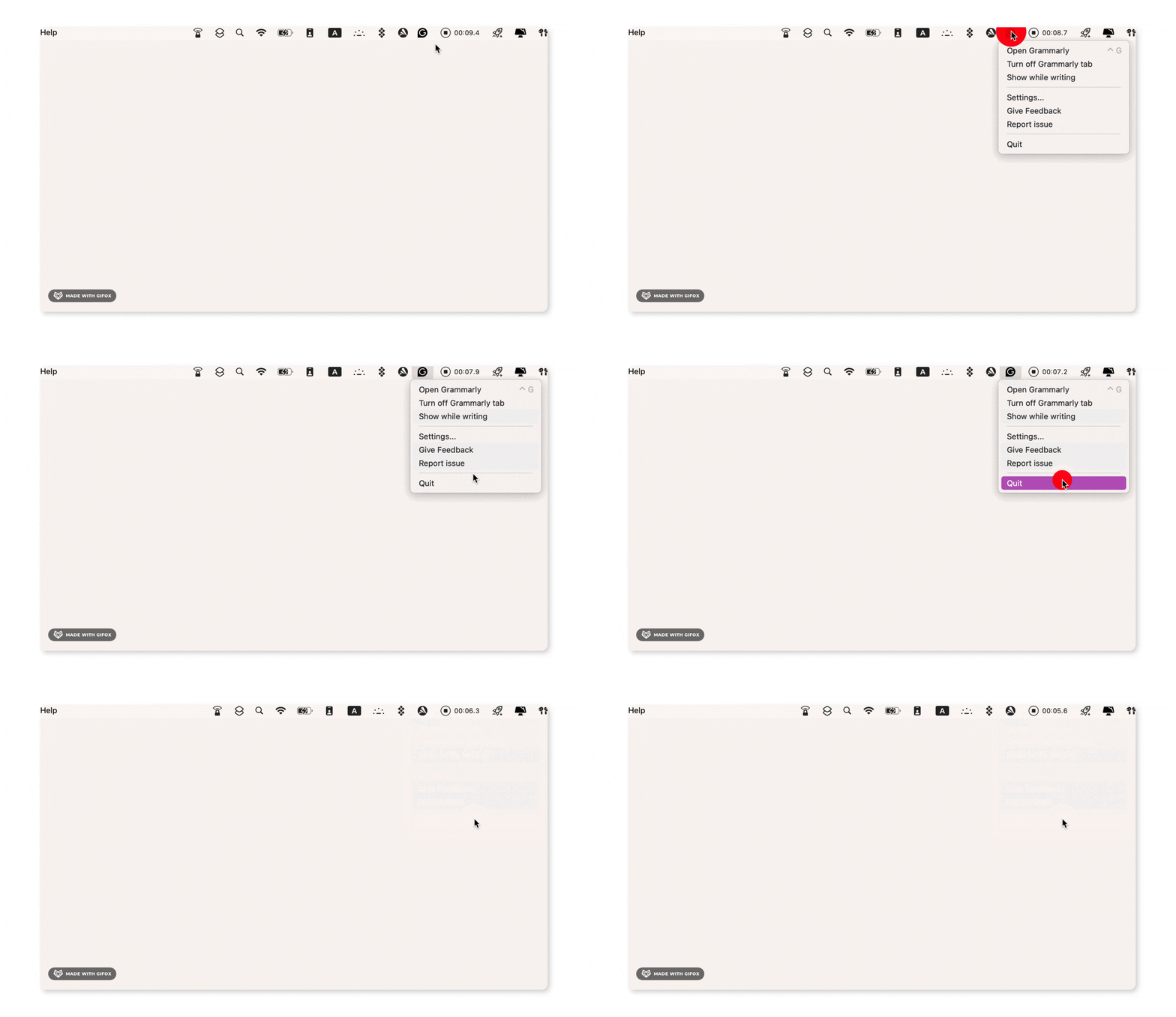
To delete Grammarly from Mac, first quit it from the menu bar. Click the Grammarly icon, select Quit, and wait a few seconds. If Grammarly can't be moved to Trash, it's still running in the background. Use Activity Monitor to force quit any lingering processes before trying again.
Dragging to Trash isn't a complete uninstall. Moving Grammarly to Trash removes the app but leaves behind cached data and support files in your Library folder. Check ~/Library/Application Support, Caches, Preferences, and LaunchAgents for files containing "Grammarly" or "com.grammarly."
The desktop app and the Safari extension are separate. Deleting the Grammarly desktop app doesn't remove Grammarly for Safari. Go to Safari Settings > Extensions and uninstall it manually.
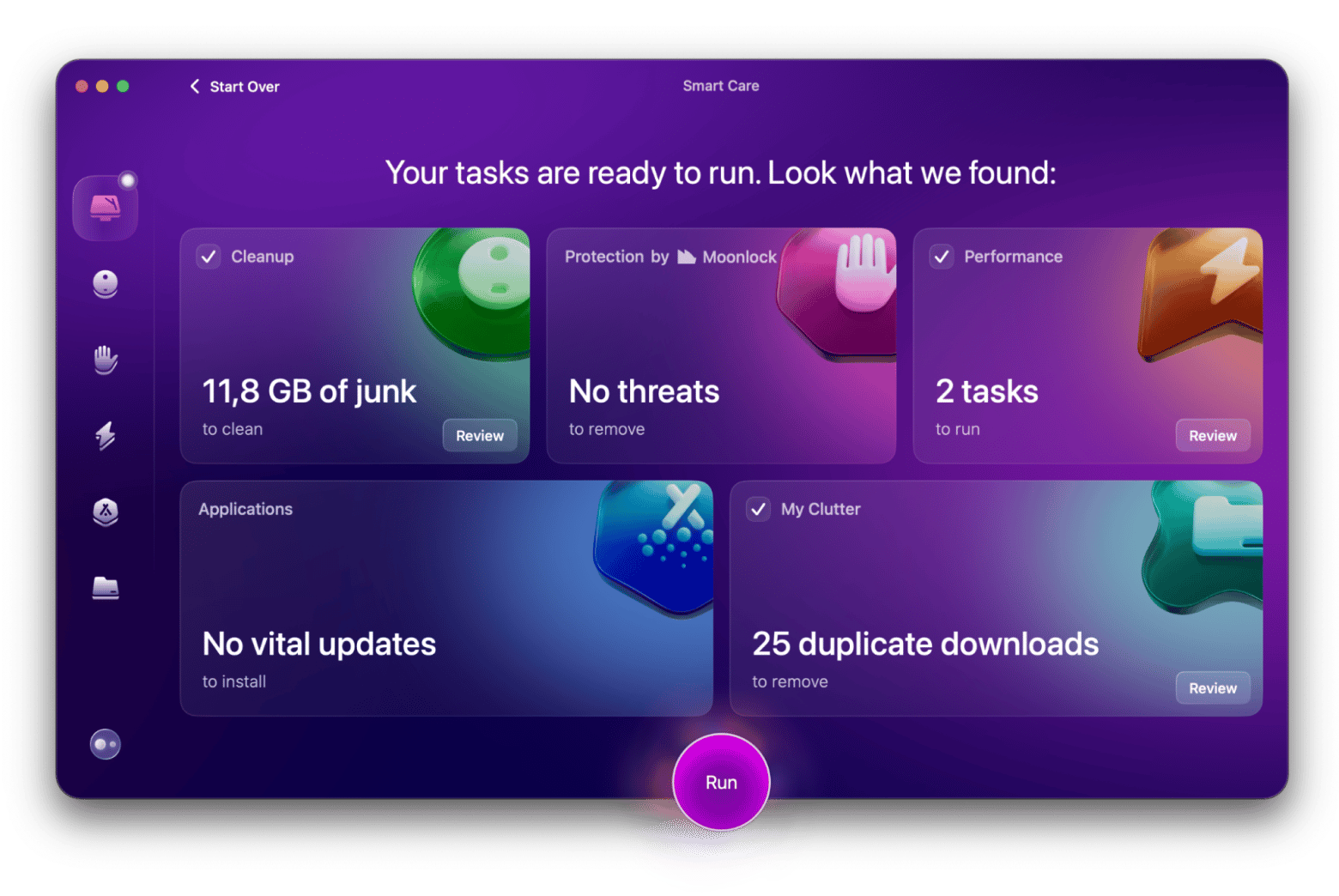
Use CleanMyMac to skip the manual digging. Its Uninstaller tool removes the app and all associated files in one go — no need to navigate hidden Library folders yourself.
Grammarly's gone, but its files aren't. CleanMyMac finds what Trash misses. Try CleanMyMac free for 7 days — cancel before Day 7, $0 charged.
Grammarly is one of those apps that many of us have installed on our laptops and added as an extension to our browsers. It just makes writing easier and fixes those spelling errors you wouldn't notice otherwise.
But maybe you decided to switch to another writing tool or don't need grammar assistance anymore. How do you safely delete it? And what do you do if Grammarly won't uninstall on Mac?
Here I'll walk you through quitting the app, removing it from Finder, clearing leftover Library files, uninstalling the Safari extension, and what to do if the app refuses to move to Trash.
To quit Grammarly on Mac, click the Grammarly icon in the menu bar and select Quit. This is required before you can move the app to Trash.
You've tried a dozen times, but Grammarly can't be moved to Trash on Mac for some reason. This is because the app is still running in the background. Even if you don't see an open window, it might be active from the menu bar at the top of your screen.
What you need to do is close it completely. Here's how:
Find the Grammarly icon in the menu bar (it's near the top-right corner of the screen).
Click the icon.
Click Quit.
Wait a few seconds for the app to close.
Done! Now you can go ahead and continue with the uninstallation.
There's also a great alternative to manually tracking down which apps are running in the background on your Mac. An app like CleanMyMac can detect and quit active apps before you uninstall them. You'll avoid the "can't be moved to the Trash because it's open" error and delete the app in a matter of minutes.
How to uninstall Grammarly Desktop from Mac using Finder
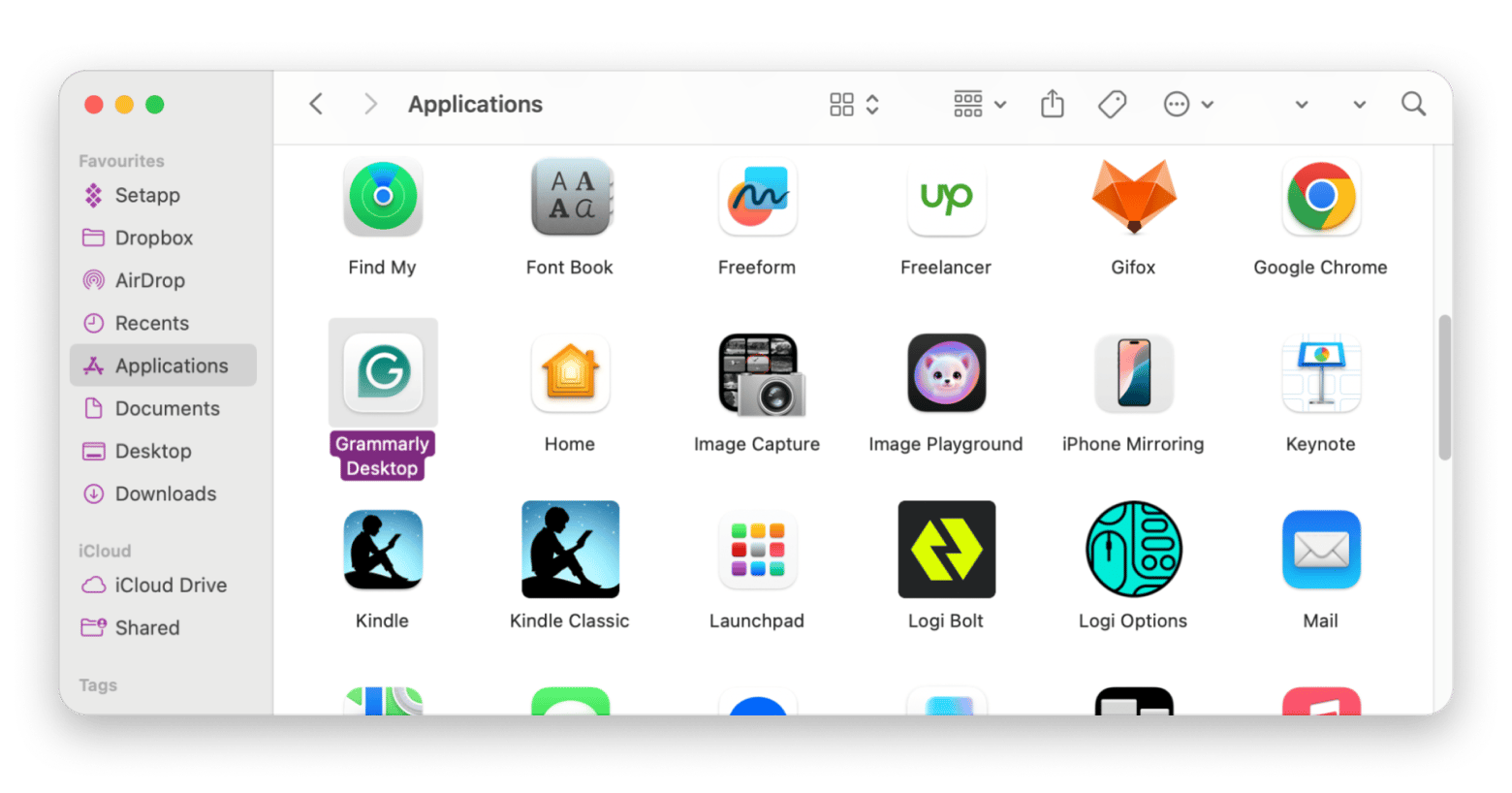
To uninstall Grammarly Desktop, open Finder, go to Applications, and drag Grammarly to the Trash, but keep in mind this removes the app only, not its leftover files.
The next step is to uninstall Grammarly Desktop using Finder. It's the easiest and quickest method. Keep in mind that dropping the app into Trash removes the app but not the cached data or other support files that lie somewhere on your Mac.
So to uninstall Grammarly Desktop using Finder:
Click the Grammarly icon in the menu bar and select Quit (skip this step if you already did this).
Open Finder.
Go to Applications in the left sidebar.
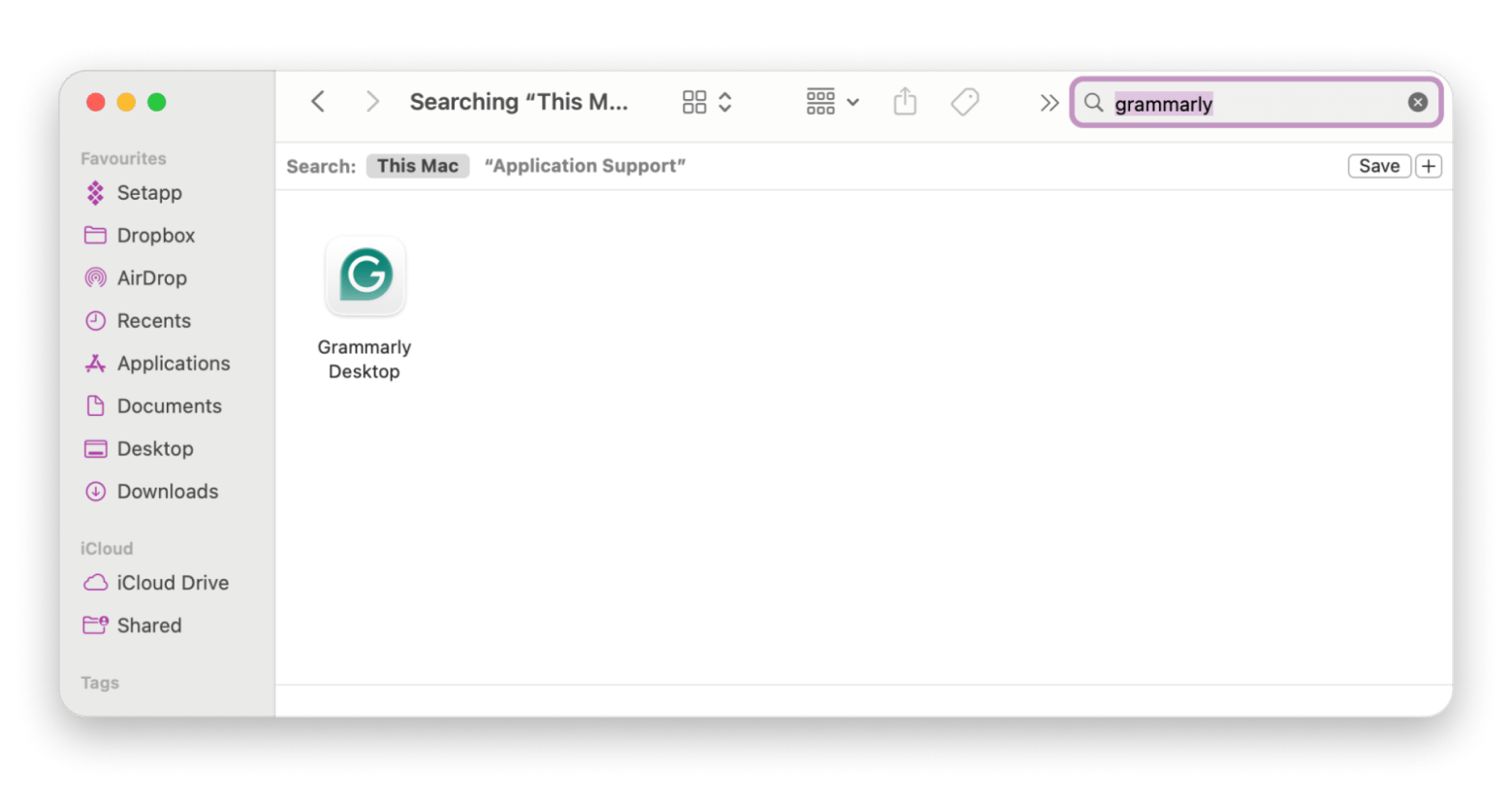
Find the Grammarly Desktop app.
Drag the app to the Trash, or right-click it and select Move to Trash.
Right-click the Trash folder in the Dock and choose Empty Trash.
If you can't empty Trash, this means Grammarly is still active in the background. Return to the previous section and make sure Grammarly has fully quit before trying again.
There's also an even quicker way to uninstall Grammarly. CleanMyMac has an Uninstaller tool that deletes the app along with all associated files that Finder can't see. No leftover files will stay on your Mac, which helps with your storage space, too.
What to do when Grammarly won't uninstall or can't be moved to the Trash
To delete Grammarly when it won't uninstall, force quit all its background processes using Activity Monitor, then move the app to Trash.
Before you try any advanced fixes, here are two easy fixes.
Force quit Grammarly using Activity Monitor
I've found that the Activity Monitor method is more reliable than trying to quit from the menu bar when the app is frozen.
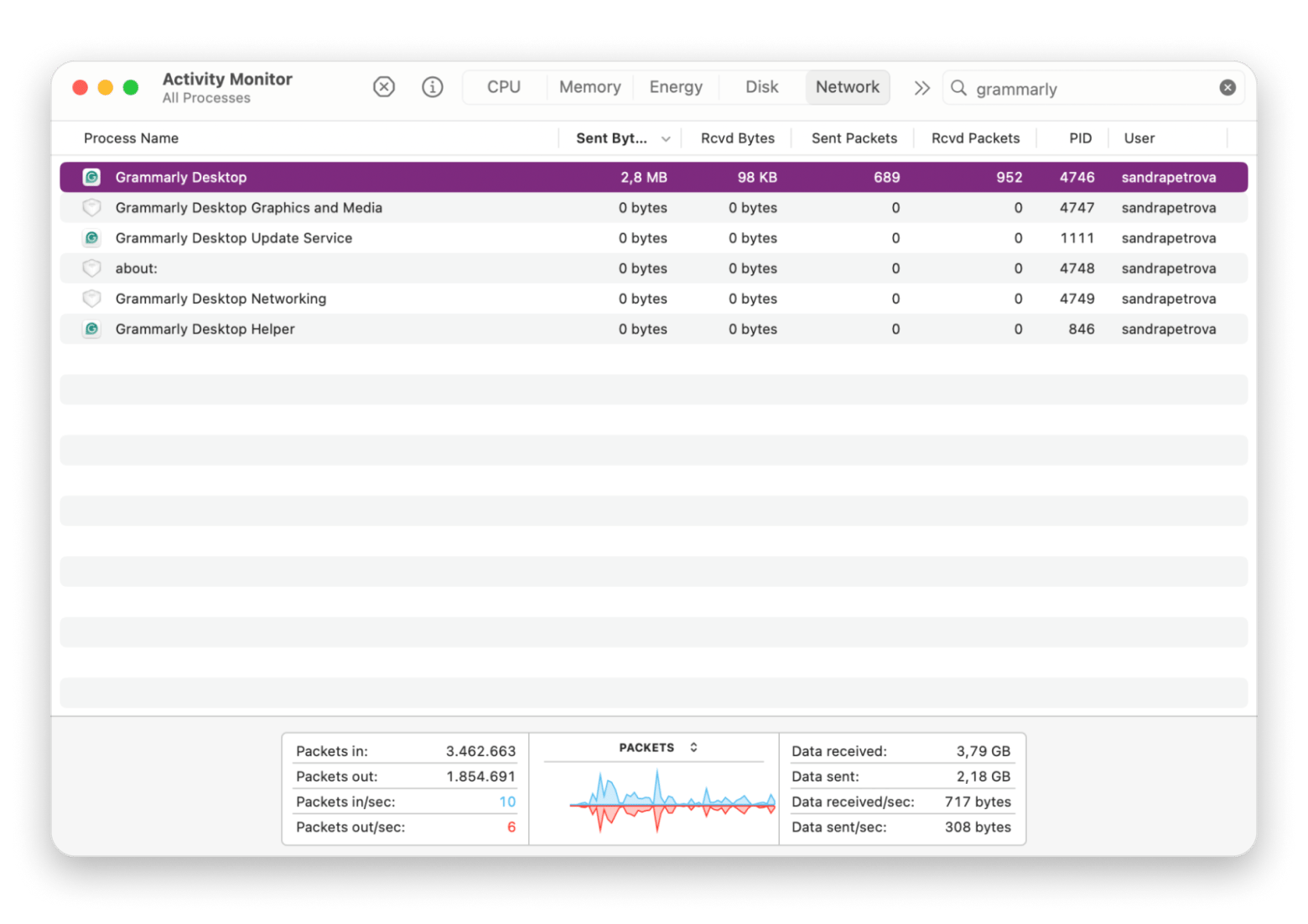
Activity Monitor shows every background process running on your Mac. If Grammarly is stuck in the background, you can quit it from there:
Go to Finder > Applications > Utilities.
Open Activity Monitor.
Type Grammarly into the search field in the top-right corner.
Select any Grammarly process that appears in the results.
Click the X button at the top left side of the window.
Choose Force Quit.
Try deleting the app again.
You might see several different Grammarly processes happening in the background, like Grammarly Desktop Graphics and Media and Grammarly Desktop Helper. You need to close all of them before you delete the app from Finder.
For a deeper dive into stubborn apps that refuse to leave, see the guide on apps that won't delete.
Remove Grammarly from Login Items
You might not be able to delete Grammarly Desktop on Mac because it's set to launch automatically every time you restart your device. To fix this, you need to remove it from Login Items.
Here's how:
Go to System Settings > General.
Scroll down to Login Items & Extensions.
Look for Grammarly under Open at Login section.
Select it and click the - button to remove it.
Restart your Mac.
Now try moving the app to Trash. And that's it! You've successfully uninstalled Grammarly Desktop.
How to remove the Grammarly Safari extension and Word add-in
Deleting the Grammarly desktop app doesn't remove its Safari extension or Word add-in. You need to uninstall each one separately.
Remove Grammarly from Safari
To remove Grammarly from Safari:
Open Safari.
Click Safari in the menu bar and select Settings.
Open the Extensions tab.
Select Grammarly for Safari from the list on the left.
Click Uninstall or Remove.
Keep in mind that if you uninstall the extension, Grammarly will no longer check spelling and grammar in Safari.
Grammarly for Microsoft Word on Mac has been officially discontinued. If you still see it lingering in your Word setup, here's how to remove it:
Open Microsoft Word.
Click Insert in the menu bar.
Select Add-ins or My Add-ins.
Locate Grammarly for Microsoft Word.
Click the three-dot menu (...) next to the add-in.
Select Remove.
Confirm.
If Grammarly for Word no longer shows up in your Add-ins list, it may have already been removed automatically.
Delete Grammarly leftover files from the Mac library
Dragging Grammarly to the Trash deletes the application but doesn't remove all the files associated with it, like cached data and support folders. If you want to completely remove Grammarly from Mac or troubleshoot an issue, you should get rid of all the data.
Here's how to access the hidden Library folder:
Open Finder.
Click Go in the menu bar.
Hold down the Option key.
Click Library in the dropdown menu.
Now, check these locations for files and folders that contain Grammarly or com.grammarly in their names:
~/Library/Application Support/
Look for folders named Grammarly or similar variants.
~/Library/Caches/
Look for cache files and folders beginning with com.grammarly.
~/Library/Preferences/
Look for files such as:
com.grammarly.*.plist
com.grammarly.desktop.plist
~/Library/LaunchAgents/
Look for Grammarly-related launch agents that may start background services automatically.
Once you've deleted any files found in these locations and emptied the Trash, Grammarly is fully removed from your Mac.
If you'd rather skip the folder archaeology entirely, the roundup of best Mac uninstallers covers tools that handle this automatically.
Optionally, you can let CleanMyMac help you. You won't have to dig through hidden system folders manually. Its Uninstaller and Space Lens tools will scan these Library locations automatically and find all the files left behind by Grammarly.
How to delete Grammarly from Mac and keep your system clean
Uninstalling Grammarly is a multi-step process: quit the app, move it to Trash, clear the leftover Library files, and remove the Safari extension separately.
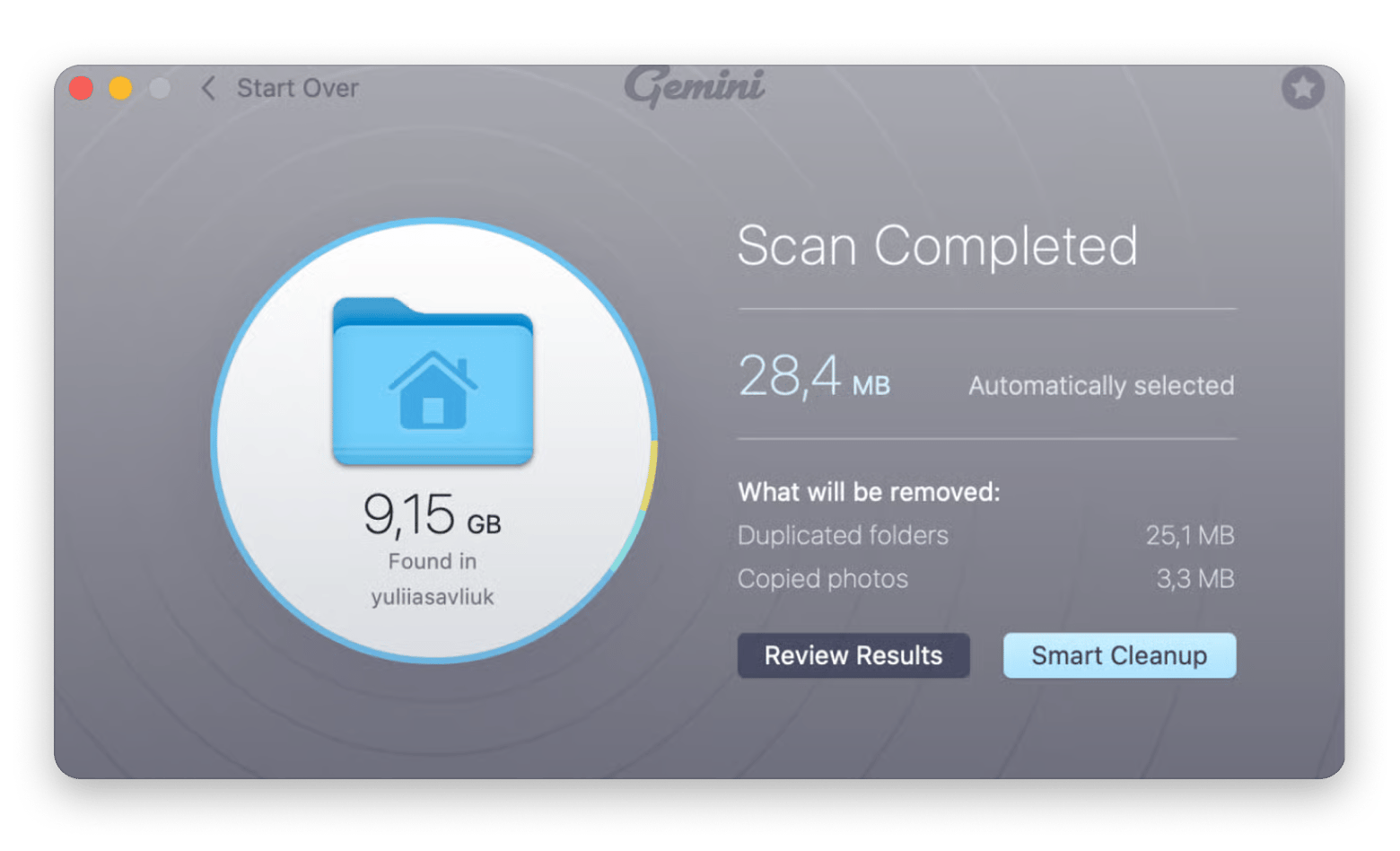
If you want to skip the manual hunting, CleanMyMac handles the whole thing in one pass. It detects active processes, removes the app, and finds leftover files you'd otherwise miss. Gemini is worth a scan afterward, too, if you want to catch any duplicate files hiding in your system.
Remove Grammarly completely — CleanMyMac handles what Trash and Finder can't. Uninstall the app, kill background processes, and clear hidden Library files in one pass. Free for 7 days on Setapp. Try CleanMyMac Free. Cancel anytime.
FAQ
Why does my Mac say Grammarly Desktop can't be moved to the Trash because it's open?
Grammarly Desktop can't be moved to the Trash when the app is still running in the background. Quit Grammarly from the menu bar first, or use Activity Monitor to force quit it before deleting it.
How do I completely remove all Grammarly files from my Mac, including hidden Library files?
Uninstall Grammarly Mac on the desktop from the Applications folder and empty the Trash. Then open your Library folder by holding Option while clicking Go in Finder. Check Application Support, Caches, Preferences, and LaunchAgents for files containing "Grammarly" or "com.grammarly" and remove any remaining leftovers.
Does deleting the Grammarly desktop app also remove the Safari extension?
The Grammarly desktop app and Grammarly for Safari are separate components. When you delete the desktop app, you only delete the app itself. To remove the Grammarly extension from Safari, you need to open Safari Settings, go to Extensions, and remove Grammarly for Safari manually.
How do I uninstall Grammarly from Microsoft Word on Mac when it doesn't appear in Applications?
You don't see the Grammarly Word integration in the Applications folder because it's an add-in and not an app. Open Microsoft Word, go to Insert > My Add-ins, find Grammarly for Microsoft Word, open its menu, and select Remove to uninstall it completely.
Will uninstalling Grammarly from my Mac also cancel my Grammarly subscription?
When you uninstall Grammarly, you only remove the app from your Mac, but your subscription is still active. If you're using a paid plan and not the free one, cancel it through your Grammarly account settings.
Powerful apps live on Setapp
Ditch defaults and discover new gems on one app platform.






 Best solution
 Best solution