Every professional email needs six parts: a clear subject line, greeting, body, call to action, closing, and signature.
The subject line decides whether your email gets opened. Put the main topic first, be specific, and cut filler words.
Match your tone to the relationship and context. Use "Dear" or "Hello" for formal or first-time emails, "Hi" for ongoing conversations.
One CTA per email — placed near the end. Be polite and specific: "Could you confirm when you're available?"
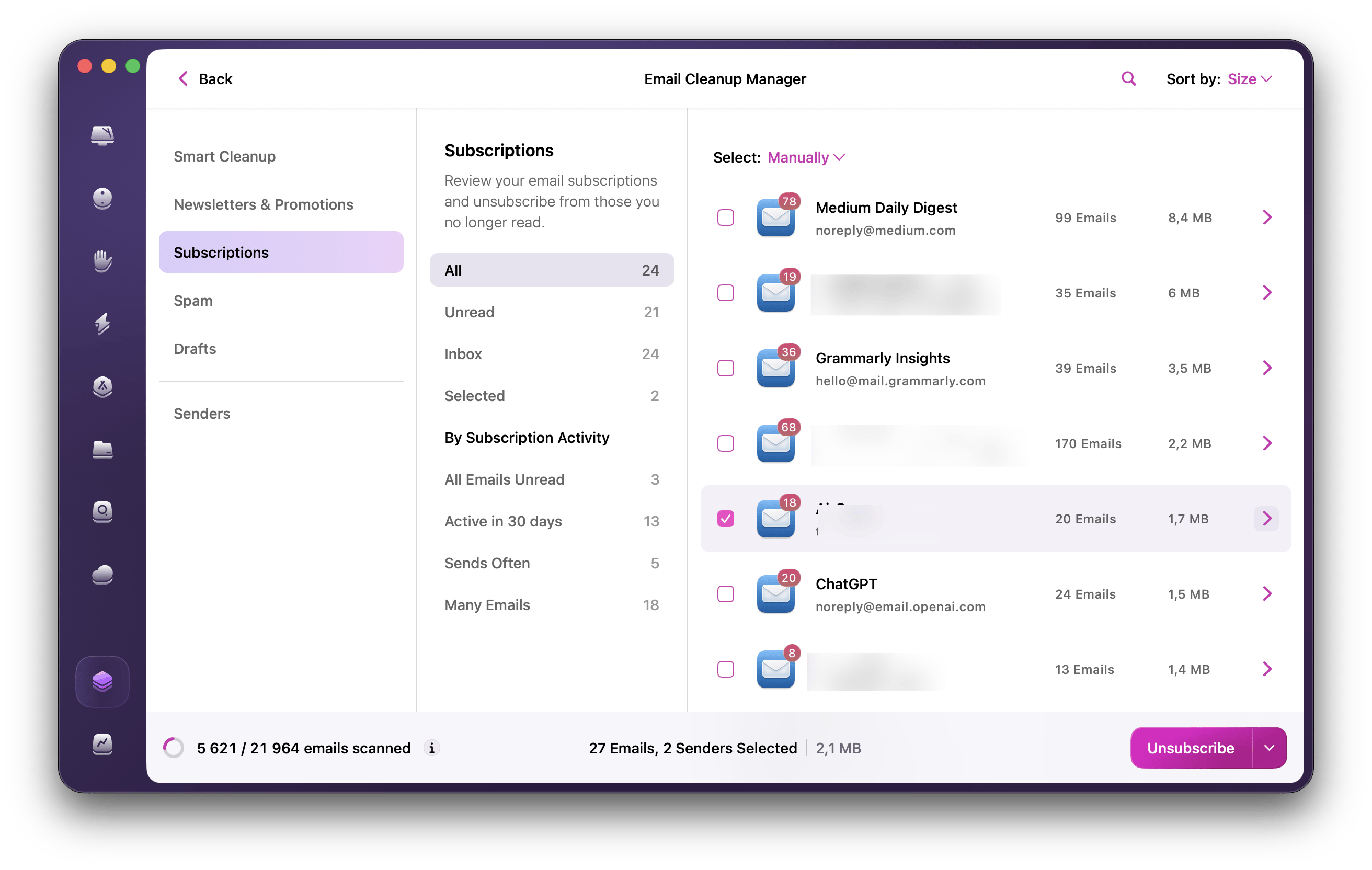
CleanMyMac’s Email Cleanup feature helps Gmail users review years of messages, find large attachments, and clear unwanted email in bulk before it gets in the way of important communication.
Spark Mail makes inbox management significantly easier. It sorts emails automatically into categories, flags new senders with a Gatekeeper feature, and offers a built-in AI assistant for drafting replies. Try Spark Mail & CleanMyMac for 7 days via Setapp.
Despite the many collaboration platforms available today, email is still the main communication channel for most professionals. And naturally, it makes knowing how to write a professional email one of the most important aspects of any job.
But then, writing a professional email or having proper email etiquette isn’t simply choosing between “Dear” and “Hi” or “Regards” and “Best.” Over time, I’ve learned that the best way to write a professional email is to make it easy for the recipient to read, understand, and respond.
In this guide, I’ll walk through how to write an email without feeling stiff. We’ll look at things like etiquette, subject lines, greetings, body structure, and signatures.
Want a quick overview?
I want to…
Do this
Write a professional email
Use a clear subject line, polite greeting, short body, simple CTA, and a signature
Manage email more efficiently on Mac
Use Spark Mail to sort inboxes, schedule emails, and draft replies with AI
Make my subject lines clearer
Put the main topic first and keep it short and specific
Start an email politely
Use Hello or Dear with the person’s name
Keep emails easy to read
Break text into short paragraphs or bullets
Keep contacts organized
Use BusyContacts to label, filter, and manage contacts
Group-related conversations
Create labels or folders for clients and projects
Reduce spam and distractions
Block senders and unsubscribe from newsletters you don’t need
Clear years of Gmail clutter
Use CleanMyMac’s Email Cleanup feature to review old messages, large attachments, newsletters, promotions, and unwanted senders in bulk.
The main part of learning how to write a professional email is understanding the structure. This basically means knowing the different parts of a professional email, their roles, and the best practices for each.
In a simple but well-structured email, these parts include:
A subject line
Greeting
Email body
A call to action (CTA)
Closing
Signature
None of them needs to be long. In fact, the shorter, the better. What you need is clarity and a logical flow.
Writing clear subject lines
The subject line sets the expectation, and it’s also the part that determines whether the recipient needs to open the email right away. A good one tells the reader what the message is about and why it matters using as few words as possible.
Here are a few tips on how to write an email subject line:
Put the main topic first so that it’s clear in inbox previews
Keep it specific and focused on only one purpose
Use plain languge
Avoid filler words that don’t add meaning
When a person sees something like “Meeting Request: Q1 Marketing Plan” or “Follow-Up: Job Application,” they’ll immediately understand what the email is about and why they need to open it.
Professional greetings and closings
Greetings and closings kind of set the tone for the email, but they don’t need to be complicated. The most important part is ensuring they fit the situation and the relationship.
Here’s an overview of common greetings and closings that can enhance your email etiquette:
Use “Dear” or “Hello” when you want to sound formal or in first-time communications.
Use “Hi” when in an ongoing conversation.
Address the person by name whenever possible.
Use the first name for known people or colleagues and the last name for first-time communications.
Use the likes of “Hello team,” “Hi everyone,” or “Dear all” when addressing many recipients.
In professional settings, closings like “Best regards,”“Kind regards,” or “Sincerely” are reliable.
“Thanks,” “Thanks so much,” or “Warm regards” work well if you know each other or want to sound more personable.
Whenever you are unsure about a situation or relationship, it’s okay to lean more on the professional side. You should also use a formal closing if you started with a formal greeting, and the same applies to casual ones.
Crafting the body of your email
The body carries your message, so you need to ensure it communicates clearly and has a tone that fits the type of email you are sending.
Start by stating the main purpose in the first sentence or at least in the first paragraph. Something like “I wanted to follow up on the proposal I sent last week.”
Apart from that:
Break the information into small paragraphs
Keep the language direct but polite
Use bullet points for related details
Avoid jargon and long, complicated sentences
Mention attachments, if any
These are an important part of email etiquette as the body is the main part of your message.
Adding a call to action (CTA)
Your email will likely need a next step, even if it’s informational. Otherwise, it can stall or just fade in the background.
Proper email etiquette here requires:
Ensuring the CTA isn’t overwhelming. Try to limit it to one action per email.
Placing it near the end to ensure the recipient already has the required context.
Polite phrasing, as it’s easy to unintentionally sound rude when asking someone to do something. Something like “Could you confirm when you are available?” or “I’d appreciate it if you could review the draft by Friday.”
Specificity about deadlines or timelines, like in the example above.
This will help your message lead to action.
Email signatures and contact management
Email signatures and contacts are a big part of managing emails and enhancing productivity. When you add a signature, it immediately gives you a professional image. Organizing your contacts then saves lots of time when sending emails and helps avoid mistakes.
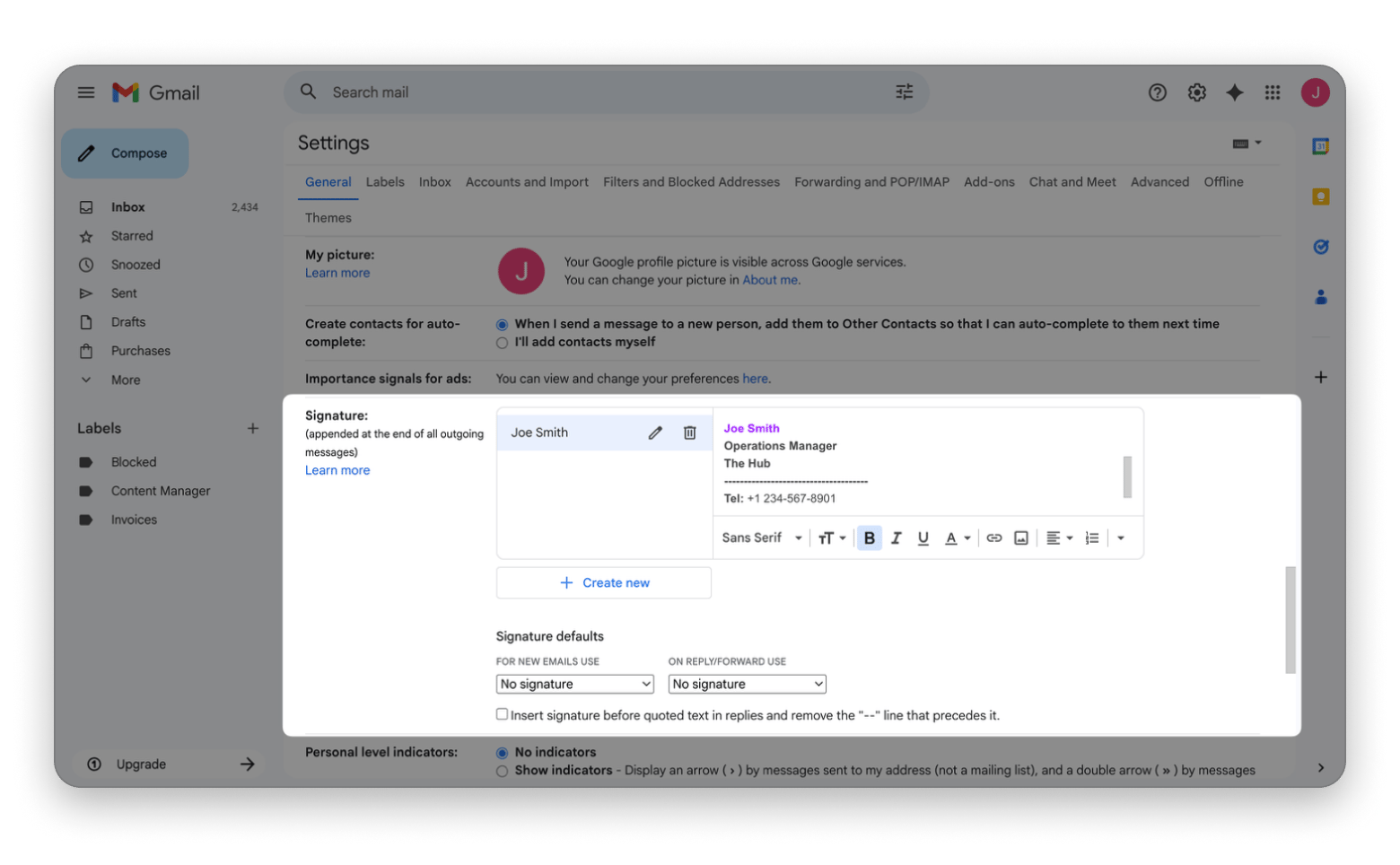
Here’s how to create an email signature from the Gmail account settings:
Open Gmail and click the Settings icon.
Click See all settings.
Scroll to the Signature section.
Click Create new and name your signature.
Type your name, role, and contact details.
Choose when it should appear.
Scroll down and click Save Changes.
Try to keep the signature concise, but ensure that it includes your name, title, and contact info. You can also add a company logo or a website link if relevant.
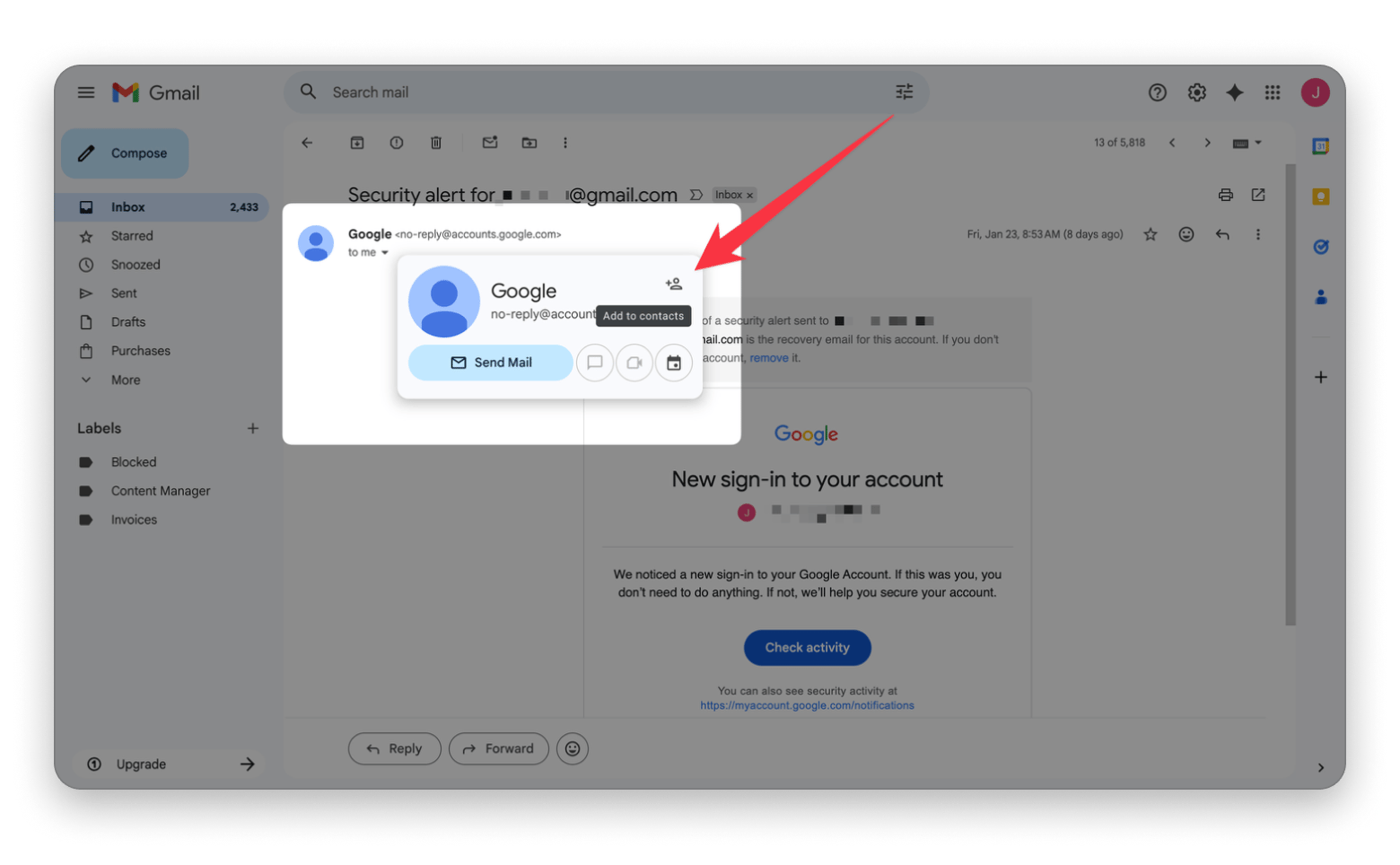
For the contacts, one of my favorite Gmail tips and tricks is that you can hover over the contact name to get a 1-click Add contact option.
Ensure you clean duplicates and update them when contact details change to keep everything organized and reliable.
Organizing emails and blocking spam
It’s always a good idea to keep your inbox organized and block spam. It keeps distractions out and makes it easier to focus on your work without missing important emails.
Here are a few Gmail tips and tricks I use to organize my inbox:
I create folders or labels for different clients, projects, or email categories.
I’ve automated labeling so that new emails are sent there automatically.
I archive emails I no longer need and delete clutter.
I block various senders.
I unsubscribe from mailing lists I no longer need.
I mark emails as Spam so that Gmail and Mail can improve future filtering.
But while these manual methods work well, I still find myself relying more on Spark Mail. It’s a more professional way of handling mail, especially if you tend to use Gmail or Yahoo for work purposes.
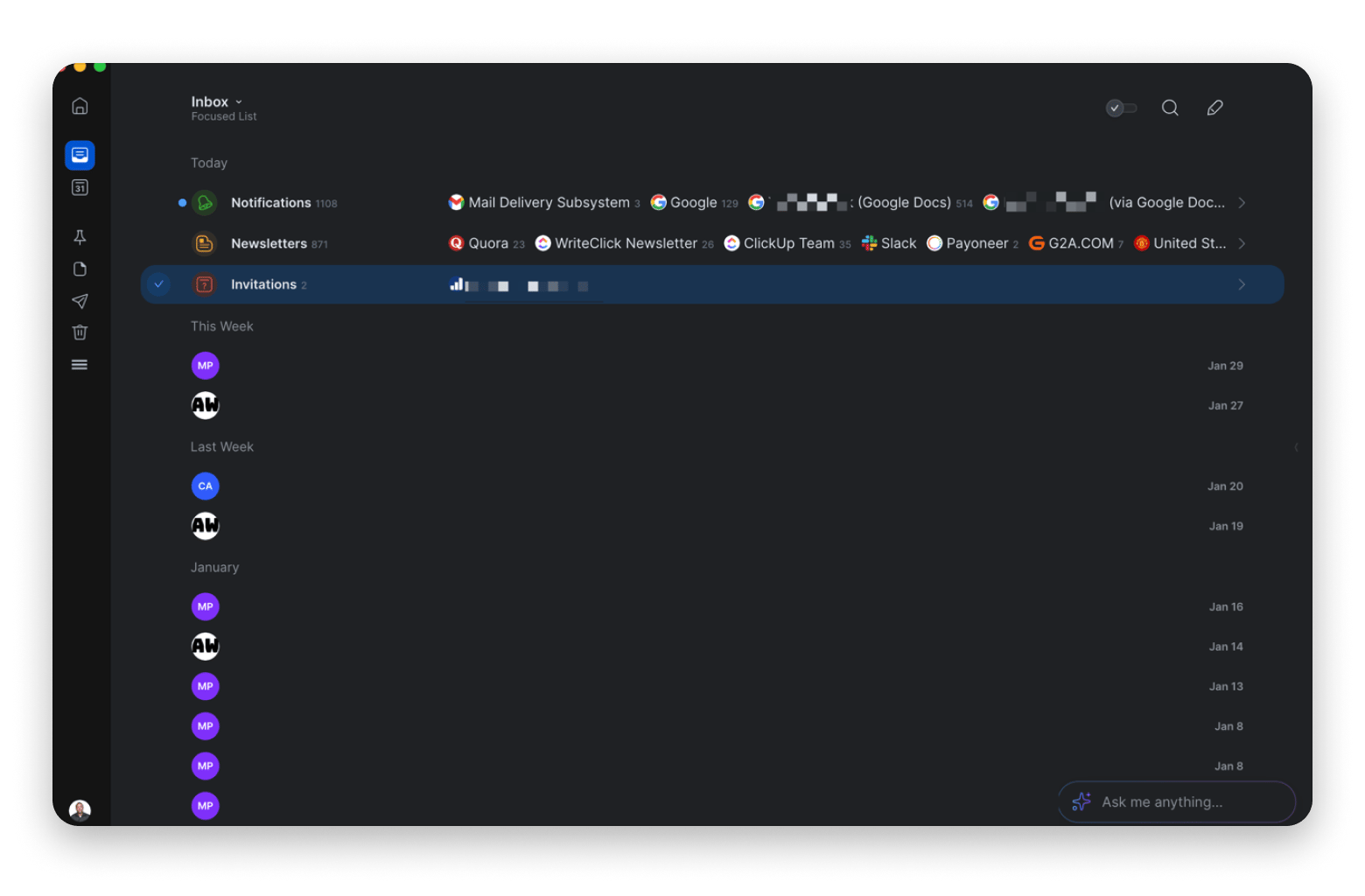
One of my favorite features of the email client is its sorting capabilities, which are aimed at creating a smart and unified inbox. It groups received emails into Notifications, Newsletters, Invitations, and more (depending on your inbox). It also has a Gatekeeper that highlights new senders, allowing you to either block or authorize them.
And if you are ever stuck replying to an email, you can activate its built-in AI for assistance.
Keep your professional inbox ready for the next message
Inbox organization is easier when you deal with accumulated clutter before it becomes a distraction. If you use Gmail, CleanMyMac’s Email Cleanup feature gives you a practical way to review older messages and clear space without opening every email individually.
Instead of searching through your inbox manually, you can browse email by year, inspect messages from specific senders, and identify large attachments that may be using valuable Gmail storage. You can then decide whether to delete, archive, or unsubscribe from unwanted content.
Simply go to CleanMyMac > My Tools > Email Cleanup.
You can connect multiple Gmail accounts and preview messages before taking action. CleanMyMac uses official Google APIs, and nothing is deleted, archived, or unsubscribed without your approval. Deleted emails go to Gmail Trash, where they can be recovered for up to 30 days.
Gmail display and accessibility features
If you primarily rely on Gmail for your professional communications, it’s good to learn about several Gmail account settings that can improve your workflow.
Here are a few of them you can try:
Enable dark mode to match your system or reduce eye strain when working in dark environments.
Adjust text size and the size of the reading pane to your comfort level
Turn off conversation view if you don’t like threaded emails.
Turn on desktop notifications to get pop-ups for new emails.
Gmail also has several accessibility features, like keyboard shortcuts that make navigation easier, a high contrast theme for better readability, and Screen reader support to allow you to rely on a text-to-speech tool.
Best practices and etiquette
Good email etiquette is less about following rigid rules and more about making the message clear and easy to respond to.
Here are a few tips that can help write a professional email:
Ensure the language is not only polite but also fits the context of the conversation.
Keep your sentences direct but clear.
Match the tone to the relationship while still maintaining professionalism, even in casual emails.
Use CC and BCC correctly and only for people who actually need to get the email.
Proofread before you send to ensure there are no errors, especially in names and dates.
Confirm that all necessary links and attachments are included.
Apart from these, you should also try to respond to your emails within a reasonable timeline.
Why professional email matters
Given that emails are mostly used for professional communication, they easily shape the experience of the people working with you. If the message is clear and precise, it saves the readers’ time and avoids unnecessary back-and-forth.
For example, if you ask for clarification before a deadline and you forget the subject line, the client may ignore the email, as they aren’t sure what it’s about. Proper email etiquette helps make communication flow without friction.
Common mistakes in professional emails
Most professional email issues come from small habits you can easily iron out or even automate to avoid them. Some are:
Missing or vague subject lines that don’t really explain the purpose of the email.
Long blocks of text without proper spacing can make messages harder to scan.
Greetings that don’t match the context of the conversation.
Requests are buried in the middle of an email instead of being stated upfront.
CC or BCC is used incorrectly or without a clear reason.
Attachments are mentioned in the email, but not actually included.
Messages are left unorganized with no folders or labels to group related conversations.
Most of these are easy to fix after learning the right email etiquette and a few Yahoo, Mail, and Gmail tips and tricks that we’ll look at.
Tools and apps for efficient email
The habits we’ve discussed will help you learn how to write a professional email, but they can only be effective if you have the right tools working for you. Ensure you take advantage of the various features provided by the best free email service for Mac, like tags and folders. You should also check the settings and customize the email client to adapt to you.
If you’d like an even smarter platform, you can use SparkMail. It works with all popular email service providers and reduces the amount of work you need to do to make your inbox focused.
For managing my contacts, I like to use BusyContacts, a contacts manager from the guys behind BusyCal. It makes it easy to filter and organize contacts with smart tags, which means I can group them with the likes of “Project X” and “Office.” I also like how it remembers my mailing activity to make it easy to add contacts to emails.
If your Gmail account has accumulated years of old messages, CleanMyMac’s Email Cleanup feature can handle the maintenance work: reviewing large attachments, sorting older email, and clearing unwanted messages in bulk.
FAQs
How do I write a professional email?
Learning how to write a professional email starts with basics like a clear subject line, a polite greeting, and stating the main purpose of your email right at the beginning. You should also ensure that the message is short and clear with a specific call to action. You can then close with a professional signature.
What are the main email etiquette rules?
The main email etiquette rules are clarity, respect, and efficiency. The message should be short but easy to understand in both the body and subject line. Use the right greeting depending on the context, proofread before you send your email, and use CC and BCC properly. Also, try to respond within a reasonable timeline, as it shows respect.
How can I create a signature in Gmail?
Here's how to createan email signature from the Gmail account settings:
Open Gmail and click the Settings icon.
Click See all settings.
Scroll to the Signature section.
Click Create new and name your signature.
Type your name, role, and contact details.
Choose when it should appear.
Scroll down and click Save Changes.
It will add a bit more professionalism to your emails.
How do I organize emails in folders?
You can organize emails in folders by creating folders or labels for different clients, projects, or types of emails. Gmail, SparkMail, and Yahoo already have some automatic labels, but you can also create custom ones to capture and organize related future emails.
How do I block unwanted emails in Gmail and Yahoo?
To block unwanted emails in Gmail and Yahoo:
Open the email
Select the options menu
Click Block [sender].
It will help keep your inbox focused.
Is Spark Mail free with Setapp?
For the first 7 days for all new Setapp members — yes, Spark Mail is free. You get full access to the paid version of the app — Spark Mail Plus, with every feature unlocked for the entire trial period. Plus, you can access and use 300+ other apps for Mac, iOS, and the web that are included in Setapp Membership to improve your workflows.
Powerful apps live on Setapp
Ditch defaults and discover new gems on one app platform.






 Best solution
 Best solution