A small code change on a Mac usually costs three windows. You rename or move a file in Finder. You type git status in Terminal to see what Git made of it. Then you open a Git client to read the diff. None of these steps is hard. The switching is what wears you down, and the question behind it is tiny: what did I change in this folder?
I build Captain's Deck, a dual-pane file manager for Mac, so answering that question became part of my job. Below is every way I know to do it in 2026: what macOS gives you for free, extensions that add Git badges to Finder, and file managers that show Git status right in the file list. One of them is mine. I'll tell you where the others do it better.
Quick comparison: ways to see Git changes on Mac
Option
What you see in the file list
What you can do from there
Price
Finder
Nothing
Nothing
Built in
Terminal
A text list, separate from your files
Everything Git can do
Built in
GitFinder
Status badges on Finder icons
Git commands from Finder's right-click and toolbar menus
$34.85 one-time
SnailGit
Icon overlays in Finder
The most-used Git commands from the right-click menu
A status letter on every file and folder, branch name in the pane header
Add (stage), commit, push, pull, plus revert and a side-by-side diff
Setapp Marketplace, from $23.99 one-time
What macOS shows you out of the box
Finder knows nothing about Git. A folder with forty changed files looks exactly like a clean one. The only trace is the hidden .git folder, which appears when you press Command + Shift + Period.
Type git status -sb and press Return. The first line is your branch. Below it, each changed file gets a code: M for modified, A for added, D for deleted, ?? for a new file Git isn't tracking yet.
Type git diff --stat to see how many lines changed in each file, or git diff followed by a file name to read the changes.
The first time you type git, macOS offers to install Apple's command line developer tools. Say yes. Git comes with them.
If your project lives in Xcode, its Project navigator shows the same letters next to each file. That only helps while you're inside Xcode.
All of this works. The weakness is that the list in Terminal and the files in Finder are two views of one folder, and you are the one matching them up.
Add Git badges to Finder
If you want to stay in Finder, two apps add Git to it through a Finder extension.
GitFinder puts a status badge on each file icon and adds Git commands to Finder's right-click and toolbar menus. Behind that sits a full Git client with a repository browser, diffs, file history and blame. It costs $34.85 once, with a 30-day trial.
SnailGit follows the TortoiseGit idea from Windows: icon overlays in Finder, plus the most-used Git commands in the right-click menu. It's sold on the Mac App Store, and a Lite version covers a single repository.
Best for: people who like Finder and only miss the Git part.
Keep in mind: you turn the extension on in System Settings first, and SnailGit wants each repository added to its list before the badges show up. A badge also tells you that a file changed. To see what changed, the diff opens in a separate window.
File managers with Git built in
The third route is a file manager that already understands Git. You open a folder, and the status is simply there.
ForkLift 4
ForkLift is the dual-pane file manager many Mac developers already have, and it's part of Setapp Membership. It shows the Git status of individual files, and you can add, commit, push and pull without leaving it. It is also the more mature app, with years more polish than mine.
Best for: ForkLift users who want the basic Git round trip in the app they already have open.
Captain's Deck
This one is mine, so discount the next lines as you see fit. My goal was simple: open a folder and know what changed, without asking.
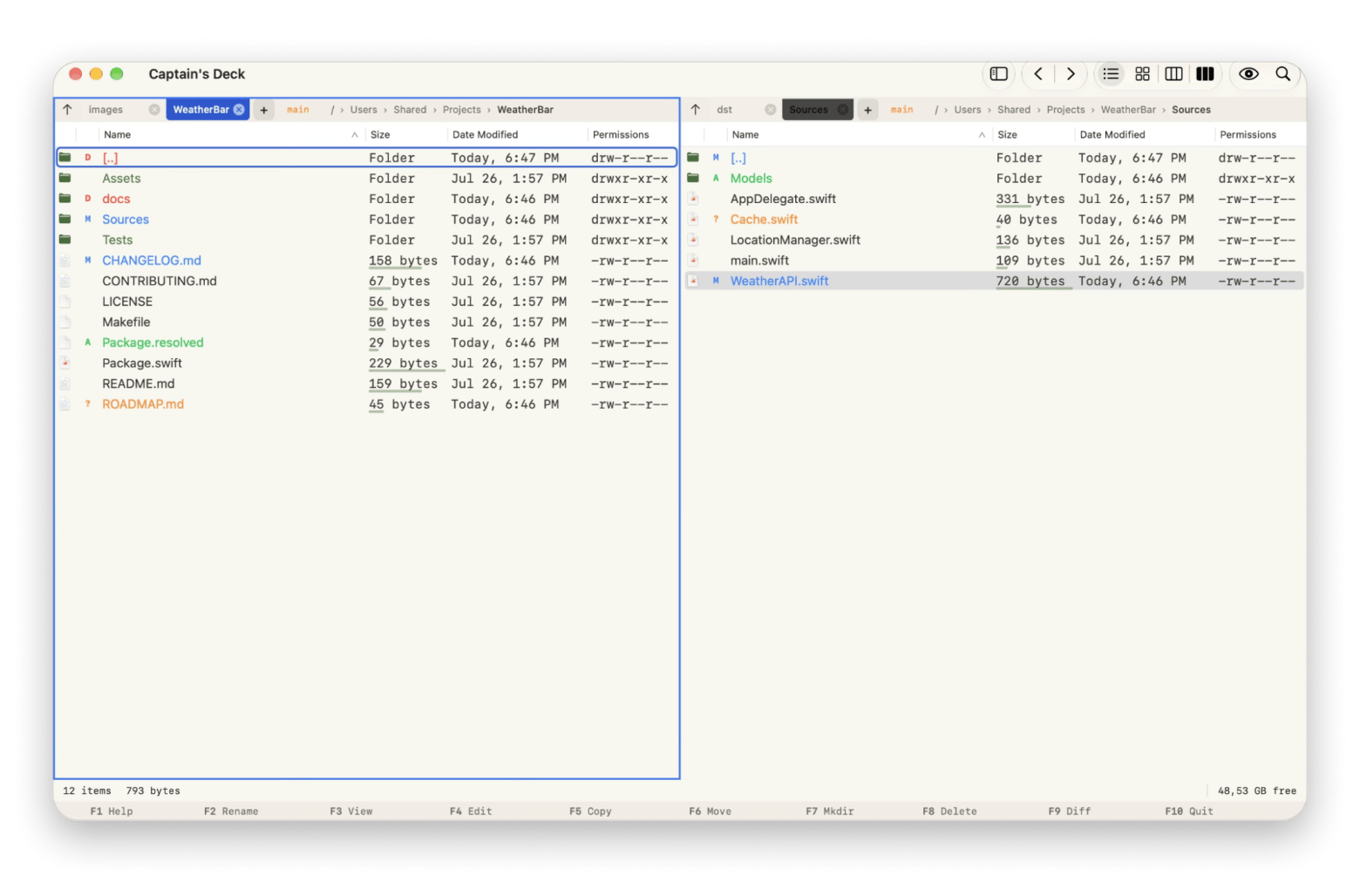
A letter next to every changed file, with the file name colored to match: M modified, A added, D deleted, ? untracked, ! conflicted.
Folders carry the status of what's inside them. From the project root you can see which subfolder holds the changes.
The current branch sits in the pane header.
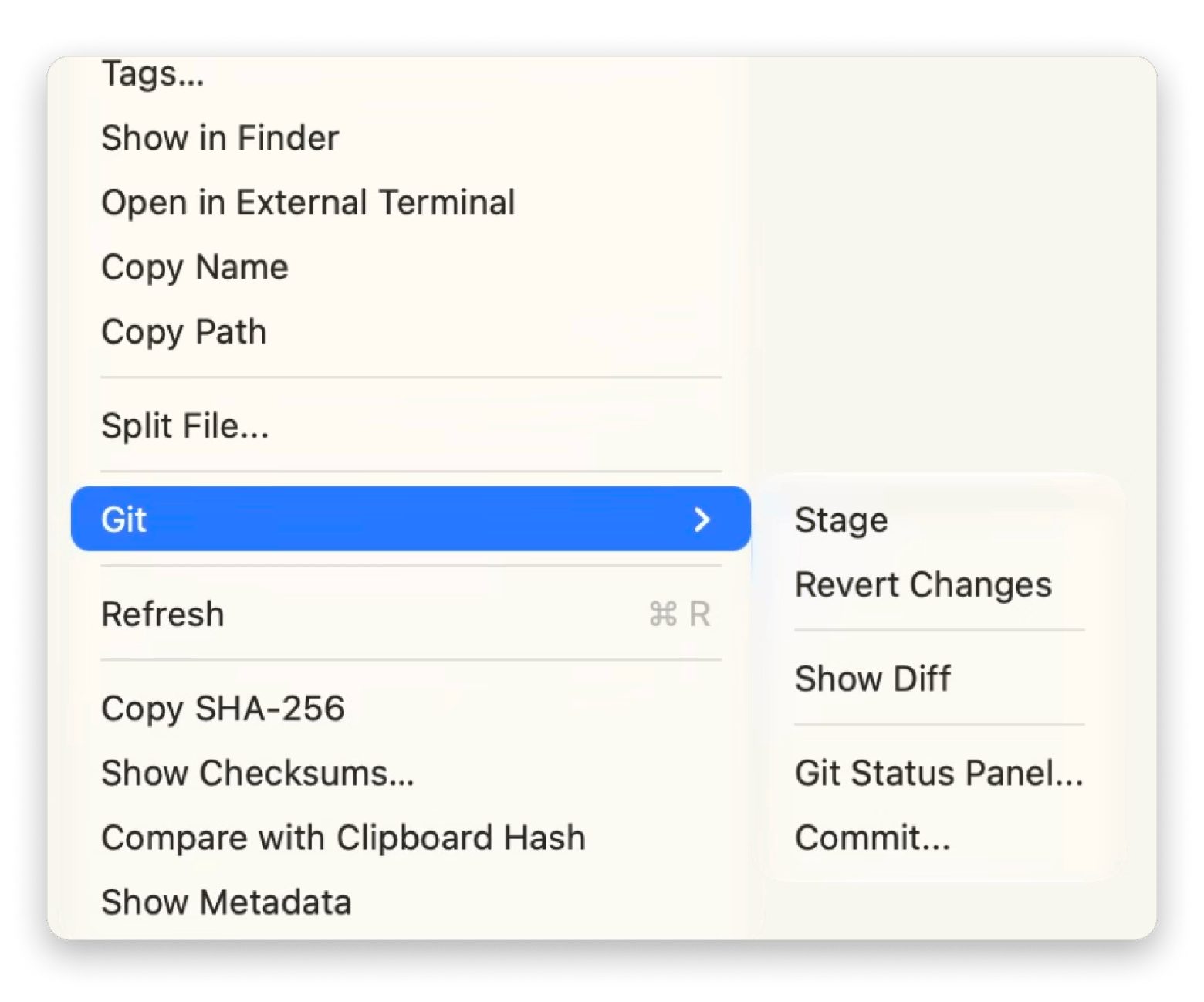
Right-click any selection ➙ Git for Stage, Revert Changes and Show Diff.
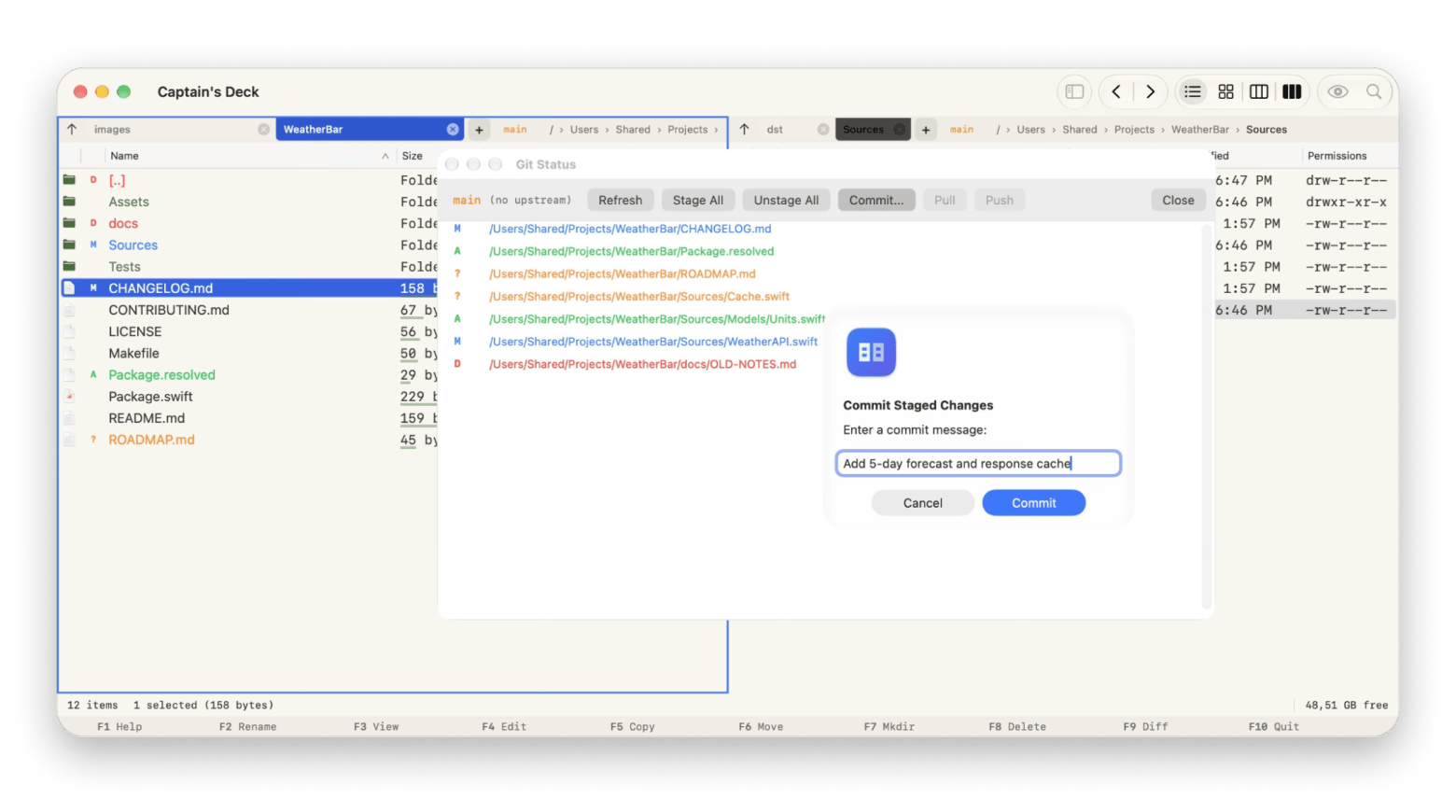
The Git Status panel (Command + Shift + G) lists every changed file in one place, with Stage All, Unstage All, Commit, Pull and Push buttons.
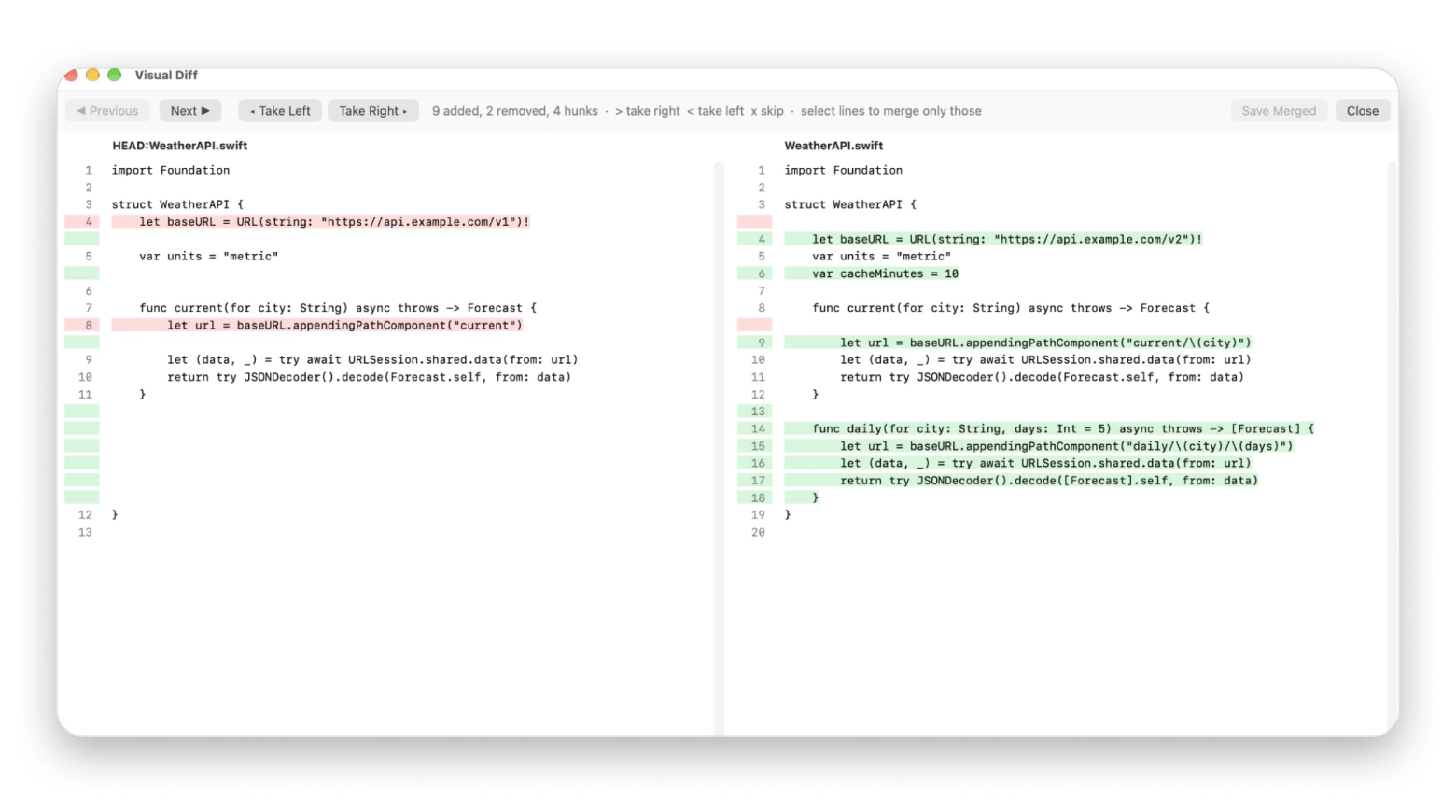
A side-by-side diff of any modified file against your last commit.
A built-in terminal that follows the folder you're browsing, for everything else.
Where it falls short: it is not a full Git client. There is no history graph, and I switch branches in the built-in terminal. It needs macOS 14 or later. And if you want Finder with badges, not a keyboard-driven dual-pane app, GitFinder is the better fit.
How I check and commit a change without leaving the file manager
Here is the whole round trip in Captain's Deck, start to finish.
Open your project folder in either pane. Status letters appear next to the changed files and the branch name shows in the pane header. There is nothing to set up.
Follow the letters. A folder shows the status of what's inside it, so keep opening marked folders until you reach the changed file.
Right-click a modified file (one marked M) ➙ Git ➙ Show Diff. Your last commit opens on the left and the current file on the right. Click Next and Previous to move between changes, then Close.
Select the files that belong in this commit, then right-click ➙ Git ➙ Stage.
Press Command + Shift + G to open the Git Status panel. Click Commit, type your message and click Commit again.
Click Push in the same panel. Pull and Push stay grayed out until your branch is connected to a remote. For anything less routine, press the backtick key. The built-in terminal opens in your project folder.
You'll still want a real Git client sometimes
A file manager answers one question: what changed here, and can I commit it? It doesn't replace a Git client. For the history graph, a rebase, a cherry-pick or a messy merge conflict, open a dedicated tool.
Two are included in Setapp Membership. Gitfox has line-by-line staging, image diffs and one-click conflict resolution. TaoGit keeps commit, fetch, pull, push and merge in one clean window. Check out more in Setapp's guide to the best Git client apps for Mac.
Verdict: which one to pick
Only curious once in a while? git status -sb in Terminal. Free, and already on your Mac.
Like Finder and only miss Git? GitFinder ($34.85) or SnailGit.
Already using ForkLift through Setapp Membership? Its Git support covers add, commit, push and pull.
Want status letters in every folder, plus a diff and a commit box in the same window? Captain's Deck is on the Setapp Marketplace from $23.99.
History, branches and conflicts? Gitfox or TaoGit, both in Setapp Membership.






 Best solution
 Best solution