"Applications" on iPhone storage isn't just your apps. The Applications category means installed apps plus all their cached media, offline downloads, app logs, and background data included. A navigation app that starts at 80 MB can grow to 600 MB or more after months of use.
Apps grow in the background without you doing anything. Social media apps cache photos and videos, streaming apps store offline content, and every app generates logs over time. If you watch a lot of video and use offline maps, Applications can reach 10 GB or more.
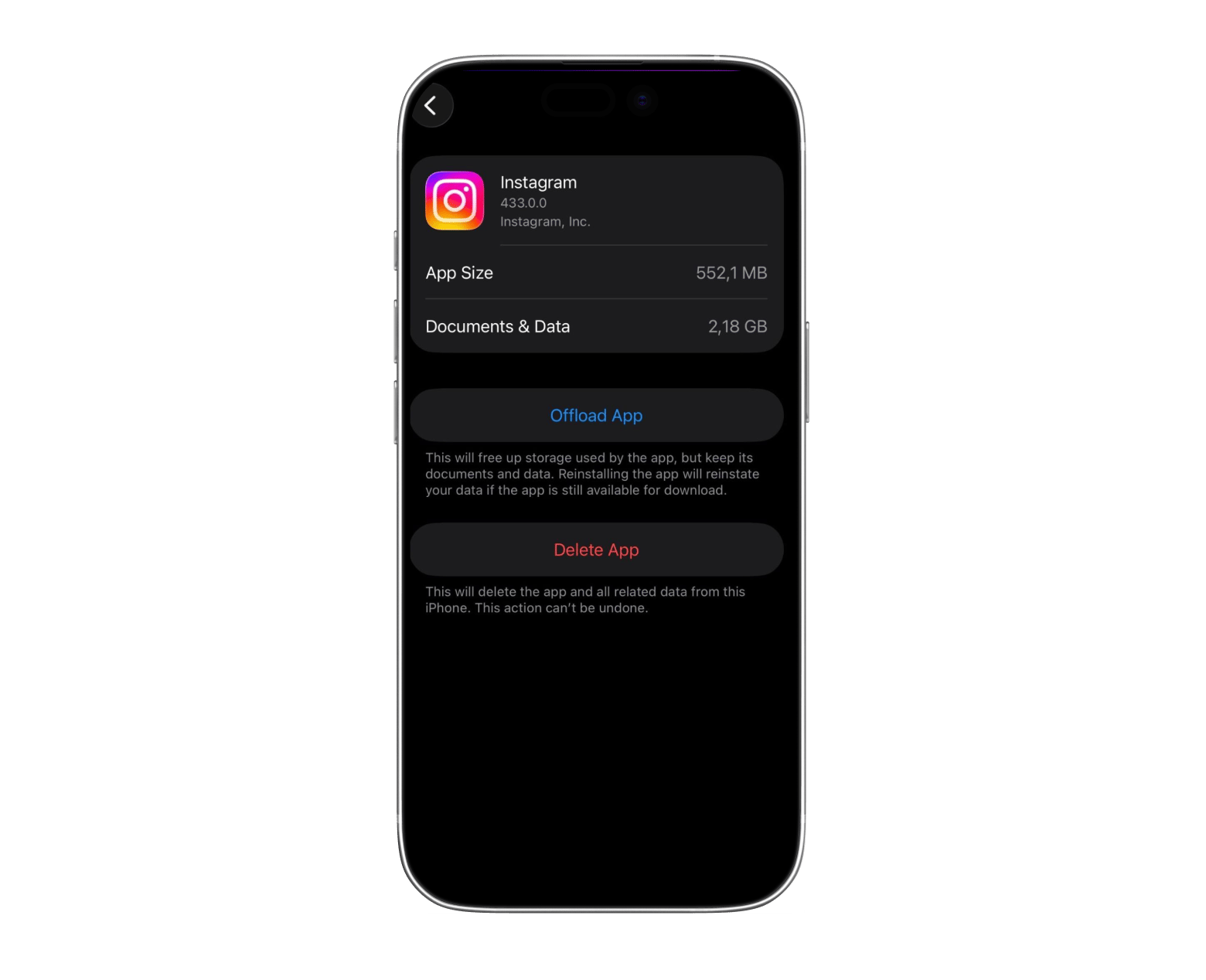
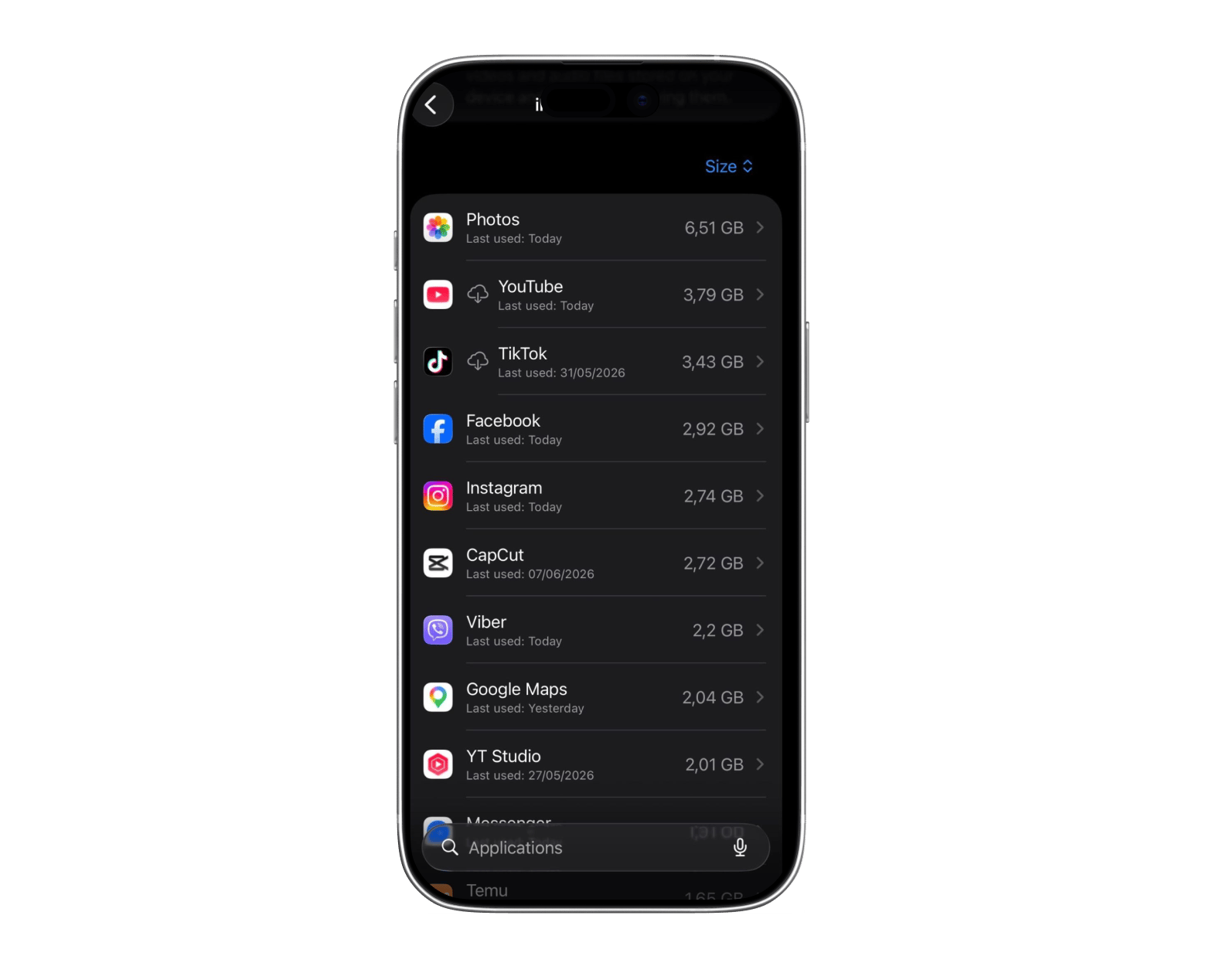
Check storage app by app in Settings. Go to Settings > General > iPhone Storage to see which apps are using the most space. Tap any app to see its App Size vs Documents and Data breakdown — the latter is usually the bigger culprit.
The fastest way to free up space is delete and reinstall. Offloading removes the app but keeps its data. Deleting and reinstalling removes everything, including cached photos, videos, and offline files — it's the most effective reset.
Use CleanMyMac for your Mac's equivalent problem. The same file buildup happens on Mac. CleanMyMac scans for junk, old caches, and duplicate files. Try CleanMyMac free for 7 days — includes 250+ apps on Setapp.
It's the question most of us have at some point in our iOS experience:
Where did all my storage space go?
The first thing you do is check your iPhone storage and see that Applications is taking up lots of space. So, what does Applications mean on iPhone storage, and why did it get so large?
I'll explain exactly what counts as applications on iPhone and how to reduce the storage space it takes up.
The simple answer: What "Applications" actually includes
The Applications category you see in your iPhone storage is not just the apps you have downloaded on your device. This also includes the app's core files, cached content, downloaded media, offline files, and any data the app creates while you use it.
For example, let's say you download a navigation app that's 80 MB in storage. After a few months of use, the storage space it takes up may increase to 600 MB or more because it now has stored offline maps and search history on your device.
The same thing happens with all other apps like Instagram, Spotify, YouTube, and Netflix. The longer you use them, the more content they store locally.
Why the Applications category gets so large so fast
The Applications category grows because apps constantly create and store new data in the background, even when you're not actively using them.
Here's why applications are taking up so much storage on iPhone:
Cached media: Social media apps store temporary copies of content to load it faster the next time you open them. This can be data like images and videos that may grow to several megabytes or gigabytes, especially if you're watching a lot of video content.
Offline content: Let's say you go to HBO Max or Spotify and download an episode or playlist for offline use. This offline content is stored on your iPhone.
App logs and background data: Apps generate diagnostic logs, usage records, temporary files, and other telemetry data (automatic recording and transmission of data) while they run. These files are usually smaller in size, but if they pile up for months, they can end up taking up plenty of storage space.
So everything happens in the background without you knowing or installing something extra. If you're someone who downloads videos or maps for offline use, listens to podcasts, and spends hours every day on social media, then you might find that Applications can easily consume 10 GB or more after six months.
How to check what is inside your Applications storage
To see exactly how much storage each app is using, go to Settings > General > iPhone Storage and tap any app in the list. The good news is that you can check how much each app is contributing to your overall storage usage.
Here's how to do it step-by-step:
Open Settings on your iPhone.
Tap General.
Select iPhone Storage.
Wait a few seconds for iOS to calculate storage usage.
Review the list of apps (the heaviest apps are listed first).
Tap an app, and you'll see how much storage it consumes.
The labels under each app might confuse you. Let me explain what each means:
App size is the size of the app.
Documents and data are user-generated content, downloaded files, cached media, settings, and other information the app stores locally.
Offload app is a feature that removes the app but keeps its data, so you can reinstall it later without losing information like login info.
Delete app lets you remove the app and all associated data from your device.
Good advice is to start with the largest apps at the top of the list. These take up the most space and usually include apps like Instagram, YouTube, TikTok, Google Maps, Messenger, and others.
How to reduce the Applications storage on your iPhone
To reduce Applications storage on iPhone, the most effective methods are clearing in-app caches, offloading unused apps, or deleting and reinstalling the heaviest apps to remove all stored data.
So you want to start removing what you don't need. Here are the best methods for how to reduce Applications storage on iPhone, from least to most disruptive:
Remove the apps' cache: Most apps have a built-in option to remove cache files. For example, on Spotify, these cache files can be songs, and on Chrome, website data. You need to do this in each app individually.
Offload apps you don't use: Maybe there's an app that you rarely use, like Facebook or some photo editing app. Then you can offload it. Go to Settings > General > iPhone Storage, select the app, and tap Offload App. Do this for all apps you only use from time to time. This removes the app itself but keeps all Documents and Data.
Delete and reinstall the app: This is the best approach if you want to remove all Documents and Data associated with an app. Maybe there's an app on your phone that takes up only 300 MB but has a few gigabytes of cached photos and videos. Deleting and reinstalling it will get rid of these files.
Delete apps you don't use: Chances are, there are a few apps on your phone you haven't opened in months. This can be a game you downloaded once or a productivity tool you didn't get used to. In this case, the best thing to do is delete the app. You'll remove both the app itself and all associated data.
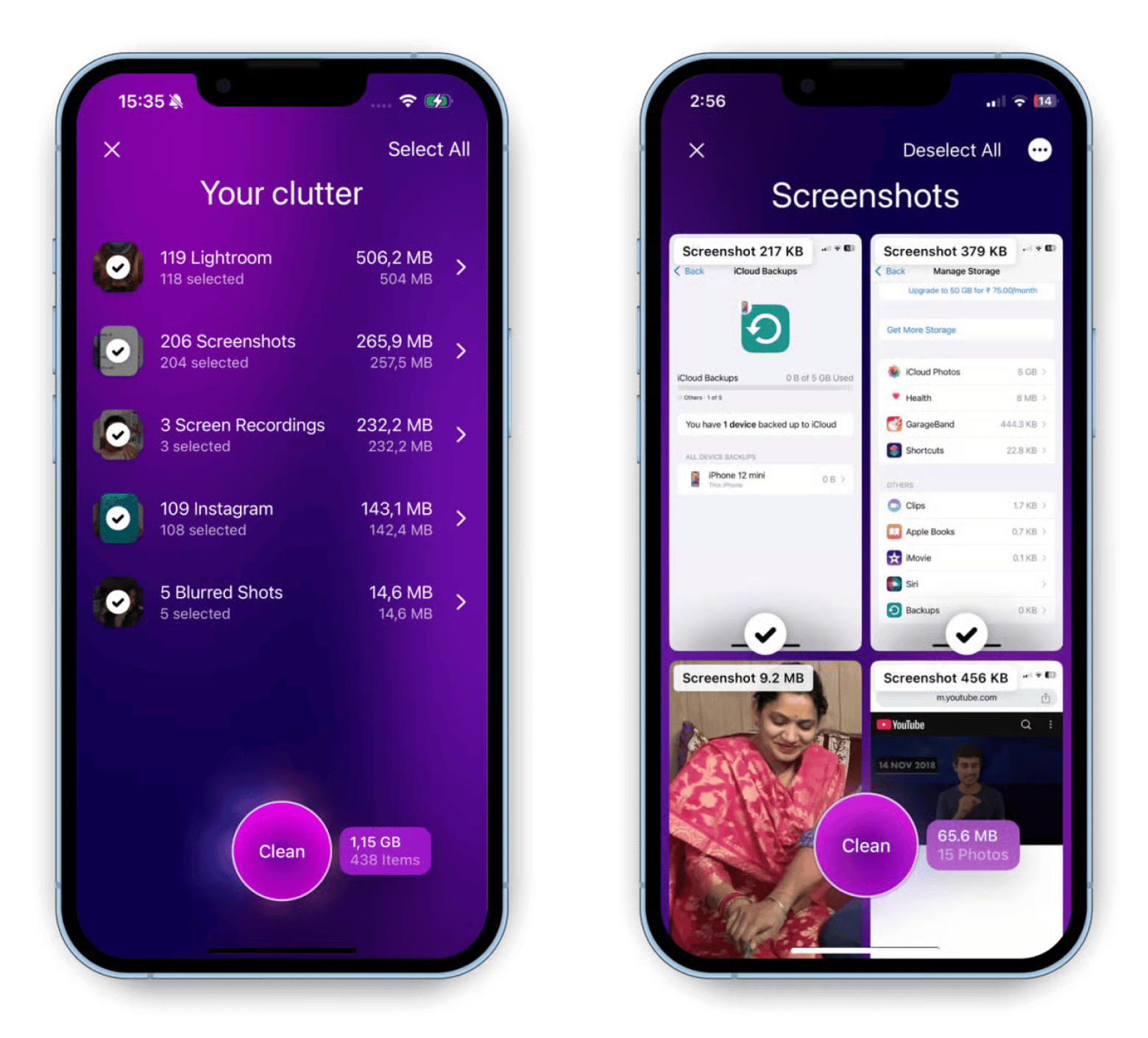
Cleaning out your iPhone is never a one-minute process, especially if you do it manually. The good thing is that you can automate the process if you install an app like CleanMy®Phone. The app identifies large or duplicate files that might be consuming space and clears them for you. Pair it with some of the manual cleanup methods above, and you'll free up storage much faster.
Applications vs. Other iPhone storage categories: What is the difference?
Unlike Applications, other iPhone storage categories (Photos, Messages, System Data, and iOS) each store a distinct type of data that requires a different approach to manage.
Not all iPhone storage is located in the Applications category. In fact, Apple separates your data into a few categories. Here's a brief overview of the difference between Applications and other iPhone storage categories:
Category
What It Contains
Applications
Installed apps plus their locally stored data, including caches, downloads, settings, and app-generated files.
Photos
Photos, videos, screenshots, and other media stored in the Photos library. These files are counted separately from Applications, even though you access them through the Photos app.
Messages
Text messages and their attachments, including photos, videos, GIFs, voice notes, and documents shared in conversations.
System Data
Temporary system files, caches, logs, Siri voices, software update files, and other data iOS creates behind the scenes.
iOS
The operating system itself and the files required for your iPhone to function properly.
For example, you may have 30 GB worth of Photos storage. Offloading a few apps won't free up much space. You'll need to remove your Photos and remove anything that you don't need, or transfer them to a hard disc and delete them from your phone. Similarly, Messages might hold years of video attachments. The approach for clearing these categories is different for each.
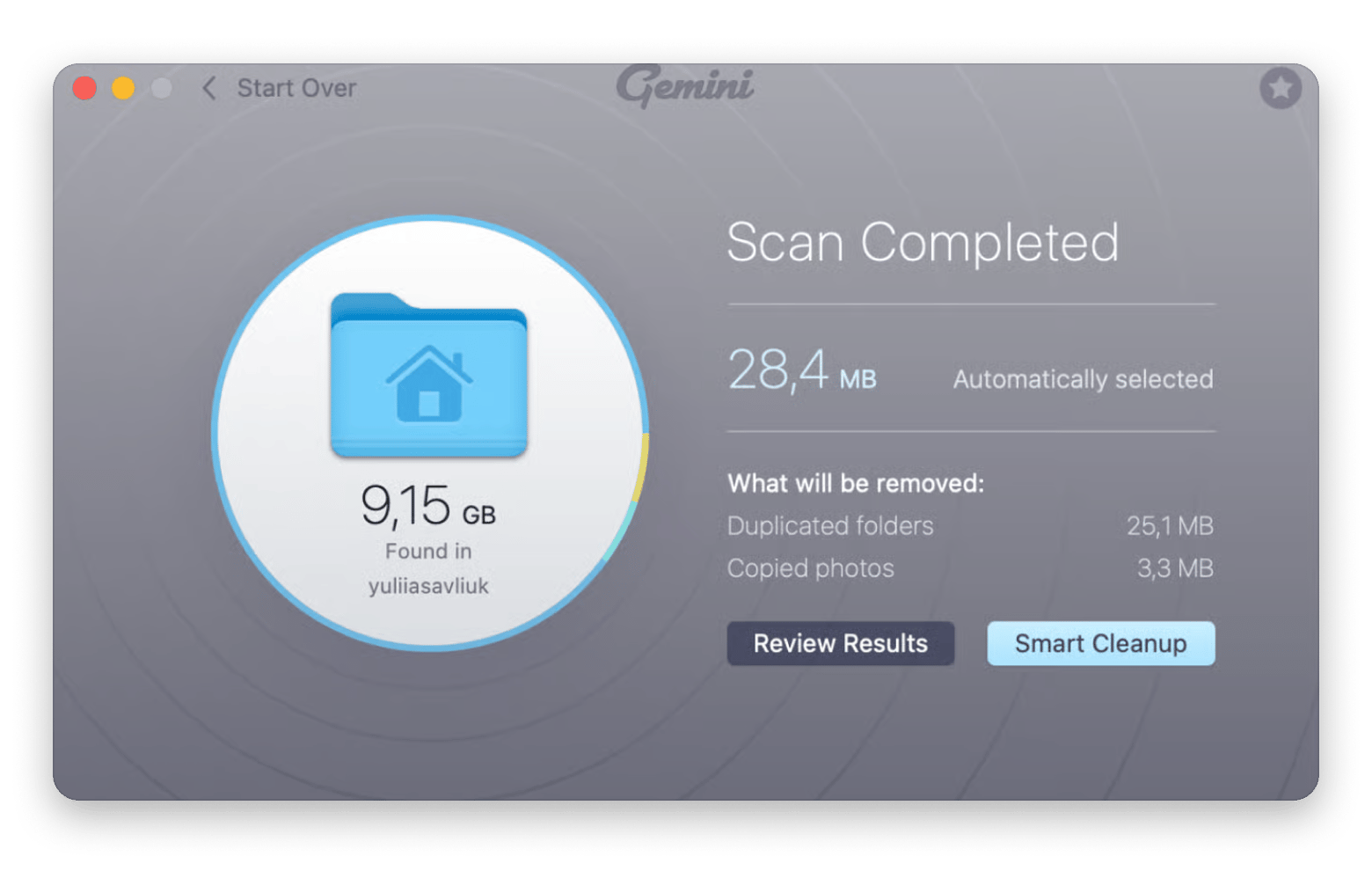
If you're also using a Mac, then you have two separate devices to organize and manage their storage. For your Mac, use an app like Gemini that scans for duplicate files on your Mac that may be taking up gigabytes of storage space. It's a handy app if you've been backing up photos and downloads for years without doing a cleanup.
What "Applications" means on iPhone storage, and how to keep it under control
The Applications category grows because every app you use leaves something behind — cached media and data you never asked it to store. Checking Settings > General > iPhone Storage regularly and doing a delete-and-reinstall on your heaviest apps is the most effective manual approach.
If you're also managing a Mac, CleanMyMac handles the same problem there (junk files, duplicate data, and old caches) in one scan. Gemini is worth running too if you've been backing up photos across devices for years.
Mac storage works the same way, but CleanMyMac finds what you can't see and clears it in one pass. Junk files, old caches, duplicate data — gone. Rated 97% by 17,000+ users. Free for 7 days on Setapp. Try CleanMyMac Free.
FAQ
Does offloading an app on iPhone reduce the Applications storage number?
Yes, but only partially. When you offload an app, iOS removes the app itself while keeping all of its documents, settings, and user data. This reduces the Applications storage number, but not by as much as many people expect. If the app has a large Documents and Data section, most of the storage usage will remain.
Why does the Applications storage on my iPhone keep growing even when I do not download new apps?
Apps constantly create new data while you use them. Social media apps cache photos and videos, streaming services store temporary media files, and many apps generate logs and background data. As a result, the Applications category can grow over time even if you never install another app or download anything manually.
What is the difference between App Size, Documents, and Data in iPhone storage?
App Size refers to the files required for the app to run, including its code and built-in resources. Documents and Data includes everything the app creates or stores after installation, such as downloads, cached files, saved settings, messages, and offline content. In many cases, Documents and Data become much larger than the app itself.
Can I see a breakdown of every file inside the Applications category on my iPhone?
Not completely. iOS lets you view storage usage on an app-by-app basis through Settings > General > iPhone Storage, but it doesn't provide a detailed list of every file stored inside the Applications category. To identify storage-heavy apps, you'll need to inspect them individually and review their storage breakdowns.
Will deleting an app permanently remove all its data from my iPhone storage?
In most cases, yes. Deleting an app removes the app itself along with its locally stored data, including cached files and downloaded content. However, some information may remain synced to iCloud or the app provider's servers. If you reinstall the app and sign in again, that cloud-stored data may reappear.
Powerful apps live on Setapp
Ditch defaults and discover new gems on one app platform.






 Best solution
 Best solution