Make a Canva wallpaper for Mac in five steps. Search for a desktop wallpaper template, set dimensions that match your Mac's screen, design it, download it as a PNG, and add it in System Settings.
Match the canvas to your screen. Canva's default desktop template is 1920×1080 px, which can look blurry on Retina displays. A 16-inch MacBook Pro needs 3456×2234 px.
Canva stops at the design. It can't schedule wallpaper changes or sync them with Focus modes, so every new design is another file to set by hand.
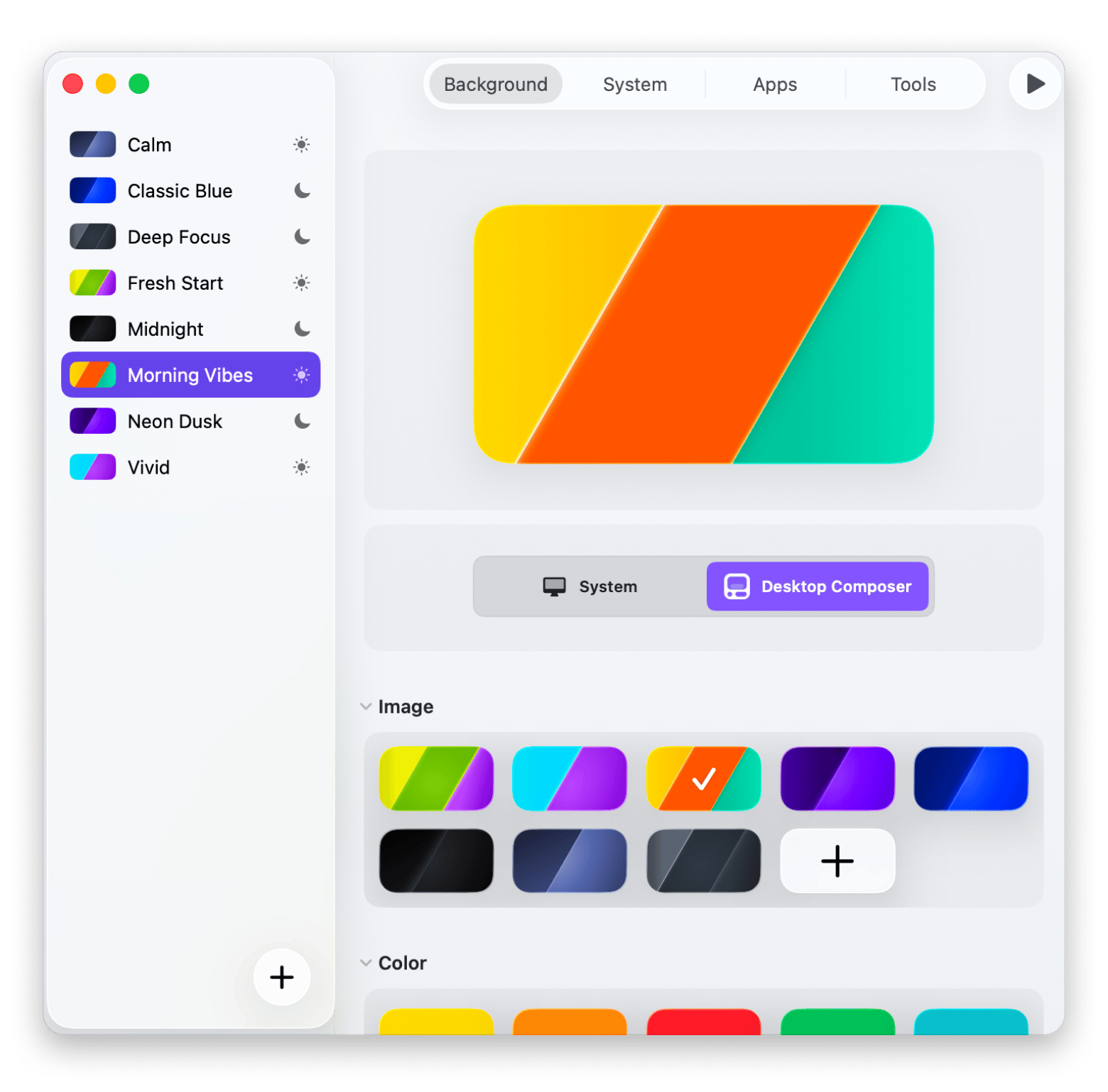
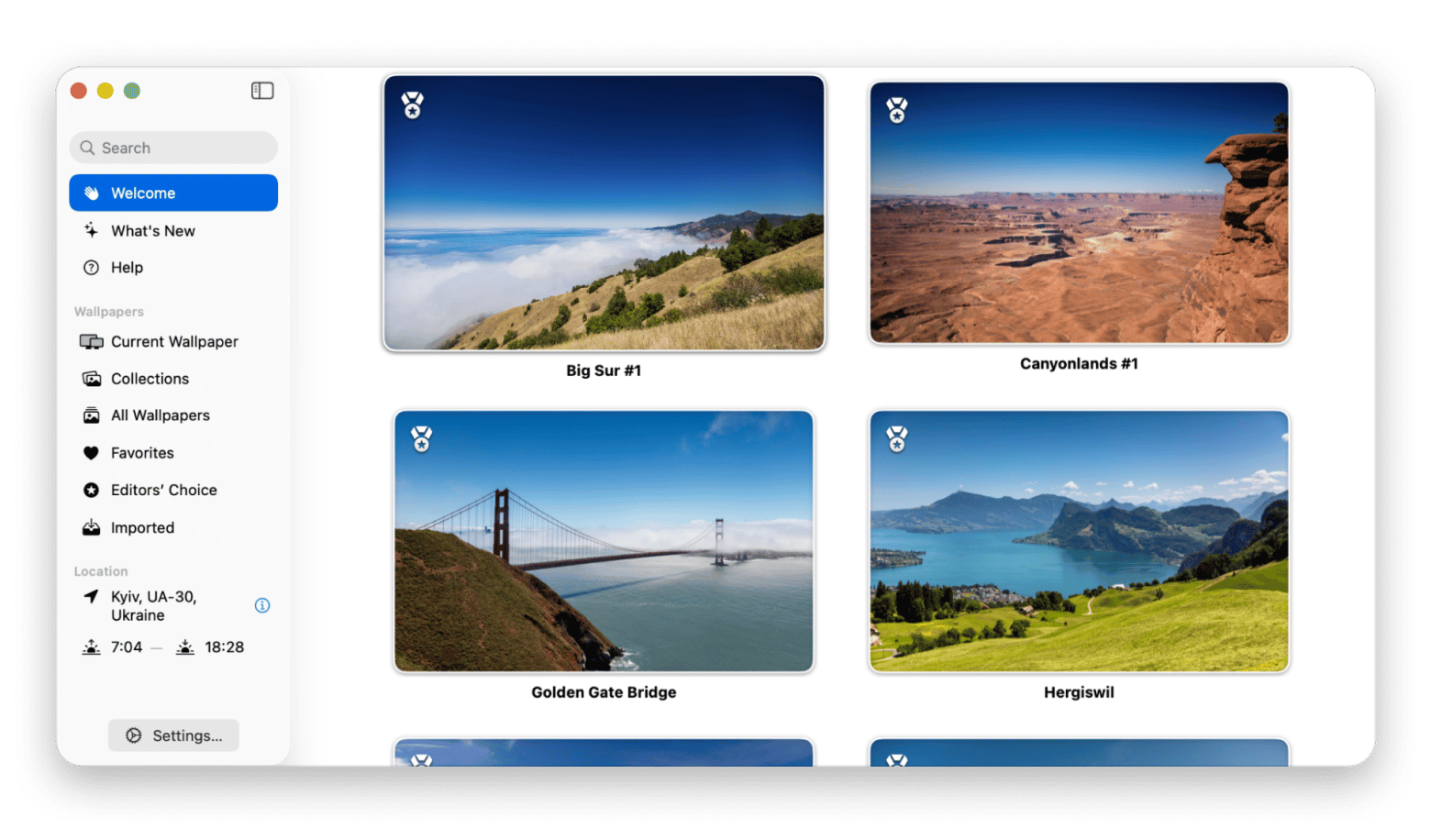
Two Setapp apps cover the rest.Desktop Composer switches wallpaper profiles on a schedule or with Focus modes, and 24 Hour Wallpaper changes scenes with the time of day and your location.
Try both apps with Setapp. Both are included in Setapp Membership along with 300+ other Mac apps. Start a free 7-day trial and cancel anytime.
Quick answer: Canva offers a wide range of ready-made desktop wallpaper templates, but if you need more than a static image, such as automatic wallpaper changes, time-based backgrounds, or other macOS-specific features, consider dedicated apps like 24 Hour Wallpaper and Desktop Composer.
I’m a visual person, so I like surrounding myself with things that inspire me. I make little collages of places I want to visit and experiences I dream about, then set them as my iPhone wallpaper. I love having those reminders with me every day.
Making a Canva wallpaper was a good starting point, but getting the right dimensions and making it work nicely with macOS was a different story.
So I tested a few ways to create and use a custom Mac wallpaper. Canva is still in the top three, but there are other tools you have to know about:
Canva lets you create a custom desktop wallpaper in a design editor that runs in your browser or the Canva desktop app. It offers several features for wallpapers:
Pre-made desktop wallpaper templates
Photos, graphics, and illustrations
Custom colors, fonts, and shapes
A blank canvas with custom dimensions
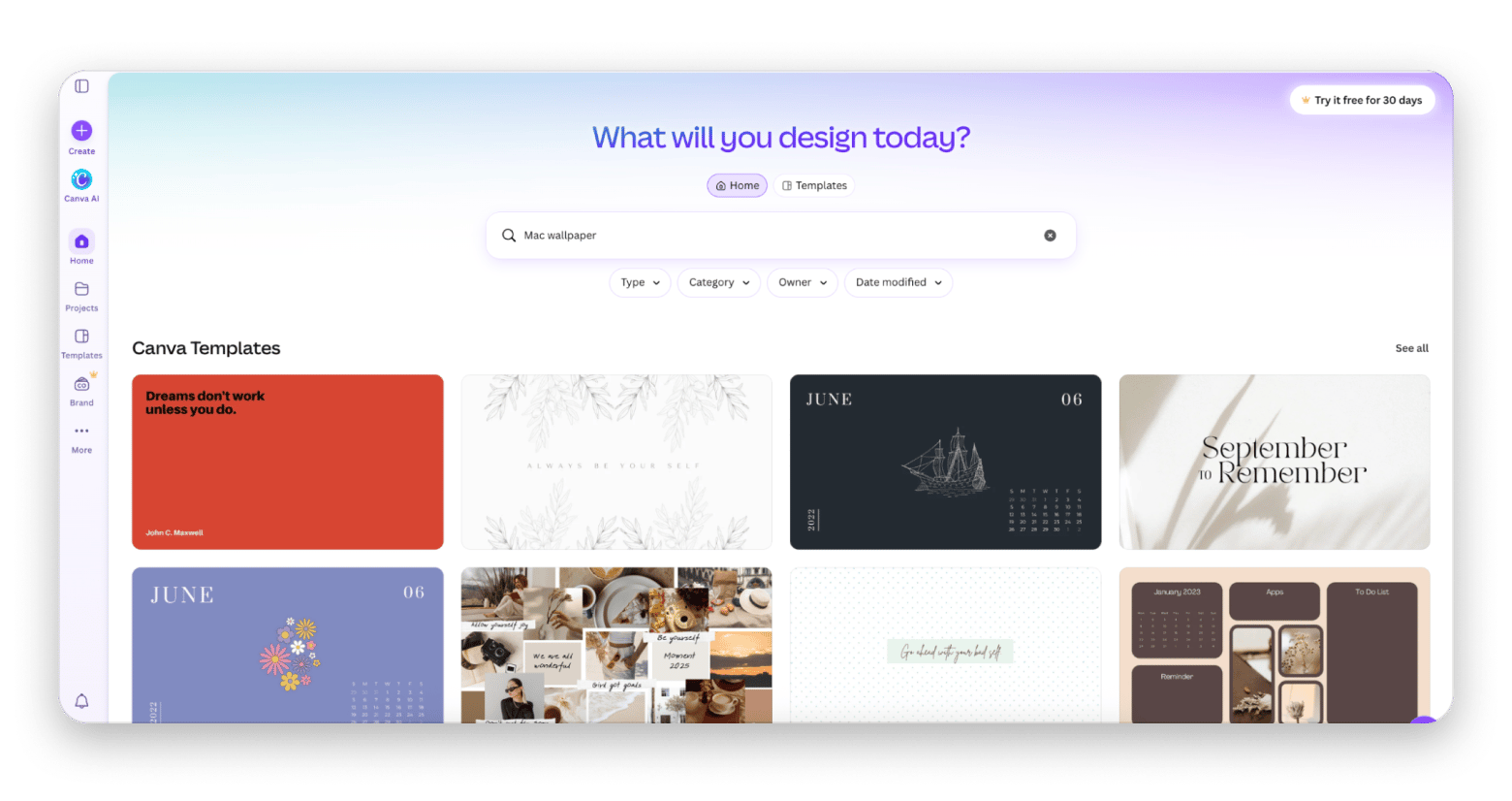
Canva's desktop wallpaper feature is essentially a browser-based design canvas. What I personally like here is the rich library of templates, from minimalist and aesthetic ones to colorful geometric-based collages.
How to create a custom Canva wallpaper step by step
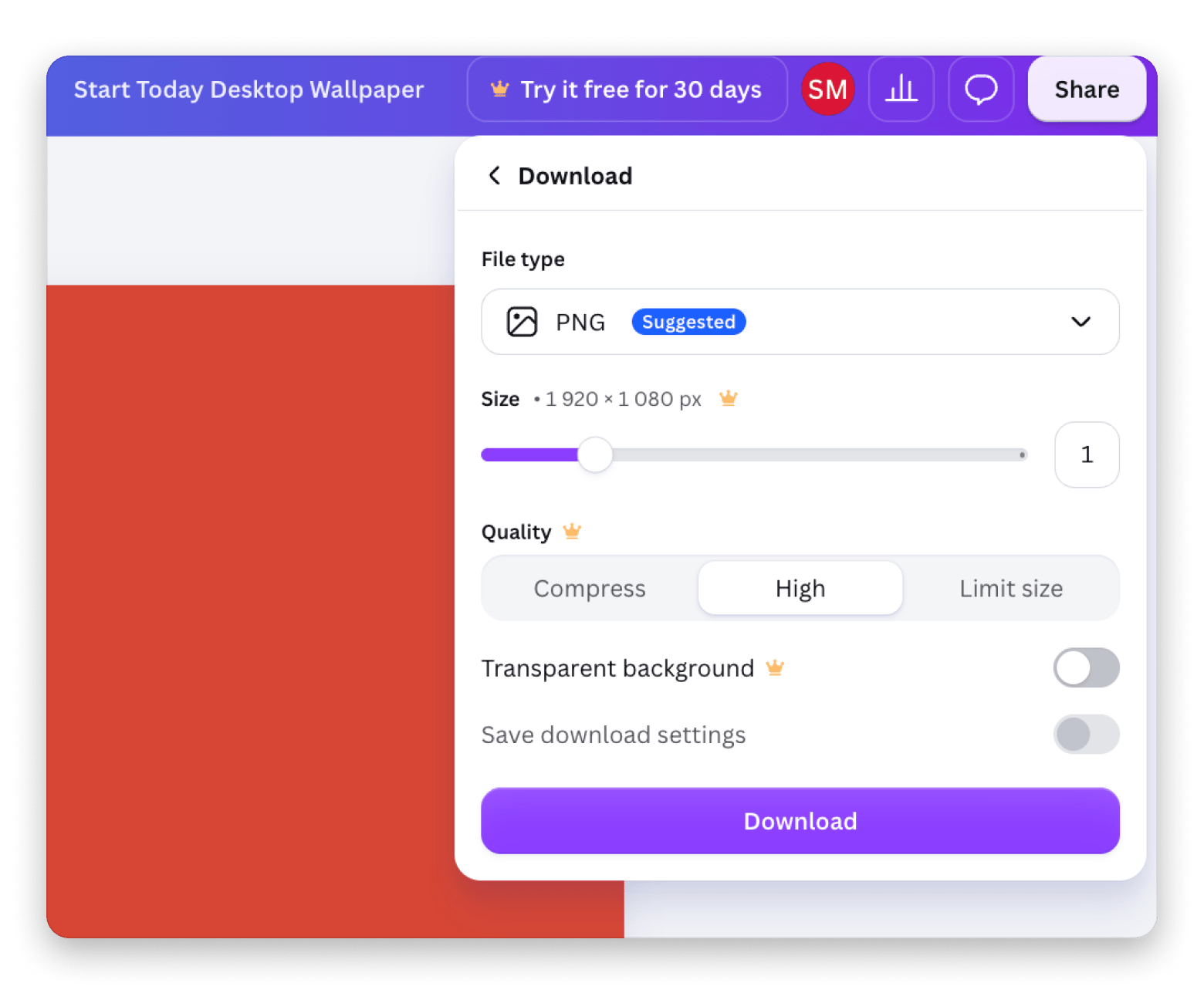
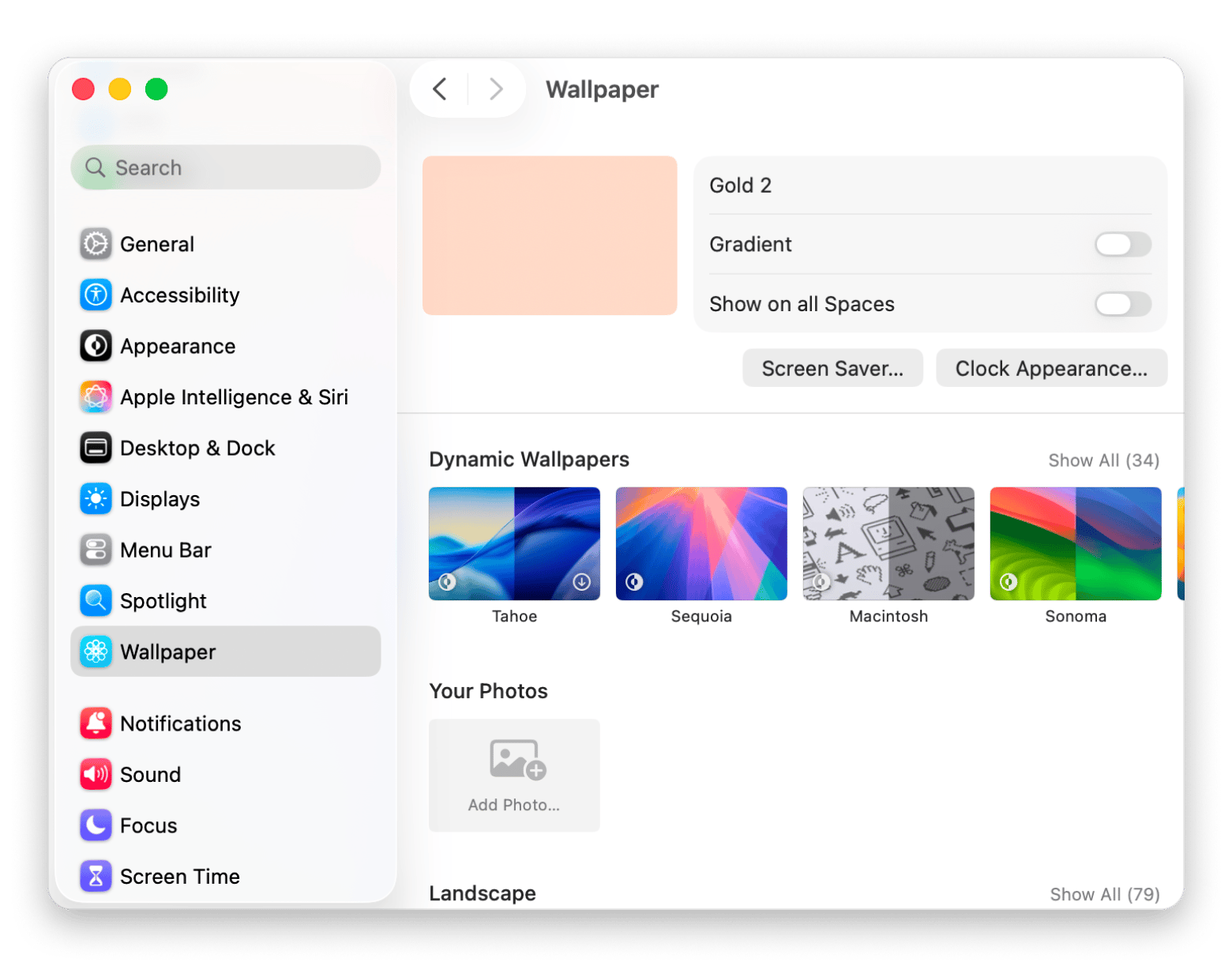
To make a Canva wallpaper for Mac, search for a desktop wallpaper template in Canva, set the canvas to your Mac's screen resolution, design it, download it as a PNG, and add it in System Settings > Wallpaper.
In the Canva search bar, type “desktop wallpaper”, “custom wallpaper”, “Mac wallpaper”, etc.
Choose a template you like.
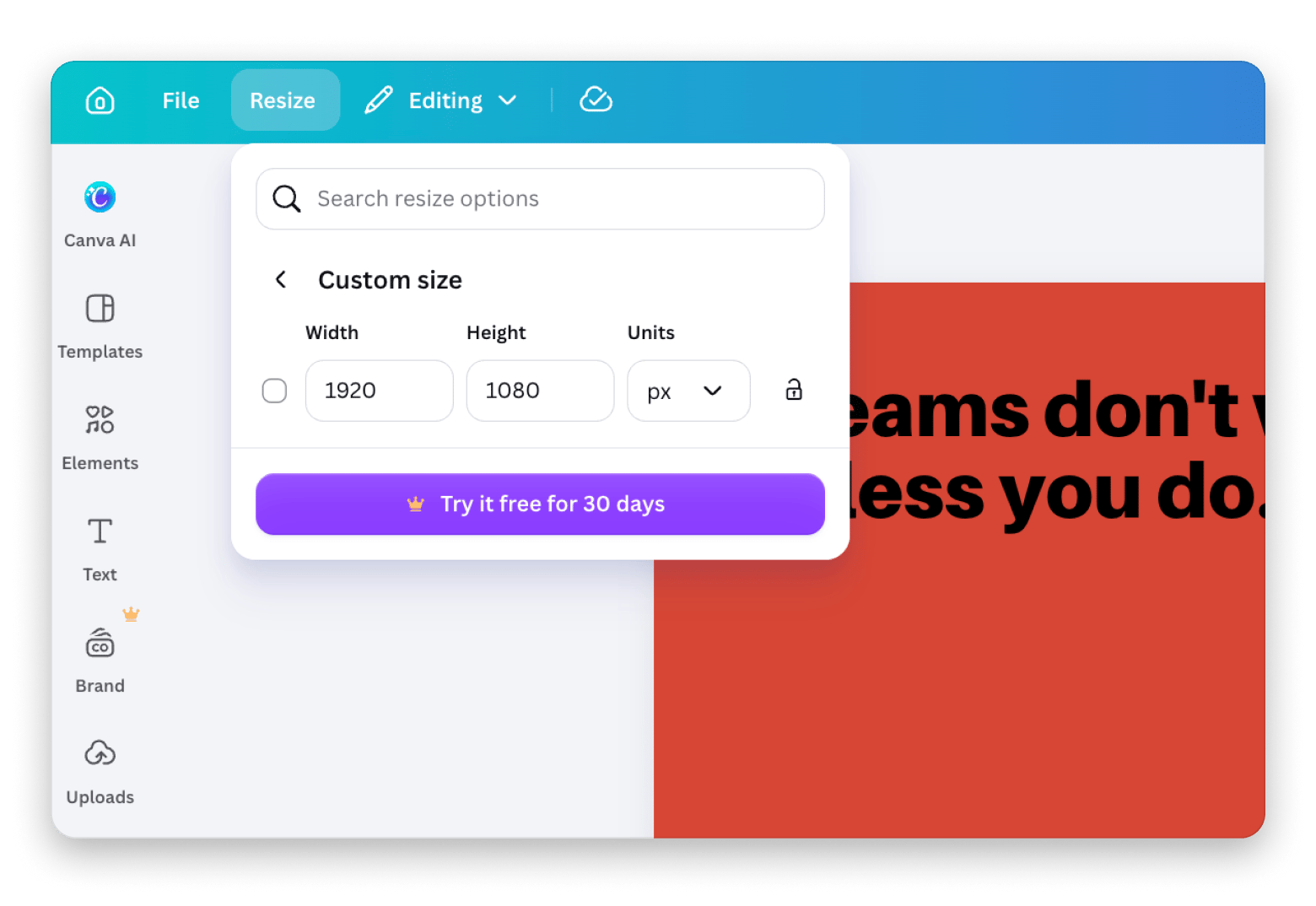
Set the correct wallpaper dimensions
Manually resize the template based on your Mac model, for example:
13-inch MacBook Air: 2560 × 1664 px
16-inch MacBook Pro: 3456 × 2234 px
Note: You can only resize ready templates if you are a Canva Pro user. They provide a 30-day trial, so you can use it to design a few wallpapers. Otherwise, you can create a blank canvas with your desired wallpaper dimensions.
What are the limitations of Canva for Mac wallpapers?
Canva worked well enough for making my first wallpaper.
But Canva is a graphic design tool, nothing more. And there are many aspects it falls short on when it comes to wallpaper management:
No macOS integration. Canva wallpaper doesn’t access your Mac settings. You can’t schedule wallpaper changes, create different wallpaper profiles, or sync wallpapers with Focus modes. You have to export the image and set it manually every time. Annoying? Absolutely.
Resolutions can be confusing. Canva’s standard desktop wallpaper template is 1920×1080 px, which doesn’t match the resolution of many Retina Mac displays. If you simply use the default template, you might not notice the problem until you see the finished wallpaper looking a little blurry on your screen.
No dynamic wallpapers. Canva wallpaper templates are static. If you want a wallpaper that changes depending on the time of day or switches between different images automatically, Canva can’t do that for you.
You need to open Canva every time. Want to make a new Mac wallpaper? Open Canva in your browser or the desktop app, sign in, create or edit the design, and export it again.
The files start piling up. If you are like me and love changing your wallpaper to match your mood, the weather, or upcoming events, you’ll run into a problem very quickly: every new wallpaper is another image downloaded to your Mac. Your Downloads folder can turn into a small collection of wallpapers you probably forgot you even made.
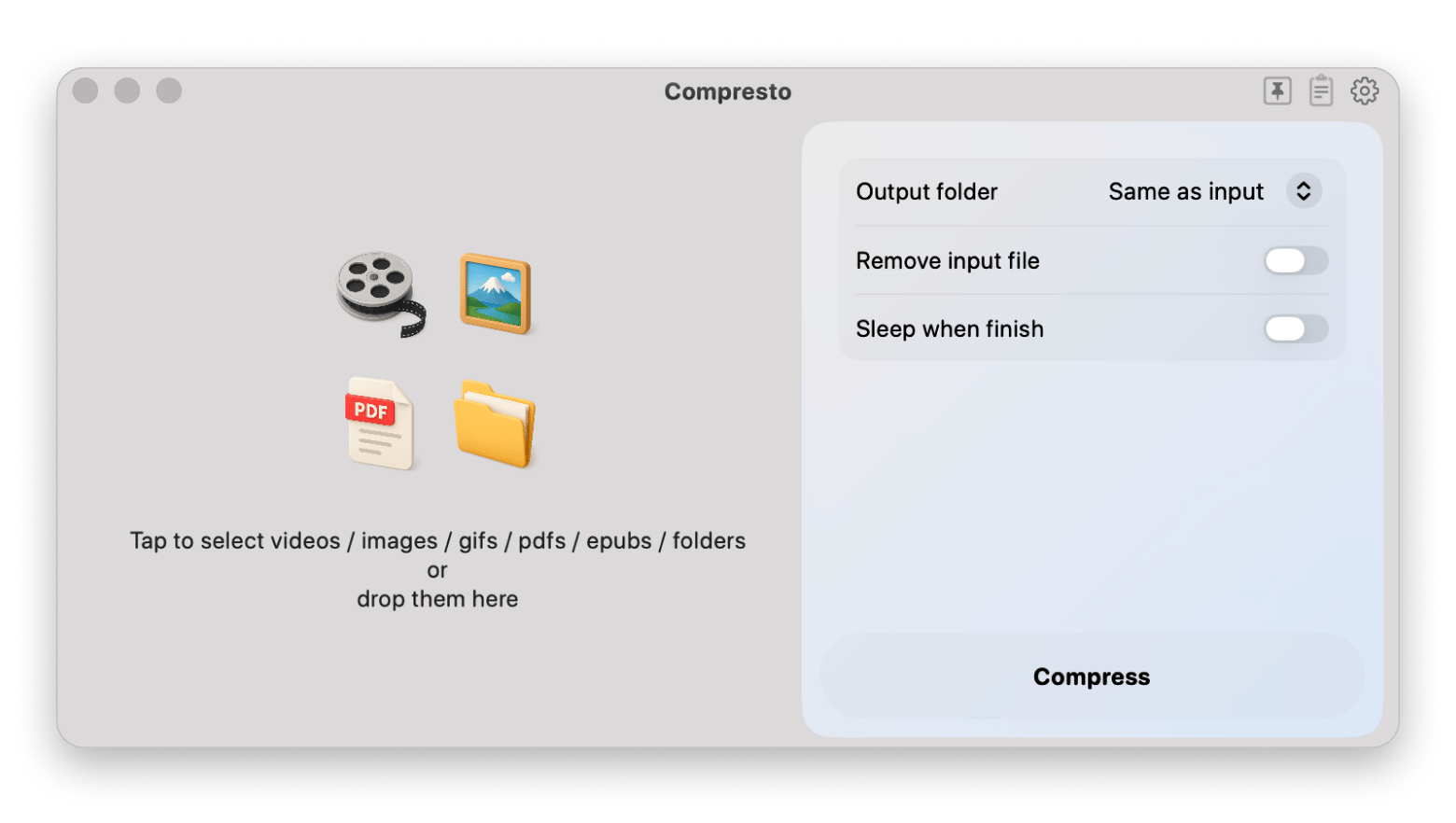
The last one is easy enough to deal with without deleting anything. If you’ve already accumulated a bunch of Canva wallpapers, Compresto from Setapp can batch-compress your images to reduce the space they take up while keeping the original files on your Mac. I thought this would be my go-to tool if I didn’t find a Canva alternative. But I did find other options.
Which Mac apps handle wallpapers better than Canva?
So Canva is a good choice to create a moodboard and set it as your wallpaper for a while. But if you want more flexibility, check out two Setapp apps: Desktop Composer and 24 Hour Wallpaper.
How to switch Mac wallpapers by Focus mode or schedule
First, I tested Desktop Composer from Setapp — it's a Mac customization app that lets you create different desktop profile looks, including wallpapers, Dock layouts, app themes, and folder colors, etc., and switch between them, either manually or on a schedule.
It can also connect profiles to Focus modes. When you start a deep work session, your wallpaper and the rest of your desktop environment can shift with it. So I can design multiple Canva wallpapers, and with Desktop Composer I tie those designs to my Mac’s Focus mode or the time of day.
This is what I was looking for to have my moodboards in front of me when it is appropriate. I didn’t want to accidentally share it during a team meeting.
Note: Desktop Composer needs macOS 26 or later (check where your Mac stands in the list of all macOS versions)
How to get a wallpaper that changes throughout the day
24 Hour Wallpaper is not a classic wallpaper creator. It promises you a beautiful desktop without designing or managing wallpaper files. It offers more than 100 high-quality nature and city wallpapers in 5K resolution, and updates them automatically based on the time of day and your location. The scene can shift from sunrise to daylight to sunset without you switching images by hand.
For time-based changes, keep the app running, or turn on Apple Dynamic Desktop mode in its preferences and quit it.
The wallpapers support Retina displays. And it doesn’t require you to know the exact resolution of your Mac model, as the app adjusts wallpapers to your screen automatically. Keep in mind that the downloaded scenes are stored locally. But the tool allows you to download images in lower resolution if you care about your disk space.
So what is my conclusion? I am not going to give up on Canva entirely, even after finding alternatives:
Canva is a good choice when you want a macOS wallpaper with a personal touch, like a motivational quote, your name, or a color palette that matches your brand.
It’s also handy if you’re already building a presentation or brand identity in Canva and want your desktop background image to match. You can share the design with a team or client for feedback, too.
For one-off designs, Canva wallpaper is a reasonable free option. Its default desktop template may not match your Mac’s screen resolution, but you can set the canvas dimensions manually.
I’ll still make wallpaper in Canva with my own images, colors, and quotes. Since I’m already comfortable with this graphic design tool, it’s the quickest way for me to create custom moodboards. But I’m glad I don’t have to manage each wallpaper manually: I can add them to Desktop Composer, organize them into profiles, and schedule when to switch between them. 24 Hour Wallpaper is also an interesting option I am going to use from time to time. Especially since both apps are part of my Setapp subscription.
You can also try advanced wallpaper management and 300+ other Mac-specific features with a free 7-day Setapp access. You can cancel anytime if you want to.
FAQ
What size should a Canva wallpaper be for a Mac with a Retina display?
The pixel resolution for Canva wallpaper varies by Mac model. For example, recent 14-inch MacBook Pro models have a native resolution of 3024×1964 pixels, while 16-inch models use 3456×2234 pixels. Check your model’s specs and create a custom-size canvas to match. If you'd rather skip the math, 24 Hour Wallpaper from Setapp fits its wallpapers to your screen automatically
Can you set a Canva wallpaper directly from the browser without downloading it?
No. To set a Canva wallpaper directly, you have to download the design as a PNG or JPG, then select it in your Mac’s Wallpaper settings.
How do you make a Canva wallpaper without a template — starting from a blank canvas?
To make a Canva wallpaper without a template, start a new design and select custom dimensions. Then add your own images, text, and colors to the blank canvas. Canva supports creating wallpapers from scratch as well as from templates.
Is there a way to have my Mac wallpaper change automatically based on time of day?
Yes. For your own Canva designs, Desktop Composer can organize wallpapers into profiles and switch between them on a schedule or when your Focus mode changes. If you want scenery that shifts from sunrise to sunset without designing anything, 24 Hour Wallpaper does that automatically.
What is the best free alternative to Canva for making a custom Mac desktop wallpaper?
For a simple design, try Keynote, Apple’s presentation app. You can set a custom slide size, arrange images and text on a blank slide, then export it as an image. Canva may still be easier if you want lots of templates and design elements.






 Best solution
 Best solution