- Write essays with AI by keeping the ideas yours.
Draft the thesis and first version yourself, then use AI to outline, question, and edit.
- Start with your thesis.
Put one direct sentence and your raw notes in Ulysses or Craft before you open any AI tool.
- Let AI challenge you.
Ask TypingMind or Elephas for the strongest counterarguments and gaps in your outline.
- Teach your editor your voice.
Train Elephas on past essays, clean the result with TextSoap, and check every citation by hand.
- Try the whole toolkit with Setapp.
These apps and MonsterWriter are all in Setapp Membership, free for 7 days.
To write an essay with AI on Mac, draft your thesis and notes yourself in Ulysses or Craft, then use an AI chat app like TypingMind to outline the essay and challenge your arguments. Write the first draft on your own, and bring in an AI editor like Elephas trained on your past writing. Finish by reading the essay aloud and checking every citation by hand.
This will save you hours of work, and your text will only have your own ideas.
Next, I’ll show you in detail how to write essays with AI on Mac.
App | Essay step | Best for | Platforms | AI credits needed |
Craft | 1. Thesis and notes | Notes and structured ideas | Mac, iOS, Web | Yes |
Ulysses | 1, 3. Notes and first draft | Distraction-free long drafts | Mac, iOS | No |
TypingMind | 2. Outline and questions | Outlines and counterarguments | Mac, Web | Yes |
Elephas | 2, 4. Outline check, editing | Source research, voice edits | Mac, iOS | Yes |
MonsterWriter | 3. First draft | Footnotes and citations | Mac | No |
TextSoap | 4. Formatting cleanup | Cleaning formatting and spaces | Mac | No |
Eney | 1, 2. Notes and research | Gathering notes and handling routine busywork | Mac, iOS | Yes |
Why do AI essays sound like AI?
AI-generated writing often sounds robotic because it relies on patterns and formatting conventions learned from large amounts of existing text. It predicts what words are most likely to come next, which can produce writing that feels mechanical, predictable, and impersonal:
- One of the first clues: punctuation. AI-generated text often overuses colons, em dashes, and other formal punctuation that may feel unnatural in everyday writing.
- The vocabulary can also give it away. AI tends to rely on abstract phrases, inflated wording, and metaphors that sound impressive but do not add much meaning. These expressions may look polished, yet they often feel unlike something a person would actually say.
- The structure is another giveaway. AI-generated writing is often too neat and repetitive: sentences and paragraphs tend to be similar in length, ideas are frequently grouped in threes, and transitions follow predictable patterns.
- Tone is perhaps the biggest issue. AI usually avoids taking a clear position or making a strong argument. The result is clean but generic writing that lacks personality, risk, and a genuine point of view. To make the text feel human, add specific opinions, varied sentence structures, concrete examples, and phrasing that reflects how people actually speak.
Step 1: Start with your own thesis and notes
You need to lock in your main argument and raw thoughts before you let any software touch your topic.
If you start with an empty page and ask a bot for ideas, you lose control over your text. It picks a generic angle, and then you are stuck defending thoughts you do not care about.
Take five minutes first. Write one direct sentence of your personal opinion. Right below it, put all of your messy notes, article quotes, and bullet points.
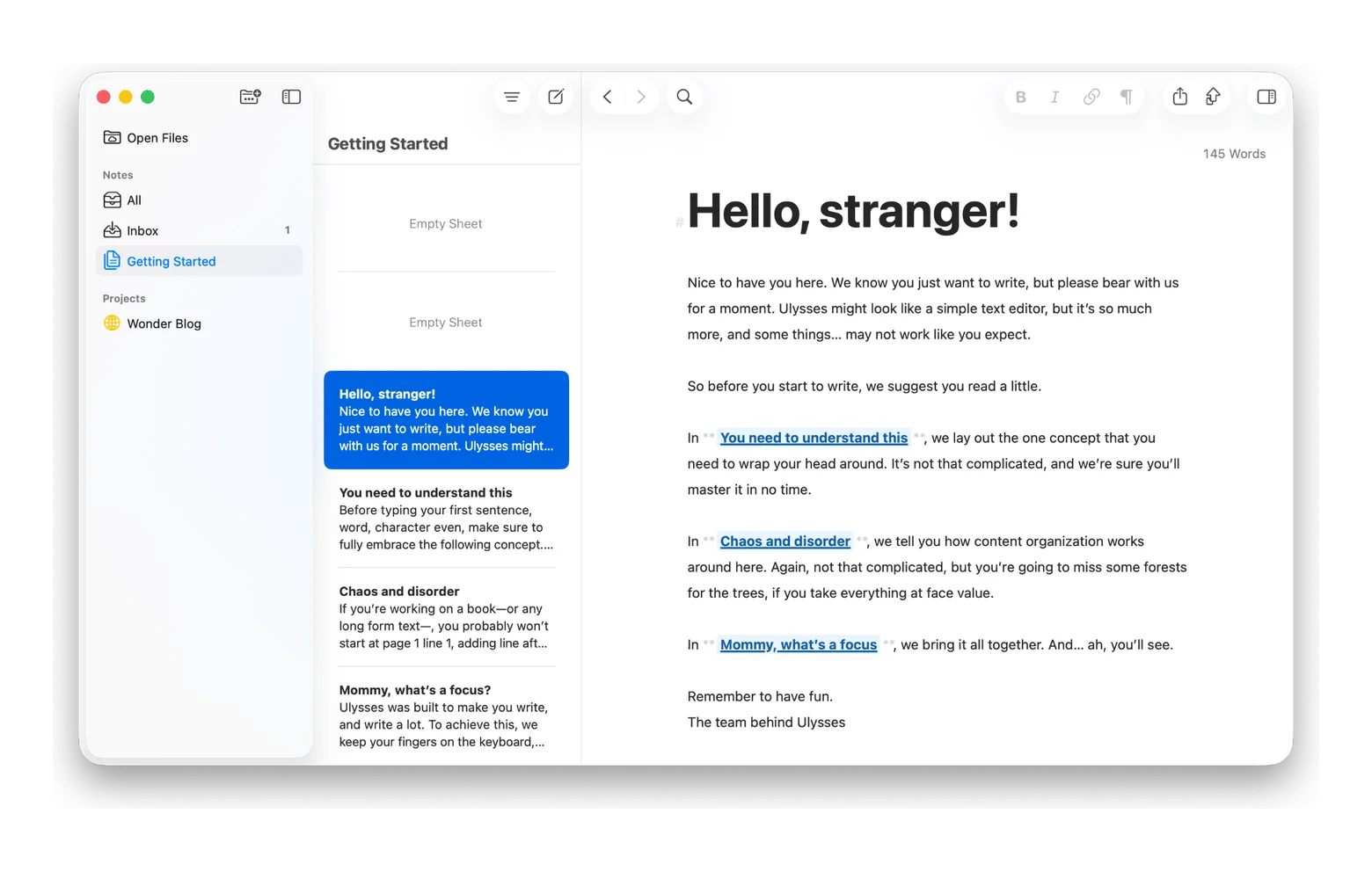
Drafting in Ulysses and collecting notes in Craft
I often draft in Ulysses because the screen is clutter-free. I can type everything on the screen as if it were a blank sheet of paper. I don't care about fonts and layouts and just try to focus on the writing.
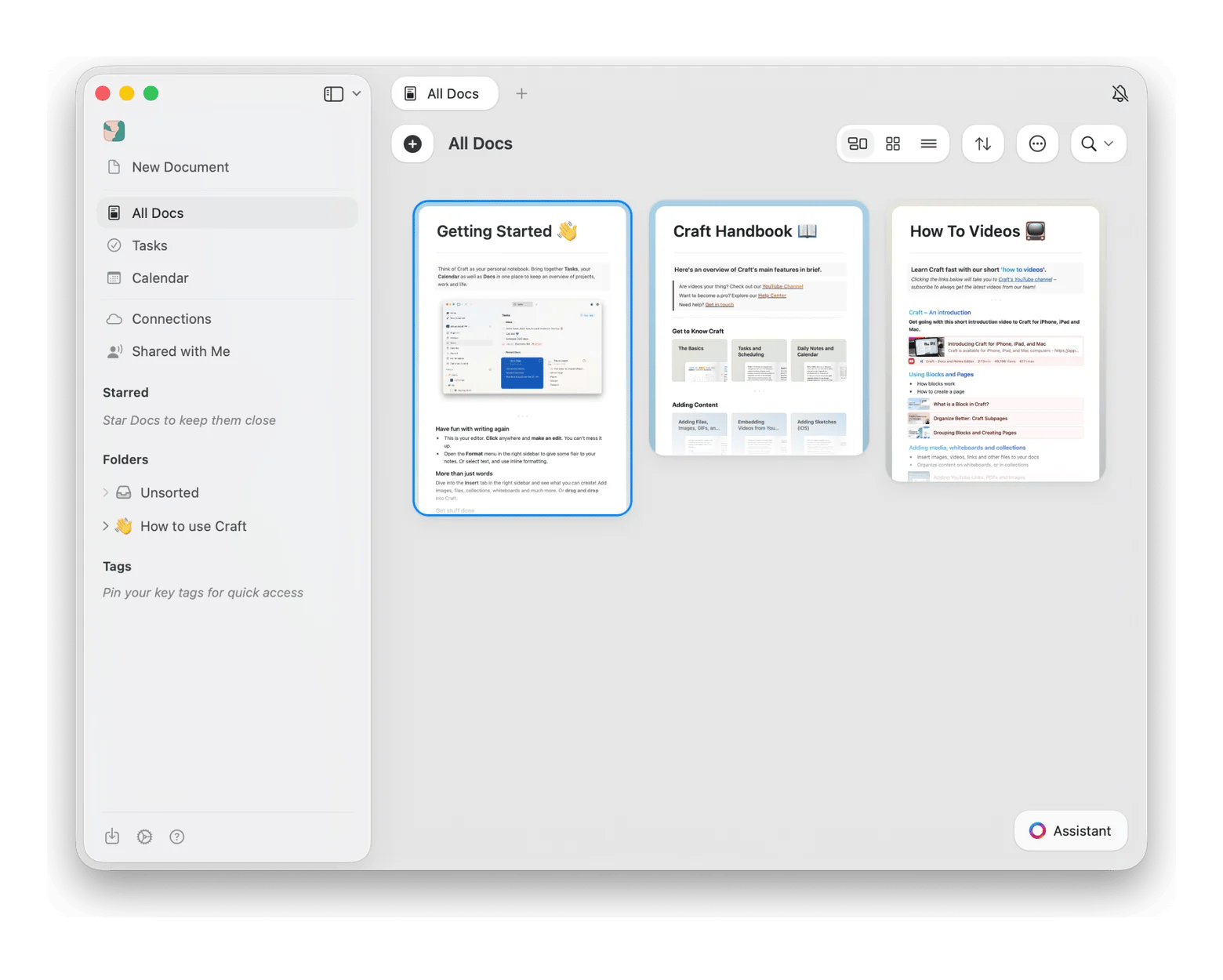
If I gather too many links and PDF excerpts, I drop them into Craft. It stores the raw text, sources, and quick notes in one document, and I can see all my material.
The big challenge here is self-control. Craft has a built-in AI button right inside the editor, and it is very tempting to click it when you feel stuck. Do not do it. The software cannot tell you what you think, and using it at this stage just gives you boring ideas you will regret later. Write your messy notes yourself, and only move on when your own point is clear.
Step 2: Use AI for essay outlines and questions, not the draft
Now is the time to open an AI writing assistant for Mac and use it to find the weak parts in your draft.
Never ask it to draft a paragraph. Instead, paste your thoughts and notes, then ask it to group them into sections. It's even better to ask where your argument falls apart. Tell it to think about your points carefully and make a list of the strongest arguments against them.
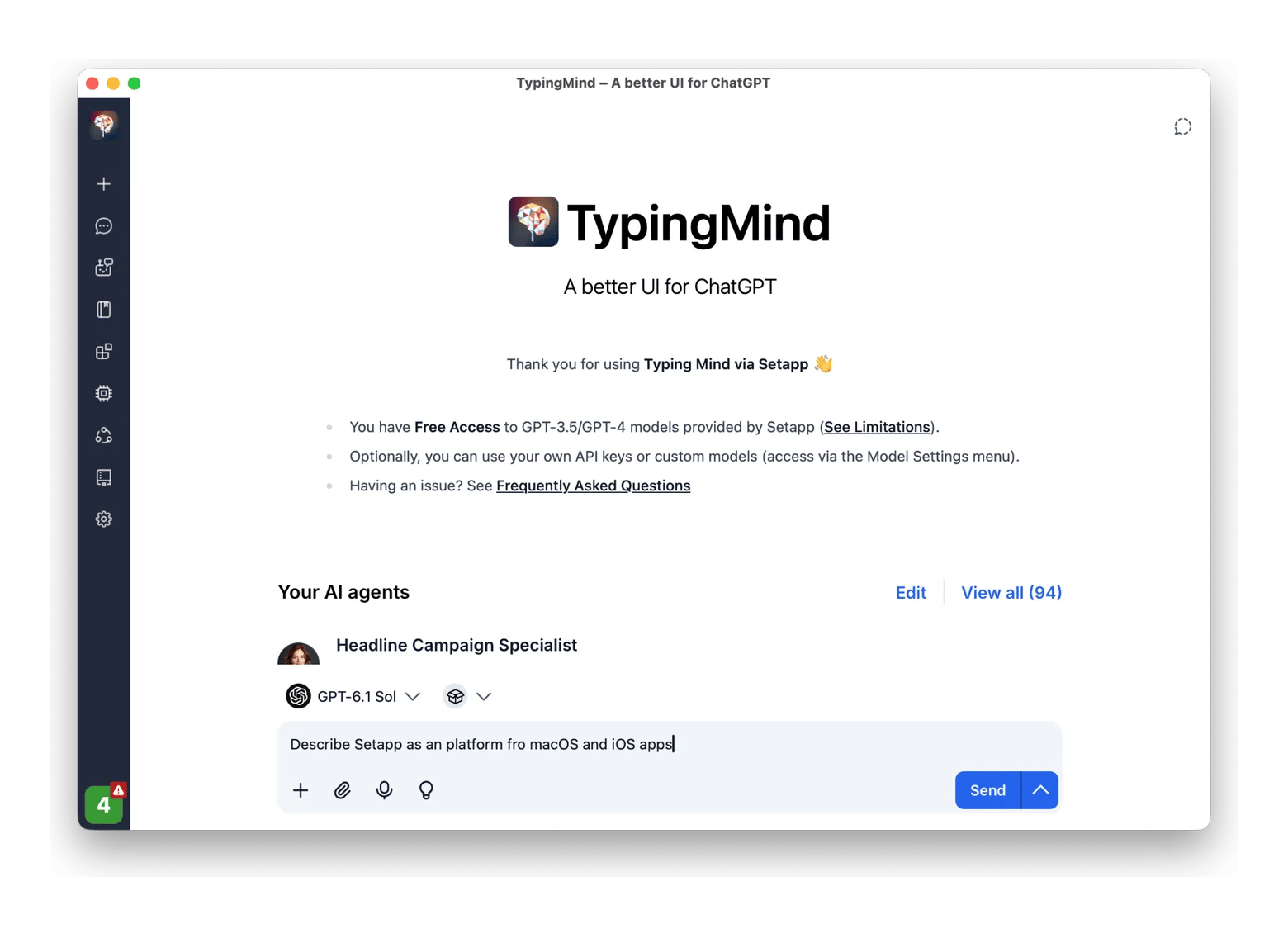
I usually open TypingMind for this step. It lets me pick between different models in one window and adjust settings like response style or chat context. I paste my notes and ask the chat for five tough questions my paper must answer.
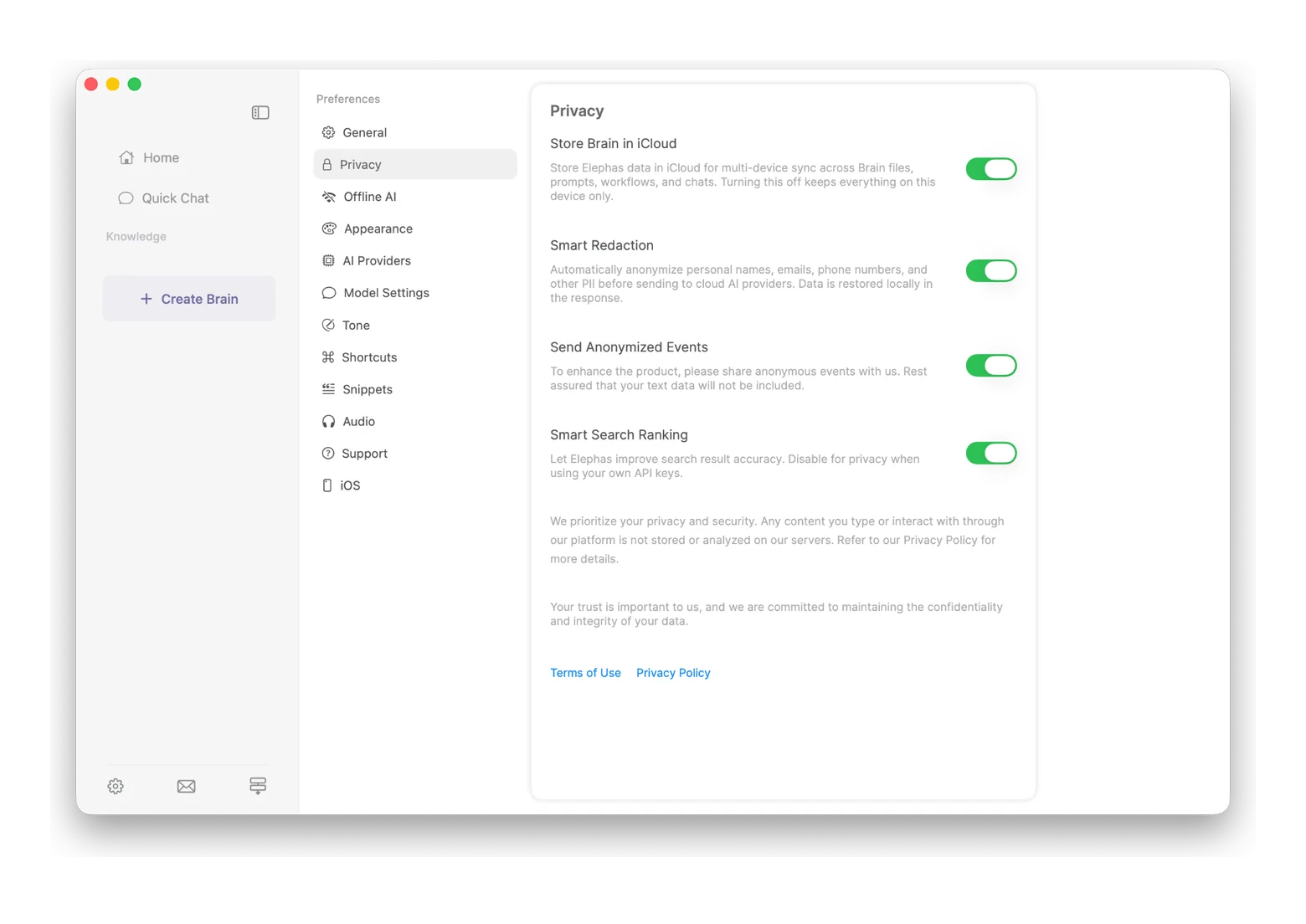
If my research lives inside heavy PDF studies or messy lecture downloads, I use Elephas. With this app, you can quickly check if your outline covers every key fact in your source documents. Even more important for some, it reads files directly on your Mac and nothing gets uploaded online.
If the material is scattered across your email, files, and notes rather than in one folder, a proactive assistant like Eney can pull it together and summarize long PDFs so you have a tidy pile to outline from. Keep it to gathering and summarizing here, not drafting, and remember Eney works through the cloud, so keep sensitive source files in a local tool like Elephas. Eney needs macOS 15 or later and an M-series chip.
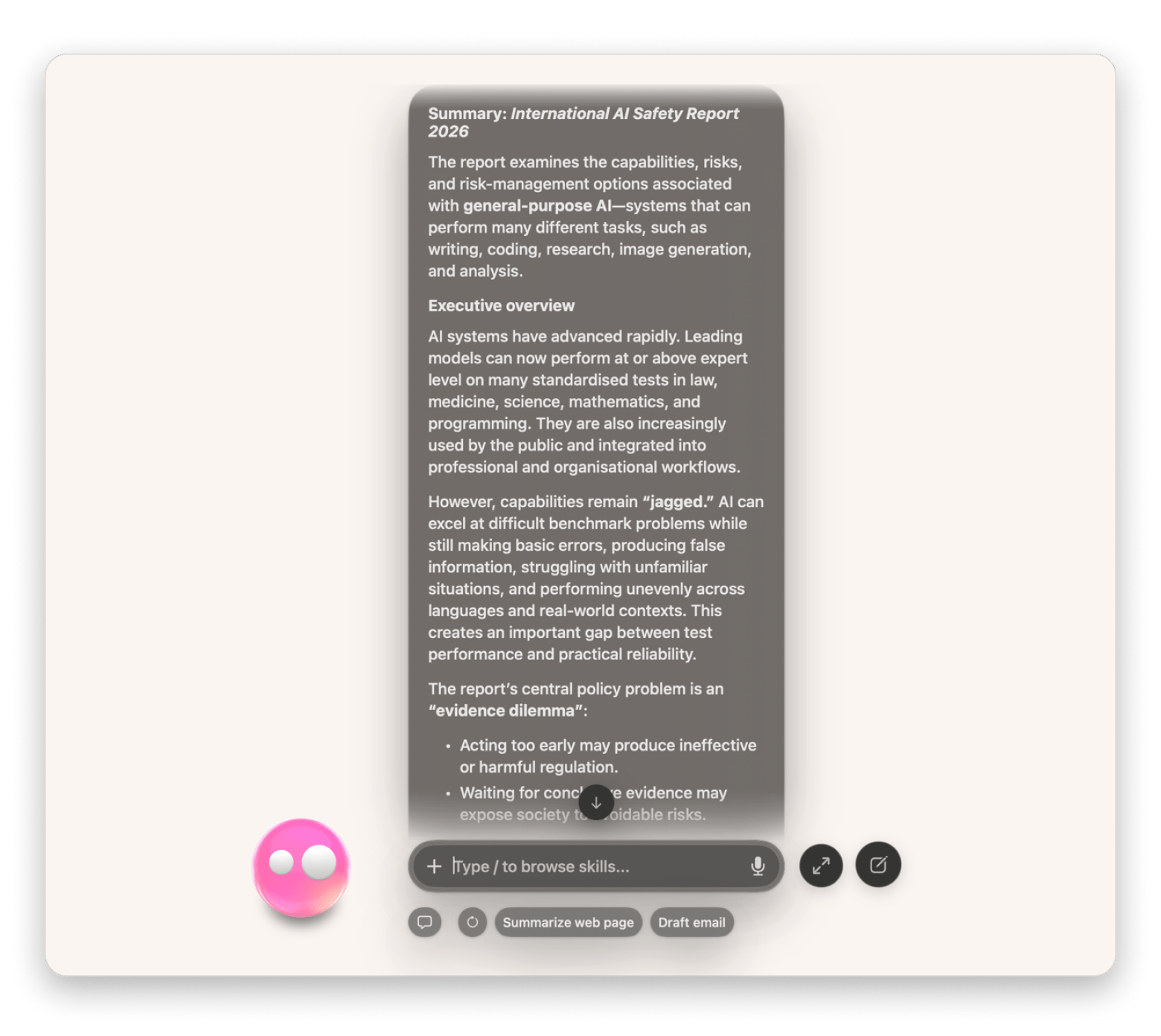
Never simply take an AI outline without making changes. The models’ regular patterns, such as always having three bullet points at a time, are really not reader-friendly. The recommended structure can be a starting point for your draft, but it shouldn’t be the foundation. It will help to delete weaker points and rearrange the mind flow to match your argument, as well.
Step 3: Write the first draft yourself in a focused app
Don’t let AI get into your creative phase. Write the whole first draft by yourself.
You can even try to ignore the little things like typos if your focus is mainly on getting ideas across. And if, for some reason, the phrase you want to use keeps being elusive, just leave a space. You can use MonsterWriter for that, especially if you have to include formal academic parts like footnotes, citations, and numbered sections. You can format references and move around chapters straight from your keyboard, even in long academic drafts with many sources.
I am fond of drafting my ideas in Ulysses. My favorite is to work while being away from side panel distractions and spam text on my iPhone or Mac, so that I get my brain engaged only with the text. Ulysses doesn’t offer red grammar check lines nor popups of suggested changes. I simply set up the word count target and write down my thoughts without revising even a single sentence until the entire draft is ready.
The hardest thing is not fact-checking as you write. It's like when you can’t remember an article's author or its year of publication, but in that case, you shouldn’t go to your browser to look it up, because that will break your concentration. Instead, you can quickly take a note to remind yourself of it and do the fact-checking after you've finished writing the last paragraph.
Step 4: Use AI as an editor and teach it your voice
Now feel free to use an AI editor to edit your complete first draft.
Upload a few examples of your papers onto the AI program. Make the tool match your average sentence length and everyday vocabulary. Elephas has this very convenient feature that lets you upload your previous work to build a custom writing profile. Moreover, Elephas has an option that lets you highlight an unpolished sentence in any app, and then Elephas will correct the grammar using your natural voice. The result will be that your text will not sound too stiff or corporate.
Now, get rid of the hidden formatting errors in the text. For example, by putting the text into TextSoap, you’ll see all the symbols (the hidden characters). As one copies text between note-taking apps and web browsers, often the resulting text has paragraph breaks with double spaces, broken line breaks, and mismatched quotation marks. These types of errors can be automatically fixed via TextSoap. You are even able to setup search rules, for instance, deleting repeated words or removing unnecessary punctuation you use too often.
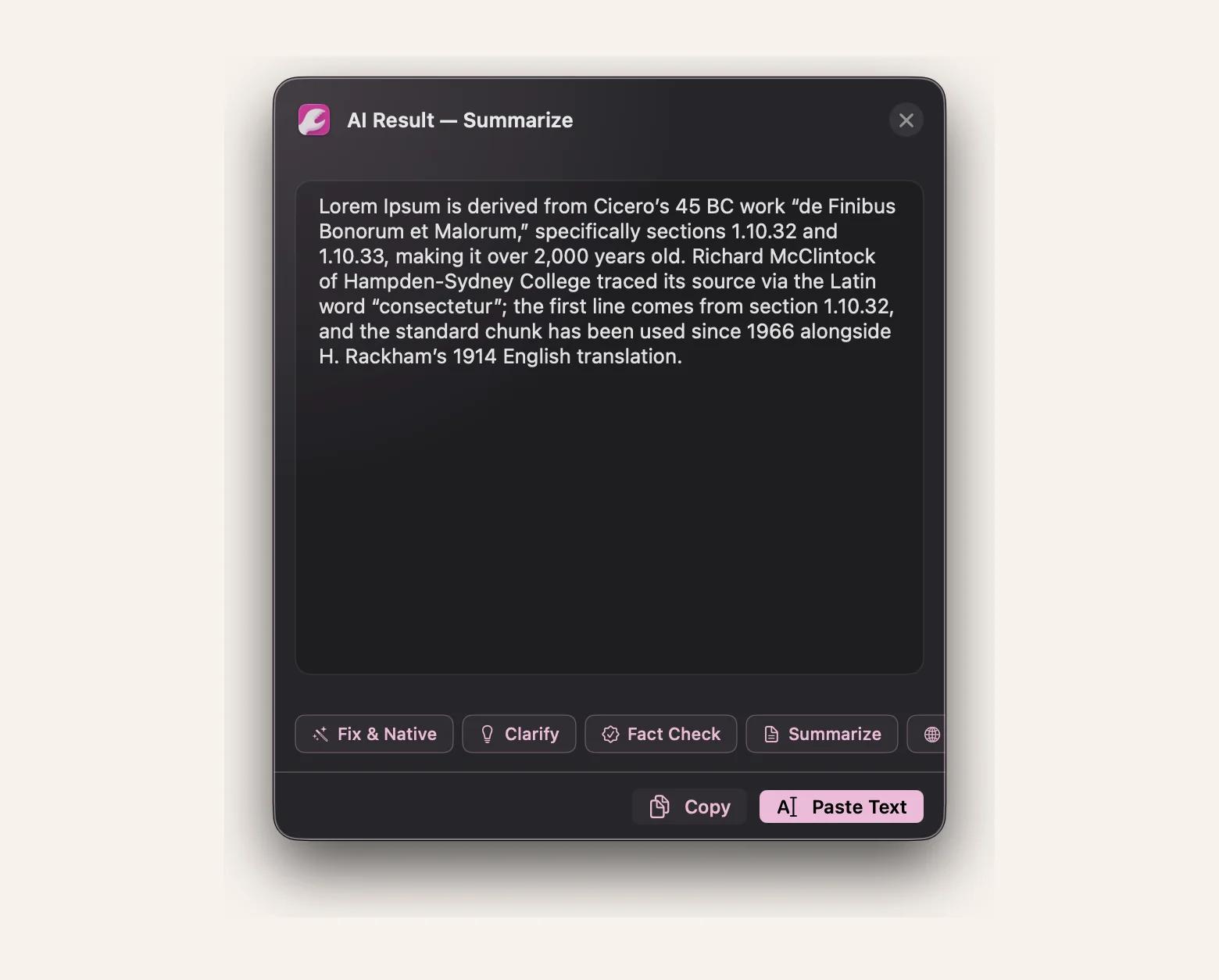
The problem with automated rewrite suggestions is that they frequently erase strong personal arguments just to follow generic grammar rules. Since this method has such a problem, you must review every single suggestion, which takes effort but is necessary. If a proposed change damages your main argument or makes you sound like a textbook, reject it and keep what you originally wrote.
Step 5: Cut AI tells and check every fact
After manual review only, submit your paper.
In fact, reading aloud is what I always do at this stage. You see, if a sentence is awkward or the punctuation is interrupting your reading rhythm, I rewrite that sentence. Also, reading aloud uncovers robotic phrases much faster than just staring at a screen.
Next, check your sources directly. Language models often fabricate even the most credible-looking academic sources, change dates, and put wrong page numbers. Check every single reference made in your bibliography with the original book or paper. Delete any article in your draft that a given tool suggested, but you never opened to read.
Review these elements:
- Remove "empty" fillers.
- Apply simple punctuation.
- Go for a mixture of short and long sentences.
- The content ought to correspond to your material.
Avoid the temptation of rushing headlong to submit your paper the moment you finish typing the last sentence. I usually take at least ten quiet minutes to read the entire text before you send it. When writing fast, it is very easy to overlook small inaccuracies.
You might let go of numerous small details that are very important, such as broken sentences and unchecked claims. When you take a break and then reread your paper, you will see that these are real problems. That brief final check seems to be a small thing, but it’s important so your argument stays strong.
Look up the AI policy of your school or office
Before you open any software, refer to the official rules of your university or office. At this moment, different institutions position themselves very differently in relation to automated writing tools.
Some departments regard it as okay to use certain programs for organizing your source notes or correcting your grammar, while the stipulation is that you write each paragraph by yourself. For others, it can be a client-facing no-go, so they ban language software and run automated detection programs on the submitted work. Many professors also ask students to demonstrate the use of digital tools, what they have done with them, and the purpose.
Since these regulations are different, do not bother your head by speculating about the official policies. Refer to your course syllabus or employee handbook, and if the search is still unsuccessful, do not hesitate to ask your teacher by email. Having the standard set early shall help avoid misunderstandings later.
Come up with the writing on your own
It does not make sense to take the whole job of writing a paper completely from AI tools. Rather, keep in mind that these tools are only there to save your energy and time so that you may stay focused on working out the analysis.
If you happen to write an essay with AI on Mac, initiate everything from scratch and do the thorough research on your own, with AI simply assisting you with your edits and bringing the polish to the text. Draft your paper on your own, and afterward, employ Mac utilities for organizing your references and tidying up your layout mistakes. Give your core argument some initial boost so that this method results in a clean, well-organized paper, leaving your own reasoning front and center.
Setapp Membership offers you a 7-day trial period to explore a multitude of tools, e. g., Ulysses, Craft, Elephas, and TextSoap. Don’t let another essay sound like a chatbot wrote it. Get Ulysses, Craft, TypingMind, Elephas, MonsterWriter, and TextSoap with one Setapp Membership. Free for 7 days. Get 300+ Apps.
FAQ
Can I use AI to write an essay?
Yes, but only if you consider the software an editor. Using it as a replacement for authoring will get you in trouble with your school policies. Usually, it takes more time to edit AI-generated text than to write a new one. Still, these tools can help you process your research notes and check your spelling, so it is worth checking them.
How do I make AI writing sound like me?
Make the first draft of the essay by yourself. If you use writing assistants like Elephas, train them on your previous articles and essays. That way, when the software suggests grammar fixes, it follows your personal rhythm and everyday words rather than generic bot patterns.
What are the signs that a text was written by AI?
Automated writing results in predictable patterns of paragraphs of the same length, unnecessary colons and long dashes, and formal buzzwords that most people don't use. The writing avoids having any real opinion at all. So the text just ends up sounding boring and completely flat.
Which parts of an essay is AI best for?
Software handles administrative preparation well. It helps you group disorganized reading notes, find counterarguments to your thesis, check an outline for missing points, and delete double spaces or broken lines.
Is Setapp a good way to try AI writing apps on Mac?
Yes. One monthly subscription lets you run tools like Ulysses, Craft, Elephas, and TextSoap. You get to test everything directly on your Mac, and you will see what apps actually help and improve your work. This way, you won't have to buy separate yearly licenses for several apps that you might only use for a few days. You can change tools without paying more if one doesn't work for you.






 Best solution
 Best solution