Apple Motion is the best Mac-native After Effects alternative. It animates with behaviors instead of manual keyframes and works with Final Cut Pro.
Pick by job. Use DaVinci Resolve Fusion or Natron for node-based compositing, Cavalry for procedural 2D graphics, Blender for 3D, and Rive for interactive UI animation.
Beginner and social options exist. Wondershare Filmora and Jitter cover quick, template-based motion graphics.
After Effects still wins for advanced work. Heavy VFX compositing, camera tracking, and the Adobe plugin ecosystem have no full replacement here.
The best alternatives for Adobe After Effects are Apple Motion for mid-level motion graphics and Final Cut Pro users, DaVinci Resolve Fusion for advanced VFX, Blender for advanced 3D, Rive for interactive UI animations, and Wondershare Filmora for basic motion graphics and video editing. Apps like Permute and Squash can add speed to a motion design workflow by converting and compressing files on the go.
I’ve used After Effects long enough to know why people love it; it can do an incredible amount. But when you spend enough time with any software, you notice things that slow you down and features you’re paying for that you barely use. This got me genuinely curious about After Effects alternatives in the market.
In this guide, I’ll help you choose the right alternative to Adobe After Effects for your motion design workflow.
Option
Best for
Native Mac
Timelines or Nodes
Free tier
Price
Apple Motion
Real-time motion graphics
Native macOS
Timeline + Behaviors
Free trial
$49.99 one-time
DaVinci Resolve Fusion
Node-based compositing
Native macOS
Node-based
Free forever
$295 one-time (Studio)
Cavalry
Procedural motion graphics
Native macOS
Timeline + Nodes
Free tier for individual creators
Custom for Teams
HitFilm
Video editing and VFX
Native macOS
Timeline
Discontinued
Discontinued
Blender
3D and animation
Native macOS
Timeline + Nodes
Free, open-source
Free
Natron
Node-based compositing
Native macOS
Node-based
Free, open-source
Free
Rive
Interactive animations and code export
Browser + Mac
Timeline
Free tier
Starts at $9 per seat
Jitter
Web-based (social media) motion graphics
Browser-based
Timeline
Free tier
From $19.99/mo (stray space)
Wondershare Filmora
Beginner-friendly templates
Native macOS
Timeline
Free tier
Starts at $ 19.99 per month
Which After Effects alternatives are worth trying on Mac?
After Effects alternatives can offer significant value to your motion design workflows. Let’s see what each alternative offers.
Apple Motion: Best Mac-native After Effects alternative
Best For: Motion designers, Final Cut Pro users
Source: Apple Motion
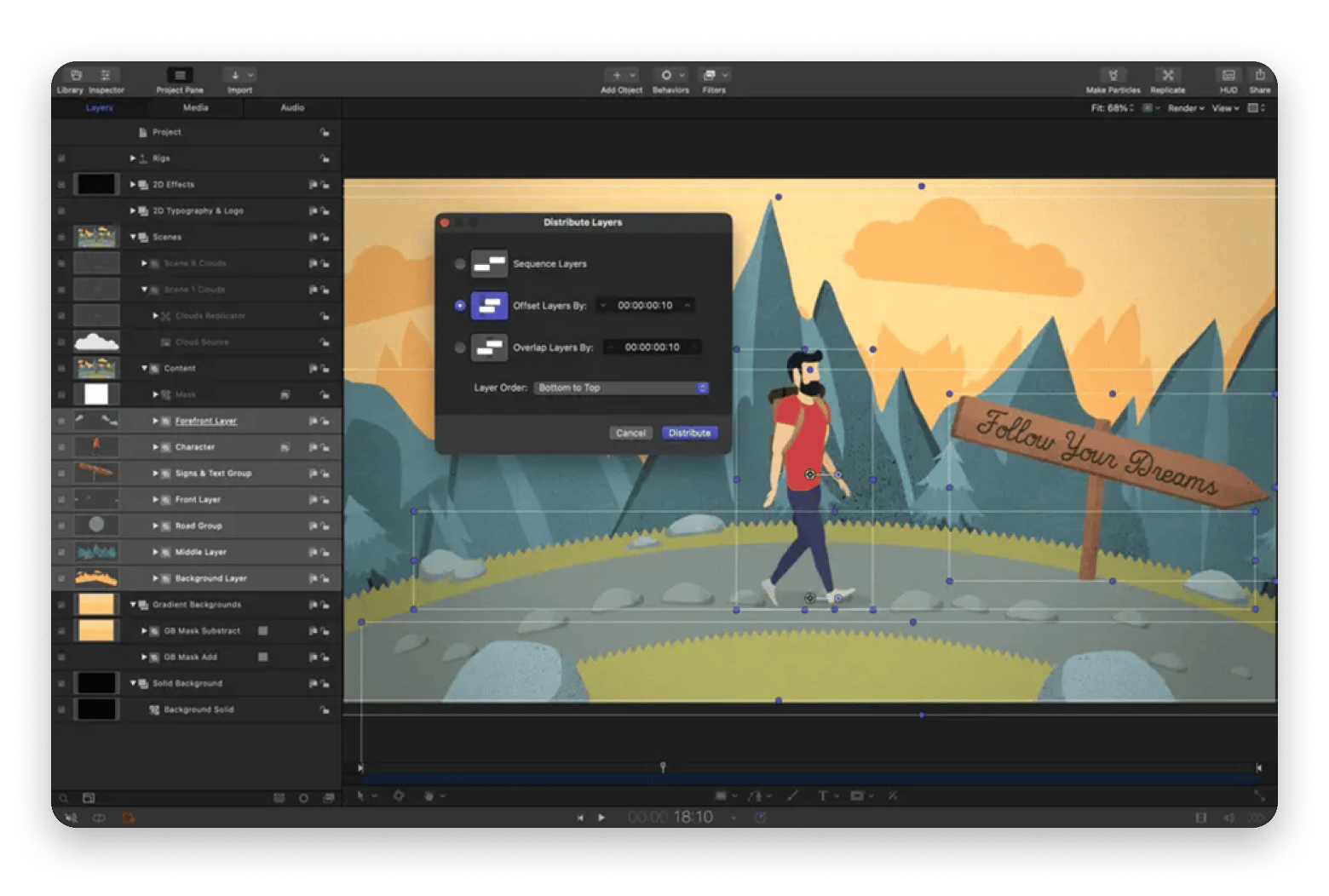
Apple Motion is the best After Effects alternative for Mac. It uses “behaviors” to automatically apply animations, which is a time-saver for simpler and more repetitive animations. After Effects is strictly timeline-based, which means users have to rely on manual keyframe animation to control an object’s movement. Apple Motion also supports particle effects, 3D compositing, and filters.
The app integrates closely with Final Cut Pro and allows its projects to be used as reusable templates across multiple videos in Final Cut Pro. This “create-once, reuse anytime” feature can be useful if you already use Final Cut Pro and create recurring graphics at work.
When it comes to plugins, Motion has a much smaller third-party plugin ecosystem than After Effects.
Pros:
Easy to learn
Fast (optimized for Mac hardware)
Works seamlessly with Final Cut Pro
Excellent for 2D motion graphics
One-time purchase
Cons:
Not ideal for complex 3D, advanced compositing, and VFX
Fewer plugins and templates
Pricing (September 2026): $49.99 one-time
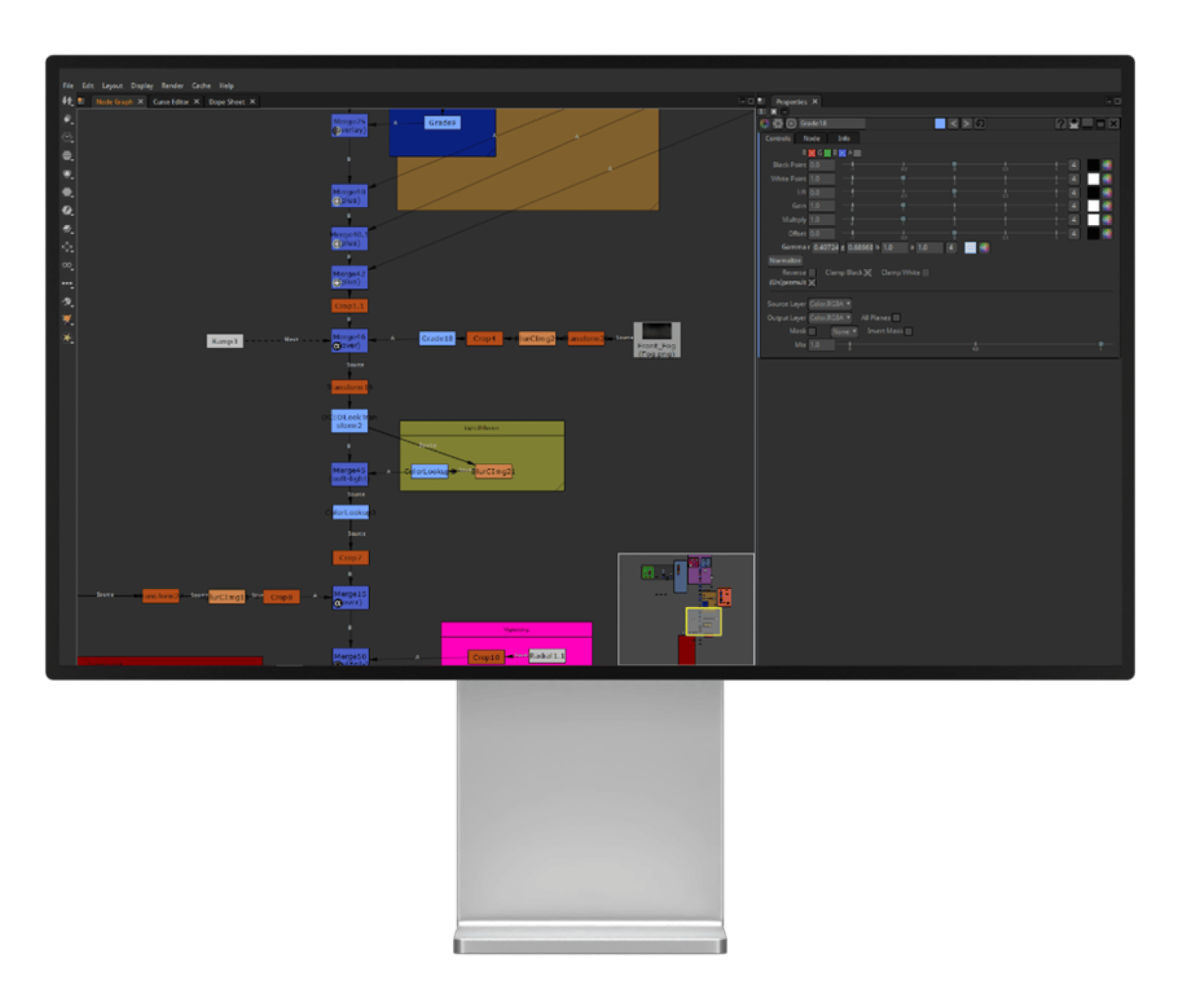
DaVinci Resolve Fusion: Best free node-based compositor
Best For: VFX artists, compositors
Source: Fusion
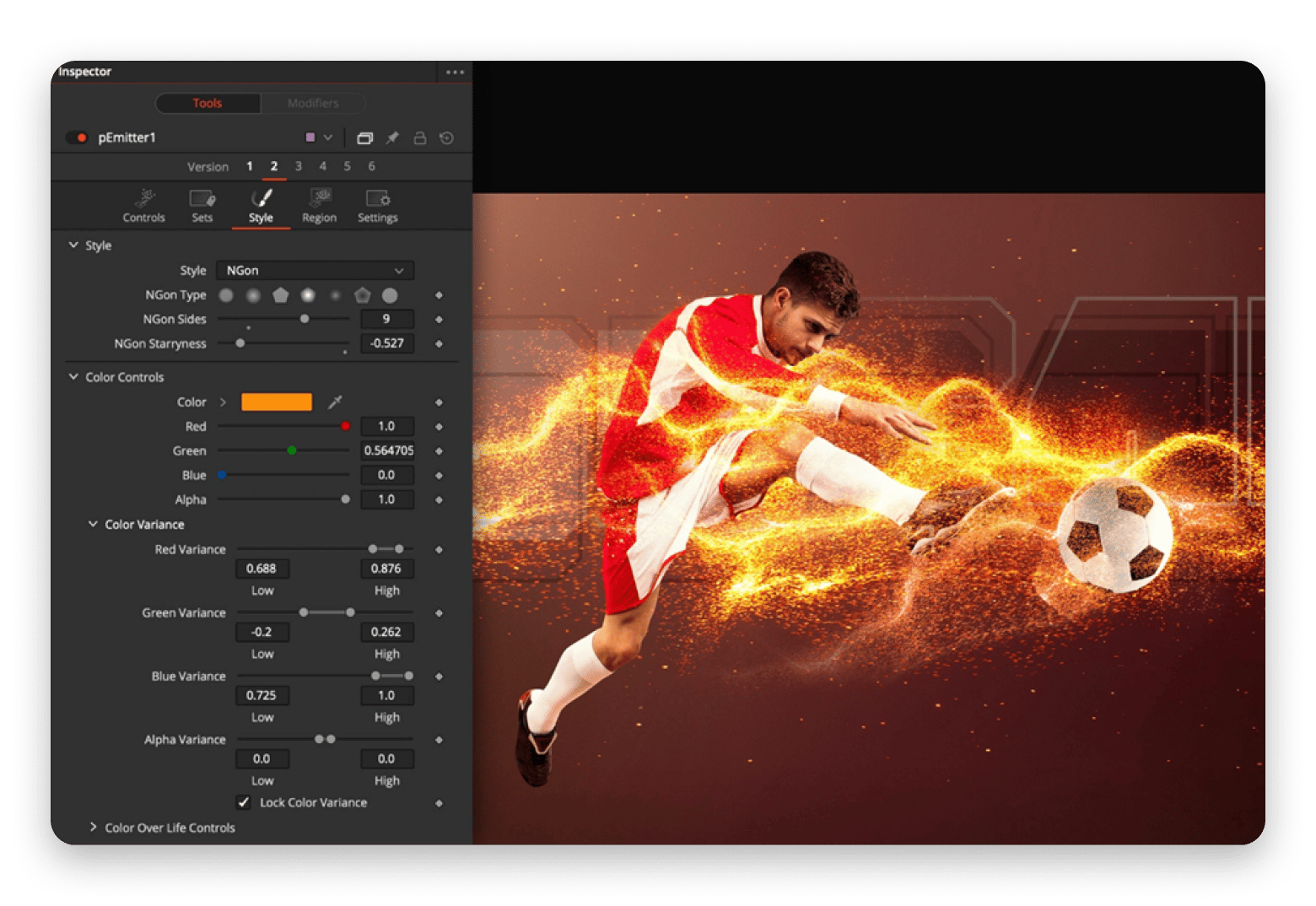
Fusion is a free After Effects alternative if you are looking to explore node-based motion graphics.
While both After Effects and Fusion offer similar capabilities, Fusion’s node-based approach may make complex compositions easier to visualise than a layer-based setup.
Fusion is integrated with DaVinci Resolve, a free and incredibly capable post-production application used in professional film and television workflows. Fusion offers VFX capabilities like motion tracking, chroma keying, particles, and 3D compositing.
Since the app is part of the broader video post-production workflow of DaVinci Resolve, you can do other tasks as well without leaving the application.
Fusion has a steep learning curve and may feel intimidating at first, especially if you’ve spent significant time working on a layer-based setup.
Pros:
One application (DaVinci Resolve) for the entire workflow
Pricing (September 2026): Free Forever; $295 one-time for Studio version
Cavalry: Best procedural motion graphics tool
Best For: Motion designers, broadcast designers
Source: Cavalry
If you create 2D motion graphics for commercial projects, Cavalry could be an interesting After Effects alternative with no subscription.
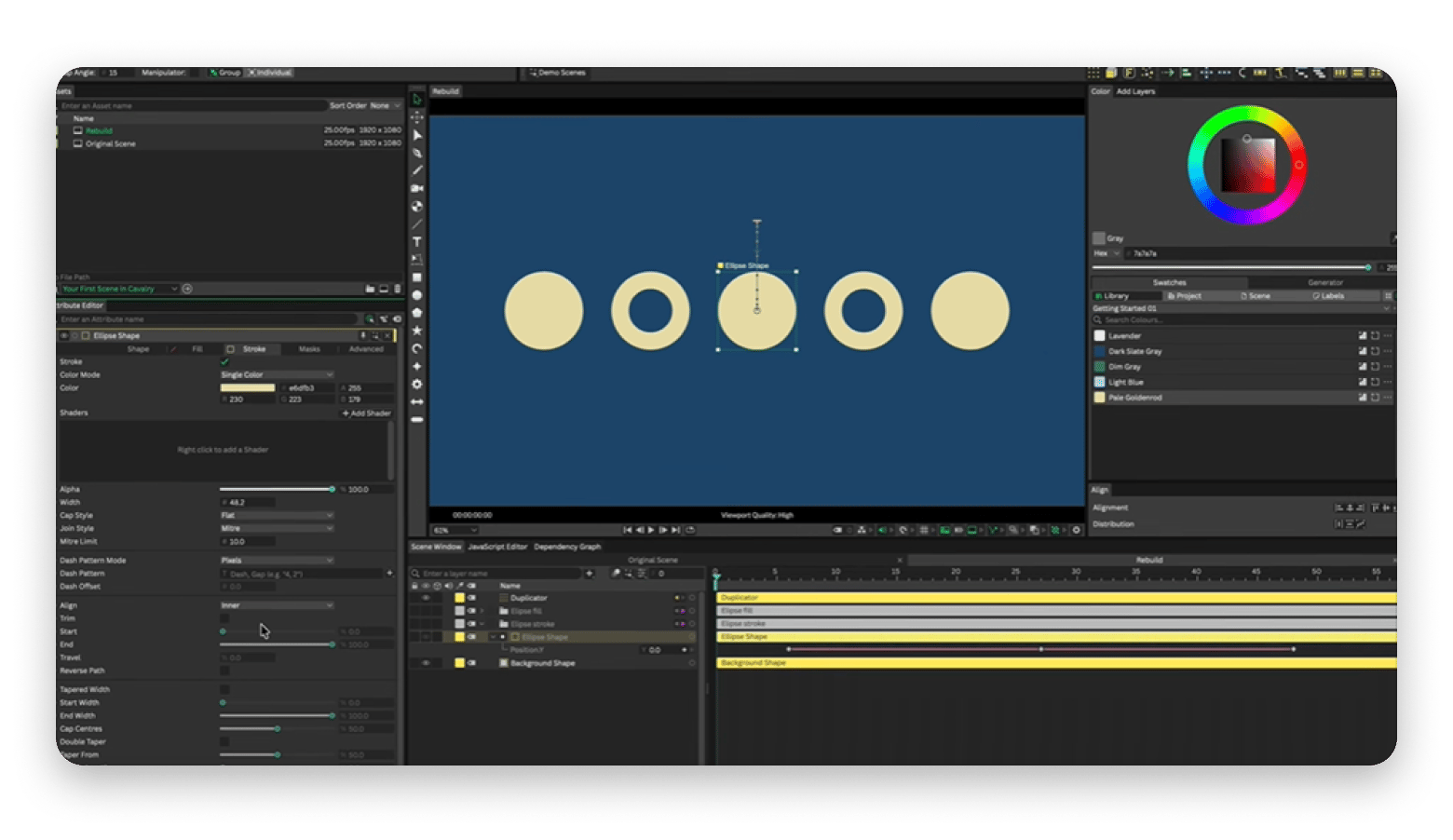
Cavalry takes a procedural approach to animation. You can set up rules that connect elements and modify their behaviors collectively. When one element changes, the connected elements update automatically. This makes it a good fit for individuals working on broadcast animations such as lower-thirds, logos, and transitions.
But if you need advanced compositing software and VFX, Cavalry may not match After Effects’ strengths in these areas.
Pros:
Excellent for 2D motion graphics
Procedural approach reduces manual work
Great for data-driven graphics that need frequent changes
Offers a free tier
Cons:
Learning curve
Not for advanced compositing and VFX
Pricing (September 2026): Free Tier; Custom pricing for Enterprise and Teams
HitFilm: Best all-in-one editor and VFX
Best For: Video creators, indie filmmakers
Source: HitFilm
HitFilm brings editing, compositing, and visual effects together in one place.
If you're working on a video that mixes regular editing and effects, HitFilm lets you handle most of it in one project.
HitFilm makes sense if you make short films, YouTube content, or smaller VFX projects. After Effects still has the edge when you need advanced capabilities, plugins, and the wider Adobe ecosystem.
The bigger consideration today, though, is HitFilm’s future. FXhome has stopped developing and supporting HitFilm, so it isn’t a great choice if you’re looking for software to build a long-term motion design workflow around.
Pros:
Combines editing, compositing, and VFX in one app
Great for online video creators
Familiar timeline-based workflow
Offers a free tier
Cons:
Not suitable for advanced motion graphics
No longer actively supported
Pricing (September 2026): Free tier; $6.25 per month or one-time fee of $349
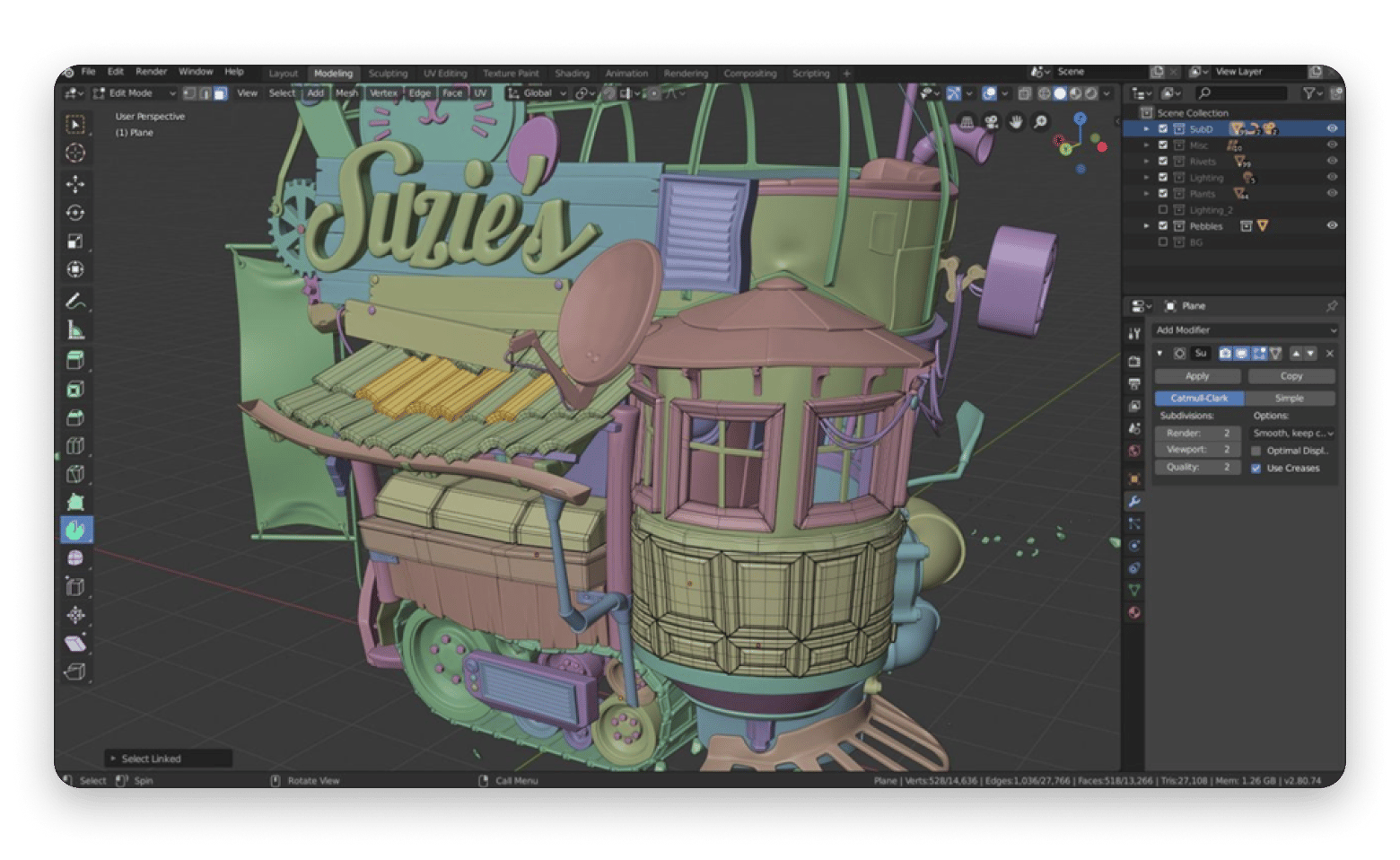
Blender: Best open-source tool for 3D (free)
Best For: 3D artists, VFX artists
Source: Blender
Blender is a free, open-source 3D app that works best for artists who build 3D objects and scenes from scratch.
After Effects is a good choice when you need to add depth to motion graphics. It also works well when you need to use 3D elements in a composition. But if you want to create 3D objects from the ground up or build complete 3D scenes from scratch, Blender is worth exploring.
There is also a learning curve. To use Blender well, you need to learn 3D, not just another software tool. Blender is free and open source, and once you are past the learning curve, it gives you a lot of room to grow.
Pros:
Free and open-source
Excellent for 3D modeling, animation & VFX
Extensive learning resources
Large community
Cons:
Steep learning curve
Less intuitive for 2D motion graphics
Pricing (September 2026): Free and Open Source
Natron: Best open-source node compositor (free)
Best For: Compositors, open-source enthusiasts
Source: Natron
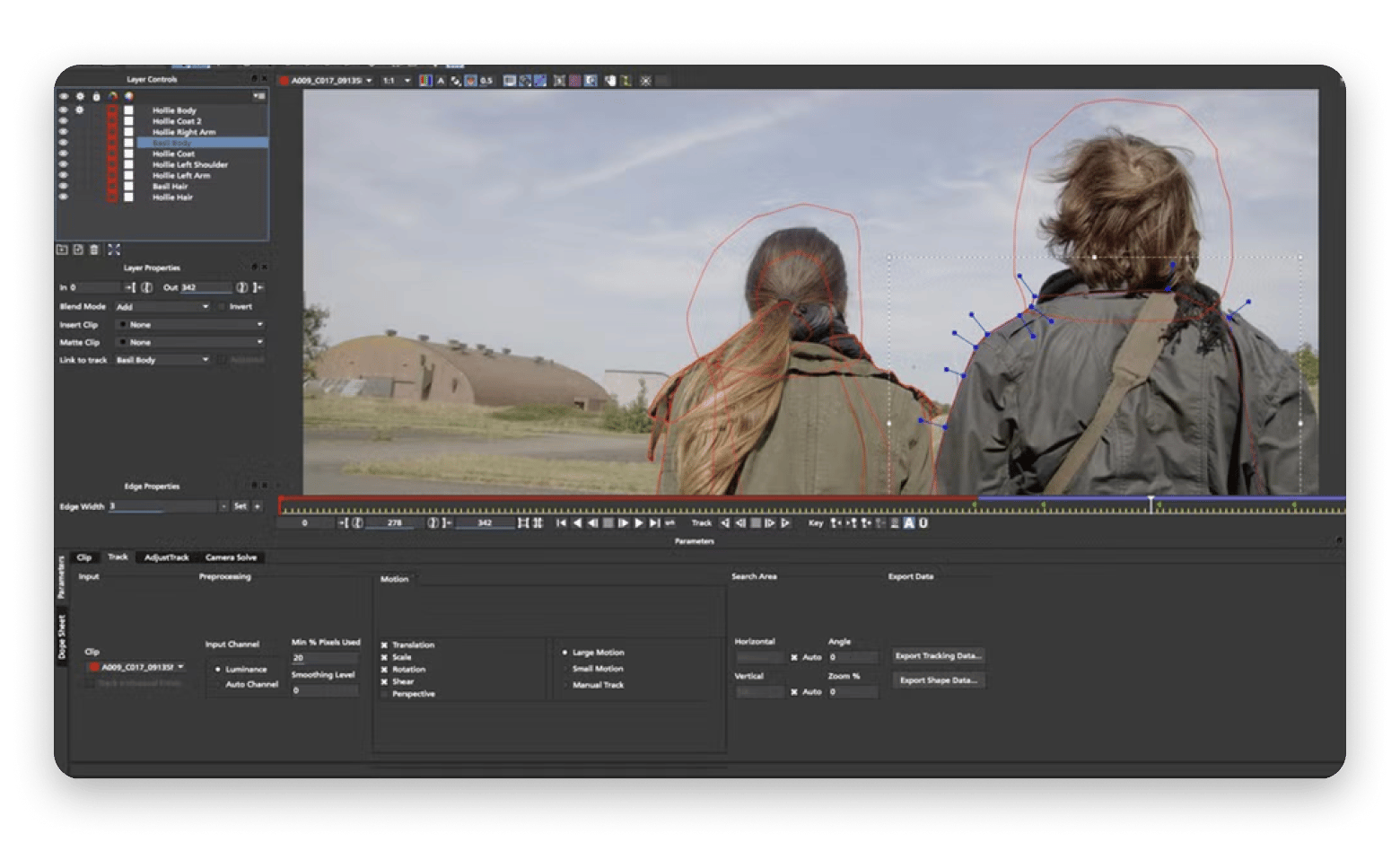
If you want to learn Nuke-style compositing without paying for the tool, try Natron. It follows a similar approach to Nuke and uses a node-based approach.
Natron is also free and open-source, so you can learn and use node-based compositing without paying a fee. We discussed another node-based compositor above, Fusion.
Natron is supported by a smaller community than Fusion and may not be as polished as Fusion. But since its interface is similar to Nuke’s, it may be a good idea to use Natron to practice node logic. This may make it easier to transition later into high-end pipelines with Nuke.
But before you invest time and effort in learning a node-based workflow, it is good to carefully consider your professional goals and work needs.
Pros:
Free and Open Source
Good for learning Nuke-style and node-based compositing concepts
Great for VFX and compositing work
Cons:
Interface feels less polished than Fusion
Smaller community and ecosystem
Pricing (September 2026): Free and Open Source
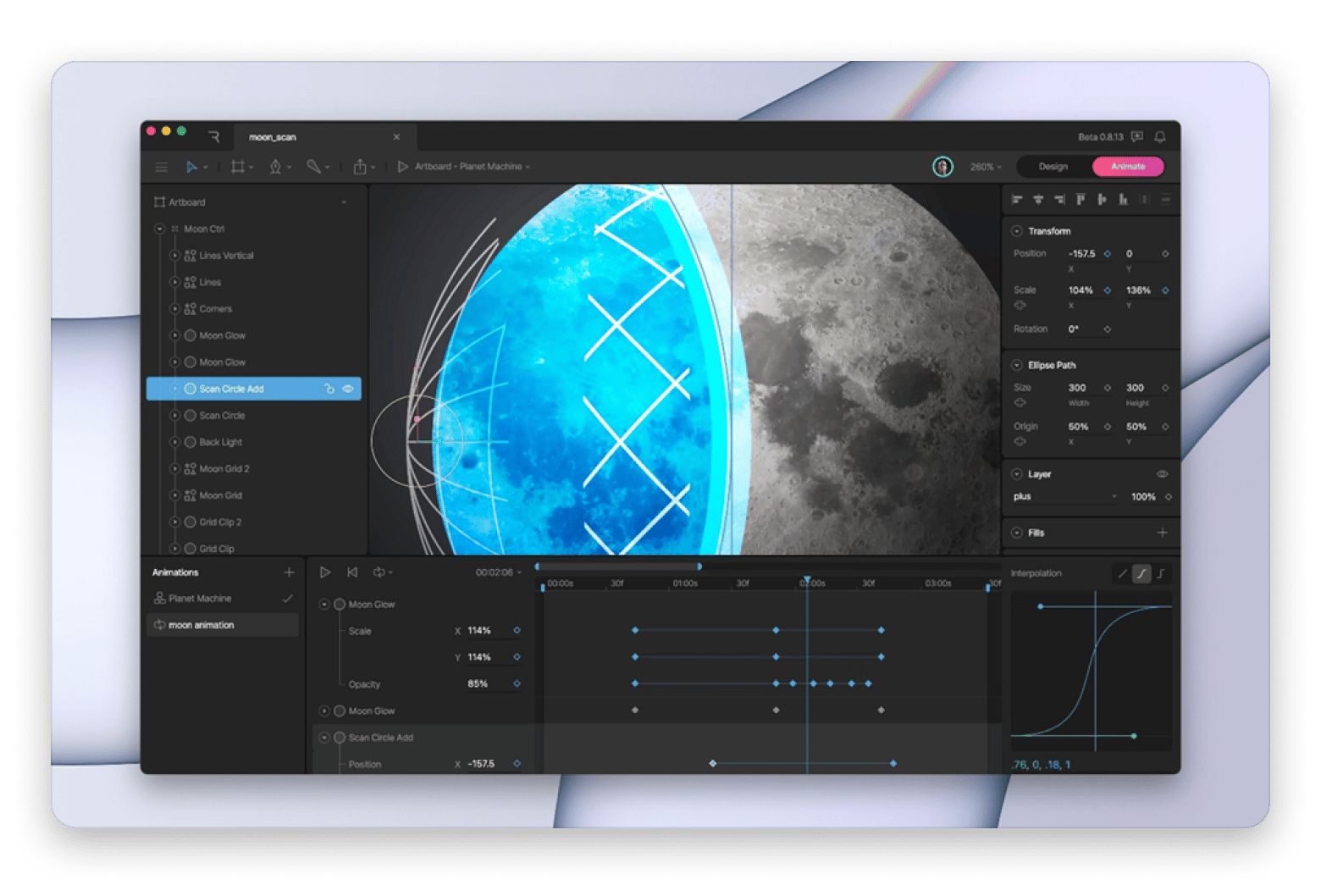
Rive: Best for interactive UI animations
Best For: UI/UX designers, interactive animation designers
Source: Rive
Rive is an interactive animation tool that works best for UI designers shipping animations in apps.
After Effects produces animations that run neatly from start to finish. In other words, they follow a strict linear timeline. In Rive, you can control what happens in real time when a user interacts with your animation.
This makes it a good fit for animations that ship in mobile and web applications. Animations built on Rive can use state machines to define and control different states of an animation. It also uses data binding to connect to application data and code.
Rive is best suited where interactivity plays a major role. If your output requires things like green screens, camera tracking, advanced effects, and heavy compositing, After Effects is the more obvious choice.
Pros:
Excellent for interactive animations
Easy to reuse and update animations
Offers a free tier
Cons:
Not ideal for advanced effects or VFX
Some advanced features need a paid plan
Pricing (September 2026): Free tier; Starts at $9 per seat
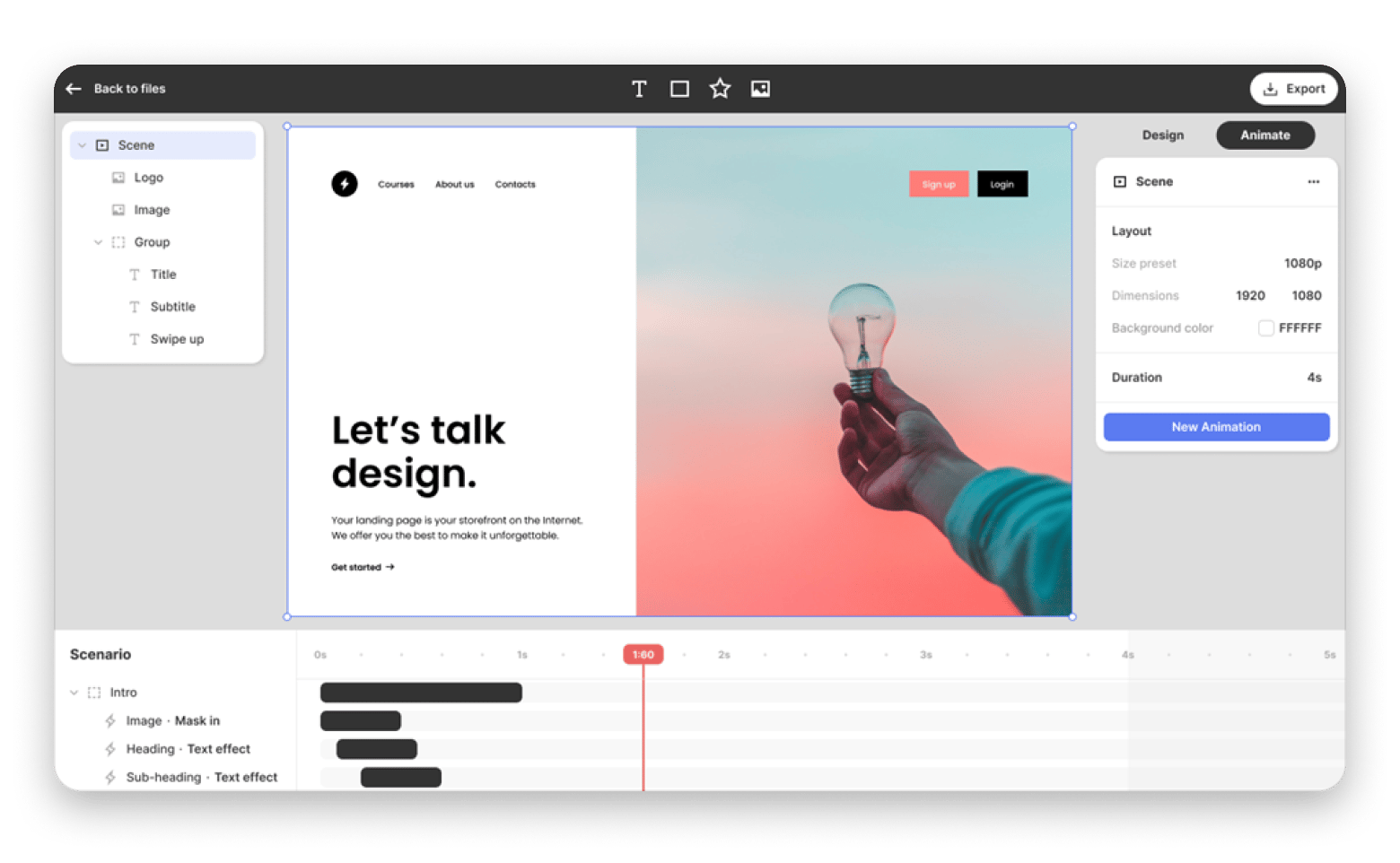
Jitter: Best for social media motion graphics
Best For: Product designers, social media designers
Source: Jitter
Jitter is a good alternative to After Effects if you mainly create content for social media.
After Effects gives you a lot of control. But it can be too much for a simple social media post or ad. You may spend a lot of time creating a small animation.
Jitter keeps things simple. It can be launched in a browser and also offers templates for Instagram, TikTok, and YouTube for quick creation. This makes Jitter useful for marketers and content creators.
But Jitter has its limits. It does not offer advanced effects, complex animation, or heavy compositing like After Effects does. If you mainly need quick motion graphics for social media, ads, or presentations, Jitter may be all you need.
Pros:
Browser-based, easy to use
Excellent for short and simple animations
Offers a free tier
Beginner-friendly
Cons:
Limited for complex animation/VFX/3D
Requires an internet connection
Not suitable for long-form video projects
Pricing (September 2026): Free tier; Starts at $19 per month
Wondershare Filmora: Best beginner motion graphics tool
Best For: Beginners, casual video creators
Source: Wondershare Filmora
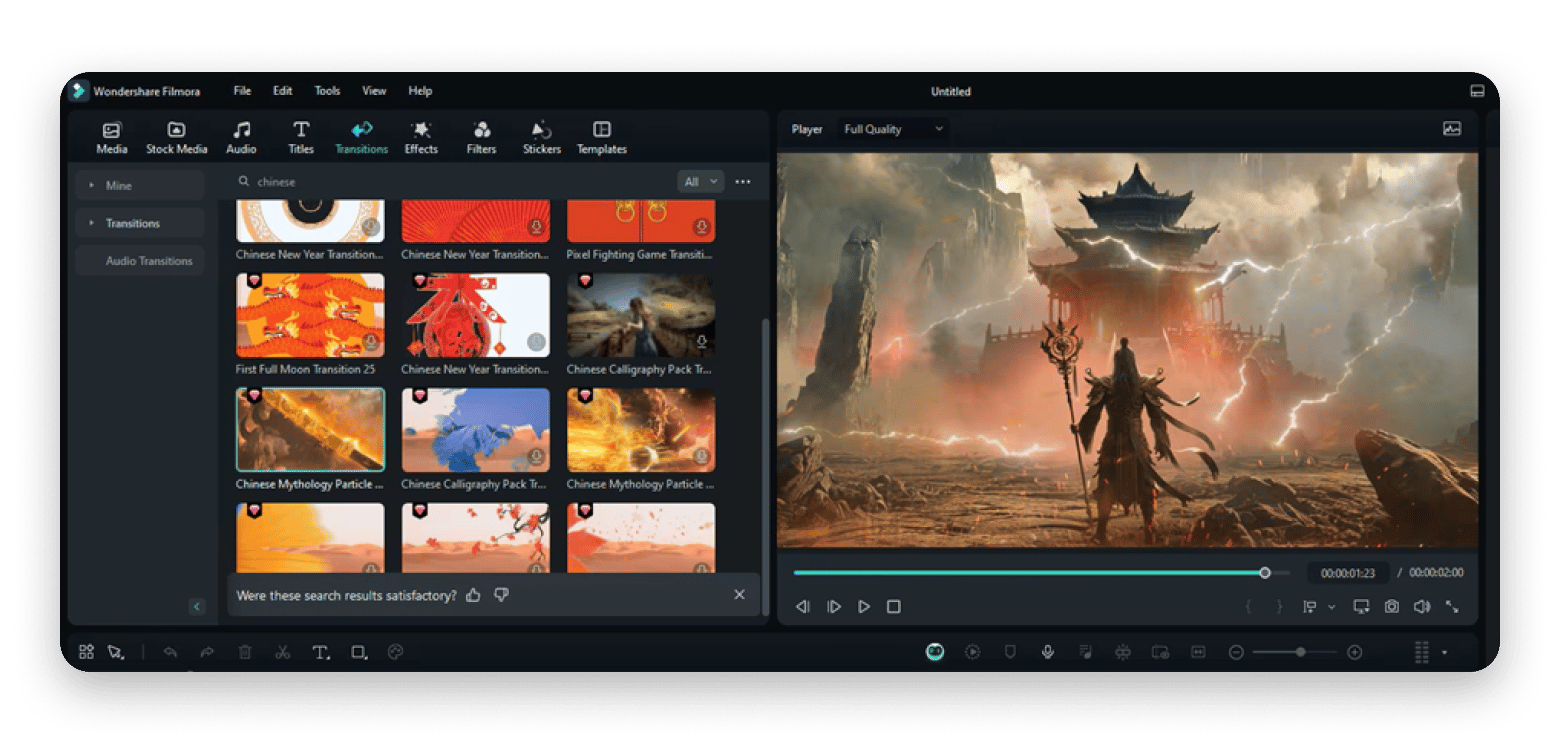
Wondershare Filmora is a beginner-friendly motion graphics tool. It’s a good choice for video editors and content creators who occasionally need motion graphics as part of their video editing workflow. If you’d like to explore more video editing options, read our article on video editing software applications for Mac.
The tool is heavily template-based and offers ready-made effects and transitions, making it easier to animate without learning a complex motion graphics workflow.
The app works well if you need video editing with basic animations. But if you want complex visual effects VFX tools or animations as part of your work, After Effects is your go-to application.
Pros:
Easy to learn for beginners
Combines editing and basic motion graphics
Includes ready-made effects, transitions, and templates
Cons:
Not for advanced motion graphics/VFX
Watermarks on exports (free tier)
Pricing (September 2026): Free tier; Starts at $19.99 per month
Which Mac apps speed up a motion graphics workflow?
I found some interesting Setapp Mac tools that can make your workflow easier when used alongside any motion graphics software:
CleanShot X: Capture and share references
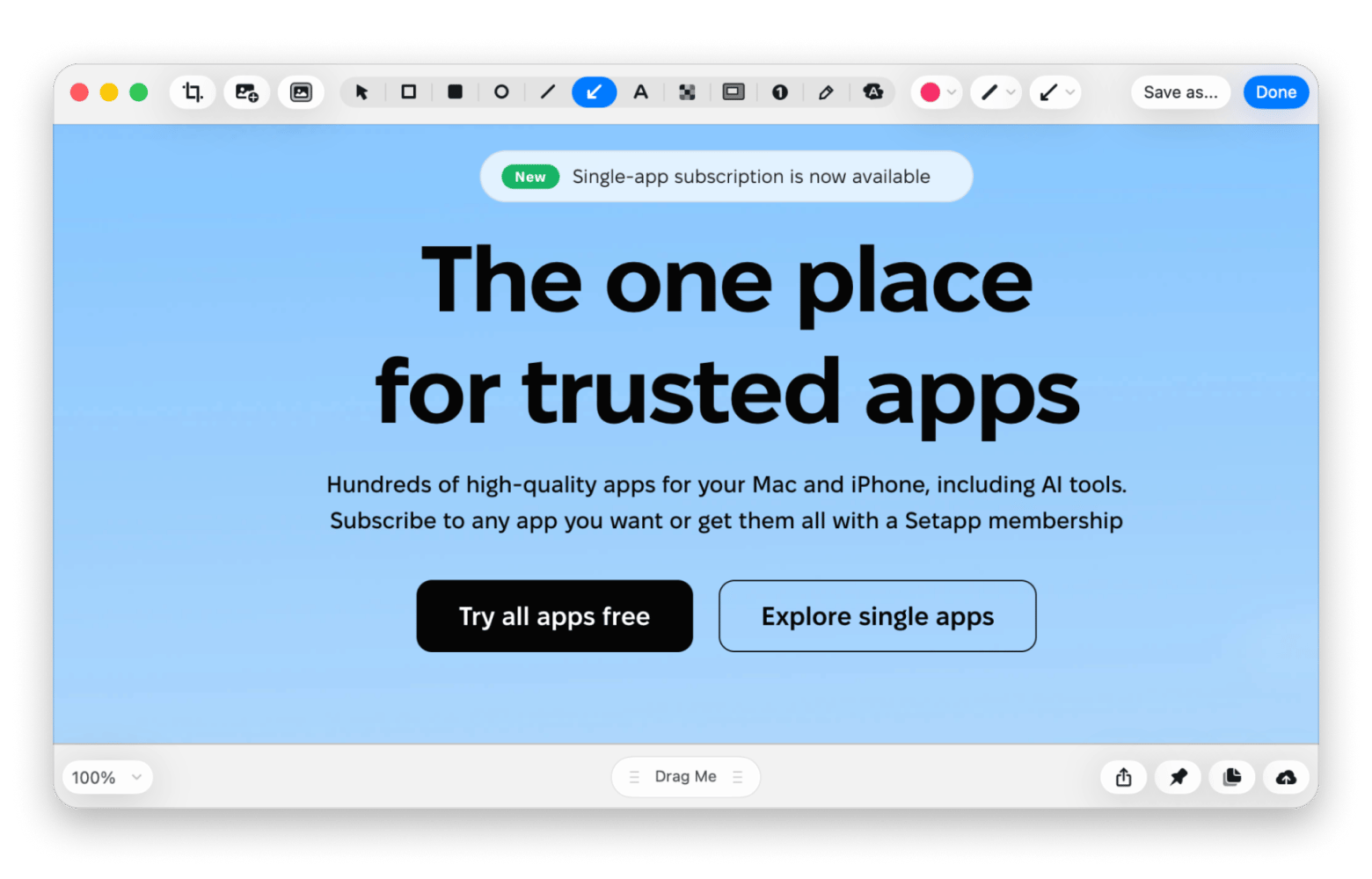
CleanShot X from Setapp is a screen-capture app for macOS. You can capture or record your screen, add annotations, and save your captures to a dedicated CleanShot X Cloud.
If you see something interesting, you can capture it as a visual reference and share it with your team before the idea slips off your mind. You can screen grab an interesting animation, annotate motion paths, and pass it on to the rest of your team with CleanShot X.
For more screenshotting tips and tricks on the Mac, read this neat little guide on how to screenshot on Mac.
Permute: Easy file converter
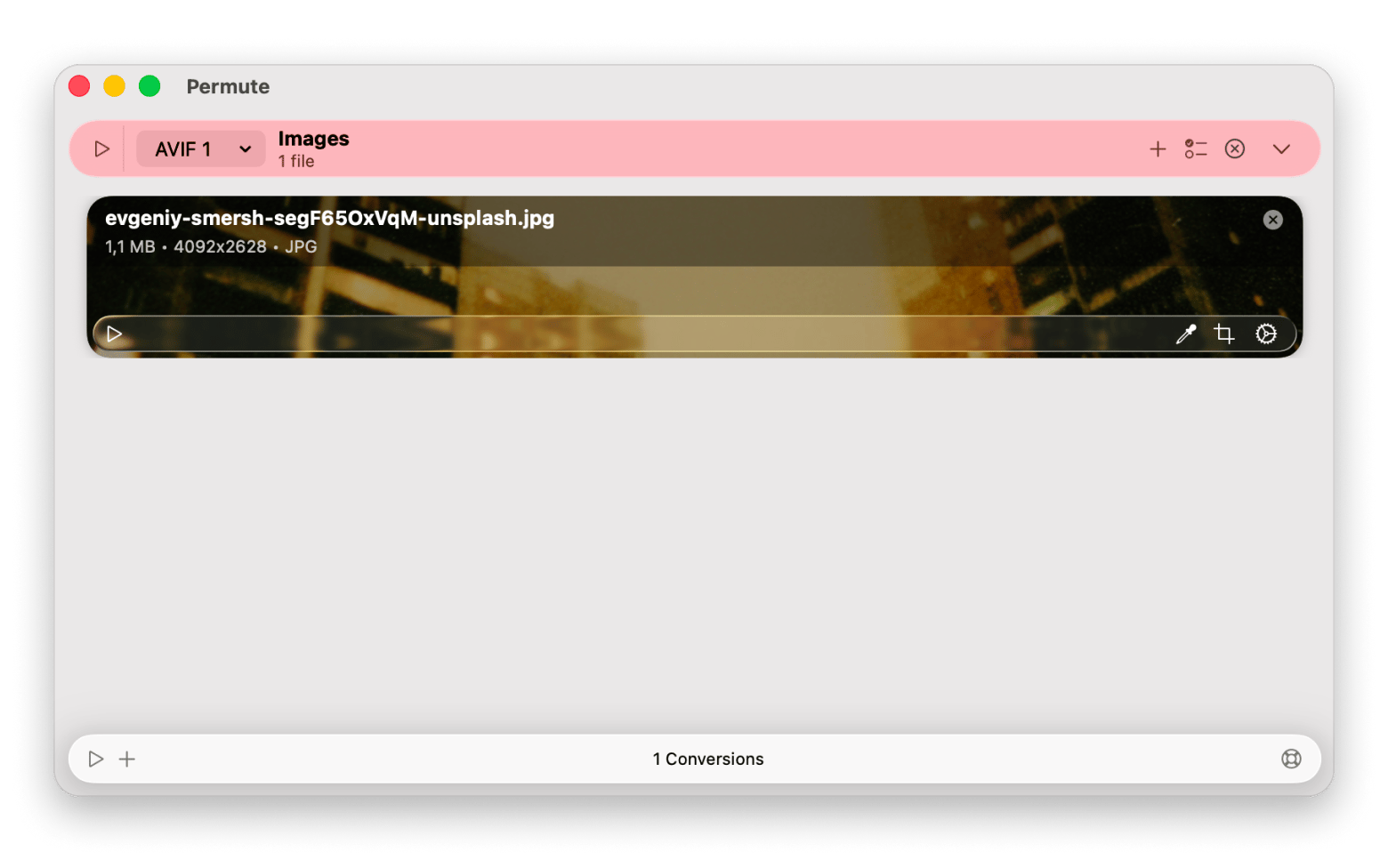
Permute from Setapp is an easy file converter app that is useful for converting media files to any format that you choose. It can also make video/audio files smaller, add subtitles, and do basic video editing.
Working in motion graphics means juggling several file formats on a daily basis. With Permute, you have a reliable file converter sitting in the background ready to convert any file into your target format. This means you don’t always have to go back to your tool to export to a different format.
The article on converting WAV to MP3 on Mac is a nice guide on using Permute and other options to convert your files.
Squash: Image compressor
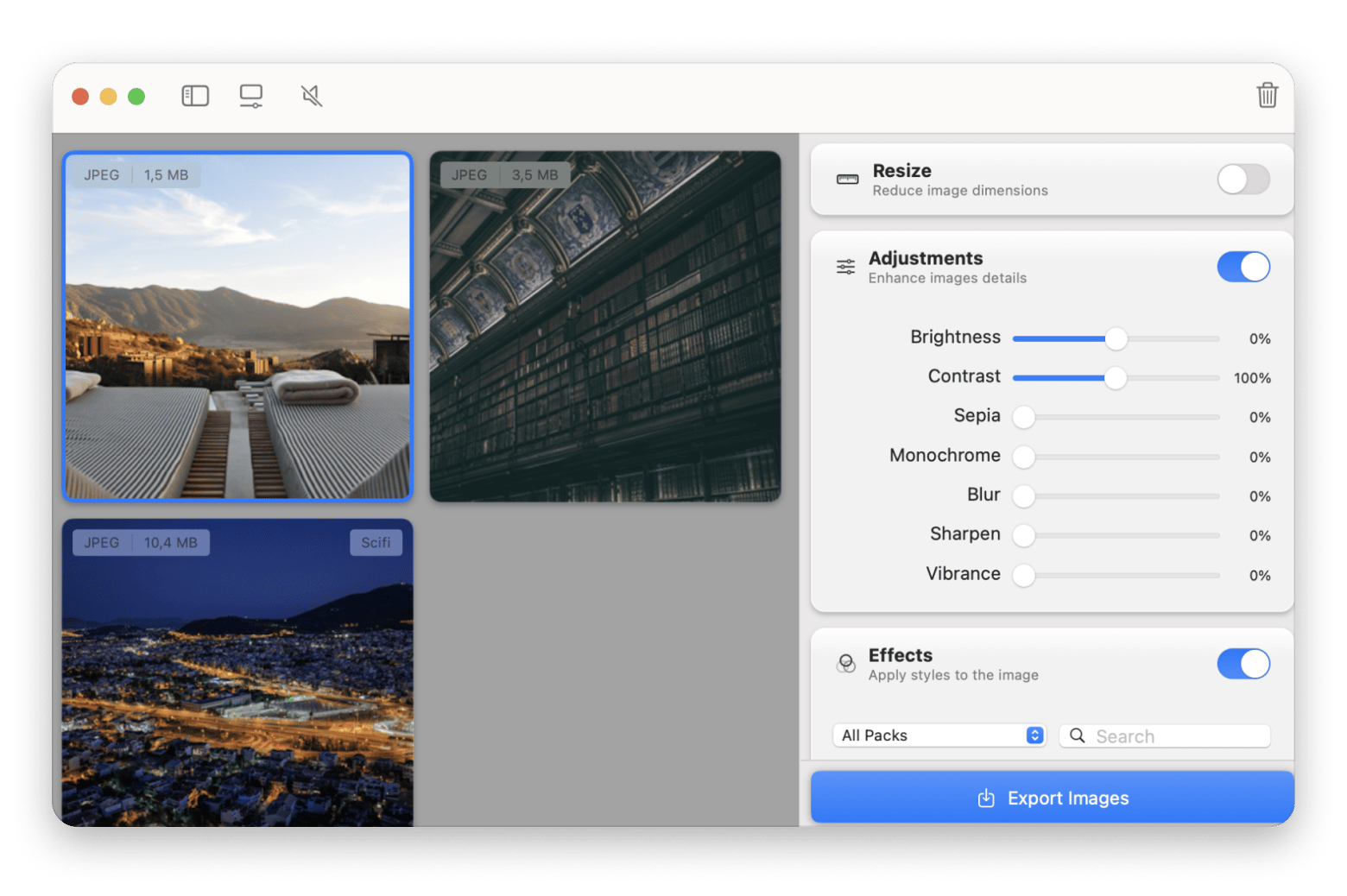
Squash from Setapp is a macOS app to resize and compress several images at once. The app can also be used for color correction, filters, adding watermarks, or removing GPS data. If you are a motion designer, Squash can be a valuable addition to your toolkit. It can help you compress images on the fly before importing them into your motion graphics tool.
Finally, lighter image assets without the manual work. Batch resize and compress in one step. Free for 7 days. Try Setapp Free.
TablePlus: Working with databases
TablePlus from Setapp is a minimal and friendly, yet powerful GUI tool that lets you easily manage relational databases from a single hub. It is highly optimised for running on your Mac, without compromising on security.
As a motion designer, TablePlus is for slightly advanced data-driven workflows. If the animation you are creating takes inputs from a database, TablePlus helps you view and work with that database. Mac tools, when chosen carefully, can make a world of difference in your motion graphics workflows.
Stop exporting database rows to a sheet just to read them. Query them in TablePlus instead. Cancel anytime. Start Free Trial.
Why motion designers are looking past After Effects
Many motion designers often require a more focused set of features for their day-to-day tasks. This is one of the reasons they switch to simpler, cheaper alternatives. Some may also want to explore node-based tools after spending years with the traditional layer-based approach.
Below, I’ve elaborated on the main reasons why many motion designers are looking for After Effects alternatives:
The After Effects subscription model at $275+/year can become a significant expense for solo designers and occasional creators. So, unless you use After Effects extensively, a motion design application with a more focused set of features and a different pricing structure may be a better fit.
The user experience on Mac has gotten much better than it used to be. Still, I’ve noticed that once a project gets heavier, speed can start to get in the way. It isn’t a deal breaker, but when there’s a lot of back and forth, the small delays can really add up. This is why I started considering other options, including native apps built specifically for the Mac.
There’s also the growing popularity of node-based workflows among motion designers. Instead of relying heavily on a long stack of layers, node-based apps like Fusion let you connect elements through a visual network of nodes. This approach may appeal, especially when you’re working on projects with a lot of moving parts.
After Effects is incredibly deep, and this depth comes with a learning curve. The app is industry standard for high-end motion graphics, but not every creator needs that full range of tools. Many users may need only a specific set of features, and a simpler application may be enough.
How do you migrate from After Effects to a new tool?
If you have decided to switch over from After Effects and have finalized your alternative, follow the steps below for a smooth transition:
Identify project types: Ensure that your alternative is accurate before starting the migration. Go over your daily workflows, identify your needs accurately, and take time to analyse the chosen alternative. If you have multiple needs, it’s okay to pick more than one alternative.
Export any active/unfinished project as ProRes or PNG image sequences: AEP files are not recognized by other applications. It is important to export active projects into a format that other applications recognise. ProRes and PNG are two widely recognized file formats.
Rebuild your templates in the new tool: When you switch to another application, your presets and templates will not work in the new application. The first step while switching to a new tool is to recreate your building blocks again.
Update any client-facing templates: Before you cancel After Effects, check if any of your templates in the app are being used by others in Premiere Pro. If yes, then you will need to find a way to rebuild those templates or keep your After Effects subscription active.
Keep After Effects available for 60 days for anything unexpected: This step is a safety net. Keep After Effects active for 60 days after you move your workflow to the new tool. This can help you protect your old projects and identify anything that depends on After Effects.
Following these steps can ensure a safe transition from After Effects to your desired alternative.
Choosing the right After Effects alternative for your use case
The right alternative for Adobe After Effects depends on what you’re trying to accomplish:
I want Mac-native performance with full pro features > Opt for Apple Motion
I want free node-based compositing > Choose DaVinci Resolve Fusion
I do repetitive commercial motion graphics > Cavalry may be the right choice for you.
I want editing + VFX in one app > Try HitFilm.
I want completely free and don't mind steep learning > Explore Blender or Natron
I make animations that ship in apps > Check out Rive
I make quick social media motion graphics > Jitter is a solid pick.
I'm a beginner adding motion to videos > You can’t go wrong with Wondershare Filmora.
Remember, whichever motion design alternative you choose, the right supporting tools can make a world of difference. CleanShotX for Mac makes screen captures and screen recordings hassle-free through its intuitive interface. The Permute app helps convert all your media files in one place. Squash can help you resize and compress many images at once. TablePlus is a smart and minimal database GUI that can simplify your data-driven animations.
Keep your favorite motion tool. Let Setapp handle the surrounding work. CleanShot X, Permute, Squash, and TablePlus are all included, with 300+ other Mac apps. Start My 7-Day Trial.
FAQ
Is there a free After Effects alternative for Mac?
Yes, there are many free After Effects alternatives for Mac. DaVinci Resolve Fusion is a good option for advanced motion graphics in the node-based workflow format. Blender is excellent for 3D animation, modelling, and visual effects. Another node-based open-source option is Natron, which offers compositing and visual effects.
Can I open .aep files in Apple Motion or DaVinci Fusion?
No, you can’t open .aep files in Apple Motion or DaVinci Fusion. This format is specific to Adobe and is not recognised in other apps. You can import individual assets (like video and image sequences) from After Effects to these apps. But you won’t be able to preserve the original compositions, layers, effects, or animations from your After Effects project.
Which After Effects alternative is best for beginners?
Wondershare Filmora is the best alternative for beginners. Its learning curve is simpler when compared to other advanced motion design tools. Filmora has video editing as well as basic motion graphics capabilities. It also has an intuitive interface along with ready-made templates to help you create quality videos quickly.
What is the best node-based After Effects alternative?
DaVinci Resolve Fusion and Natron are excellent node-based alternatives to After Effects.
Fusion is slightly more polished than Natron and offers more advanced capabilities. Natron is great for hands-on learning projects. Fusion is more suitable for advanced compositing and VFX. Both these applications are available for free.
Is Apple Motion a real After Effects replacement?
Yes. Apple Motion can be a genuine After Effects replacement for 2D motion graphics like titles, text effects, transitions, and logos. For repetitive animations, the "behaviors" feature can save time and effort over the manual keyframing feature in After Effects. But the app cannot fully replace the advanced capabilities of After Effects when it comes to advanced VFX and compositing.
Powerful apps live on Setapp
Ditch defaults and discover new gems on one app platform.






 Best solution
 Best solution