The best Screen Studio, the Mac screen recorder known for automatic zoom, alternatives for Mac are FocuSee for the closest feature match, Cap for a free open-source option, and CursorClip for a one-time purchase. If you need Windows support, FocuSee and Cap both run on Mac and Windows with auto-zoom. For everyday screenshots and quick recordings rather than cinematic demos, CleanShot X on Setapp is the better fit.
This guide compares 10 Screen Studio alternatives for Mac, sorted by who each one suits.
*Setapp is a curated platform for 300+ Mac, iOS, and web apps.
Why are people switching from Screen Studio?
People leave Screen Studio mainly over four things: subscription-only pricing, Mac-only support, a solo workflow, and a narrow feature set. Screen Studio remains the gold standard for cinematic product demos, but this article is for creators whose needs don’t perfectly match that use case. Here’s how each of the four plays out.
Pricing. Originally, a user could buy a lifetime license for Screen Studio, but that option is no longer available. Instead, Screen Studio has moved to a subscription model, with monthly pricing at $29 USD and yearly at $108 USD. There is a free trial. A solo developer who records a few demos a quarter pays every month for a tool that sits idle.
Mac only. There is no Windows or Linux version. A team with mixed machines ends up running a second recorder for everyone not on a Mac, and the demos stop looking consistent.
Solo workflow. Screen Studio is built to edit and export locally. There are no team workspaces or comment threads. Screen Studio includes shareable links, but teams that want to record, collect comments, and manage videos together still need another tool.
Feature scope. Its cinematic effects are deep, but screenshots, GIFs, and quick documentation captures are not its strength. People who do all of those jobs end up using two apps.
Detailed reviews of each Screen Studio alternative
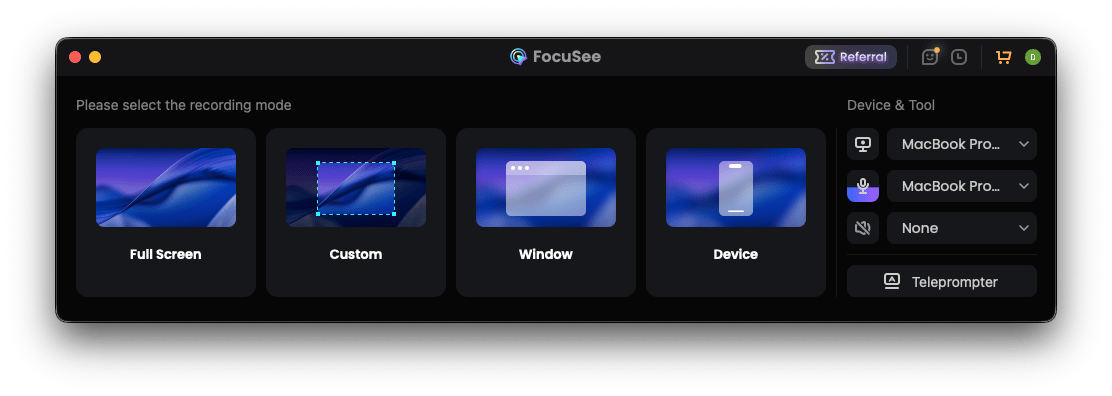
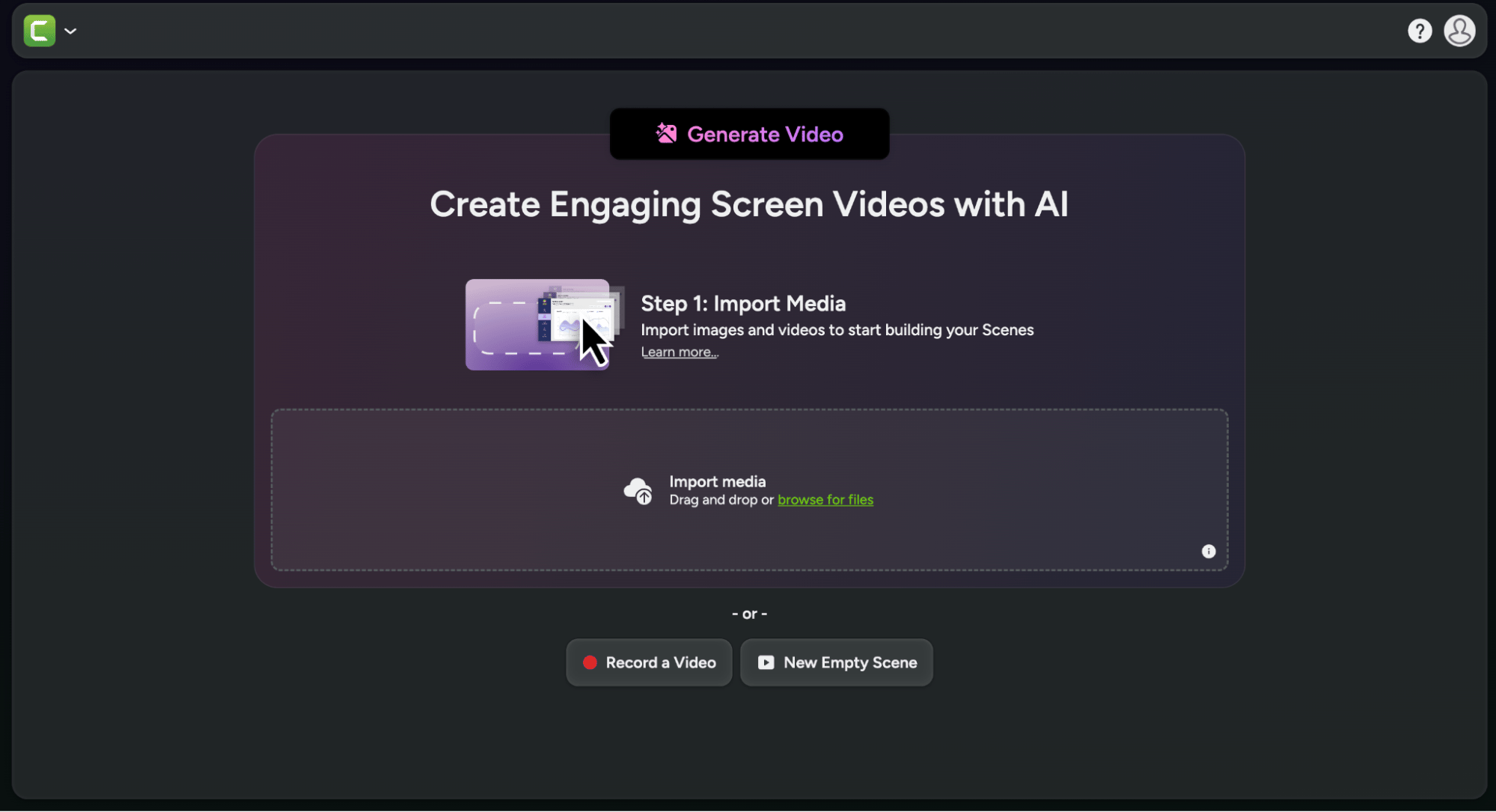
FocuSee: Best 1:1 Screen Studio alternative
FocuSee from Setapp is the nearest match to Screen Studio's feature set. It is an AI-powered screen recorder that offers the auto-zoom on clicks Screen Studio is famous for, plus cursor smoothing, cinematic backgrounds, and motion blur on window transitions. It works on both Mac and Windows.
Pros:
Silence removal
Filler word removal
Captions in 55+ languages
Social aspect ratio presets
Cons:
Reported stability and performance issues
Occasional export failures
Far less precision with the auto-zooms than Screen Studio
Noted workflow issues when wanting to switch between modes
Best for: Creators publishing demos, tutorials, and social content who need cross-platform support at a lower price.
Price: Available as yearly subscriptions: Standard at $49.99 USD and Advanced at $79.99 USD. A lifetime license costs $199.99 USD.
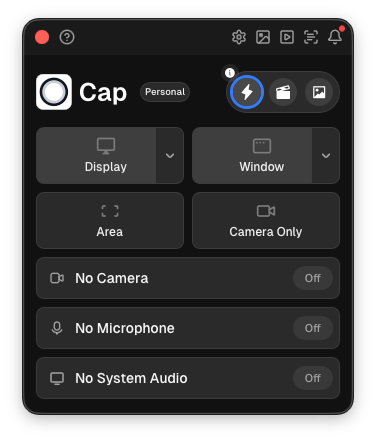
Cap: Best free open-source Screen Studio alternative
Cap is a free, open-source recorder with auto-zoom and cursor tracking, which puts it close to Screen Studio's core but at zero cost. It runs natively on Mac and Windows, includes cloud sharing, and has a modern interface.
Pros:
Open source on GitHub
Local data privacy
Built-in editor and effect features
Lightweight in terms of CPU and RAM use
Cons:
Reliability issues, including reported server crashes and failed launches
No advanced motion features
Doesn’t include a built-in tool for converting recordings into step-by-step documentation, so you may need a separate app
Fewer battle-tested features than commercial apps, so bugs can still appear
Best for: Indie developers, open-source contributors, and anyone who prefers actively developed free tools.
Price: Cap is free and open-source, with paid plans for commercial use and additional features. The Desktop License costs $29 per year or $58 for a lifetime license. Cap Pro adds AI-powered features, unlimited cloud sharing, and team collaboration for $12 per month or $8.16 per month when billed annually. Enterprise offers additional options, including SSO and advanced security features, with custom arrangements available.
Honestly, I’d only call Cap free for personal projects. If you record demos for clients or a company, Cap’s help center says you need the Desktop License, so budget $29 USD per year or $58 USD once.
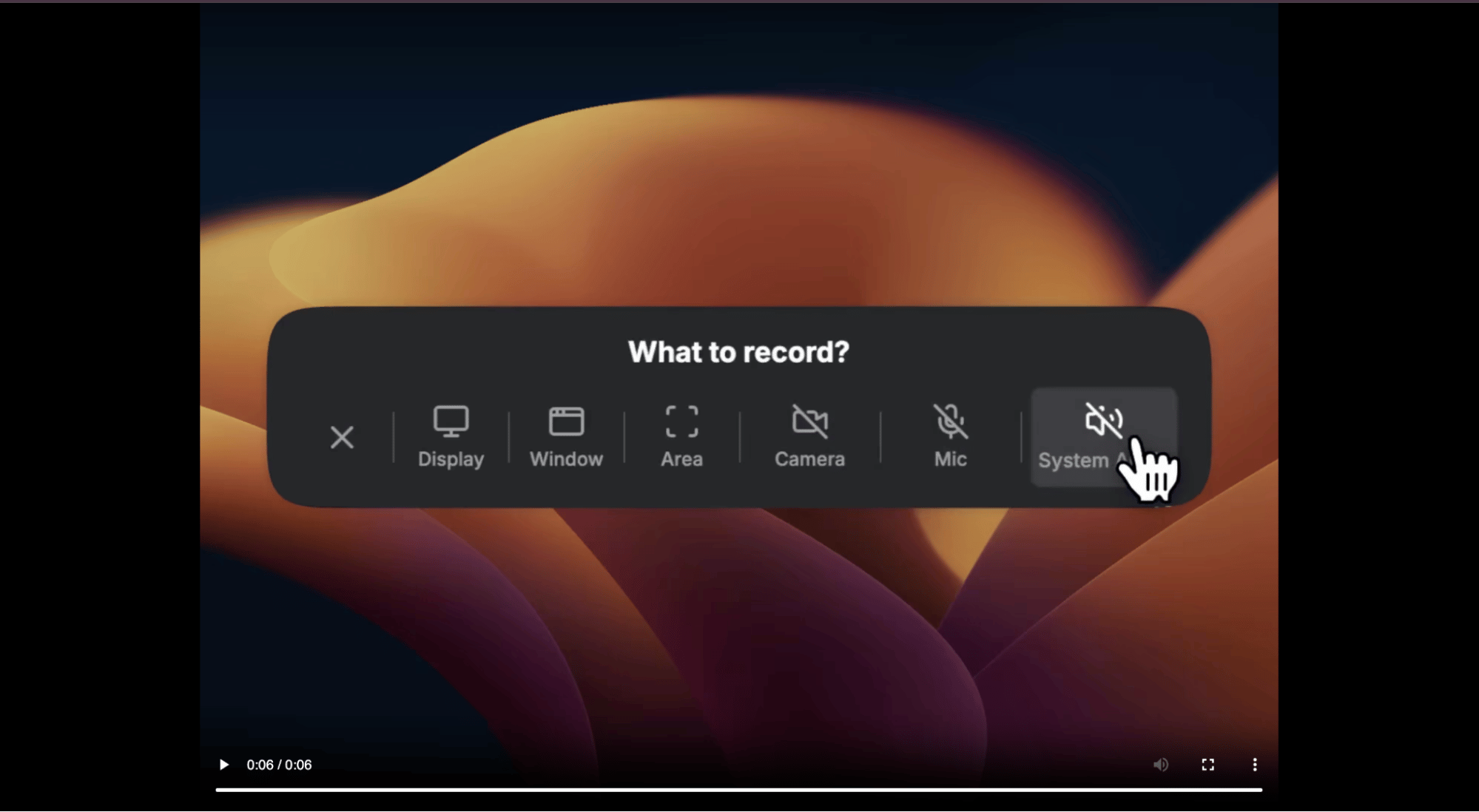
ScreenCharm: Best template-driven cinematic recorder
Screen Charm is a Mac-native recorder built around movie-style templates. It applies automatic zoom, smooth cursor movement, and motion blur after you record. Add backgrounds, device frames, and captions in a built-in editor, so you spend less time in a timeline than in Screen Studio..
Pros:
One-time purchase price with no hidden subscription charges
Automatic polishing features
Offers high-resolution exports
Audio and screen capture in one take
Locally kept files
Cons:
Mac only, with no iPhone or iPad version
Cannot export GIFs
Limited advanced timeline editing for complex projects
Best for: Creators who want cinematic output without manual editing. Mac only, one-time purchase.
Price: A one-time purchase of $99 USD.
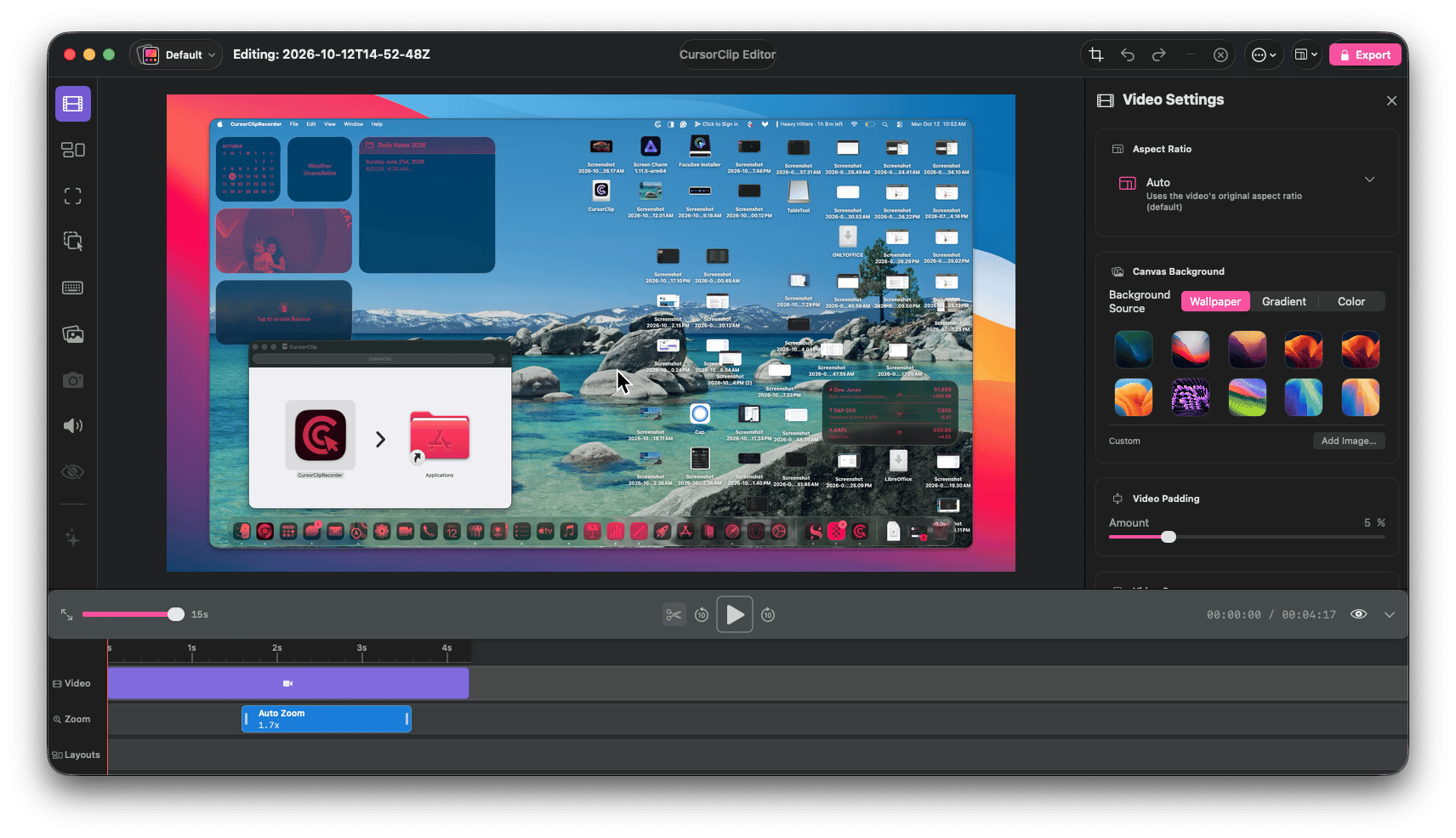
CursorClip: Best lifetime pricing Screen Studio alternative
CursorClip is a lightweight Mac-native recorder focused on the auto-zoom effect that made Screen Studio popular, and is sold as a one-time lifetime license. The feature set is smaller, but the core features users want are there.
Pros:
Auto-zoom and motion features for smooth video
Lightweight app
4K recording
Native Mac feel
Cons:
Mac only
Exports are locked unless you buy a full license
No modern AI tools
A simpler motion style than Screen Studio
Best for: Picture a solo SaaS founder who makes two or three demos a month: they buy once and pay nothing recurring for the effects. Best for indie creators who use cinematic recording occasionally rather than daily.
Price: CursorClip has two price points: a Lifetime license for $70 that includes everything, and a Subscription tier with yearly at $29 and monthly at $9.
What I like about CursorClip is that you can record and edit before you pay anything. The license only matters when you export, so run a full test export before you build a project around it.
Loom: Best for async team video sharing
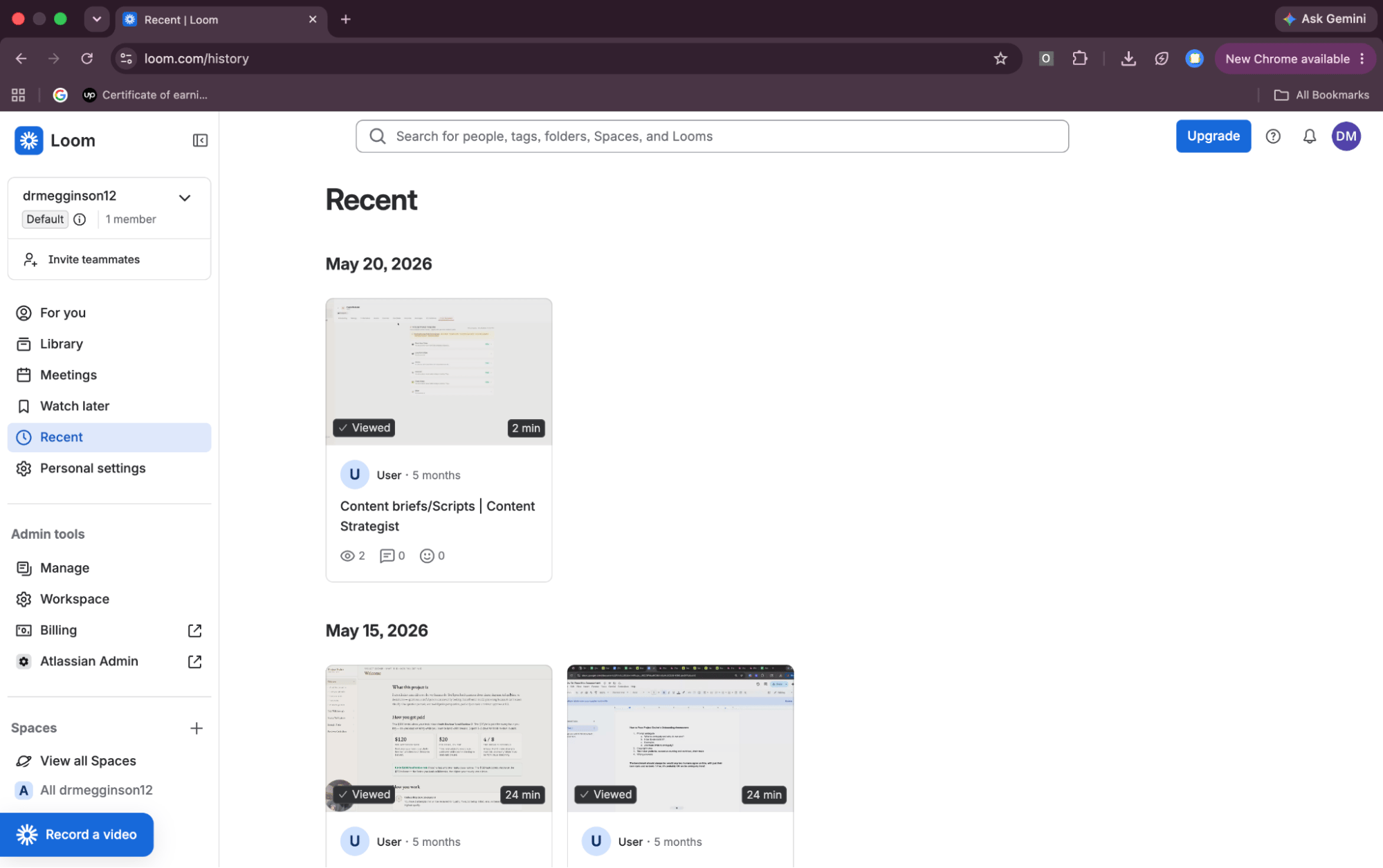
Loom is not a cinematic tool. It’s an asynchronous (async) communication platform built around recording: stop recording, and a shareable link is already on your clipboard. It works on Mac and Windows.
Pros:
Fast recording and uploading
No account needed to watch videos
AI features such as captions, summaries, and filler-word removal
View analytics
Cons:
Paid plans can get expensive as your team grows
Restricted free plan
Limited video editing tools
Needs a stable internet connection to avoid lag
Best for: Bug reports, feature walkthroughs, and quick explanations to colleagues.
Price: Loom has a limited free plan. Paid plans are per user, so costs rise with team size.
Tella: Best browser-based studio recorder
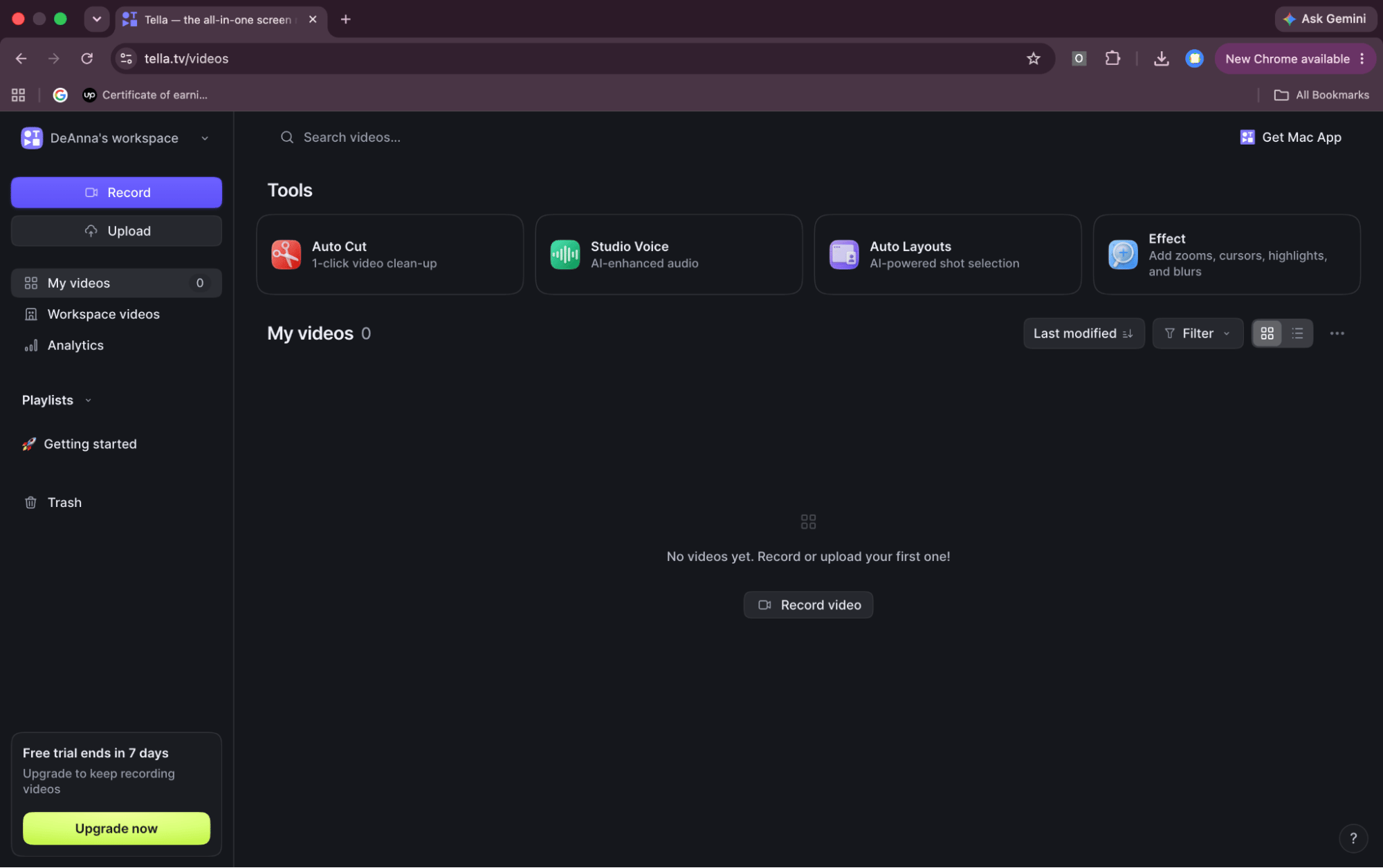
Tella runs in the browser with no download, combining screen recording, webcam, and design-first editing. Layouts, backgrounds, and templates are tuned for social-first output, and you can start recording from any device. A desktop app is also available.
Pros:
Multi-clip recordings you can combine and rearrange
Built-in web editing
AI tools such as silence removal and background noise cleanup
Cross-platform access
Cons:
High-end features require a paid plan
Not a full video editor, with no timeline layering or deep color grading
Users report lag when recording long videos in one session
Best for: Content creators who want polished output without installing software.
Price: Tella offers a 7-day free trial. Pro costs $26 per month or $156 per year when billed annually. Premium costs $39 per month or $228 per year when billed annually and adds custom branding, a custom domain, and 60 FPS exports.
Descript: Best for text-based editing of recordings
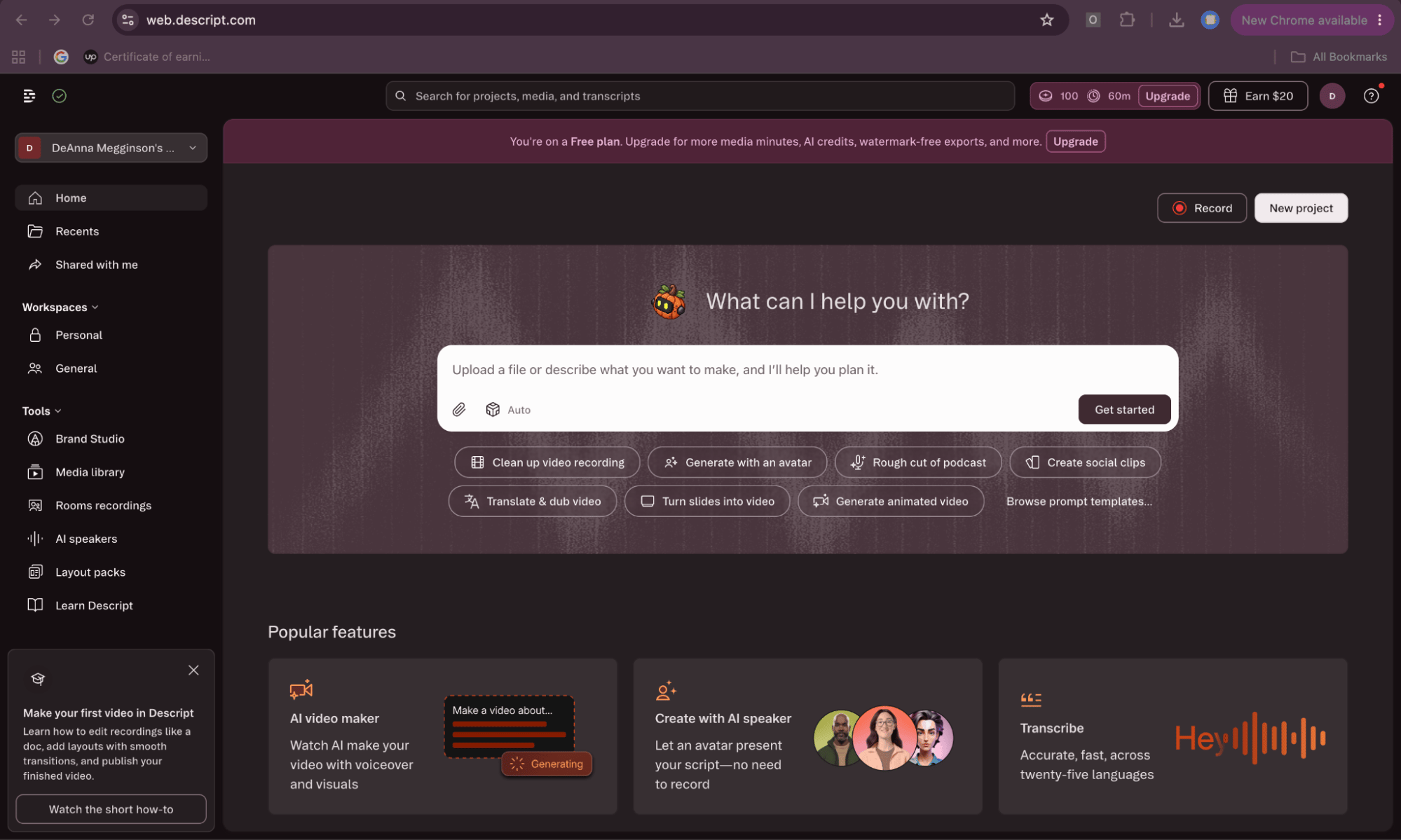
Descript is primarily an audio and video editor used in a browser. It transcribes your recording, and deleting a sentence from the transcript cuts the matching video. It includes built-in screen recording and runs on Mac and Windows, with AI features such as voice cloning, filler removal, and auto chapters.
Pros:
Text-based editing
Automatically removes filler words
Has built-in audio enhancements
Built-in screen and voice recording
Cons:
Limited advanced video features
Frequent UI changes with updates, so the learning curve never fully ends
Lag and freezes reported
Internet dependent
Best for: Podcasters, YouTubers, and heavy editors that want those AI tools
Price: The free tier is limited. The Creator plan costs $35 USD per month or $288 USD per year. Pricing is per person, so costs grow with your team. Each plan includes AI credits and media hours. Once you use them up, you’ll need to buy more, so keep an eye on usage.
OBS Studio: Best free full-control option
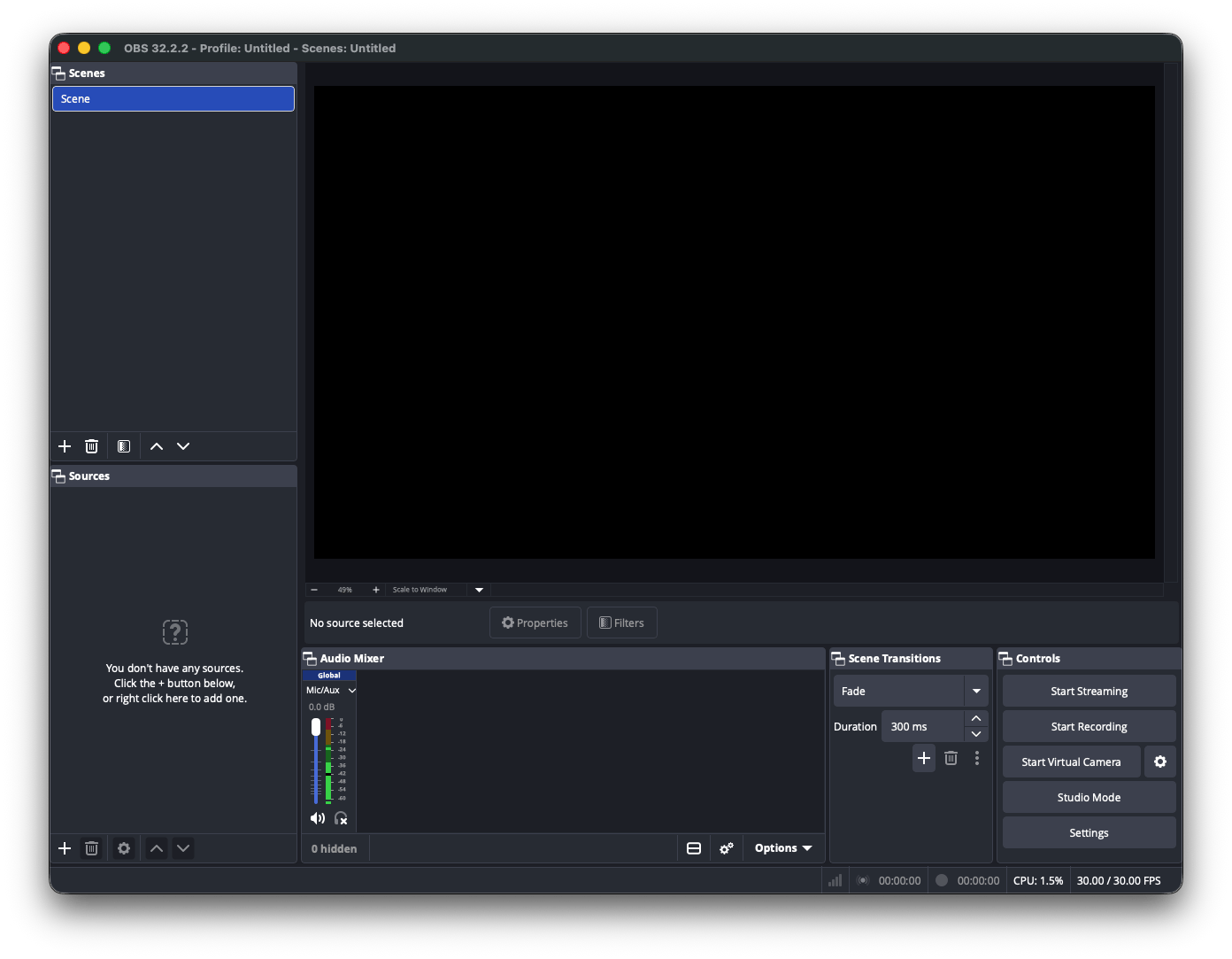
OBS Studio is a free, open-source, and extremely capable screen recording software. Features include: multi-source composition, scene switching, streaming to YouTube and Twitch, and professional-grade recording on Mac, Windows, and Linux. You get raw control rather than effects.
Pros:
Free and open source, so you can inspect and modify the code
Cross-platform support
Customizable layers for audio, game capture, and webcam scenes
Advanced audio and video mixing
Cons:
A steep learning curve
No built-in video editing
Support comes from community forums, not an official team
You’ll rely on third-party plug-ins for extra features
Best for: Technical users, streamers, and anyone who wants complete control without paying.
Price: Free and open source.
Camtasia: Best traditional screen recorder + editor combo
Camtasia is a long-established recorder with a built-in editor on Mac and Windows. It’s used primarily for educational and instructional material.
Pros:
Beginner-friendly
All-in-one recording and editing
High-resolution screen recording
Built-in training and polish tools like arrows and smart-focus zoom
Cons:
Expensive for solo users who record occasionally
Backward compatibility issues with older files
Occasional crashes and bugs reported
Best for: Corporate training creators, educators, and anyone who needs a mature editing pipeline in one app.
I’d only recommend Camtasia if you edit regularly. It makes sense for training videos with callouts and a full timeline. For occasional demo clips, the yearly subscription costs more than most tools on this list, and you’ll use only a fraction of it.
Price: Camtasia pricing depends on whether an individual or a team uses it. Individual plans are billed yearly: Starter at $39 USD, Essentials at $179.88 USD, Create at $249 USD, and Pro at $599 USD. Teams are billed yearly per user. The Business plan costs $198 USD per user per year and is limited to 99 users. The price can be steep, so make sure the plan fits your needs before you commit. Educators and students can also get a discounted rate.
CleanShot X on Setapp: Best everyday screen recorder without cinematic polish
CleanShot X is a daily capture tool covering screenshots, screen recordings (video and GIF), scrolling captures, annotations, and cloud sharing, deeply optimized for macOS. It is available on Setapp alongside 300+ other apps. It can also hide desktop icons before you capture.
Pros:
Mac-native, with a Quick Access overlay after every capture
Crop, blur, and annotation tools
Pin a screenshot for easy reference
Video and GIF recording from 480p up to 4K
Cons:
No Windows or Linux version
A one-time purchase includes only a year of updates
Occasional glitches
Best for: A product designer might use it for most daily captures, then reach for Screen Studio or FocuSee only for launch videos. Also anyone who wants quick, clean captures without learning a complex editor.
I’d keep CleanShot X for everyday captures like bug reports, annotated screenshots, and quick GIFs, and save a cinematic recorder for launch videos. That split also keeps your recorder subscription from sitting idle.
If you’re moving away from Screen Studio, you’ll need a few extra tools to complete your recording workflow. These three Setapp apps pair well with any recorder:
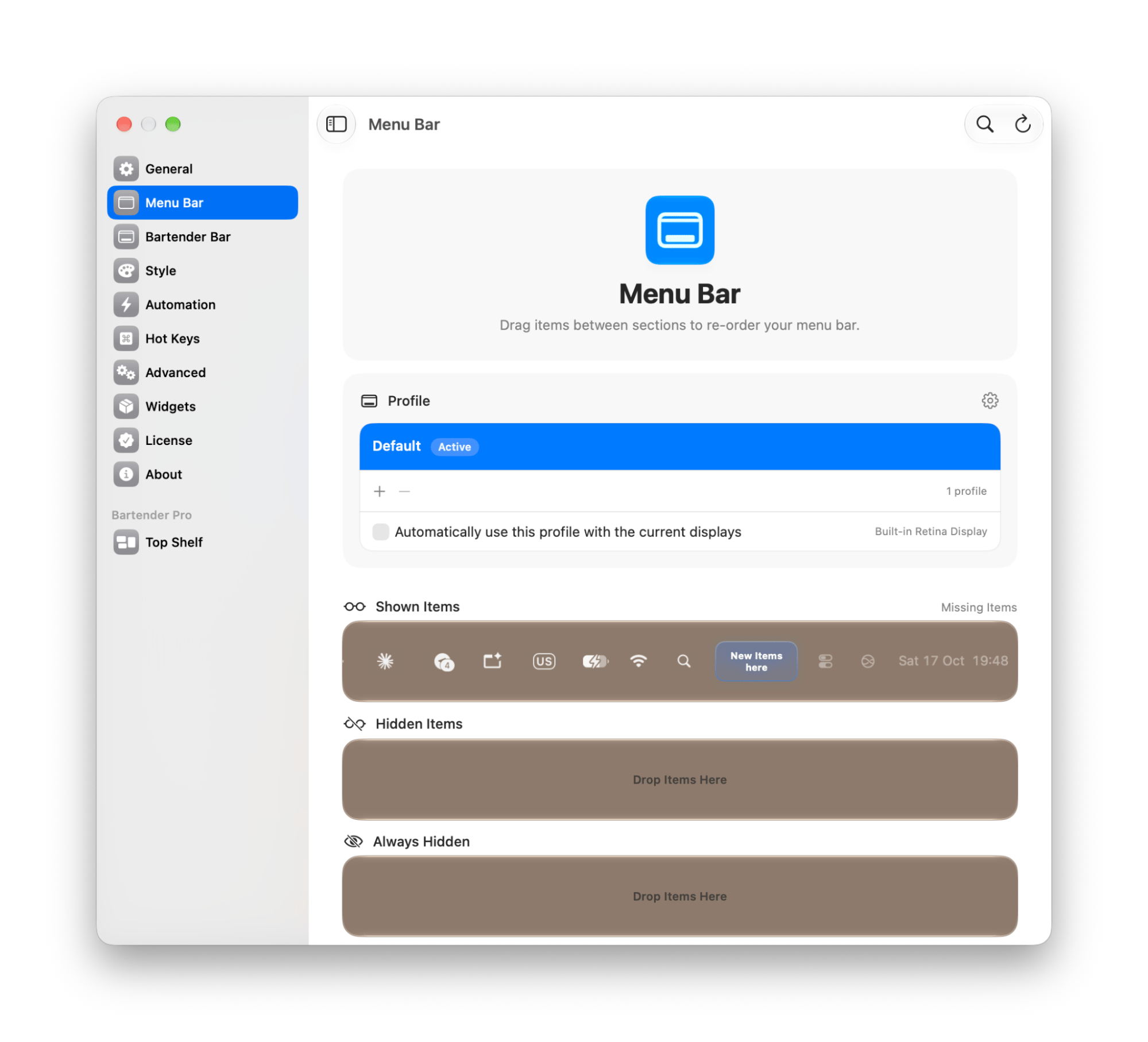
Bartender hides menu bar clutter before you record. Nobody wants to see your third-party icons in a product demo. You can hide, reorder, and search menu bar items, so only the icons you choose stay visible.
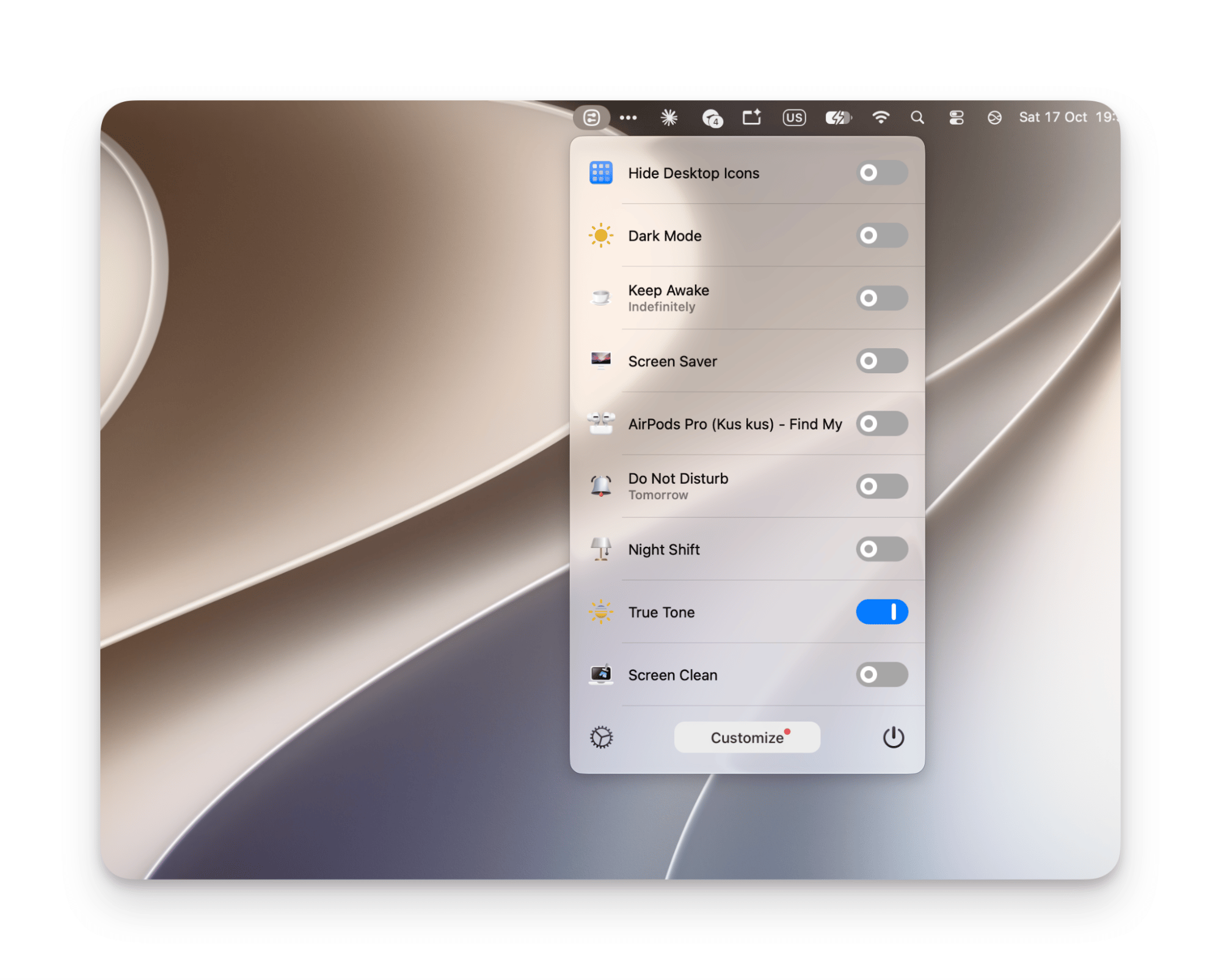
One Switch handles pre-recording cleanup in one click: Do Not Disturb on, desktop icons hidden, so no notification pops up mid-take. This app is so convenient for Apple users and really enhances workflow.
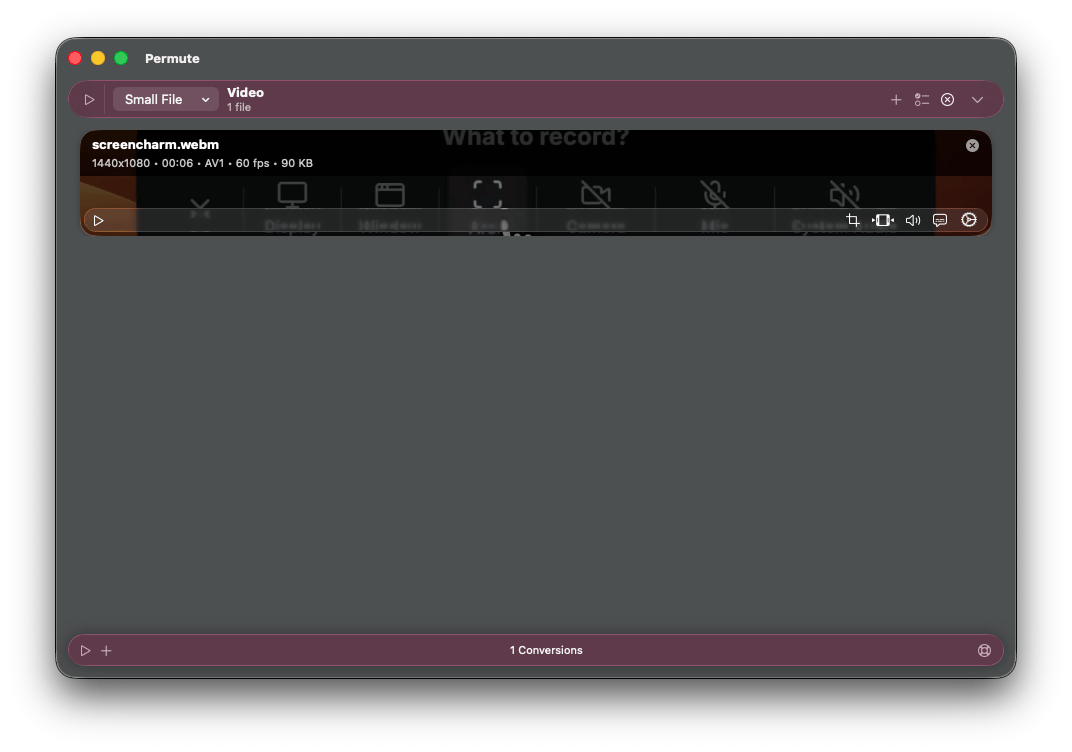
Permute converts the finished video to another format or aspect ratio when your recorder doesn't export what a platform needs. It handles 50 formats offline, so nothing gets uploaded.
Before recording, I hid menu bar icons in Bartender and desktop icons in One Switch. A single stray notification or icon in frame cost me a lot of retakes, so I now run that cleanup first.
These three are only a slice of the catalog, which is covered in the roundup of the best Setapp apps.
Which Screen Studio alternative should you choose?
Choose FocuSee for the closest match to Screen Studio, Cap for free auto-zoom, CursorClip to pay once, and CleanShot X if you mostly capture screenshots and quick recordings. For Windows, pick Cap, or buy FocuSee directly, since the Setapp version is Mac-only. Here’s the full comparison:
How do you switch from Screen Studio to another recorder?
To switch from Screen Studio, export your finished projects as MP4, pick a recorder that fits what you make, recreate your export presets and visual style, and keep Screen Studio active for 30 days as a backup. Screen Studio project files don’t open in other apps, so only rendered videos carry over. Follow these five steps in order:
Identify what you actually make and what you need. Polished product demos, YouTube tutorials, and social clips each point to a different alternative. Narrowing this down will help guide your decision.
Export existing projects as MP4. Native Screen Studio project files won't open in other apps, so plan to keep renders only.
Rebuild your export presets. Recreate aspect ratios, resolution, and bitrate settings in the new tool you decide to use. Remember that not all features will transfer seamlessly, and plan to adjust as needed.
Recreate your visual style. Matching background colors, cursor styles, and zoom sensitivity are just a few ways to bring back the style you liked in Screen Studio.
Keep Screen Studio available for 30 days. A monthly subscription or trial can cover any project that needs it. This prevents any permanent loss of media during conversion.
Auto-zoom behaves differently between tools, so expect a short adjustment period. If most of your captures are everyday screenshots or recordings, consider CleanShot X, as it can handle your daily needs at a fraction of Screen Studio’s yearly price.
Pick the recorder that fits how often you record
If you want the closest match, start with FocuSee. If you want free, try Cap. If you want to pay once, test CursorClip. Most people also need something for everyday captures, and that’s where CleanShot X earns its place. Pair it with Bartender, One Switch, and Permute to keep demos clean from recording to export. All four are part of Setapp Membership. Try them and 300+ apps free for 7 days.
FAQ
Is there a free Screen Studio alternative for Mac?
Yes. Cap is free and open source with auto-zoom, and OBS Studio is free with full manual control but no automated effects. Third-party plug-ins will be needed for any additional features. Loom and Descript have limited free plans. Tella offers only a 7-day trial.
Which Screen Studio alternative works on Windows?
FocuSee, Cap, Loom, Descript, OBS Studio, and Camtasia all run on Windows. Of those, FocuSee and Cap include auto-zoom, the feature Screen Studio is known for.
What is the best cheap Screen Studio alternative?
For auto-zoom, Cap is free, and CursorClip is a one-time purchase. FocuSee offers a lifetime license. Prices shift often, so confirm current rates before buying.
Can I get Screen Studio's auto-zoom feature for free?
Mostly through Cap. Its auto-zoom and cursor tracking come close to Screen Studio's core, though with less editing depth and polish.
Is CleanShot X a Screen Studio alternative?
Not for cinematic work. It has no auto-zoom on cursor, motion blur, or cinematic backgrounds. It is a strong alternative for everyday capture: screenshots, quick recordings, GIFs, and annotations. CleanShot X is available on Setapp with a 7-day free trial.
Powerful apps live on Setapp
Ditch defaults and discover new gems on one app platform.






 Best solution
 Best solution