Setapp bundles 10 post-production tools for video editors into one subscription. From compression to transcription to disk cleanup, these apps fill every workflow gap outside your NLE.
Compress and play back any file instantly.Permute batch-converts and shrinks ProRes masters, and Elmedia Player opens MKV, WebM, and high-bitrate ProRes files without the usual QuickTime glitches.
Transcribe and caption footage automatically.WhisperTranscribe and TranscribeX turn interviews and voice memos into searchable text, while VidCap adds AI-generated captions in 60+ languages.
Record tutorials and keep your drives clean.FocuSee auto-zooms on tutorial recordings, Gemini clears duplicate media, Archiver 4 splits huge project folders for upload, Keep It Shot auto-renames screenshots, and Lungo keeps your Mac awake during overnight exports.
Try all 10 apps, plus 300+ more, with one Setapp membership.Start your 7-day free trial and see which tool saves the most time in your edit.
To really speed up your workflow, you need tools for the tasks outside your NLE, like clearing scratch disks and compressing client files. Usually, building a solid collection of the best Mac apps for video editors requires buying multiple standalone licenses. Setapp solves this by grouping these post-production utilities (and 300+ more) into one simple subscription.
Here is a breakdown of the specific apps I pulled from the catalog to make your daily editing routine faster.
Keeps your Mac awake during overnight renders or large cloud uploads with one click.
Setapp apps for video editors: By workflow
Let’s walk through the video editor apps from Setapp that can help you stay on top of your day and keep your workflow moving.
Compress and deliver video to client specs
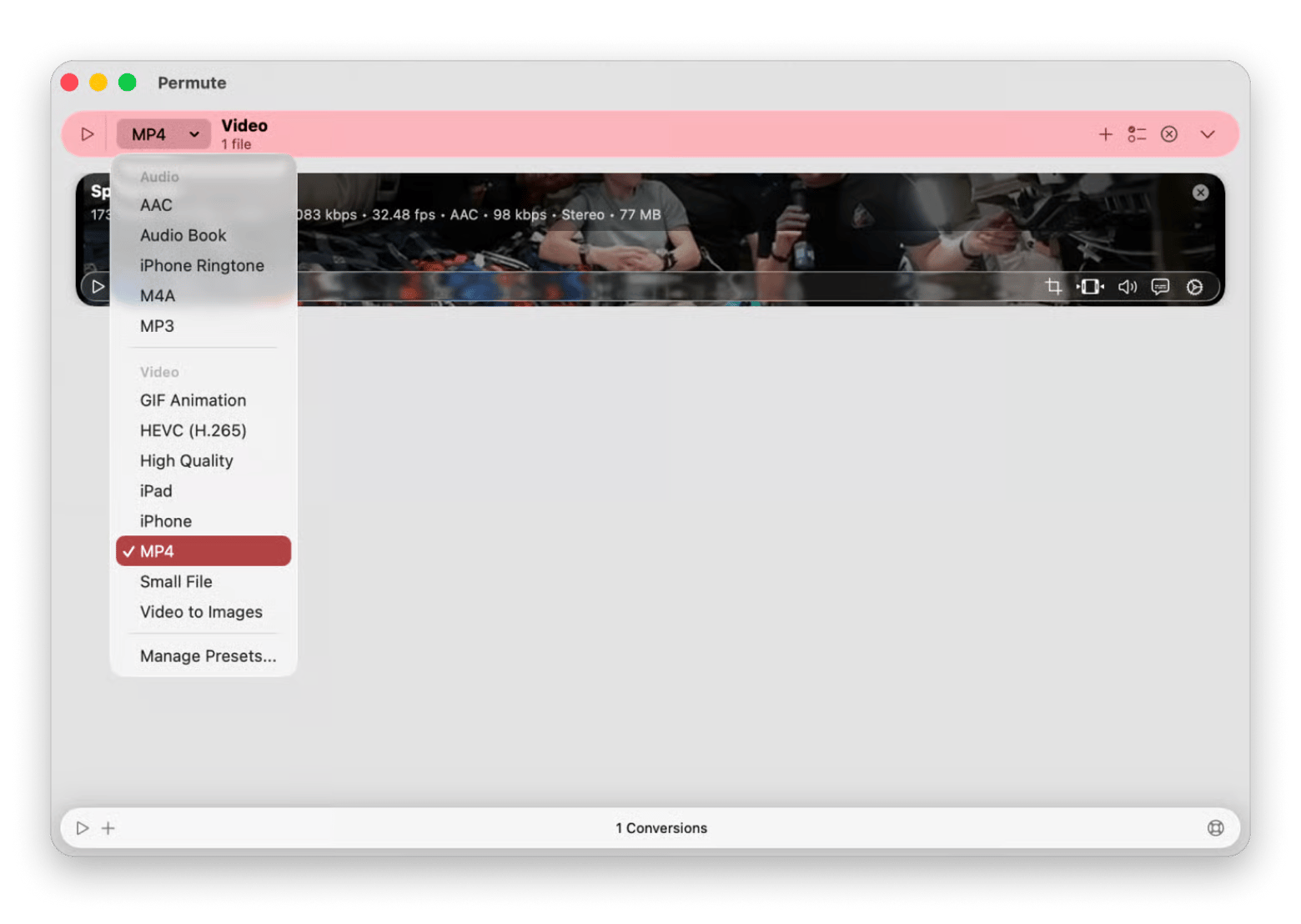
If you need a reliable video compression app for Mac, Setapp includes Permute, which can handle large ProRes (Apple's high-quality video format) master files. Using the popular Adobe Media Encoder just to create a quick preview for Slack is excessive and uses up a lot of RAM, distracting you from your active timeline. You can simply drop the master file onto the Permute window, select H.264 or H.265 (the latest video compression standards), specify the target file size, and let the process run. The best part? You can do that in batches. Permute uses Apple silicon hardware acceleration. This means that heavy exports are processed in the background while you continue working on your edit.
What it offers to users:
Drag-and-drop conversion for video, audio, and image files without complex settings
Batch processing with hardware acceleration to convert multiple clips at once
Preset options to quickly resize or reformat files for different platforms
“After downloading a video with Downie, I convert it to the format I need in Permute and bring it into Final Cut Pro. It takes minutes, and I can focus on the content instead of dealing with unsupported files.”Thomas, NighTech YouTube Channel creator
Transcribe footage and add captions
Raw footage is only useful once it's searchable. These three apps turn interviews, quick audio, and social clips into text or captions, each suited to a different speed and use case.
Transcribe interviews with WhisperTranscribe
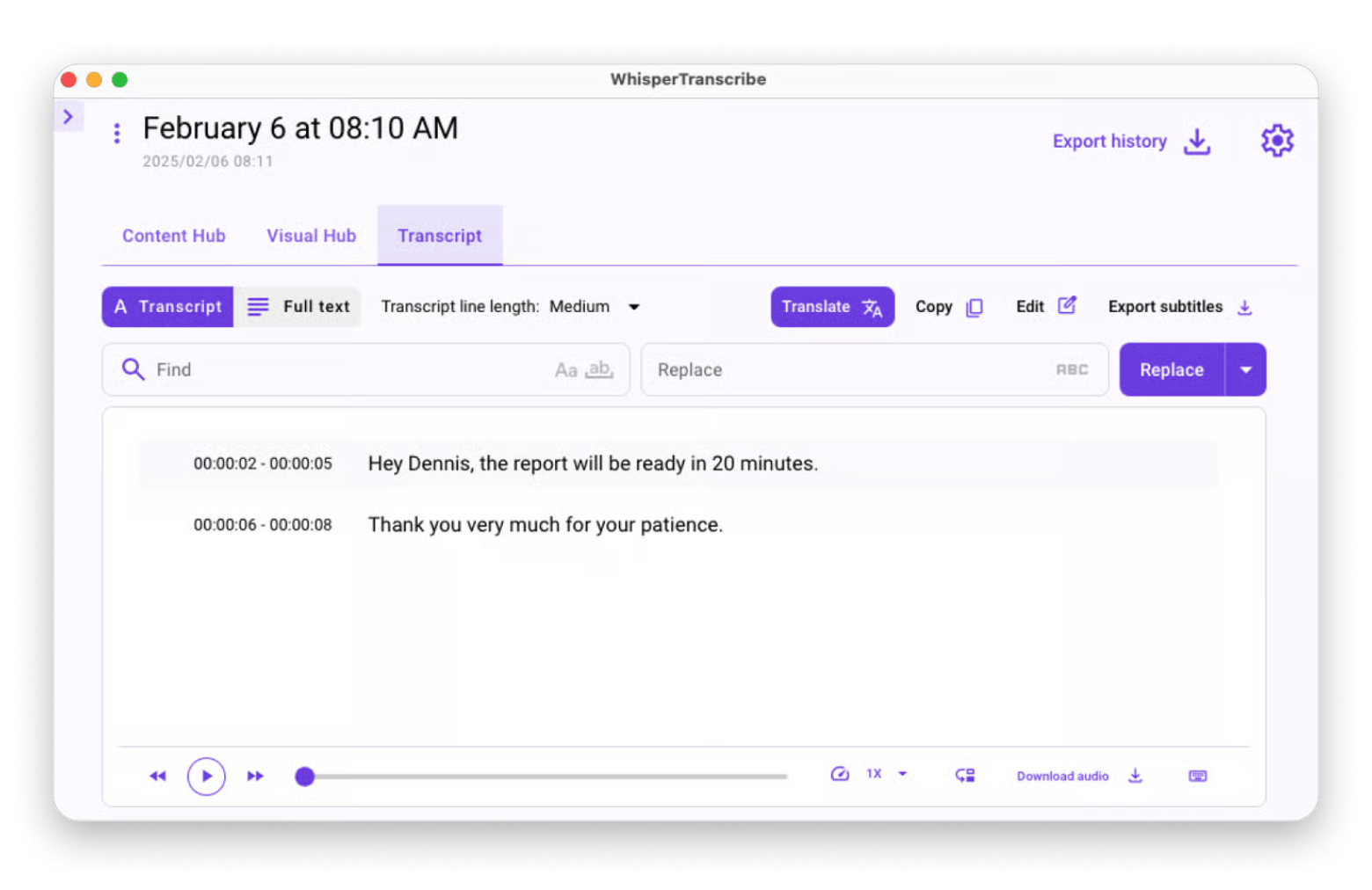
WhisperTranscribe is a lifesaver for documentary and corporate editing. When you’re faced with a huge amount of interview footage, the last thing you want to do is scrub through timelines just to find one specific soundbite. Uploading the media to this app provides you with a clean, timestamped transcript in minutes. This completely changes the approval process. Instead of forcing a director or client to watch a 45-minute raw file, you can provide them with a text document for them to highlight the quotes they want. This creates a quick “paper edit” before you even start cutting.
What it offers to users:
Advanced AI transcription for long interviews, podcasts, and raw footage
Automated speaker identification and timestamp generation
Direct export into text documents or subtitles for easy client review
Transcribe quick clips with TranscribeX
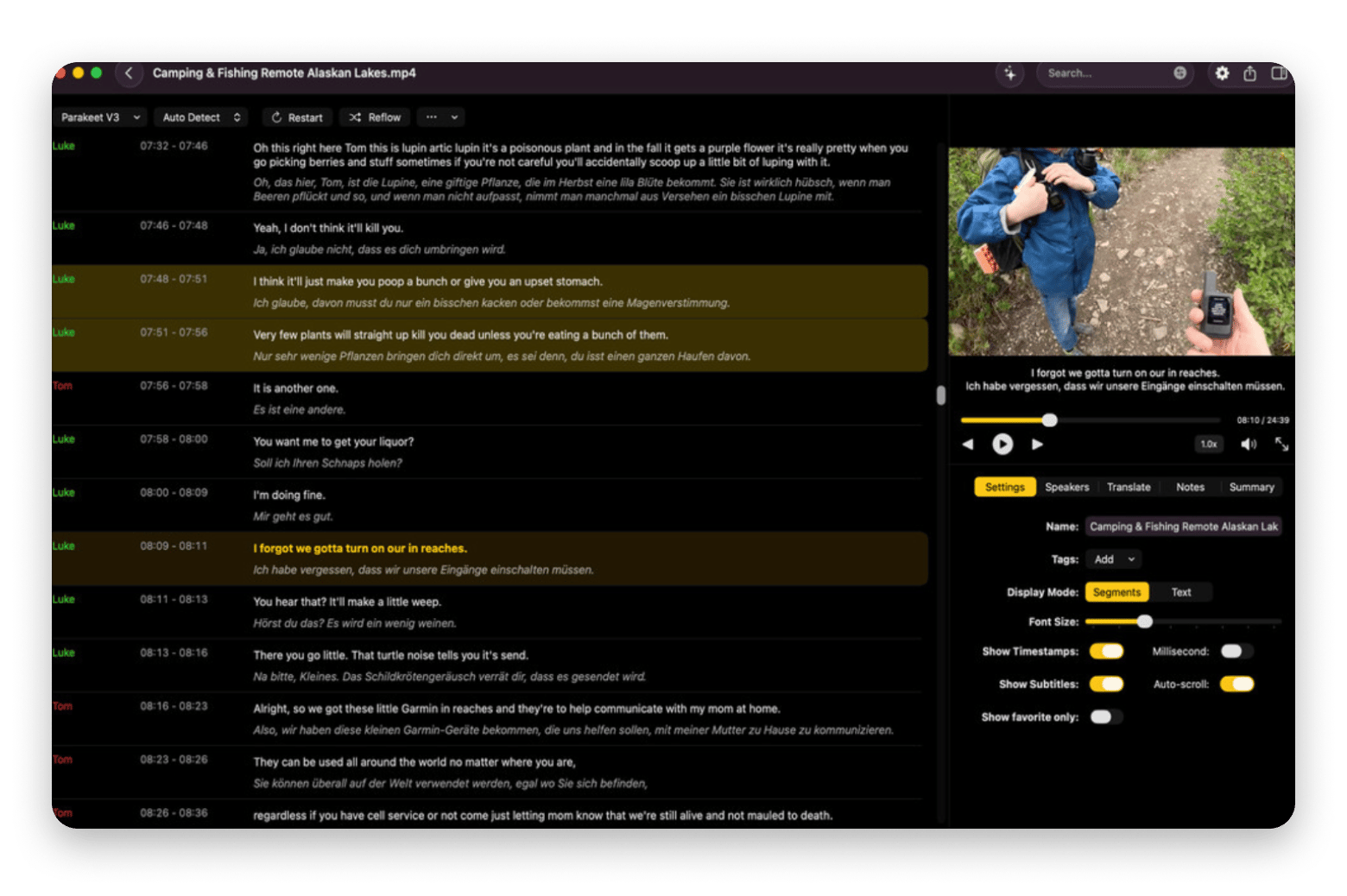
TranscribeX transcription tool for video editors for Mac is great for smaller files or quick tasks. Instead of waiting for a browser-based service to upload and process your audio, everything runs on-device. It’s incredibly fast for those times when you just need to pull a quick quote from an audio memo or check a single line of dialogue without interrupting your entire workflow.
What it offers to users:
Fast, on-the-fly audio and voice memo transcription
Simple text copying to quickly check dialogue lines or grab a quick quote
Auto-caption social cuts with VidCap
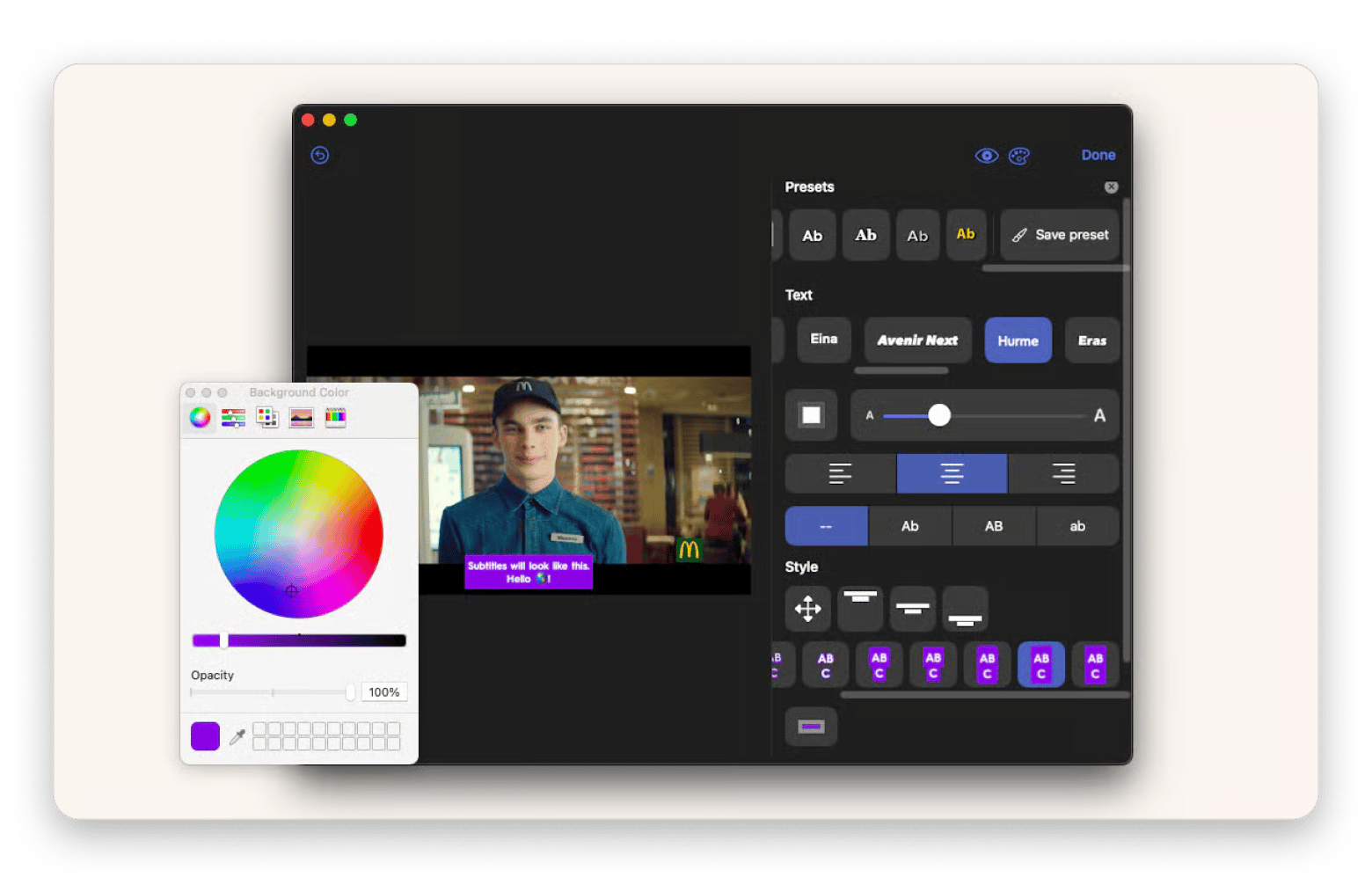
If you edit social clips, VidCap is a dedicated AI caption generator included in Setapp that embeds trendy word-by-word subtitles into a video. It supports 60+ languages for quick localization, but the real highlight for me is how it saves messy talking-head footage. Imagine a client sends a clip where they are blatantly reading off an iPad or sounding like they recorded in an empty hallway. You can fix that really fast with VidCap because the app uses AI to redirect their eyes to the lens and strip out the echo. Add in the ability to blur distracting backgrounds, and you completely avoid having to open After Effects for rotoscope work (frame-by-frame manual masking).
What it offers to users:
Automatic generation of stylized, animated captions
Multi-language support (60+ languages)
AI video enhancement tools to correct eye contact, blur background, and clean up audio
Rotoscoping a talking-head clip by hand? That's hours you don't have. VidCap's AI redirects eye contact and strips echo automatically. Fix My Footage Free.
Record screen walkthroughs and tutorials
Recording a clean tutorial or client walkthrough usually means editing in zoom effects and cutting dead air afterward. One app handles both automatically while you record.
Record tutorials with FocuSee
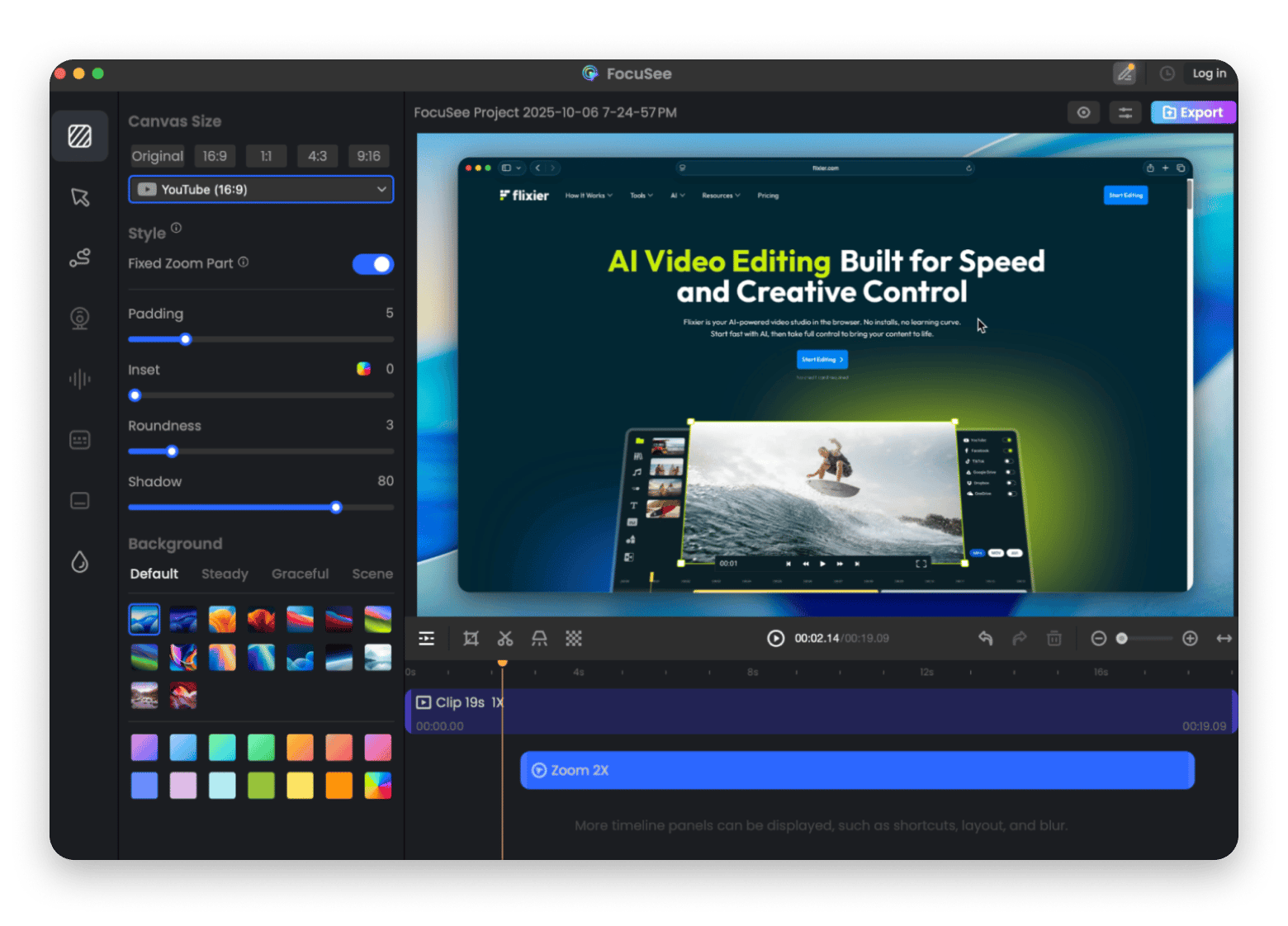
FocuSee is an automated screen recorder for Mac that tracks your cursor and zooms in on active windows. If you often record timeline walkthroughs or software tutorials, this app is incredibly practical. I like that you don’t have to open the raw footage in a new project to upscale the display. The software automatically inserts smooth 2D and 3D zoom-ins exactly at the areas you click. Furthermore, you are fully in charge of what those changes to the screen and click points are going to reveal to the user.
If you have to read through any client notes while recording, the internal teleprompter will help you stay focused without having to look away, so you don’t forget where you were. You can either record the whole monitor or just one app. As soon as you hit stop, it’ll sort your footage in a flash. I also found the Auto Cut tool really useful. It helps you get rid of dead air and filler words.
What it offers to users:
Automated screen recording that tracks mouse movement and zooms in on clicks
Built-in teleprompter that allows you to read scripts smoothly during tutorial recordings
Smart timeline editing tools like auto-removal of silences and filler words
“FocuSee captures my screen and webcam at the same time, then adds professional touches that would normally take me hours to create manually. The automatic cursor following keeps viewers focused on exactly what I’m demonstrating.”Stefan-Radu Gogolan, video editor, digital marketing specialist
Record a polished walkthrough on the first take. FocuSee's teleprompter and auto-zoom mean no more re-reading client notes from memory. Get FocuSee Free.
Play back any codec without workarounds
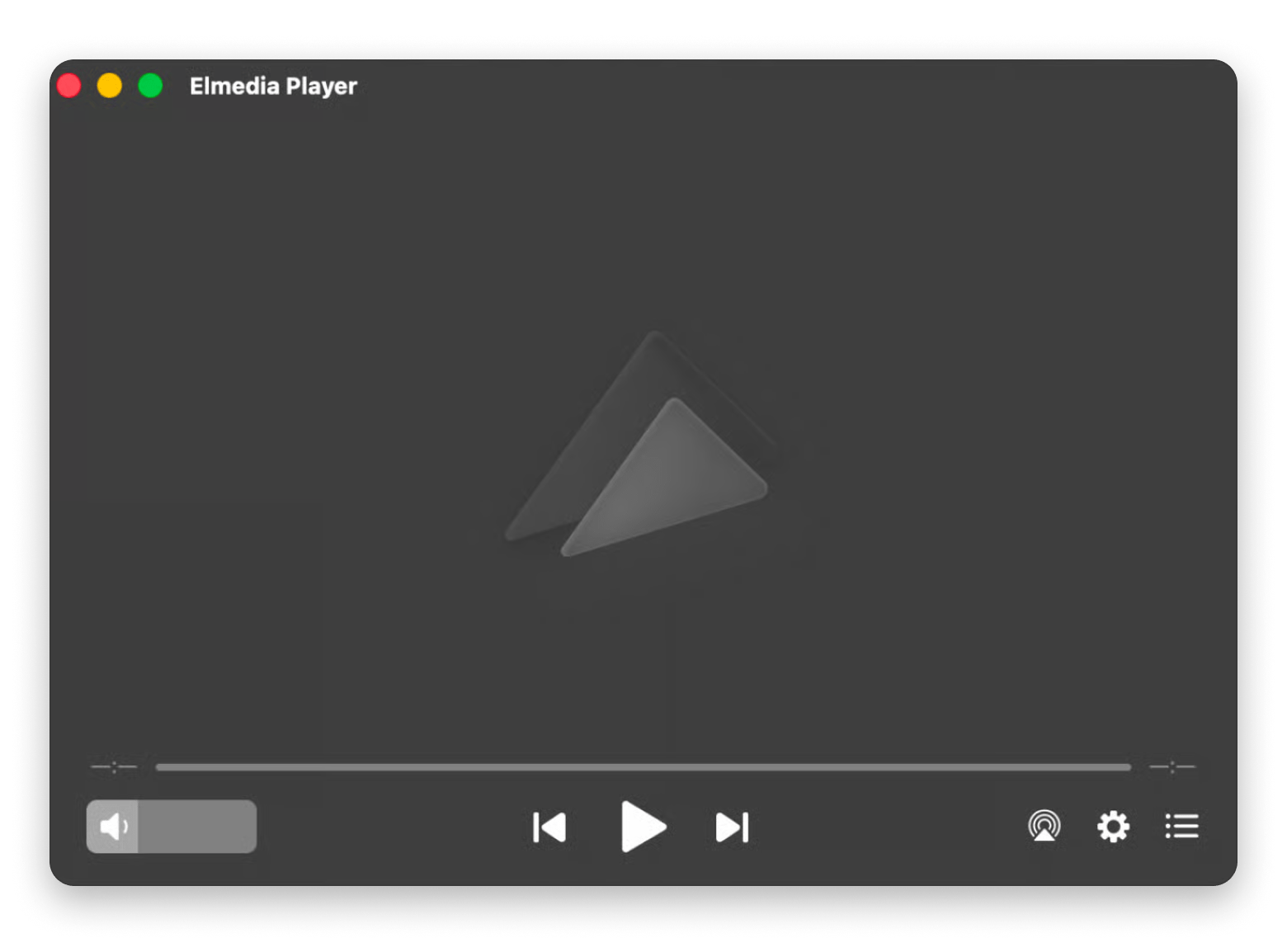
Elmedia Player is a universal Mac media player that can open all the weird file formats and codecs you get stuck with. So, if your client sends you an .mkv screen recording from OBS or a .webm clip, you no longer need to convert the file to open it on a Mac. Install Elmedia and open everything directly and quickly.
What it offers to users:
Universal playback for almost any media format or codec
Precise navigation with frame-by-frame scrubbing and speed control
“Elmedia Player has become my go-to tool for previewing and reviewing videos. Its playback quality is better than what Final Cut Pro’s viewer can offer, and its support for high-resolution video matters when I need to check every detail in 4K and 8K footage.”Stefan-Radu Gogolan, video editor, digital marketing specialist
Clean up and organize project media
Once the edit is locked, the busywork starts: clearing duplicate footage, archiving the finished project, and keeping screenshots findable. These three apps cover that end-of-job cleanup.
Remove duplicate files with Gemini
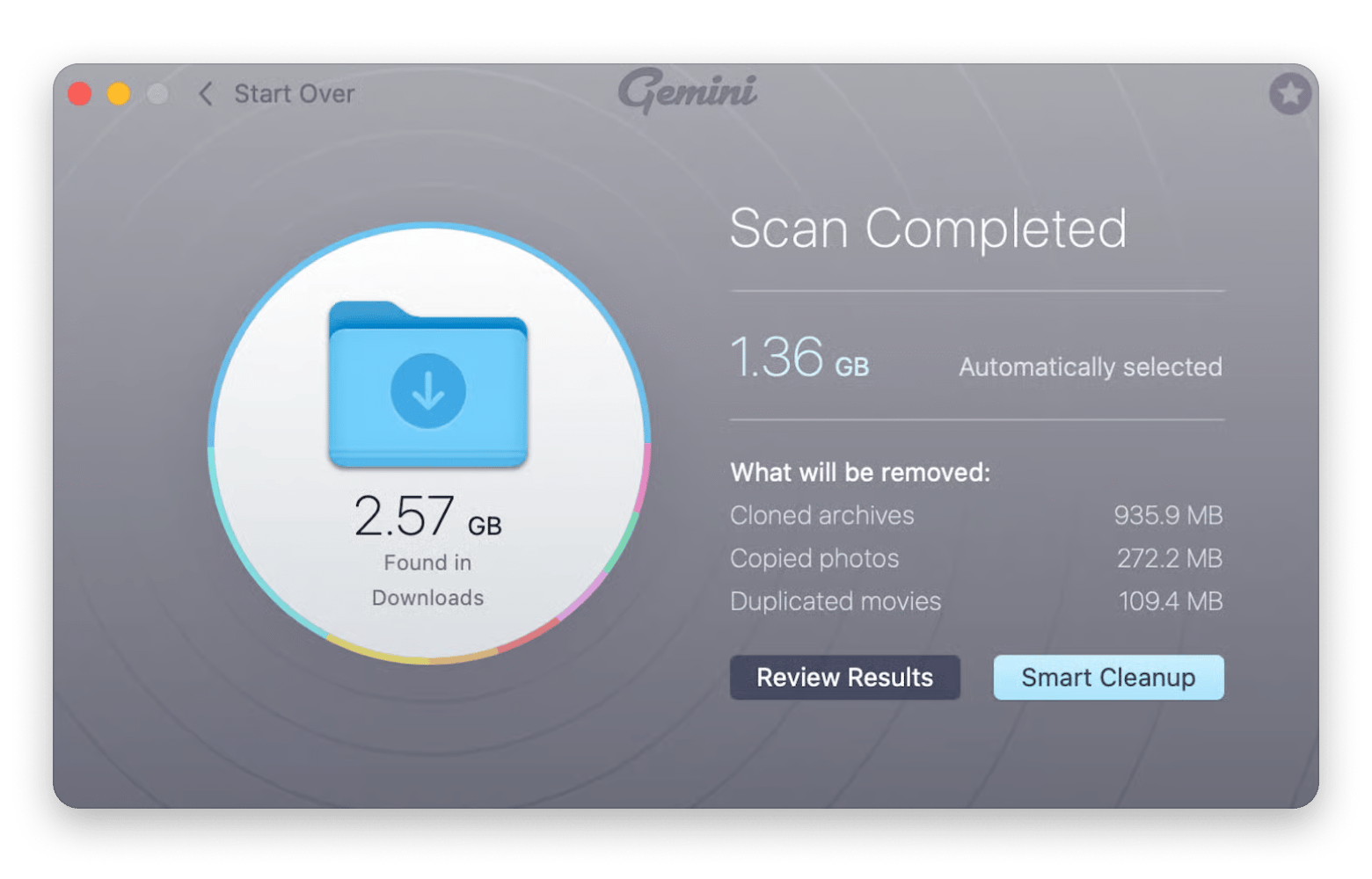
Gemini is a duplicate file finder that scans your edit drives for redundant media. When you pull footage from different camera cards, you usually end up with the same heavy clips copied into multiple folders. Manually digging through old project directories to clear up some SSD space is something I used to waste hours on. Because heavy editing software needs a ton of free space to run smoothly, I actually consider Gemini one of the best DaVinci Resolve companion apps Mac video editors can install. My personal hack is scheduling a scan every Friday to get my space back automatically.
What it offers to users:
Deep disk scanning that compares actual file contents, not just file names, to find exact duplicates
Smart cleanup suggestions to safely reclaim gigabytes of storage space
Archive finished projects with Archiver 4
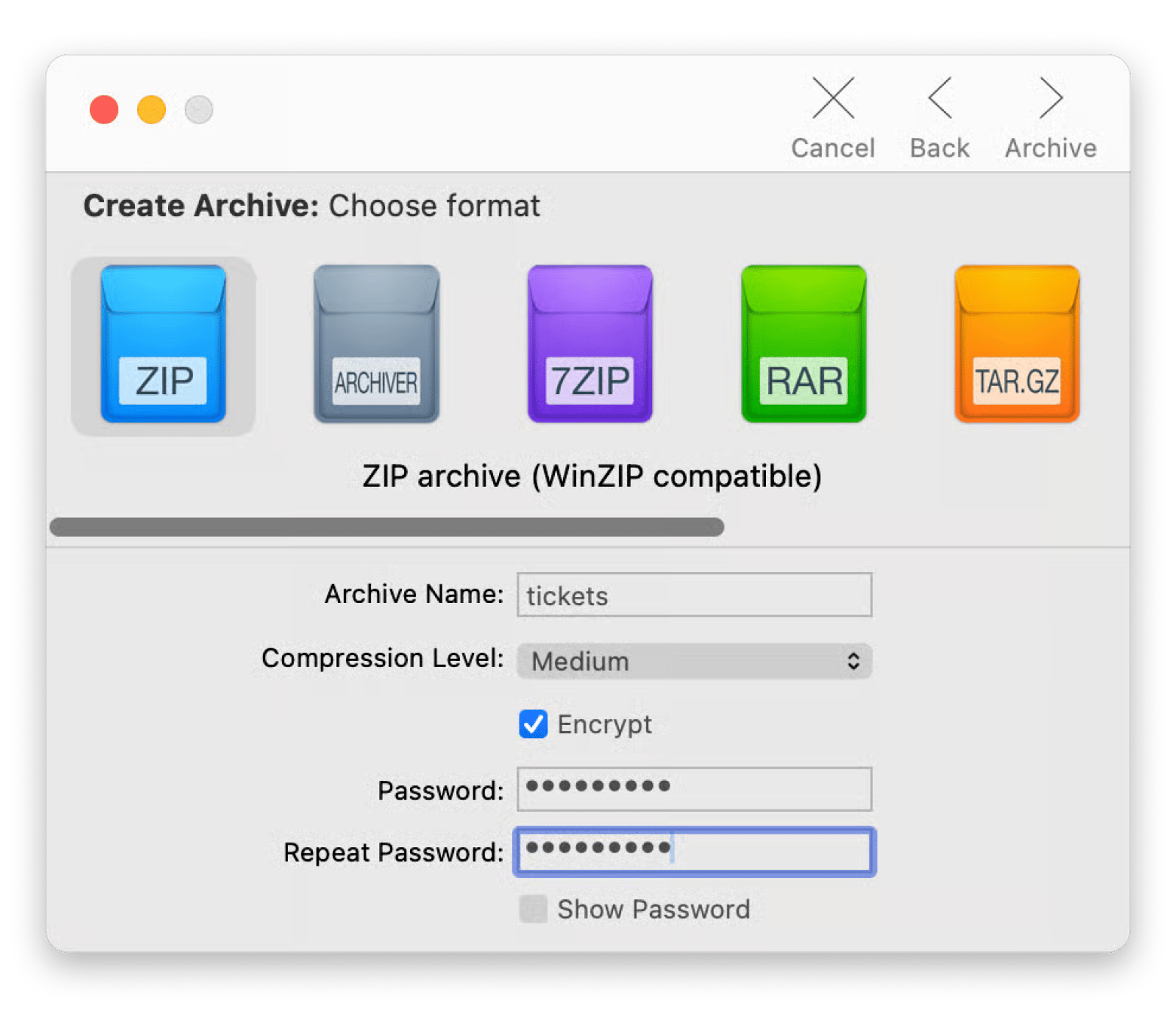
When a job is signed off and ready for storage, get Archiver 4, a straightforward Mac utility that compresses your folders into .zip or .rar files. You just drag your project directory into the app and pack it up. The main reason this is useful for video work is the split feature. Trying to upload a single 100GB project file to Google Drive or Dropbox is usually a difficult task because the connection often times out. The Archiver app lets you quickly break that massive directory down into smaller chunks (like ten 10GB files). Then the upload finishes without network errors.
What it offers to users:
Simple drag-and-drop compression and extraction for a wide variety of archive formats (.zip, .rar, .7z, etc.)
Archive splitting capabilities to break massive folders into smaller, upload-friendly parts
Password protection and encryption for secure client deliverables
Auto-rename screenshots with Keep It Shot
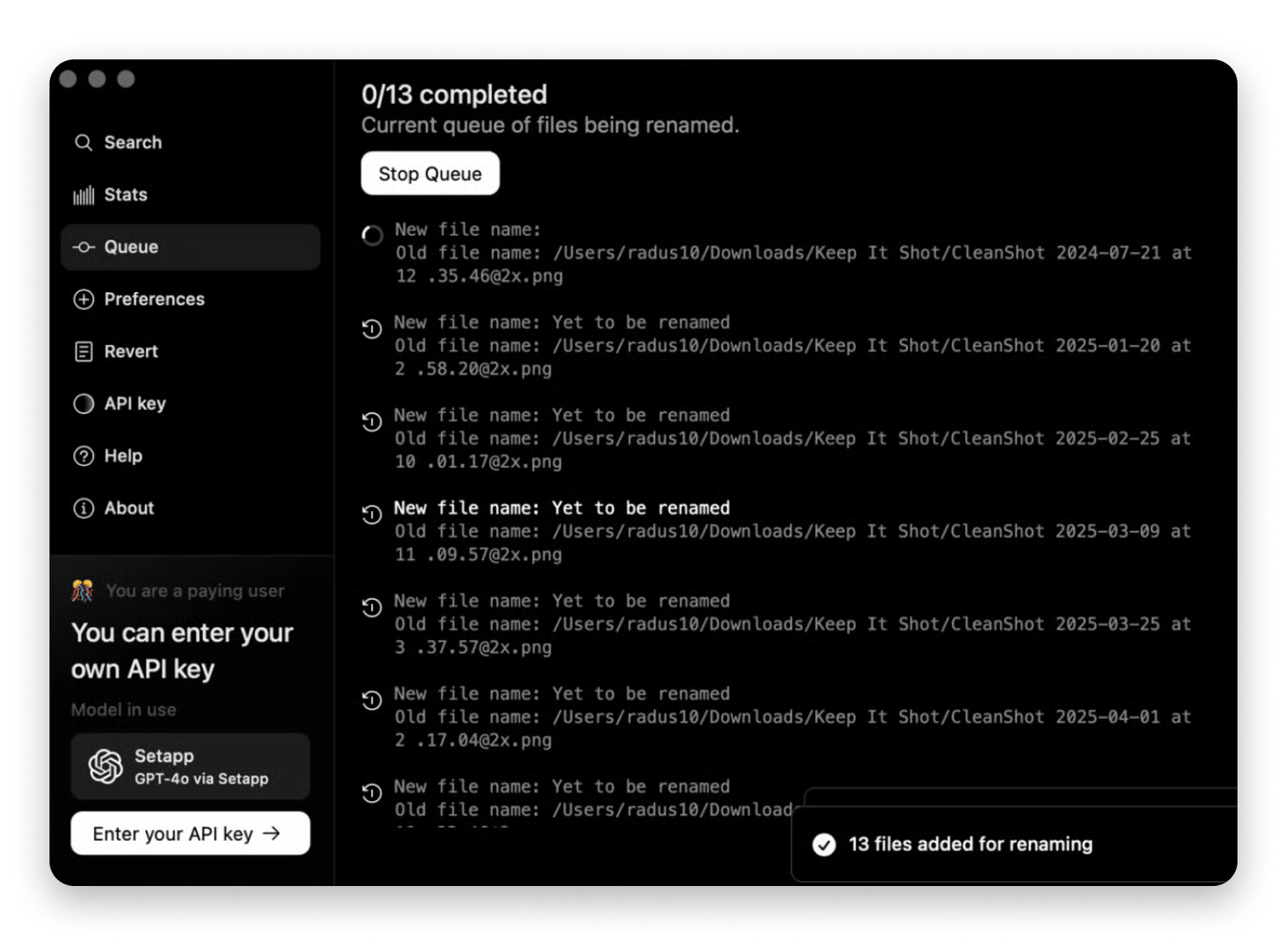
Keep It Shot is a Mac screenshot manager that uses on-device AI to automatically rename your screen grabs based on what’s in the image. If you constantly grab color references, log render errors, save client timestamps, etc., your desktop is probably buried under dozens of files called “Screen Shot at 11.45.png.” Trying to find one specific frame a week later usually means hitting the spacebar on fifty identical icons to see what’s inside. The app scans the content of the grab and gives the file a descriptive name. Basically, you don’t have to manually organize anything anymore! You just search Spotlight for “neon lighting” or “timeline settings,” and the image you need shows up.
What it offers to users:
On-device AI processing that analyzes screenshot content to generate smart, searchable file names
Elimination of manual folder organization for desktop screen captures
Keep the Mac awake during long exports
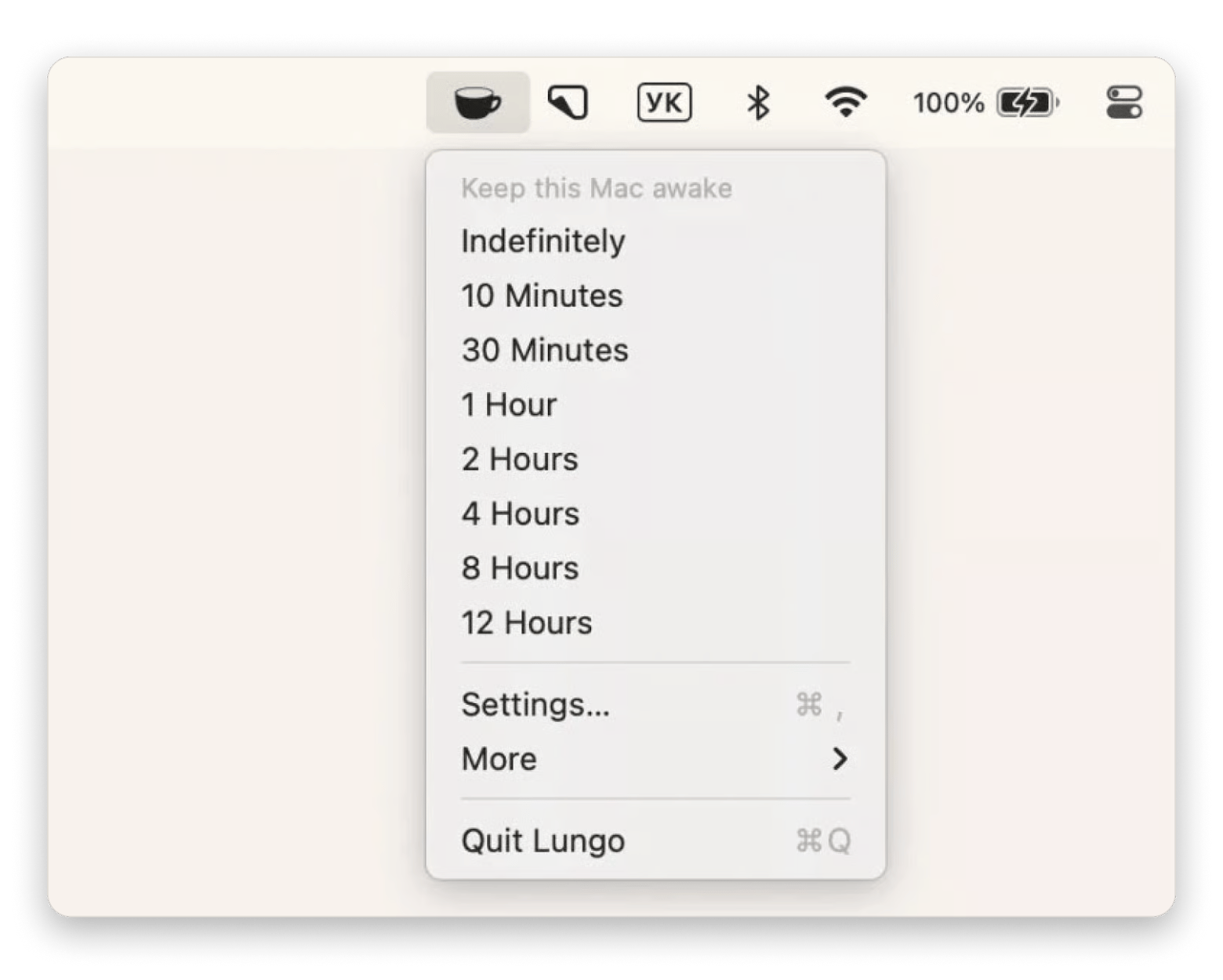
Lungo is a Mac menu bar utility that prevents your system from going to sleep and interrupting long video renders. You know how macOS loves to save power. But it’s not always what you need. Sometimes, you walk away while exporting a heavy timeline. Then you come back from a break and find the progress bar frozen at 10%. This basically means you just wasted an hour. Before you hit export, don’t forget to click the Lungo icon and tell it to keep your Mac awake. It overrides your default settings to stop the screen from dimming and keep your drives spinning until the queue is done.
What it offers to users:
One-click menu bar activation to prevent Macs from sleeping or dimming the screen
Configurable timers to keep your system awake for a specific duration or task
Beyond Premiere and Resolve: 10 apps that save your workflow
Video editing is never just about cutting clips on a timeline. It doesn’t matter how powerful your NLE is, you still have to deal with transcoding huge files, organizing messy screenshots, digging through duplicate media to keep your drives from choking, and more. Bringing in external utilities to handle that busywork is all about working smart.
Setapp for video editors: is it actually worth it? You don't need 10 separate subscriptions to round out your edit bay. Setapp bundles Permute, WhisperTranscribe, VidCap, FocuSee, Gemini, and 300+ more tools for one price. Get 300+ Apps.
FAQ
Does Setapp include a video compression app?
Yes. Permute from Setapp can handle batch video compression, letting you shrink file sizes using modern codecs like H.264 or HEVC.
Can I use Setapp to add captions to videos?
Yes. VidCap from Setapp can add captions to video or embed them directly, and you can customize styles, fonts, and colours.
Is there a good media player on Setapp that plays all codecs?
Yes. Elmedia Player from Setapp supports 70+ audio and video formats (including AVI, MKV, FLAC, MP4, and legacy codecs like Xvid and DivX) and opens most video and audio files.
Does Setapp have any DaVinci Resolve companion tools?
Setapp doesn’t host primary editing apps like DaVinci Resolve, but it includes utilities that support the surrounding workflow. You get AI transcription for raw footage, batch video converters, tools to download reference media, disk cleaners, and more.
Is Setapp worth it for a freelance video editor?
Yes. If you regularly use software for video compression, subtitle generation, screen recording, and disk cleanup, getting them all under Setapp’s single monthly tier is significantly cheaper than buying separate perpetual licenses or paying for web-based SaaS subscriptions.
Get a universal media converter
Permute quickly converts files in a required format.






 Best solution
 Best solution