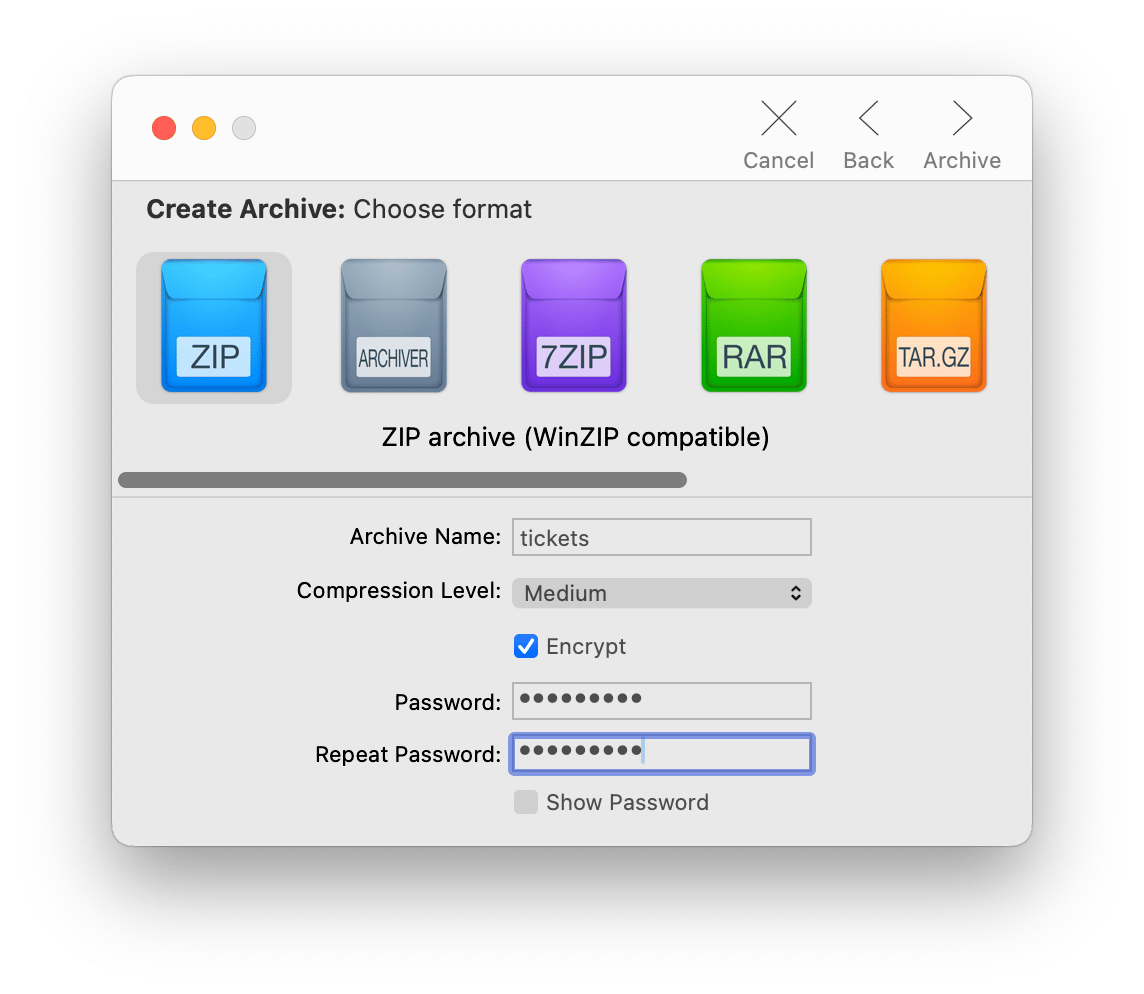
For the closest WinZip replacement, start with Archiver. It previews archive contents before extracting, supports password-protected archives, and works with a clean drag-and-drop interface built for Mac.
Need to edit archives without extracting? BetterZip is the power-user pick. It lets you rename, delete, and add files directly inside an archive — a workflow few other tools on Mac support.
Free tools cover most use cases. The Unarchiver handles extraction across 40+ formats, including legacy ones. Keka adds archive creation and AES-256 encryption, also for free via the developer's site.
Keep your Downloads folder clean after extracting. Pair any archiver with CleanMyMac for junk removal and Gemini 2 for duplicate cleanup. Archiver, BetterZip CleanMyMac, and Gemini are all on Setapp — try them before you pay for anything. Get 250+ Mac apps free for 7 days — one membership replaces the WinZip license and the cleanup tools.
When I used Windows, WinZip was my choice when it was time to archive or compress files. Even though it’s not free, it was a decent tool. But since I’m a Mac user, I no longer feel comfortable with WinZip. I wanted something new to try (especially given the wide range of tools constantly being released). That’s how I decided to test all the WinZip alternatives.
So, below I’ll show you the best WinZip alternatives, their pros and cons, and what you should pick once you finish reading the article. Let’s go!
Top WinZip Alternatives for Mac (Detailed comparisons)
Below are the strongest WinZip-style replacements for macOS I found, ranging from simple free extractors to power-user archive managers. The focus here is on what actually changes your workflow: previewing archive contents, encryption, Finder integration, and whether the app is GUI-first or command-line-first.
Comparison table: WinZip vs. top Mac alternatives
Here’s the quick overview of WinZip alternatives before we go into details:
Not sure which archive format to use or which tool fits your specific workflow? The Productivity Tools GPT assistant can help you think it through — describe what you compress and share most, and it'll point you to the right app.
Archiver: Best choice for most Mac users who want a WinZip-like replacement
If you want the WinZip alternative (create + open + extract archives) but with a Mac-native feel and none of the license juggling, Archiver is the first one I’d try. The interface is simple and feels native to Mac. All you have to do is drag and drop the file (or batch of files) chose the compression format, and that’s it.
Plus, you can encrypt and even review files before compressing.
In my testing, it’s the smoothest option because it’s handled through Setapp — updates are automatic, and you’re less likely to end up with sketchy download portals.
Get Archiver if:
You regularly download ZIP/RAR/7z files and want one app to open them reliably.
You care about previewing contents before extracting (a common WinZip switching reason).
You need password protection/encryption for sharing files securely.
You need a tool built for macOS usability and Finder-friendly habits (right-click workflows, quick actions)
Pros:
Clean, Mac-friendly UI with drag-and-drop workflows.
One of the decent WinZip replacements: Create + extract, plus password protection.
Cons:
Doesn't support every niche archive format out of the box (some older or less common formats may need a different tool).
BetterZip: Best choice for power users who need preview + edit-in-archive (No full extraction)
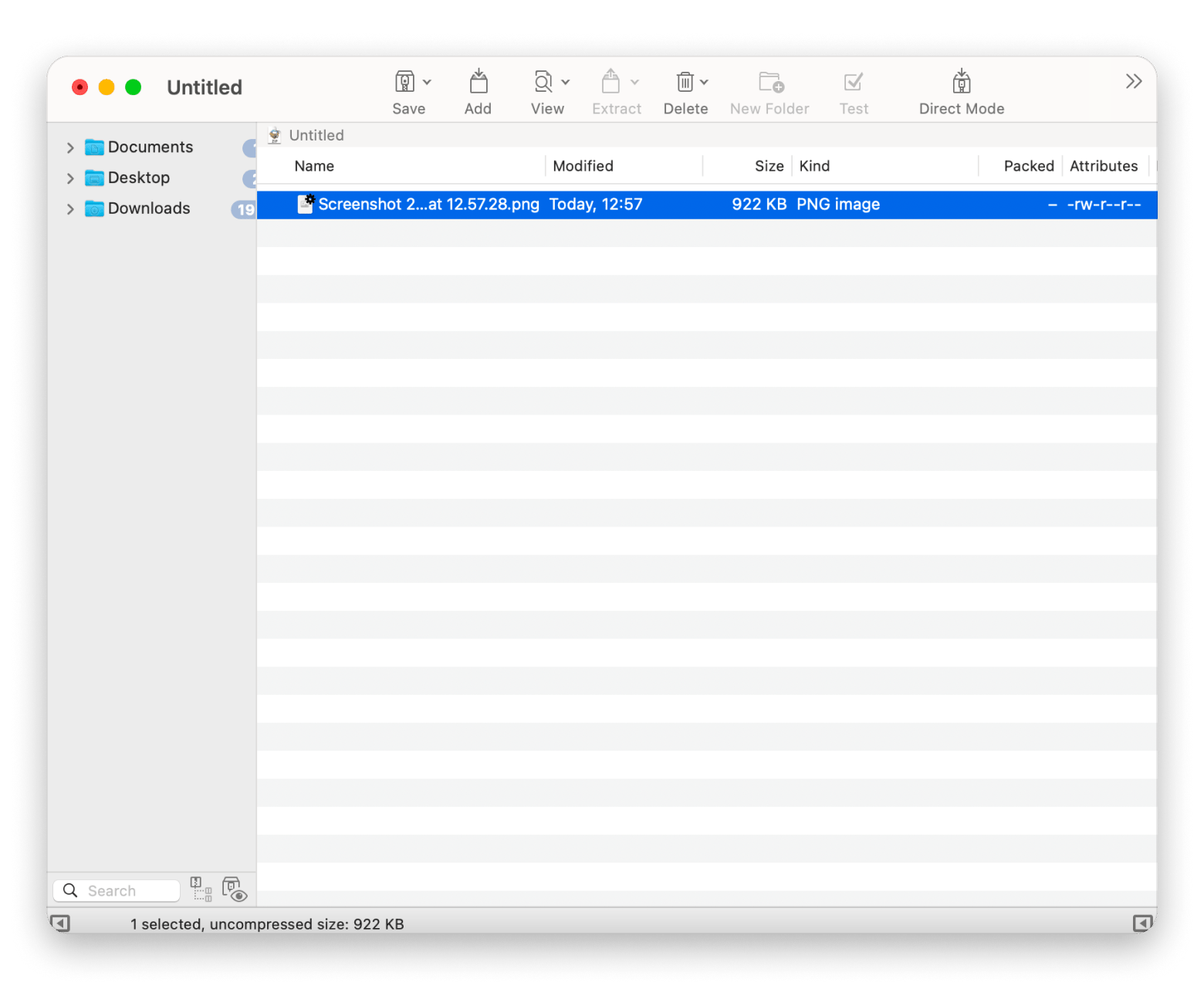
BetterZip is the closest thing I’ve tested to a “pro” archive manager on Mac. It’s built around a workflow WinZip users often ask for: preview what’s inside, then edit the archive contents without fully extracting — rename, delete, add files, and even round-trip edits back into the archive.
It handles over 20 formats, supports AES-256 encryption for sensitive files, and integrates deeply into macOS through Finder menus, AppleScript, and Automator.
If you only unzip files occasionally, it might feel like more than you need. But if archives show up in your workflow every day, BetterZip wins.
Get BetterZip if:
You want Quick Look into archives and the ability to modify archives in place.
You handle sensitive or professional files and want AES‑256 encryption.
You want automation: Finder integration, Services, AppleScript, Automator.
Pros:
Preview and inspect files without extracting first.
If you only decompress files a few times a month, some features will go unused. A free Setapp trial is available, so it's easy to judge for yourself before committing.
Keka: Best option if you want a Mac-native archiver with strong encryption and zero subscription
Keka is one of the nicest classic Mac utility archivers I’ve used. It covers both creation and extraction, supports splitting archives, and gives you meaningful encryption options without pushing you into a subscription model. The app has reasonable pricing, so if you're looking for something similar to WinZip but more affordable, Keka could be a good choice.
Overall, Keka is easy to use and does exactly what you'd expect from a compression app. Plus, it supports many different formats.
Source: visionslist.com
Get Keka if:
You want a straightforward Mac app for creating/extracting archives.
You care about encryption and sometimes need split archives.
You want a free option via the developer site (with an optional paid App Store version to support development).
Pros:
Creates and extracts many formats.
Encryption: AES‑256 for 7z; ZIP uses Zip 2.0 legacy encryption.
Splits large files into pieces.
Cons:
Setting it as the default extractor requires a helper tool.
If your #1 WinZip feature is “preview contents before extracting,” Keka’s official positioning emphasizes archiving/extraction rather than a preview-first workflow (so I’d verify this against your needs).
The Unarchiver: Ideal for people who mostly need to extract anything old-style
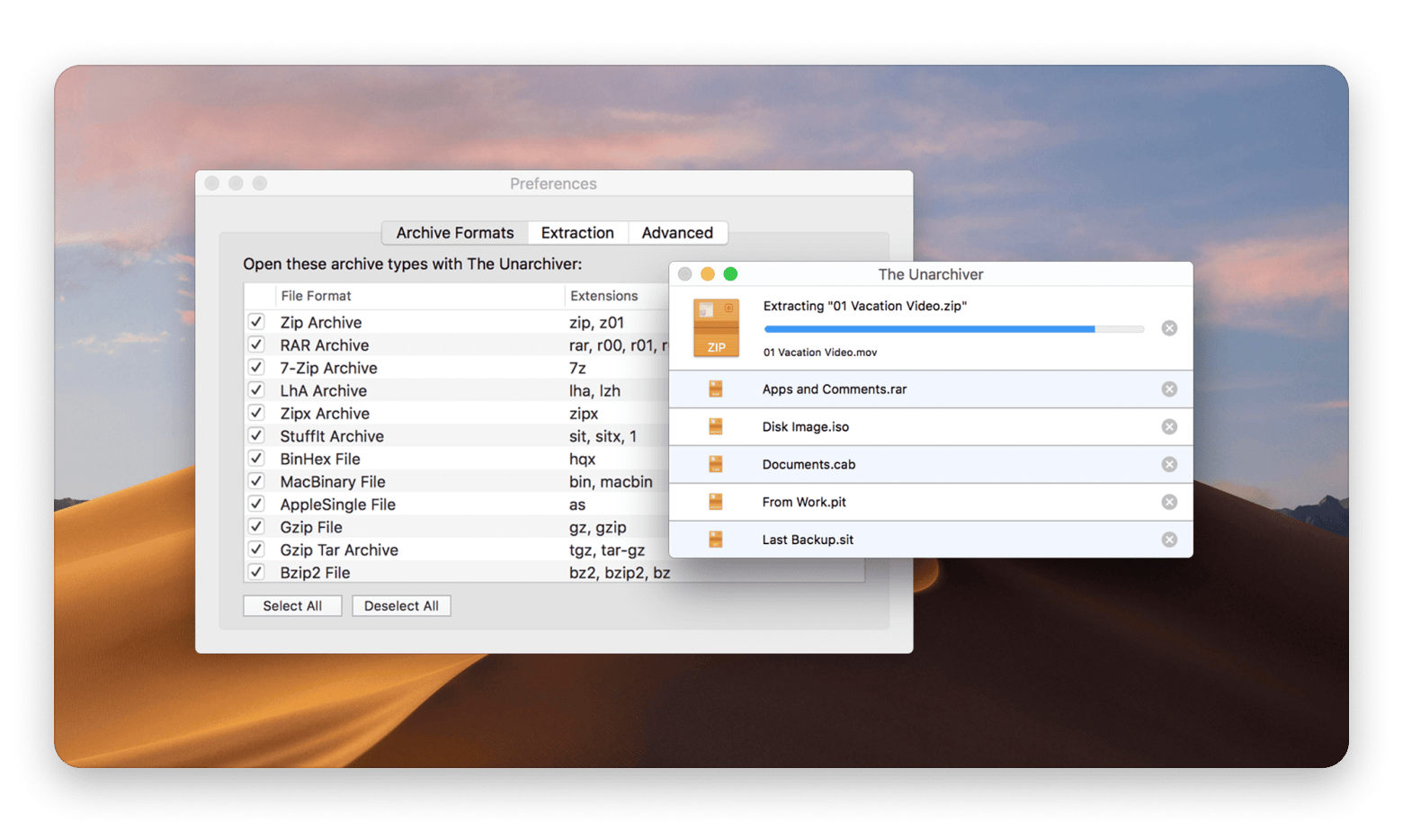
When someone tells me, “I just need to open whatever archive people send me,”The Unarchiver is often the simplest answer. In my experience, it’s the easiest way to extract, especially when dealing with older or unusual archive formats.
You set it as your default once and then forget it's even installed. That's what makes it good.
Source: theunarchiver.com
Get The Unarchiver if:
You primarily extract files (ZIP/RAR/7z/etc) rather than build archives all day.
You deal with legacy formats (old StuffIt-style archives and similar).
Pros:
Wide format support, including ZIP/ZIPX/RAR/7z/TAR/GZip/BZip2/ISO and many more.
Supports ZIP features including Zip64 and AES-encrypted ZIP extraction, and supports ZIPX modes introduced by WinZip.
Cons:
Creating archives isn't its strong suit. If that's a regular part of your workflow, Keka or BetterZip will serve you better.
No preview before extracting, so you can't browse an archive's contents first and pull out just the files you need.
PeaZip: Best choice if you want a free, open-source do-it-all archive manager with security tools
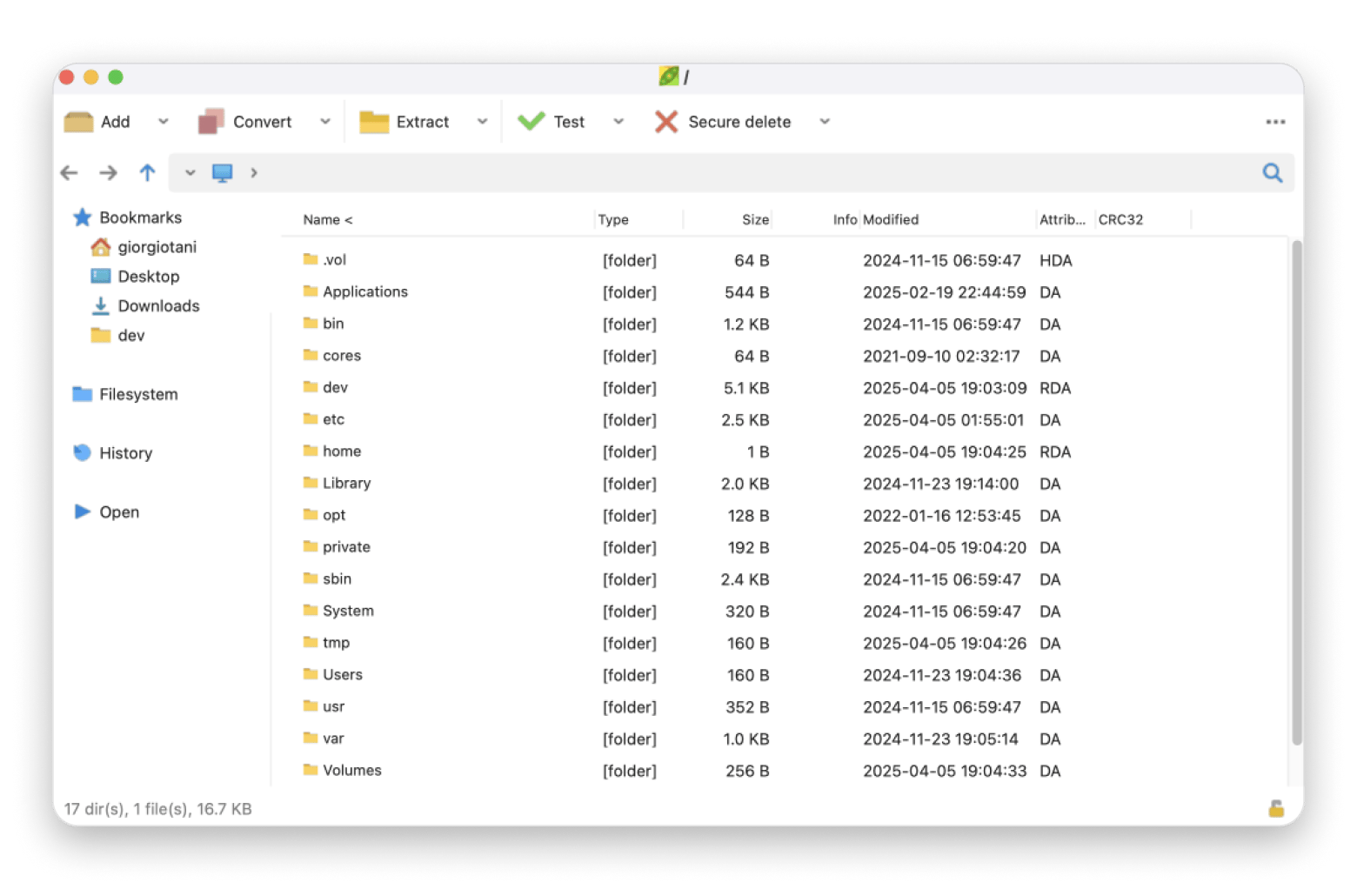
PeaZip is a free, open-source program that supports a huge number of archive formats and includes security-oriented features. I tried it a few times, and it feels powerful, but it can feel less pure Mac app and more like a cross-platform tool that happens to run well on macOS.
But still, you can create a fresh archive or add files to an existing one, choose between a single volume or split the archive into chunks. It's useful if you're targeting a specific medium, like a USB drive or a file size limit.
Source: peazip.github.io
Get PeaZip if:
You want an archive manager (not just an extractor).
You care about encryption/security features and broad format support.
You’re okay following a one-time setup step if macOS blocks the app on first launch.
Pros:
Free and open-source (LGPLv3; free for any use).
Supports extensive archive formats (over 200).
Security features include encryption, plus other features like hashing and script export.
Cons:
macOS may quarantine the app, but PeaZip’s official macOS page includes instructions to remove quarantine via xattr.
You can't preview archive contents using the macOS spacebar preview the way you can with some native alternatives.
Unzip One: Best option if you want a Mac App Store install plus preview-before-extract
If your priority is installing from the App Store and previewing files before extracting, Unzip One is worth a look. It supports the most common formats, like ZIP, RAR, 7z, TAR, and a handful of others, and lets you browse an archive's contents before committing to a full extraction, which saves a lot of unnecessary clutter in your Downloads folder.
It's sandboxed, which means it plays by Apple's rules and won't raise any security flags on first launch.
Get Unzip One if:
You prefer App Store installs/updates.
You want a preview without extracting (explicitly stated).
You want broad extraction support (RAR, ZIP, 7z, gzip, bzip2, ISO, etc.).
Pros:
Compress files with a password and high-level encryption.
Clean, straightforward interface that follows standard macOS conventions.
Cons:
You can extract archives, but you can't build or modify them from within the app.
Fewer automation options: No AppleScript, Automator, or deep Finder integration like BetterZip offers.
7‑Zip (macOS console): Best choice if you’re comfortable in Terminal and want maximum compression for free
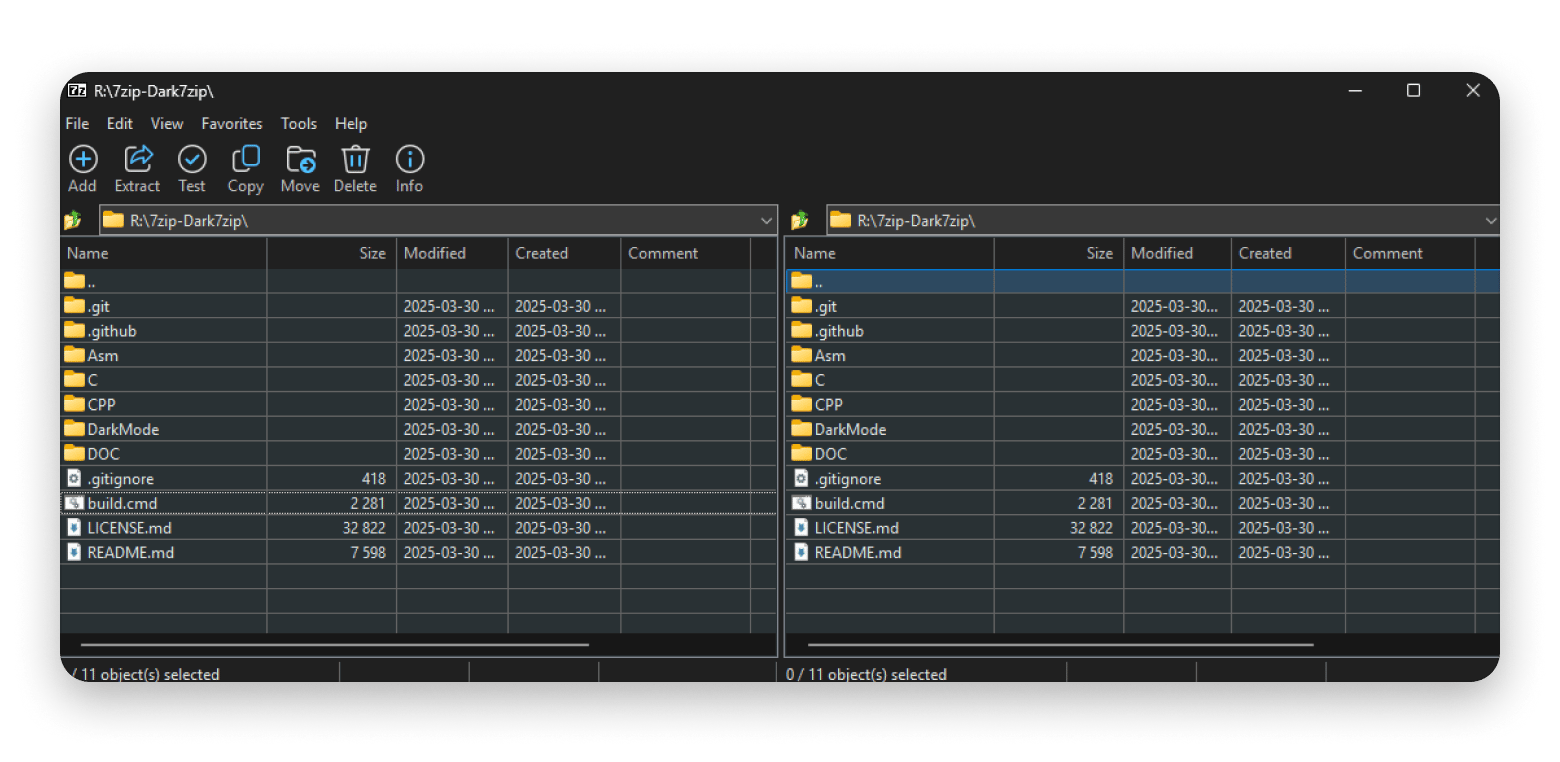
7‑Zip is famous for high compression ratios and strong encryption — those strengths carry over to macOS, but the official macOS build is console-only. In practice, that means it’s ideal for developers/IT folks and less ideal for people who want a Finder-first GUI.
The compression results are impressive, with smaller file sizes than most GUI tools, especially using 7z. But the moment you step outside Terminal, there's nothing there. Every action is a command you type manually, which is fine if that's already how you work. But I found myself double-checking the syntax more than I was actually compressing files, which tells you something about who this tool is really built for.
If you live in Terminal and care about squeezing every kilobyte out of an archive, 7-Zip is worth trying.
Source: github.com
Get 7-Zip if:
You’re comfortable using Terminal (or scripting).
You want free, open-source compression with AES‑256 in 7z/ZIP.
You want to standardize compression behavior across platforms.
Pros:
Free and open-source.
High compression with LZMA/LZMA2.
AES‑256 encryption in 7z and ZIP.
Cons:
No official Mac GUI integration (Finder extensions / Quick Look) is described for the macOS version.
If you just want to zip a folder without thinking about it, every other option on this list will serve you better.
RarLab (WinRAR-style): Best option if you specifically need RAR creation via command line
I tested RarLab for basic archive creation and extraction, and it works exactly as advertised — which is to say, it does the job cleanly but gives you nothing beyond the command line. There's no interface, no Finder integration, no drag-and-drop. For most Mac users, The Unarchiver or Keka will handle RAR extraction without any of this. But if you're working in a Windows-heavy environment where RAR is the expected format and you need to create archives (not just open them), this is the only official path on macOS. It's a niche use case, and RAR for macOS knows it.
Get RarLab if:
You work in a Windows-heavy environment where RAR is the standard format, and you need to create archives.
You're already comfortable with Terminal and CLI tools don't slow you down.
You need the official RarLab implementation rather than a third-party RAR handler.
Pros:
Creates RAR archives natively on macOS, which very few tools on this list can do.
Supports strong encryption and solid compression ratios out of the box.
Cons:
Command-line only — there is no GUI, no Finder integration, and no drag-and-drop
RAR as a format is less universal than ZIP or 7z — you're adding format dependency for the people receiving your archives.
No macOS-native feel whatsoever. It behaves like a port, because it is one.
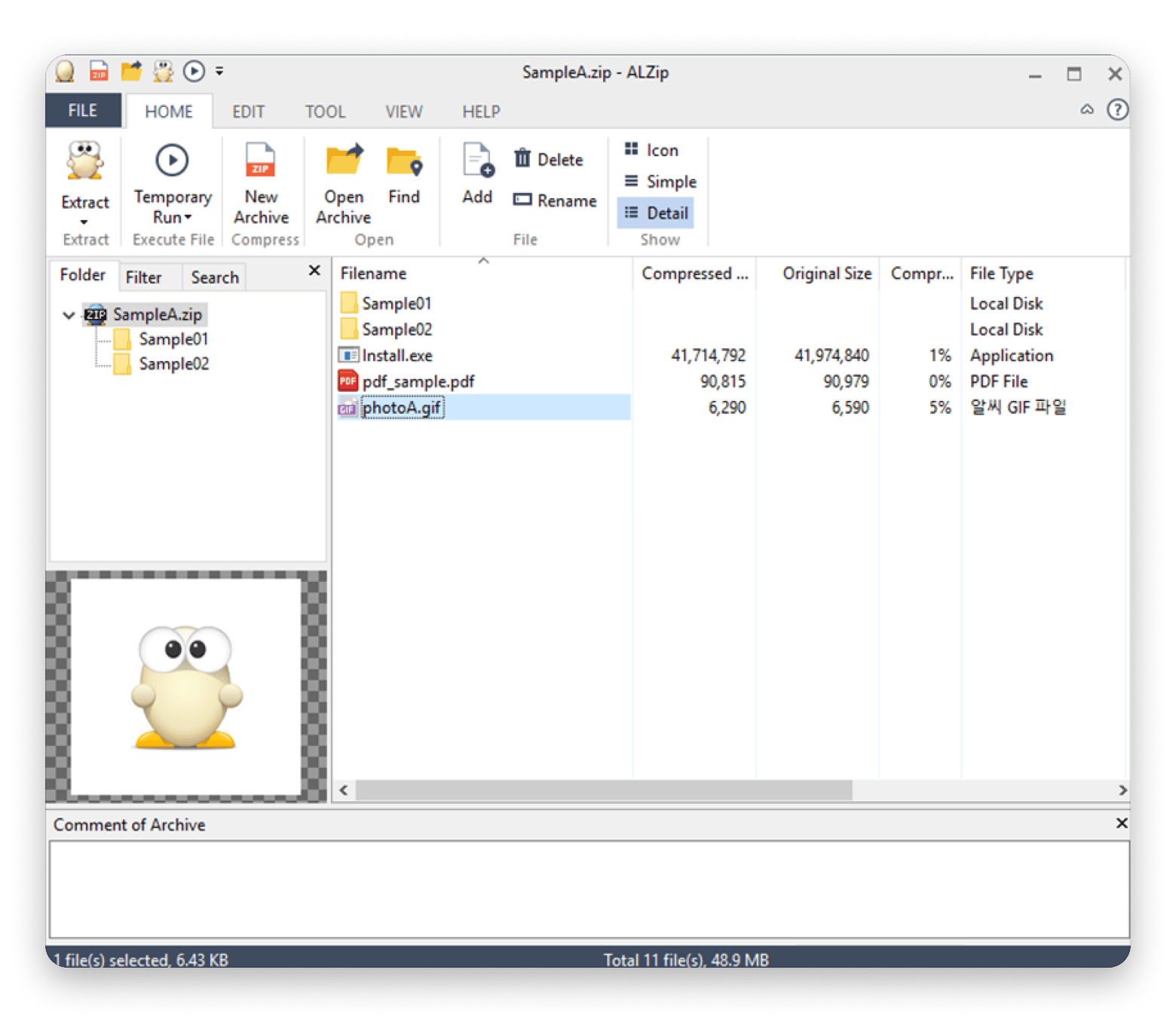
ALZip: Best option if you’re not on a Mac (PC-only)
ALZip occasionally shows up on WinZip alternative lists, but it's worth being direct about this one: it's PC-only. The official product page states it can only be used on PC, so if you're on a Mac, there's nothing to download or test here.
I'm including it because it comes up in searches often enough to cause confusion — someone looking for a WinZip alternative on Mac might land on ALZip and wonder why it won't install. Now you know why. If a colleague or client sends you files created with ALZip, any of the tools earlier in this list will open them without issue. But ALZip itself isn't a macOS option, and there's no workaround for that.
Source: apps.microsoft.com
Get ALZip if:
You're on a Windows PC and need a capable archive manager — it's a solid choice there.
You're not on a Mac.
Pros:
Well-established archive manager with a long track record on Windows.
Handles a wide range of formats on PC.
Cons:
There is no Mac version, no workaround, and no timeline for one.
Shouldn't appear on Mac-focused alternative lists, but it does, which is why it's worth flagging here.
What is WinZip, and why switch to it?
WinZip is a classic “compress and extract” utility: you use it to create ZIPs, open ZIP/RAR/7z downloads, and (often) add extras like encryption and content previews. On Mac, the biggest reasons I see people switch are:
Cost/trial friction. WinZip is explicitly not free
Wanting a more Mac-native workflow in Finder without extra prompts
Summary: Choosing the right WinZip alternative on Mac
Not sure which WinZip alternative to pick yet? Here's a quick summary to help you decide:
I want the closest WinZip replacement with a clean Mac UI: Start withArchiver.
I need preview + pro archive management (edit without extracting, automation): Choose BetterZip.
I want a non-subscription Mac archiver with encryption: Choose Keka.
I mostly just need to open/extract anything for free: Choose The Unarchiver.
I want free + open-source + lots of formats + security tools: Choose PeaZip.
I’m okay with Terminal and want maximum compression/control: Use 7‑Zip (macOS console).
The best WinZip replacement for Mac is already waiting — try it free. Archiver, BetterZip, CleanMyMac, Gemini 2, and 250+ other Mac apps in one Setapp Membership. 7 days free, no commitment needed. Start My Free Trial. Already know which app you want? Find it on the Setapp Marketplace — no membership needed.
FAQ (Based on common WinZip-alternative questions)
Is WinZip not free anymore?
WinZip has never been a free product. It offers an evaluation period to try before buying, but long-term use requires a paid license. On Mac, free alternatives like The Unarchiver and Keka cover extraction and archive creation without any payment. For the closest WinZip-style experience on Mac, Archiver is the most direct replacement — preview contents, extract, and create encrypted archives in a clean Mac-native interface.
What is the free alternative to WinZip?
The best free WinZip alternative depends on the use case. For extracting files across a wide range of formats, The Unarchiver is free and supports over 40 formats, including RAR, 7z, and legacy types. For creating and extracting archives with encryption, Keka is free via the developer's website. For a full open-source archive manager with security tools, PeaZip is free and supports over 200 formats.
Which ZIP app is best?
For most Mac users, the best ZIP app depends on workflow. Archiver is the most complete WinZip replacement. It handles preview, extraction, and encrypted archive creation in a straightforward Mac interface. BetterZip is the stronger choice for power users who need to edit archives in place without extracting. Keka is the best free all-rounder for both creating and extracting archives.
Is there a free WinZip version?
No, WinZip does not offer a free version. An evaluation copy is available for download, but continued use requires purchasing a license. Free Mac alternatives that cover the same core functionality include The Unarchiver for extraction, Keka for creation and extraction, and PeaZip for a full open-source suite.
BetterZip for in-archive editing and Quick Look integration
The Unarchiver for free extraction across a wide range of formats
For users who specifically need to preview archive contents before extracting (one of WinZip's most-cited features), both Archiver and BetterZip support this directly.
Free zip file opener alternatives to WinZip?
The three most practical free ZIP openers for Mac are:
The Unarchiver, which supports the broadest range of formats
Keka, which handles both opening and creating archives
Unzip One, which is available on the Mac App Store and includes a preview before extracting.
Get a reliable archiver app
Compress and unpack any files on Mac with Archiver.






 Best solution
 Best solution